Windows 11 22H2 Feature Pack Deployment Cloud
This page explains how to deploy the Windows 11 22H2 feature update using Patch Manager Plus Cloud — covering prerequisites, ISO upload methods for both roaming agents and agents behind a Distribution Server, patch IDs by edition and upgrade path, and language-specific ISO file names.
Overview
Released in September 2022, Windows 11 22H2 is a feature update for Windows 11. For a full list of what's new, refer to the official Microsoft Windows 11 release information page. Microsoft recommends upgrading directly to Windows 11 22H2 from your existing version of Windows — you do not need to deploy any intermediate versions.
Prerequisites
Complete the following checks before beginning the deployment.
- Run the Compatibility Check available under the Important Notes section on the Microsoft Windows 11 specifications page to confirm all target systems meet the minimum requirements that affect upgradeability.
- Enable the Feature Pack option in Patch Database Settings: navigate to Admin → Settings → Patch Database Settings, click the Windows tab, and enable the Feature Pack option.
- Confirm that feature pack updates have not been declined under Decline Patches.
Patch IDs by Edition and Upgrade Path
Use the correct main patch ID and dependency patch ID based on the source OS version and the target edition. The dependency ISO must be uploaded before the main patch can be deployed.
Upload the ISO File
The dependency ISO file must be uploaded before the main feature pack patch can be deployed. The upload destination and method differ depending on whether the target agents are roaming agents or agents managed through a Distribution Server.
Roaming Agents (Direct Download Enabled)
For roaming agents and agents with direct download enabled, download the Windows 11 22H2 ISO file and upload it using the console. Once uploaded, deploy the patches using the patch IDs from the Patch IDs table above:
- If upgrading within Windows 11 versions: deploy from the Missing Patches view.
- If upgrading from Windows 10 to Windows 11 22H2: deploy from the Supported Patches view.
Agents Under a Distribution Server
For agents managed through a Distribution Server, the ISO file must be placed in the Distribution Server's store directory rather than the central patch store. Two methods are available.
Method 1 — Manual Placement in the Distribution Store
- Download the Windows 11 22H2 ISO file from the Microsoft 365 Admin Center or by referring to this page.
- Locate the Distribution Server store directory: <DS_INSTALL_DIR> → Replication → Store.
- Copy the downloaded ISO file into the distribution store directory and rename it according to the conventions below.
English ISO file names (64-Bit):
- Enterprise edition:
109941-Win11_22H2_en_enterprisex64.iso - All other editions:
109939-Win11_22H2_enx64.iso
For deployments in multiple languages, download the ISO for each required language and place all files in the distribution store. See the language-specific ISO filename table below for the correct filename for each language.
Method 2 — Upload from the Error Prompt
- Download the Windows 11 22H2 ISO file from the Microsoft 365 Admin Center or by referring to this page.
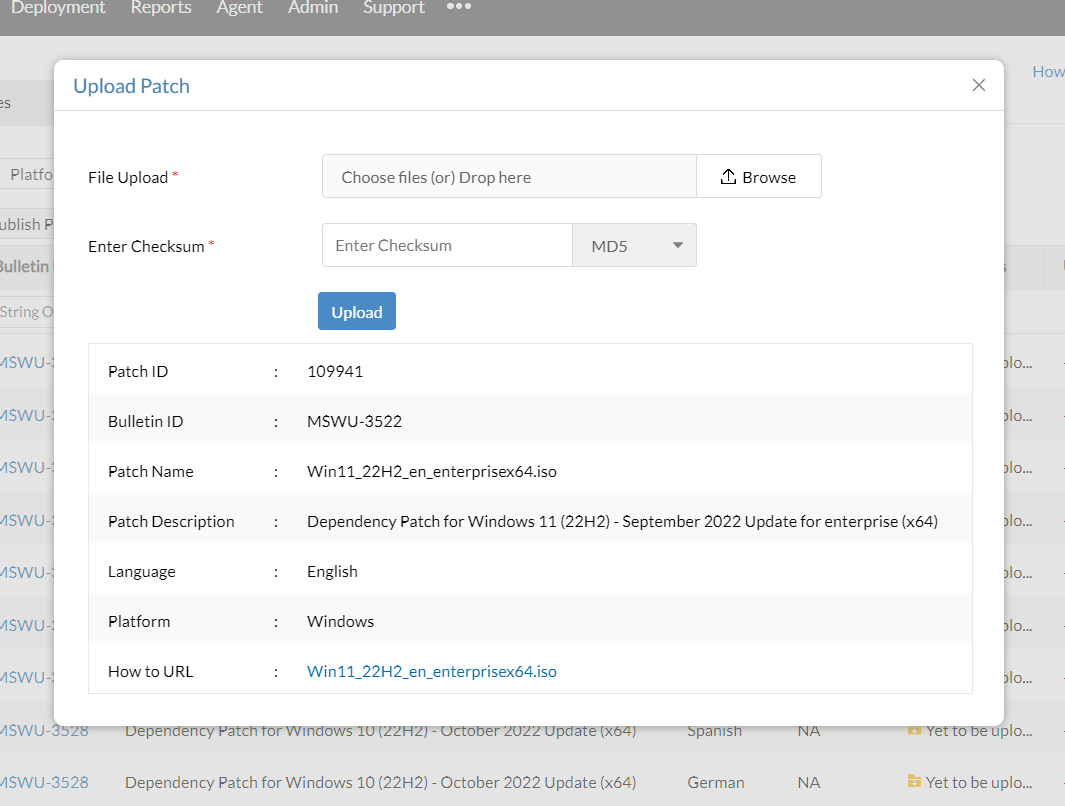
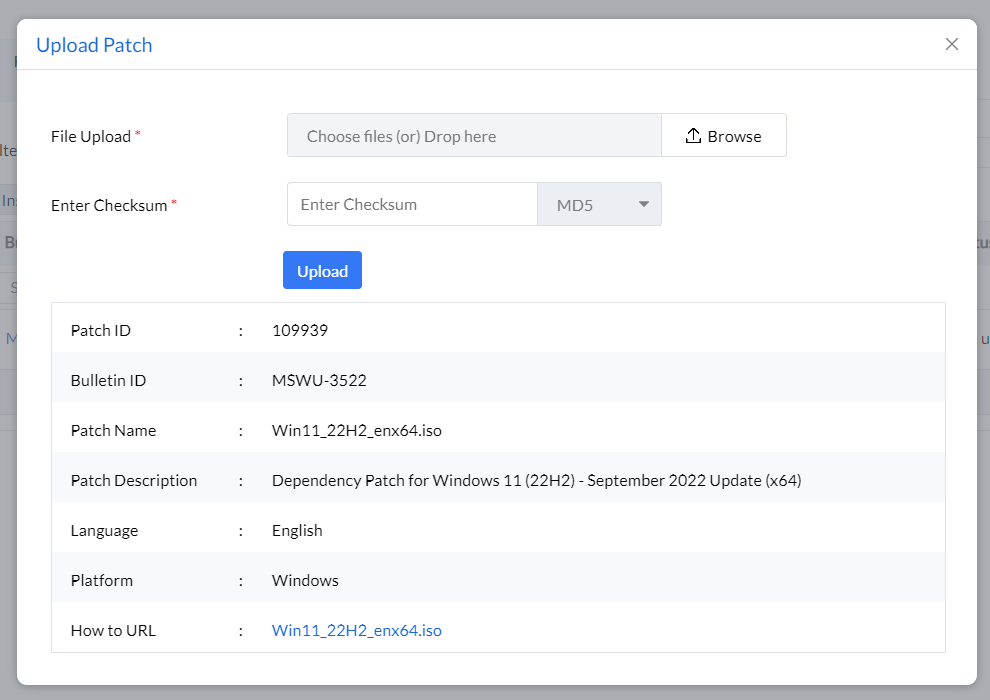
- Click Upload next to the Download failed error message.
- In the pop-up window, browse and select the downloaded ISO file.
- Choose a Checksum type (MD5 or SHA256).
- Enter the checksum value and wait for validation.
- Once validated, click Upload. The patch is ready to install once the upload completes.
The screenshots below show the upload dialog for each edition.
Enterprise Edition (Dependency Patch ID 109941)
Professional and Other Editions (Dependency Patch ID 109939)
Deploy the Windows 11 22H2 Feature Pack
Once the dependency ISO has been uploaded, deploy the main patch from the console using either a manual configuration or an Automated Patch Deployment task.
Manual Deployment — Upgrading from Windows 11
- In the server web console, navigate to the Missing Patches view.
- Select the applicable Windows 11 22H2 feature pack patch from the Patch IDs table above.
- Click Install Patch to deploy.
Manual Deployment — Upgrading from Windows 10
- In the server web console, navigate to the Supported Patches view.
- Select the applicable Windows 11 22H2 feature pack patch from the Patch IDs table above.
- Click Install Patch to deploy.
Automated Patch Deployment (APD)
- When creating an APD task, select the Feature Pack checkbox while defining the patch task criteria.
- Once the dependency ISO is in the patch store, the feature pack will deploy automatically to target computers during the next scheduled deployment window. A separate on-demand configuration can also be created for a specific patch if required.
Language-Specific ISO File Names
Rename the downloaded ISO file to match your language and edition before placing it in the distribution store. Use the table below to find the correct filename.
Frequently Asked Questions
Yes, it is safe to update to Windows 11 version 22H2. However, it is generally recommended to take a backup of your system before upgrading to prevent data loss from unexpected issues.
To deploy the Windows 11 22H2 feature update via Patch Manager Plus, navigate to Admin → Settings → Patch Database Settings, click the Windows tab, and enable the Feature Pack option. Then follow the steps in the Deploy the Feature Pack section above.
To install the Windows 11 22H2 feature update, the device must be running Windows 10 version 2004 or a later version. For a complete list of system requirements, refer to the Windows 11 specifications page.