How to configure SAML authentication settings in Central Server for Azure SSO?
In Central Server
Description
This document will walk you through the steps required to configure SAML Authentication settings in Central Server for Azure.
Note: If the FQDN in the ACS URL is different from the one mentioned in the NAT Settings, then go to <Installation_directory>/Desktop Central server/conf/websettings.confand, in a new line, type saml.fqdn.name=FQDN_Name. Here, FQDN_Name represents your FQDN name.
For example: saml.fqdn.name=dc.com. Here, dc.com is the FQDN name. After saving the websettings.conf file, restart the Central Serverserver and reconfigure the SAML Authentication settings.
Installation Steps
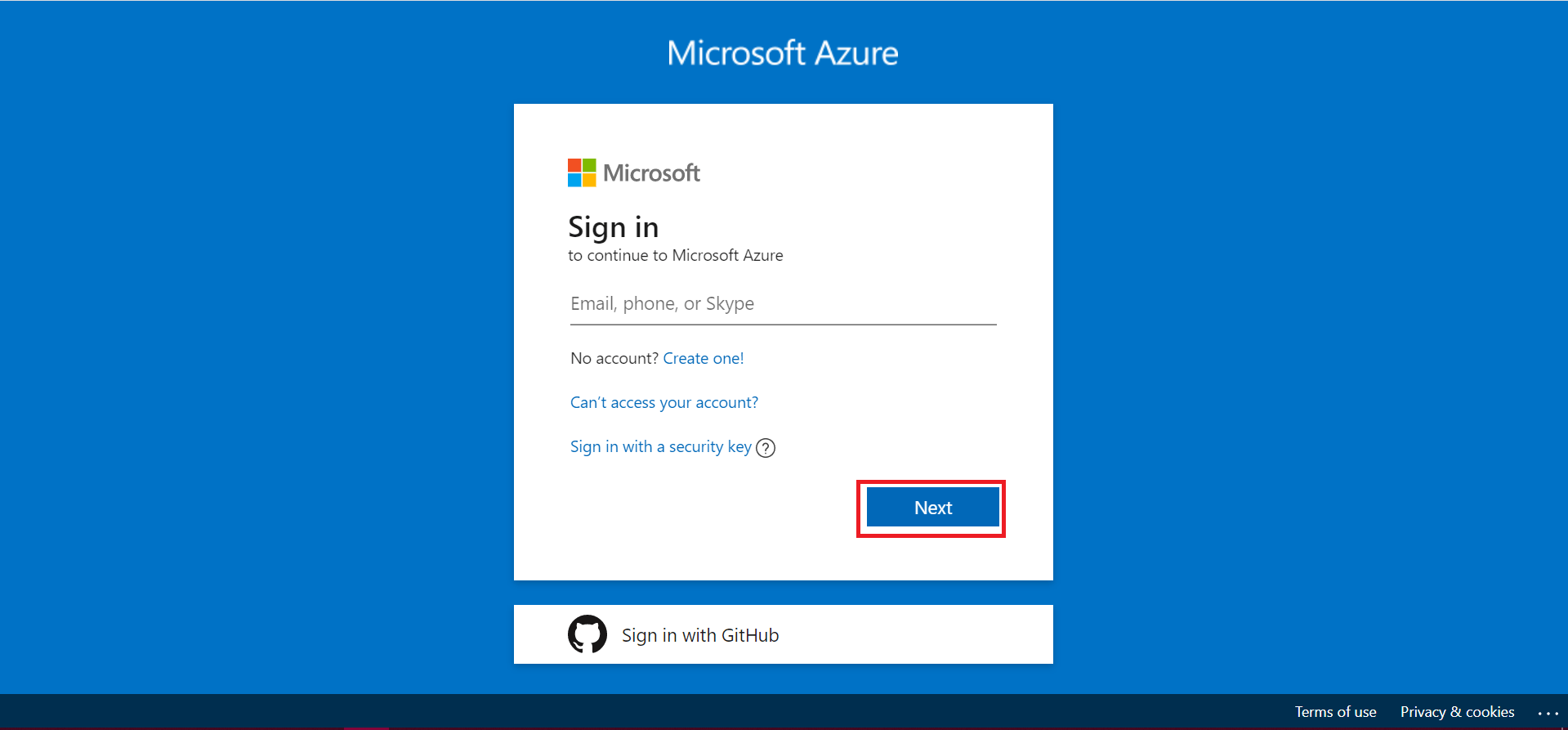
- Login to your Azure account using https://portal.azure.com and enter your email address. After that, click Next.
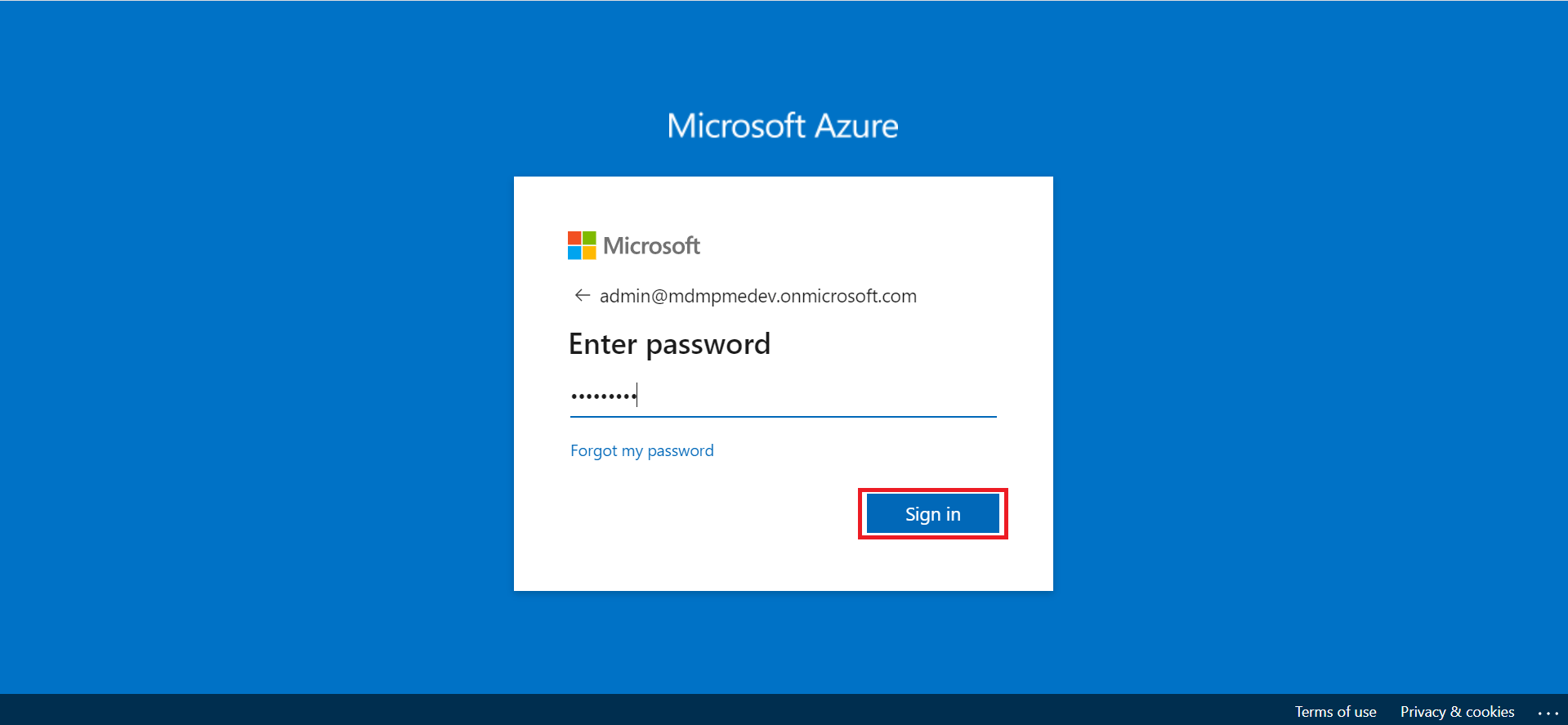
- Enter the password and click Sign in.
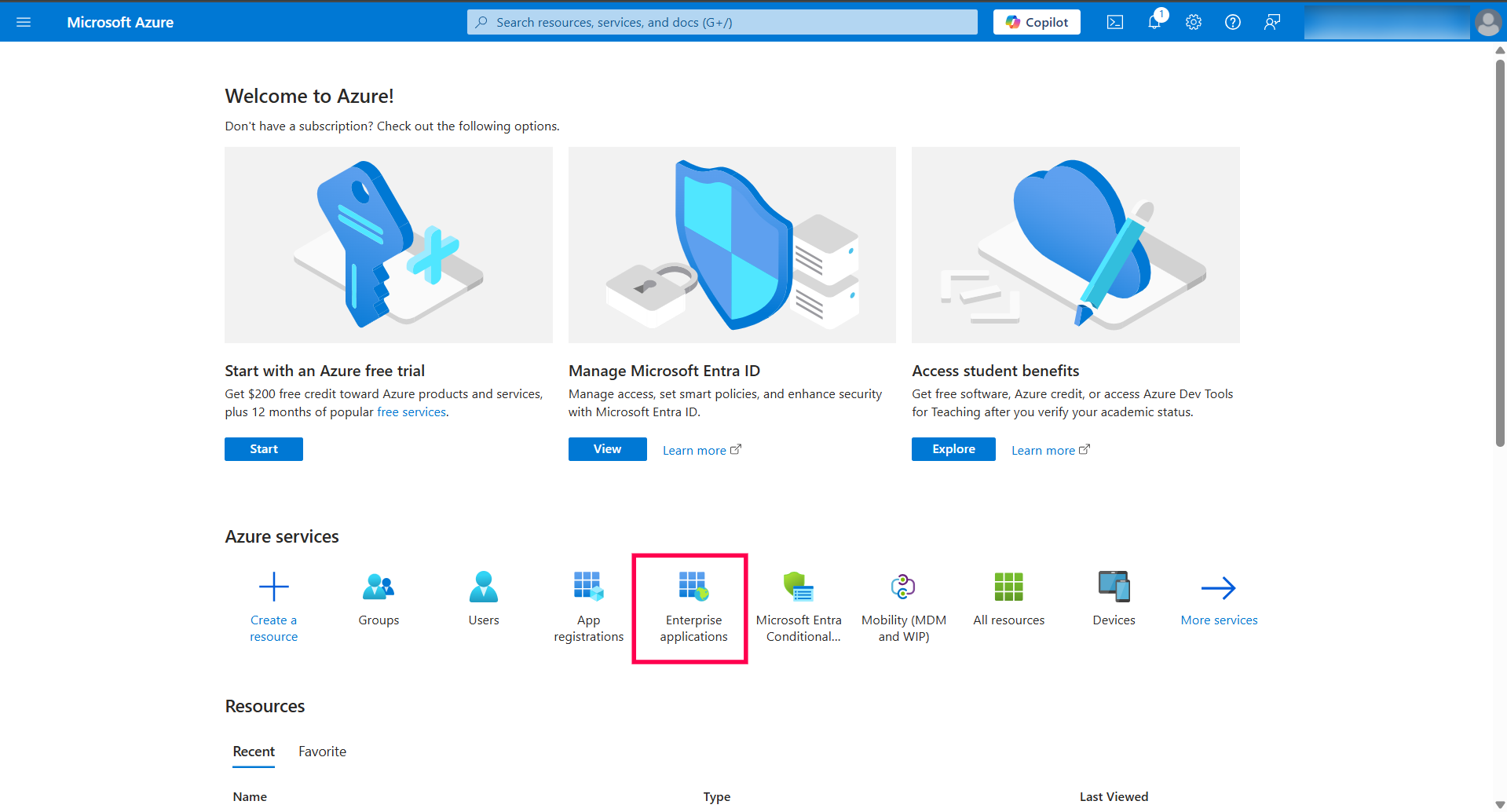
- Select Enterprise applications.
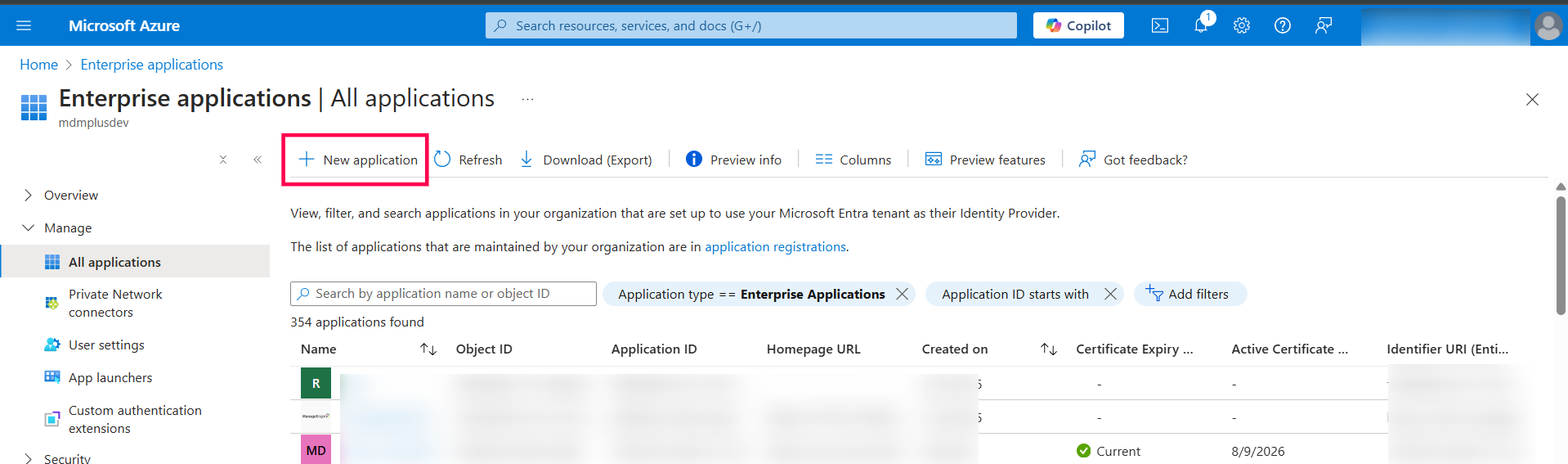
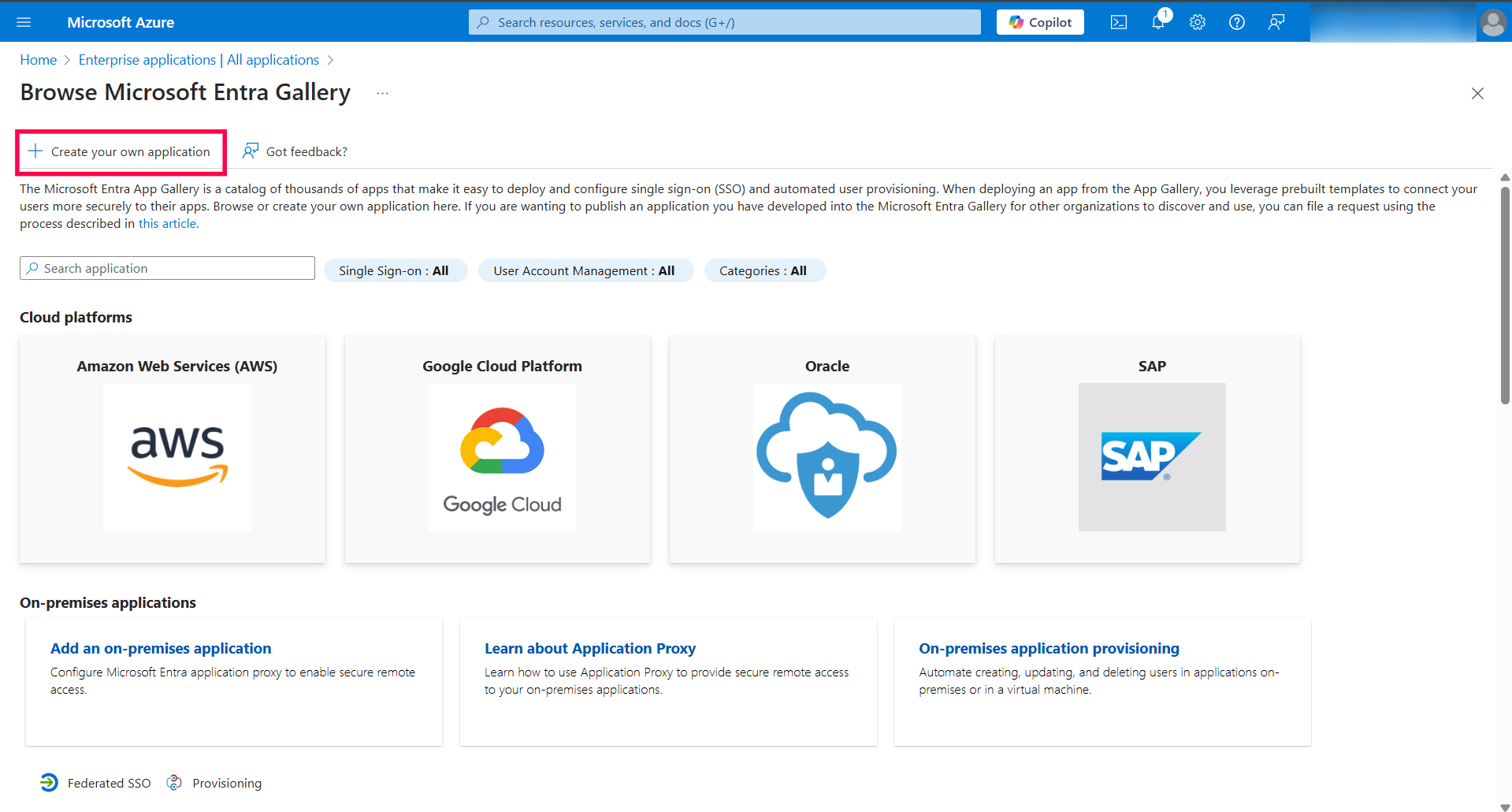
- Select New application.
- On the left hand side, and select + Create your own application.
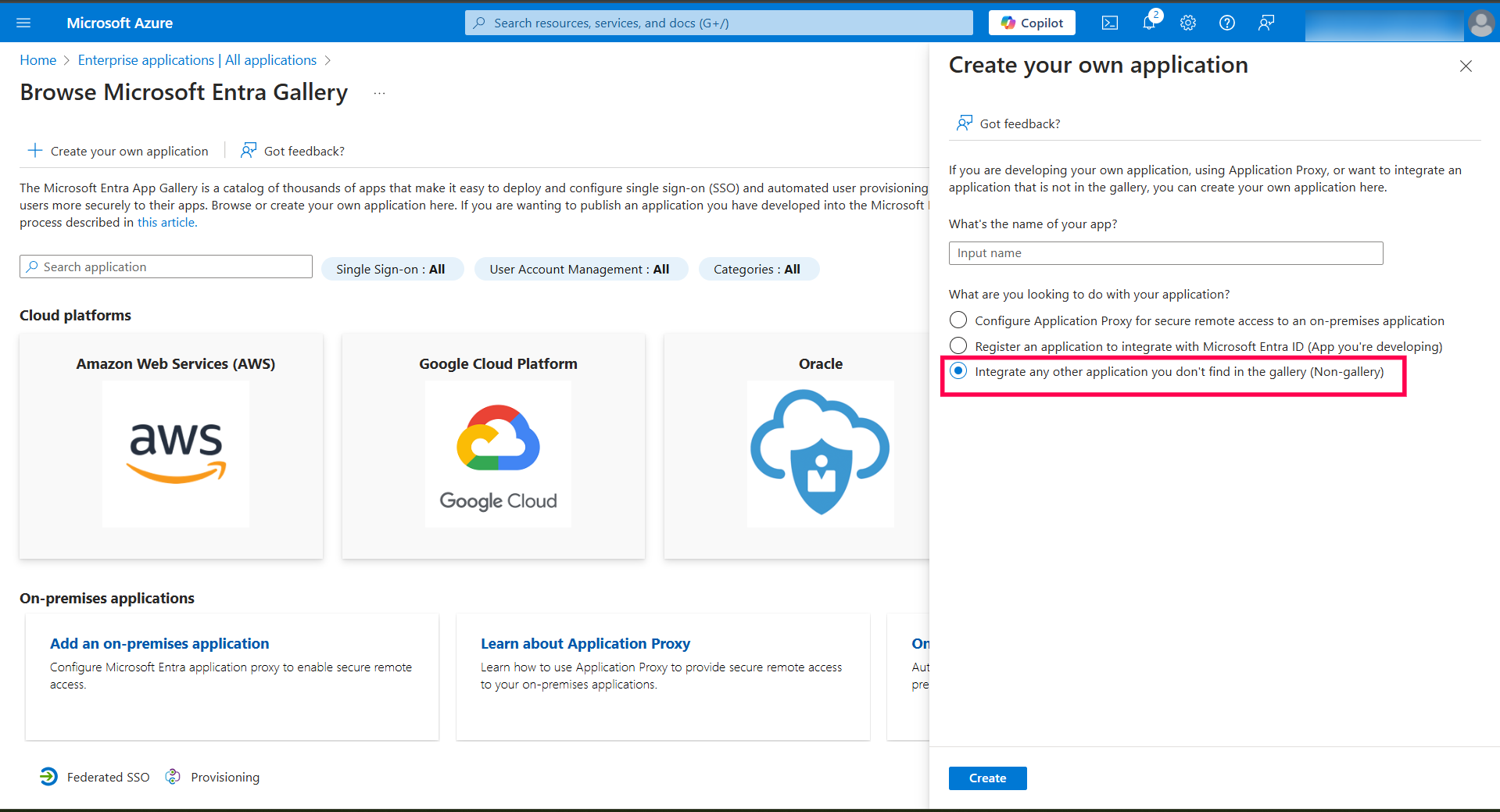
- Select Non-gallery application on the right hand side.
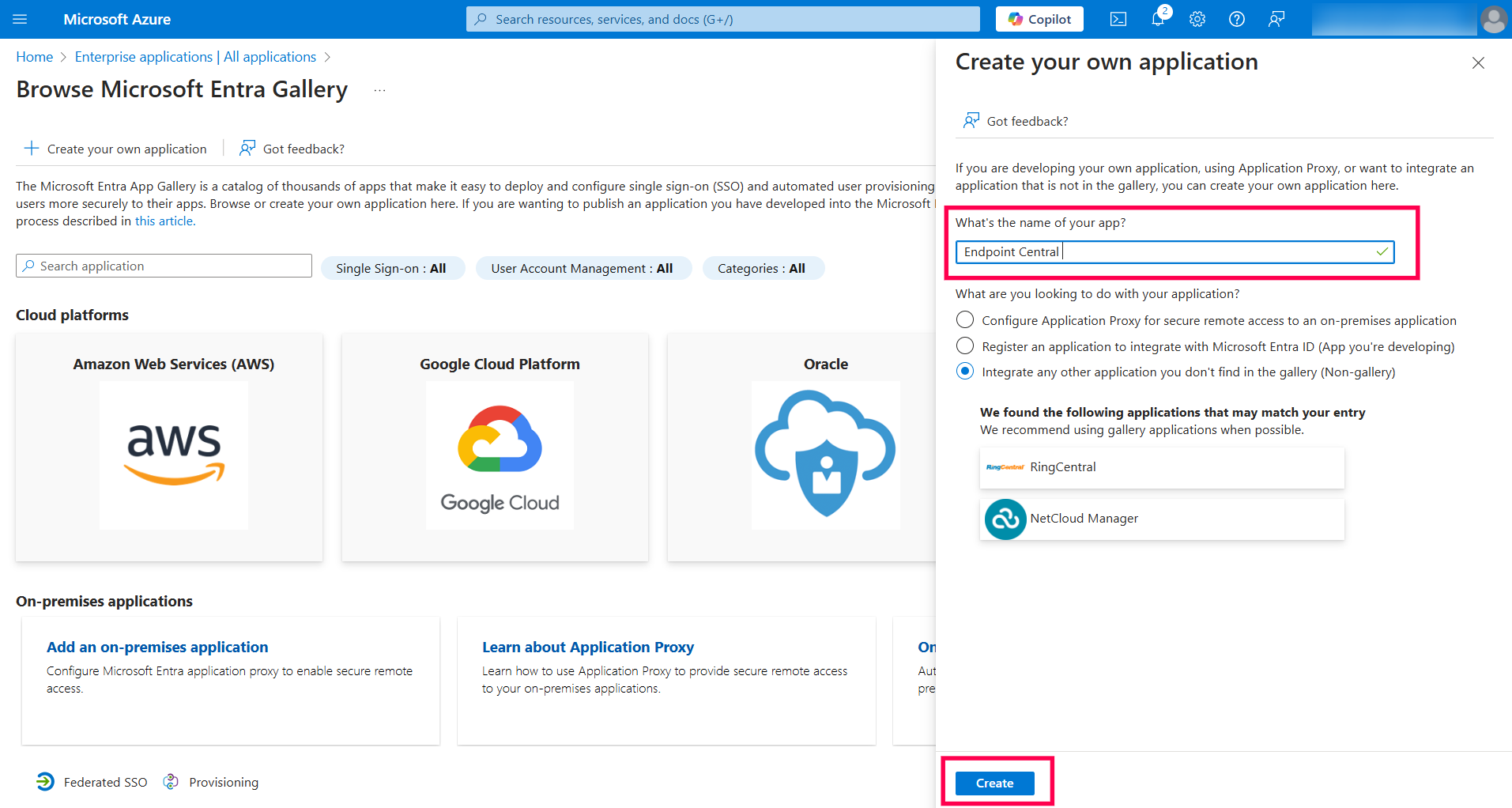
- Provide an appropriate app name and click Create.
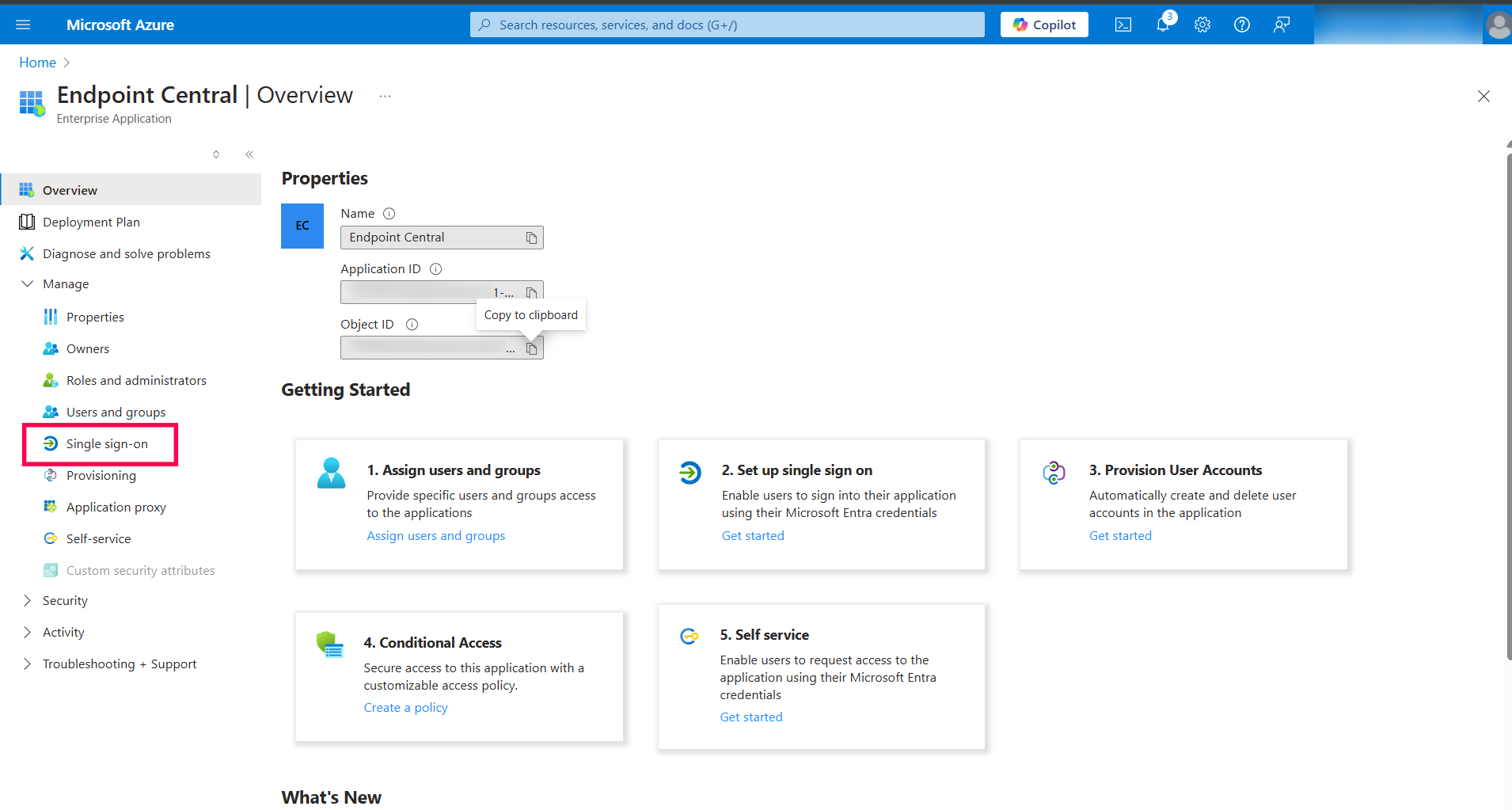
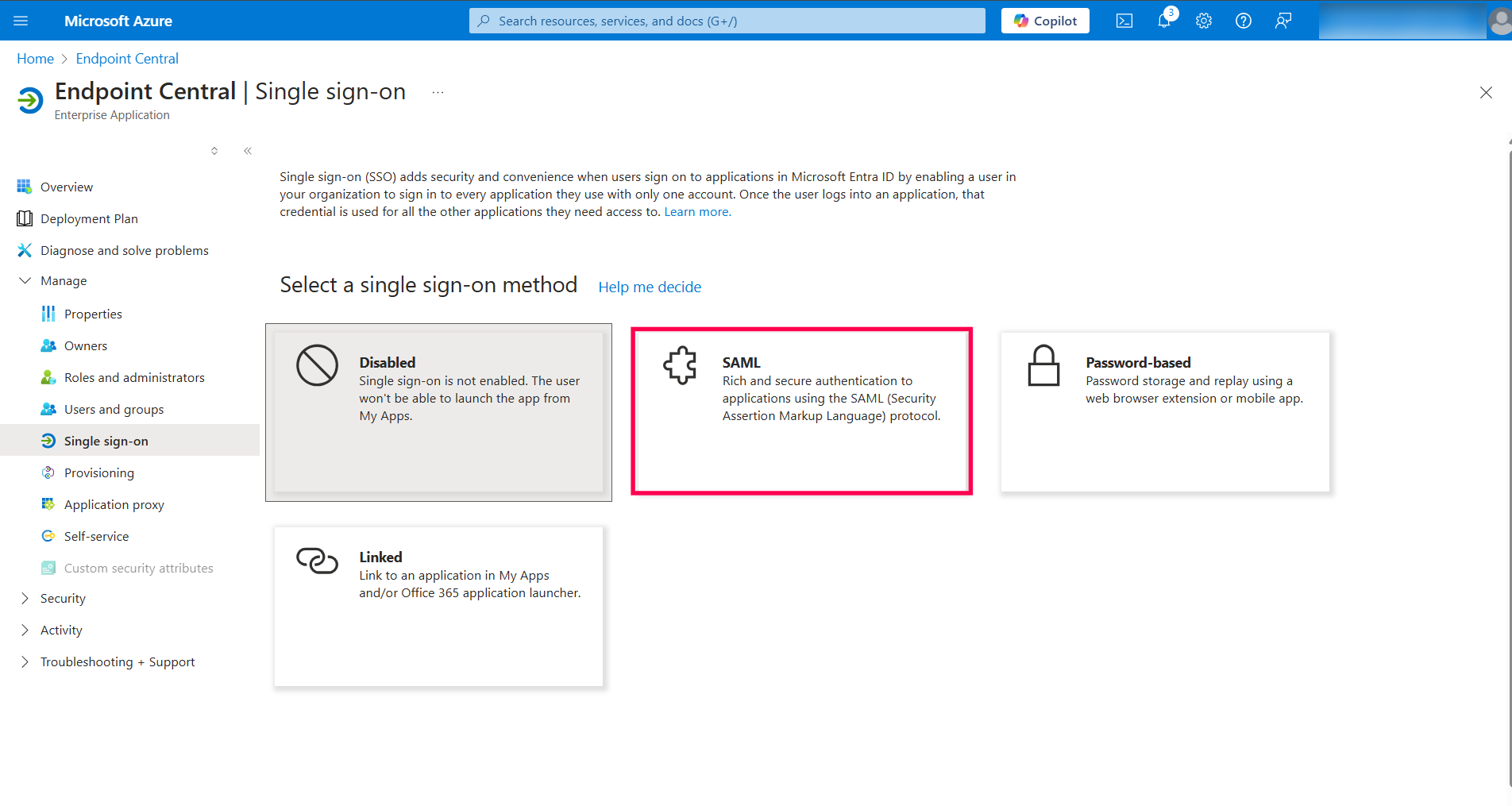
- On the left hand side menu, click Single sign-on.
- Select SAML.
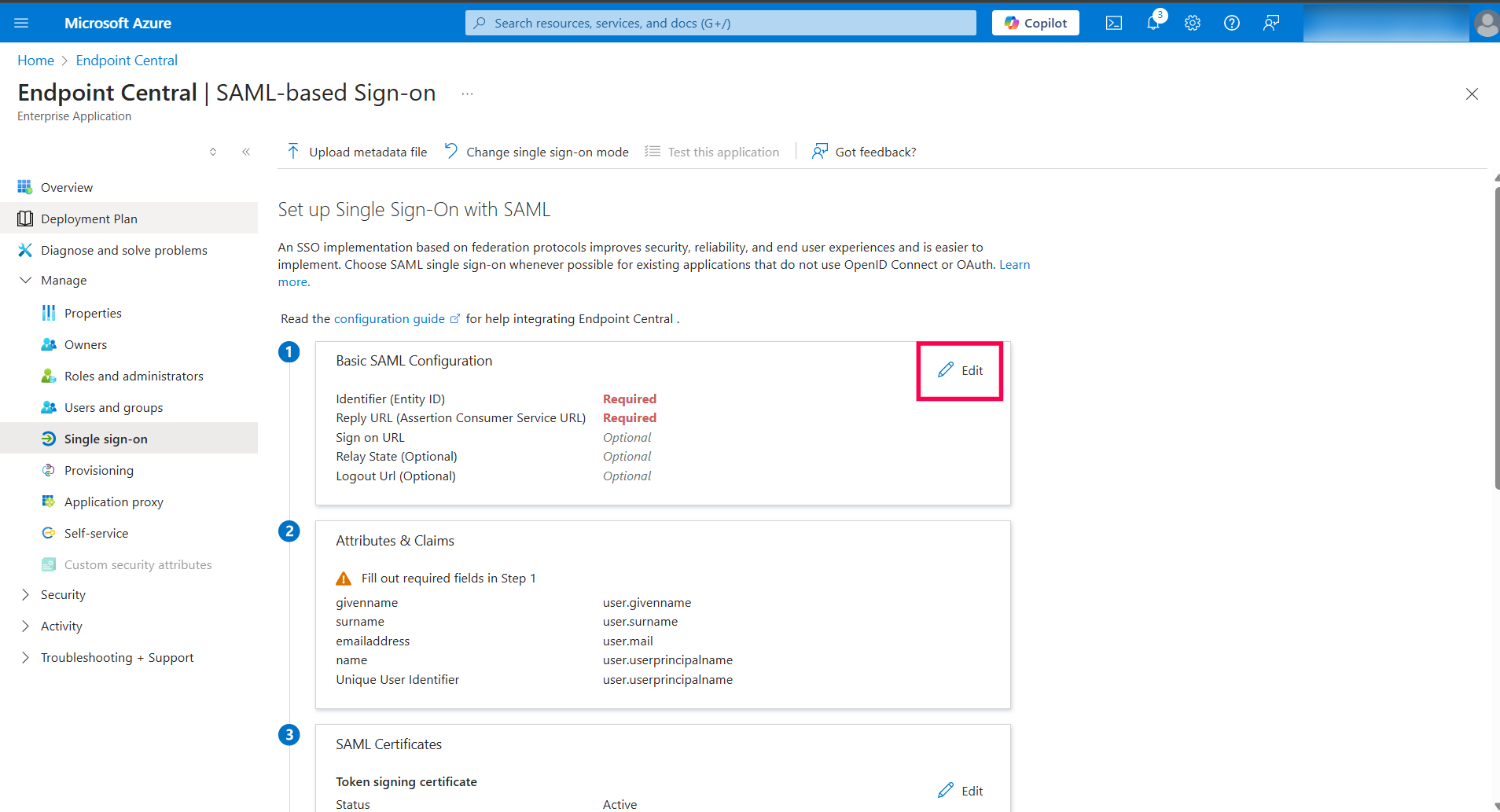
- In Basic SAML Configuration, select edit option (the pencil icon).
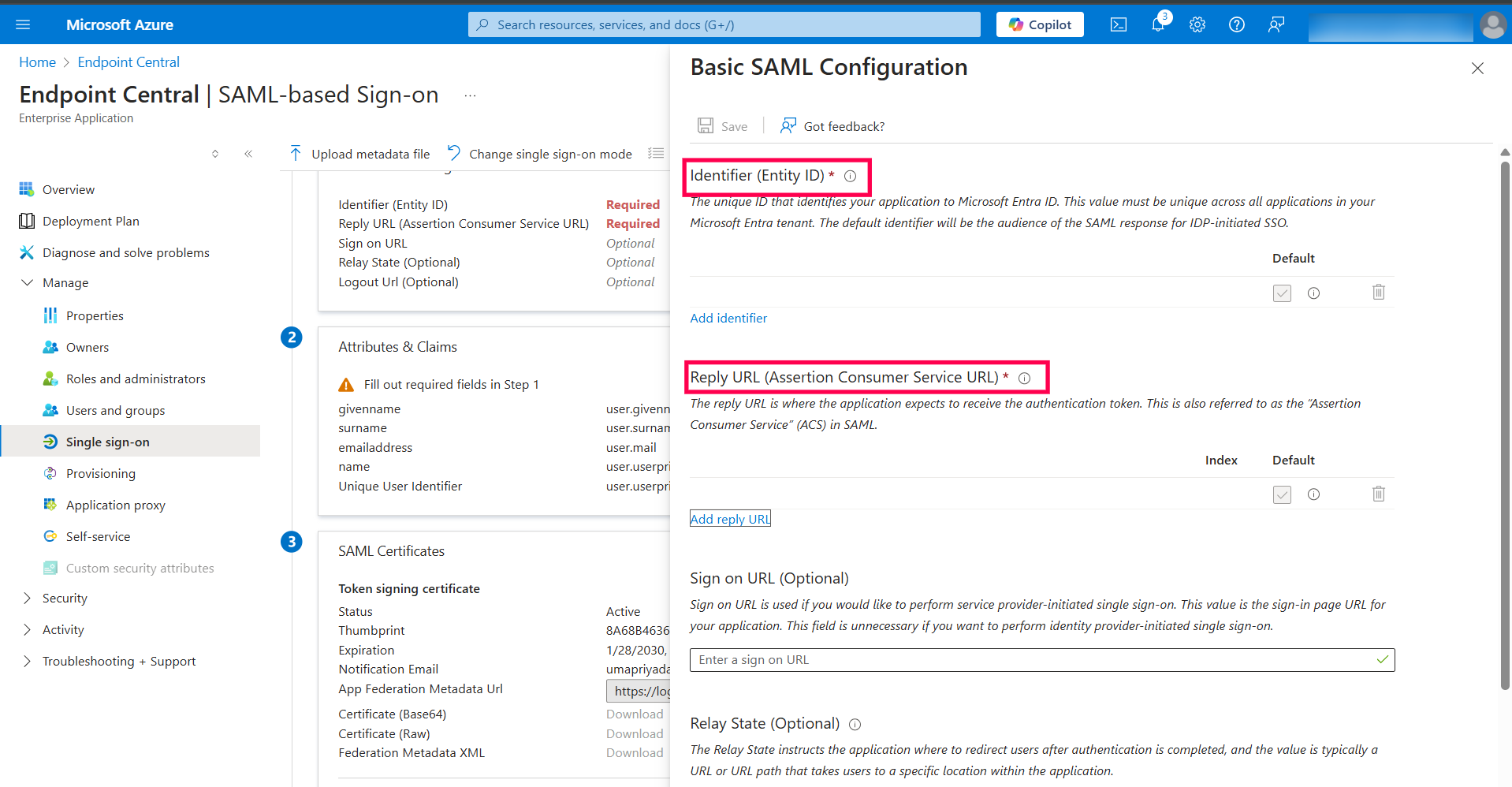
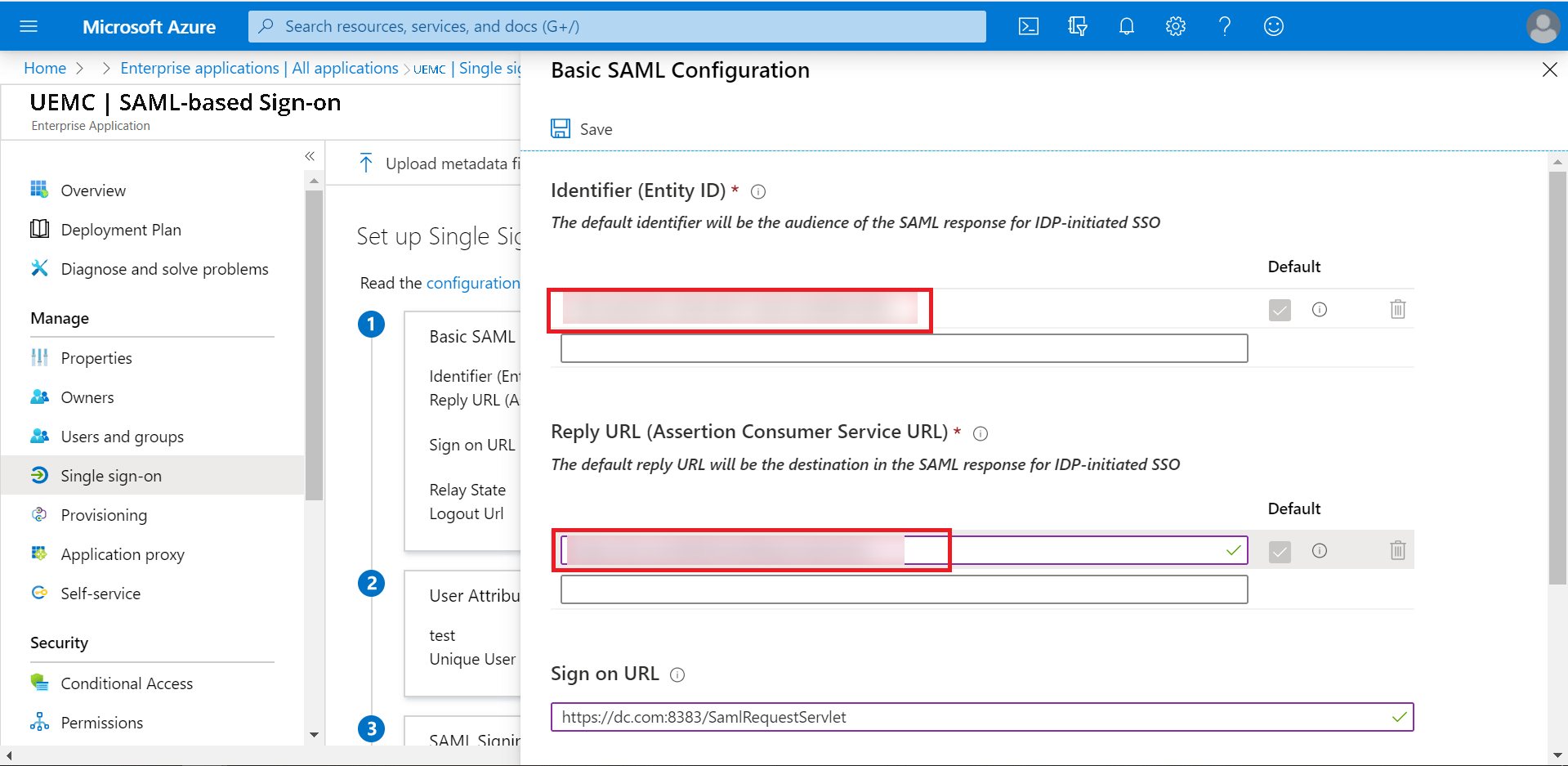
- In this window, the Entity ID,Assertion Consumer Service URL, and the Sign on URL have to be specified.
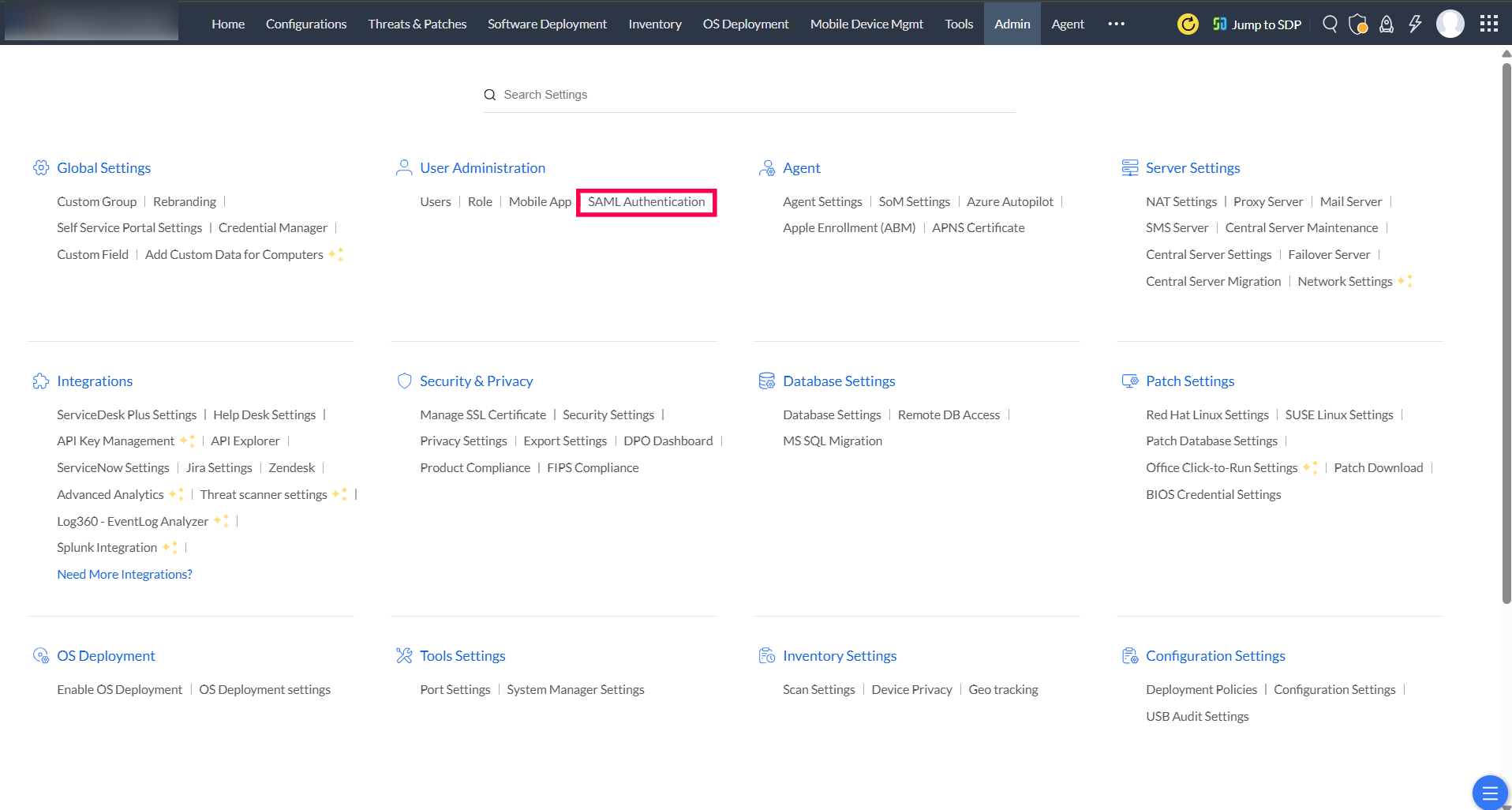
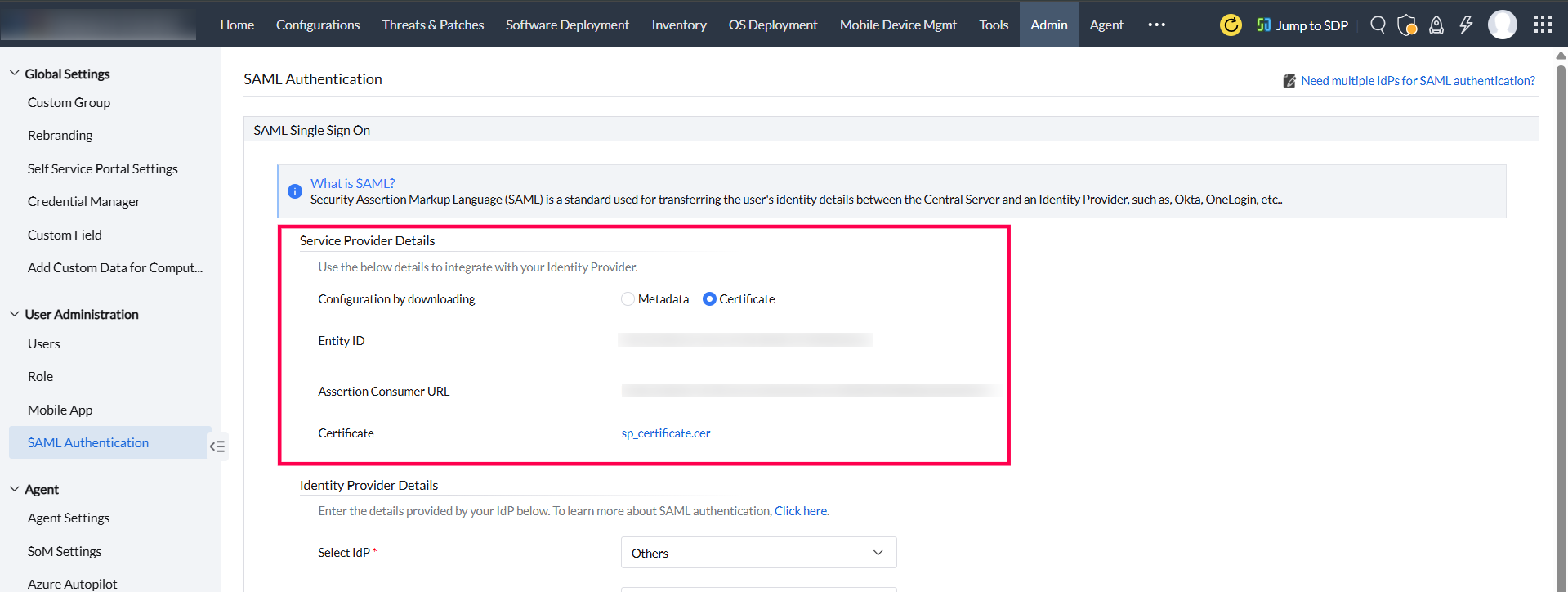
- Login to your Central Serverconsole, switch to the Admin tab, and select SAML Authentication.
- Choose Certificate next to Configuration by downloading. Copy the Entity ID and Assertion Consumer URL.
- Paste the Entity ID next to Identifier, and the Assertion Consumer URL next to Reply URL in the Microsoft Azure portal.
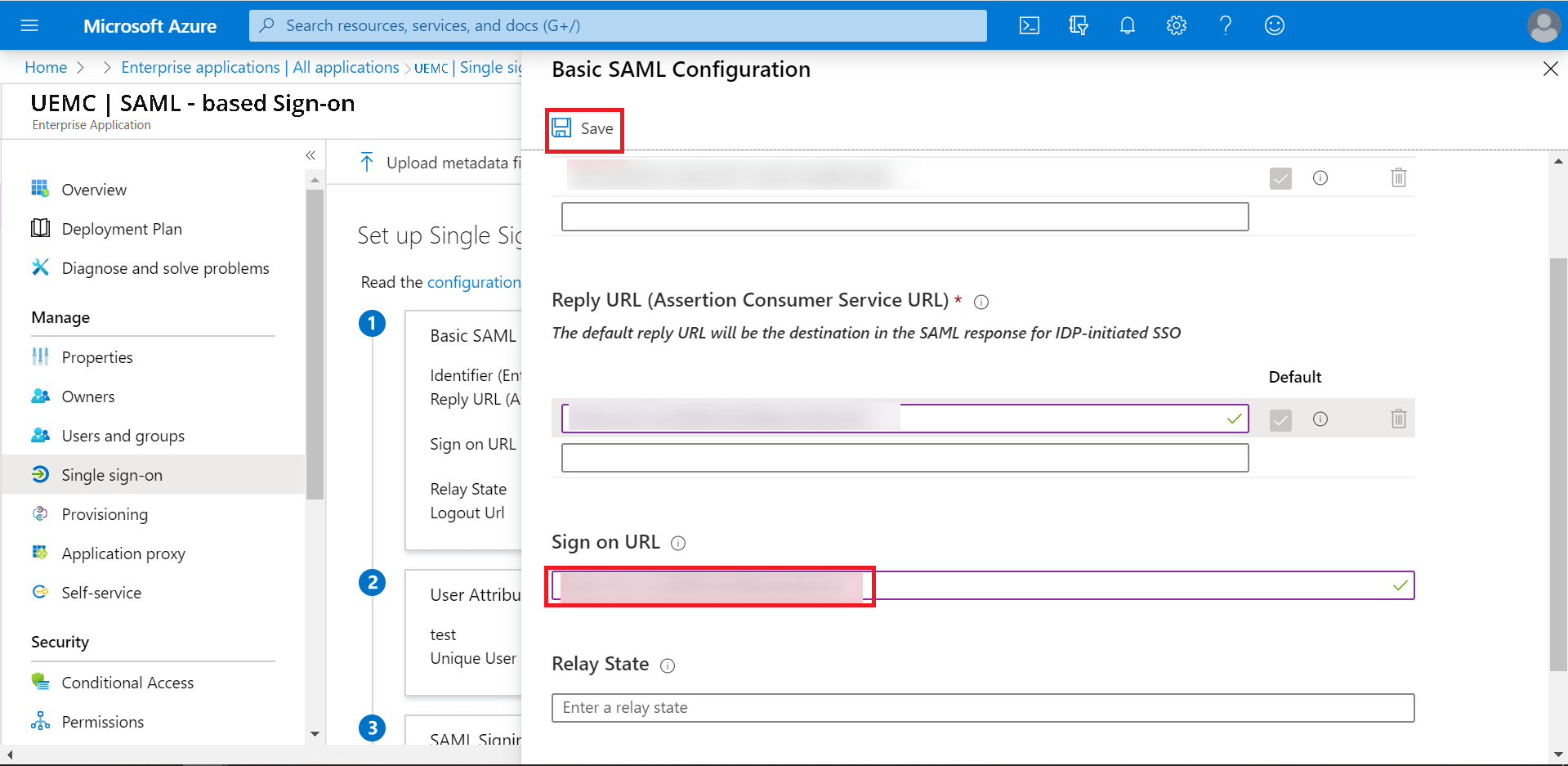
- Now, copy the Assertion Consumer URL and paste it next to Sign on URL. Here, change the URL from Response to Request and click Save.
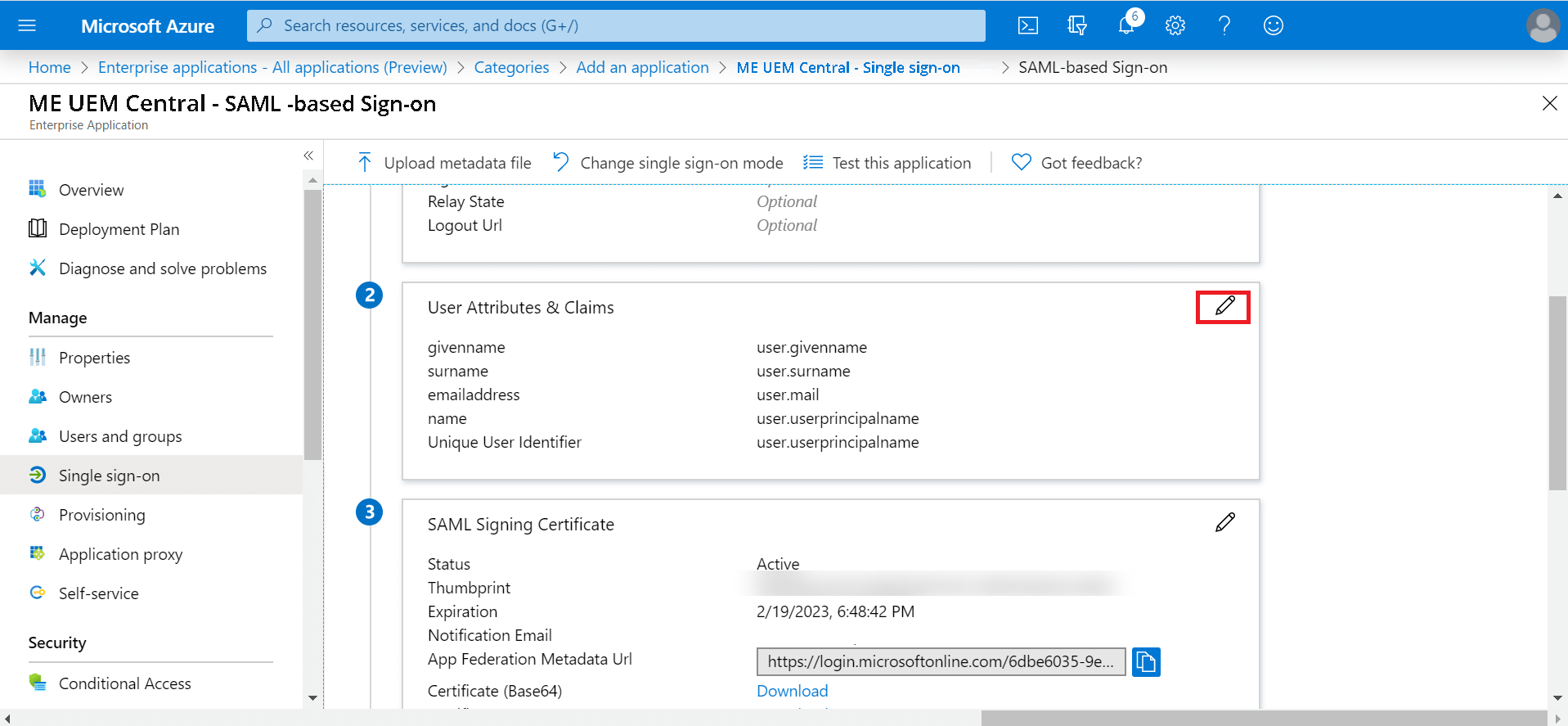
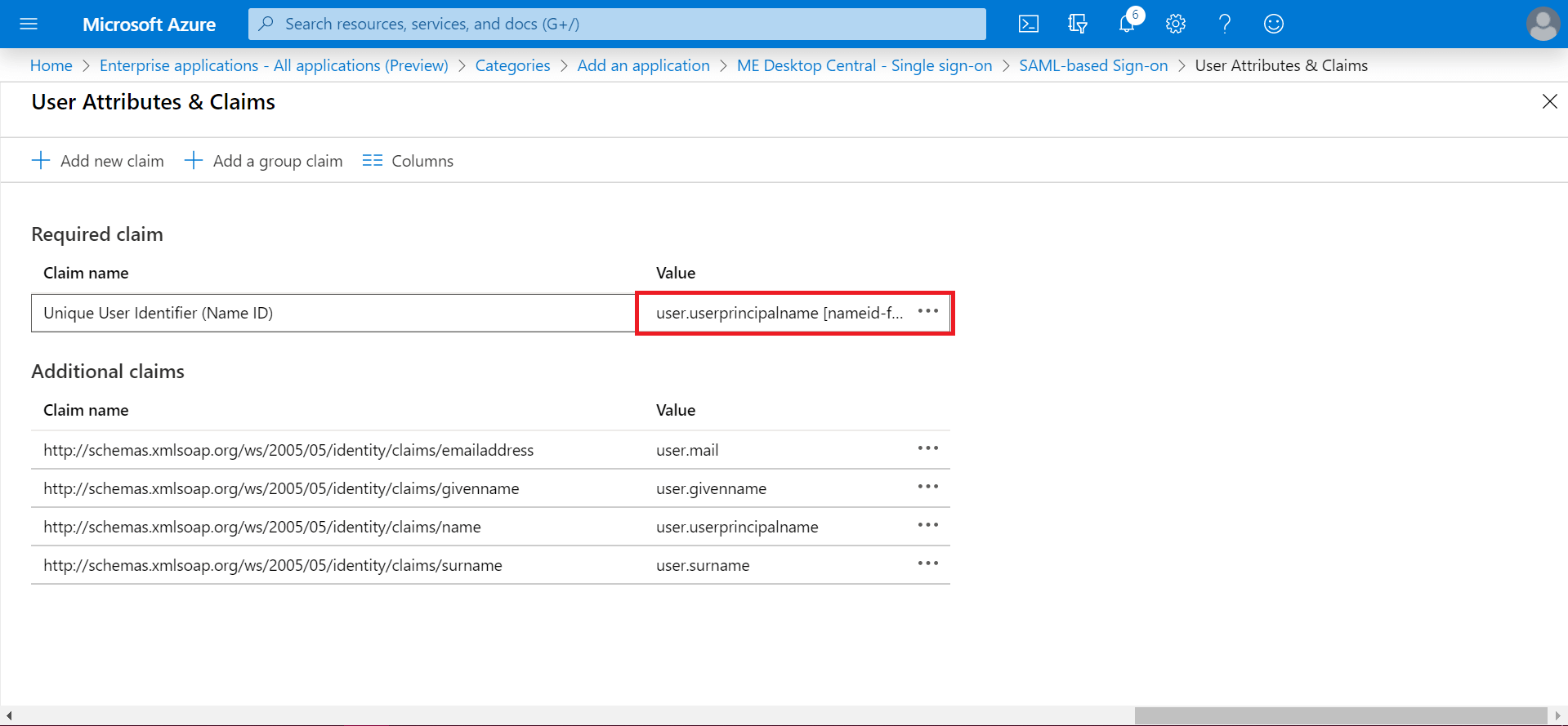
- In User Attributes & Claims, select edit option (the pencil icon).
- Click user.userprincialname [nameid-f....
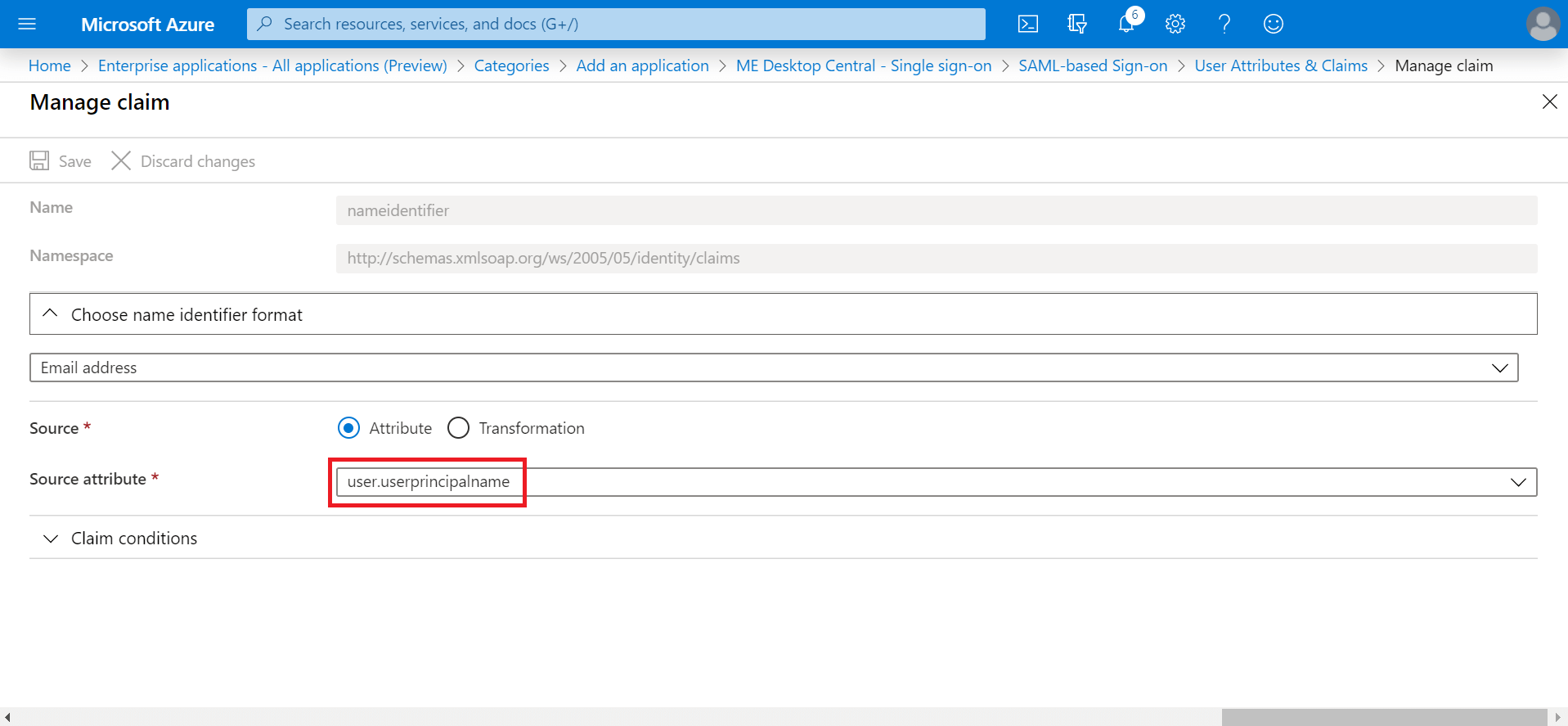
- Click user.userprincipalname.
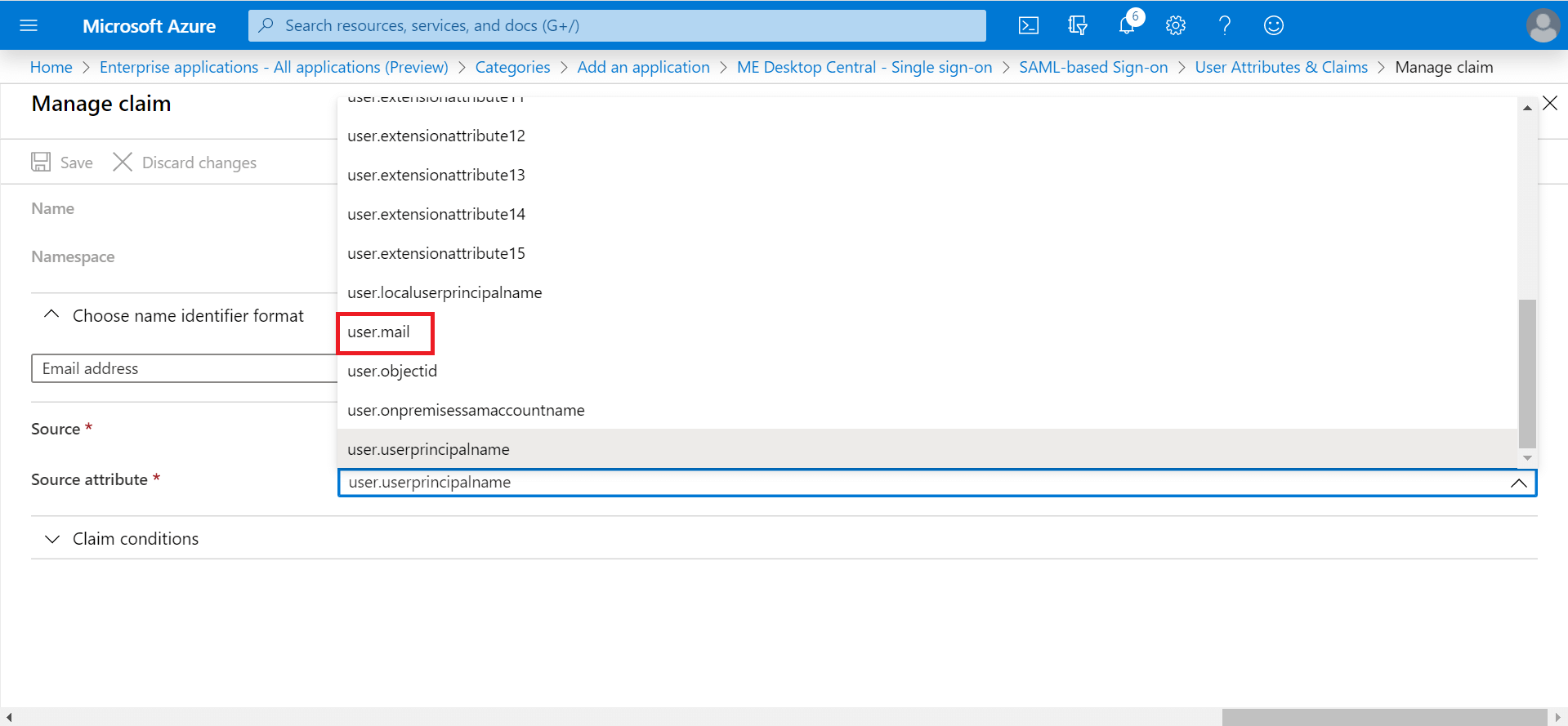
- In the drop-down list, select user.mail.
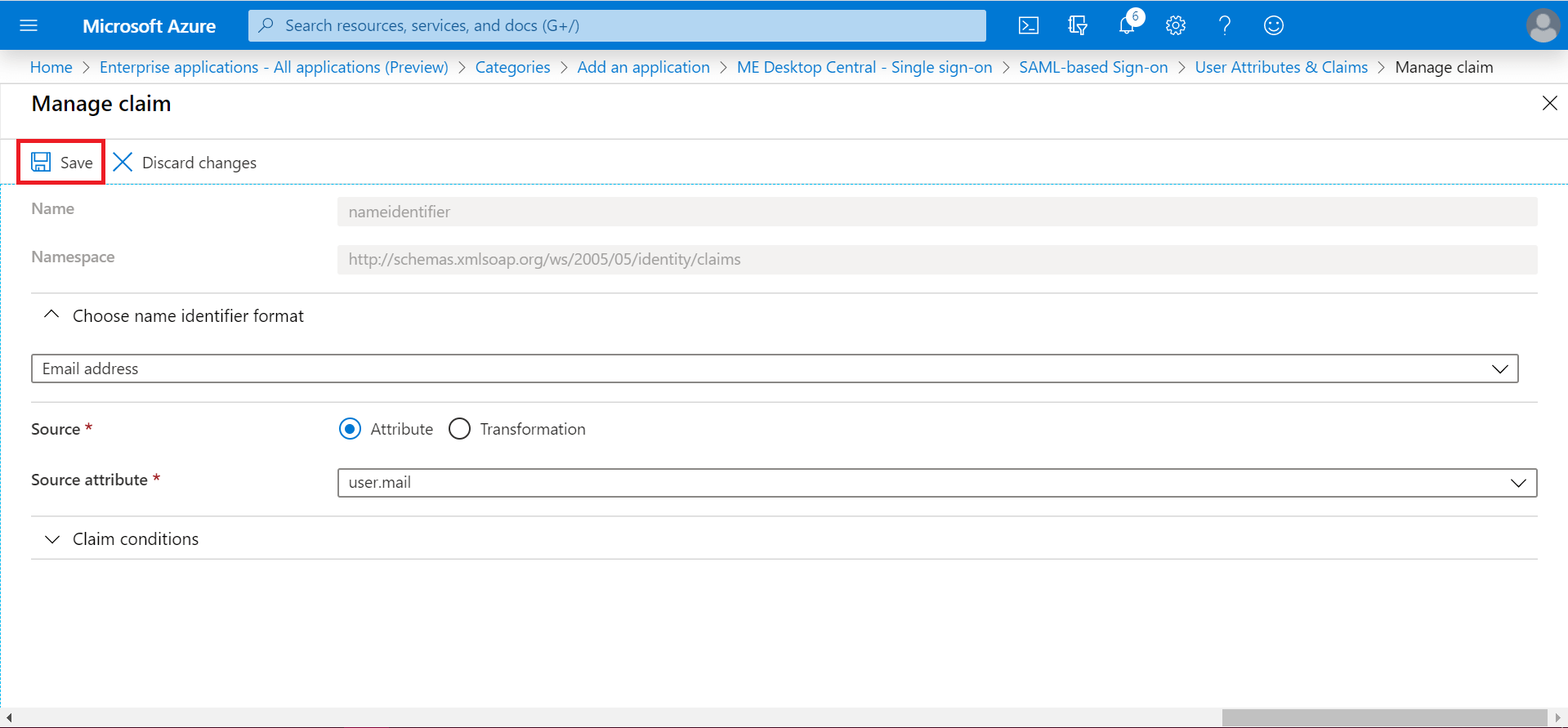
- Click Save.
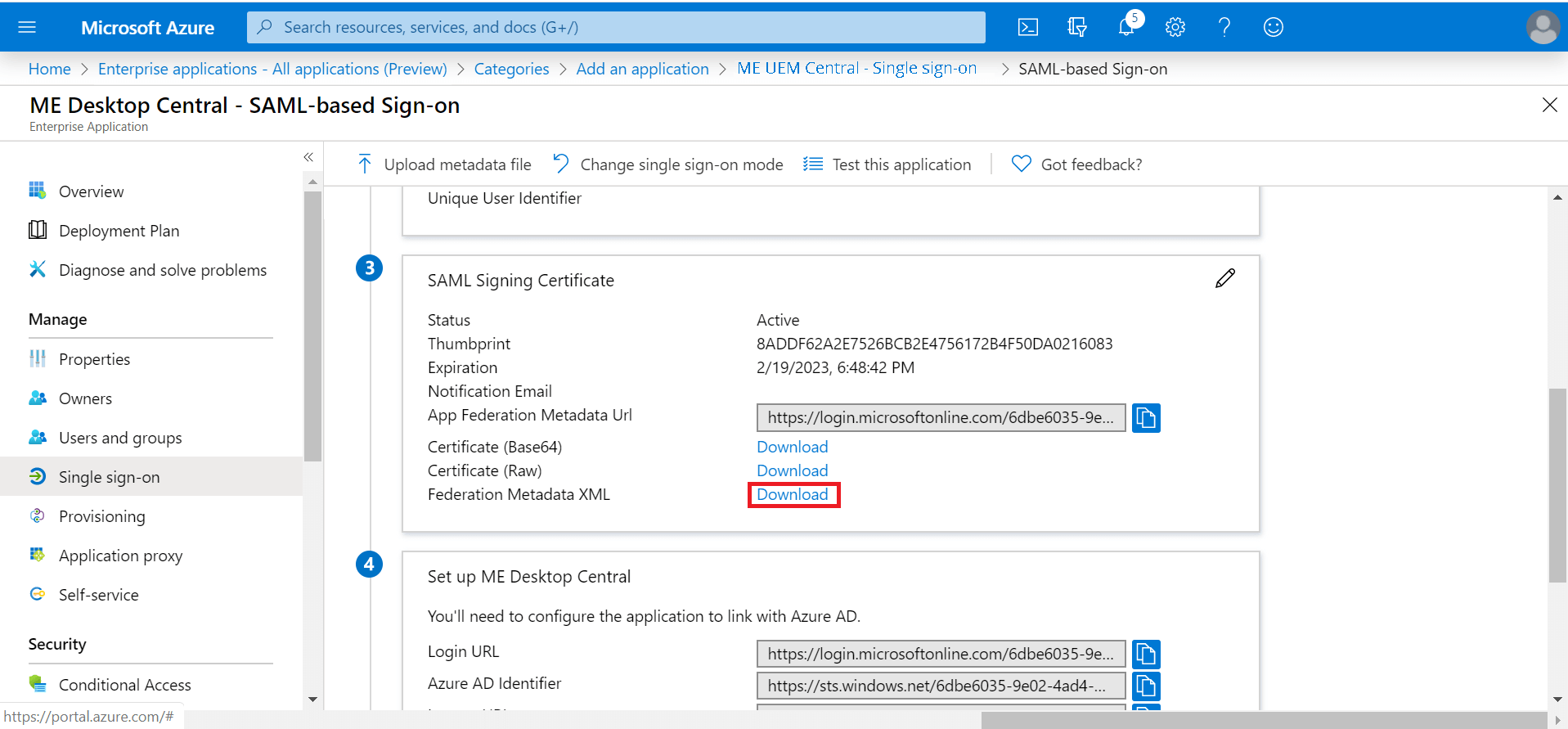
- In SAML Signing Certificate, download Federation Metadata XML.
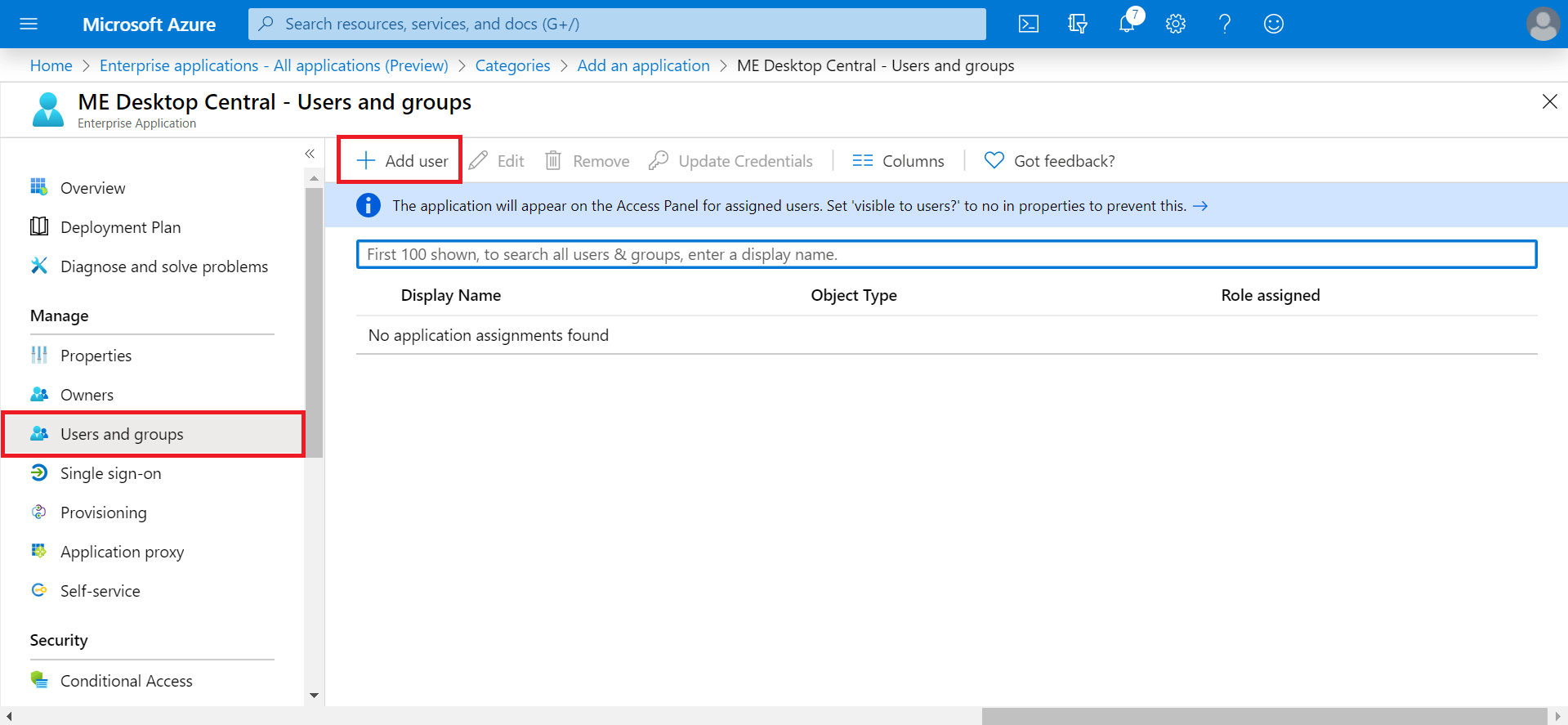
- On the left hand side menu, click Users and groups. Select Add user.
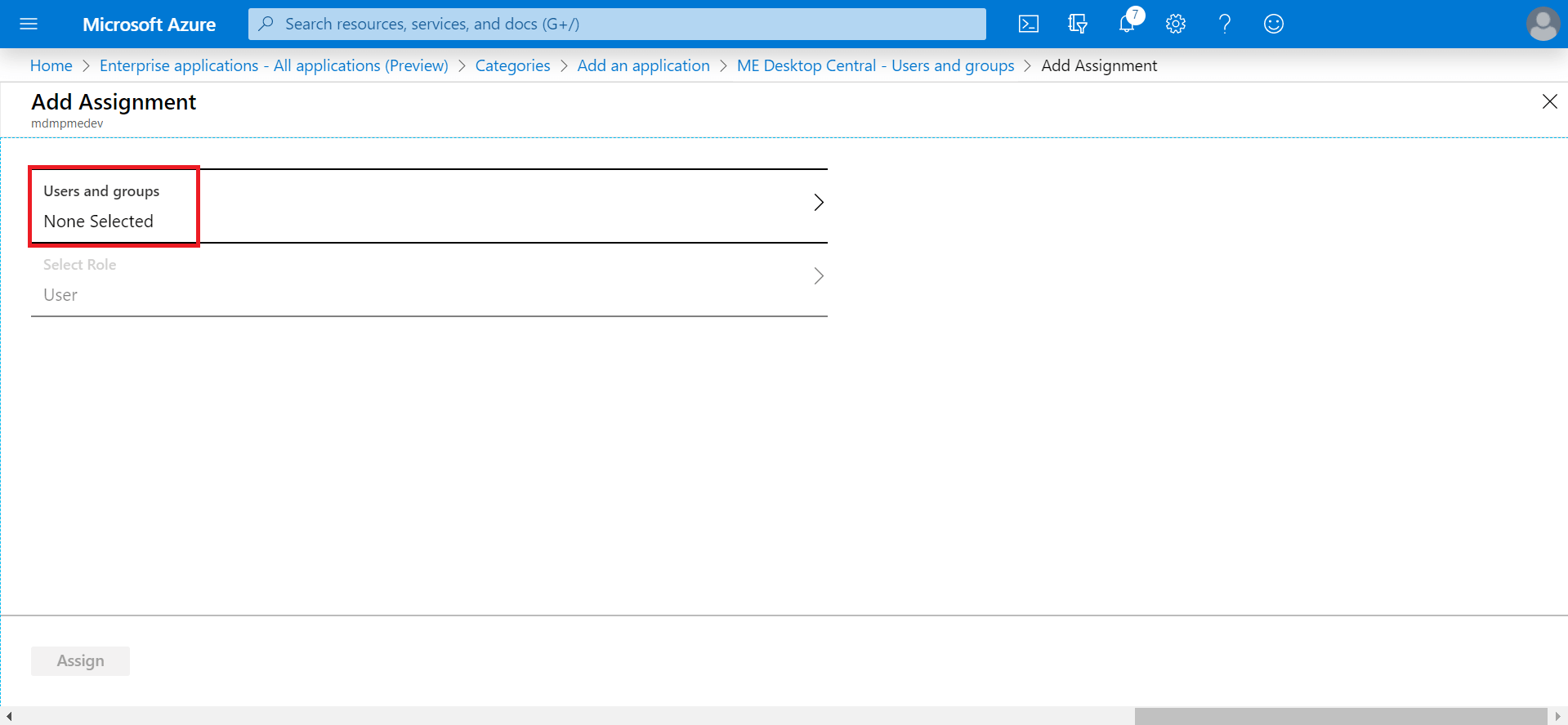
- Click None Selected.
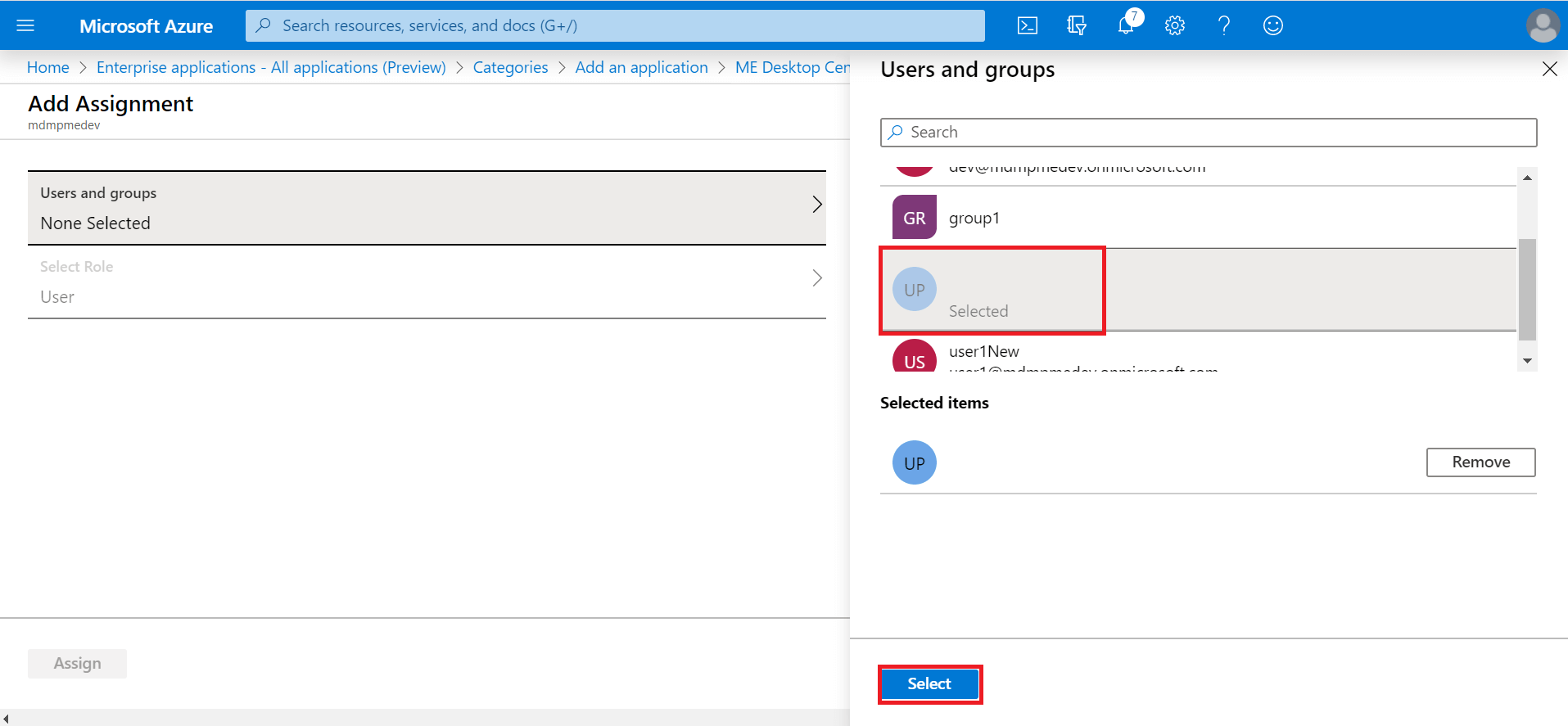
- From the right hand side, select the users and click Select.
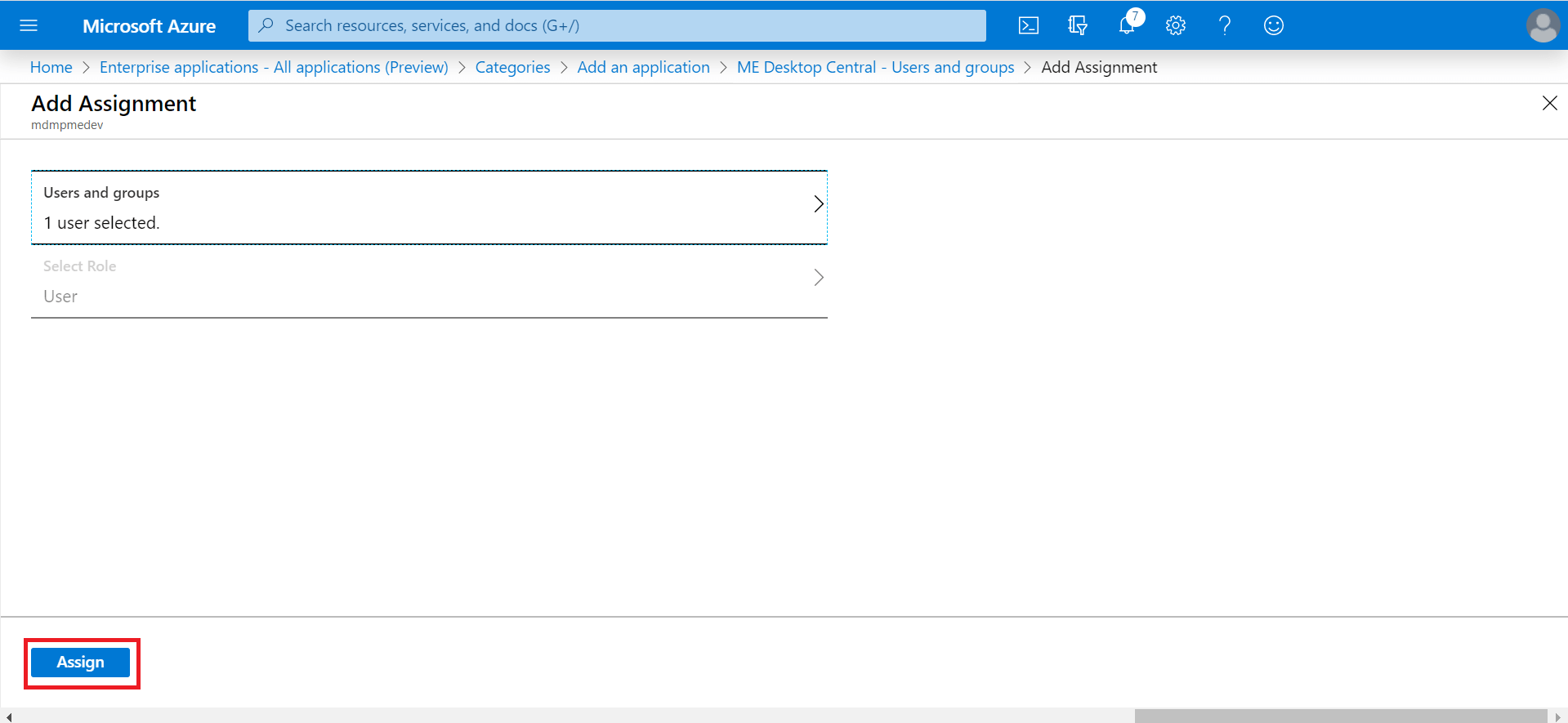
- Click Assign.
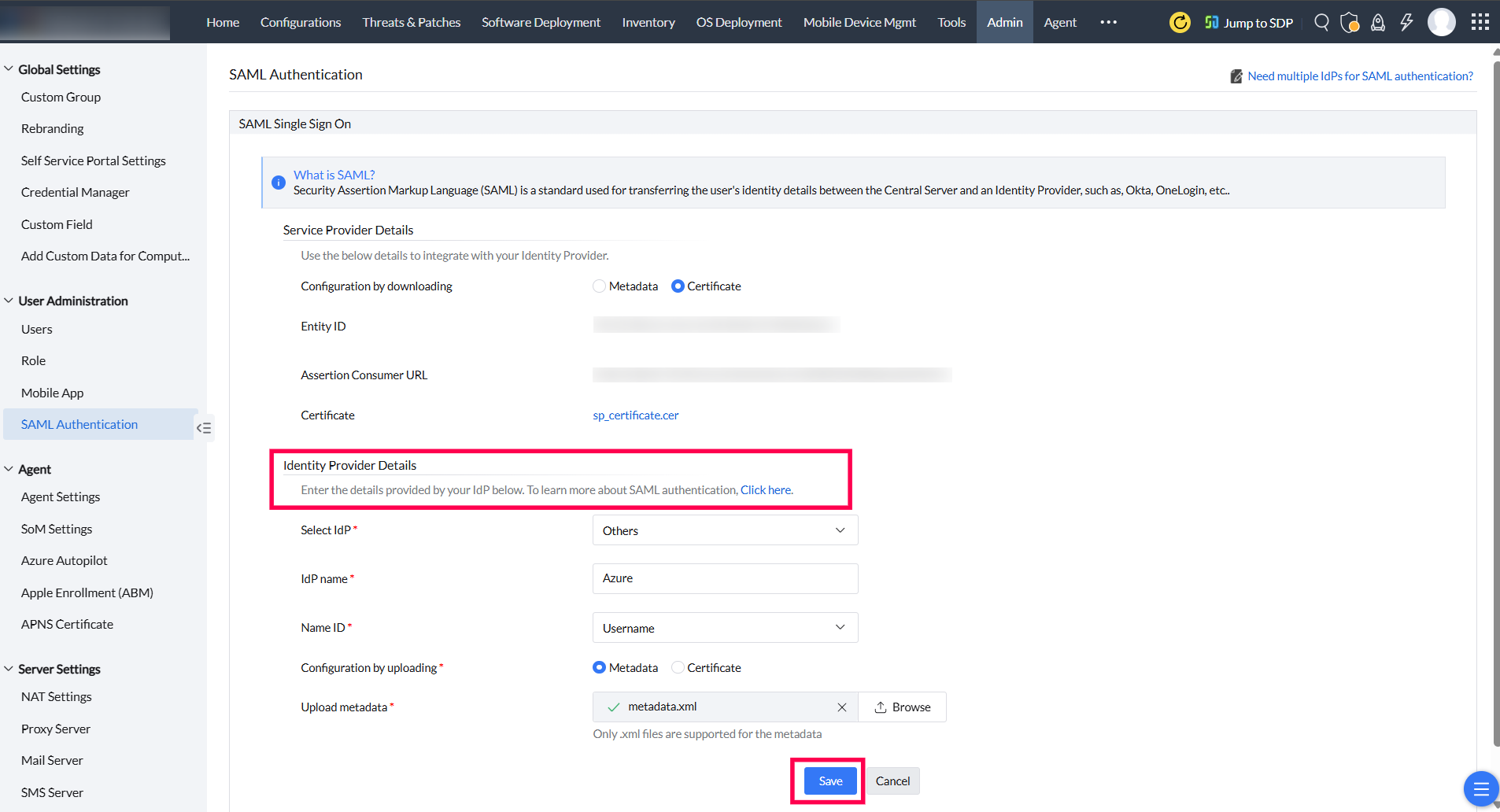
- In the Central Server web console, under Identity Provider Details, choose Others as IdP. Provide a suitable name for the IdP, and choose E-mail ID as Name ID. Next, select Metadata and upload the downloaded metadata file in step 21. Click Save.
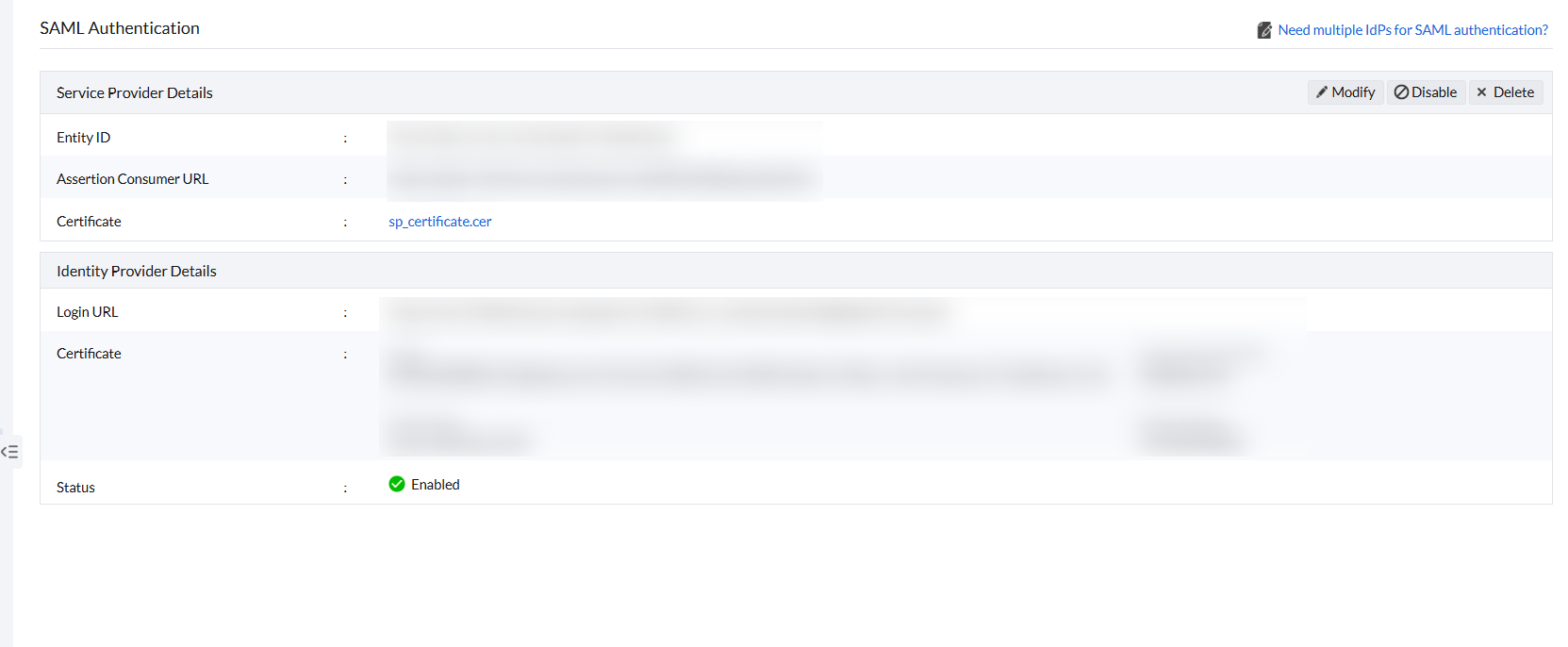
- SAML Authentication is now enabled in Central Server.
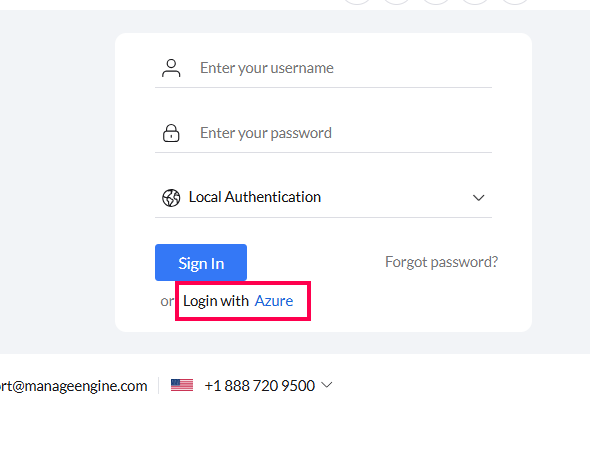
- Login to Central Serverusing your Azure account.
You have successfully configured the SAML Authentication Settings.