Windows Computer-Based Software Deployment
Introduction
Software deployment is the process of distributing the software to the endpoints in your network from a central location. For deploying Windows software, creating a software package is essential. Using Endpoint Central, you can create Windows packages manually or using the predefined software Templates.
After creating the software package, the next step is to proceed with the software deployment.
Steps to Install/Uninstall Windows Software
Follow the below steps to install or uninstall Windows Computer based software.
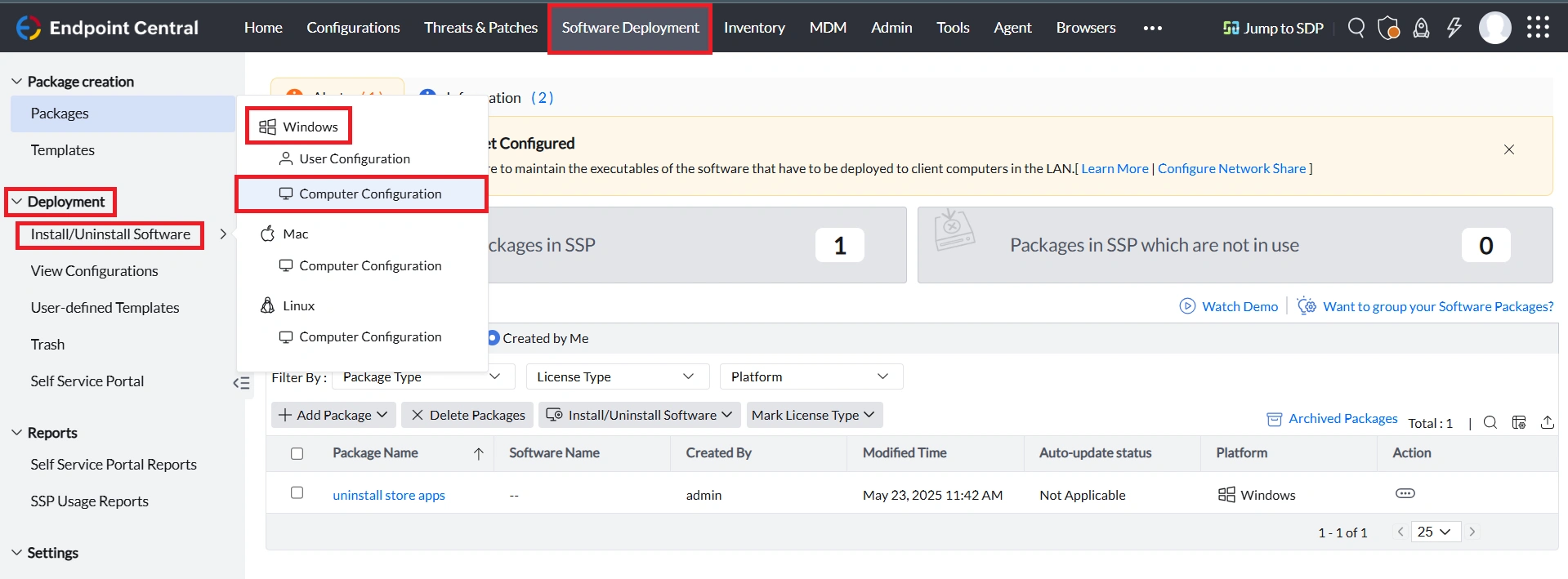
- In the Endpoint Central console, navigate to the Software Deployment tab > Deployment > Install/Uninstall Software > Windows > Computer Configuration
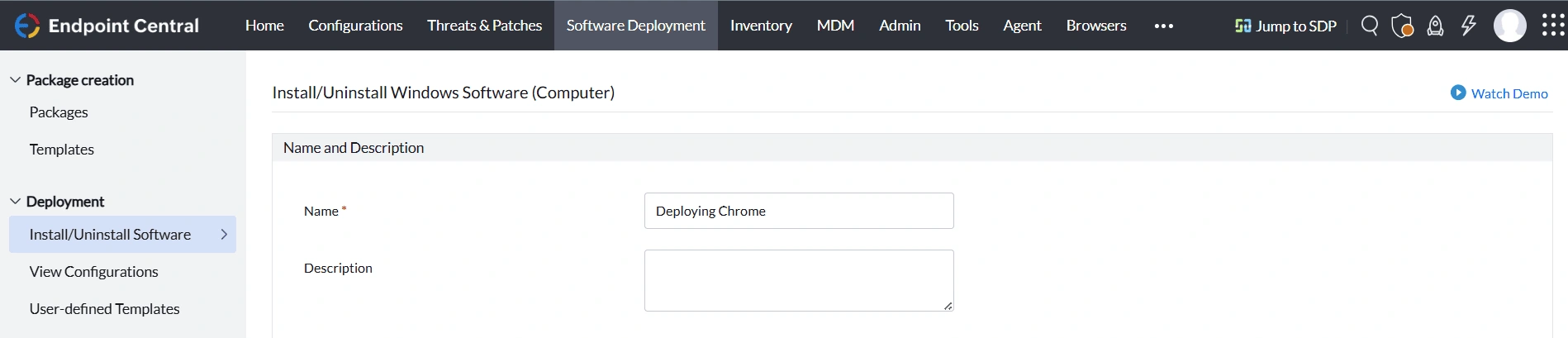
Defining the Configuration

Define the configuration based on your requirement to install or uninstall software to the Windows computers in your network.
Under Install/Uninstall Software, define the Package Settings as,
For Software Installation:
Select the Package Type as Install and select the installation package you want to deploy from the Package Name field's drop-down menu.
For Software Uninstallation:
Select the Package Type as Uninstall and select the uninstallation package you want to deploy from the Package Name field's drop-down menu.
Configuring the Install/Uninstall Option
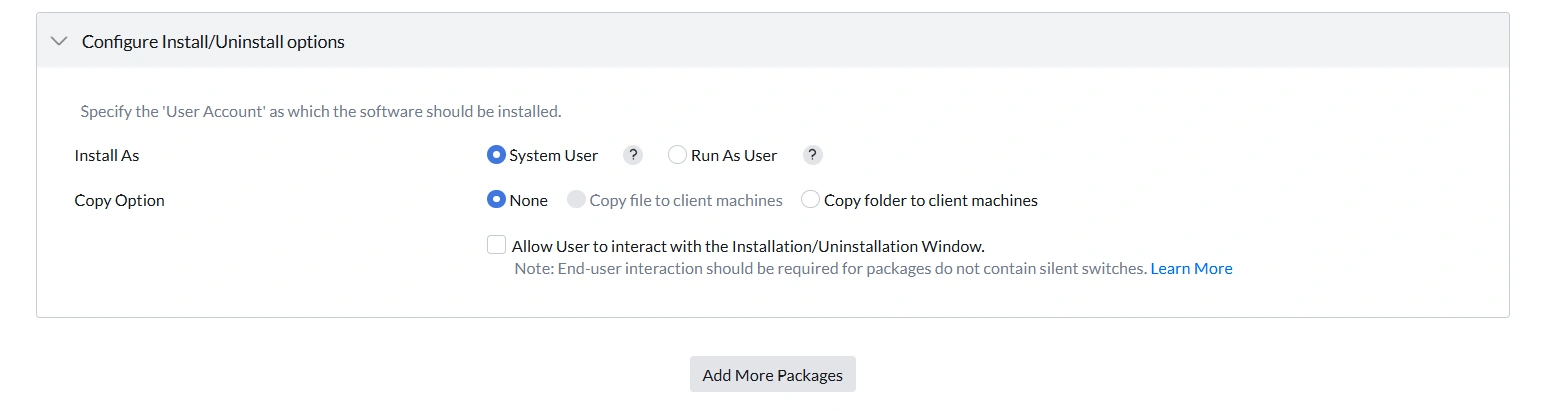
While deploying the software to target Windows computers, certain users might require elevated permissions to deploy the software. Thus, based on your requirement after defining the Package Settings, specify the user account using which the software needs to be installed or uninstalled.
In the Install As field, select the following options based on your requirement,
System User: The software will be installed using the default System User account, which has the highest privilege. This user account has full access to make system level changes.
User Interaction with the Installation/Uninstallation Window: If the software that you are trying to deploy requires end-user interaction or it cannot be deployed silently, click on the Allow User to interact with the Installation/Uninstallation check box.
Run As User: When a user-based software is deployed to the target computer in the computer session, it is recommended to deploy the software using Run As User. The software gets deployed to the target computers using the configured Domain user account. It is recommended to configure the Domain Admin credentials in the Credential Manager.
Add More Packages: To deploy multiple packages in the same deployment, click on Add More Packages to add your required packages.
Copy Option
When the created package's location is in a Network Share, the executable files and the folder can be copied to the target computer before the deployment in the scenario when the target computers face issues reaching the Network Share.
If the software is in the format EXE, APPX, APPX Bundle, MSIX, MSIX Bundle, then you can copy the complete folder in which the executables are present by selecting the Copy folder to client machines option.
If the software is in the format of MSI or MSP, then you can either copy the executable files to the client computer by selecting Copy file to the client machine option
If you want to copy the complete folder in which the executables are present, then select the Copy folder to client machines option.
Deployment Policy
Deployment Policies are a set of customized policies configured to deploy the software based on the enterprise needs. You can configure the deployment window to schedule when the deployment should take place, configure the reboot or shutdown policy, configure users to skip the deployment or reboot, and configure the notification message that needs to be conveyed to the end user when the deployment takes place.
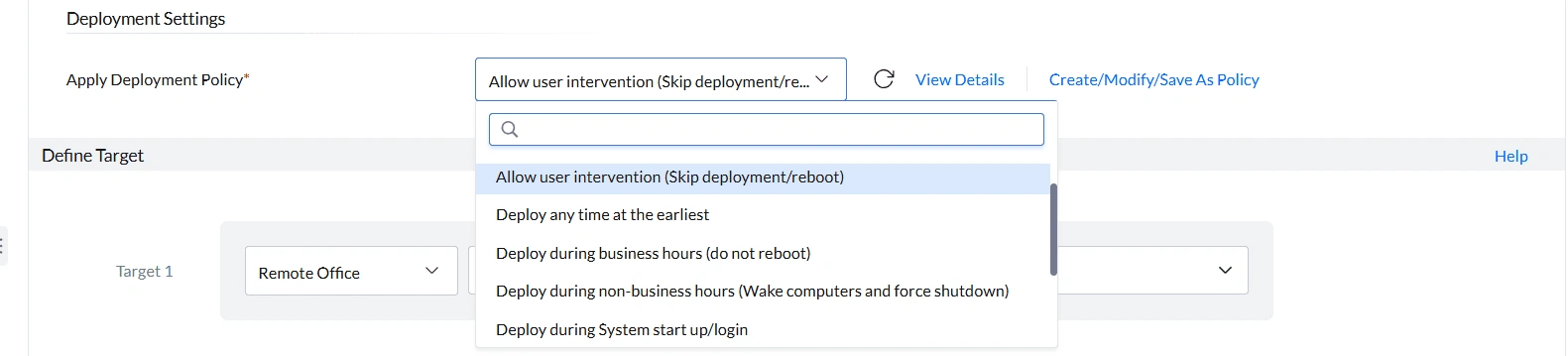
Endpoint Central comes with a set of predefined policies that you can utilize by choosing the policies from the drop-down menu in the Apply Deployment Policies field under.

You can also create your custom Deployment Policy by selecting the Create/Modify/Save As Policy option.
To learn more about deployment policies refer to this link.

Execution Settings and Scheduler Settings
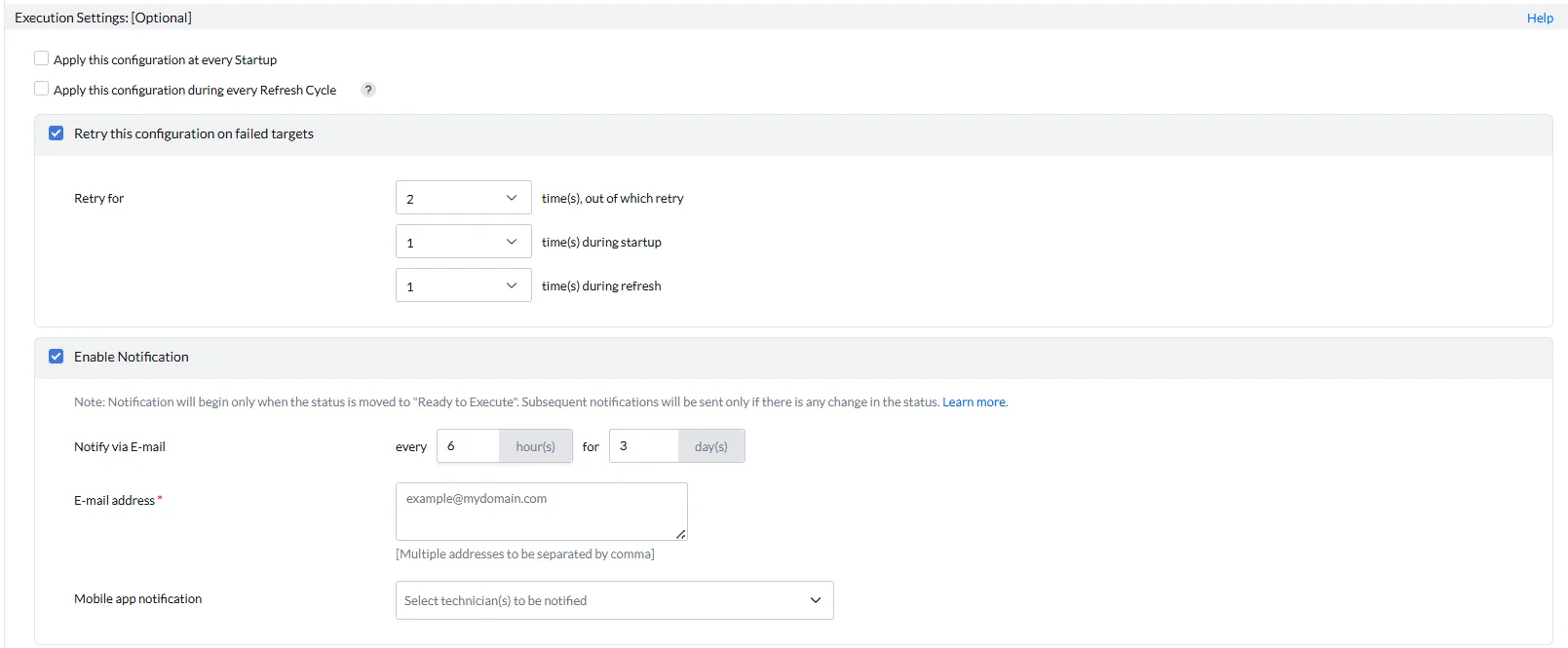
Configuring the Execution Settings is optional, thus, based on your requirement, configure them. The Execution settings include:
- Apply this configuration at every Startup
- Apply this configuration during every Refresh Cycle
- Retrying the Configuration on failed targets
- Enable Notification
To learn more about the Execution Settings, refer to this link

Under the Scheduler Settings, you can configure the below based on your requirement:
- Install After: The deployment will take effect after the Date and Time specified.
- Do not apply this configuration after the time specified:The deployment will not be applied to the targets after the Date and Time specified.
Deploying the Configuration
Select Deploy to deploy the configuration during the 90-minute Refresh Cycle or System Start-up or during the deployment window configured in the Deployment Policy.
Select Deploy Immediately to deploy the software configuration to the target computers immediately.
Saving the Configuration
The created Software Deployment configuration can be saved as,
- Draft:The created Software Deployment can be saved as a draft, which can be utilized later based on your requirement.
- User Defined Templates:The created software deployment can be saved as a template, which can be re-utilized instead of creating a new configuration while deploying certain enterprise software to the newly added computers or users in the organization. Refer to this link to learn more about User-Defined Templates.
Modifying the Configuration
The created Software Deployment configuration can be modified based on your requirement.
Follow the steps below to modify the configuration:
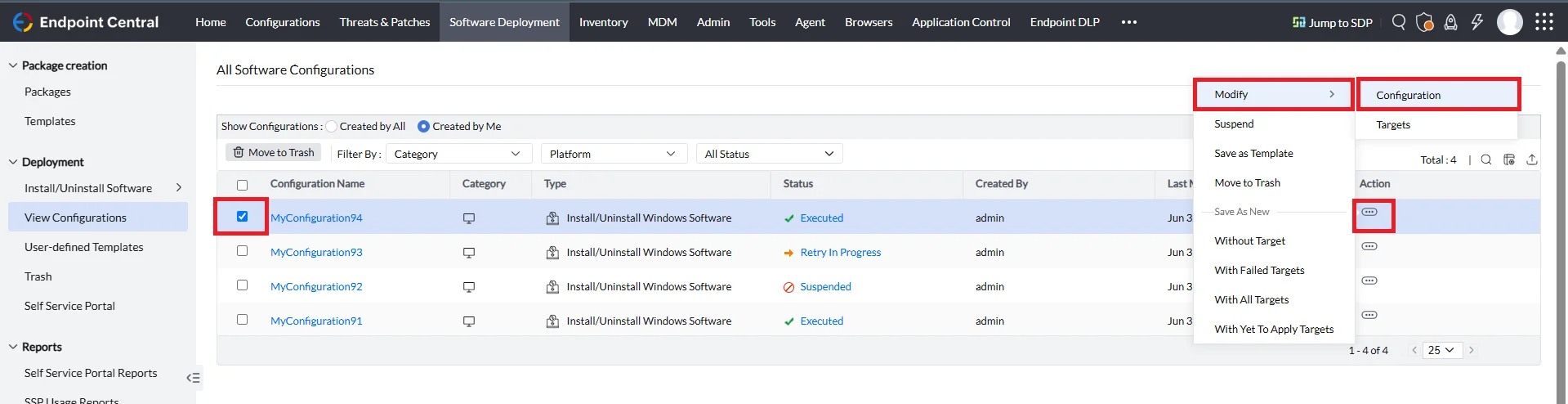
- In the Endpoint Central console, navigate to the Software Deployment tab > Deployment > View Configurations
- Select the configuration you want to modify.
- Under the Action column, select the three dots icon and select Modify > Configuration.
Moving Configuration to Trash
The created Software Deployment configuration can be moved to trash when the configuration is no longer required or can be moved to trash based on your requirement.
To move the configuration to trash, follow the steps below:
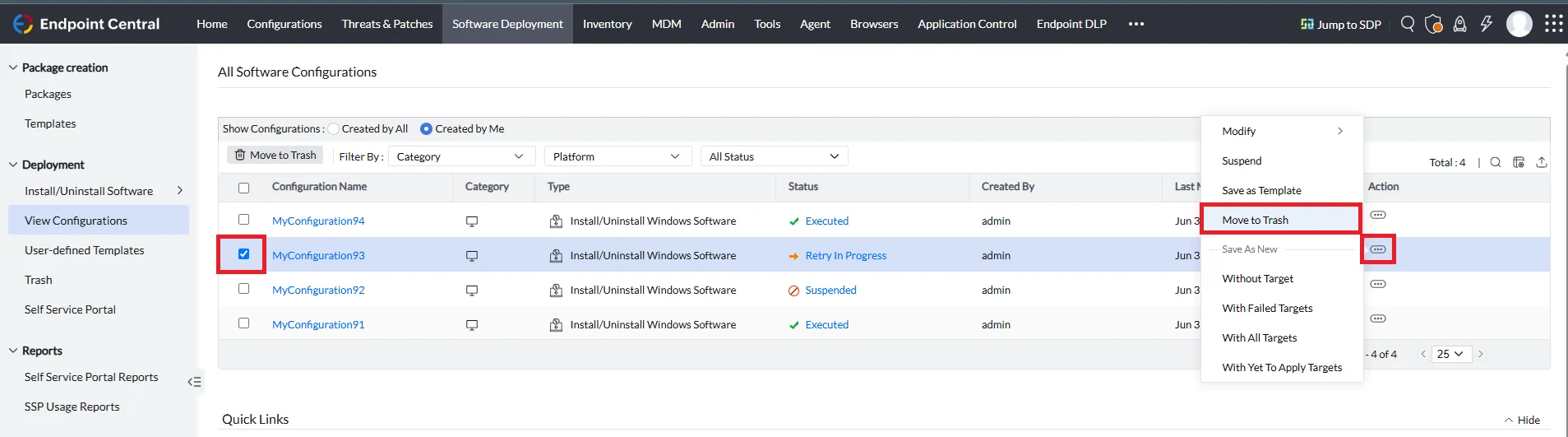
- In the Endpoint Central console, navigate to the Software Deployment tab > Deployment > View Configurations
- Select the configuration you want to move to trash.
- Under the Action column, select the three dots icon and select Move to Trash.
Suspending and Resuming the Configuration
The created Software Deployment configuration for certain reasons needs to be stopped from being deployed to the target computers, then those configurations can be suspended.
To suspend the configuration, follow the steps below:
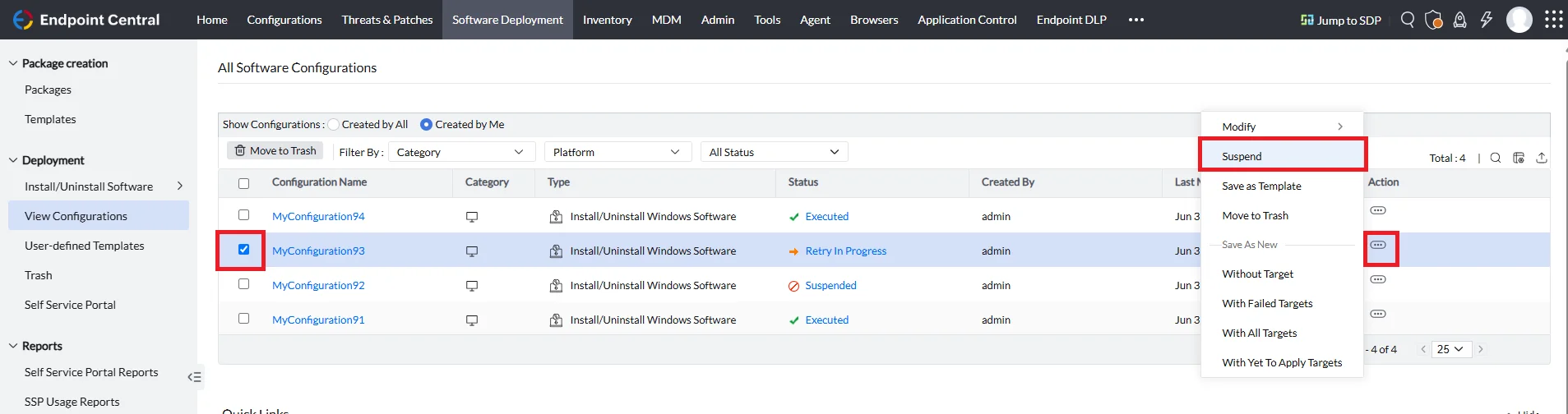
- In the Endpoint Central console, navigate to the Software Deployment tab > Deployment > View Configurations
- Select the configuration you want to suspend.
- Under the Action column, select the three dots icon and select Suspend.
You can resume the suspended Software Deployment configuration. To resume the configuration, follow the steps below:
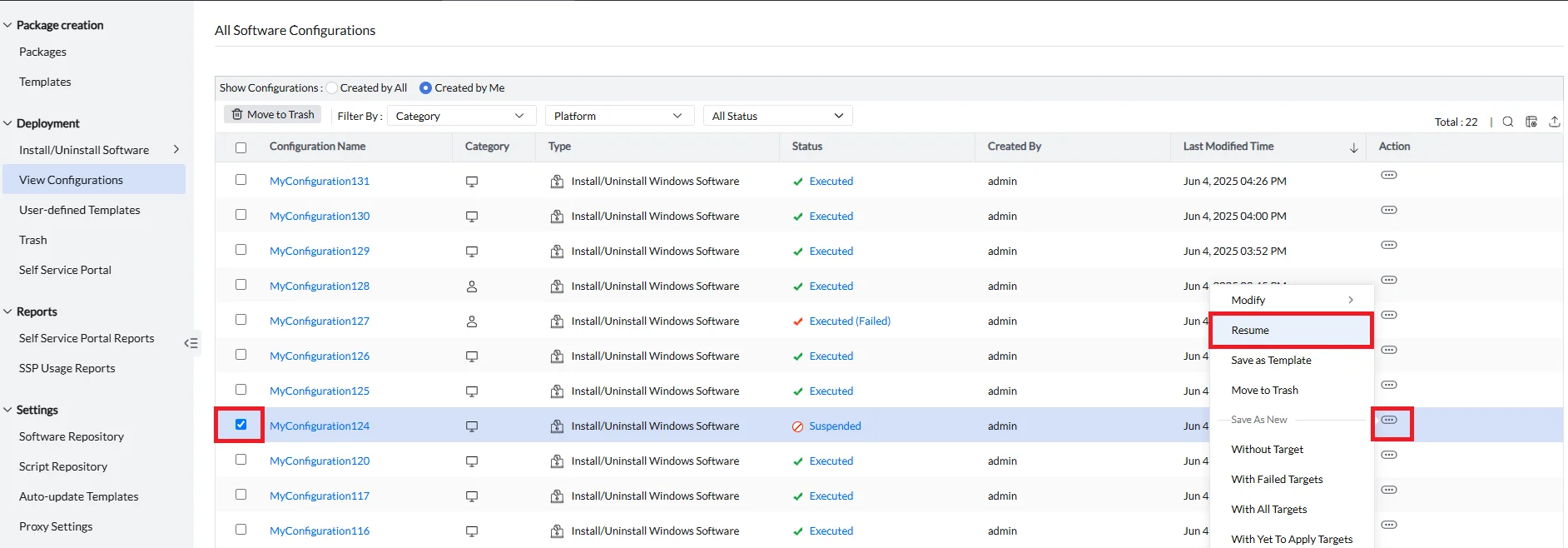
- In the Endpoint Central console, navigate to the Software Deployment tab > Deployment > View Configurations.
- Select the suspended configuration you want to resume.
- Under the Action column, select the three dots icon and then select Resume.