Event ID 7000: Service start failed
Last updated on:In this page
Why does event ID 7000 occur?
Event ID 7000 indicates a general system event that can be logged due to various reasons. This event can occur in various Windows versions, including:
- Windows 10
- Windows 8/8.1
- Windows 7
- Windows Server 2012/2012 R2
- Windows Server 2008/2008 R2
This event occurs when there is a problem with a service or driver. It also occurs when a device driver service remains active even though the corresponding device is disconnected.
This article explores common reasons for service start failures and provides guidance on interpreting and troubleshooting them effectively by analyzing event logs.

Format of event ID 7000
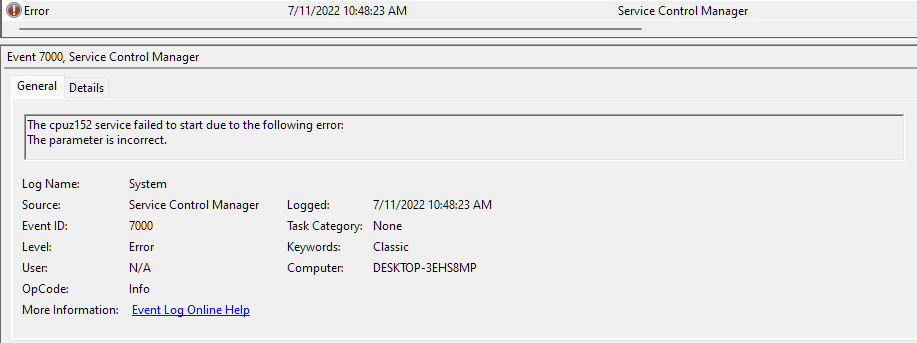
Event ID 7000 is categorized as a system event log originating from the Service Control Manager (SCM). Here's a sample event ID 7000 entry:
            Source: Service Control Manager
            Event Type: Error
            Level: 2
            Category: None
            Keywords: 0x80070002
            Computer: MYCOMPUTER
            User: SYSTEM
            Description: The Service Control Manager failed to start the service "MyService" because the account is disabled.
What is a Windows service?
A Windows service is a background application that runs independently of a user session, performing specific tasks without requiring user interaction. They can be managed by Windows SCM.
Service start failures occur when a Windows service fails to initialize or start due to various reasons, including configuration errors, hardware issues, or software conflicts.
When a critical service like Microsoft .NET Framework NGEN v4.0.30319_X86 service stops, it can have significant impact, such as a drop in application performance, failure of dependent service starts, system crashes, delays, and more.
How to troubleshoot event ID 7000 due to service start failures
| Error category | Errors | Description | Troubleshooting tips |
| Service start failures | Service Failed to Start | The service cannot start due to issues such as circular dependencies, configuration errors, or logon failures. | Check Event Viewer for additional error messages related to circular dependencies, configuration errors, or logon failures to resolve the error. |
| The Service Cannot Start Due to a Circular Dependency | The service depends on other services that may not have started, creating a circular dependency issue. | Review the service dependencies to identify and correct circular dependencies. | |
| The Service Cannot Start Due to a Configuration Error | The service cannot load its configuration properly due to incorrect settings. | Verify the service's configuration files and parameters.
Ensure compatibility between services and configurations. |
|
| The Service Cannot Start Due to a Logon Failure | The service cannot start because the logon credentials are incorrect or missing. | Check the service logon credentials.
Update or correct the account settings to ensure the right credentials are used to log in to the service. |
|
| Dependency-related errors | The Remote Desktop Service Depends on the Terminal Services Licensing Service, which failed to start | In this scenario, a service Terminal Server Licensing failed to start, thus causing the Remote Desktop Service to fail as well. | Start the Terminal Services Licensing Service manually.
Check the status and configuration of all dependent services. |
| Resource-related errors | The Service Cannot Access its own Configuration Registry Key | The service lacks access to its necessary registry keys, possibly due to permission or resource issues. | Verify the service's access rights to the registry.
Check system resource availability, such as memory and CPU. |
| Security-related error | The Service cannot Access its own Configuration Registry Key due to Insufficient Permissions | Insufficient permissions prevent the service from accessing the required configuration files or registry keys. | Modify permissions for the service account.
Review and update access control policies to grant necessary permissions. |
| Hardware-related error | The service cannot start due to a hardware failure. | The service cannot start because of a physical hardware malfunction or failure. | Inspect hardware components for failure.
Review hardware logs and run diagnostics to identify and resolve hardware issues. |
General troubleshooting tips for resolving service start failures
- Update or reinstall the service: If the service is outdated or corrupted, updating or reinstalling it may resolve the issue.
- Reconfigure settings: Check configuration files for errors or misconfigurations and correct them.
- Restart dependencies: If dependent services are not running, restart them to ensure they are available.
- Run as administrator: Try running the service as an administrator to rule out permission issues.
- Disable conflicting software: Temporarily disable or uninstall conflicting software to test whether the service runs without interference.
- Check firewall or security settings: Ensure that firewall rules or security software aren’t blocking the service from running.
- Use safe mode: If the service fails in normal mode, try starting it in safe mode to isolate potential driver or application conflicts.
Whenever a service fails to start:
- Open the Event Viewer.
- In the left pane, expand Windows Logs folder and click on System to review error messages or warnings related to the service start failure. The logs often highlight specific causes like missing dependencies, permission issues, or configuration errors.
How ManageEngine EventLog Analyzer helps analyze and troubleshoot Event ID 7000
ManageEngine EventLog Analyzer is a robust log management and IT compliance tool that centralizes the collection, analysis, auditing, and correlation of Windows event logs for troubleshooting and security assurance. Once Windows devices are configured for monitoring, the tool offers visibility into key system events, errors, crashes, and security incidents. It includes a predefined alert profile to notify users of service start failures, with options to customize alert criteria. Users can set alerts for specific devices, enable smart thresholds to detect unusual crash patterns, and receive detailed alerts that support swift investigation and resolution.
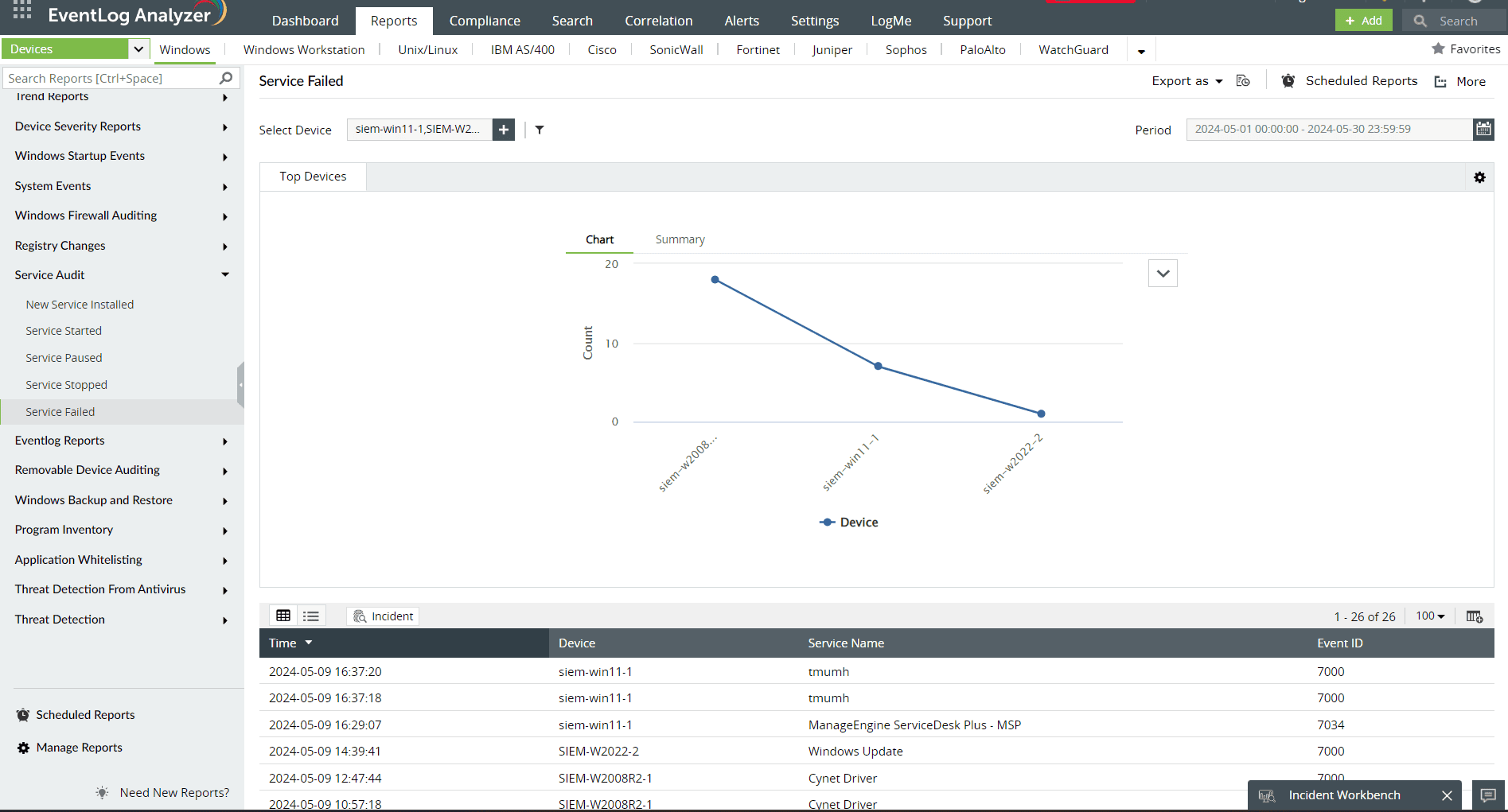
Getting alerted in real-time for service start failures:
Real-time incident response is essential when critical applications or services on important servers experience failures. EventLog Analyzer enables you to customize its predefined service failure reports according to your specific needs. This functionality ensures that you receive timely notifications for critical events, facilitating prompt investigation and resolution.