How to view and access Windows system logs?
Last updated on:In this page
- What are Windows system logs?
- How to view and access system logs
- - Method 1: Using the Event Viewer
- - Method 2: Using PowerShell
- - Method 3: Using Command Prompt
- - Method 4: Using the Control Panel
- What are the key events in system logs?
- How can system logs help with performance monitoring?
- How ManageEngine EventLog Analyzer monitors Windows system logs
What are Windows system logs?
Windows system logs are records that capture significant events related to the operating system's operations, including startup and shutdown processes, system errors, and hardware events. These logs are essential for maintaining system health, diagnosing issues, and monitoring system performance. They provide insights into the functioning of the operating system and help administrators ensure that the system operates smoothly and efficiently.
How to view and access system logs
Accessing Windows system logs varies slightly between different Windows versions, but the methods are generally similar.
Here’s a breakdown of different methods and steps to access system logs in Windows 7, Windows 10, and Windows 11:
Method 1: Using the Event Viewer (applicable to all Windows versions)
The Event Viewer is the easiest way to access and analyze system logs. It provides detailed information on errors, warnings, and general system events.
1. Open the Event Viewer:
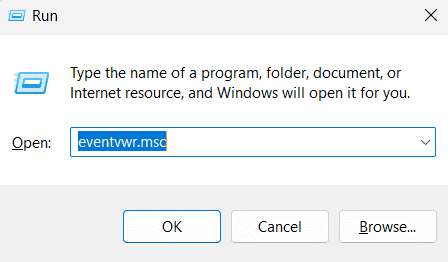
- Press Windows + R to open the Run dialog box.
- Type eventvwr and hit Enter.
2. Navigate to system logs:
- In the left pane of the Event Viewer window, expand Windows Logs.
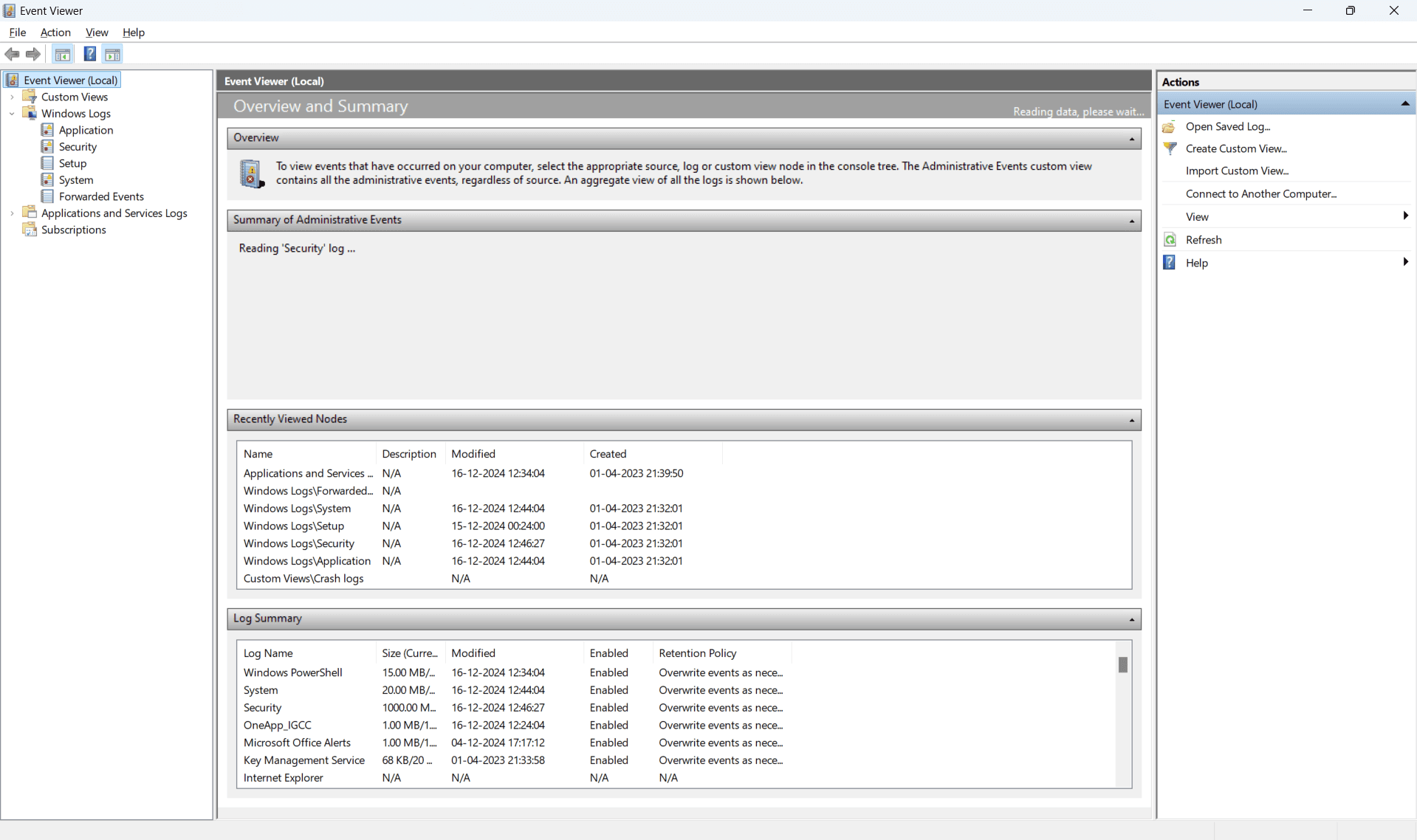
- Click System to view system-related logs.
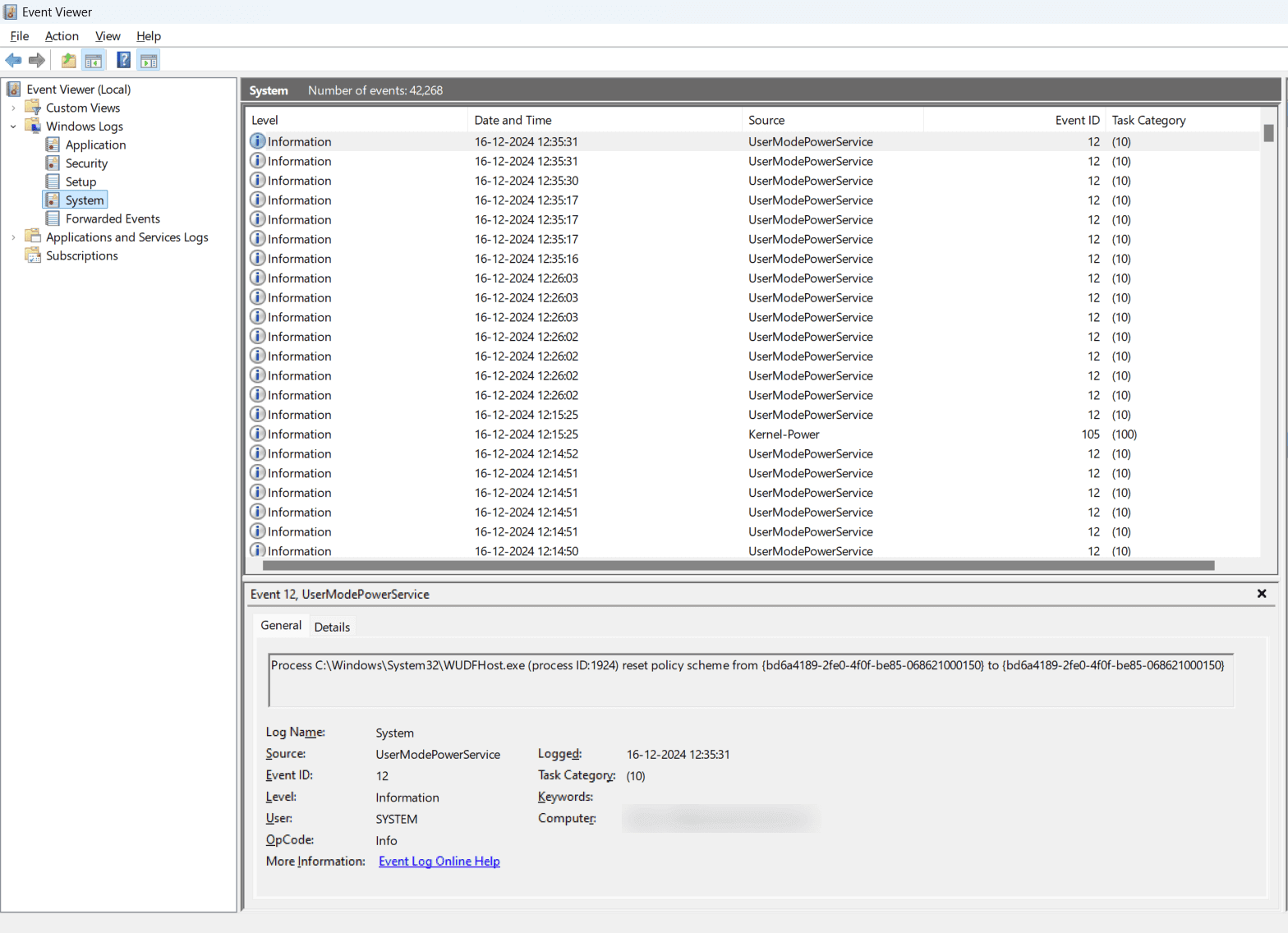
- Other logs, like Application, Security, and Setup, are also accessible under Windows Logs.
3. Filter and view logs:
- Right-click System, then select Filter Current Log to view specific event types such as errors or warnings.

4. Exporting logs (optional):
- To export logs, click Save All Events As after filtering or viewing the relevant data.
- Save logs in formats like EVTX for further analysis in tools like ManageEngine EventLog Analyzer.
Method 2: Using PowerShell (applicable to Windows 10 and 11)
PowerShell offers command-line access to system logs, making it a useful tool for system administrators and automation.
1. Open PowerShell:
- Press Windows + X and select Windows Terminal (Admin).
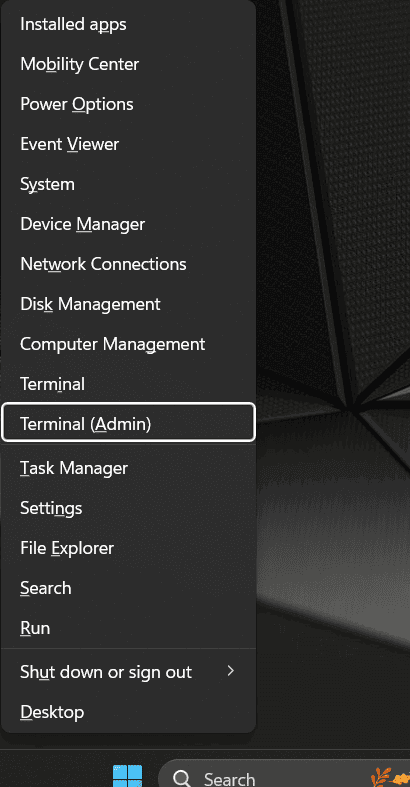
- You can also search for PowerShell in the Start menu and run it as an administrator.
2. Get system logs:
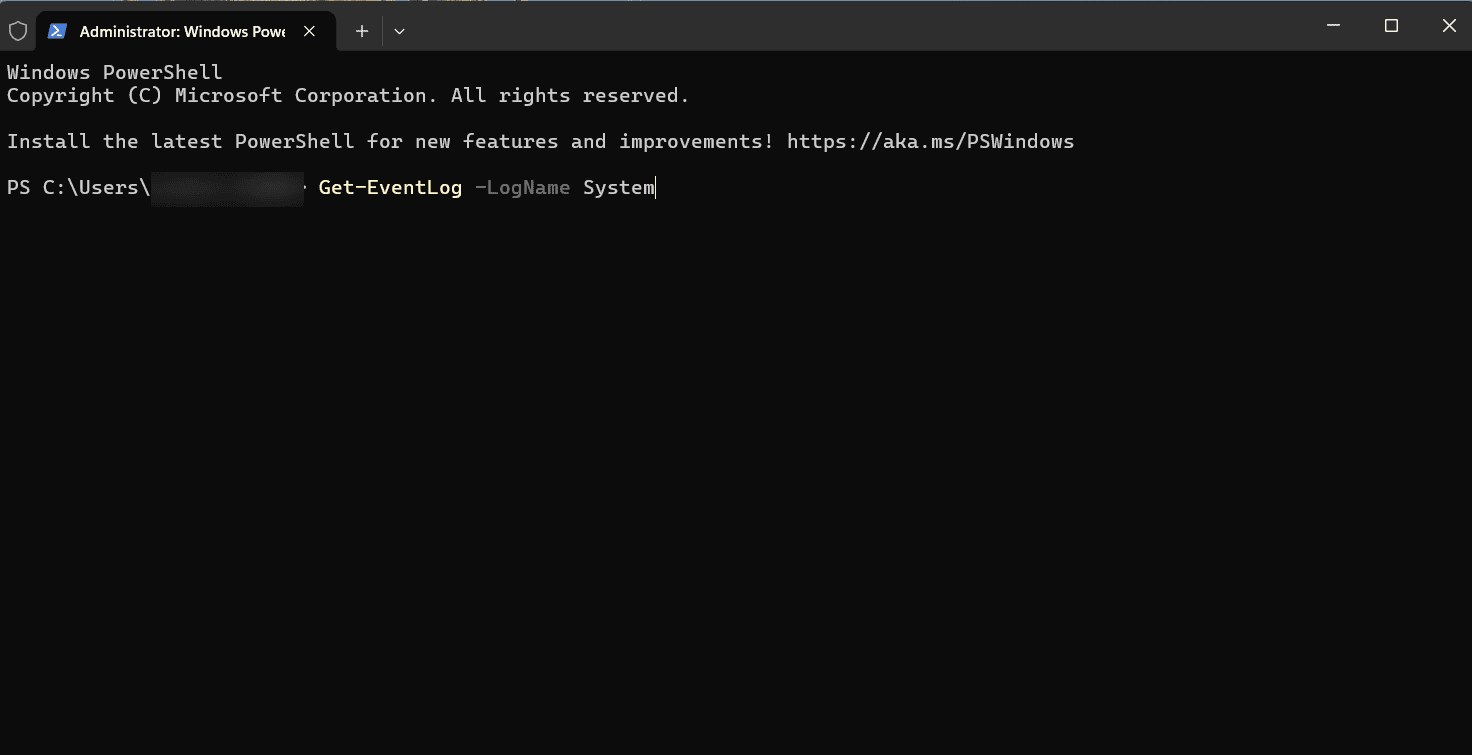
- To list all system event logs, use the following command: Get-EventLog -LogName System
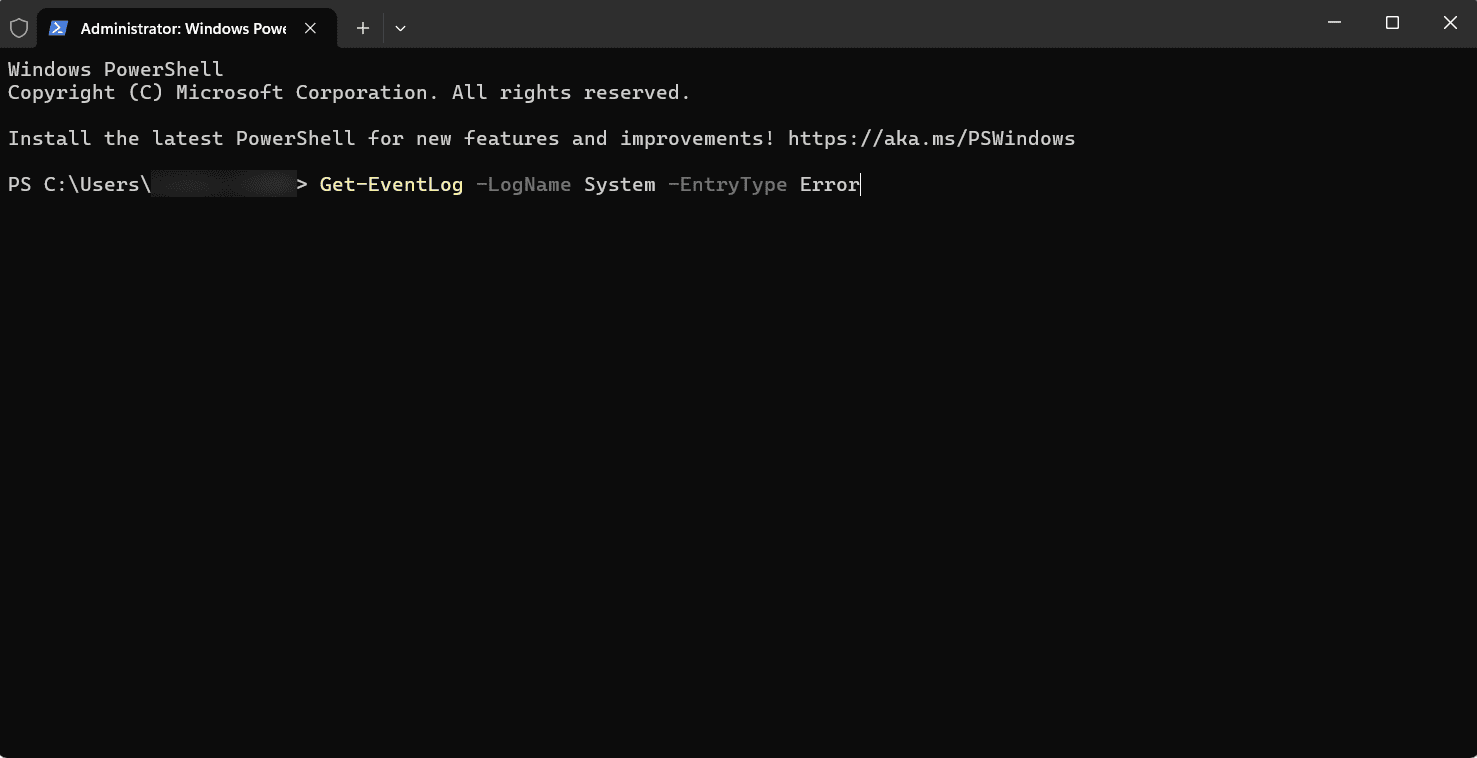
- To filter logs for specific error events, run the following command: Get-EventLog -LogName System -EntryType Error
3. Export logs (optional):
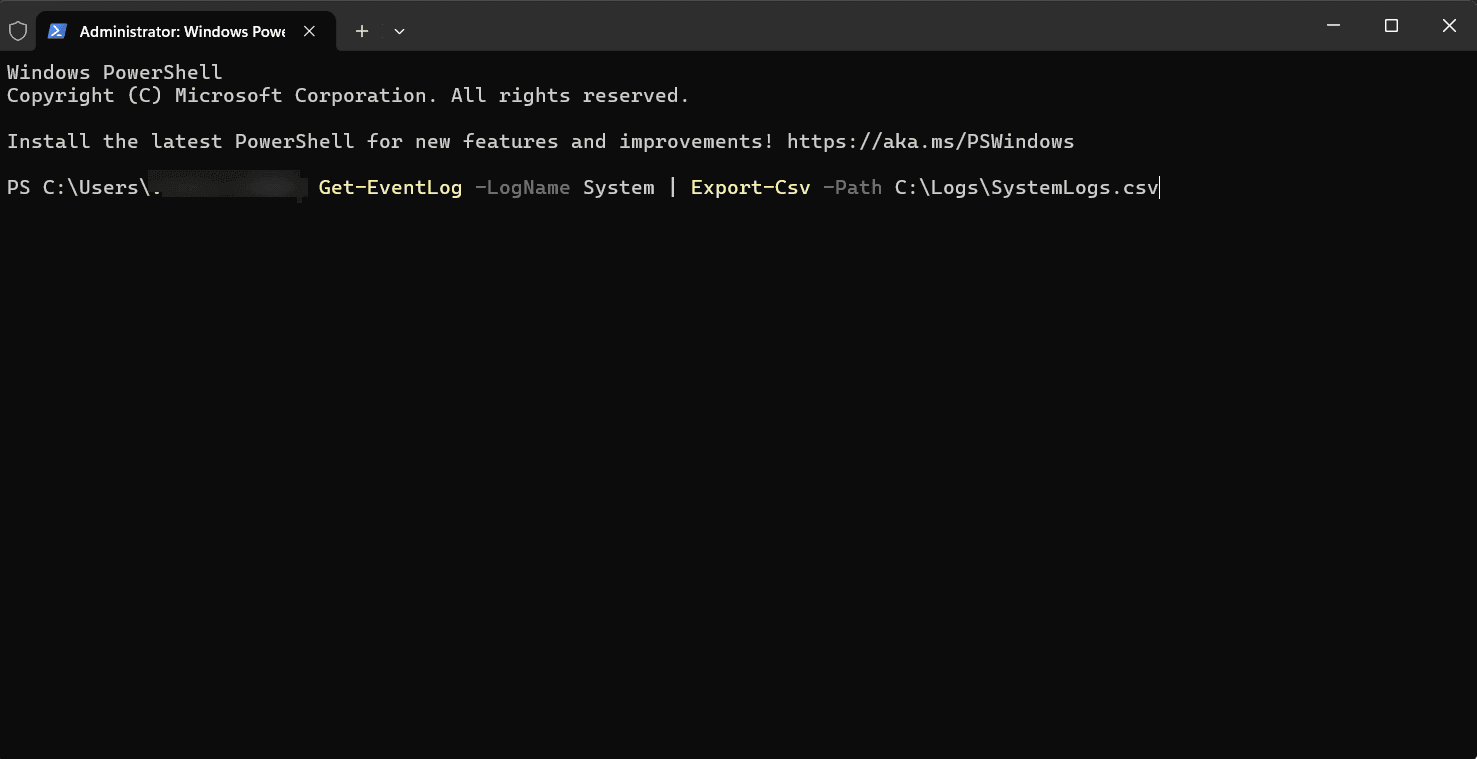
- You can export logs to a file with the following command: Get-EventLog -LogName System | Export-Csv -Path C:\Logs\SystemLogs.csv
Method 3: Using Command Prompt (applicable to all Windows versions)
Command Prompt is another method to access logs and is especially useful in minimalistic setups or over remote connections.
1. Open Command Prompt:
- Press Windows + R, type cmd, and press Enter.
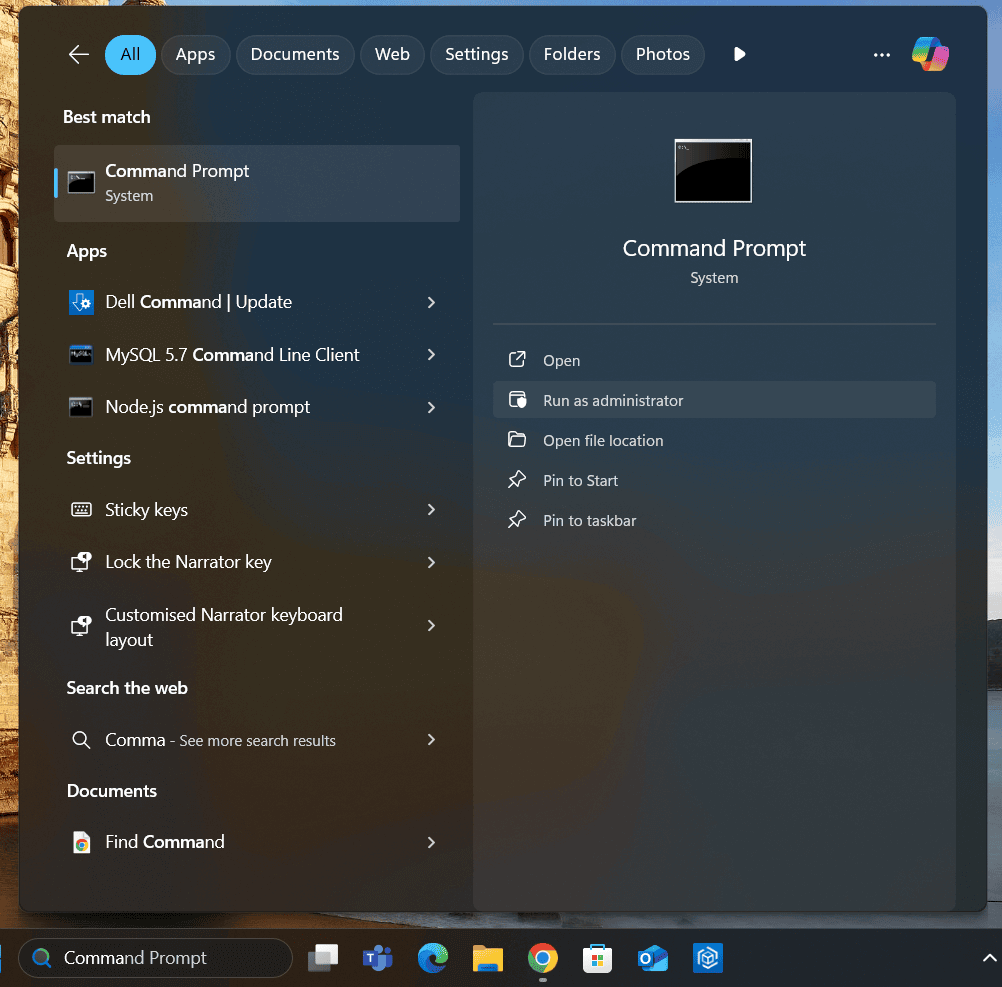
- For administrative access, search for Command Prompt in the Start menu, right-click it, and choose Run as administrator.
2. Query system logs:
- To query system logs via Command Prompt, use the following command: wevtutil qe System /f:text /c:10
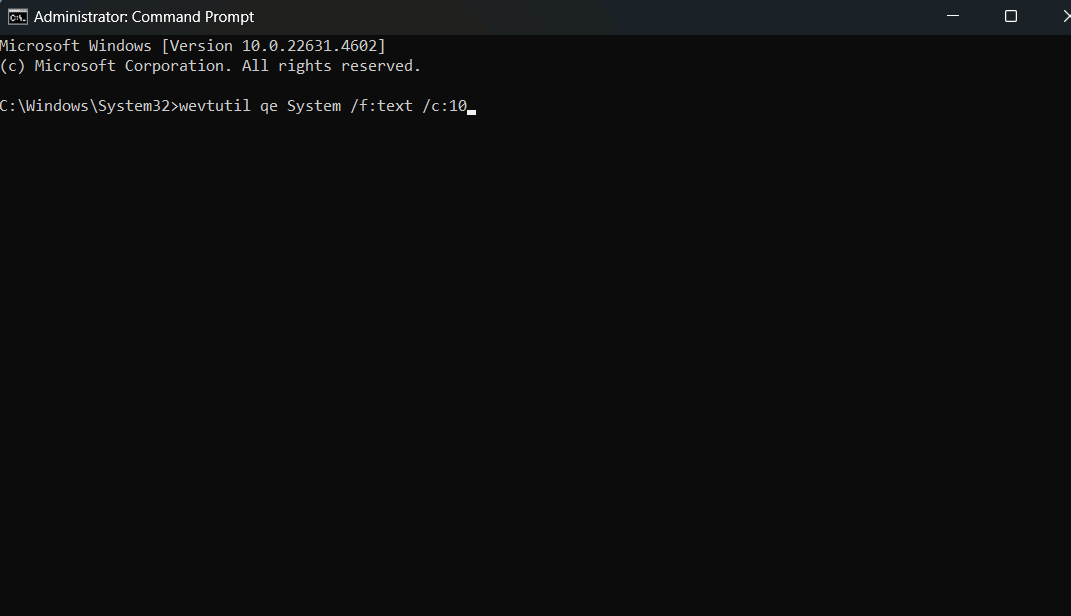
- This will display the 10 most recent system events in text format. Adjust the /c: parameter to display more events.
3. Export logs (optional):
- You can export logs using the following command: wevtutil epl System C:\Logs\SystemLogs.evtx
Method 4: Using the Control Panel (for Windows 7 and earlier versions)
While the Event Viewer is available across versions, older versions like Windows 7 also provide access through the Control Panel.
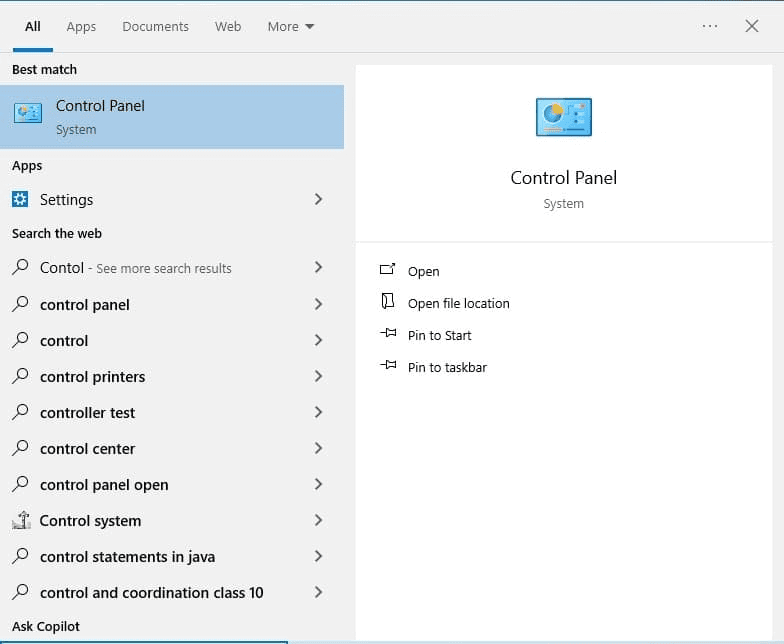
1. Open the Control Panel:
- Click the Start button and open the Control Panel.
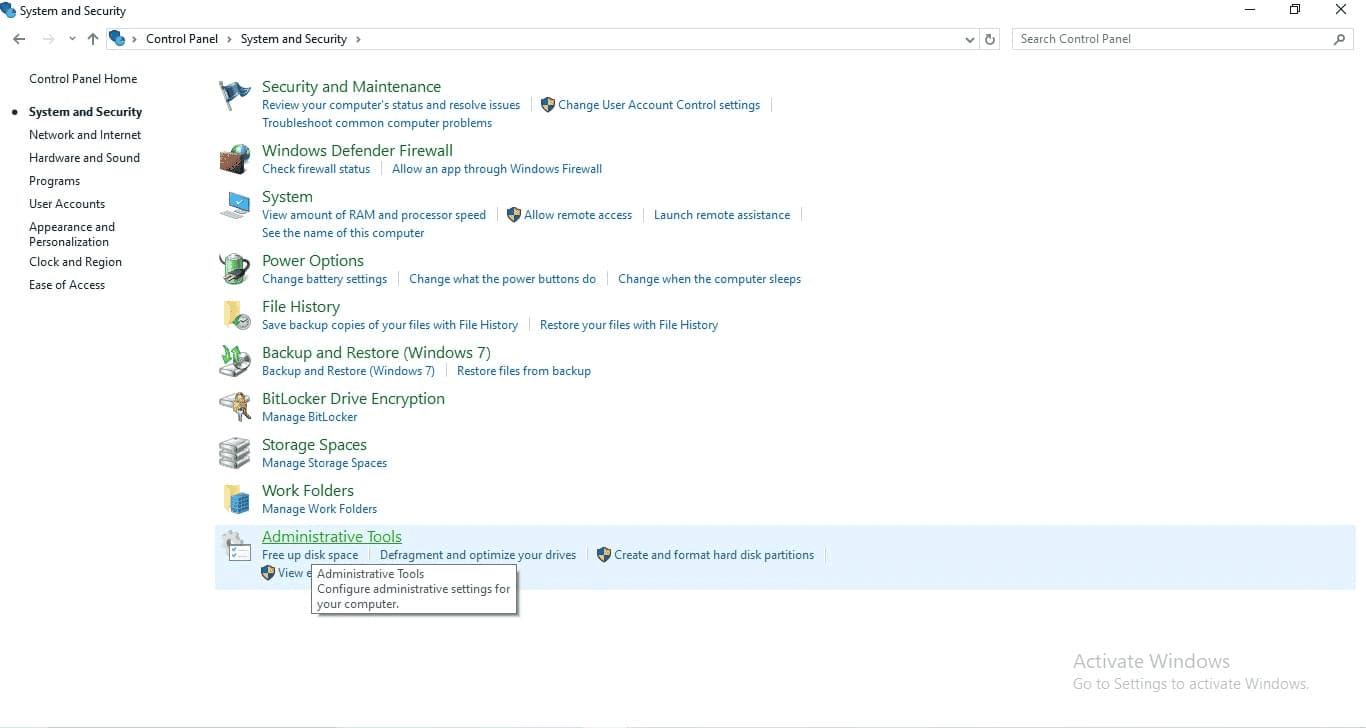
2. Navigate to Administrative Tools:
- In the Control Panel, go to System and Security > Administrative Tools > Event Viewer.
3. Access System logs:
- Once the Event Viewer is open, follow the same steps as mentioned under the Event Viewer section.
What are the key events in Windows system logs?
Typical system events recorded in the logs include:
- Startup and shutdown events: Indicate when the system starts up or shuts down along with any errors that may occur during these processes.
- Driver and hardware events: Log information about device driver installations, updates, and failures, which can help identify hardware-related issues.
- System errors: Capture critical errors that may affect system stability, such as application crashes or service failures.
These events provide crucial information for diagnosing system problems and ensuring that the operating system runs efficiently.
Suggested reading: Check out our troubleshooting guide on system errors like the blue screen of death (BSOD) or Windows update error 0x80070643.
How can Windows system logs help with performance monitoring?
Windows system logs can be utilized to monitor and optimize system performance by:
- Identifying bottlenecks: Analyzing logs for errors or warnings related to system resources can help pinpoint performance issues.
- Tracking changes: Monitoring logs for changes in system configuration or installed applications can help correlate performance changes with specific actions.
- Proactive maintenance: Regularly reviewing system logs allows administrators to address potential issues before they escalate into significant problems, ensuring optimal system performance.
By leveraging the information contained in system logs, administrators can maintain a healthy and efficient computing environment.
How ManageEngine EventLog Analyzer monitors Windows system logs
ManageEngine EventLog Analyzer is a log management and IT compliance tool that simplifies analyzing Windows system logs by providing powerful tools to collect, monitor, and analyze logs from Windows devices.
It offers predefined reports that include system-event-specific reports. These reports simplify log analysis by categorizing events based on system activities. Some of them are as follows:
- Windows severity: Classify logs based on severity (e.g., critical, failure, or information), making it easier to focus on important events.
- Backup and restore: Capture logs related to backup operations and restore events .
- System startup and shutdown events: Logs system reboots, shutdowns, and related errors.
- Service and process monitoring: Tracks service starts, stops, and failures along with process creations and terminations.
- USB and removable disk changes: Tracks events related to USB device insertions, deletions, and modifications.
- Application and software changes: Includes new software installations, updates, and failures.
- Registry permission changes: Logs changes to registry permissions, which can help identify security policy adjustments or unauthorized access attempts.
These predefined reports save time and provide immediate insights into system operations.
EventLog Analyzer also allows administrators to configure real-time alerts for critical system logs. This enables proactive monitoring of important system events, such as:
- System failures or crashes (e.g., application crashes or BSOD).
- Service start or stop events.
- Unauthorized system changes (e.g., registry modifications).
By setting up customized alerts, EventLog Analyzer ensures that administrators are instantly notified of critical system issues, enabling faster response times.
EventLog Analyzer simplifies the complexity of analyzing Windows system logs, making it an indispensable tool for IT teams and system administrators who need to maintain operational efficiency, detect anomalies, and ensure security.