Deployment Via Tasks
You can perform deployment by creating deployment tasks. Follow the steps given below to add deployment tasks:
Steps to create deployment tasks:
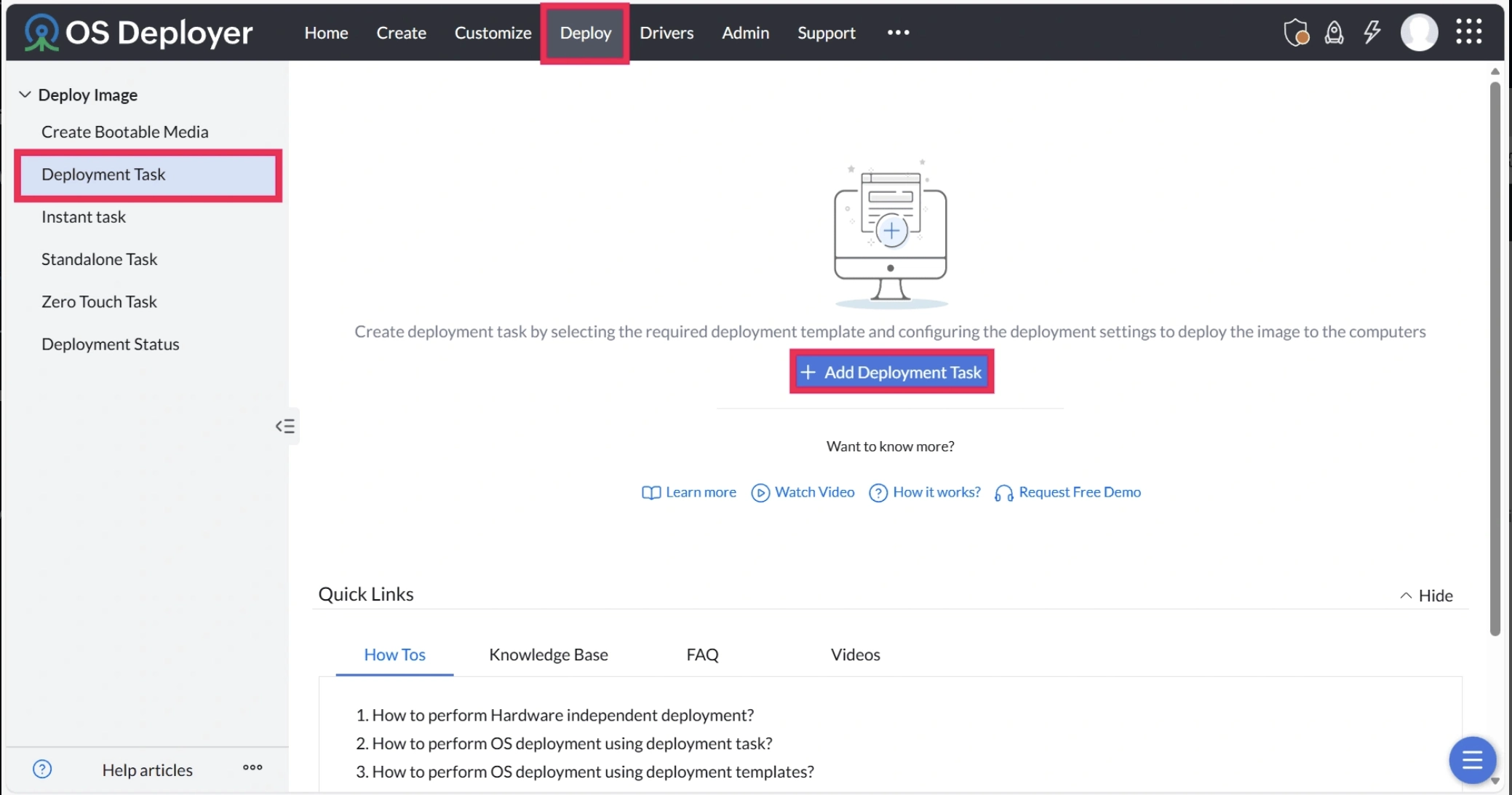
- Under Deploy, select Deployment Task under Deploy Image section.
- Select Add Deployment Task.
- Adding deployment tasks:
- Deployment Template
- Specify a unique name for the deployment task.
- Select the deployment template using which you have customized the image. You will be able to view the details of the deployment template now.
- Remote Office(s)
- Ensure that the selected image in the template is successfully replicated in the remote office.
- The remote offices to which the selected image has been replicated will be automatically added here.
- Refer to this document to learn more about Remote Offices.
- Deployment Mode
- You can deploy the image either by generating a passcode or by using the MAC address.
- By generating passcode:
You can generate a unique 4 or 6 digit code and enter this code in the target computer to deploy the image. Ensure that the target computer connects to the Central Server. You can also view the authentication code set for various deployment tasks in the deployment tasks view. - By using the Service Tag / MAC address:
You can add the computer details by specifying the computer's Service Tag / MAC address. If you specify this and initiate the deployment, the process will automatically continue once the target is manually booted, provided the target's Service Tag or MAC Address matches the ones defined in the deployment task. To enable Wake on LAN and PXE-based automatic boot, the target devices must be configured with their MAC address, IP address, and subnet.
NoteThe "Service Tag / MAC Address" field was introduced in OSD build 1.4.2609.01 and DC build 11.5.2611.01. In versions prior to these, only the target MAC Address could be specified. - By generating passcode:
- You can deploy the image either by generating a passcode or by using the MAC address.
- Deployment Template
- Deployment Settings:
You can select the deployment method to deploy the images.
NoteKindly note that the Multicast deployment method is only available for On-premises environments.- Multicast Deployment method
In the multicast deployment method, the server sends the image copy to multiple computers at the same time, preventing excess bandwidth consumption. For example, if you have purchased 100 bare metal machines and you want to deploy an OS to them at the same time, you can choose the multicast method. The bandwidth consumption will be less in this method since the same copy of the OS image will be sent to all the target computers at a time. This method is recommended when you want to deploy images to multiple computers.
Note- Internet Group Management Protocol (IGMP) is used for multicast deployment. Hence, ensure that the required network routers and switches must be IGMP enabled and correctly configured. The detailed information on configuring routers and switches can be viewed in the documentation provided with the hardware.
- For multicast deployment, the OS Deployment Server uses IP addresses between 239.255.20.20 and 239.255.20.29 and usually works with ports 20021 to 20030. If the specified ports are already in use or unavailable, the server will check the next port in sequence until it finds one that is free, continuing this process up to port 65535.
- Unicast Deployment method
In unicast deployment method, the server sends the image copy to each computer one by one. For example, you might have a new joiner in your organization and you want to give a new system to him with a specific OS; you can choose the unicast deployment method. In this method, the server will send the OS image to each target computer separately. This method is recommended for deployment of up to 5 computers.
- Deployment waiting time
Specify the time interval for the target computers to connect to the server. The waiting time will be initiated once you click the Deploy Now button. If you enable the Schedule Deployment option, the waiting time will start at the scheduled time. During this time interval, the server will wait for the target computers to connect, and the deployment will be initiated once the target computer is connected to the server.
NoteEnsure that you set the required deployment waiting time since the authentication passcode has to be entered within the specified time to initiate deployment. - Schedule Deployment
You can schedule the time interval for deployment based on the feasible time in your organization.
- Multicast Deployment method
Deployment task has been created successfully. Boot the computer using bootable media and initiate deployment. You can view the status of the deployment under the Deployment status tab.
 Yes No