Steps to configure SAML SSO for Vani
About Vani
Vani is an internal/affiliated product from Zoho geared toward unified communications and voice/video collaboration for teams.
Bookmarks
You can add Vani to the Identity360 end-user portal by creating a simple bookmark for the application and assigning it to users. The bookmark method enables users to directly login to Vani from the Identity360 portal, allowing single-click access.
Note: ManageEngine Identity360 is part of the Zoho suite. So, logging into Identity360 enables SSO for all of the Zoho applications.
Steps to configure Bookmark for Vani
- Log in to Identity360 as an Admin, Super Admin, or Technician with a role that has Application Integration and Single Sign-on permissions.
- Navigate to Applications > Application Integration > Create New Application, and select Vani from the applications displayed.
Note: You can also find Vani from the search bar located at the top.
- Under the General Settings tab, enter the Application Name and Description.
- Under the Choose Capabilities tab, choose Single Sign-On and click Continue.
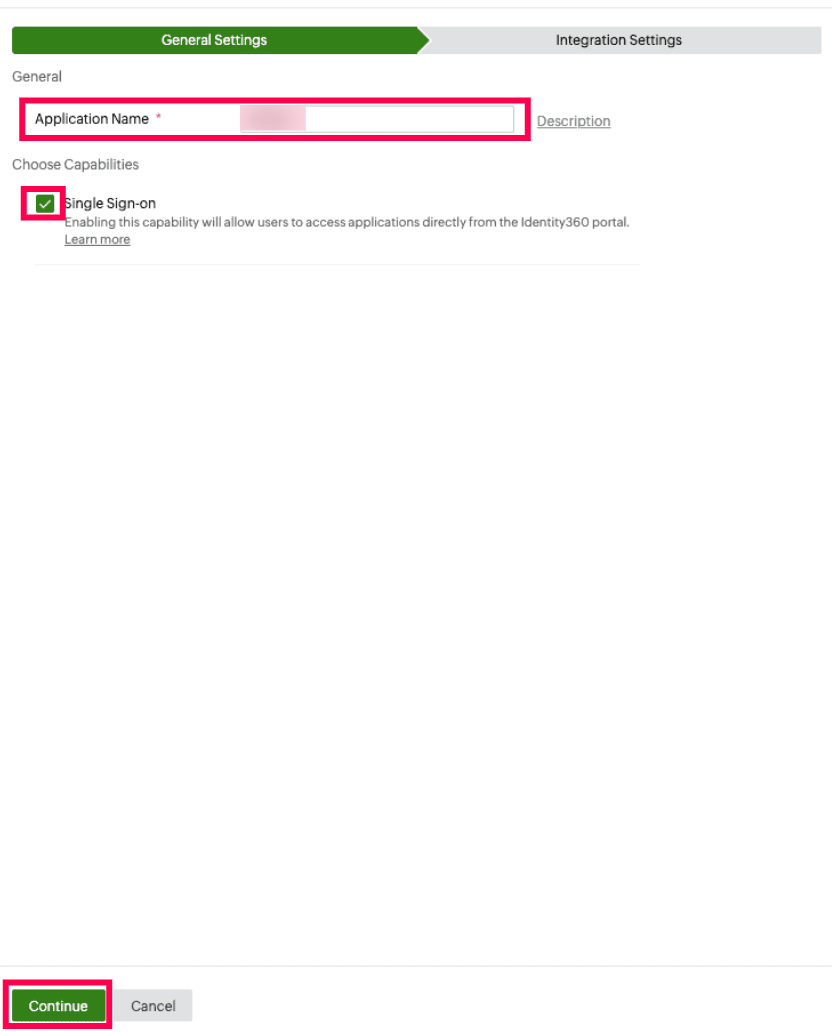 General Settings of SSO configuration for Vani
- Under Integrations Settings tab, from Bookmark Configuration, select the respective Data Center.
Note: A data center is a facility that stores your enterprise data and from which the user can access the same. At Zoho, we host data in best-in-class data centers across the globe.
- Click Save.
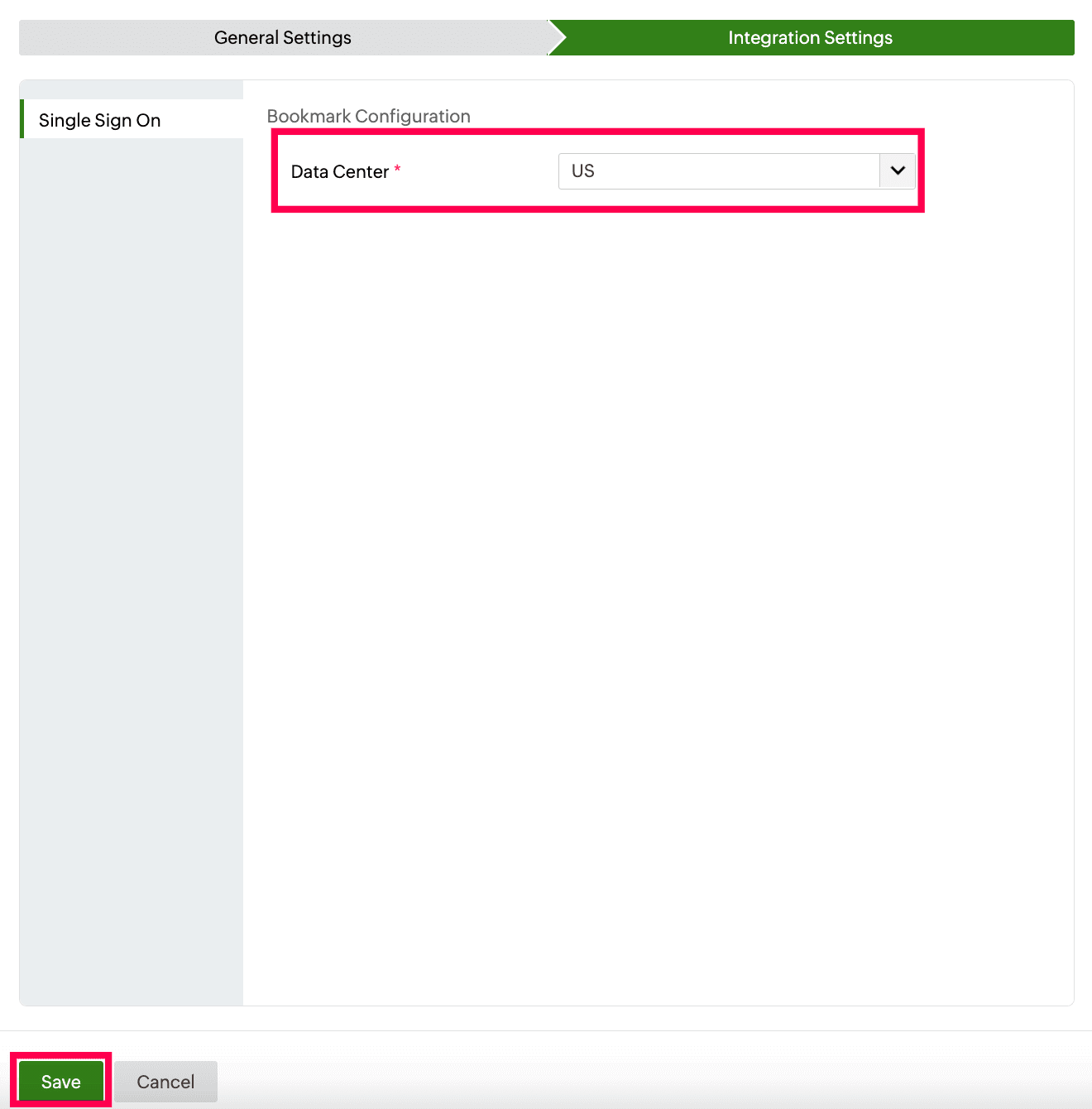 Data region selection for bookmark configuration of Vani
To learn how to assign users or groups to one or more applications, refer to this page.
Note: No additional configuration settings are required on the Vani end.
Steps to enable MFA for Vani
Setting up MFA for Vani using Identity360 involves the following steps:
- Set up one or more authenticators for identity verification when users attempt to log in to Vani. Identity360 supports various authenticators, including Google Authenticator, Zoho OneAuth, and email-based verification codes. Click here for steps to set up the different authenticators.
- Integrate Vani with Identity360 by configuring SSO using the steps listed here.
- Now, activate MFA for Vani by following the steps mentioned here.
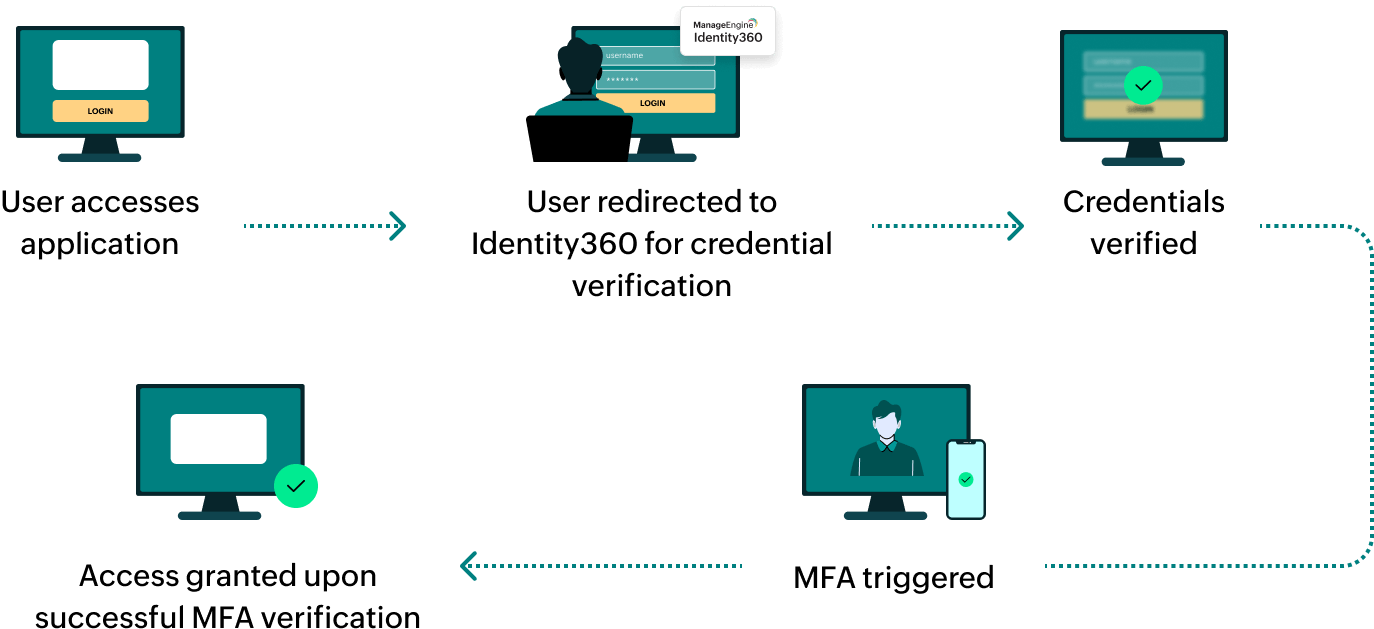
How does MFA for applications work in Identity360?