Just-In-Time Privilege Elevation
Grant temporary, scoped privilege elevation only when needed — eliminating standing admin rights while keeping operations running smoothly.
Just-In-Time Access overview
Two elevation models — admin-configured and user-requested — both time-bound and fully auditable.
What JIT access does for privilege management
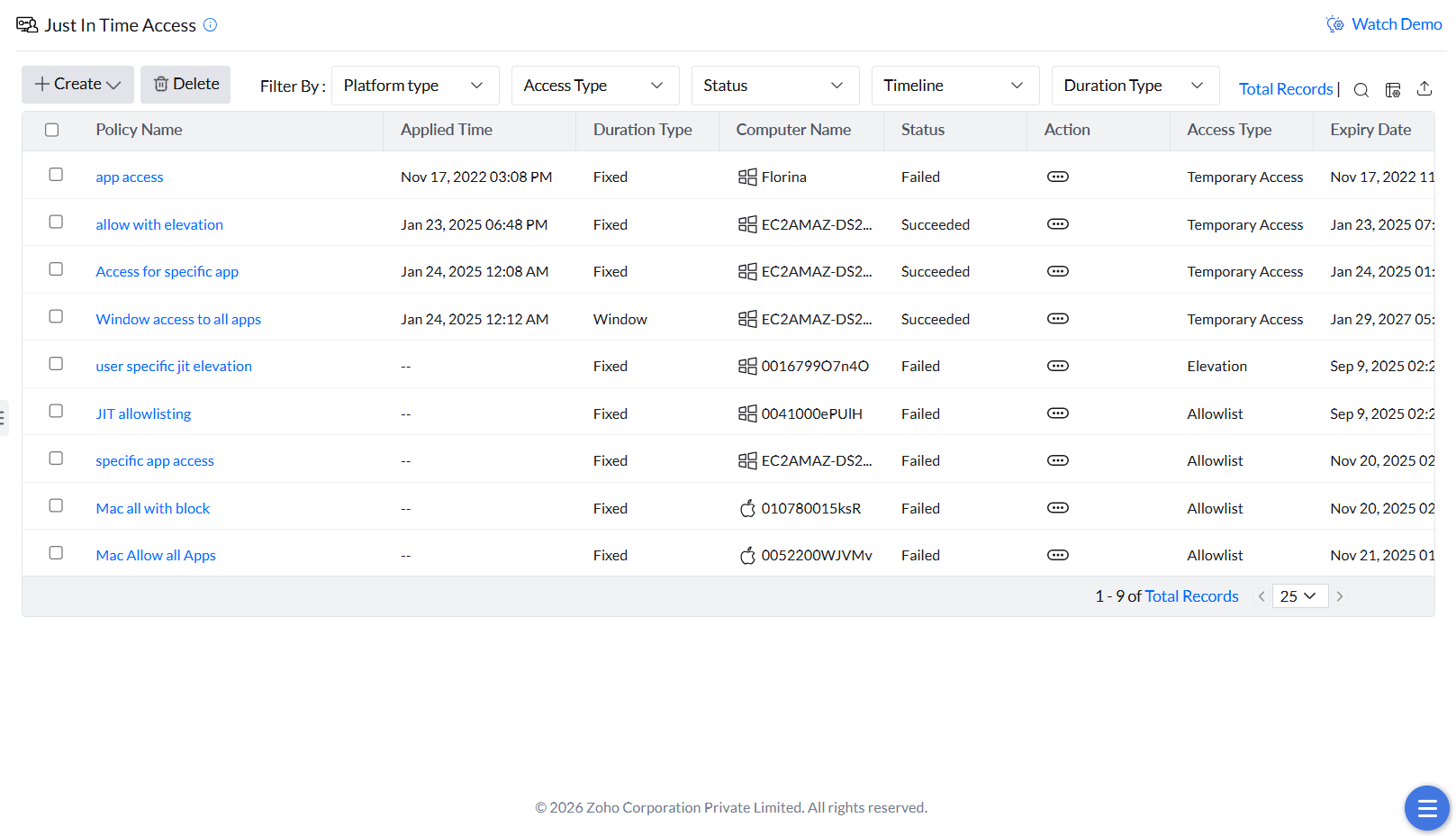
Just-in-Time (JIT) access in Application Control Plus gives administrators a way to provide users with temporary, scoped privileges only when required for specific tasks — eliminating the need for standing administrative rights. JIT access supports two models:
- Admin-configured policies — proactively grant access based on predefined criteria for known use cases.
- Request-based elevation — users initiate privilege elevation on demand with a justification and a defined time duration.
In both models, access is controlled and time-bound. Limit it to specific applications using criteria such as vendor, file hash, or folder path.
Security benefits of JIT access
Permanent administrative rights expand the attack surface and increase the risk of both insider threats and unauthorized access. JIT access eliminates this exposure — privileges are granted only when needed, only to the right users, and only for as long as necessary.
The request-based model adds a further layer of accountability: users must provide a justification before access is approved, creating a clear and auditable trail of privilege usage. These capabilities help enforce least privilege and reduce the likelihood of data breaches.
Configure Just-In-Time Access
Create an admin-configured JIT policy with a defined scope and duration.
Application Elevation grants time-bound elevated access; Application Allowlisting grants permission to run and is documented separately. Elevation JIT includes a User Name selection. Check the allowlist and the selected access settings before deployment; granting permission to run and granting elevation are separate decisions.
Create a JIT elevation policy
- Go to Just in Time Access under Policies.
- Click Create, then select Application Elevation.
- Enter a Name and Description for the policy.
- Enter the Computer Name and select the User Name (or choose All users to apply to everyone on the device).
- Select a duration type: Fixed (a set duration) or Window (a specific time frame during which access is active).
Fixed duration and Window duration are different choices. Fixed uses the durations offered in the console. Window uses From and To date/time values. Select the shortest period needed for the task. The availability of a date picker does not establish an unlimited supported duration.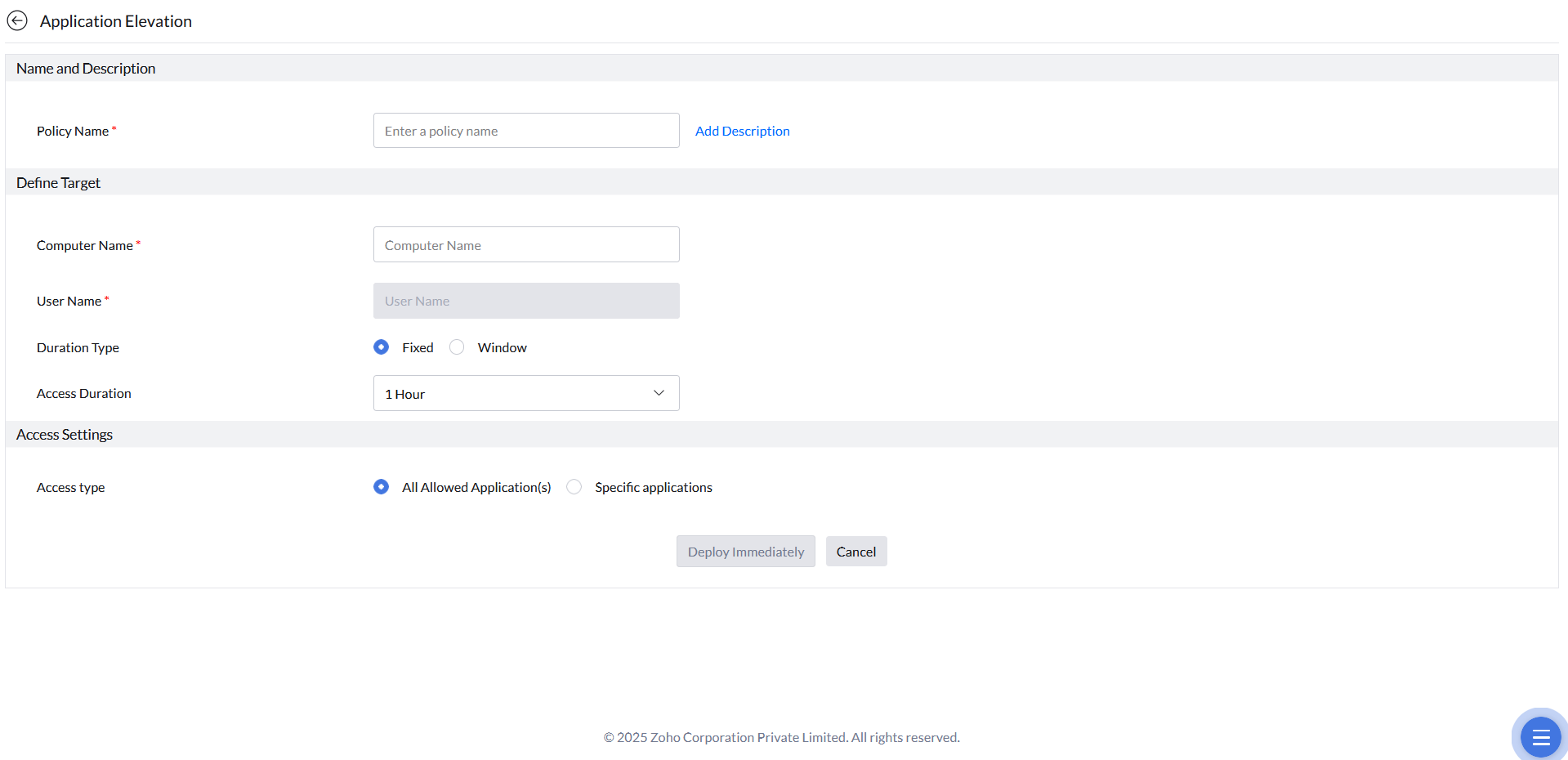
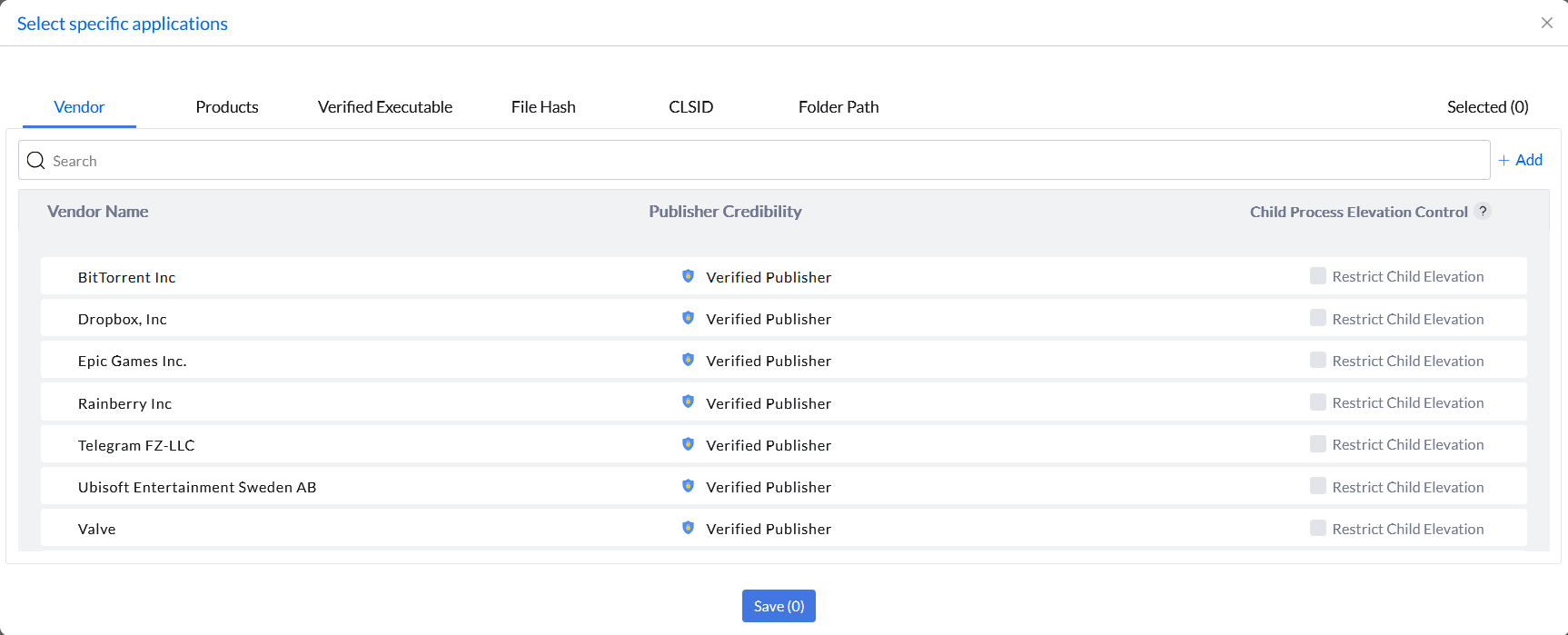
- In Access Settings, choose the elevation scope: All Allowed Application(s) (any allowlisted app) or Specific Applications (only selected apps, defined by Vendor, Products, Verified Executable, File Hash, CLSID, or Folder Path).
- Click Deploy Immediately.
Use Specific Applications to scope the JIT policy as narrowly as possible — granting access to only the applications the user needs for the task at hand.
A JIT Access policy can target only a single machine and cannot currently target a custom group.
A deployed JIT elevation grant authorizes matching applications during its access period; it does not start the application for the user. The user must initiate the configured elevation workflow. In the Windows UAC-based workflow, the grant is evaluated when elevation is requested, and managed consent can still be shown. Do not assume that creating a JIT policy is the same as enabling silent Auto Elevation.
User-initiated elevation requests
Users can request temporary elevation on demand, without waiting for an admin to pre-configure a JIT policy.
Submit and review elevation requests
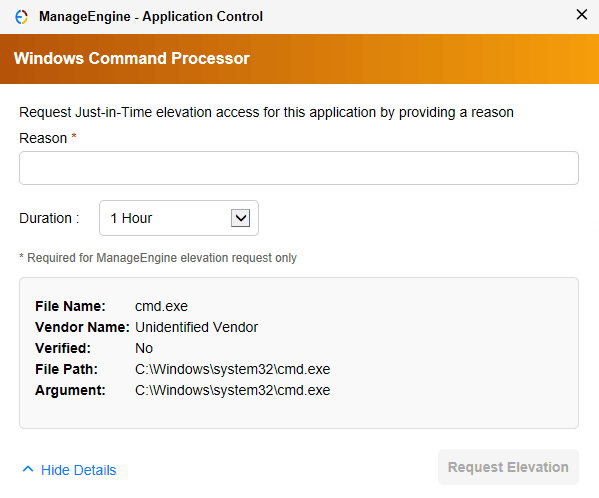
In addition to admin-configured JIT policies, Application Control Plus supports a request-based model where users initiate elevation on their own. When a user attempts to run an application requiring elevated privileges, they see a prompt to submit a JIT elevation request — specifying a time duration and a justification.
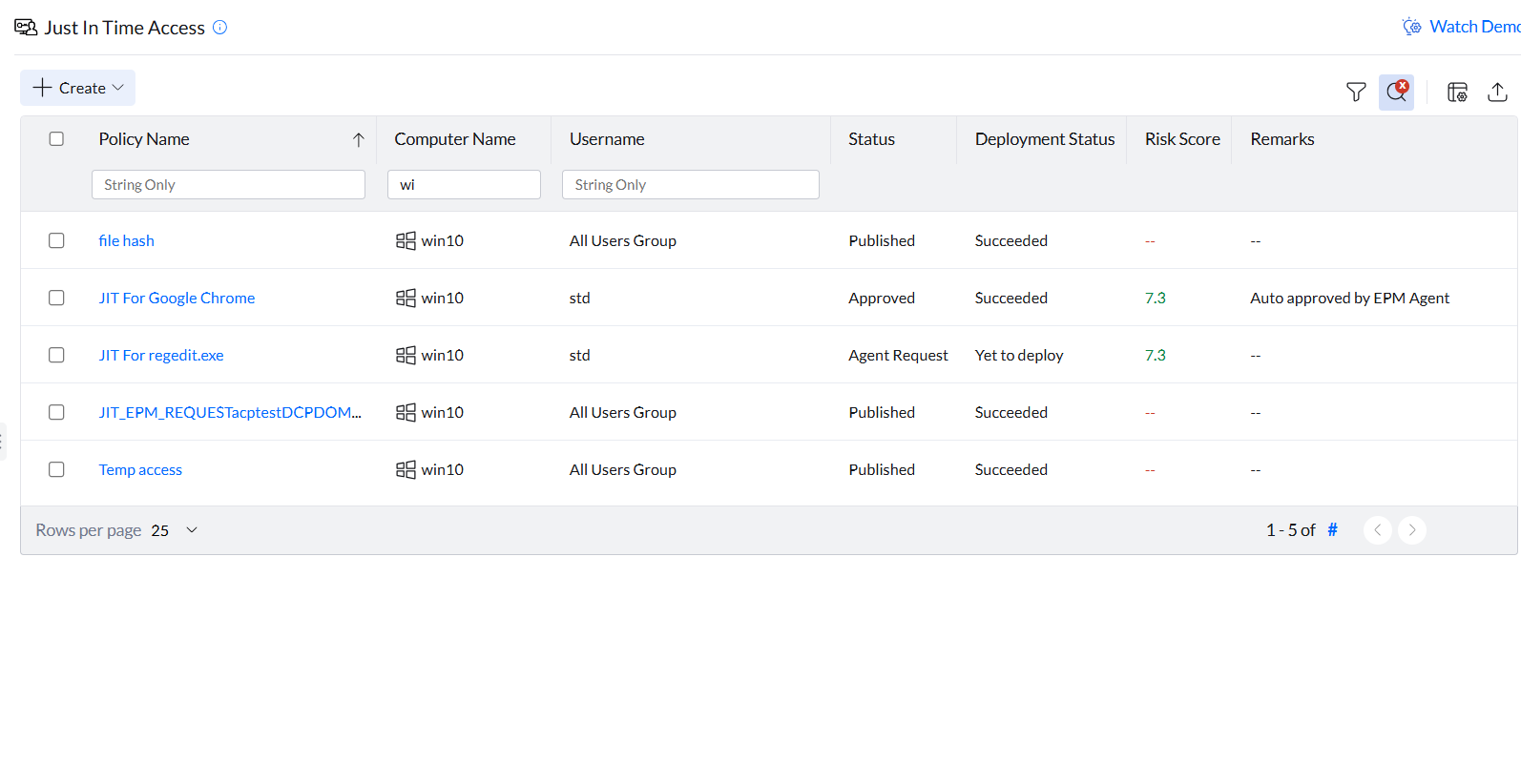
All pending requests appear in the Just-In-Time Access tab for administrator review. Approved access is automatically revoked when the requested time duration expires. Administrators can also manually revoke active access at any time from the console.
JIT Events Report
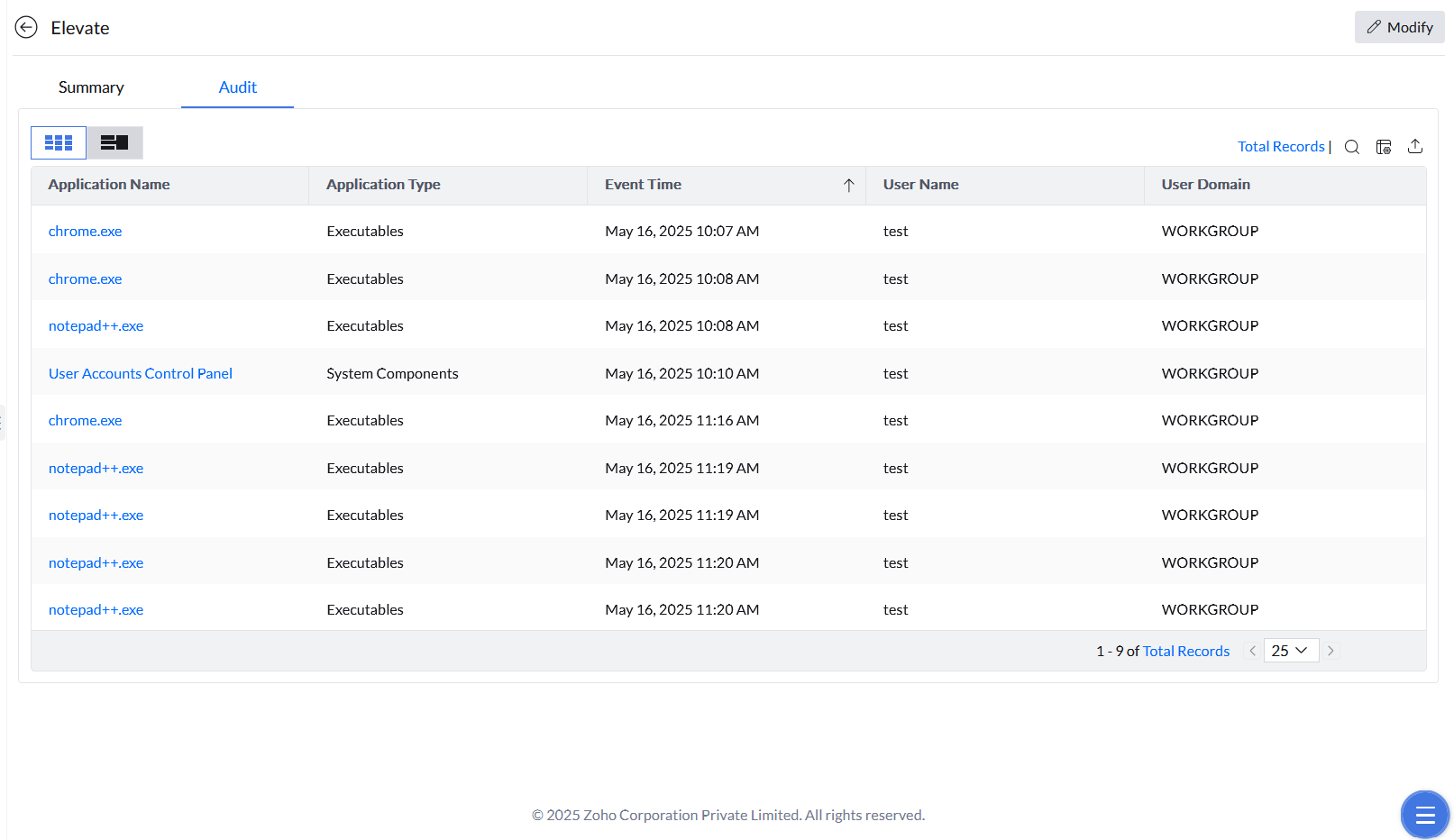
Events generated under each JIT policy are accessible by clicking the policy and opening the Audit tab. Use this report to verify elevation and investigate unusual activity.
The current JIT audit view separates executable activity from component activity. Review Executable Event for Windows executables, or Binary Event for Mac application access. Component Event is available for Application Elevation policies. These tabs depend on policy type; do not expect every policy to show every event category.