File upload security:
Best practices to prevent cyberattacks

  •  
     
  • -Select-
By clicking 'Download PDF', you agree to processing of personal data according to the Privacy Policy.

Thank you!

The PDF link has been sent to your email.

We hope you enjoy reading and sharing these best practices.

File transfers in the cloud are a significant security risk when not securely implemented and monitored. Unsecure uploads can result in severe vulnerabilities, such as remote code execution, malware distribution, and privilege escalation. Attackers can exploit these vulnerabilities to upload harmful scripts or executables to gain unauthorized access, steal sensitive data, and deliver malware. Such file upload vulnerabilities can be prevented if proper upload control measures are implemented.

Use our checklist to ensure secure file uploads and protect application integrity and user data.

File upload security checklist


Block malicious uploads

  • Allow file uploads only from trusted applications and block all other upload actions.
  • Employ antivirus scanning tools to detect and block potentially malicious uploads.
  • Limit file upload access to only authenticated and authorized users.
 

Rename filenames

  • Rename original filenames to unique, randomized filenames (unique identifier, hash, or timestamp-based naming) to avoid path traversal attacks.
  • If you need to retain filenames, store them in a database instead of using them in file paths.
 

Encrypt sensitive file uploads

  • Use strong encryption algorithms like AES-256 to store sensitive files.
  • Store encryption keys in a secure key management system (KMS).
 

Process files securely

  • Avoid executing or parsing uploaded files on the server to prevent exploits and attacks.
  • Use a sandboxed environment to isolate file processing from critical system resources.
 

Sanitize metadata and contents

  • Remove metadata that might contain security threats, such as:
    • Malicious VBA macros or embedded JavaScript in documents that can execute harmful scripts.
    • EXIF data in images might potentially expose hidden scripts or author PII data.
  • Block execution of any embedded scripts with a process restriction tool.
 

Limit allowed file types, file size, and upload frequency

  • Create an allowlist to accept only specific, necessary file formats (for example, PNG, JPG, PDF).
  • Set upload file size limits to prevent denial-of-service attacks.
  • Limit the number of uploads an user can make within a timeframe to prevent bot attacks.
 

Enforce strict access controls on stored files

  • Provide access, modify, and delete permissions to only a limited number of users.
  • Do not store vital files in publicly accessible directories.
  • If files must be served, use access-restricted URLs with short-lived signed tokens.
 

Continuously audit upload activities

  • Set up real-time alerts to be notified of suspicious file accesses and upload requests.
  • Regularly analyze logs to detect anomalous upload patterns.
  • Store detailed logs, with timestamps, user details, and IP addresses, for any forensic investigations.

File upload protection with DataSecurity Plus

ManageEngine DataSecurity Plus is a unified data security posture management platform, that helps secure you data across network servers, endpoint devices, and the cloud. DataSecurity Plus' Cloud Protection module focuses on enforcing strict control measures over file transfers across the cloud, managing the use of cloud applications, and monitoring your organization's web traffic.

Ensuring file upload security is not just about protecting your IT infrastructure from cyberattacks and data loss, it's also about achieving compliance with various data protection laws like the GDPR and CIPA. With DataSecurity Plus's file upload control feature, you can do both.

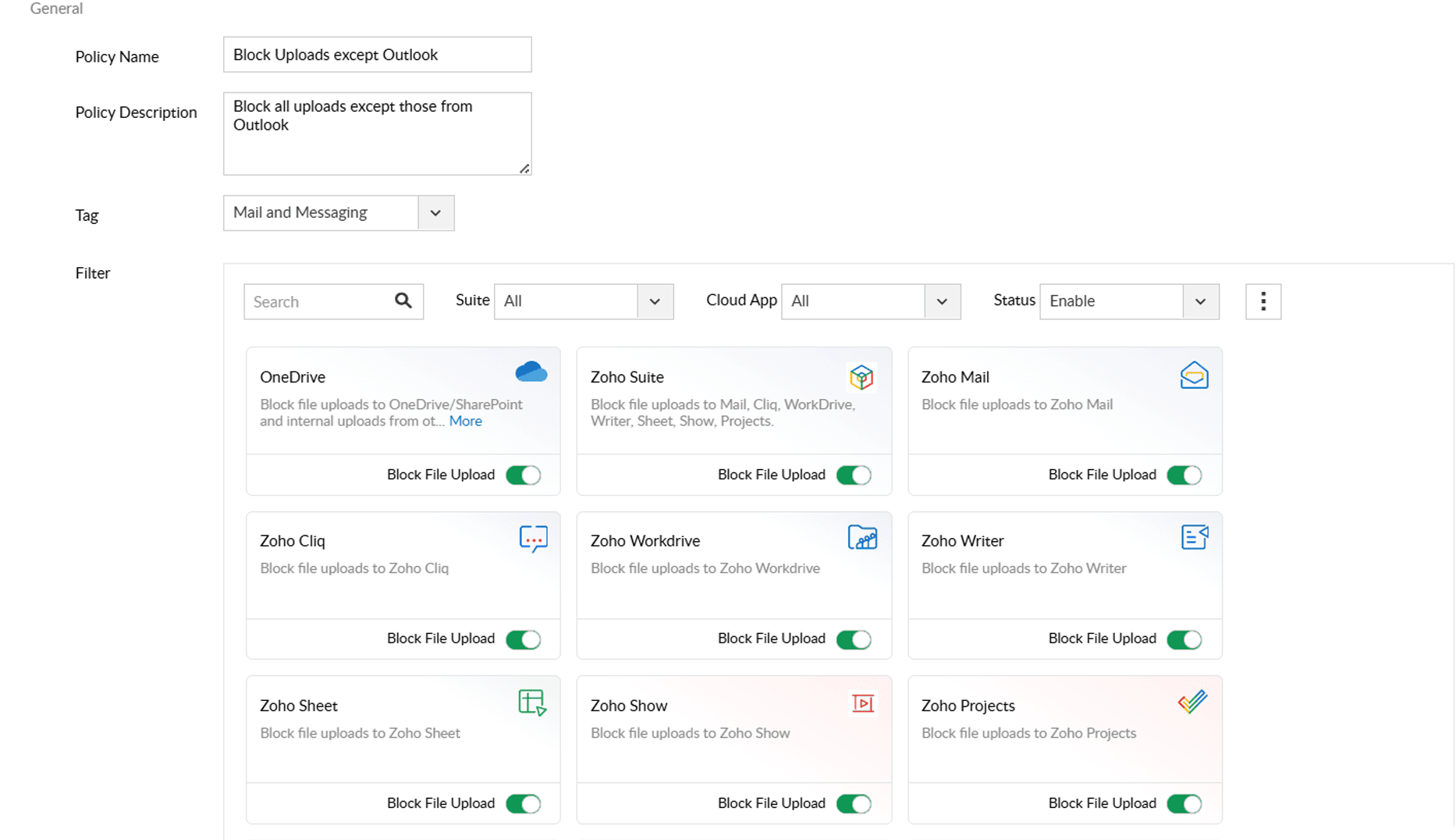
  • Allow file uploads only from trusted cloud applications and block uploads from all other sources.

    Allow file uploads only from trusted cloud applications and block uploads from all other sources.
  • Control file uploads granularly with criteria such as content type, content length, etc.

    Control file uploads granularly with criteria such as content type, content length, etc.

File uploads FAQs

A file upload vulnerability occurs when upload attempts are handled improperly by a cloud application, enabling attackers to upload malicious files. These files might contain malware, scripts, or other harmful content that can lead to remote code execution, data breaches, or system compromise. Lack of proper file upload control allows this vulnerability to be exploited, causing a significant security risk.

Unrestricted file upload is a type of file upload security vulnerability where a cloud application allows users to upload files without any type of validation. When file metadata, file size, or content are not properly verified and controlled during file uploads, attackers can easily upload malicious files that can lead to severe security issues, including complete system takeover, overloading file systems, and cyberattacks. Unrestricted uploads can also lead to phishing attacks, where attackers upload deceptive files posing as legitimate content.

To restrict file upload types, follow these best practices:

  • Use an allowlist approach, utilizing only necessary file extensions (for example, JPG, PNG, PDF).
  • Validate the MIME type of the uploaded file on the server-side.
  • Inspect file headers (also known as magic bytes) to confirm the actual file type.
  • Enforce restrictions at both the client-side (JavaScript, HTML5) and server-side (PHP, Python, Node.js, etc.).
  • Convert uploaded files into safe formats (for example, stripping metadata from images).
  • Reject files with double extensions (for example, image.jpg.php).

Get DataSecurity Plus easily
installed, configured and running within minutes.

Download Now  
Email Download Link