Linux Patch Deployment
Endpoint Central MSP supports Linux patches within 24 hours of their release. According to your enterprise's patching practices, you can deploy them either manually or using any automate patch deployment tasks.
Third-party repository applications
Third-party repository applications, including Google Chrome, are not supported for Linux patching. Use the operating system's supported repositories or the vendor's update mechanism. A support timeline for third-party repository applications is not available.
Local repository
Patching using a local repository is not supported. Endpoint Central MSP does not use the machine local repository. It downloads patches only from official vendor repositories. The server must be able to access the required vendor domain. For vendor domain reachability, refer to Troubleshooting package manager metadata files download failure. To request local-repository support, submit a feature request.
Manual Deployment
To deploy Linux patches using manual deployment, Under Missing Patches tab, search and filter the required Linux patches. Select those patches and choose other configurations. To learn more about how to manually deploy patches, refer to this page.
Automate Patch Deployment
For a Linux deployment that fails or remains in retry, record the affected computer, distribution, package and version, repository, execution status and full remark. Export the task report and collect the Linux agent and package-manager logs if the cause remains unclear. See APD task assessment and the Linux agent log-upload instructions.
You can automate the patching of Linux computers by creating an Automate Patch Deployment task.
When you are creating an Automate Patch Deployment (APD) task, choose Linux as the operating system after you click on Automate Task.
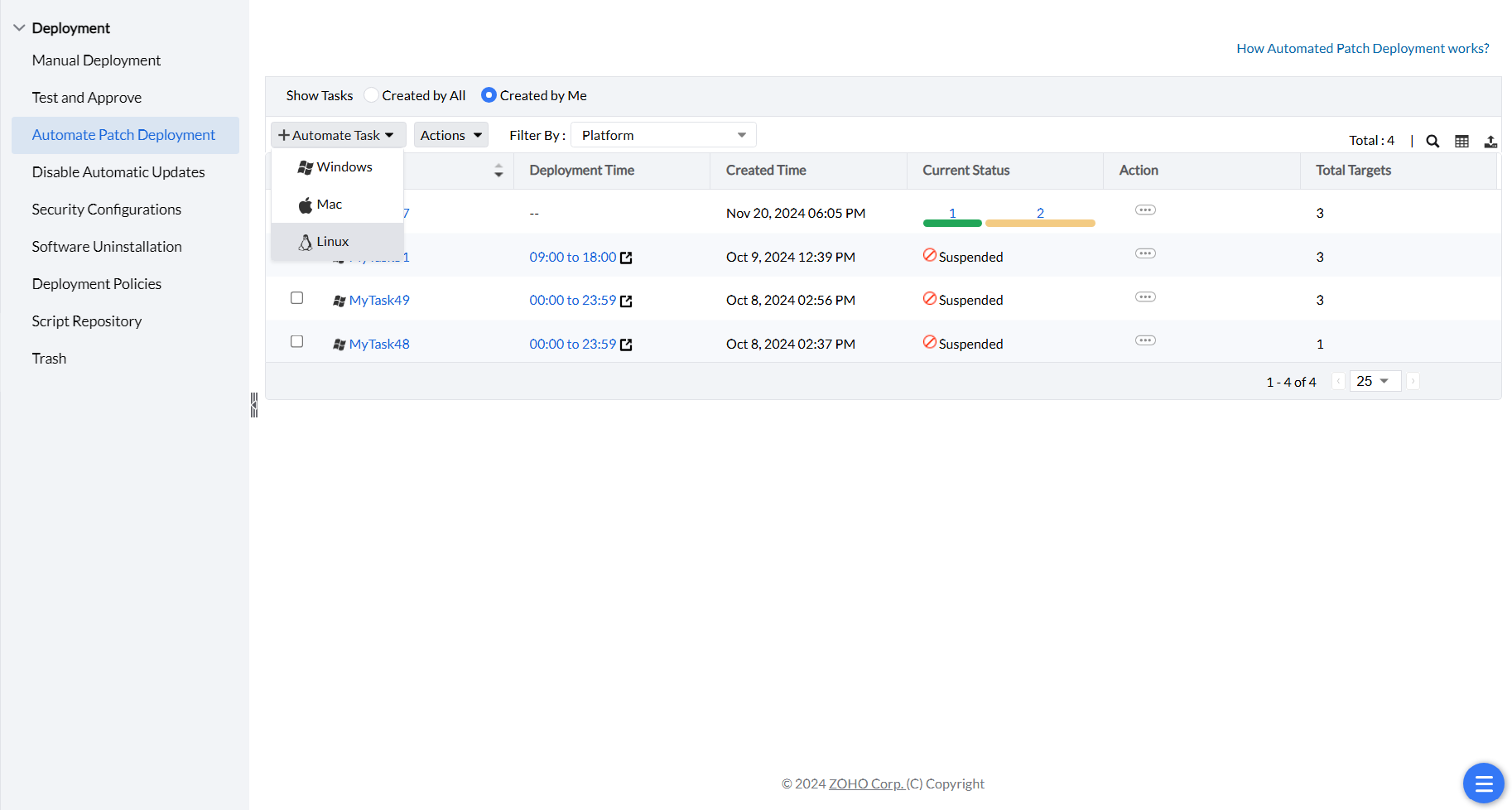
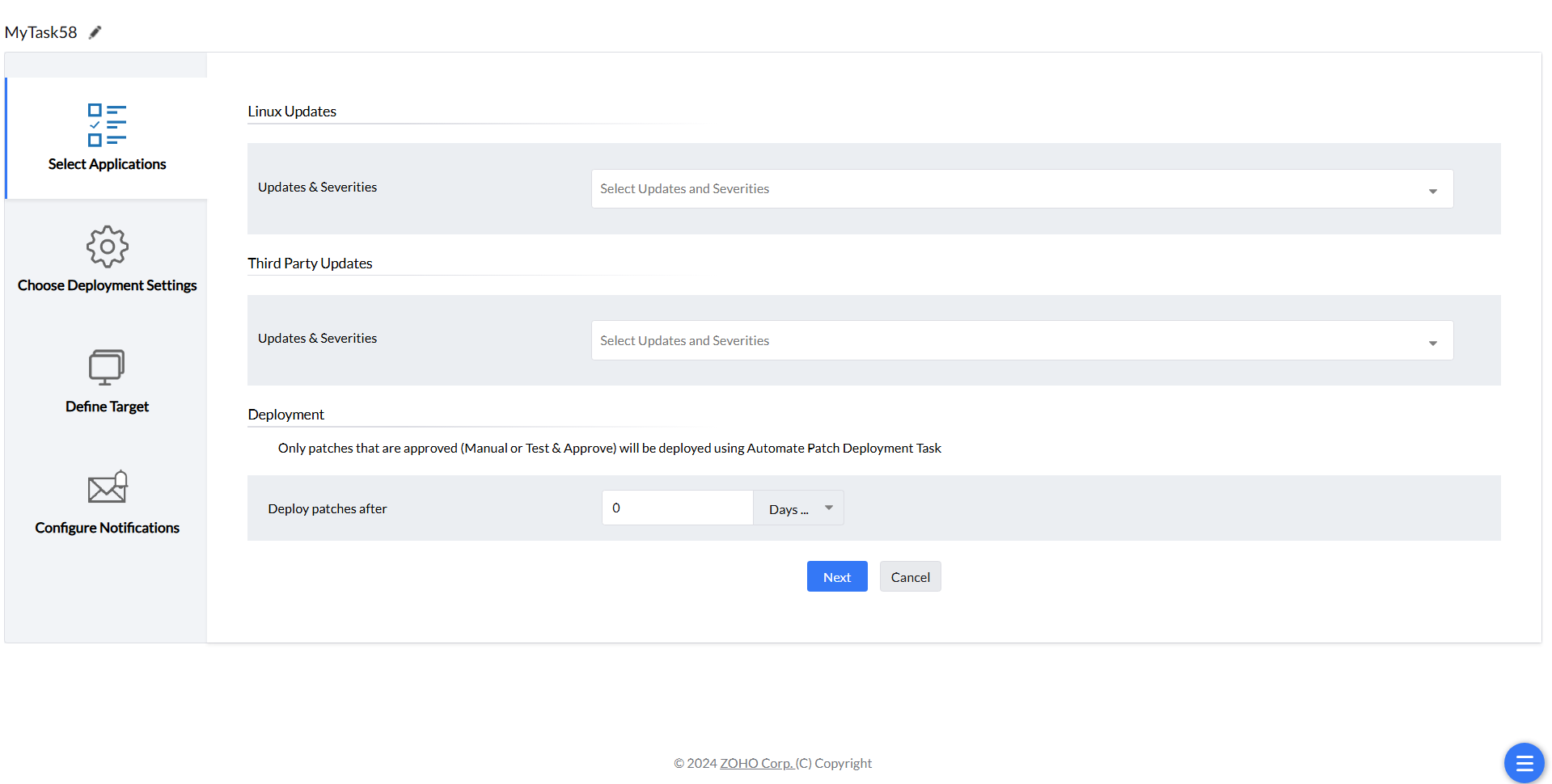
By doing this, you will be redirected to the Select Applications window, where you have to choose the Linux Applications for which you wish to automate the patching process based on their updates and severities, as shown in the image below. After that, configure the other settings, select the necessary Linux machines as targets in the Define Targets section. To learn in detail about creating Automate Patch Deployment tasks, refer to this page.
To diagnose connectivity from a Linux agent, follow the Linux terminal procedure in Troubleshooting patch deployment errors.
Linux execution status and dependency downloads
Endpoint execution status and dependency download status describe different stages. Review the affected endpoint's full remark alongside its execution status:
| Status | Interpretation and next check |
|---|---|
| Yet To Apply | The configuration has not yet been applied to the endpoint. Check its eligibility, contact and deployment window. |
| Succeeded | The endpoint reports successful execution. Review the per-patch results to verify the intended installations. |
| Failed | Execution failed. Read the full endpoint and patch remarks to identify the failed operation. |
| Not Applicable | The configuration is not applicable to that endpoint. Review the target and patch applicability details. |
| Retry In Progress | A failed operation is being retried. This status alone does not identify a dependency-download or firmware-package fault. |
To investigate dependency transfers:
- Open the affected deployment task and its Download Pending Dependency Packages tab. Review the reported status and error for each affected package.
- Correct the reported download cause. For transfer checks, see Identify the download stage.
- Select the affected packages and click Re-download. This action requires Patch Management Write permission.
- If a download-window confirmation appears, select Force Download to start outside the configured window, or decline the force option to keep the request within the configured window.
- Verify the updated dependency-download status, then review endpoint execution and per-patch results separately. An empty dependency table does not explain an endpoint's Retry In Progress status.
Linux APD target count is zero
If the APD task shows 0 total targets, the selected Linux computers can still be live and present in inventory and remain ineligible. Confirm that the distribution is listed under the supported Linux flavors and that the product build includes that distribution. Upgrade to a later build if the current build does not include it. To review the supported Linux flavors, refer to Linux Patch Management.
Scheduled Linux deployment
Why are Linux patch deployments failing to start at the scheduled time while Windows deployments run?
Scheduled deployment notifications use TCP port 8027. That port must be open between the server and the Linux endpoint.
Linux repository access denied
How do I resolve a 403 Forbidden error when the Linux package manager refreshes repository metadata?
A 403 means the endpoint cannot reach the vendor repository. Restore repository access, then run a patch scan.
Linux patch no longer supported
Why does a Linux patch show as no longer supported or disappear from the patch list?
The vendor removed the download URL, or a newer patch superseded it. Deploy the superseding patch.
If you have any further questions, please refer to our Frequently Asked Questions section for more information.