×
×
×
×

Frequently Asked Questions (FAQ)

General

What is the critical distinction between Device Control Plus and other DLP solutions?
There are a plethora of vulnerabilities that can be fixed by a software patch. But, in order to address cyber attacks due to removable media it is highly important to secure your endpoints from the port level. Device control plus allows you control, block and monitor the devices that connect to your endpoints.
Can I install Device Control Plus agents using SCCM?
Yes, Device Control Plus agents can be installed in endpoints by creating and deploying a package via SCCM. For detailed steps, refer to here
How to completely disable the Temporary Access Portal?
In the server console, Navigate to Agent -> Agent settings -> Agent Tray Icon and uncheck the "Show Temporary Access Portal" option
What is the purpose of adding a custom name to a trusted device?
Adding a custom name to a trusted device helps in easily identifying and managing the device within the console. This is particularly useful in environments with multiple devices, allowing administrators to quickly recognize and differentiate between them.

Policy Deployment

Is it possible to disable the Auto-Play feature?
Yes, you can disable auto-play under the device access control settings. It is recommended to disable it when you are creating a policy to allow a particular device type so as to prevent automatic file launching when a device is connected.
What is the difference between associated policy and applied policy?
Policies that are created and mapped to a computer but have not been deployed yet are called associated policies. Policies that have been deployed successfully to the computers are called applied policies.
How to stay current with Device Control Plus?
Device Control Plus works on set and forget policy and hence you do not have to worry about updating it frequently. Once you have created the policies to control the devices, all you have to do is just monitor your computers.
Can I control device write options by file type?
Device Control Plus will allow you to control the type of files and the size of files that can be transferred from your computer to a connected USB or peripheral device.
Can I grant access permissions to devices that are outside my network?
Yes, you can grant temporary access to devices both inside and outside your network. Permissions can be assigned to target machines based on system type, such as laptops and desktops. Additionally, you can create custom groups using system type as a criterion for more tailored access management.
In a scenario with multiple policies containing file access settings deployed to an endpoint, which policy takes precedence?
When an endpoint is included in multiple policies, the policies with Allow access will take precedence.
The order of priority when multiple file access settings policies are deployed to an endpoint is as follows,
Allow Temporary Access > Allow Trusted Device > Allow Device policy > Block Device.
How to configure policies such that only Bitlocker encrypted devices are allowed access?
Navigate to 'Create Policy' > 'Removable Storage Device' > 'Advanced Settings.' Then click the option 'Allow access only for BitLocker encrypted devices.
How to revoke a policy applied to an endpoint?
To revoke a policy, the endpoint should be excluded from the Custom Group. Thus, in the next refresh cycle (default interval - 90 mins) when the agent communicates with the server, the policy will be revoked for the specific endpoint.
How does enabling the 'Allow only BitLocker encrypted devices' option work?
If the Removable Storage Devices Allowed policy is deployed with the option Allow only Bitlocker encrypted devices enabled, then Device Control uses WMI to verify the encryption status of connected removable drives. Only encrypted removable devices are allowed access.
What if I block wireless devices?
When you block wireless devices, the managed computer(s) cannot access the internet via Wi-Fi. To access the network, the computer(s) with wireless block policy should be connected to the internet via LAN. To manage the computer(s) via Wi-Fi, the wireless block policy should be revoked from the said computer(s).
What should I do if a laptop without built-in LAN has a wireless-block policy applied?

If a laptop without built-in LAN has a wireless-block policy applied, you cannot use the standard LAN-recovery method. Use one of these alternatives:

Option 1: External USB Ethernet Adapter (Recommended)

  1. Connect a USB Ethernet adapter to the laptop
  2. Connect the adapter to a wired network
  3. Log into the Device Control Plus console
  4. Go to Device Control → Policies
  5. Revoke the wireless-block policy
  6. The policy revokes within the next 90-minute refresh cycle (or immediately if you manually trigger a check-in)
  7. Disconnect the adapter once wireless is restored

Option 2: Manual Unenroll via Command Line

  1. Obtain the unenroll.exe and logger.conf files from your environment
  2. Transfer these files to the affected laptop via USB or email
  3. Extract the files to a folder
  4. Open Command Prompt (Administrator) and run: unenroll.exe
  5. This removes all Device Control policies and MDM profiles immediately
  6. After recovery, re-enroll the device and redeploy policies

Option 3: Bulk Deployment of Unenroll (Multiple Systems)

  1. Go to Configurations → Custom Script → Computer Configuration
  2. Create new configuration: Name = "MDM Unenroll"
  3. Execute Script from: Select Command Line
  4. Command Line:unenroll.exe
  5. Dependency Files: Upload unenroll.exe and logger.conf
  6. Check Enable Logging for Troubleshooting
  7. Select target computer groups needing recovery
  8. Click Deploy
How to configure policies to allow only BitLocker encrypted devices and selective unencrypted trusted devices?
Create two policies for the device type 'Removable storage media.' One policy is for the all devices which need not be encrypted; they should be added to a trusted devices list. Another policy should be for just allowed devices and in 'Advanced settings,' the option for enabling access for only BitLocker encrypted devices should be selected. Save and associate both policies to the same custom group.
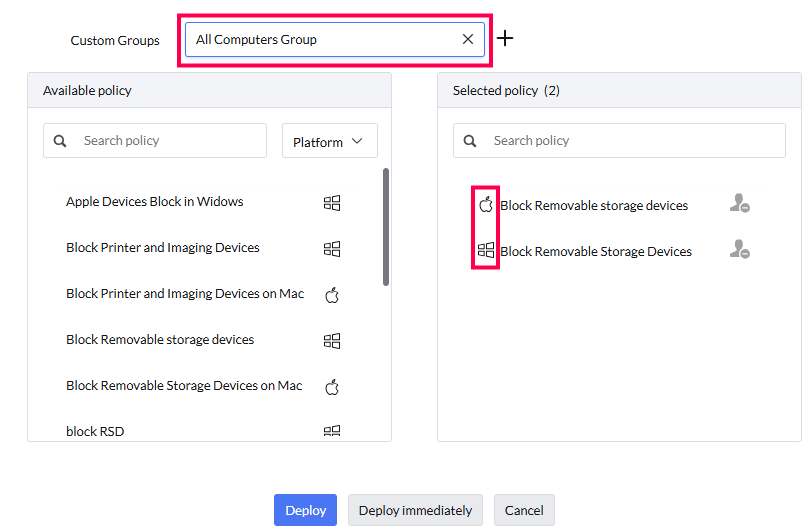
How do I deploy a policy to both Mac and Windows devices in my computer group?
Deploy policy to Mac and Windows at same time

Create separate policies for macOS and Windows devices and deploy them to the computer group together.

What will happen if two conflicting policies are applied to the same computer?

When two policies conflict, the "Allow" option is always given priority.

What devices are classified as Windows portable devices?

Windows portable devices include cameras, mobile phones, and media players.

Does blocking the SCSI port also block internal hard disks?
  • Operating System (OS) Protection: If the internal hard disk is the designated OS Drive, the system will automatically skip it to prevent a system crash. The drive will remain functional even if the SCSI port block is active.
  • Secondary Internal Drives: If you have additional internal hard disks that do not contain the OS, they will be blocked by default under this policy.
  • To keep additional internal hard disks active while still blocking the SCSI ports for other devices, you must add those specific drives to the Trusted Devices List.

Compatibility

What versions of Windows does Device Control support?
Device Control in Device Control Plus supports Windows 7/Windows 8/Windows 8.1/Windows 10 and Windows 11.
What platforms does Device Control Plus support?
Device Control Plus supports computers running on Windows and Mac operating systems.
Can Device Control manage mobile devices or display IMEI numbers?

No. Device Control Plus is designed for endpoint peripherals on Windows and Mac computers only. It does not manage mobile devices or display mobile-specific identifiers such as IMEI.

Device Control supports USB devices (flash drives, external drives, printers), removable storage, portable media devices, and other peripherals connected to Windows and Mac computers.

For mobile device management: Use Mobile Device Manager Plus or the MDM module to manage mobile devices and view IMEI numbers.

Audits and Reports

How to get the reports of audit log for blocked devices?
The audit log for blocked devices will be available in a report called 'Unauthorized Devices' which can be accessed from under the 'Reports' tab.
How to get report for a specific file type that went out of the network?
Device Control Plus allows you to view all the files that are transferred in and out of your network. However, you can view file transfers based on file extensions and file extension groups on the dashboard which displays the top five extensions that were frequently transferred in and out of your computer.
How to receive blocked device details immediately at server?
To receive blocked device details at server, you have to configure the Device audit settings wherein, you can specify the email IDs at which you want to receive the details. You may also enable or disable receiving reports for each and every policy based on your preference.
When can I view the complete device and file activities log?
The complete device and file activities list will be available in the reports section from anywhere after 6 to 24 hours of the action. However, you can receive the blocked device details immediately at server if you have configured the same.
How do I find a report of systems with USB ports enabled?

Use the Device Audit report to identify systems where USB devices are allowed:

  1. Go to Device Control → Reports → Device Audit
  2. Look for entries with device type USB or Removable Storage
  3. Check the Last Action column:
    • Allowed = USB device was permitted on that system
    • Blocked = USB device was denied on that system
  4. Filter by Last Action = Allowed to show USB-enabled systems
  5. Export the report as PDF, XLSX, or CSV
How do I retrieve Blocked Devices data via API?

Device Control Plus provides an API endpoint to retrieve blocked device data programmatically.

Endpoint:/api/v3/device-control/blocked-devices

Documentation:Blocked Devices API Reference

Before using the API:

  • Ensure your authentication token is valid (tokens expire; re-authenticate if needed)
  • Review the full API documentation for request parameters and response format
  • For additional API endpoints, see Device Control Plus API Reference
What activities does Device Control audit, and what are the limitations?

Device Control provides visibility into connected peripheral devices and file operations on external devices, but it has important limitations:

Device Control Captures:

  • Device Audit: All connected devices, connection timestamps, users, and Allow/Block actions
  • File Tracing: File create, open, modify, copy, move, delete, and rename operations (on-premises only, requires active policy)
  • File Shadowing (On-Premises Only): Backup copies of files transferred to external devices

Device Control Does NOT Capture:

  • Local file operations: Files deleted directly in Windows Explorer without external device involvement are NOT logged
  • Actions unrelated to Device Control: General Windows system actions not involving peripheral devices
  • File Tracing without policy: File operations are only captured when an active Device Control policy is deployed
  • Pre-policy actions: Activity before Device Control policy deployment or File Tracing enablement is not available

To investigate specific activities:

  1. Check Device Audit: Go to Reports → Device Control Reports → Device Audit and filter by endpoint, user, and date range
  2. Check File Tracing: If available, go to Reports → Device Control Reports → File Tracing and search for file operations on the target endpoint
  3. Check Event Viewer (On-Premises Only): Navigate to Tools → System Manager → [Computer] → Manage → Event Viewer for local Windows logs
  4. Contact the user: If audit logs are inconclusive, verify the action directly with the user.

Integration

Can I manage Device Control through third-party integrations?

No. Device Control policies are managed only through the console. The built-in Temporary Access feature allows users to request time-limited device access without policy creation.