
Accessing the product
Last updated on:
In this page
Overview
Once ManageEngine Log360 application is up and running, access the console using any supported web browser. Log360 provides a unified platform for centralized log management, real-time threat detection, automated incident response, and comprehensive compliance reporting. It enables security teams to monitor, analyze, and act on security events efficiently. Log360 supports multiple authentication options, including Local Authentication, Active Directory, and RADIUS.
Steps to access the product
Once the application has started, follow the steps below to access the product console.
- Open a supported web browser and enter the following URL: http://<devicename>:8095
Note The <devicename> can be the hostname/ IP address/ Fully Qualified Domain Name (FQDM)/ DNS name of the machine in which the product is running, and 8095 is the default http web server port
- You can also open the product console from the product shortcut available on the desktop.
Note When accessing the product's user interface from a remote device, ensure that the web port is permitted in the firewall bidirectionally between the server and the remote device. It is recommended to configure Allow/Restrict IP settings to control access for specific hosts and apply advanced firewall rules to permit traffic from designated IP addresses over the web port. The default port can be modified in Connection Settings.
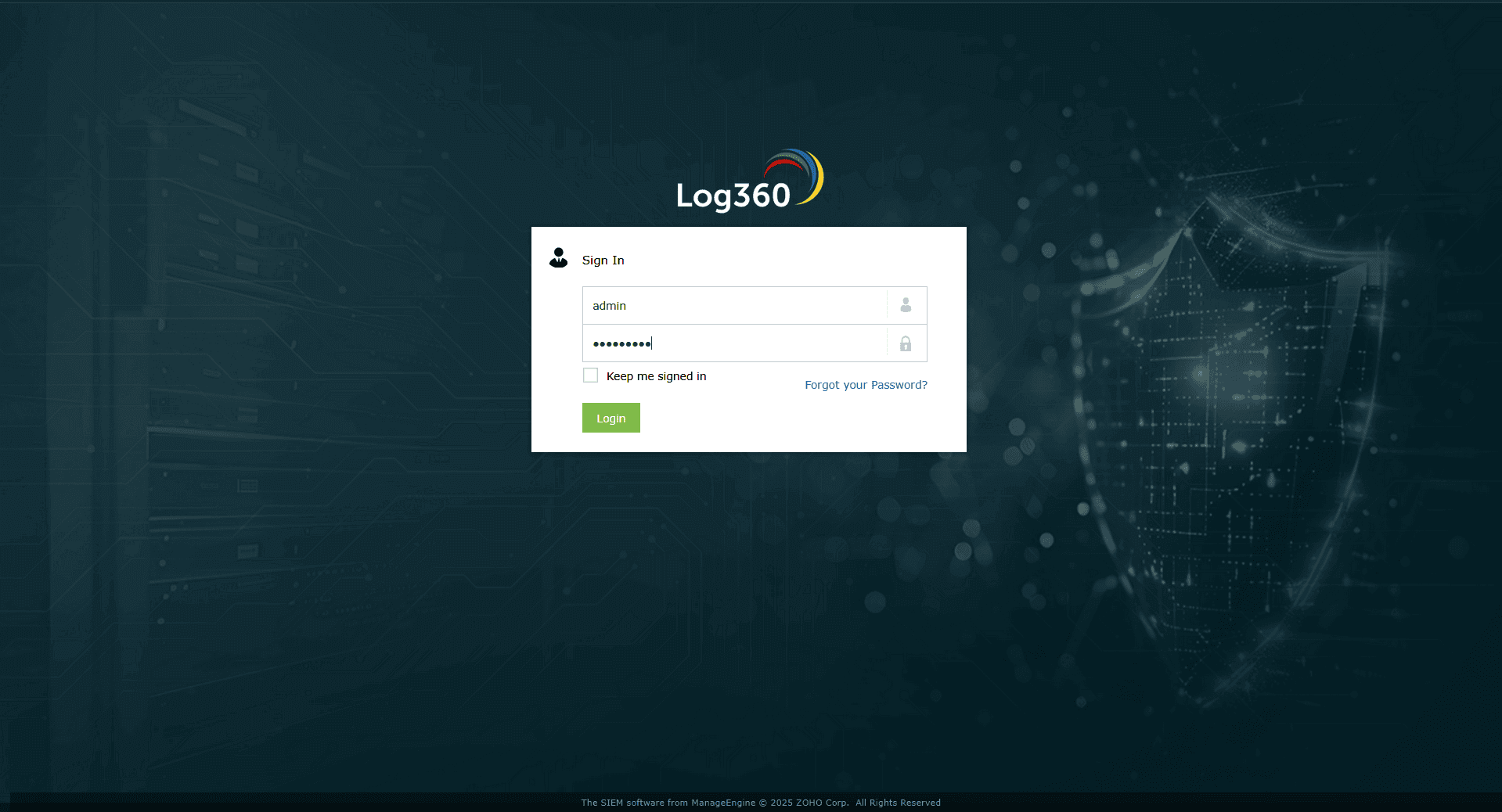
- Log in to the product console by entering the credentials
Note If you are logging in to the product console for the first time, use the default credentials: Username: admin and Password: admin.
- For users added as technicians through Active Directory or RADIUS authentication, select the corresponding option in the Log on to field:
Note The product console supports two external authentication methods in addition to Local Authentication. These options allow users to log in using credentials from external systems like Active Directory or RADIUS.
- Local Authentication - If the user exists in the local product database.
- RADIUS Authentication - If the user exists in a RADIUS server and dummy user entries are available in the local server user database.
- Domain Name(s) - User details imported from Active Directory.
- Select the checkbox next to Keep me signed in to stay logged in and avoid entering your credentials each time you access the site.
NOTE This option remembers your login session. Enable it only on trusted devices to maintain security.
- Click Login to connect to the product console.
- Click the Forgot your Password? if you are unable to remember your login credentials. Refer to this page to reset your password.
Read also:
This page explained how to access the Log360 product console and log in using local or external authentication options.