Last updated: August 13, 2026
MDM On-Premises Workflow
This page covers the on-premises architecture and workflow of ManageEngine Mobile Device Manager Plus, illustrating how the MDM server communicates with managed Apple, Android, Knox, Windows, and Chrome OS devices through intermediate push notification services such as APNs, FCM, and WNS. It explains server reachability requirements, including the need for a public IP address or FQDN, and provides links to enrollment guides for each supported platform to help administrators set up and manage devices over the air.
Architecture
ManageEngine Mobile Device Manager Plus can be used to deploy configuration settings, security commands, and retrieve asset data over-the-air (OTA). The diagram given below is a representation of how the On-Premise version of Mobile Device Manager Plus functions.
Note: For the architecture of Mobile Device Manager Plus Cloud, refer to this page.
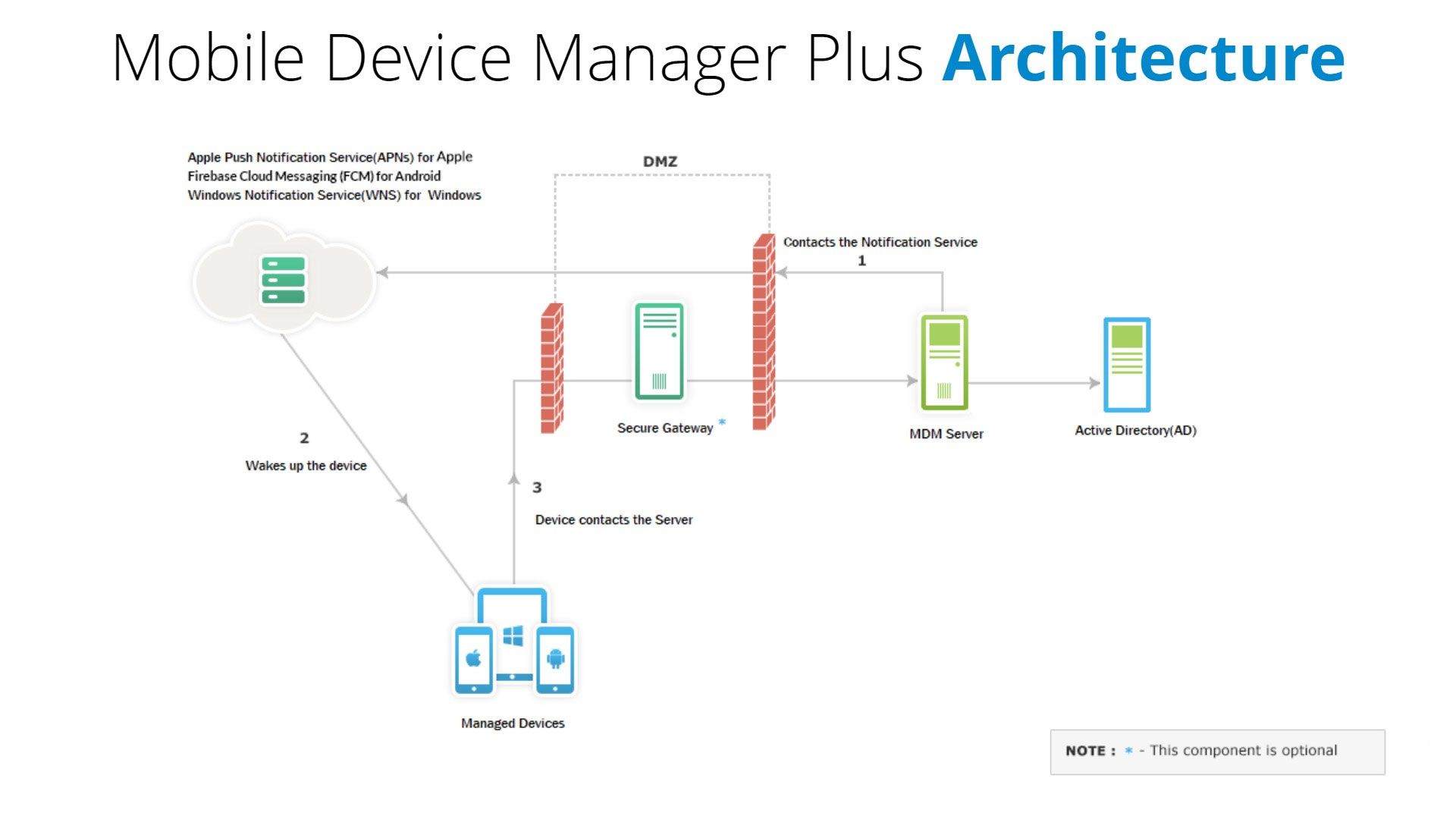
Fig : Mobile Device Manager Plus- Architecture
All Communications from Mobile Device Manager Plus to the managed mobile devices will be routed through intermediate services such as Apple Push Notification service(APNs) for Apple devices, Firebase Cloud Messaging (FCM) for Android devices, and Windows Push Notification Services (WNS) for Windows devices. A live TCP connection is maintained for the notification services. APNs, FCM, and WNS act intermediate services to wake up managed devices whenever an action is triggered to be performed from the MDM server. But WNS is used only for devices running Windows 8.1 and is not available for mobile devices running Windows 8.0. Managed mobile devices communicate with Mobile Device Manager Plus to receive instructions and report the status and data back to the MDM server. For the above setup to work, the following should be done.
Assuming users' mobility, Mobile Device Manager Plus Server should be reachable via public IP address (or FQDN). If you are installing Mobile Device Manager Plus Server in the LAN, add an entry in your external router to direct the requests to your public IP address to the internal IP of the computer where Mobile Device Manager Plus Server is installed. If all the devices managed are within the LAN, this requirement is not needed.
Refer the following to know about the list of Ports used and Domains accessed by MDM for enrolling and managing devices:
Click here to know the steps to verify the reachability of the required domains.
Click here to know MDM Cloud architecture
Setting up and Enrolling mobile devices:
For an Android device without a camera that cannot use NFC enrollment, follow Android enrollment without a camera. The ADB procedure requires a computer and a custom Self Service APK from MDM support. Create a QR enrollment template under Enrollment > Android > QR Code Enrollment, select Copy JSON, and provide the copied JSON to MDM support to generate the APK. For iOS or iPadOS devices that cannot scan a QR code, open Safari and enter the Self Enrollment URL provided by your organization, then follow the iOS/iPadOS self enrollment instructions. This enrollment option does not require scanning a QR code.
Apple devices
- Creating APNs Certificate
- Enroll Apple devices
- Automated device enrollment via ABM
- Enroll Apple devices using Apple Configurator
Android devices
- Enroll Android devices
- Zero Touch Enrollment
- Enroll Android devices using Near Field Communication(NFC)
- Enroll Android devices using QR code
Setting up Knox devices
Setting Up Windows devices
Setting Up Chrome devices