Last updated: August 13, 2026
Enroll Android devices using QR Code Enrollment
This page explains how to use QR Code Enrollment to onboard Android devices (6.0 and above) into MDM as an alternative to ZTE, KME, or NFC-based methods. It covers prerequisites, step-by-step activation for different Android versions, and how to create enrollment templates that automate user and group assignment. Admins can configure templates for single-user assignment, directory authentication, or manual assignment, enabling bulk or individual device provisioning with minimal user interaction.
MDM solutions offer a variety of enrollment methods to simplify the device onboarding process and provide complete management and security capabilities for corporate-owned devices. For devices that require complete management but cannot be enrolled via ZTE, KME or NFC, QR code enrollment can be used. QR Code enrollment is a quick and easy onboarding method with minimal user interaction.
Pre-requisites for QR Code Enrollment
For devices without Google Services that cannot use QR enrollment, follow Fully Managed provisioning using Android Debug Bridge (ADB) and check its prerequisites.
- The device must be running Android 6.0 or above.
- The device must be new or factory-reset.
- The device must be Google certified. You can check if the device is Google certified by navigating to the Play Store -> Settings -> Play Protect certification. Check for the device is certified status.
- A device that was previously enrolled and is still listed in the console (Managed, Staged, or Retired tab) is treated as a duplicate entry, and re-enrollment is blocked by default. Remove the existing device entry from the console before re-enrolling it.
For a video walkthrough of this procedure, see Android enrollment using QR code.
How QR Code Enrollment works?
Older Version (Single QR Code)
There are three major steps in enrolling devices using EMM token. They are:
- Install ManageEngine MDM Self Service app (previously ManageEngine MDM app) on the device
If the device is already in use, factory reset the device. Specify the Google account requested during initial setup as afw#memdm. This is the EMM token or the DPC identifier, which automatically installs ManageEngine MDM Self Service app on the device. If the device is new, boot up the device and provide EMM token as the Google account.
- Based on the Android OS version, choose either of the methods given below
- Enroll the device by scanning QR code (For devices running Android 6.0 or above)
Once the installation is complete, the ManageEngine MDM Self Service app opens automatically. ClickScan QR and permit ManageEngine MDM Self Service app to access the device camera. Scan the QR code given on the MDM sever to complete enrollment.
- Advanced QR Code Enrollment (Recommended for Android running 9.0 or above)
- For devices running Android 8.0 or later versions, entering the EMM token as the Google account can be skipped optionally. On tapping the Welcome screen 6 times, the setup wizard prompts to configure Wi-Fi settings for the device to contact the MDM server. Once this is done,the QR Reader gets installed and opens automatically. The QR code shown on the MDM server can then be scanned to complete enrollment.
- For devices running Android 9.0 or later versions, Wi-Fi connection can be set up prior to device enrollment which implies both the steps: entering the EMM token as well as configuring the Wi-Fi settings can be skipped optionally. If the Wi-Fi is pre-configured, tapping the Welcome screen 6 times, automatically opens the QR Reader. Soon after the QR code is scanned, the device gets enrolled with MDM.
Note:
ManageEngine MDM supports hidden Wi-Fi network, which will work in the back end by default.
After enrolling the devices, the next step is to assign users. Check manual user assignment for detailed instructions on how to assign users.
New Version (Multiple QR Codes)
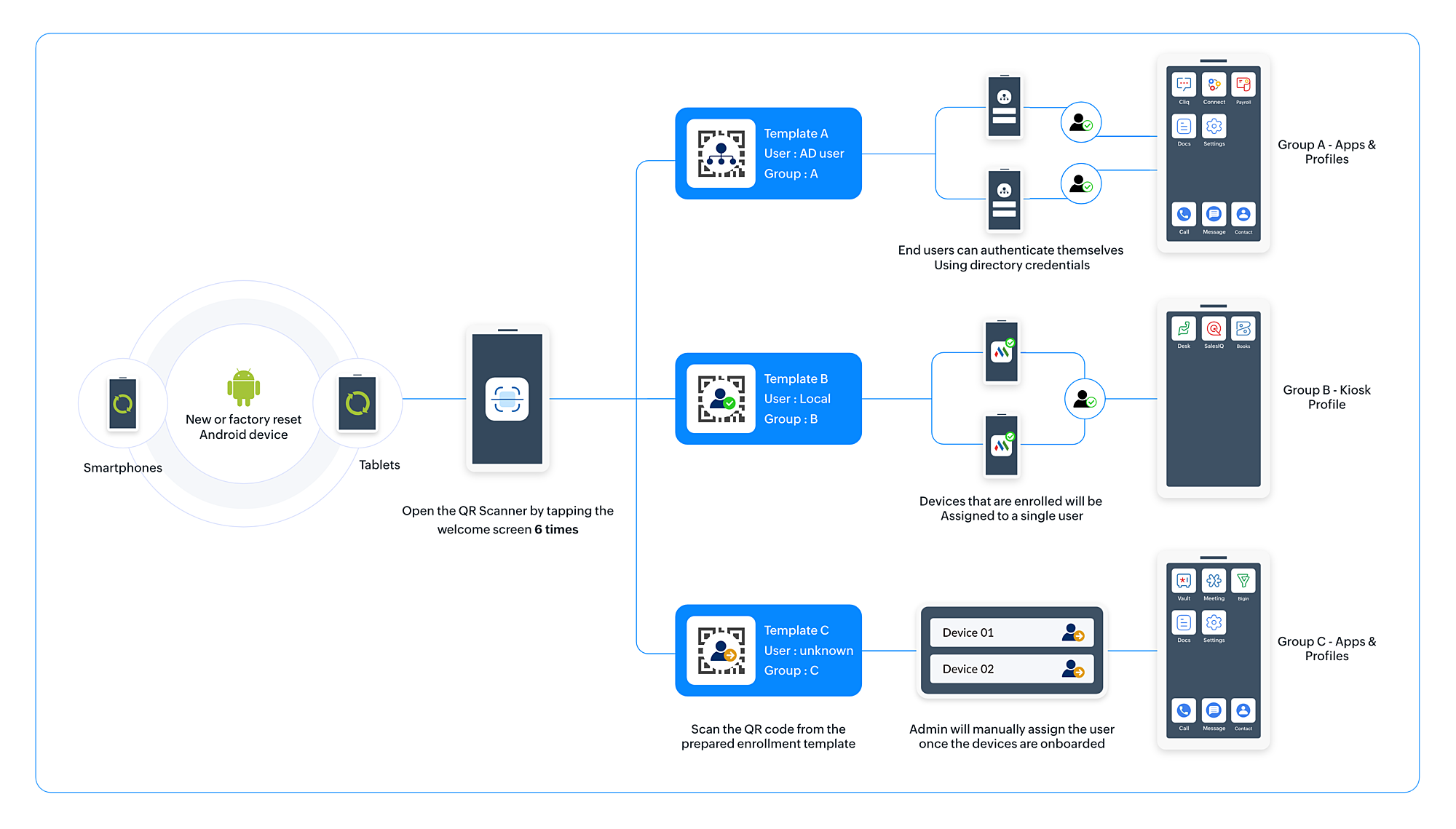
With QR code enrollment, you can onboard devices using enrollment templates. An Enrollment Template serves as a gateway where different QR codes are generated for each template. The template works as an entry point using which devices gets onboarded based on their usage, the policies they require, the department it belongs to, the naming conventions, and the asset owner.
Advantages of QR Code Enrollment
- Bulk devices can be enrolled instantly with QR Enrollment Template.
- Automate User Assignment helps in channelizing the device to its user and group automatically.
- Minimum admin action required.
Preparation of enrollment templates
Tagging Multiple Devices to a Common User
Kiosk devices, purpose-built for frontline workers, serve a specific function and are often limited to a predetermined set of applications. Although these devices cater to a wide audience, they're ultimately owned by their parent organization. To ensure efficient utilization and management of these devices, they are generally assigned to a specific group, such as a department or a team. In addition, they are typically assigned to a designated manager, asset owner, or common user who has the responsibility to oversee the devices' usage and maintenance.
By preparing this Enrollment Template, you can assign the device to a Single User to manage the device, a departmental group to facilitate necessary policies, apps and a device naming convention.
How to tag Multiple Devices to a Common User
Create an enrollment template to assign multiple devices to a single user.
- On the MDM web console, click Enrollment.
- Select QR Code Enrollment under Android.
- Click New Template.
- Select Assign Devices > To Single User.
- Click Save.
With Single User enabled, once the device activation is completed and the template QR code is scanned, the device gets automatically assigned to the user and the group if the group is associated with the template. The device will then automatically get the apps and profiles it needs from the group to which it belongs.
Management type
Select the management type of the devices:
- Full Device Management: Administrators has full control over the device.
- Company-Owned Work Profile (WPCO/COPE, or Company-Owned Work Profile (WPCO/COPE, or Workspace Managed)): Admin can manage only the corporate apps and data by creating a separate work container on the device.
Enable Users to enroll using Directory Credentials
You can enable users in your organization to enroll devices using their directory credentials. To facilitate it, you can integrate different directory services such as Active Directory, Azure, and Okta. Once the directory credentials are provided, the devices are automatically assigned to the authenticating user and user group. Ensure that Directory authentication is enabled for QR Code enrollment.
How to tag individual devices
Create an enrollment template to assign Individual devices to its users using Directory Authentication.
- On the MDM web console, click Enrollment.
- Select QR Code Enrollment under Android.
- Click New Template.
- Select Assign Devices > by Directory Authentication.
- Click Save.
With Directory Authentication enabled, once the device activation is done and the template QR code is scanned, the individual user will be prompted to provide their Directory Credential to complete the device onboarding.
Enroll and Assign Devices Individually
For corporate-owned, user-associated devices without Directory Authentication, the admin can use a template with manual assignment. A template with manual user assignment is the default template, and user assignments for devices that use a manual template can be done individually or in bulk.
On the MDM server, Click the Enrollment tab and select QR Code Enrollment under Android. The devices enrolled via QR Manual Template are listed under Staged Devices, awaiting user assignment. Devices enrolled via this template do not receive their group's apps, profiles, or policies until an admin manually assigns them to a user/group from the Staged Devices tab - only the device enrollment itself happens automatically.
You can assign a user to a single device by clicking on the Assign User option present under Action or assign users in bulk to multiple devices by clicking on the Assign Users button shown on top and uploading a CSV with the required user details.
Sample CSV Format
USER_NAME,DOMAIN_NAME,EMAIL_ADDRESS,GROUP_NAME,UDID,IMEI,SERIAL_NUMBER,DEVICE_NAME,PHONE_NUMBER,Enrolled_Time
Note:
- The CSV file should contain the following fields : User Name, Domain Name, Email Address, Group Name, UDID, Serial Number, Device Name, Phone Number, Enrolled Time.
- The fields User Name, Email Address, and Platform Type are mandatory. All the other fields are optional. If not provided, default values are taken.
- The default values for various non-mandatory fields are : Domain Name ‑ MDM, Owned By ‑ Corporate, Group Name ‑ Default Group for given Owned By & Platform Type.
- The first line of the CSV is the column header and the columns can be in any order.
- Blank column values should be comma separated.
- If the column value contains a comma, it should be specified within quotes.
Activating the device
If a device stays on "Getting ready for work setup" and then shows "Can't set up device", see Can't Setup Device for the Wi-Fi/mobile-hotspot and firewall-proxy checks to resolve it.
Configuring a Wi-Fi network
You can choose to set up a Wi-Fi network so that you don't have to set it up manually when you turn on the device.
For Android 6.0 +
- Activate ‑ On a new/factory reset device running Android 6.0 or later, specify the Google account requested during the initial setup as afw#memdm. This DPC identifier automatically installs the ManageEngine MDM Self Service app on the device.
- Enroll ‑ Once the ManageEngine MDM Self Service app is installed, select the appropriate Enrollment Template from the list of templates in the drop-down and scan the QR code in the template.
- Provision ‑ Assigning devices to an Individual user/technician/group is based on the option selected under Assign Users by the IT admin while creating an Enrollment Template.
For Android 9.0 +
- Activate and Enroll ‑ On a new/factory reset device running Android 9.0 or later, tap the Welcome screen 6 times to access the device camera and scan the QR code in the Enrollment Template.
- Provision ‑ Assigning devices to an Individual user‑technician‑group is based on the option selected under Assign Users by the IT admin while creating an Enrollment Template.
Note:
- When a Wi-Fi configuration is added or changed on Android 9.0+, the QR code on the enrollment template also gets modified.
Modify or Delete a Template
On the QR Code Template under the Enrollment tab, you can modify or delete a template.
You can modify a template to alter the associated configurations. Remember, modifying the template does not change the QR code associated with that template.
Similarly, you can delete a template where the QR code associated with that template will become invalid and the template will be removed from the MDM console.
Roles and Permissions
The Enrollment module permissions configured as Full control, Write, or Read follows as given in the table below.
| Action | Full Control | Write | Read |
|---|---|---|---|
| Create Enrollment Templates | Yes | No | No |
| Modify/Delete Templates | Yes, both theirs and other's templates | No | No |
| Enroll using QR templates for their scope | Yes | Yes | no |
| Assign Users for Enrolled devices in staged view | Yes | Yes | No |
- Users with administrative privileges within the assigned group can modify or delete templates, while those without such privileges cannot.
Additional guidance and troubleshooting
QR enrollment for Android Kiosk
For the Fully Managed/Device Owner enrollment required by Android Kiosk, use the administrator QR Code Enrollment template described on this page. Self Enrollment or an invite that creates a personally owned Work Profile does not provide the same Kiosk capability. See Android Kiosk for its supported provisioning types.
QR template cannot save: Invalid parameter app_download_source
If saving a QR enrollment template reports "Invalid parameter app_download_source detected", check whether the browser blocks third-party cookies for the ManageEngine site. Allow the required site cookies or use a browser profile that permits them, reload the console, and retry template creation.
Older QR templates do not show OS-version tabs
An older enrollment template may not display the 9.0 and later and 6.0 to 9.0 tabs. Create a new QR enrollment template to obtain the current OS-version tab interface, and use the QR for the device's version. Do not treat the missing tabs as proof that QR enrollment is unsupported.
Frequently Asked Questions
What if the device shows "Getting ready for work setup..." and then fails with a message to contact the IT admin, even though the same template enrolled devices before?
Delete the existing enrollment template and create a new one, then retry enrollment on a factory-reset device. If it still fails, retry using the 6.0-to-9.0 QR code instead of the 9.0-and-later code.
What if the device camera cannot scan the enrollment QR code?
If the camera is unavailable, review other supported enrollment methods. NFC Enrollment is an option for devices without a camera when the device meets the NFC prerequisites.
- Why another template with manual user assignment cannot be created?
Manual template is a default template and multiple manual templates cannot be created.
- What happens to the devices enrolled using a particular template if the template is deleted?
The devices enrolled to the MDM server will remain the same but the QR code of the template becomes invalid.
- Who can modify/delete a template?
The administrator and anyone who has full control access to the enrollment module can modify/delete a template.
- Can re-assign userbe done manually though the device is enrolled using Automate User Assignment Template?
Yes, you can re-assign the user by clicking re-assign user under Devices tab.
- What data will be removed when I deprovision a device?
When a device is deprovisioned, the data removed depends on the the selected deprovision option. To know more, refer here
- How do I scan the QR code for device enrollment in ManageEngine MDM?
The QR code enrollment method differs based on the Android version running on the device:
- Android 6.0 to 8.x — DPC Token + QR Code: On a new or factory-reset device, enter afw#memdm as the Google account during initial setup. This DPC identifier automatically installs the ManageEngine MDM Self Service app. Once installed, open the app, tap Scan QR, and scan the QR code shown on the MDM console under Enrollment > Android > QR Code Enrollment.
- Android 9.0 and above — Tap 6 times + QR Code: On a new or factory-reset device, tap the Welcome screen 6 times to launch the built-in QR reader. Scan the QR code from the enrollment template to complete enrollment. The DPC token step is not required for Android 9.0 and above.
Note: QR code enrollment provisions the device as Fully Managed (COSU and COBO, previously Device Owner), giving the admin full control over the device.
- How do I obtain the organization QR code for Android device enrollment?
The QR code for Android enrollment can be obtained through two methods, depending on whether enrollment is admin-initiated or user-initiated:
- Admin Enrollment (Fully Managed / Fully Managed (COSU and COBO, previously Device Owner)): The admin generates QR codes via enrollment templates.
- On the MDM console, navigate to Enrollment > Android > QR Code Enrollment.
- Click New Template and configure the template settings (user assignment, management type, groups, naming convention).
- Once saved, the QR code is generated and can be printed, shared, or displayed for device scanning.
- Self Enrollment (Personally-owned Work Profile / BYOD): Users scan a QR code to enroll their own devices.
- On the MDM console, navigate to Enrollment > Self Enrollment.
- Copy or share the enrollment QR code or URL with users.
- Users scan the QR code on their device to download the ManageEngine MDM Self Service app and complete enrollment. The device is provisioned as Personally-owned Work Profile (BYOD or previously Personally-Owned Work Profile (BYOD, or previously Profile Owner)).
Note: Admin enrollment via QR Code Enrollment templates provisions devices as Fully Managed. Self Enrollment provisions devices as Personally-owned Work Profile (BYOD). Choose the appropriate method based on device ownership and required management scope.
- What is Android QR code (EMM Token) enrollment in ManageEngine MDM? QR code enrollment uses an EMM token embedded in a QR code to provision Android devices as Fully Managed (Fully Managed (COSU and COBO, or previously Device Owner)) without user interaction. Scanning the QR code during device setup automatically configures the device with MDM settings.
- Which Android versions support QR code enrollment? QR code enrollment is supported on Android 7.0 (Nougat) and later. Devices running Android 10 and above can also use the EMM token method via NFC or manual DPC identifier entry as an alternative.
- How do I generate the QR code for Android enrollment in ManageEngine MDM? The enrollment QR code is generated from the ManageEngine MDM console under Enrollment > Android > QR Code Enrollment. Administrators can customize the QR code payload with network credentials and enrollment configuration before distributing it to users.
How do I stop new devices from being auto-assigned to a device group or Kiosk profile during QR enrollment?
To stop new devices from receiving an unintended group configuration, modify the enrollment template and review its user and device-group assignment before enrolling more devices. A device added to a group receives the apps and profiles already associated with that group, including Kiosk. See QR template preparation for Kiosk devices when choosing the intended group.
What should I check if Android enrollment shows a wrong or invalid QR-code message?
For a wrong or invalid QR-code message, verify that you are using the QR code for the intended enrollment method. Fully Managed activation uses the administrator QR enrollment template on a new or factory-reset device; an enrollment invitation is a different flow. See Wrong QR code troubleshooting and Invite Enrollment before retrying.