Associating EventLog Rules
OpManager's Windows EventLog Monitoring allows you to collect and analyze the event logs from all your Windows devices, via the secure WMI protocol. The collected messages are then parsed based on the EventLog rules configured. When an event log entry matches the criteria mentioned in the EventLog rule, alarms are generated and notifications are sent out according to the notification profile configured.
To know about how to add EventLog rules, click here. To associate Event log rule(s) to a device or multiple devices in your network, follow one of the steps below:
- Associating an EventLog rule for an individual device
- Associating an EventLog rule for multiple devices
Associating an EventLog rule for an individual device
Note: This process is applicable only for Microsoft devices (such as Windows, Hyper-V).
- Go to the Inventory tab and then click on a device to open its device snapshot page.
- Click on the Monitors tab.
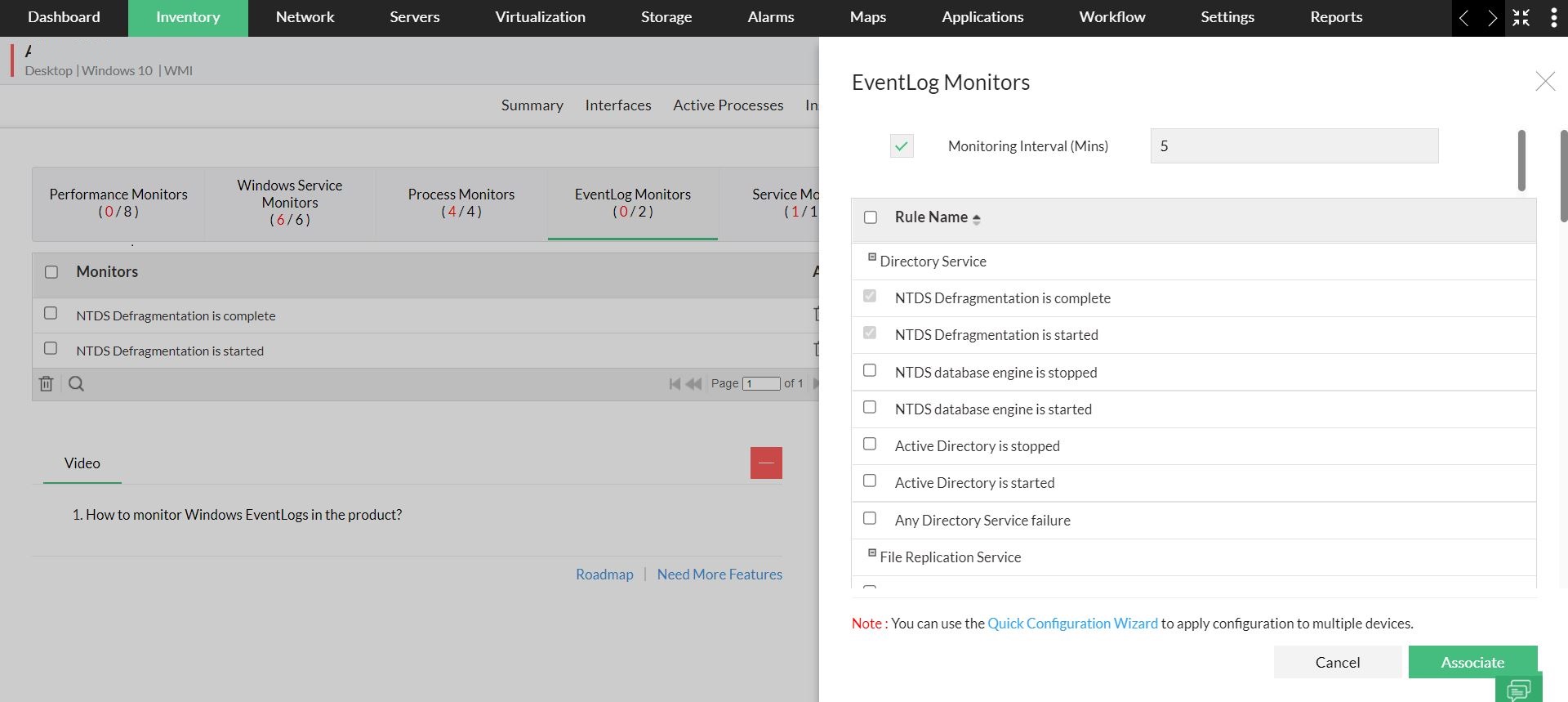
- Click on the EventLog Monitors tab. If the EventLog Monitors tab is not displayed, Click on More -> EventLog Monitors.
- Click the + symbol (on the top right corner) and click on the Associate Monitor option.
- Check the Monitoring Interval checkbox. If you would like to change the monitoring interval, specify the new monitoring interval value (in minutes).
- Select the Events for which OpManager has to monitor the logs and click on Associate.
Associating an EventLog rule for multiple devices
- Go to Settings → Configuration → Quick Configuration Wizard.
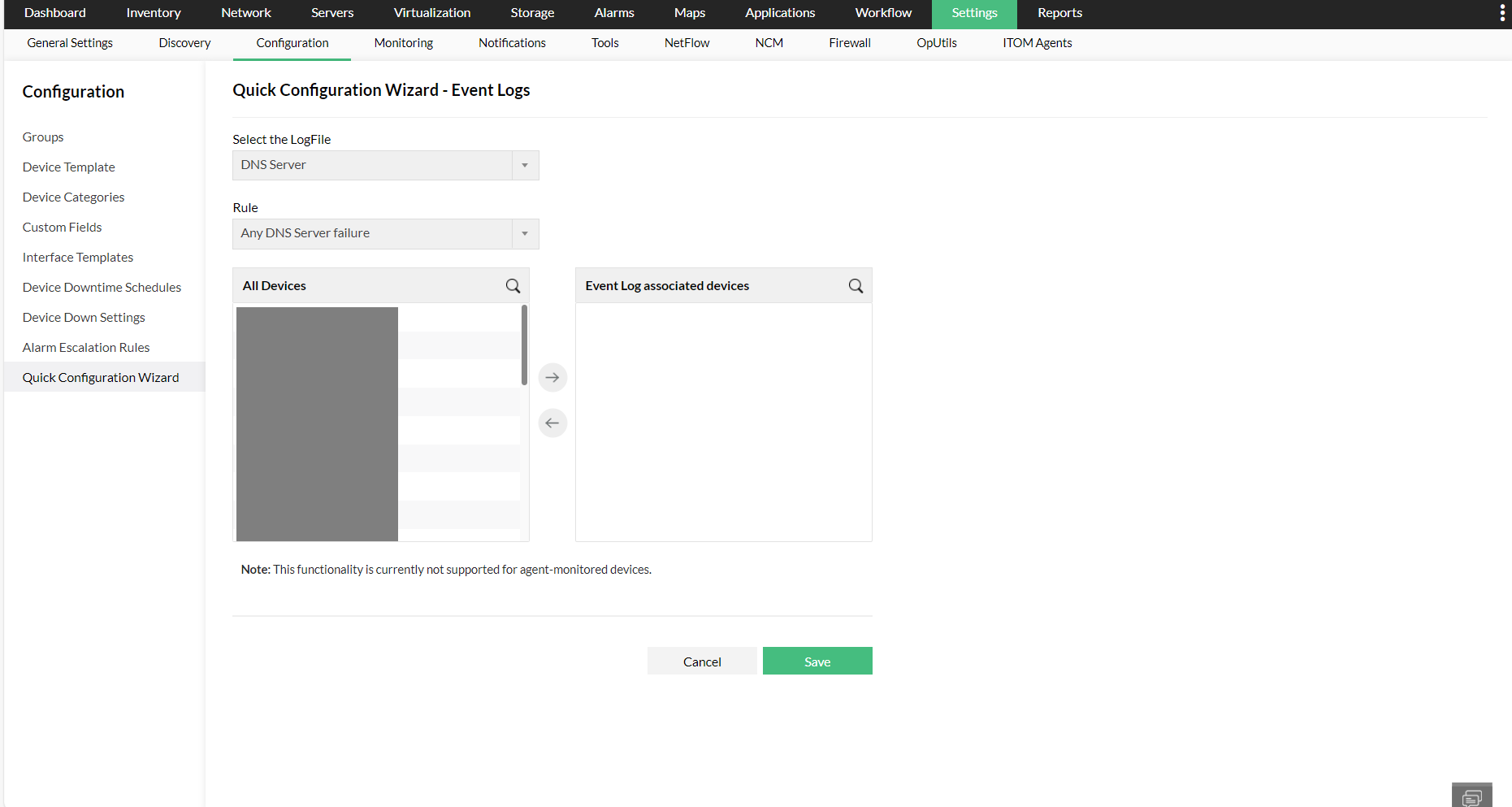
- Click Event log rules.
- Select the Log file which OpManager has to monitor for the occurrence of the event
- Select the event for which OpManager must raise an alert.
- Select the device(s) for which OpManager must raise an alert when the specified event occurs.
- Click Save.
Note: You can associate a Notification profile for the Event log rules. Click here to learn how to create a notification profile. In the criteria page, select the particular Event log rule from the When Event Log Rules generates alarm section.
To know more about Event log rules, click here.