Integrate OpManager with Zendesk
By integrating Zendesk with OpManager, your IT team gains a powerful advantage in handling operations and incident response. Zendesk provides a complete suite of cloud solution that equips organizations to handle customer inquiries, create automated processes, and improve team collaboration. By combining these strengths, you can automatically convert critical alerts into support tickets for timely resolution.
OpManager can be integrated with Zendesk using the Custom Integration option.
Steps to perform in Zendesk
Steps to perform in OpManager
Steps to perform in Zendesk
Login to your Account
- Login to Zendesk
- Navigate to Admin → Apps and Integrations → API → API Configuration.
- Select "Allow API token access" and click Save.
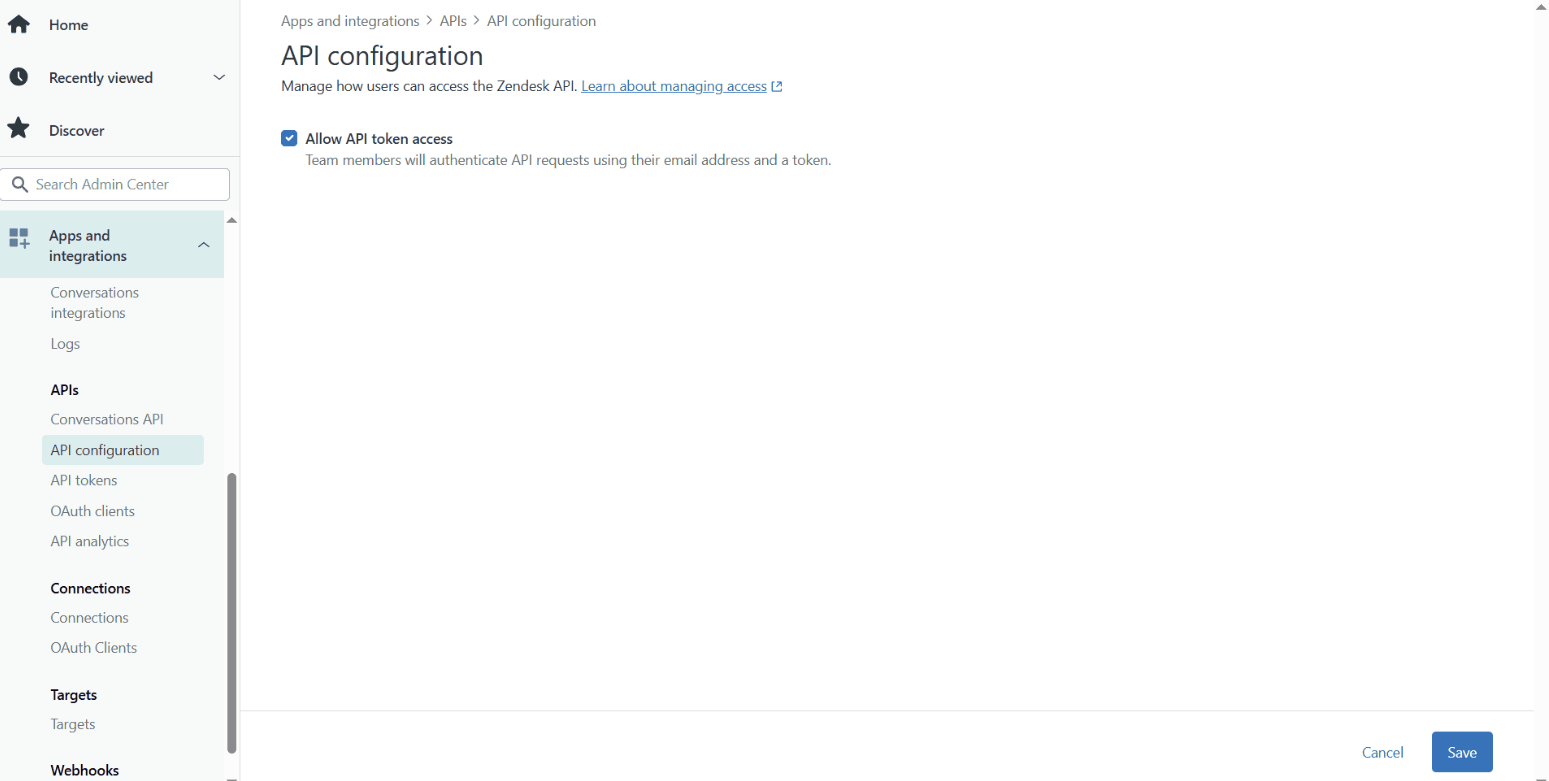
- In the same page (on the left side pane) click on API tokens -> Add. Copy the Token before closing the tab.
Steps to Perform in OpManager
Navigate to Settings → General Settings → Integrations → New Custom Integration
Create an Incident
- Fill in the integration details as follows:
- API : https://{subdomain}.zendesk.com/api/v2/tickets.json
- subdomain : Replace this with your Zendesk unique identifier
- Integration Type : Incident Management
- Method Type : POST
- Headers : 'Content-Type' : application/json, 'Authorization' : Basic {Base64 encoded value of "login_email/token:{APIKEY}"}
- login_email : Your Zendesk Admin E-mail
- {APIKEY} : Your Zendesk API token
- token : Do not change this literal
- Payload Type : JSON
- Data Type : Raw
- API Key : Paste the API copied from Zendesk
- Body Content :
{
"ticket": {
"comment": {
"body": "$entity - $category",
},
"priority": "Urgent",
"subject": "$message"
}
} - API : https://{subdomain}.zendesk.com/api/v2/tickets.json
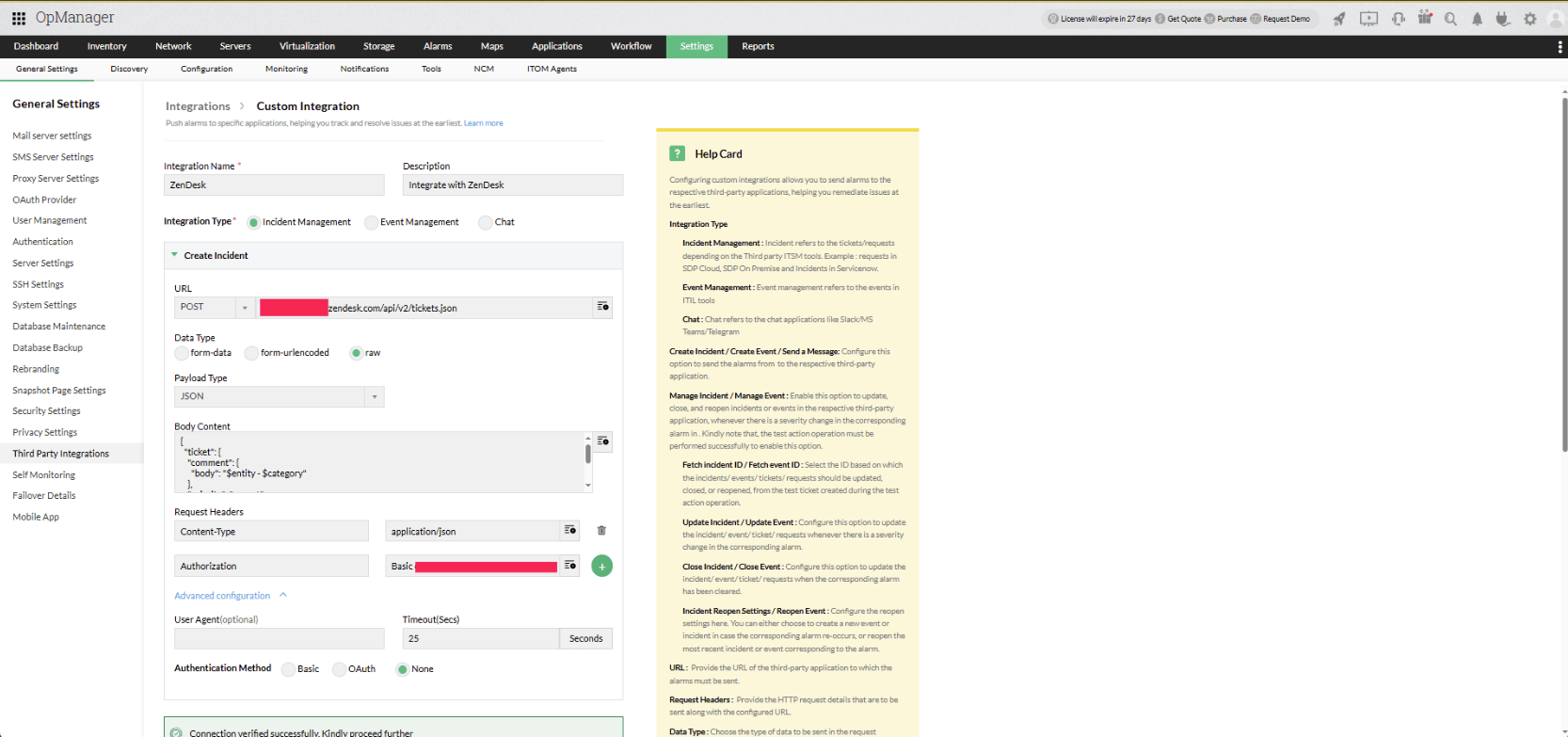
- To verify your setup, click Test Action to confirm the configuration is correct. After a successful test, go to 'Manage Incidents' to retrieve the Incident ID. This will generate a ticket_id, which you can use to update or close the corresponding incident in Zendesk
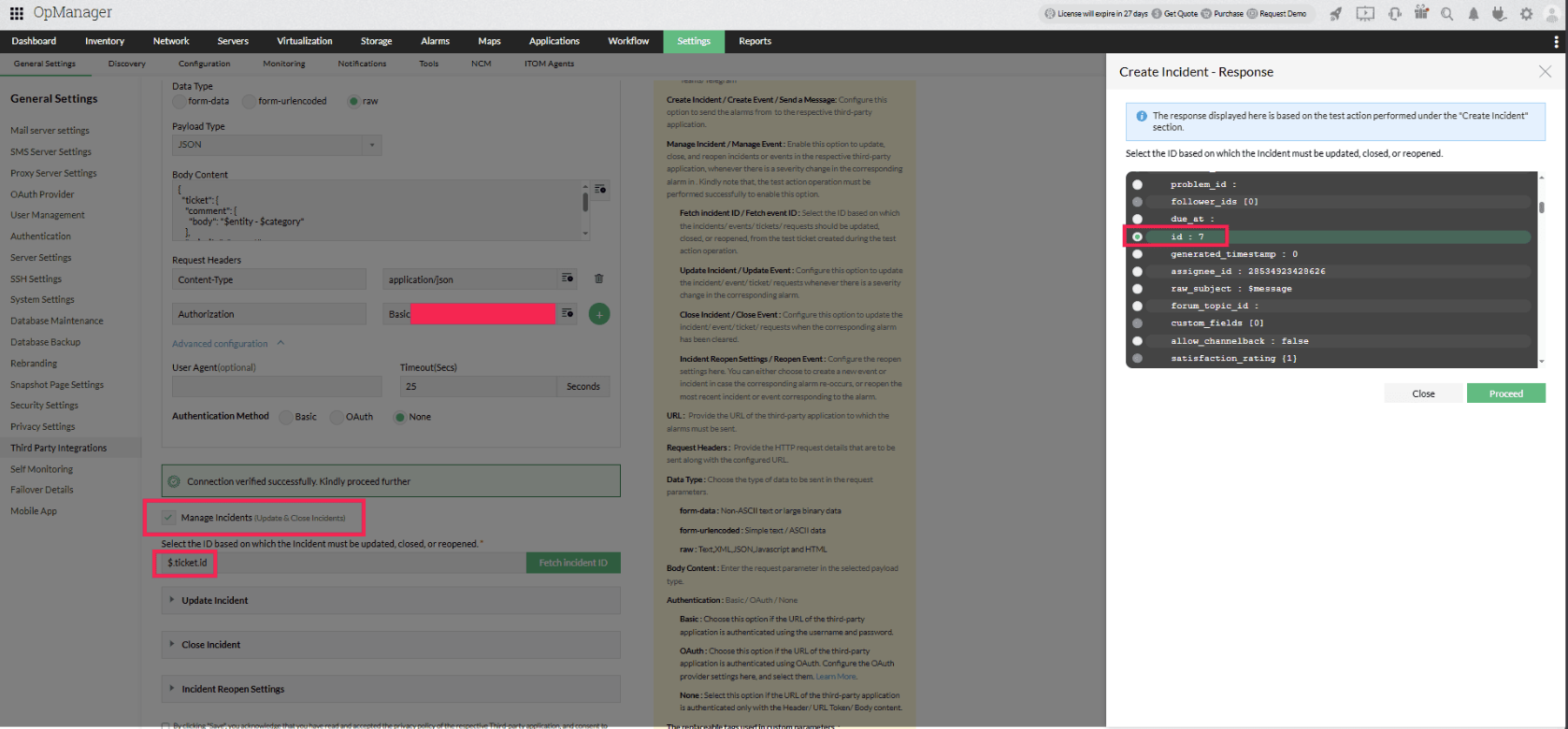
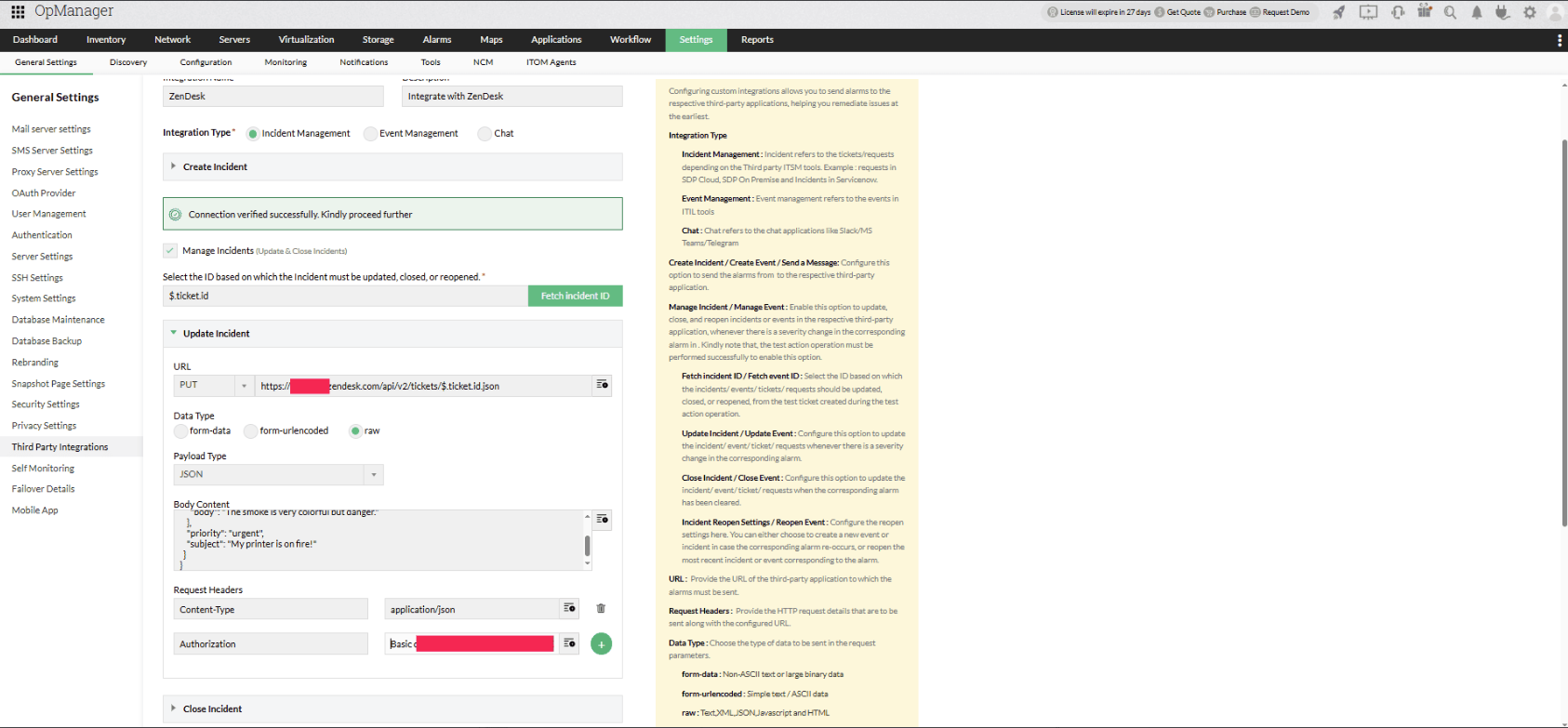
Update an Incident
- Fill in the integration details as follows:
- API : https://{subdomain}.zendesk.com/api/v2/tickets/$.ticket.id.json
- subdomain : Replace this with your Zendesk unique identifier
- Method Type : PUT
- Headers : 'Content-Type' : application/json, 'Authorization' :Basic {Base64 encoded value of "login_email/token:{APIKEY}"}
- Payload Type : JSON
- Data Type : Raw
- Body Content :
{
"ticket": {
"comment": {
"body": "$entity - $category",
},
"priority": "Urgent",
"subject": "$message"
}
} - API : https://{subdomain}.zendesk.com/api/v2/tickets/$.ticket.id.json
Close an Incident
- Fill in the integration details as follows:
- API : https://{subdomain}.zendesk.com/api/v2/tickets/$.ticket.id.json
- subdomain : Replace this with your Zendesk unique identifier
- Method Type : DELETE
- Headers : 'Content-Type' : application/json, 'Authorization' : Basic {Base64 encoded value of "login_email/token:{APIKEY}"}
- API : https://{subdomain}.zendesk.com/api/v2/tickets/$.ticket.id.json
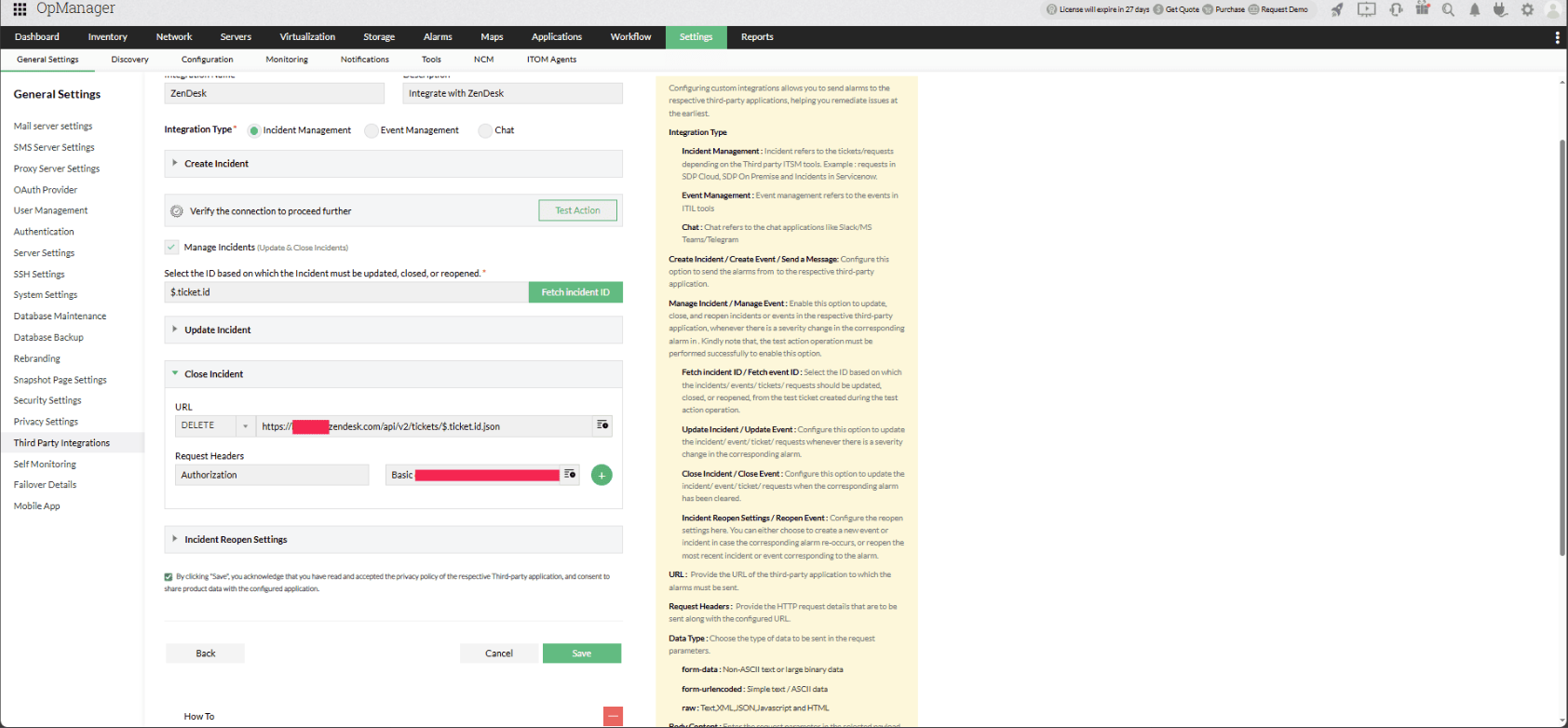
- Click Save to finalize the configuration.
- Click on Configure Now to set up the Notification Profile
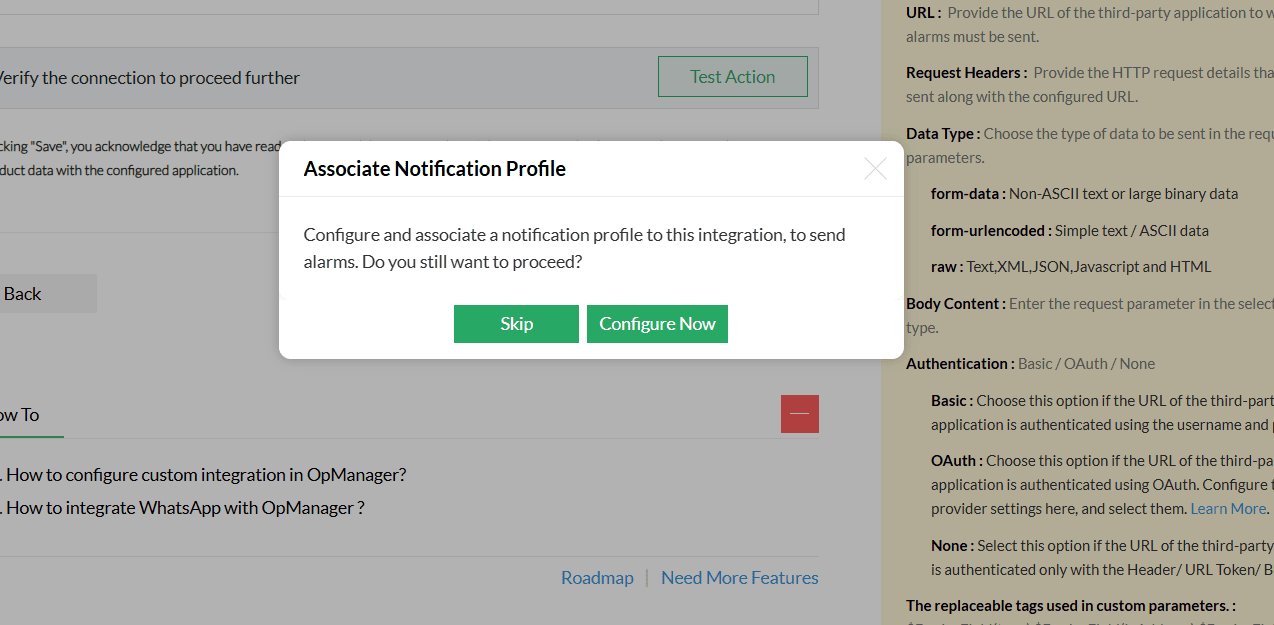
Associate a Notification Profile
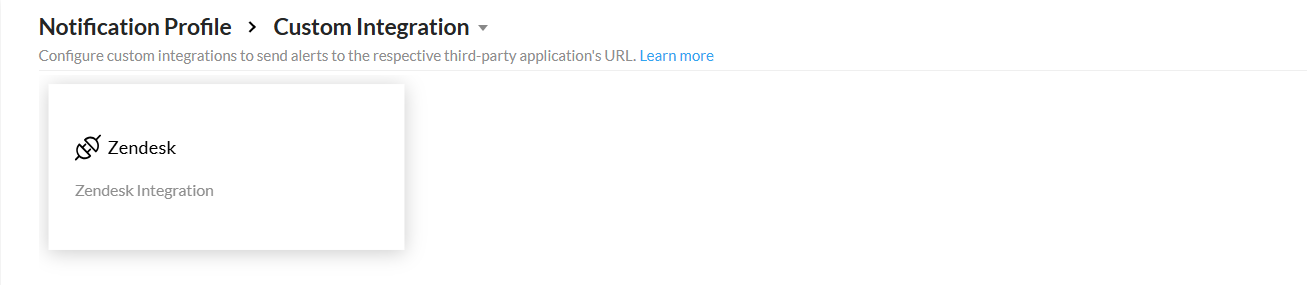
- After clicking "Configure Now", you will be redirected to the Notification Profile page.
- Click on Custom Integration.
- Select Zendesk from the list.
- Learn more about configuring criteria, devices, and time window in notification profiles here.
- Click on Save to finalize the integration.
Verifying the Integration
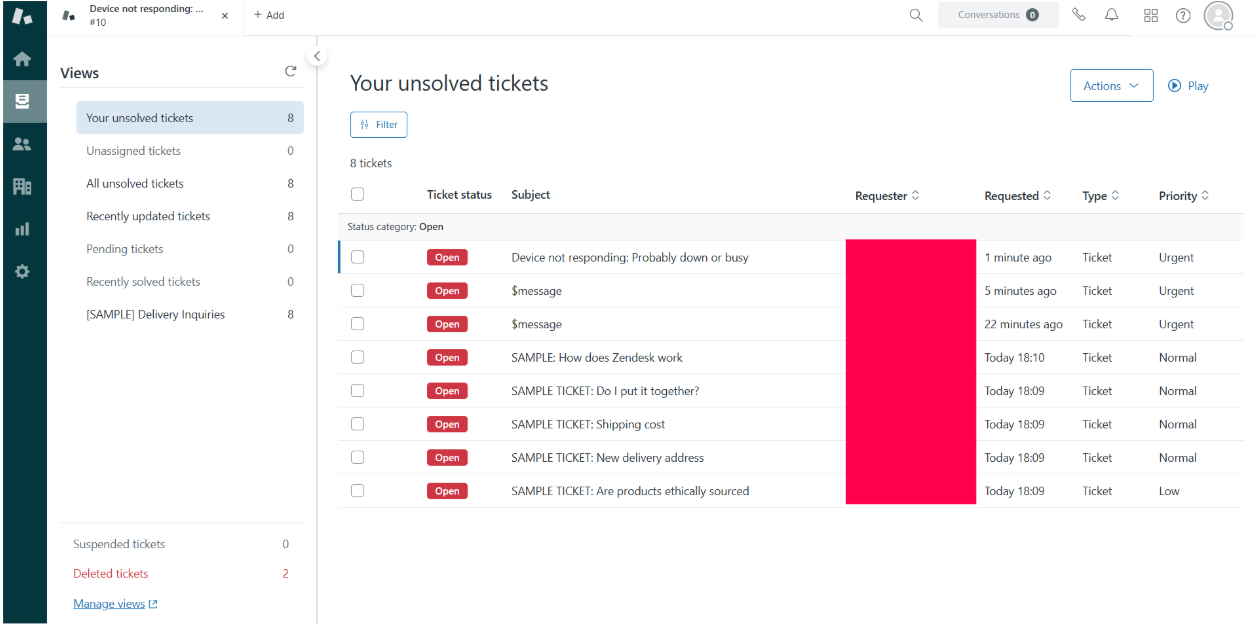
Trigger a test alert from OpManager and check your Zendesk dashboard to confirm that a ticket has been created successfully.