Importing Resources
In addition to manually adding resources, PAM360 also allows you to import them in bulk using multiple methods. This makes onboarding faster and more efficient. You can import resources into PAM360 using one of the following approaches:
- Importing Resources from a File
- Importing Resources from KeePass
- Importing Resources from Active Directory
1. Importing Resources from a File
Caution
- TOTP Secret Keys: When importing resources, TOTP Secret Keys configured for accounts cannot be mapped. You must manually configure TOTP for these accounts after import.
- File Format Updates: In earlier versions, you could import a `.txt` file containing comma-separated data, and the entries would be listed as expected. However, from build 6400 onwards, if your file uses comma-separated values, the extension must be `.csv`. Files with tab-separated values should be saved as `.txt` or `.tsv`.
- Sample Files: Refer to this documentation to learn more about the file formats supported for importing.
PAM360 offers the flexibility to import resources directly from Excel, CSV, or TSV files streamlining the resource management process. Click here to view sample files and learn more about the supported file formats.
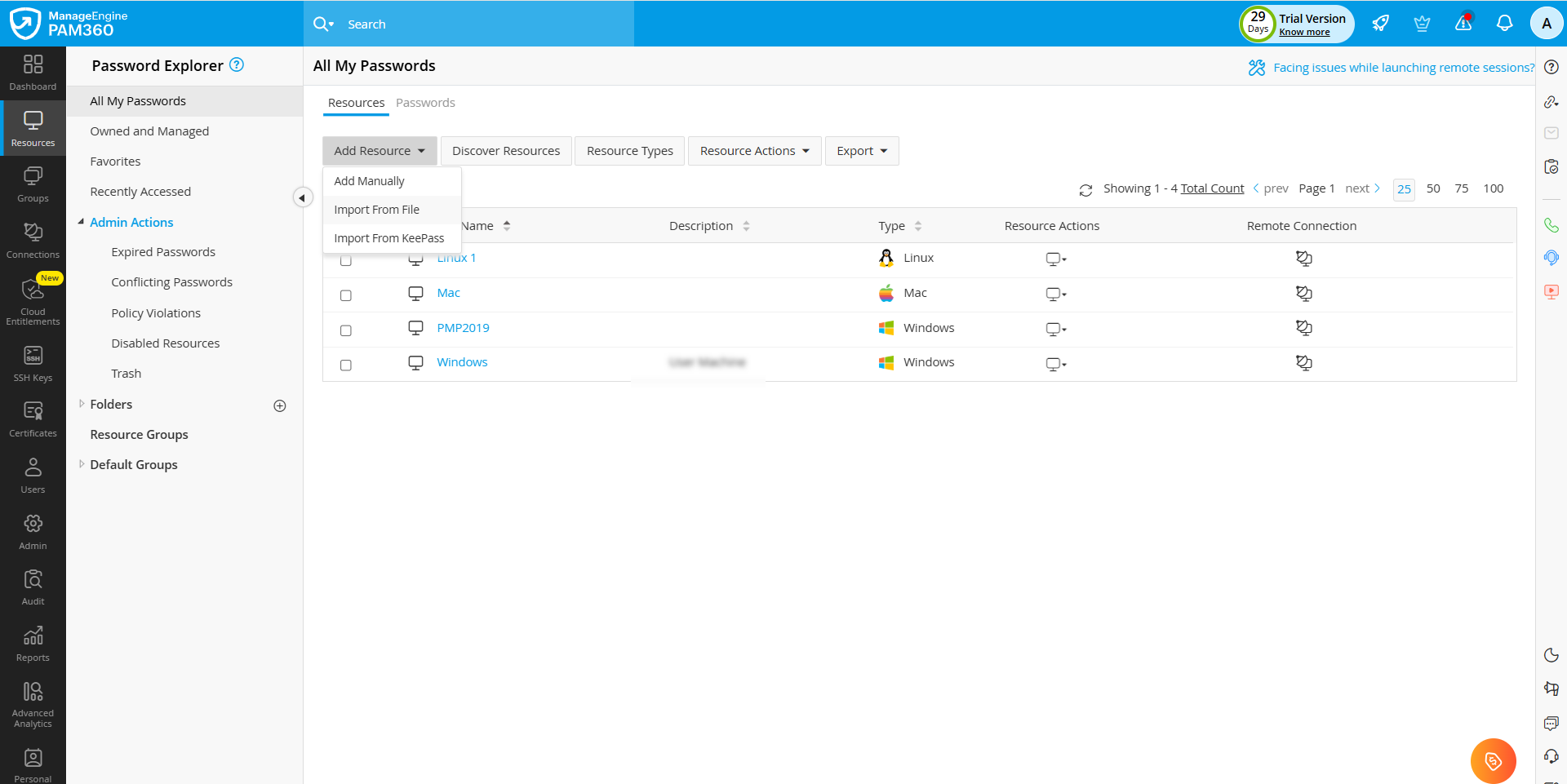
- Navigate to the Resources tab, click the Add Resource button in the top pane, and choose Import from File from the dropdown menu.
- In the pop-up form that appears, select the file type and file format. You can choose between Comma Separated, Tab Separated, or Excel file types. You can choose between two different file formats as mentioned below:
- Normal File: Select this option to upload a plain text CSV/TSV file or entries in an Excel file directly.
- Password-Protected ZIP File: Select this option to upload a password-protected ZIP folder containing the CSV/TSV/Excel file, for enhanced security. If this format is selected, provide the password and specify the target file name in the File Name field. If the field is left empty, PAM360 will import the first accessible file in the unzipped folder.
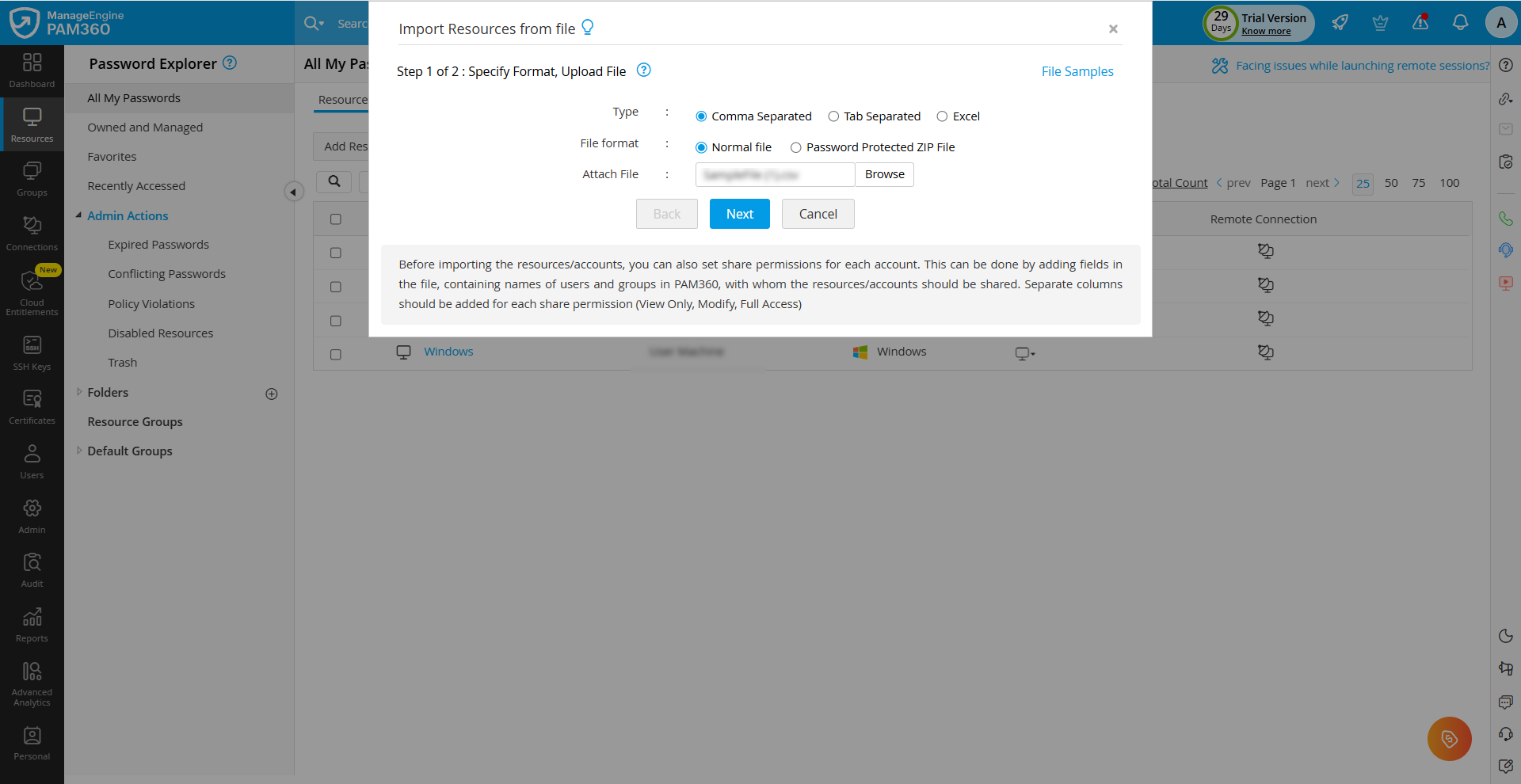
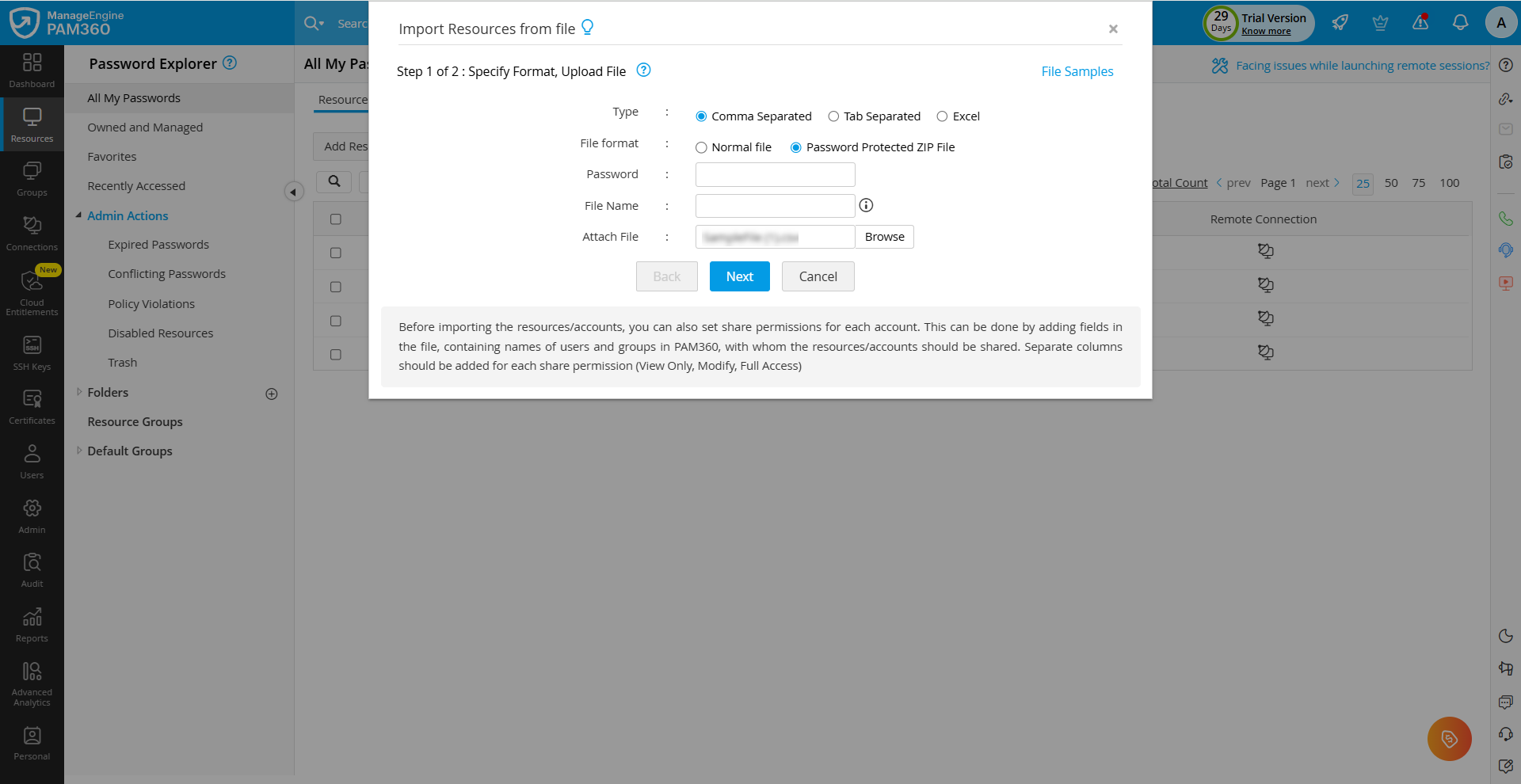
- Click the Browse button beside the Attach File field to locate and upload the file containing resource data from your machine.
- After uploading the file from your machine, click Next to proceed to the next step. PAM360 will display the resource attributes provided in the file along with the resource inventory fields based on column names, regardless of the column order in which they were specified in the file. Map the corresponding resource attributes specified in the file with the resource inventory fields.
- Three default fields attributes are mandatory and should be present in the file to proceed with the import. If needed, you can manually map the file's attributes to the corresponding PAM360 resource and account fields.
- Resource Name
- User Account
- Password
- Both the default and user-defined attributes will be listed on the screen. The user-defined attributes should be defined in the import file before the import operation. If a resource contains multiple user accounts, then the resource fields should be repeated for each user account in the file.
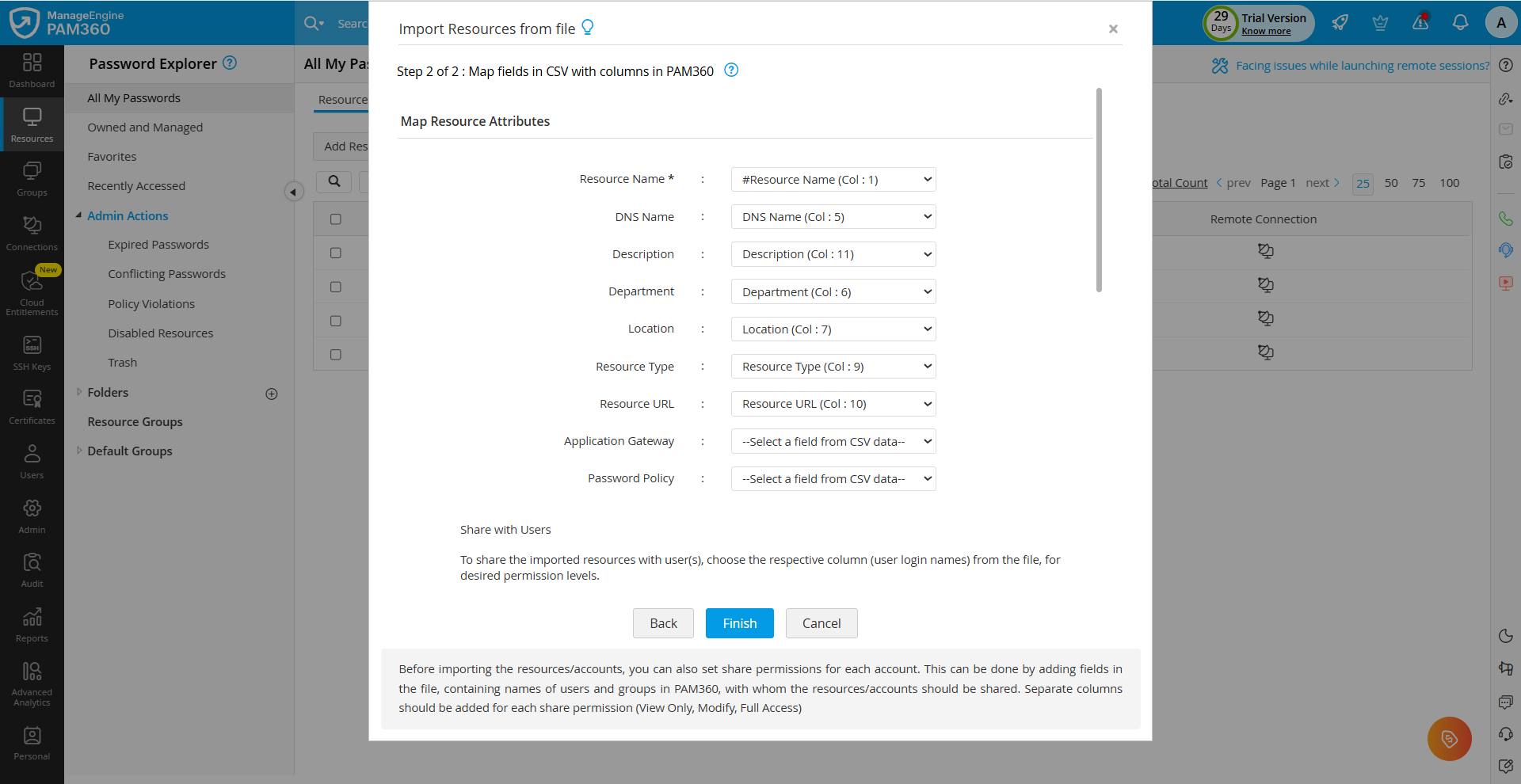
- For resources with attributes that cannot be included in the import file (such as files for the File Store resource type), you can leave those entries blank in the file and later edit the resource in PAM360 to update the attribute values.
- If the list of resources being imported contains resources that already exist in PAM360, they will not be added by default. To overwrite existing resources, select the Overwrite Existing Resources option during import.
- The Password Policy attribute can be assigned to resources and accounts during file import.
- Click Finish to complete the import process.
The outcome of the import process, whether successful or failed, will be logged as an audit entry. For detailed information, navigate to the Resource Audit section under the Audit tab.
Caution
- After importing resources, password reset configurations for the target systems should be performed manually by editing the respective resources.
- Importing multiple resources may take additional time. Once the import process is complete, the message Resources Imported Successfully will be displayed.
- If the resources include additional fields, ensure that the corresponding custom fields are created in PAM360 before initiating the import process.
- Only the Resource Name and Account Name fields are mandatory for importing resources into PAM360. If any other mandatory fields listed in the sample CSV are unavailable, you can proceed with importing the available data.
- If a password policy is not specified for both resources and accounts, or if the policy name specified in the file is invalid, the default password policy configured under Admin >> Password Management >> Password Policies will be applied to the resources and accounts.
- If a password policy is not specified for an account, the policy assigned to the corresponding resource will be applied. If no password policy is specified for the resource, the default password policy will be applied to both the resource and its accounts.
Troubleshooting Import Failures: If the reason for an import failure is unclear from the Audit tab, you can set the log level to Debug mode and attempt the import again. Detailed failure traces will be recorded in the app0.txt log file located within <PAM360_Installation_Directory>\logs folder.
2. Importing Resources from KeePass
PAM360 also supports importing resource details (resources, accounts, and passwords) directly from KeePass databases, both 1.x (.kdb) and 2.x (.kdbx) versions. Follow the below steps to import resources from KeePass:
- Navigate to the Resources tab, click the Add Resource button and choose Import from KeePass from the dropdown menu.
- In the pop-up form, browse and select the required KeePass database file (`.kdb` or `.kdbx`). The file is usually located in the directory you selected when saving it in KeePass during creation.
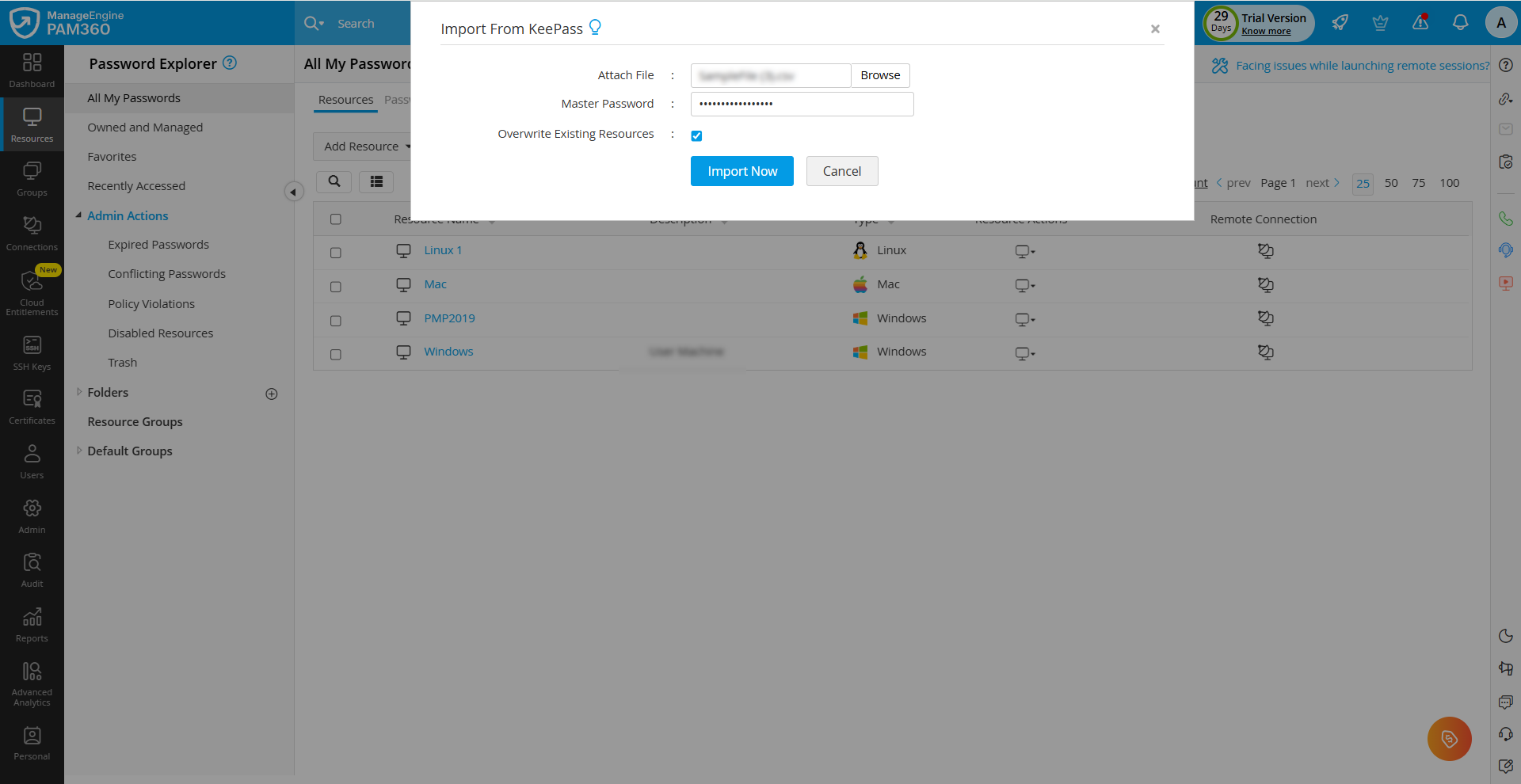
- Now, enter the Master Password you configured for the database.
Caution
Only Master Passwords are supported at this time. Key Files are not supported.
- Enable Overwrite Existing Resources if you want PAM360 to replace resources already present in its database with the ones from KeePass. If this option is disabled, existing resources will not be overwritten.
- Click Import Now. The results of each imported entry will be recorded as an audit log.
Additional Details
- Resource details such as URLs, accounts, passwords, and descriptions are automatically mapped and imported. DNS Name/IP Address values are imported only if they match PAM360’s built-in regular expressions.
- If the KeePass database contains groups (e.g., Windows, Linux), PAM360 automatically creates these groups as resource groups during import.
- By default, all imported resource types will be assigned the type Unknown. You can later edit them and categorize them correctly. Website accounts will automatically be categorized as Web Site Accounts, provided a site URL is available in the import file.
- After import, if you wish to configure remote password resets, navigate to Resources >> Resource Actions >> Configure Password Reset.
3. Importing Resources from Active Directory
PAM360 also allows importing resources directly from Active Directory (AD).This feature is covered in detail on a dedicated help page. Refer to this help document to learn more about importing resources from AD.