Privileged Resource Discovery
In today's complex IT environments, organizations often struggle to maintain a complete inventory of their privileged resources and the associated accounts, leading to security gaps and compliance risks. Privileged Resource Discovery in PAM360 provides the visibility needed to secure critical assets and mitigate potential threats. It addresses this challenge by identifying the privileged resources across networks, ensuring they are systematically discovered, onboarded, and managed.
By eliminating blind spots in privileged access management, organizations can enforce security policies uniformly and minimize the risk of unauthorized access. With comprehensive discovery, organizations can proactively identify unmanaged privileged accounts, meet compliance requirements, and strengthen their overall security posture. This help document covers the following topics in detail:
Additional Details
This document covers the discovery and onboarding of privileged resources into PAM360. To discover privileged accounts associated with the onboarded resources, refer to the Privileged Accounts Discovery help page.
1. Discovering Resources
Caution
Before initiating the discovery operation, ensure the following software components are installed on the PAM360 server:
- Microsoft Visual C++ 2015 Redistributable
- Microsoft .Net Framework 4.5.2 or above
PAM360 supports both on-demand and periodic discovery of endpoints (i.e. resources) in your environment, enabling you to seamlessly onboard all privileged resources into PAM360's inventory. It leverages protocol-based discovery mechanisms to identify the privileged resources in your environment and establish connectivity with target systems. Currently, PAM360 supports discovery for the following resource types from Resources >> Discover Resources:
1.1 Windows
Through Windows resource discovery, PAM360 allows you to identify and onboard privileged Windows resources and the associated accounts in your IT environment into the PAM360 repository. PAM360 automatically scans, identifies, and imports Windows endpoints, such as servers and workstations, by querying the domain controller for domain-joined machines. Upon discovery, these privileged resources can be centrally managed from the Resources tab in PAM360.
During the discovery process, PAM360 automatically identifies and lists all Windows domains from the domain controller where it is deployed. Select the desired domain from the displayed list and provide the necessary domain controller credentials. Using the provided credentials, PAM360 queries the domain controller to retrieve a list of all servers and workstations belonging to various Groups or Organizational Units (OUs) within that Windows Domain. Subsequently, it establishes WMI (Windows Management Instrumentation) connections with each identified endpoint to complete the resource discovery process.
Follow these steps to discover the privileged Windows resources in your IT infrastructure:
- Navigate to Resources >> Discover Resources >> Windows.
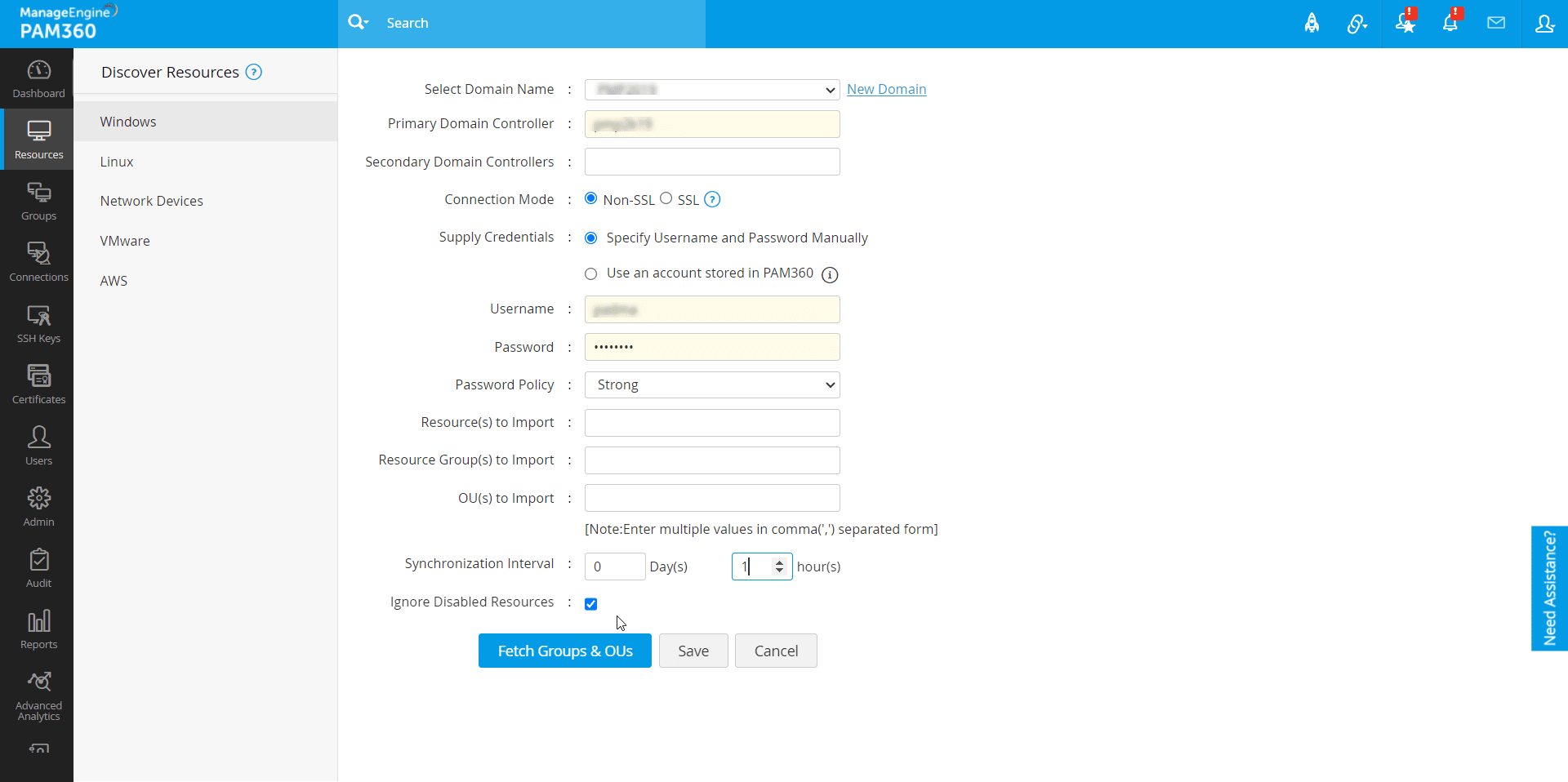
- In the form that appears, enter the following details.
- Select Domain Name - Choose an existing domain from the drop-down list to select the Windows domain from which you wish to discover and import resources into the PAM360's inventory. If you wish to import resources from a new domain, click the New Domain button, enter the domain name in the New Domain field, and click the Add button to add the domain. The new domain will be added to the list PAM360'sPAMof the available options.
- Primary Domain Controller - Specify the DNS name of the primary domain controller in this field.
- Secondary Domain Controllers - Specify the DNS name of the secondary domain controllers in this field to ensure the continuous operation of the discovery and synchronization processes even if the primary domain controller becomes unavailable. You can enter multiple values in the comma-separated format.
Caution
Enter the DNS name of the secondary domain controllers in the comma-separated format. One of the listed secondary domain controllers will be used for resource discovery when the primary domain controller is down. If you use SSL connection mode for discovery, ensure the DNS name specified here matches the CN (common name) specified in the SSL certificate of the domain controllers.
- Connection Mode - Choose between SSL and Non-SSL connection modes, using which PAM360 should establish a connection to the domain controller. We strongly recommend that you choose the SSL mode to establish an encrypted connection for enhanced security.
- Supply Credentials - PAM360 requires a valid domain account with read permission to query the AD and fetch the privileged resources available under the selected domain. You can either specify the username and password manually or use an existing account stored in PAM360.
- Specify Username and Password Manually - Select this option to supply the credentials manually. Enter the username and password of the account that has read permission on the domain controller in the respective fields.
- Use an account stored in PAM360 - Select this option to choose an account that holds the required domain account credentials in PAM360. Select the resource and account name from the respective fields.
- Password Policy - Assign a password policy that dictates the password complexity rules for the imported accounts. PAM360 allows you to assign specific password policies to individual groups or OUs while importing them. Select the required password policy from the Password Policy dropdown.
- Resource(s) to Import - If you wish to import specific resources into the PAM360's inventory, specify those resource names in this field in the comma-separated format.
- Resource Group(s) to Import - If you wish to import only specific resource groups from the specified domain, specify the names of these resource groups in this field in the comma-separated format.
- OU(s) to Import - If you wish to import only specific OUs from the specified domain, enter the names of the OUs you wish to import in the comma-separated format in this field.
- PAM360 periodically queries the AD to keep the resources in sync. The new resources added to the AD are automatically added to PAM360's inventory to keep the resources database in sync. In the Synchronization Interval field, enter the time interval at which PAM360 should query the AD and import the newly added privileged resources automatically into PAM360. Set the synchronization interval to a minimum of 3 hours or more, depending on the number of resource groups and OUs to be discovered.
- If you have specified resources, resource groups, or OUs to import on the respective fields, click on the Import button to import them into the PAM360's inventory.
- If you have left those fields empty, you can click the Fetch Groups and OUs button to enumerate all the available resource groups within the selected domain from which you can import the desired resource groups into PAM360. Select the desired groups and OUs from the displayed list, select the password policy for each group and OU, and click the Import button. The selected resources will be imported to your PAM360 repository. If you have entered a synchronization interval, PAM360 will periodically query the AD and automatically onboard the resources added to the selected resource groups and OUs. To view the selected groups before importing, click on the View Selected Groups button.
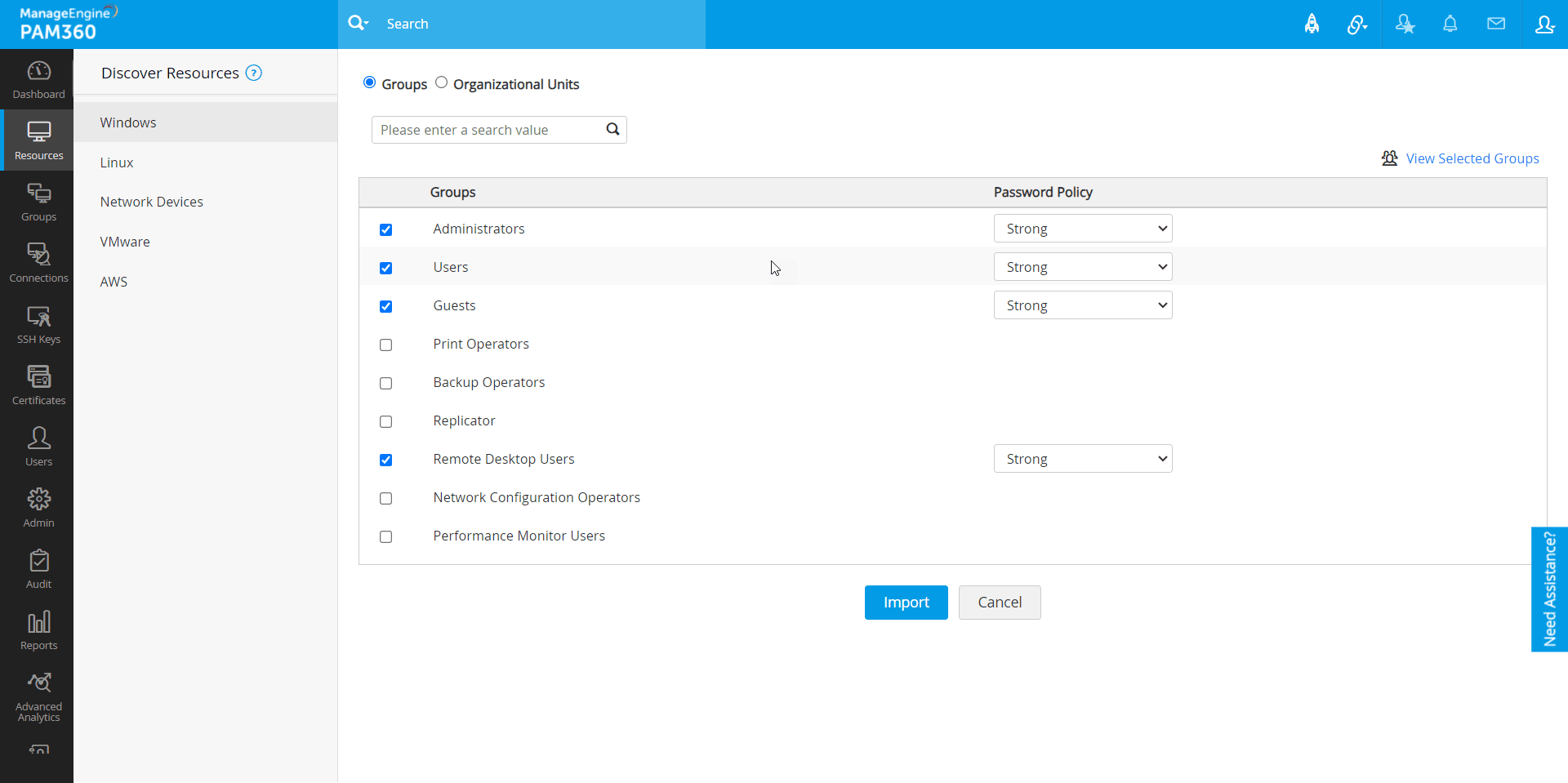
- Upon successful discovery of the privileged resources, you can either choose to add all the discovered resources to the PAM360's inventory or add only specific resources based on your requirement.
You have successfully discovered the privileged resources in your environment and have added them to the PAM360's inventory. You can now seamlessly manage these resources from the Resources tab.
During Windows resource discovery, if you choose SSL as the connection mode, you should import the domain controller’s SSL certificate into the PAM360’s certificate store to enable secure, encrypted communication between PAM360 and your Windows domain controller. This ensures that PAM360 can establish trusted, encrypted connections during operations like resource discovery and password management. Follow the steps listed below to import the domain controller’s SSL certificate into PAM360:
- Copy the domain controller's SSL certificate in the Base-64 encoded X.509 (.CER) format to the <PAM360-Installation-Directory>/bin folder on the machine where the PAM360 server is running.
- Now, navigate to Control Panel >> Network and Internet >> Internet Options.
- In the Internet Properties pop-up window, access the Content tab and click on the Certificates button.
- In the Certificates window that appears, click the Import button. You will see the Certificate Import Wizard. Click Next to continue.
- In the subsequent window, click the Browse button, upload the Root CA certificate issued by your Certificate Authority from your machine, and click Next.
- Enable Automatically select the certificate store based on the type of certificate checkbox, click Next and then Finish to complete the procedure.
- In the subsequent window, click OK to close the wizard and apply the changes.
- Repeat the same procedure to import the SSL certificate of the domain controller.
If you have multiple domain controllers, repeat these steps to import the SSL certificate for each domain controller in the trust chain.
1.2 Linux
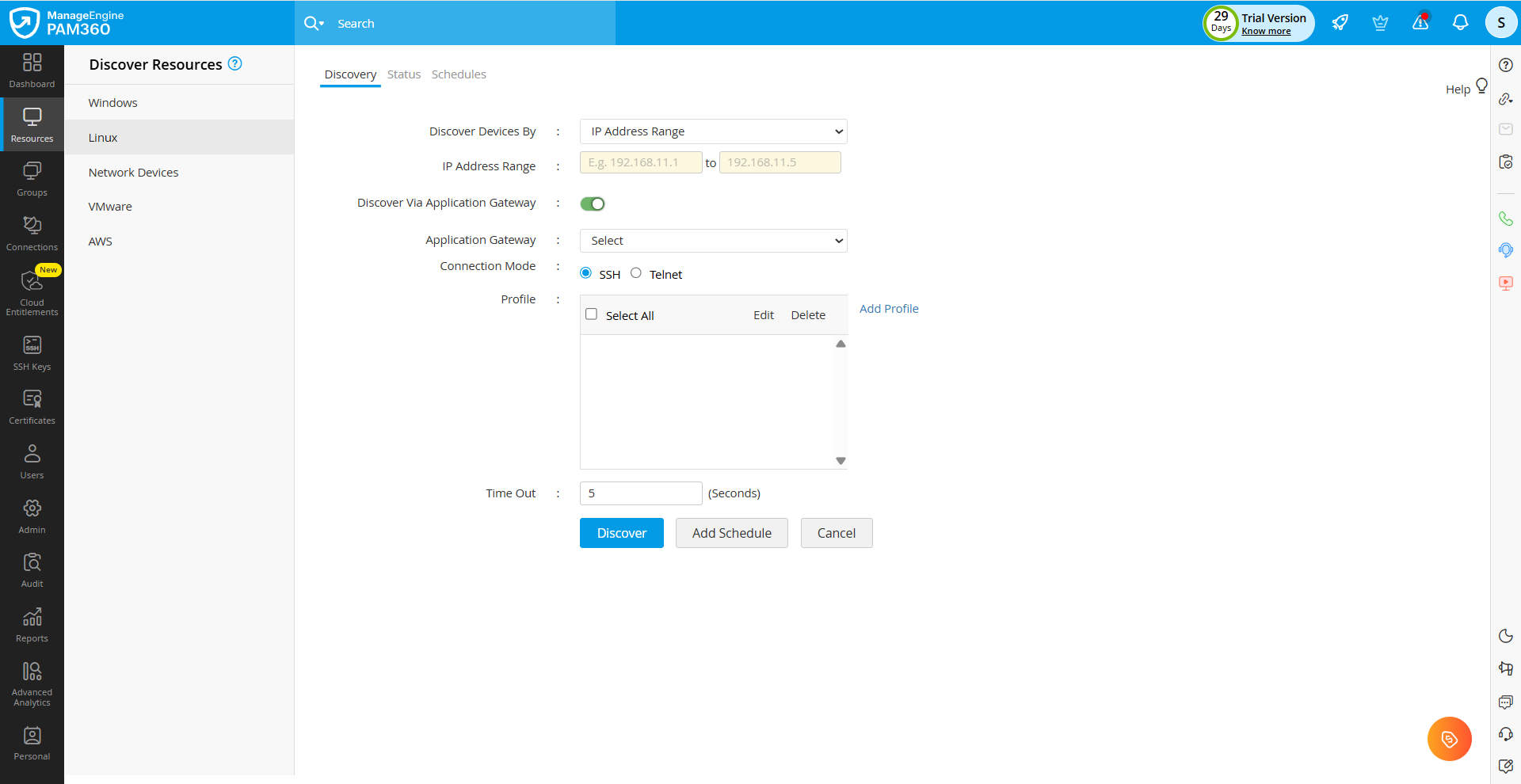
PAM360 utilizes SSH and Telnet as remote connection modes to discover the Linux endpoints in your environment. Follow these steps to discover the privileged Linux resources in your IT infrastructure:
- Navigate to Resources >> Discover Resources >> Linux.
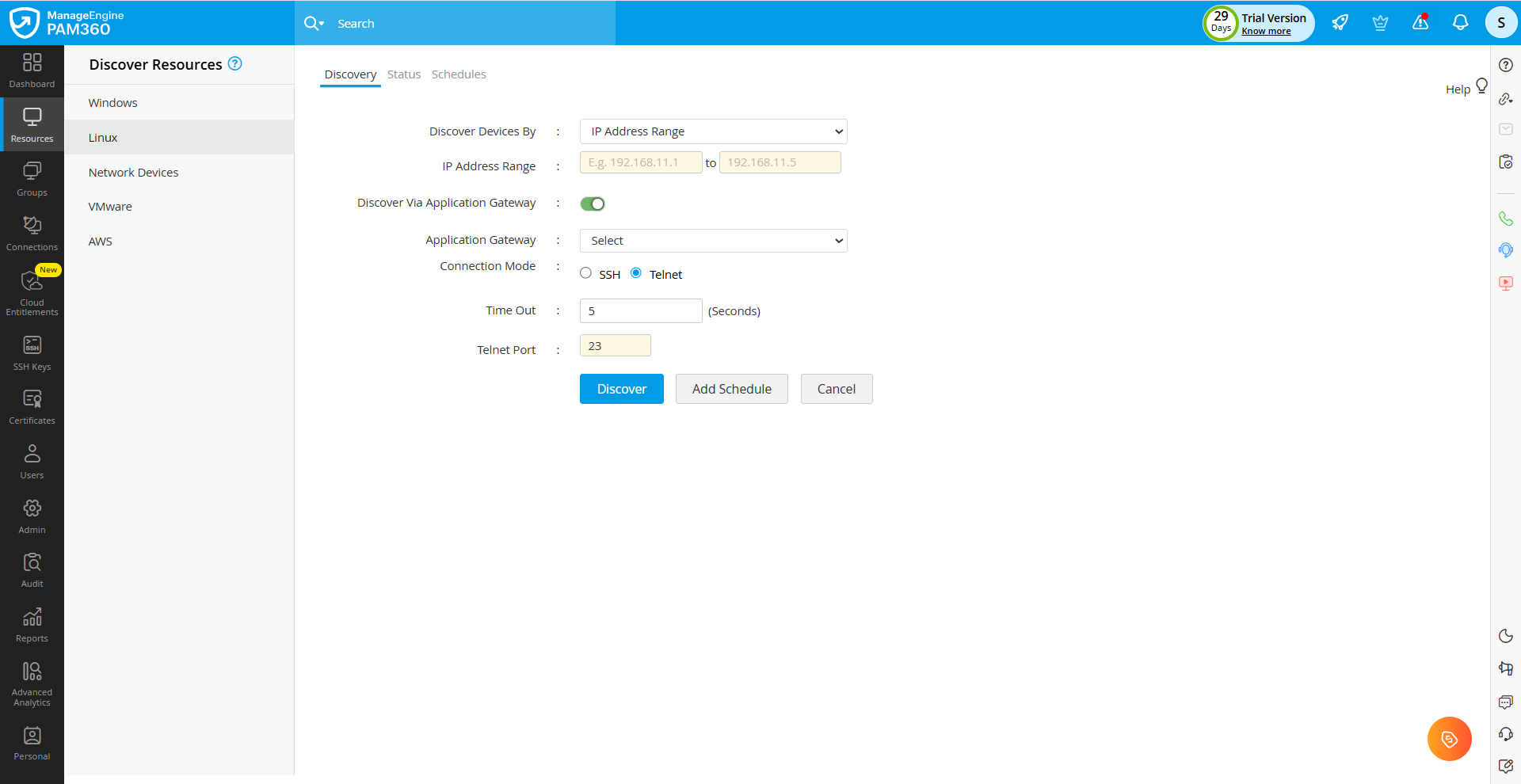
- In the form that appears, enter the following details.
- Discover Devices By - PAM360 allows you to discover the Linux endpoints in your environment in three different ways. Click the drop-down button to view the available options.
- Host Name / IP Address - Choose this option to discover a Linux device that you wish to onboard into PAM360 using its hostname or IP address. Enter the hostname or IP address in the provided field.
- IP Address Range - Select this option to discover multiple devices by entering an IP address range. All the Linux resources residing in the specified IP range will be discovered and onboarded into PAM360. Specify the IP address range in the provided fields.
- Host Name / IP Address From File - Choose this option to upload a file containing the hostnames or IP addresses of the Linux devices in your environment that you wish to onboard into PAM360. Specify one value per line and specify the hostnames or IP addresses as comma-separated or tab-separated values. Click the Browse button beside the Import File field, select the desired file from your machine, and click Open. In the subsequent window that appears, map the resource attributes with the appropriate columns on the file and click Import.
- Discover Via Application Gateway - Enable this checkbox to discover the Linux endpoints in your environment that are not directly connected to the PAM360 server using a deployed Application Gateway. Click the drop-down next to the Application Gateway field to view and select from the list of available Gateways deployed in your environment. Choose the desired Application Gateway to proceed with the discovery, or click the Add New button to add a new Application Gateway.
- Connection Mode - Choose between SSH and Telnet connection modes, using which PAM360 should discover and establish a secure connection to the Linux endpoints available in your environment.
Caution
The Telnet remote connection mode will be deprecated soon.
- Time Out - Specify the duration (in seconds) PAM360 should wait for a response from a device before considering the attempt as a failure. This is especially useful when devices take longer to respond or when they reside on distant subnets.
- Discover Devices By - PAM360 allows you to discover the Linux endpoints in your environment in three different ways. Click the drop-down button to view the available options.
- If you are using the SSH connection mode, you should choose the desired discovery profile from the available options to proceed with the Linux resource discovery. If you do not have a discovery profile, click the Add Profile button to add a new discovery profile. Follow the steps provided here to add a profile for Linux resource discovery.
- If you are using the Telnet connection mode, you should specify the appropriate Telnet port number in the provided field.
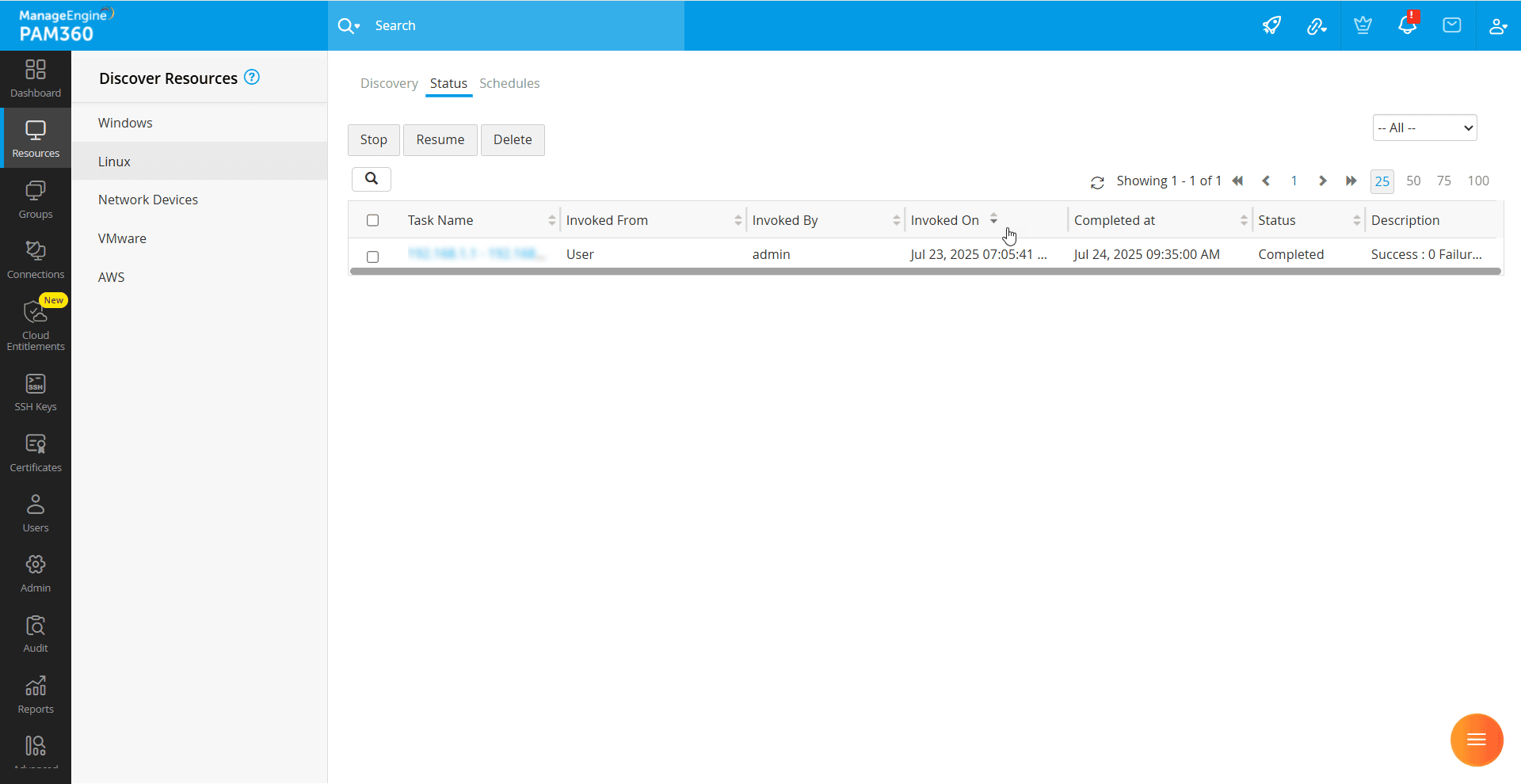
- Click the Discover button to initiate the discovery process. A confirmation window will appear where you can choose to notify all administrators or specific recipients about the discovery process. If you choose to notify only specific recipients, enter the email addresses in the comma-separated format in the provided field and then click Proceed. You will see the Status page, where the discovery process will be added as a task along with its details, such as the IP address, start and end times, etc.
- Alternatively, you can click the Add Schedule button to add the discovery process as a recurring task based on your requirements. You will see the Add Schedule window, where you can configure the scheduled task to discover the newly added resources in your environment. Refer to this section for the detailed steps to add a resource discovery schedule in PAM360.
Upon successful discovery, you should import the discovered resources into the PAM360's inventory. All the discovered resources will be displayed within the Status tab. You can select the required resources and onboard them to the PAM360's inventory. Refer to this section for more details about the possible operations from the Status tab.
Additional Details
If the device to be discovered is located on a different subnet than the PAM360 host, the discovery process may take longer than the configured timeout due to increased connectivity delays.
1.2.i Adding a Discovery Profile
To discover Linux resources and enumerate their accounts, PAM360 needs a predefined configuration that includes all the necessary connection parameters. This configuration is known as a discovery profile. It enables PAM360 to establish secure connections with the target systems, authenticate using the appropriate credentials or keys, and retrieve details about the available resources and the associated accounts. Follow these steps to add a new discovery profile:
- On the Discover Resources page, click the Add Profile button next to the Profile field.
- In the form that appears, enter the following details:
- Name - Enter a name for the discovery profile.
- Description - Provide a brief description for the profile.
- SSH Port - Specify the SSH port to be used to connect to the Linux resources.
- User Prompt - PAM360 requires the user prompt to detect when a successful connection has been established and the shell is ready to receive commands. This is typically a character or string displayed by the system after establishing an SSH session. Ensure that the prompt is correctly configured to match what is displayed by your Linux systems.
- Supply Credentials - You can either choose to specify the username and password manually, use an existing account stored in the PAM360, or add an SSH private key for authentication.
- Specify Username and Password Manually - Select this option to specify the credentials manually. Enter the username and password of an account that has read permissions on the target systems in the provided fields.
- Use an account stored in PAM360 - Select this option to choose an account that holds the required credentials in PAM360. Select the appropriate resource and account with the appropriate permission name from the respective fields.
- Add SSH Private Key - Choose this option if the Linux resources use a private key for authentication. Upload the private key used for SSH key-based authentication and specify the Username, Private Key Name, and the Private Key Password in the provided fields.
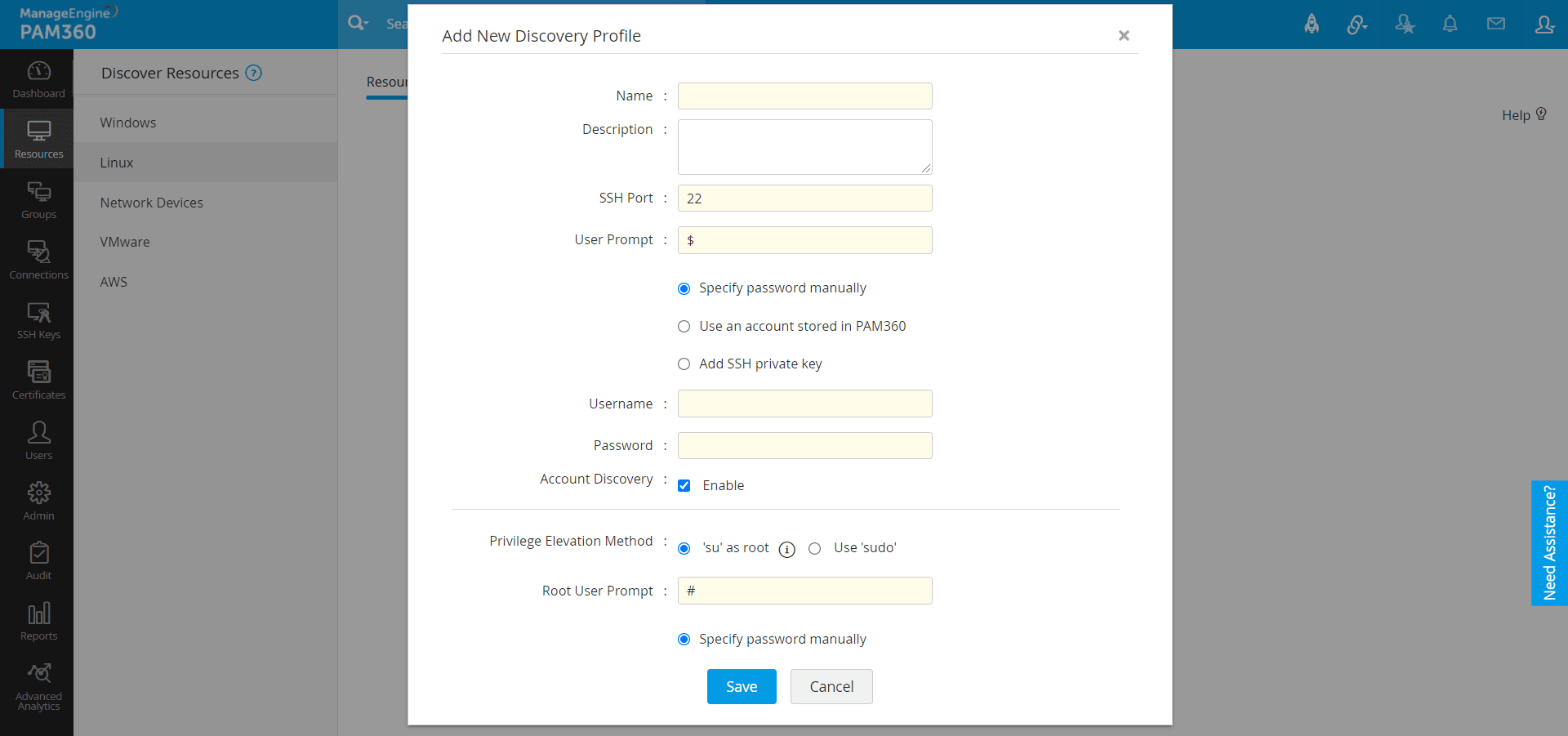
- Account Discovery - Enable this checkbox to discover all the associated privileged accounts on the discovered resources.
- Privilege Elevation Method - Choose the appropriate method for privilege elevation. This is required only when the Account Discovery checkbox is enabled.
- Use 'su' as root: Specify the root user prompt (the string PAM360 uses to detect when it has elevated access during the session) and provide the super user account credentials. You can either specify the username and password manually or use an existing account stored in the PAM360.
- Use 'sudo': If the credentials provided in step 2 belongs to an user account with sudo privileges, PAM360 will discover both the resources and their associated accounts. If the user account does not have sudo privileges, only the resources will be discovered.
- Click Save to create and save the discovery profile.
You have now successfully added a discovery profile to discover the Linux endpoints in your environment.
1.3 Network Devices
Follow these steps to discover and onboard the network devices in your environment into PAM360:
- Navigate to Resources >> Discover Resources >> Network Devices.
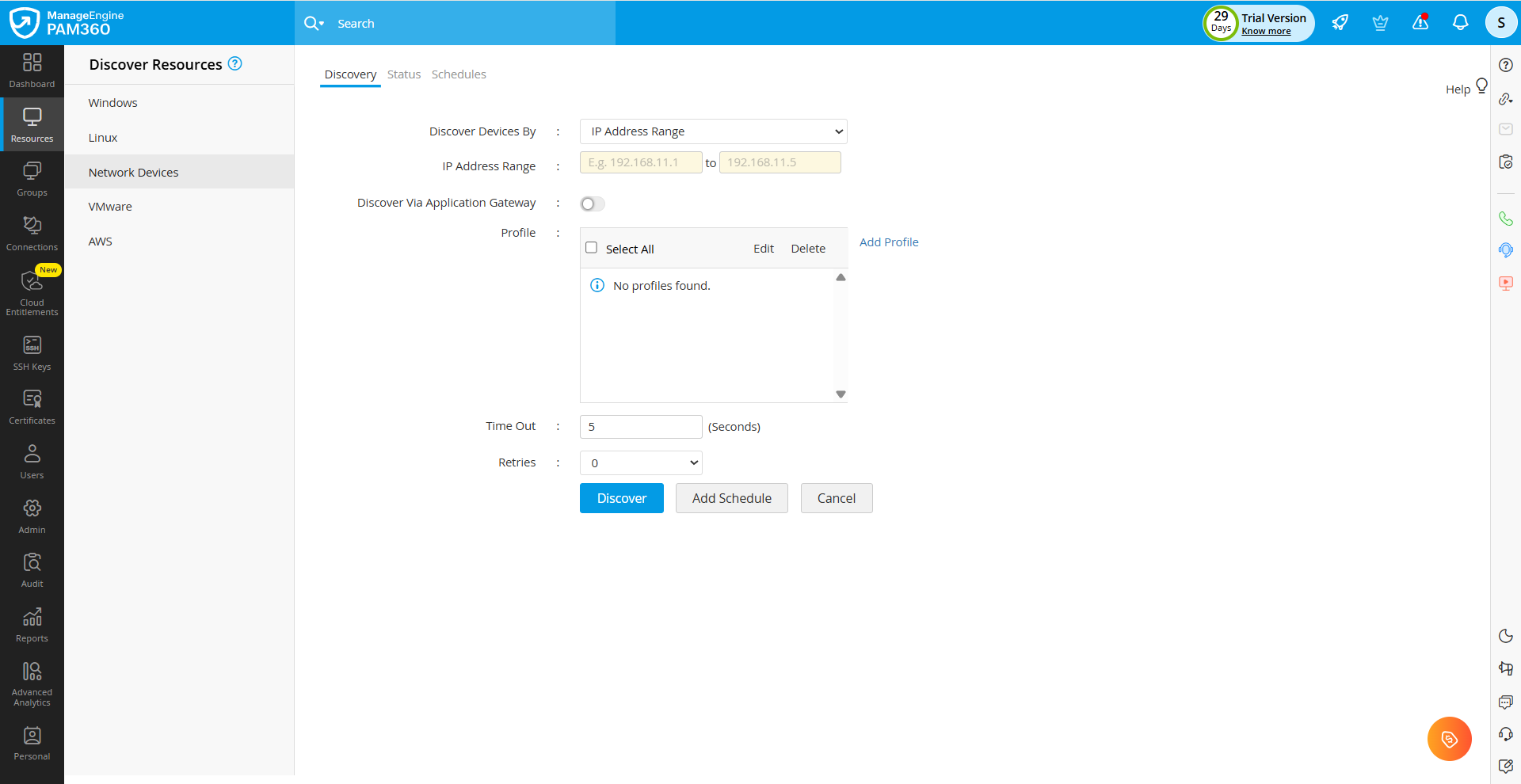
- In the form that appears, enter the following details.
- Discover Devices By - PAM360 allows you to discover the network devices in your environment using three different methods. Click the drop-down button to view the available options.
- Host Name / IP Address - Choose this option to discover and onboard a network device into PAM360 by specifying its hostname or IP address. Enter the hostname or IP address in the respective field.
- IP Address Range - Select this option to discover multiple devices by entering an IP address range. All the network devices in the specified IP range will be discovered and onboarded into PAM360. Specify the IP address range in the provided fields.
- Host Name / IP Address From File - Choose this option to upload a file containing the hostnames or IP addresses of the devices in your environment that you wish to onboard into PAM360. Specify one value per line and specify the hostnames or IP addresses as comma-separated or tab-separated values. Click the Browse button near the Import File field, select the desired file from your machine, and click Open. In the subsequent window that appears, map the resource attributes with the appropriate columns on the file and click Import.
- Discover Via Application Gateway - Enable this checkbox to discover the network devices in your environment that are not directly connected to the PAM360 server using a deployed Application Gateway. Click the drop-down next to the Application Gateway field to view and select from the list of available Gateways deployed in your environment. Choose the desired Application Gateway to proceed with the discovery, or click the Add New button to add a new Application Gateway.
- Profile - Choose the desired discovery profile from the available options to proceed with the resource discovery. If you do not have a discovery profile, click the Add Profile button to add a new discovery profile. Follow the steps provided here to add a new discovery profile to discover the network devices in your environment.
- Time Out - Specify the duration (in seconds) PAM360 should wait for a response from a device before considering the attempt as a failure. This is especially useful when devices take longer to respond or when they reside on distant subnets.
- Retries - Enter the number of retry attempts PAM360 should make if it fails to discover resources on the first attempt. Retries can help mitigate the impact of momentary network failure or delayed response from the devices.
- Discover Devices By - PAM360 allows you to discover the network devices in your environment using three different methods. Click the drop-down button to view the available options.
- After entering the required details, click the Discover button to initiate the discovery process. A confirmation window will appear where you can choose to notify all administrators or specific recipients about the resource discovery process. If you choose to notify only specific recipients, enter the email addresses in the comma-separated format in the provided field and then click Proceed. You will see the Status page, where the discovery process will be added as a task along with its details, such as IP address, start and end time, etc.
- Alternatively, you can click the Add Schedule button to add the discovery process as a recurring task based on your requirements. You will see the Add Schedule window, where you can configure the scheduled task to discover the newly added resources in your environment. Refer to this section for the detailed steps to add a resource discovery schedule in PAM360.
Caution
- Currently, PAM360 supports only the IPv4 address format for discovery.
- When discovering network devices, only the resources are discovered and added to the PAM360's inventory. The associated user accounts are not enumerated during this process.
Upon successful discovery, you should import the discovered resources into the PAM360's inventory. All the discovered resources will be displayed within the Status tab. You can either import all the discovered resources to the PAM360's inventory using the Add All option, or choose to import only specific resources based on your requirements. Select the desired resources and click the Add button to add the selected resources to the PAM360's inventory. Refer to this section for more details about the possible operations from the Status tab.
1.3.i Adding a Discovery Profile
Follow these steps to add a new discovery profile to discover the network devices in your environment:
- On the Discover Resources page, click the Add Profile button next to the Profile field.
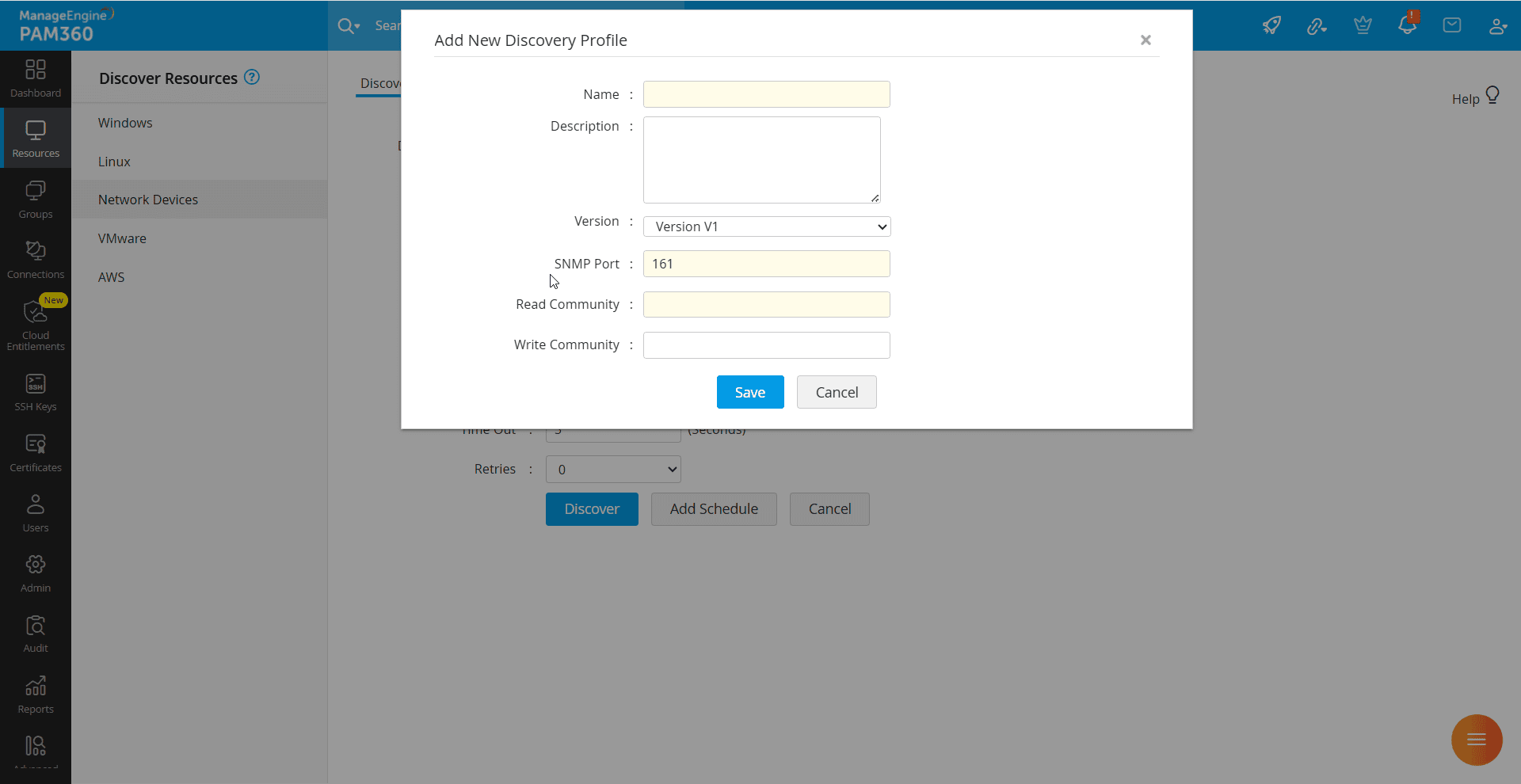
- In the form that appears, enter the following details:
- Name - Enter a name for the discovery profile.
- Description - Provide a brief description for the profile.
- Version - Select the SNMP version (v1, v2c, or v3) used by the devices that you wish to discover.
- SNMP Port - Specify the SNMP port number to connect to the network devices in your environment.
- Enter the following information if you choose the version as SNMP v1 or v2c:
- Read Community - Enter the SNMP read community string, which is required to fetch the basic device information. It functions like a password and allows read-only access to SNMP data.
- Write Community - Enter the SNMP write community string if write access is required.
- Enter the following details, if you choose the SNMP version as SNMP v3:
- Username - Enter the username of the SNMP v3 user account configured on the network device.
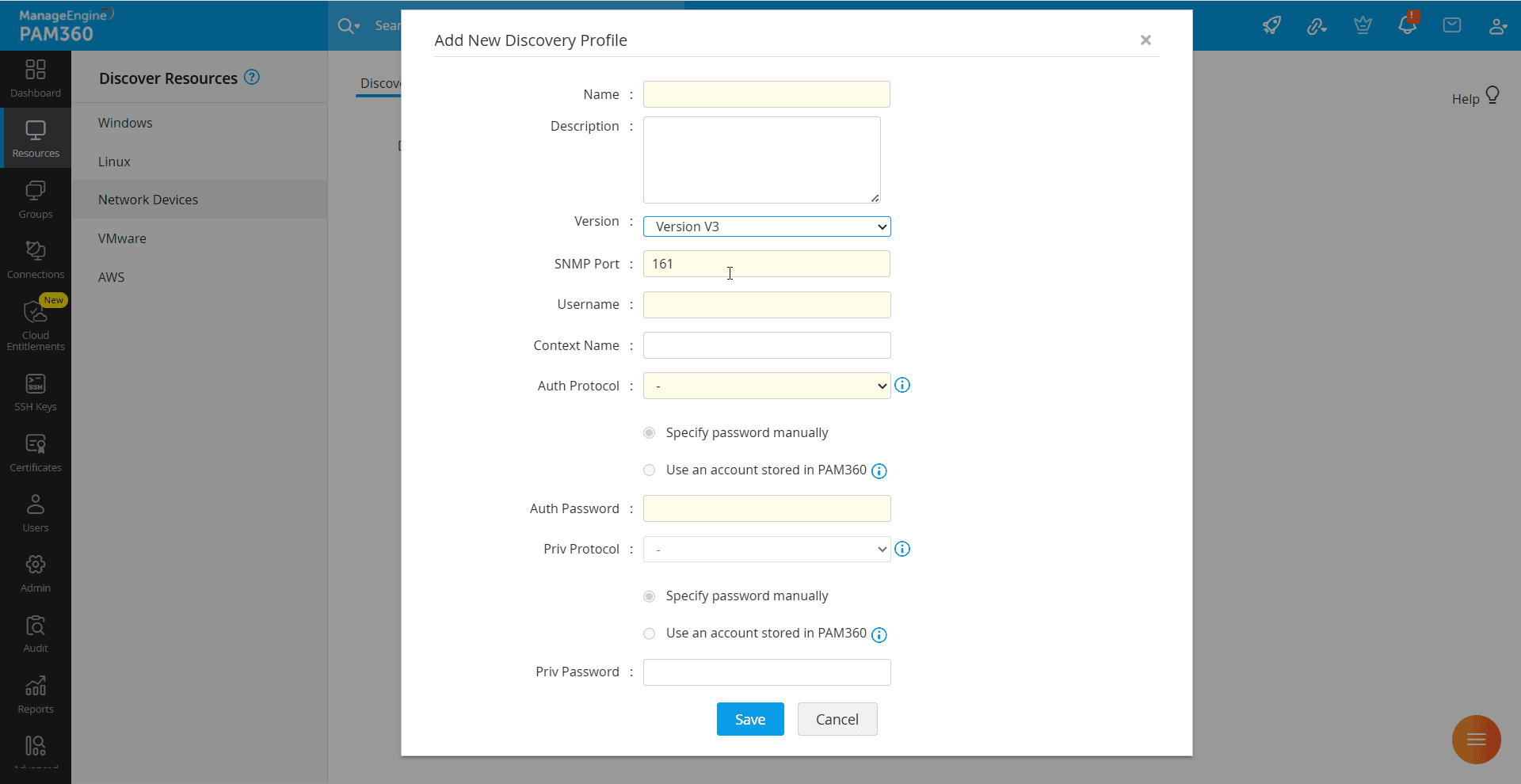
- Context Name - Specify the SNMP context name, if configured on the device. A context in SNMP is a logical grouping of management information (MIB objects) accessible by an SNMP entity. It allows SNMP managers to retrieve different subsets or views of the MIB data. A single SNMP entity can support multiple contexts, each representing a distinct set of managed objects. If a particular set of MIB data is associated with a context, any SNMPv3 manager should specify the corresponding context name to access that data. The context name is typically an octet string and must match exactly with what is configured on the device.
- Auth Protocol - Choose the authentication protocol (MD5 or SHA) used to validate the SNMPv3 user account from the displayed options. MD5 and SHA are the processes used for generating authentication or privacy keys in SNMPv3 applications.
- Auth Password - You can choose to enter the password manually or choose an account stored in PAM360 that holds the password. Enter the password in the respective field or select the resource and the corresponding account that contains the required password.
- Priv Protocol - Choose the privacy protocol (DES or AES) used for encrypting the SNMP messages from the displayed options.
- Priv Password - You can choose to enter the password manually or choose an account stored in PAM360 that holds the password. Enter the password in the respective field or select the resource and the corresponding account that contains the required password.
- Username - Enter the username of the SNMP v3 user account configured on the network device.
- Click Save to save the discovery profile.
You have now successfully added a discovery profile. Once saved, the profile can be reused for subsequent network device discovery tasks.
1.4 VMware Devices
PAM360 leverages the vSphere API to facilitate the discovery of VMware devices. By connecting to the vCenter server via API, PAM360 retrieves a complete list of all the associated ESXi hosts, enabling seamless onboarding of these resources into the PAM360's inventory. Follow these steps to discover and onboard the VMware devices in your environment into PAM360:
- Navigate to Resources >> Discover Resources >> VMware.
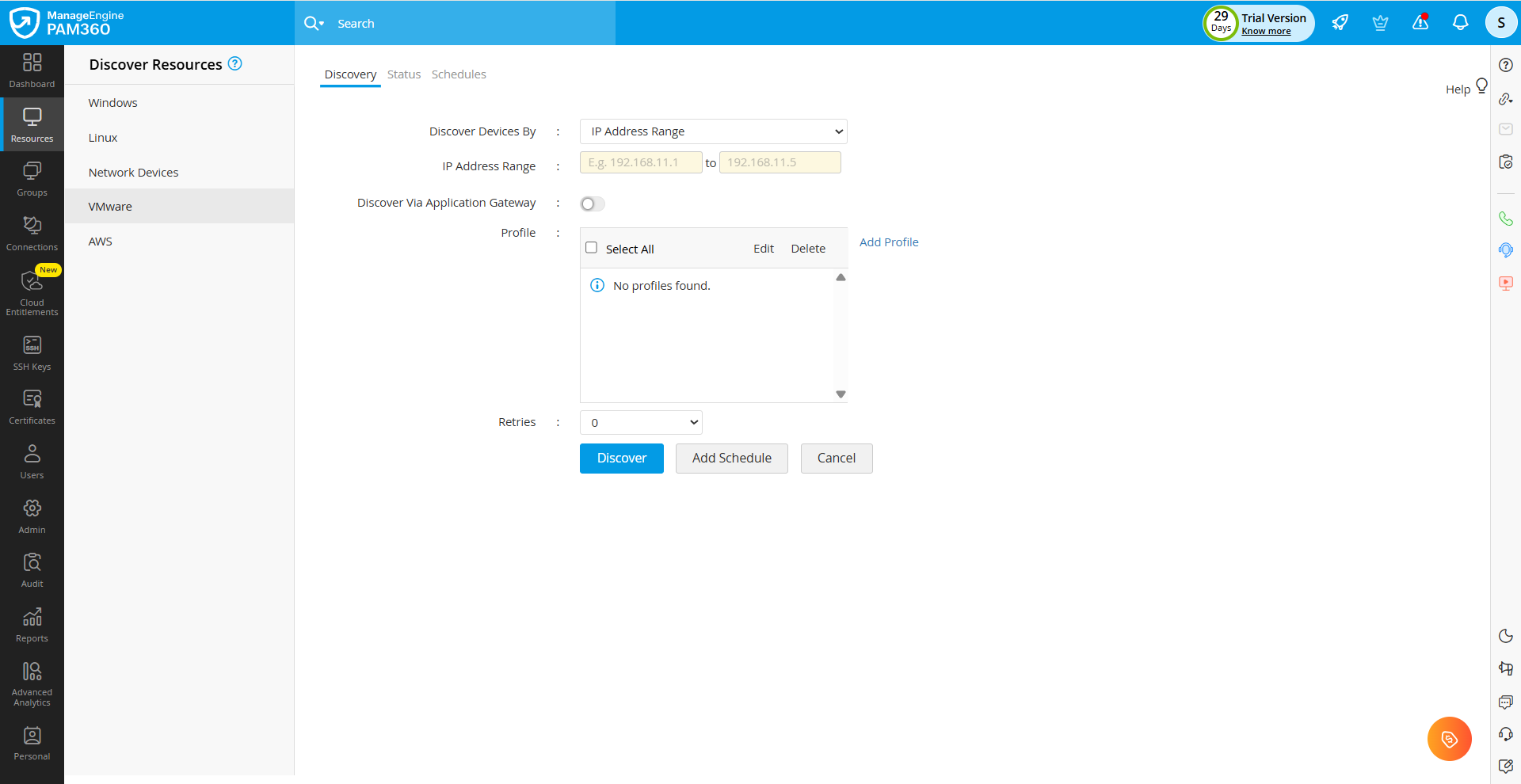
- In the form that appears, enter the following details.
- Discover Devices By - PAM360 allows you to discover the VMware devices in your environment using three different methods. Click the drop-down button to view the available options.
- Host Name / IP Address - Choose this option to discover and onboard a VMware device into PAM360 by specifying its hostname or IP address. Enter the hostname or IP address in the respective field.
- IP Address Range - Select this option to discover multiple devices by entering an IP address range. All the VMware devices residing in the specified IP range will be discovered and onboarded into PAM360. Specify the IP address range in the provided fields.
- Host Name / IP Address From File - Choose this option to upload a file containing the hostnames or IP addresses of the devices in your environment that you wish to onboard into PAM360. Specify one value per line and specify the hostnames or IP addresses as comma-separated or tab-separated values. Click the Browse button near the Import File field, select the desired file from your machine, and click Open. In the subsequent window that appears, map the resource attributes with the appropriate columns on the file and click Import.
- Discover Via Application Gateway - Enable this checkbox to discover the VMware resources in your environment that are not directly connected to the PAM360 server using a deployed Application Gateway. Click the drop-down next to the Application Gateway field to view and select from the list of available Gateways deployed in your environment. Choose the desired Application Gateway to proceed with the discovery, or click the Add New button to add a new Application Gateway.
- Profile - Choose the desired discovery profile from the available options to proceed with the resource discovery. If you do not have a discovery profile, click the Add Profile button to add a new discovery profile. Follow the steps provided here to add a new discovery profile to discover the VMware devices in your environment.
- Retries - Enter the number of retry attempts PAM360 should make if it fails to discover resources on the first attempt. Retries can help mitigate the impact of momentary network failure or delayed response from the devices.
- Discover Devices By - PAM360 allows you to discover the VMware devices in your environment using three different methods. Click the drop-down button to view the available options.
- Click the Discover button to initiate the discovery process. A confirmation window will appear where you can choose to notify all administrators or specific recipients about the resource discovery process. If you choose to notify only specific recipients, enter the email addresses in the comma-separated format in the provided field and then click Proceed. You will see the Discovery Status page, where the discovery process will be added as a task along with its details, such as the IP address, start and end times, etc.
- Alternatively, you can click the Add Schedule button to add the discovery process as a recurring task based on your requirements. You will see the Add Schedule window, where you can configure the scheduled task to discover the newly added resources in your environment. Refer to this section for the detailed steps to add a resource discovery schedule in PAM360.
Upon successful discovery, you should import the discovered resources into the PAM360's inventory. All the discovered resources will be displayed within the Status tab. You can either import all the discovered resources to the PAM360's inventory using the Add All option, or choose to import only specific resources based on your requirements. Refer to this section for more details about the possible operations from the Status tab.
1.4.i Adding a Discovery Profile
Follow these steps to add a new discovery profile to discover the VMware devices in your environment:
- On the Discover Resources page, click the Add Profile button next to the Profile field.
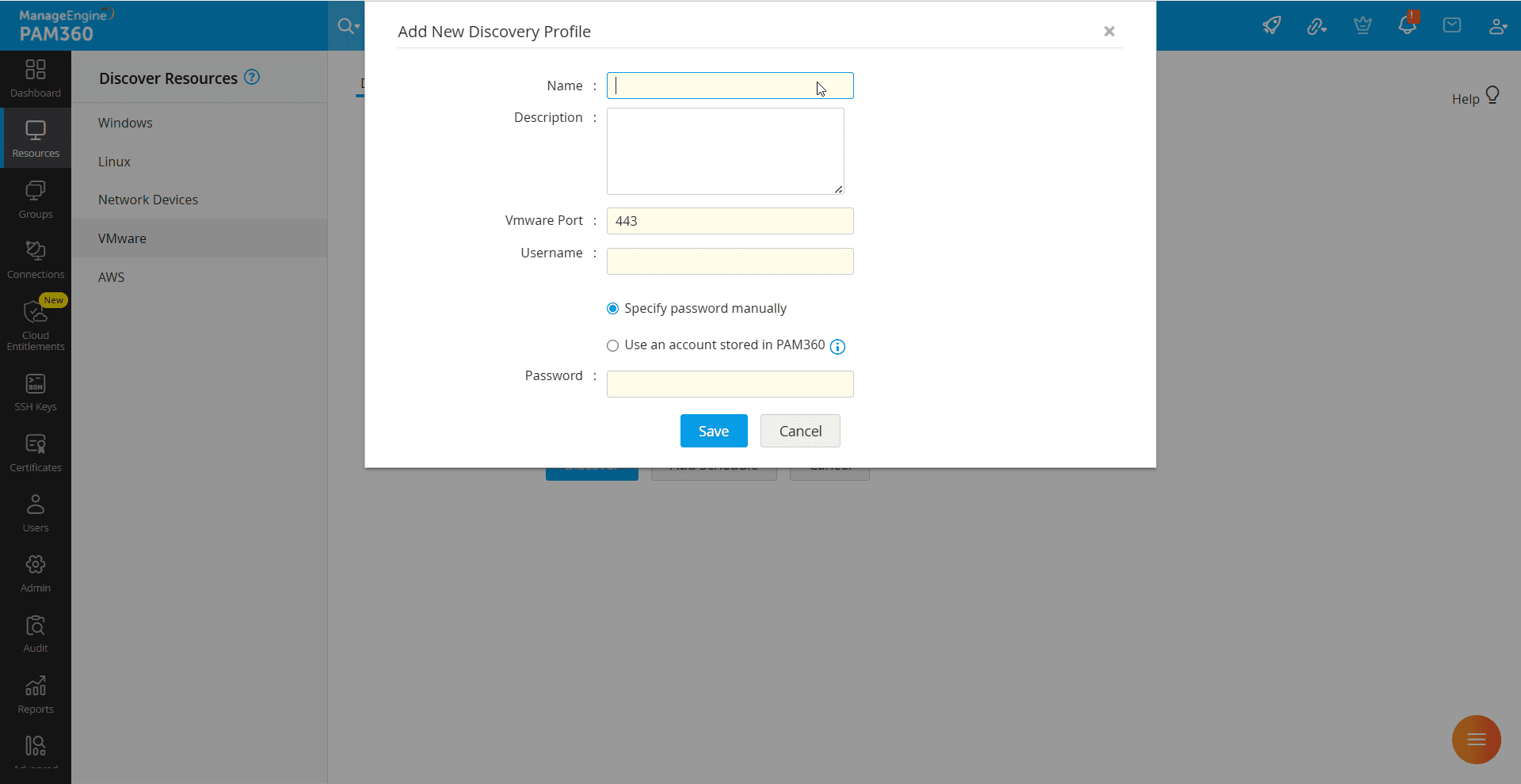
- In the form that appears, enter the following details:
- Name - Enter a name for the discovery profile.
- Description - Provide a brief description for the discovery profile.
- VMware Port - Specify the port number used to establish a connection with the VMware vCenter or ESXi host. By default, VMware uses port 443 for secure HTTPS communication.
- Username - Enter the username of the account with sufficient privileges to access the VMware vCenter or ESXi host. This account should have the necessary permissions to query and retrieve device details during the discovery process.
- Password - You can choose to enter the password manually in the provided field or choose an account stored in PAM360 that holds the password. If you have the password stored in PAM360, select the resource and the corresponding account that contains the required password from the provided fields.
- Click Save to create and save the discovery profile.
You have now successfully added a discovery profile. Once saved, the profile can be reused to discover the VMware devices in your environment.
1.5 AWS Cloud Services
1.5.i AWS Devices
Amazon Web Services (AWS) is an on-demand cloud computing platform, and Elastic Compute Cloud (EC2) is one of the popular Amazon services. The EC2 platform allows users to rent several virtual instances to run their applications. All these instances can be directly retrieved, imported, and managed from PAM360.
Caution
To discover and add AWS resources into the PAM360's inventory, ensure that the following prerequisites are met:
- Administrator access for resource onboarding
- Amazon EC2 Read-Only access to fetch and list instance details from your AWS environment
Follow these steps to discover and onboard the AWS instances in your environment into PAM360:
- Navigate to Resources >> Discover Resources >> AWS.
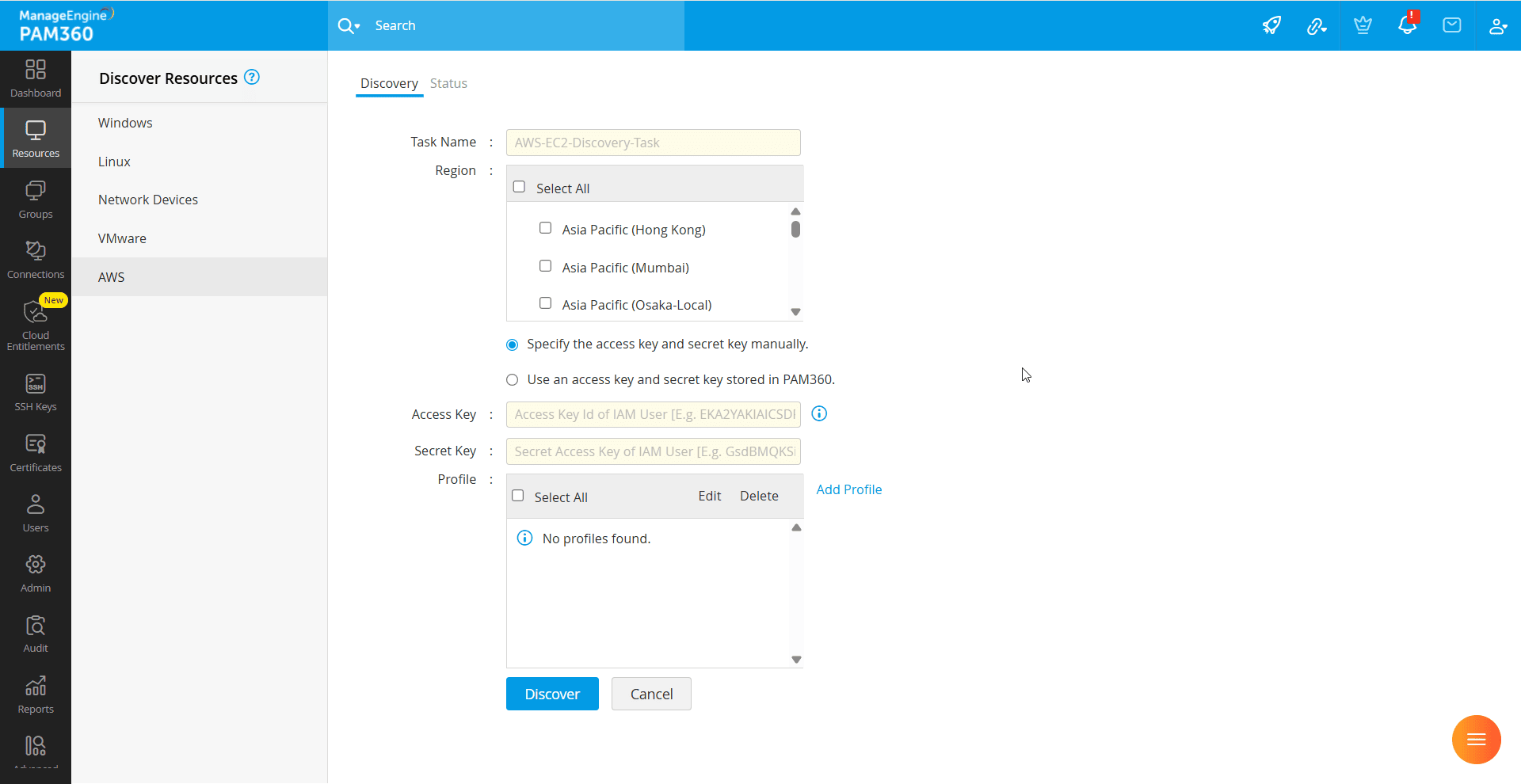
- In the form that appears, enter the following details.
- Task Name - Enter a name for the discovery task.
- Service Type - Select which AWS service type to discover: Elastic Compute Cloud (EC2), Relational Database Service (RDS), or "-- All Services --" for comprehensive discovery across all service types.
- Region - Select the AWS region where the target resources are hosted.
- AWS Credentials - Provide the Access Key and Secret Key required to authenticate with your AWS account. This AWS account should have the necessary permissions to fetch details of EC2 instances. You can either manually enter the Access Key and Secret Key in the respective fields, or select an existing AWS IAM resource stored in PAM360 that contains the required credentials.
- Profile - Choose the desired discovery profile from the available options to proceed with the resource discovery. If you do not have a discovery profile, click the Add Profile button to add a discovery profile. Follow the steps provided here to add a new discovery profile to discover the AWS EC2 instances in your environment.
- After entering the required details, click the Discover button to initiate the discovery process. A confirmation window will appear where you can choose to notify all administrators or specific recipients about the discovery process. If you choose to notify only specific recipients, enter the email addresses in the comma-separated format in the provided field and then click Proceed. You will see the Status page, where the discovery process will be added as a task along with its details, such as IP address, start and end times, etc. All reachable AWS EC2 instances that match the specified parameters will be onboarded into PAM360.
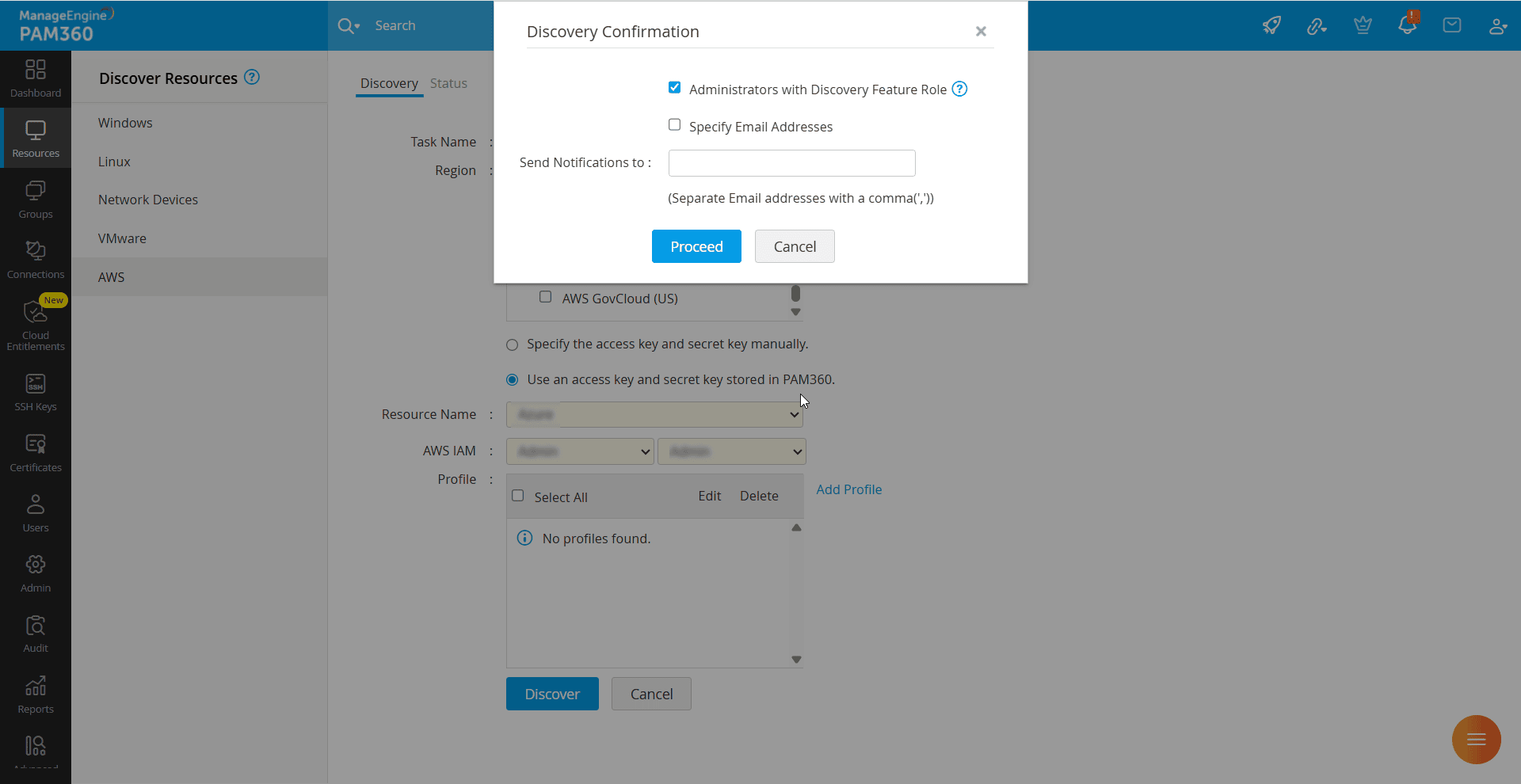
Upon successful discovery, you should import the discovered resources into the PAM360's inventory. All the discovered resources will be displayed within the Status tab. You can either import all the discovered resources to the PAM360's inventory using the Add All option, or choose to import only specific resources based on your requirements. Select the desired resources and click the Add button to add the selected resources to the PAM360's inventory. Explore this link for more details about the possible operations from the Status tab.
1.5.ii Adding a Discovery Profile
Follow these steps to add a new discovery profile to discover the AWS EC2 instances in your environment:
- On the Discover Resources page, click the Add Profile button next to the Profile field.

- In the form that appears, enter the following details:
- Name - Enter a name for the discovery profile.
- Description - Provide a brief description for the discovery profile.
- SSH Key - You can either add the SSH private key and enter its name and password manually in the Private Key Name and Private Key Password fields, or you can use an SSH key stored in PAM360. If you have the SSH key stored in PAM360, select the appropriate resource and account that holds the required SSH private key from the provided drop-down fields.
Caution
Ensure that the private key name exactly matches the one associated with that specific instance. PAM360 uses this key to establish a secure connection during the discovery process.
- Username - Enter the username that PAM360 should use to establish an SSH connection to the discovered instances using the provided key.
Caution
Initially, PAM360 attempts authentication by treating the resource as a Windows instance. If this attempt fails, it automatically reattempts login by treating the resource as a Linux instance using the same credentials. If the username is not provided, PAM360 assumes the resource as a Windows instance and uses the default administrator account for the login attempt.
- Click Save to create and save the discovery profile.
You have now successfully added a discovery profile. Once saved, the profile can be reused for subsequent AWS resource discovery tasks.
Upon successful discovery, you should import the discovered resources into the PAM360's inventory. All the discovered resources will be displayed within the Status tab. You can either import all the discovered resources to the PAM360's inventory using the Add All option or choose to import only specific resources using the Add option, based on your requirements. Explore this link for more details about the possible operations from the Status tab.
Caution
- To discover an account from a Windows instance, ensure that the Remote Password Reset configuration is manually set up for that account in PAM360.
- In Windows instances, if an admin account password is rotated, do not delete the associated resource. Since AWS cannot retrieve the updated password, the account should be managed by PAM360 to ensure uninterrupted access.
1.5.iii Amazon Workspace
In addition to the endpoints mentioned above, PAM360 also supports the discovery and management of virtual desktops created using Amazon WorkSpaces. You can retrieve, import, and manage these virtual instances directly from the PAM360 interface. Follow these steps to discover the virtual machines from an Amazon WorkSpaces client and add them as resources in PAM360:
- Refer to the AWS documentation to create your Amazon WorkSpaces client and set up a directory in the AWS console.
- Launch a virtual desktop using the Amazon WorkSpaces client you created.
- Install PAM360 on the virtual desktop.
- Once PAM360 is installed, initiate the discovery process by following the standard steps for Windows or Linux, depending on the operating system of the virtual desktop.
1.6 Azure Cloud Services
Microsoft Azure is a comprehensive cloud computing platform offering virtual machines, databases, storage, and various managed services. PAM360 discovers and manages Azure cloud resources by connecting to your Azure environment. This enables organizations to maintain a unified inventory of privileged resources across both on-premises and cloud infrastructure.
To discover and add Azure resources in your environment to the PAM360 inventory, ensure that the following prerequisites are met:
- An active Azure subscription containing the resources to be discovered.
- A Microsoft Entra ID application (application registration) created for PAM360 with the Reader role assigned to access the Azure resources to be discovered.
- The Client ID, Tenant ID, and Client Secret of the Microsoft Entra ID application created for PAM360.
Follow these steps to discover and onboard the Azure resources in your environment into PAM360:
- Navigate to Resources >> Discover Resources >> Azure Cloud Services. In the form that appears, enter the following details:
- Task Name - Enter a name for the discovery task.
- Service Type - Select which Azure service type to discover: Virtual Machines, Azure SQL Database, Azure Database for MySQL, Azure Database for PostgreSQL, or "-- All Services --" for comprehensive discovery across all service types.
- Domain Name - Enter the Azure AD domain name (e.g., yourdomain.onmicrosoft.com) in this field.
- Subscription ID - Enter the Azure subscription ID where the target resources are located. The subscription ID determines the scope of discovery. You can find this in the Azure portal under Subscriptions.
- Azure Credentials - Provide the Client ID and Client Secret required to authenticate with your Azure subscription. You can either manually enter the credentials in the respective fields, or select an existing Azure App resource stored in PAM360 that contains the required credentials. The Azure account corresponding to the client ID should have at least Reader role on the subscription.
- Profile - Choose the desired discovery profile from the available options to proceed with the resource discovery. If you do not have a discovery profile, click the Add Profile button to add a new discovery profile for Azure resources. Follow the steps provided here to add a new discovery profile to discover the Azure resources in your environment.
- After entering the required details, click the Discover button to initiate the discovery process.
A confirmation window will appear where you can choose to notify all administrators or specific recipients about the discovery process. If you choose to notify only specific recipients, enter the email addresses in the comma-separated format in the provided field and then click Proceed. You will see the Status page, where the discovery process will be added as a task along with its details, such as IP address, start and end times, etc.
All reachable Azure instances that match the specified service type will be onboarded into PAM360. Alternatively, you can click the Add Schedule button to add the discovery process as a recurring task based on your requirements.
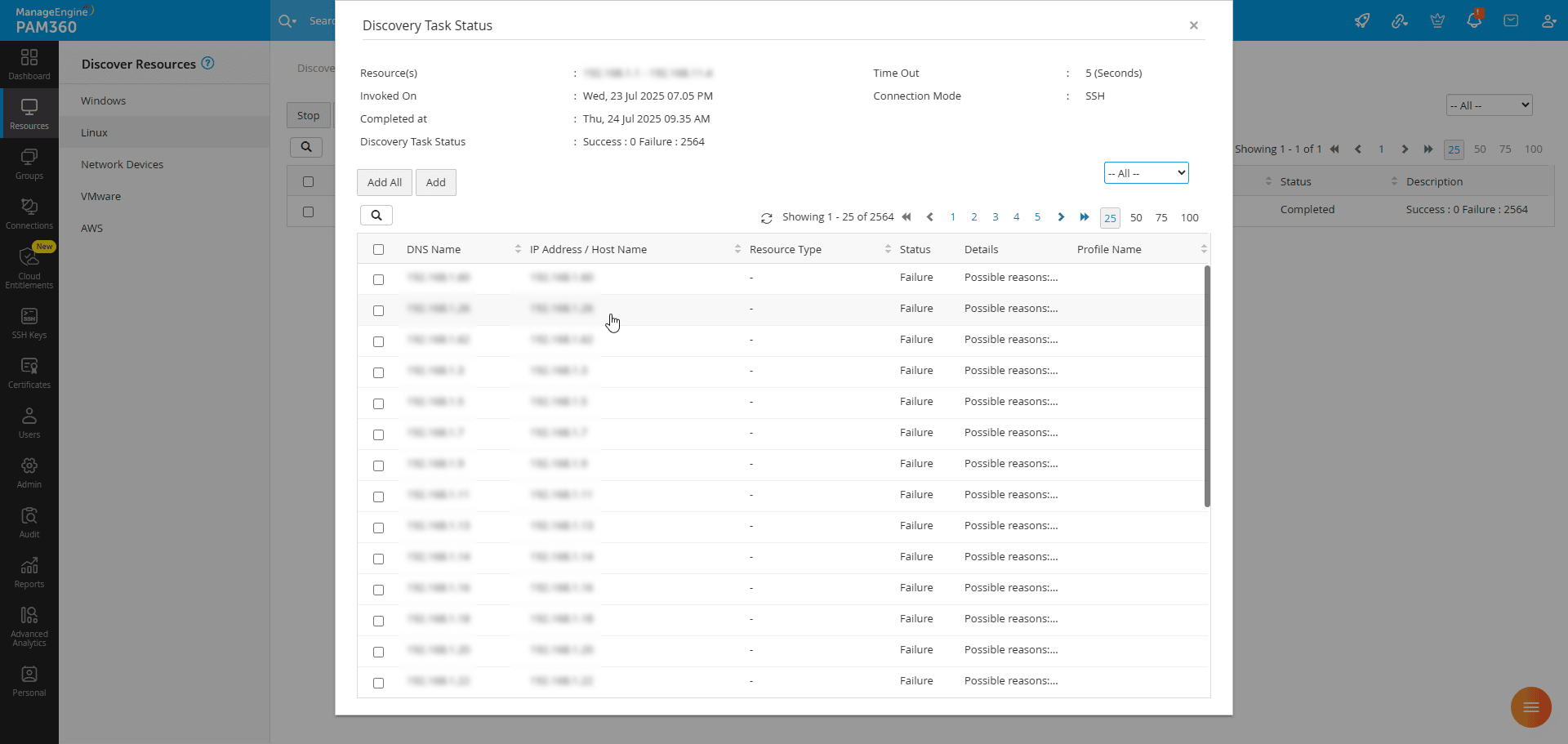
Upon successful discovery, you should import the discovered resources into the PAM360's inventory. All the discovered resources will be displayed within the Status tab. Click on the discovery task name on the status tab to view the list of discovered resources. You can either import all the discovered resources to the PAM360's inventory using the Add All option, or choose to import only specific resources based on your requirements. Select the desired resources and click the Add button to add the selected resources to the PAM360's inventory.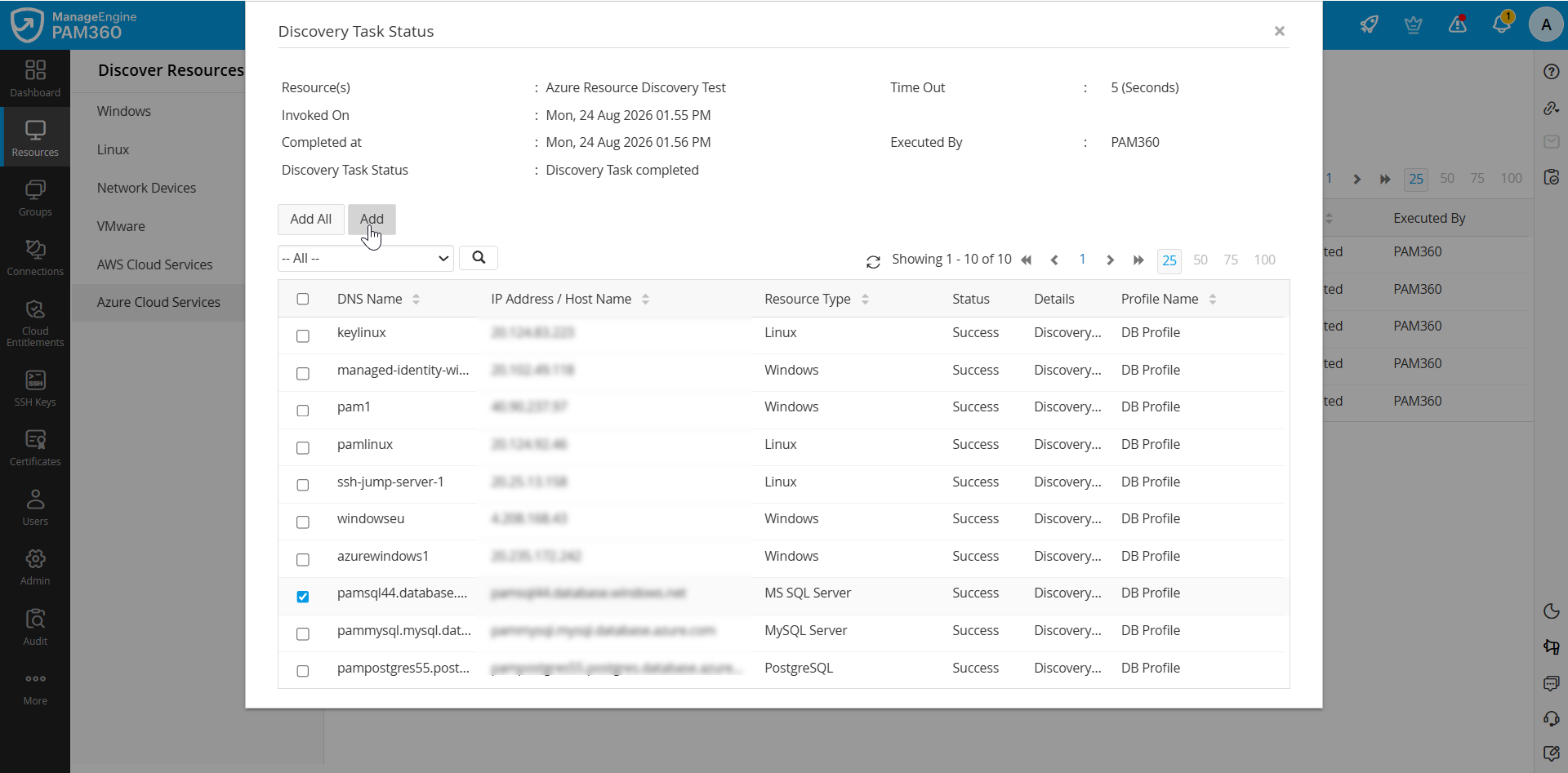
Explore this link for more details about the possible operations from the Status tab.
1.6.i Adding an Azure Discovery Profile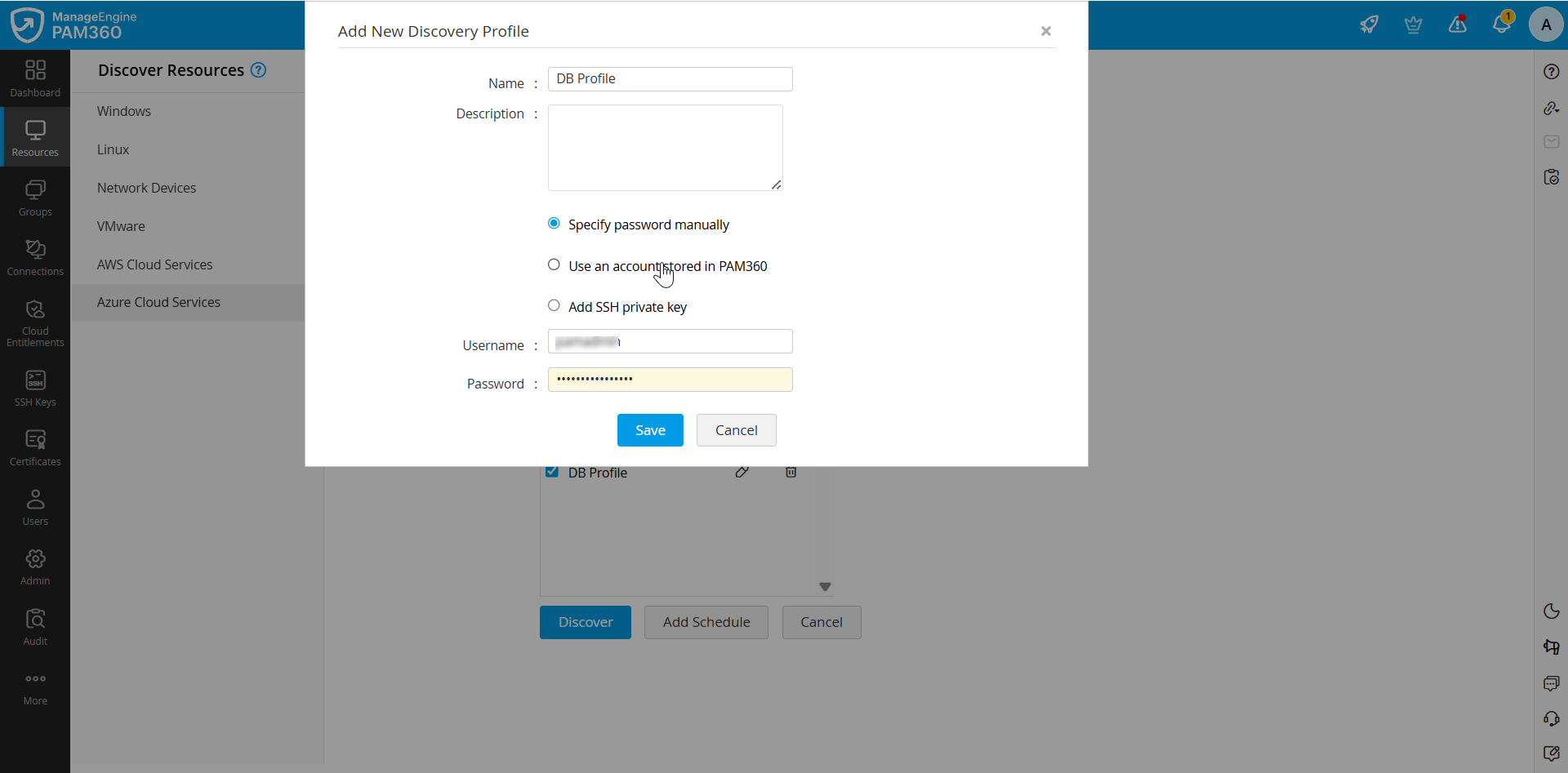
To discover Azure resources and enumerate their accounts, PAM360 needs a predefined configuration that includes all the necessary connection parameters. This configuration is known as a discovery profile. It enables PAM360 to establish secure connections with the target systems, authenticate using the appropriate credentials or keys, and retrieve details about the available resources and the associated accounts. Follow these steps to add a discovery profile to discover the Azure resources in your environment:
- On the Discover Resources page, click the Add Profile button next to the Profile field.
- In the form that appears, enter the following details:
- Name - Enter a name for the discovery profile.
- Description - Provide a brief description for the discovery profile.
- Credentials - Specify the credentials for the Azure resource you are discovering by selecting any of the following options:
- Specify the password - You can manually enter the username and password in the respective fields.
- Use an account stored in PAM360 - If the required credentials are stored in PAM360, select the appropriate resource and account that holds the credentials from the provided drop-down fields.
- Add SSH private key - You can add the SSH private key and enter its name and password manually in the Private Key Name and Private Key Password fields. Enter the username that PAM360 should use to establish an SSH connection to the discovered instances using the provided key.
- Click Save to create and save the discovery profile.
You have now successfully added a discovery profile. Once saved, the profile can be reused for subsequent Azure resource discovery tasks.
Additional Details
- Ensure that the private key name exactly matches the one associated with that specific instance. PAM360 uses this key to establish a secure connection during the discovery process.
- For virtual machines discovered from Azure cloud instances, the remote password reset configuration is automatically applied based on the configured discovery profile. If no remote password reset configuration is available, configure it for the corresponding resource type by following the instructions provided in the Remote Password Reset help page.
2. Scheduled Resource Discovery and Discovery Status
Caution
Currently, PAM360 supports the Scheduled Resource Discovery feature only while discovering resources residing within an IP address range.
PAM360 allows you to schedule the discovery of newly added privileged resources in your environment via scheduled tasks. By configuring scheduled resource discovery, you can ensure that newly provisioned Linux systems, VMware machines, network devices, AWS and Azure Cloud Services are automatically discovered and onboarded into PAM360's inventory without manual intervention. These onboarded resources will have the resource description as added from resource discovery.
You can define the discovery interval and the resources to be discovered by configuring various parameters in the schedule. You can trigger resource discovery on demand or schedule the discovery task to be executed periodically, such as once every few days or monthly, based on your requirements. Additionally, you can choose to discover and import all the newly provisioned resources or import only specific resources by defining criteria. Furthermore, you can configure PAM360 to send email notifications to all the administrators in your environment or designated users upon successful resource discovery, keeping them informed about the newly provisioned resources.
2.1 Scheduled Resource Discovery
Follow these steps to add a resource discovery schedule for Linux, VMware, and Network devices:
- Navigate to Resources >> Discover Resources, and choose Linux, Network Devices, or VMware from the left pane based on your requirement.
- In the discovery form that appears, enter the required details and click the Add Schedule button.
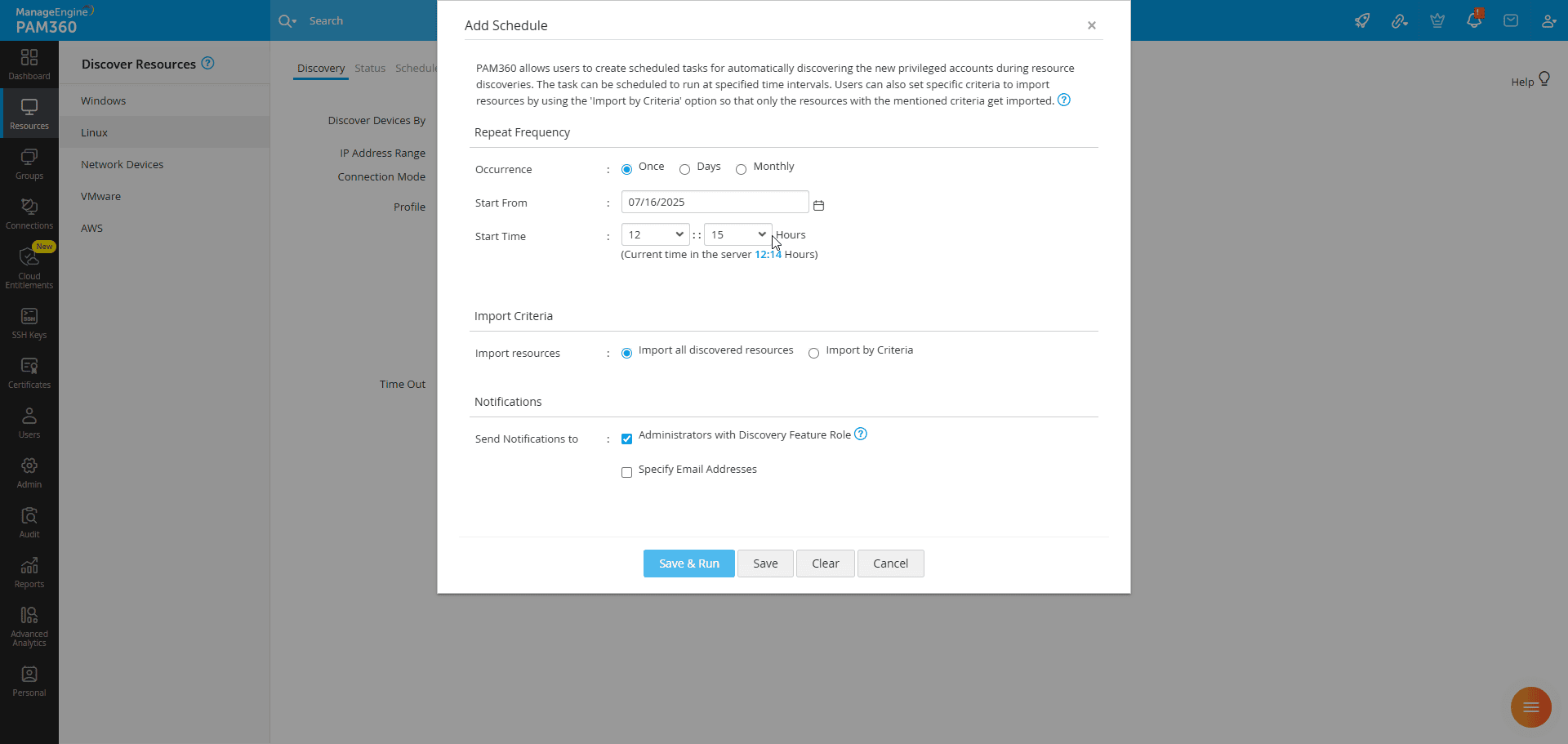
- On the Add Schedule window, enter the following details:
- Occurrence - Choose how often the schedule should run. Select Once to execute the task only once, Days to repeat it every few days, or Monthly to run it once every month.
- Start From - Specify the date on which the task should begin or the date on which it should be executed, depending on the schedule occurrence.
- Start Time - Specify the time at which the task should be executed on the selected date.
- If you selected Days as the occurrence, enter the number of days after which the task should repeat in the Interval Day(s) field. The schedule will repeat once in the entered number of days.
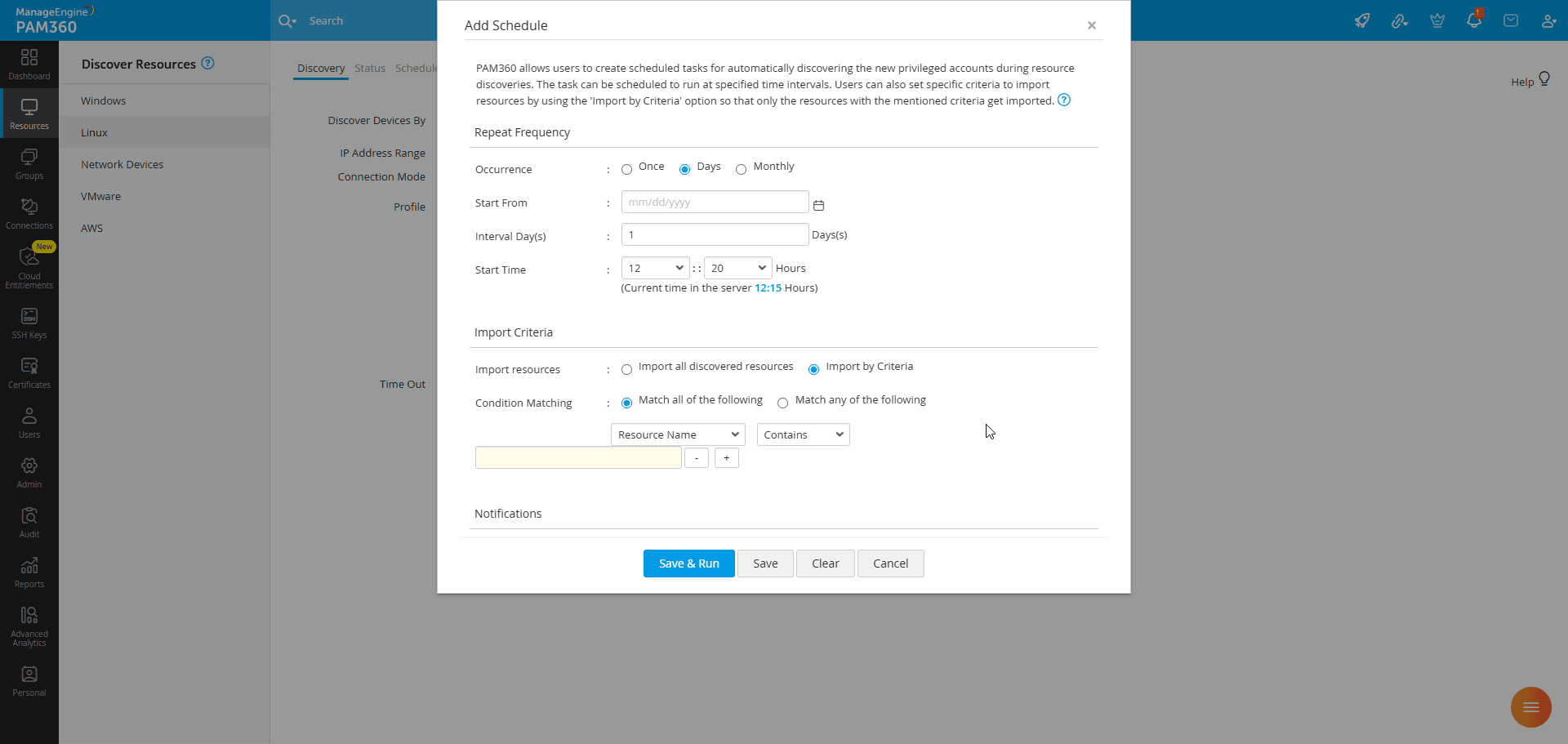
- If you selected Monthly, you should select the date on which the schedule should be executed every month. The task will run on the selected date each month.
- Under Import Criteria, you can either choose to import all the discovered resources into the PAM360's inventory or import only specific resources by defining a criteria. Choose the desired option based on your requirement. If you choose the import by criteria option, specify the criteria to import only the desired resources using the provided options.
- Additionally, you can choose the desired users to be notified about the discovery task once the resources are discovered. You can either choose to notify all the Administrators with the Discovery privilege or enter the email address of the specific users you wish to notify in the given field. You can enter multiple email addresses in the comma-separated format.
- Click Save to save the schedule and Save & Run to execute the schedule (applicable only for Daily and Monthly occurrence).
You have successfully added a schedule for resource discovery. You can view all the configured discovery schedules along with the relevant details, such as its status, schedule interval, and the date and time on which the task will be executed next, within the Schedules tab on the respective resource discovery category page. From the Schedules tab, you can modify or delete the existing discovery schedules. This automated process improves operational efficiency, reduces manual effort, and ensures that your privileged access inventory remains continuously up to date.
2.2 Discovery Status
PAM360 allows you to monitor the status and progress of discovery tasks in real-time after initiating a resource discovery operation. All ongoing and past discovery tasks are listed under the Discovery Status tab. For each discovery task, the following details are displayed: Task Name, Time Invoked, Completed At timestamp, and the overall Discovery Status. This helps you keep track of both current and past discovery tasks with ease. You can click on any task to view the list of resources discovered during that specific operation. Additionally, you can stop an ongoing discovery task, resume a discovery task that was previously stopped, and delete the discovery tasks from this window.
You can perform the following actions from the Status tab:
- You can view the list of discovery tasks running in the background. The discovery tasks will be displayed in tabular view along with their details, such as the Task Name, Start and End Times, Discovery Status, and Description.
- Click on the task name to view the list of resources discovered during that particular task.
- On the Discovery Task Status window that appears, click the Add All button to add all the resources discovered during this task to the PAM360's inventory.
- Alternatively, from the list of discovered resources, you can select only specific resources and click the Add button to add the selected resources to the PAM360's inventory.
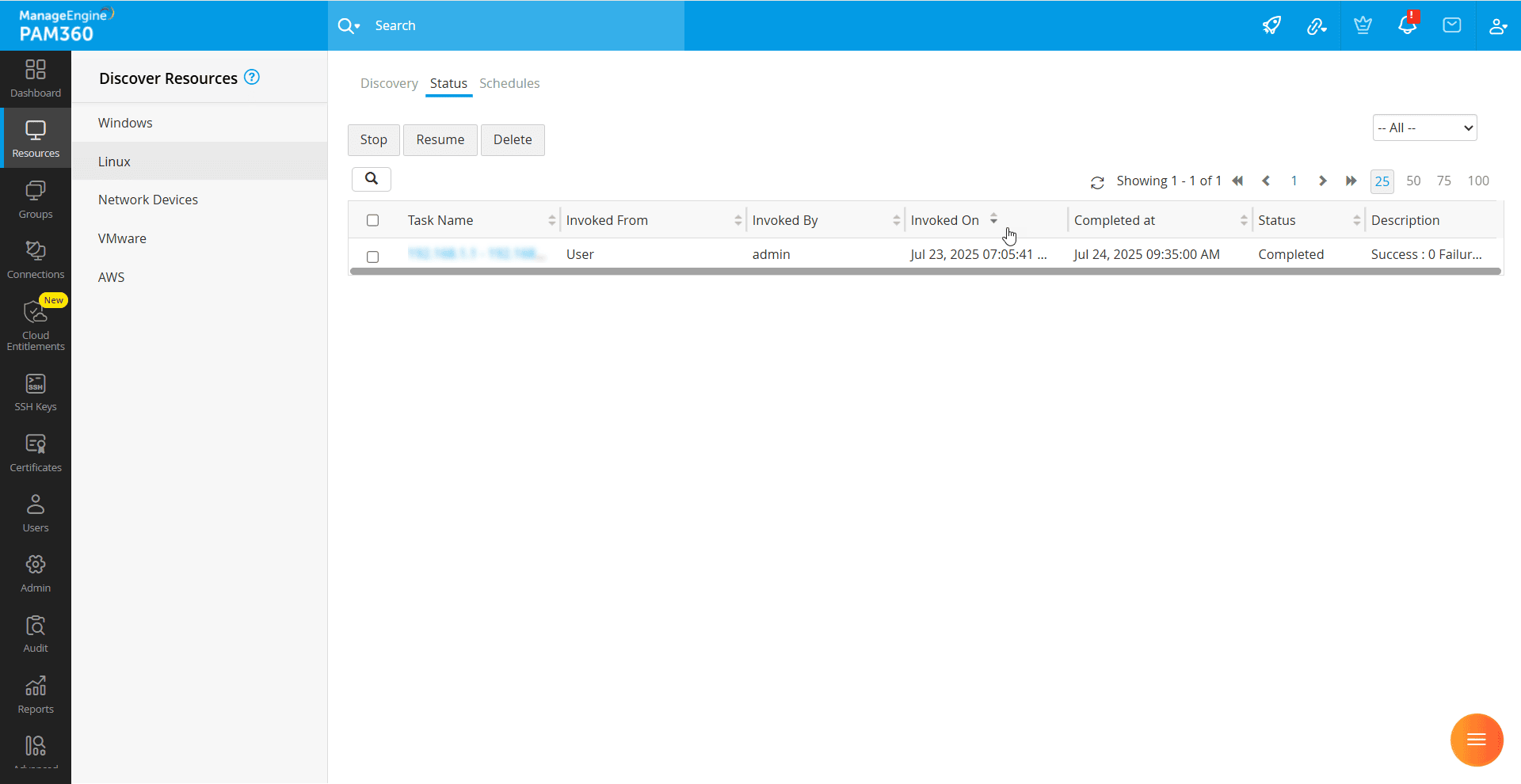
- Use the Search option to locate a particular resource.
- You can use the drop-down option at the top-right corner of the screen to sort the discovered resources based on their attributes.
- On the Status tab, select the desired task from the list and click the Stop or Resume button to stop or restart the discovery tasks based on your requirements.
- If you no longer require a discovery task, select the task and click the Delete button on the top pane.
- Additionally, the Status tab features a Search option that helps you locate the desired discovery task.