- PAM360 8000 to 8700
- PAM360 7000 to 8000
- PAM360 6000 to 7000
- PAM360 5000 to 6000
- PAM360 4000 to 5000
ManageEngine® PAM360 Upgrade Pack Download
The latest PAM360 version is . If you are using an earlier version, you need to apply upgrade pack (Upgrade Instructions).
How Do I Find My Build Number?
Log in to PAM360. Click the 'user profile' icon at the top right corner of the web console and click 'About'. In the new window that opens up, you will find the build number of your currently installed PAM360 setup below the version number.
Download Upgrade Pack| Minor release ( )
Note: We strongly recommend you take a backup before migrating your data to prevent any accidental data loss.
From 8600 to 8700
3c26b1b4415c9e0fc5fe42a42994d988ac0de185895f31a6b74e8ff2bd16fadf
 Upgrade Pack
The following table indicates whether the .ppm file can be applied to PAM360 High Availability servers without reconfiguration for each High Availability architecture and database type.
| High Availability Architecture | |||
|---|---|---|---|
| PGSQL | MS SQL | ||
| Failover Service (FOS) | NA | ||
| Application Scaling | |||
| Read-Only Server (RO) | NA | ||
| Secondary Server Model | Secondary Server | ||
| Read-Only Continuity | NA | ||
From 8500 to 8600
223a26f9b5a69ba1ced590325686321d4bbad0c64a41f0bcfbceafc11ed3bcf2
The following table indicates whether the .ppm file can be applied to PAM360 High Availability servers without reconfiguration for each High Availability architecture and database type.
| High Availability Architecture | |||
|---|---|---|---|
| PGSQL | MS SQL | ||
| Failover Service (FOS) | NA | ||
| Application Scaling | |||
| Read-Only Server (RO) | NA | ||
| Secondary Server Model | Secondary Server | ||
| Read-Only Continuity | NA | ||
From 8400 to 8500
8ab6ed63d87b55f86ecc56873f494aba72f71a80f4482132b30c02aa4758f95e
The following table indicates whether the .ppm file can be applied to PAM360 High Availability servers without reconfiguration for each High Availability architecture and database type.
| High Availability Architecture | |||
|---|---|---|---|
| PGSQL | MS SQL | ||
| Failover Service (FOS) | NA | ||
| Application Scaling | |||
| Read-Only Server (RO) | NA | ||
| Secondary Server Model | Secondary Server | ||
| Read-Only Continuity | NA | ||
From 8300 to 8400
1f53c70a4018d8f60f14c908358c03d524f67afa36f47043fe403194ed5e650e
The .ppm file can be applied to the secondary PAM360 server without reconfiguring high availability - as per the below-tabulated scenarios only:
| HA Architecture Type | Support to apply the .ppm file on the secondary PAM360 server without reconfiguring high availability | |
|---|---|---|
| PGSQL | MS SQL | |
| Failover Service (FOS) | NA | |
| Application Scaling | ||
| High Availability (HA) | ||
| Read-Only Server (RO) | NA | |
From 8200 to 8300
b770220829bbfdb1e8dd4873f7c1524795263ecd98de5eb38d8823353fa69013
The .ppm file can be applied to the secondary PAM360 server without reconfiguring high availability - as per the below-tabulated scenarios only:
| HA Architecture Type | Support to apply the .ppm file on the secondary PAM360 server without reconfiguring high availability | |
|---|---|---|
| PGSQL | MS SQL | |
| Failover Service (FOS) | NA | |
| Application Scaling | ||
| High Availability (HA) | ||
| Read-Only Server (RO) | NA | |
From 8100 to 8200
afc3c48826d38b38e3d9a4735d565492a3aeaca014373e2b0b211354532e7696
The .ppm file can be applied to the secondary PAM360 server without reconfiguring high availability - as per the below-tabulated scenarios only:
| HA Architecture Type | Support to apply the .ppm file on the secondary PAM360 server without reconfiguring high availability | |
|---|---|---|
| PGSQL | MS SQL | |
| Failover Service (FOS) | NA | |
| Application Scaling | ||
| High Availability (HA) | ||
| Read-Only Server (RO) | NA | |
From 8000 to 8100
34ce4c3c13c72356bd629fa2ec8b839f27bb978a1e280d8e2717a10c7648b716
The .ppm file can be applied to the secondary PAM360 server without reconfiguring high availability - as per the below-tabulated scenarios only:
| HA Architecture Type | Support to apply the .ppm file on the secondary PAM360 server without reconfiguring high availability | |
|---|---|---|
| PGSQL | MS SQL | |
| Failover Service (FOS) | NA | |
| Application Scaling | ||
| High Availability (HA) | ||
| Read-Only Server (RO) | NA | |
From 7500 to 8000
7317ef3c3b4d402435213a15ca2166f691a9379becf901c81ddf1452c56fafc3
The .ppm file can be applied to the secondary PAM360 server without reconfiguring high availability - as per the below-tabulated scenarios only:
| HA Architecture Type | Support to apply the .ppm file on the secondary PAM360 server without reconfiguring high availability | |
|---|---|---|
| PGSQL | MS SQL | |
| Failover Service (FOS) | NA | |
| Application Scaling | ||
| High Availability (HA) | ||
| Read-Only Server (RO) | NA | |
From 7400 to 7500
dbcd3f4a72b796c5f699bd1a70bafe8c46c477061d75d5250cba37d8283bd21a
The .ppm file can be applied to the secondary PAM360 server without reconfiguring high availability - as per the below-tabulated scenarios only:
| HA Architecture Type | Support to apply the .ppm file on the secondary PAM360 server without reconfiguring high availability | |
|---|---|---|
| PGSQL | MS SQL | |
| Failover Service (FOS) | NA | |
| Application Scaling | ||
| High Availability (HA) | ||
| Read-Only Server (RO) | NA | |
From 7300 to 7400
02baa30654ccf787ea384291128a28c8d5083620789517b48a490349d841d403
The .ppm file can be applied to the secondary PAM360 server without reconfiguring high availability - as per the below-tabulated scenarios only:
| HA Architecture Type | Support to apply the .ppm file on the secondary PAM360 server without reconfiguring high availability | |
|---|---|---|
| PGSQL | MS SQL | |
| Failover Service (FOS) | NA | |
| Application Scaling | ||
| High Availability (HA) | ||
| Read-Only Server (RO) | NA | |
From 7200 to 7300
5e7651a053b40f23a6668f8afe5baa33374aa4c69e3f52ab77f94c57e4eb5296
The .ppm file can be applied to the secondary PAM360 server without reconfiguring high availability - as per the below-tabulated scenarios only:
| HA Architecture Type | Support to apply the .ppm file on the secondary PAM360 server without reconfiguring high availability | |
|---|---|---|
| PGSQL | MS SQL | |
| Failover Service (FOS) | NA | |
| Application Scaling | ||
| High Availability (HA) | ||
| Read-Only Server (RO) | NA | |
From 7100 to 7200
a5869020212d4043457be2980f940d86a82b24f582c328125d3ce330d8f3cdbc
The .ppm file can be applied to the secondary PAM360 server without reconfiguring high availability - as per the below-tabulated scenarios only:
| HA Architecture Type | Support to apply the .ppm file on the secondary PAM360 server without reconfiguring high availability | |
|---|---|---|
| PGSQL | MS SQL | |
| Failover Service (FOS) | NA | |
| Application Scaling | ||
| High Availability (HA) | ||
| Read-Only Server (RO) | NA | |
From 7000 to 7100
c740450d57d49aede7c7c3e98a90ac0f93cfb3d580d87f97eaf43064f988fd1a
The .ppm file can be applied to the secondary PAM360 server without reconfiguring high availability - as per the below-tabulated scenarios only:
| HA Architecture Type | Support to apply the .ppm file on the secondary PAM360 server without reconfiguring high availability | |
|---|---|---|
| PGSQL | MS SQL | |
| Failover Service (FOS) | NA | |
| Application Scaling | ||
| High Availability (HA) | ||
| Read-Only Server (RO) | NA | |
From 6700 to 7000
19f35bce50cb6bed636981f6fad113ad9c5accbf4d45e388e5439f9cac2da071
The .ppm file can be applied to the secondary PAM360 server without reconfiguring high availability - as per the below-tabulated scenarios only:
| HA Architecture Type | Support to apply the .ppm file on the secondary PAM360 server without reconfiguring high availability | |
|---|---|---|
| PGSQL | MS SQL | |
| Failover Service (FOS) | NA | |
| Application Scaling | ||
| High Availability (HA) | ||
| Read-Only Server (RO) | NA | |
From 6600 to 6700
b866e33ea5186795a9c2f2a357bec21f182420f55d1503614748dc112bd7f384
The .ppm file can be applied to the secondary PAM360 server without reconfiguring high availability - as per the below-tabulated scenarios only:
| HA Architecture Type | Support to apply the .ppm file on the secondary PAM360 server without reconfiguring high availability | |
|---|---|---|
| PGSQL | MS SQL | |
| Failover Service (FOS) | NA | |
| Application Scaling | ||
| High Availability (HA) | ||
| Read-Only Server (RO) | NA | |
Note: Users who have downloaded the PAM360 build 6600 are strongly advised to use the latest 6601 build and SHA256 checksum hash value to ensure security measures and mitigate the risk of unauthorized access.
From 6500 to 6600
70df1c0d6788a8edaa3a34726df312272517668e977ec29fcbec72bf90213c0a
The .ppm file can be applied to the secondary PAM360 server without reconfiguring high availability - as per the below-tabulated scenarios only:
| HA Architecture Type | Support to apply the .ppm file on the secondary PAM360 server without reconfiguring high availability | |
|---|---|---|
| PGSQL | MS SQL | |
| Failover Service (FOS) | NA | |
| Application Scaling | ||
| High Availability (HA) | ||
| Read-Only Server (RO) | NA | |
Note: Users who have downloaded the PAM360 build 6600 are strongly advised to use the latest 6601 build and SHA256 checksum hash value to ensure security measures and mitigate the risk of unauthorized access.
From 6400 to 6500
1865e8cae8c68436892f8c0468ac8de7ab2261d6f989e362f8937c7739c60f09
The .ppm file can be applied to the secondary PAM360 server without reconfiguring high availability - as per the below-tabulated scenarios only:
| HA Architecture Type | Support to apply the .ppm file on the secondary PAM360 server without reconfiguring high availability | |
|---|---|---|
| PGSQL | MS SQL | |
| Failover Service (FOS) | NA | |
| Application Scaling | ||
| High Availability (HA) | ||
| Read-Only Server (RO) | NA | |
From 6300 to 6400
7284fb97e6937b5bf9b47c25f8bb584f5f38c81a25b4c39674bf46d8a124b46c
The .ppm file can be applied to the secondary PAM360 server without reconfiguring high availability - as per the below-tabulated scenarios only:
| HA Architecture Type | Support to apply the .ppm file on the secondary PAM360 server without reconfiguring high availability | |
|---|---|---|
| PGSQL | MS SQL | |
| Failover Service (FOS) | NA | |
| Application Scaling | ||
| High Availability (HA) | ||
| Read-Only Server (RO) | NA | |
Note: For customers utilizing LDAP authentication in their environment and MS SQL as the backend database, please ensure to reconfigure the High Availability post the primary server upgrade. However, for customers not using LDAP, the upgrade pack will work seamlessly on both primary and secondary servers without requiring High Availability reconfiguration post upgrade.
From 6200 to 6300
cc75762842ed5b537fecb5900c9b89b6a1ad733722a35d40643b74424b624d6a
The .ppm file can be applied to the secondary PAM360 server without reconfiguring high availability - as per the below-tabulated scenarios only:
| HA Architecture Type | Support to apply the .ppm file on the secondary PAM360 server without reconfiguring high availability | |
|---|---|---|
| PGSQL | MS SQL | |
| Failover Service (FOS) | NA | |
| Application Scaling | NA | |
| High Availability (HA) | ||
| Read-Only Server (RO) | NA | |
From 6100 to 6200
a8cfb604db1bcc7eeaff8f5c37262e211a200bfb140fc3192f239109a6b24df8
The .ppm file can be applied to the secondary PAM360 server without reconfiguring high availability - as per the below-tabulated scenarios only:
| HA Architecture Type | Support to apply the .ppm file on the secondary PAM360 server without reconfiguring high availability | |
|---|---|---|
| PGSQL | MS SQL | |
| Failover Service (FOS) | NA | |
| Application Scaling | NA | |
| High Availability (HA) | ||
| Read-Only Server (RO) | NA | |
From 6000 to 6100
91f54ac0e156454b4eeecdadf32dc236e0e1d5860a8b7d275a61b2c5b5d1eb1c
The .ppm file can be applied to the secondary PAM360 server without reconfiguring high availability - as per the below-tabulated scenarios only:
| HA Architecture Type | Support to apply the .ppm file on the secondary PAM360 server without reconfiguring high availability | |
|---|---|---|
| PGSQL | MS SQL | |
| Failover Service (FOS) | NA | |
| Application Scaling | NA | |
| High Availability (HA) | ||
| Read-Only Server (RO) | NA | |
From 5950 to 6000
bde248be2ef65f9c168236ede8cbcd21073acd85ab26f6a7d7f86393513d4cfa
The .ppm file can be applied to the secondary PAM360 server without reconfiguring high availability - as per the below-tabulated scenarios only:
| HA Architecture Type | Support to apply the .ppm file on the secondary PAM360 server without reconfiguring high availability | |
|---|---|---|
| PGSQL | MS SQL | |
| Failover Service (FOS) | NA | |
| Application Scaling | NA | |
| High Availability (HA) | ||
| Read-Only Server (RO) | NA | |
From 5900 to 5950
345250bdbb8a9f9331753bfc123c016ded152df87de43f7cb65e65a23e105314
The .ppm file can be applied to the secondary PAM360 server without reconfiguring high availability - as per the below-tabulated scenarios only:
| HA Architecture Type | Support to apply the .ppm file on the secondary PAM360 server without reconfiguring high availability | |
|---|---|---|
| PGSQL | MS SQL | |
| Failover Service (FOS) | NA | |
| Application Scaling | NA | |
| High Availability (HA) | ||
| Read-Only Server (RO) | NA | |
From 5800 to 5900
46e810bf0fa08caae676369a9c7144a282d4c23e0244fbd739c4bc4de4a27e64
The .ppm file can be applied to the secondary PAM360 server without reconfiguring high availability - as per the below-tabulated scenarios only:
| HA Architecture Type | Support to apply the .ppm file on the secondary PAM360 server without reconfiguring high availability | |
|---|---|---|
| PGSQL | MS SQL | |
| Failover Service (FOS) | NA | |
| Application Scaling | NA | |
| High Availability (HA) | ||
| Read-Only Server (RO) | NA | |
From 5700 to 5800
0b707f9e79fe518177b60b5ad33635503b356e7128bd9b447f48f6b58a3b4741
The .ppm file can be applied to the secondary PAM360 server without reconfiguring high availability - as per the below-tabulated scenarios only:
| HA Architecture Type | Support to apply the .ppm file on the secondary PAM360 server without reconfiguring high availability | |
|---|---|---|
| PGSQL | MS SQL | |
| Failover Service (FOS) | NA | |
| Application Scaling | NA | |
| High Availability (HA) | ||
| Read-Only Server (RO) | NA | |
From 5600 to 5700
e3a067d5917d5311898229b2d0b8cca1c1cff103fc2f45ac747f5dec505d030e
The .ppm file can be applied to the secondary PAM360 server without reconfiguring high availability - as per the below-tabulated scenarios only:
| HA Architecture Type | Support to apply the .ppm file on the secondary PAM360 server without reconfiguring high availability | |
|---|---|---|
| PGSQL | MS SQL | |
| Failover Service (FOS) | NA | |
| Application Scaling | NA | |
| High Availability (HA) | ||
From 5500 to 5600
d0ab8e2cd7f11e32c1490ed9ae7880f09cbff9dc975d0b986e653342d174ad88
The .ppm file can be applied to the secondary PAM360 server without reconfiguring high availability - as per the below-tabulated scenarios only:
| HA Architecture Type | Support to apply the .ppm file on the secondary PAM360 server without reconfiguring high availability | |
|---|---|---|
| PGSQL | MS SQL | |
| Failover Service (FOS) | NA | |
| Application Scaling | NA | |
| High Availability (HA) | ||
Note: If you are using Dropbox for cloud storage, this upgrade will delete auth tokens, and you will have to reconfigure PAM360 storage in Dropbox.
From 5400 to 5500
553b8669f97ab08e0b2fc4e680dace53de1d852a073cc9d5ce05fbe71004dc33
The .ppm file can be applied to the secondary PAM360 server without reconfiguring high availability - as per the below-tabulated scenarios only:
| HA Architecture Type | Support to apply the .ppm file on the secondary PAM360 server without reconfiguring high availability | |
|---|---|---|
| PGSQL | MS SQL | |
| Failover Service (FOS) | NA | |
| Application Scaling | ||
| High Availability (HA) | ||
Note: If you are using Dropbox for cloud storage, this upgrade will delete auth tokens, and you will have to reconfigure PAM360 storage in Dropbox.
From 5300 to 5400
5c51b886e682839835eb87dd5a321d8820e0031e12b8ecaa02898c141adba761
The .ppm file can be applied to the secondary PAM360 server without reconfiguring high availability - as per the below-tabulated scenarios only:
| HA Architecture Type | Support to apply the .ppm file on the secondary PAM360 server without reconfiguring high availability | |
|---|---|---|
| PGSQL | MS SQL | |
| Failover Service (FOS) | NA | |
| Application Scaling | NA | |
| High Availability (HA) | ||
From 5200 to 5300
7b93bd6d6b099f13ed6d810ec0defaaa878ee64f87a6c031d4b8f6a9d29d4ba5
The .ppm file can be applied to the secondary PAM360 server without reconfiguring high availability - as per the below-tabulated scenarios only:
| HA Architecture Type | Support to apply the .ppm file on the secondary PAM360 server without reconfiguring high availability | |
|---|---|---|
| PGSQL | MS SQL | |
| Failover Service (FOS) | NA | |
| Application Scaling | NA | |
| High Availability (HA) | ||
From 5100 to 5200
23f9b8cb56416048ca97b30aa0ae19691e7a3dd00c0af320cad4d55e66c1189e
The .ppm file can be applied to the secondary PAM360 server without reconfiguring high availability - as per the below-tabulated scenarios only:
| HA Architecture Type | Support to apply the .ppm file on the secondary PAM360 server without reconfiguring high availability | |
|---|---|---|
| PGSQL | MS SQL | |
| Failover Service (FOS) | NA | |
| Application Scaling | NA | |
| High Availability (HA) | ||
Note: If your current Ticketing System is ServiceDesk Plus On-Premises or ServiceDesk Plus Cloud, this upgrade pack will disable the integration and delete the complete integration data. You will have to reconfigure the ticketing system again. So, make sure you have a backup of the advanced configurations in the form of screenshots for reference purposes.
From 5000 / 5001 / 5002 / 5003 / 5004 to 5100
f58db4b9e46129ddeaa429dc089d73abfa7d30ac2a69dabd896a53d0a7278173
From 4500 / 4501 to 5000
1eb9c094abd2f5b3ff24c1741b537918
From 4100 / 4101 to 4500
211a0ddde1f5ee34c78e49b8dc711b68
From 4000 / 4001 / 4002 to 4100
355aa1364063ebe5e85ad24f35dbce83
Note: Kindly upgrade to the latest version to setup HA.
ManageEngine PAM360 Upgrade Pack Instructions
Step-by-step instructions for upgrading PAM360 across all deployment models
1. Before You Begin
How to Find Your Build Number
Log in to PAM360. Click the User Profile icon at the top right corner of the web console and click About. In the window that appears, you will find the Build Number of your currently installed PAM360 setup displayed below the version number.
Important Instructions
- If you store the database_params.conf file in a different location, copy it back to the original location - <PAM360-Installation-Folder>/conf/ - before performing the upgrade.
- Perform a backup of the entire PAM360 installation directory and store it in a secure location. This backup can be used to restore the previous deployment if the upgrade process fails. Additionally, take a backup of the PAM360 database.Note: If you are using MS SQL as the database, perform a database backup using the SQL Server Management Studio.
- From PAM360 build 5400 onwards, an SSL certificate is required to complete the upgrade process. PAM360 will attempt to import this certificate automatically. If the automatic import does not happen, you will be prompted to import it manually. This is a one-time operation and does not need to be repeated in future upgrades. Click here to download the SSL certificate to be imported during the version upgrade.
2. High Availability Deployment Upgrade Instructions
2.1 Read-Only Server (PostgreSQL)
Prerequisites
- Verify whether the .ppm file for the target PAM360 version can be directly applied to your configured Read-Only servers without reconfiguration, from the ManageEngine PAM360 Upgrade Pack section.
- Ensure the Read-Only servers are up and running before proceeding.
Upgrade Steps
- Apply the PPM file on the primary server by following the OS-specific instructions in Section 3.
- After applying the PPM on the primary server, log in to the Read-Only servers and verify the updated build version under About to confirm that the database has been updated successfully.Note: The above steps only update the Read-Only server database and do not make any changes to the PAM360 application setup in the Read-Only servers. To upgrade the PAM360 application on the Read-Only servers to the latest version, apply the PPM on all available Read-Only servers as described below.
- Stop the PAM360 service on all the Read-Only servers and start the primary server.
- Apply the PPM file one by one on all available Read-Only servers by following the same OS-specific instructions in Section 3.
- Now, start all the Read-Only servers.
Post-Upgrade Validation
- Confirm that the PAM360 service on the primary server and all available Read-Only servers are running without errors.
2.2 Application Scaling
Prerequisites
- Verify whether the .ppm file for the target PAM360 version can be directly applied to your configured subnodes without reconfiguration, from the ManageEngine PAM360 Upgrade Pack section. If the .ppm file is not applicable, you will need to reconfigure the subnodes.
Upgrade Steps
- Stop the PAM360 service on the main node and all the available subnodes.
- Apply the PPM file on the main node first, followed by each subnode one by one, by following the OS-specific instructions in Section 3.
- Now, start the PAM360 main node followed by all available subnodes.
Post-Upgrade Validation
- Confirm that the PAM360 service on the main node and all the subnodes are running without errors.
- Log in to PAM360 and navigate to About to verify that the build version reflects the upgraded version across all nodes.
2.3 Failover Service (MSSQL)
Prerequisites
- Verify whether the .ppm file for the target PAM360 version can be directly applied to your secondary instance without reconfiguration, from the ManageEngine PAM360 Upgrade Pack section. If the .ppm file is not applicable, follow the Deactivating the Failover Service steps below before proceeding with the reconfiguration.
Upgrade Steps
- Stop the standby server first to ensure it is in a standby state, then stop the primary server.
- Apply the PPM file on the primary server first, then on the standby server, by following the OS-specific instructions in Section 3.
- Start the PAM360 primary server followed by the standby server.
Post-Upgrade Validation
- Confirm that the PAM360 service on the primary server and standby server are running without errors.
- Log in to PAM360 and navigate to About to verify that the build version reflects the upgraded version on both servers.
Deactivating the Failover Service
If the .ppm file is not applicable to your current version, deactivate the Failover Service before reconfiguring:
- Open a Command Prompt on either the primary or secondary server.
- Navigate to <PAM360-Installation-Directory>\bin directory.
- Execute the command: UninstallFOS.bat
- Uninstall the PAM360 application entirely from the other server.Note: To reconfigure a Failover Service and set up a fresh secondary instance of PAM360, follow the steps in the help guide: FOS.
2.4 Secondary Server Model (MS SQL)
Prerequisites
- Verify whether the .ppm file for the target PAM360 version can be directly applied to your secondary instance without reconfiguration, from the ManageEngine PAM360 Upgrade Pack section. If the .ppm file is not applicable, refer to the Prerequisites for Reconfiguring High Availability steps below.
Upgrade Steps
- Apply the PPM file on the primary server, followed by the secondary server, by following the OS-specific instructions in Section 3.
- Now, check the replication status of the primary server under Local Publication >> View Synchronization Status and confirm it is displaying the expected status.
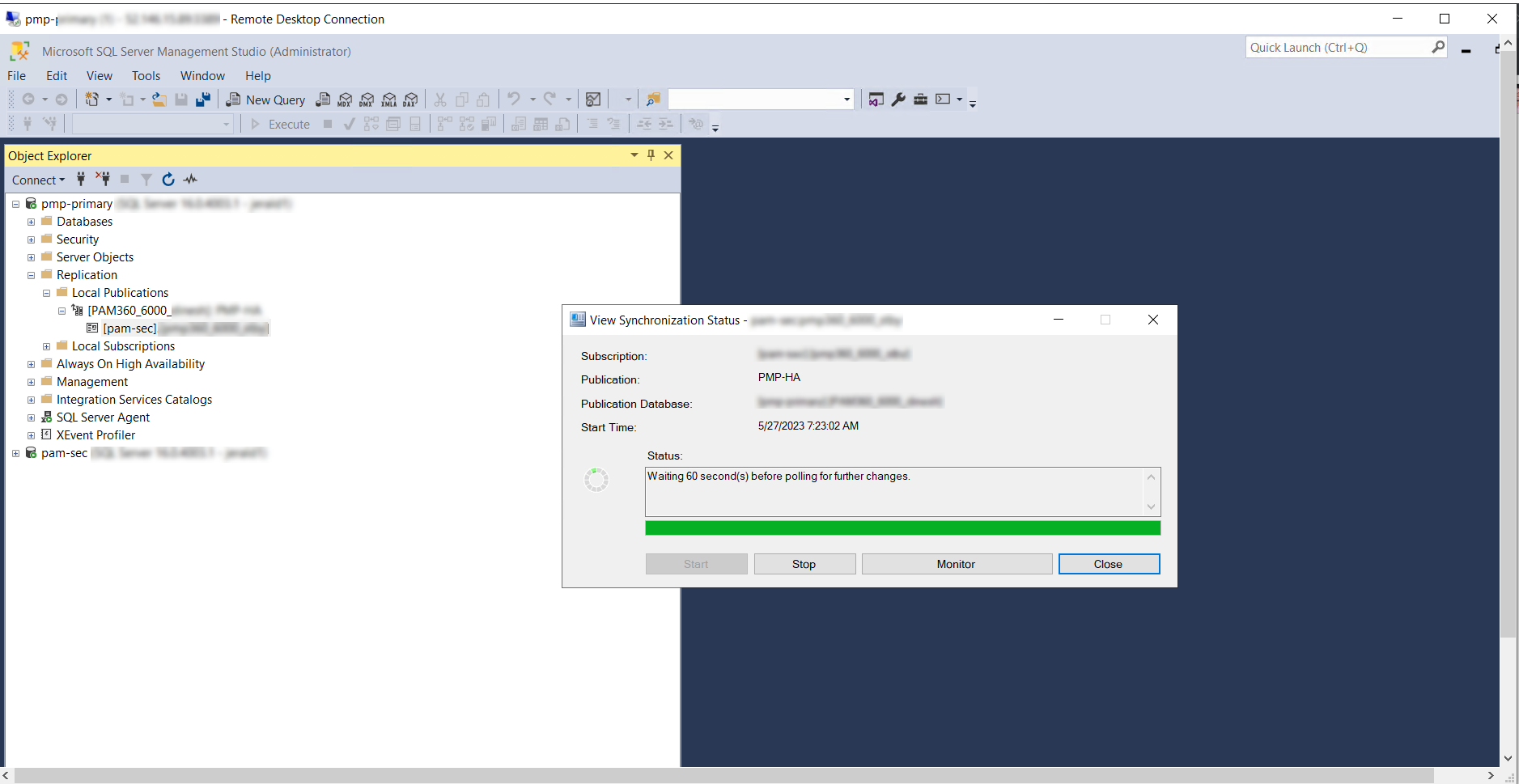
- Now, start the PAM360 secondary server followed by the primary server.
Post-Upgrade Validation
- Confirm that the replication status in the primary server under Local Publication >> View Synchronization Status is healthy.
- Confirm that both the primary and secondary servers are running without errors.
- Log in to PAM360 and navigate to About to verify the updated build version on both servers.
Prerequisites for Reconfiguring High Availability
If the .ppm file is not applicable and High Availability needs to be reconfigured, delete the existing replication data by following the steps below. Skip these steps if High Availability reconfiguration is not required.
- Deleting Subscription: Navigate to Replication >> Local Publications >> <PAM360 database: PAM360-HA>. Right-click the file with <PAM360 server name>:<PAM360 database name> and select Delete.
- Deleting Publication: Navigate to Replication >> Local Publications >> <PAM360 database: PAM360-HA>. Right-click the folder <PAM360 database: PAM360-HA> and select Delete.
- Disabling Publishing and Distribution: Right-click the Replication folder and select Disable Publishing and Distribution.
After completing the above steps, reconfigure High Availability by following the steps in the help guide.
2.5 Secondary Server Model (PostgreSQL)
Prerequisites
- Verify whether the .ppm file for the target PAM360 version can be directly applied to your configured High Availability servers without reconfiguration, from the ManageEngine PAM360 Upgrade Pack section. If the .ppm file is not applicable, reconfigure the respective High Availability servers by referring to this help documentation.
- Ensure that the PostgreSQL database service is running on the primary server before starting the upgrade.
- If your deployment includes a Read-Only server, ensure it is running so that database changes introduced by the upgrade pack are replicated to the Read-Only database.
Upgrade Steps
- Stop the PAM360 service on the primary server and the secondary server (If available). Ensure the shared PostgreSQL database service remains running.
- If your deployment includes a Read-Only server, confirm it is running before proceeding.
- Apply the upgrade pack on the primary server by following the OS-specific instructions in Section 3. Once completed successfully, apply the upgrade pack on the secondary server (If available).
- After the upgrade pack has been applied successfully, restart the PAM360 service on the primary server and the secondary server (If available).
- Now, stop the PAM360 service on the Read-Only server, apply the upgrade pack by following the same OS-specific instructions in Section 3.
- Now, restart the PAM360 service on the Read-Only server.
Post-Upgrade Validation
- Confirm that the PAM360 service is running on the available servers (primary, secondary, Read-Only) without errors.
- Log in to PAM360 on the primary and secondary server and navigate to About to confirm the updated build version.
- If a Read-Only server is present, log in and navigate to About to verify that the build version reflects the upgraded version and that database replication is functioning correctly.
3. OS-Specific Upgrade Instructions
3.1 Windows
- Stop the PAM360 service.Notes:
• If you are using PostgreSQL as the database, ensure that the Postgres process is not running in the task manager.
• If you are using MSSQL as the database, ensure that the OpenJDK/Zulu platform process is not running in the task manager. - Open the Command Prompt with the Administrator privilege.Note: If MS SQL is configured with Windows Authentication, run the Command Prompt using the service account that the PAM360 service uses to connect to the SQL server. To verify, navigate to <PAM360-Installation-Folder>/conf/ and open the database_params.conf file. If no username and password are present, PAM360 is using Windows Authentication.
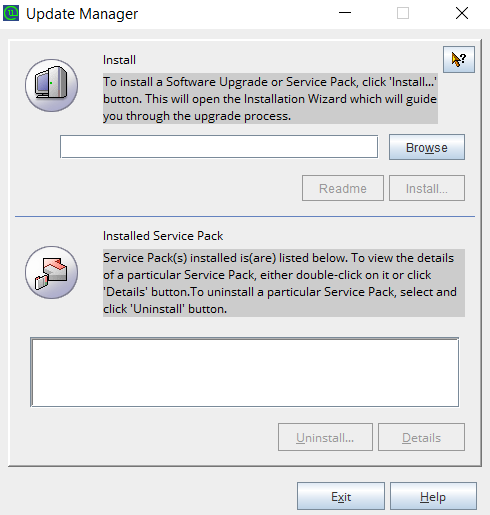
- Navigate to <PAM360-Installation-Folder>/bin and execute UpdateManager.bat.
- Click Browse and select the .ppm file downloaded from the ManageEngine PAM360 Upgrade Pack section.
- PAM360 will automatically import the required SSL certificate. If the automatic import does not occur, click Browse in the Import Certificate pop-up and manually import the SSL certificate downloaded in Section 1.
- Now, click Install to begin the upgrade.
- To apply multiple upgrade packs, exit the Update Manager, start and stop the PAM360 service once, then repeat Steps 2-4 for each subsequent pack.
- Once all upgrade packs have been applied, start the PAM360 service.
Post-Upgrade Validation
- Log in to PAM360 and navigate to About to confirm the build version reflects the upgraded version.
- Confirm the PAM360 service is running without errors.
3.2 Linux
- Stop the PAM360 service using the command: systemctl stop pam360.service
- Navigate to <PAM360-Installation-Folder>/bin using the terminal.
- Execute the following command to run the Update Manager in CLI mode: sh UpdateManager.sh -c
- Press i to install and provide the full path of the downloaded Upgrade Pack.
- PAM360 will automatically import the required SSL certificate. If prompted, enter the absolute path of the SSL certificate downloaded in Section 1. Wait for the message "Service Pack applied successfully" to confirm completion.
- To apply multiple upgrade packs, exit the Update Manager, start and stop the PAM360 service once, then repeat Steps 2-4 for each subsequent pack.
- Once all upgrade packs have been applied, start the PAM360 service using: /etc/init.d/pam360-service start
Post-Upgrade Validation
- Log in to PAM360 and navigate to About to confirm the build version reflects the upgraded version.
- Confirm the PAM360 service is running without errors.
For further assistance, contact the PAM360 support team at pam360-support@manageengine.com