How can I delete and recreate a technician group in ADManager Plus?
Last updated on:In this article:
Objective
In some scenarios, technician groups in ADManager Plus need to be deleted and recreated. For example, to apply updated help desk roles or restructure technician assignments. This article explains how to properly delete a technician group using the correct view in the interface and offers guidance on re-adding the group afterward. This helps maintain clean delegation structures and ensures technicians have the correct access levels.
Prerequisites
Log in using a built-in admin account or a technician with the super admin role in ADManager Plus.
Steps to follow
- Log in to ADManager Plus and navigate to Delegation > Help Desk Delegation > Help Desk Technician.
- Click the List View icon at the upper-right corner.
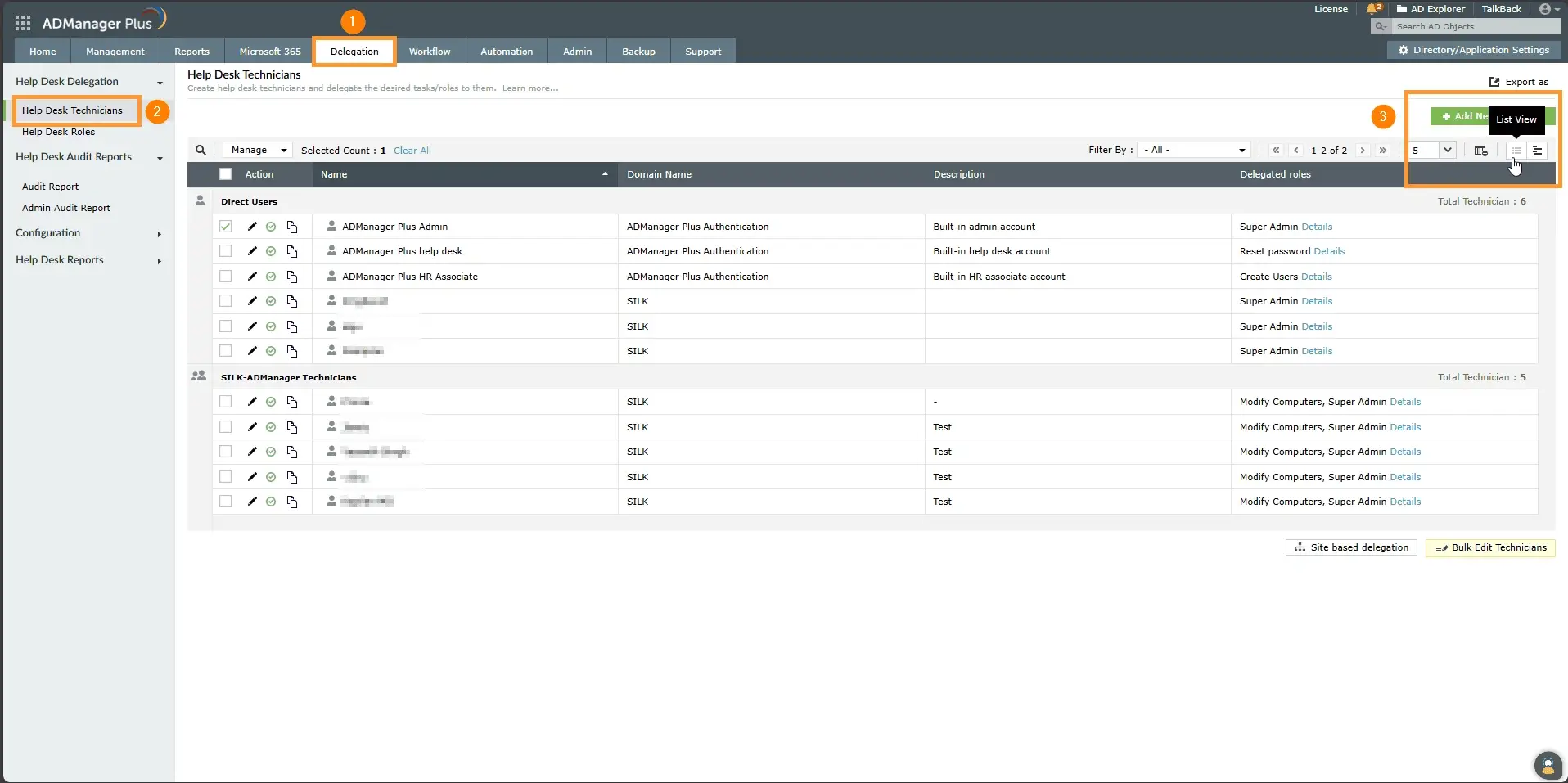
The Help Desk Technicians page in ADManager Plus with navigation to Delegation and the option to switch to list view. - (Optional) Re-Add the Group
- Click Add New Technician.
- Assign the appropriate users and roles to create the updated group structure.
- (Optional) Re-Add the Group
- Select the checkbox next to the technician group you want to delete. Click Manage > Delete, and confirm when prompted. If needed, adjust the view to show 100 entries per page to locate your group easily.
- (Optional) To add the group again, click Add New Technician. Assign
the appropriate users and roles to create the updated group structure.
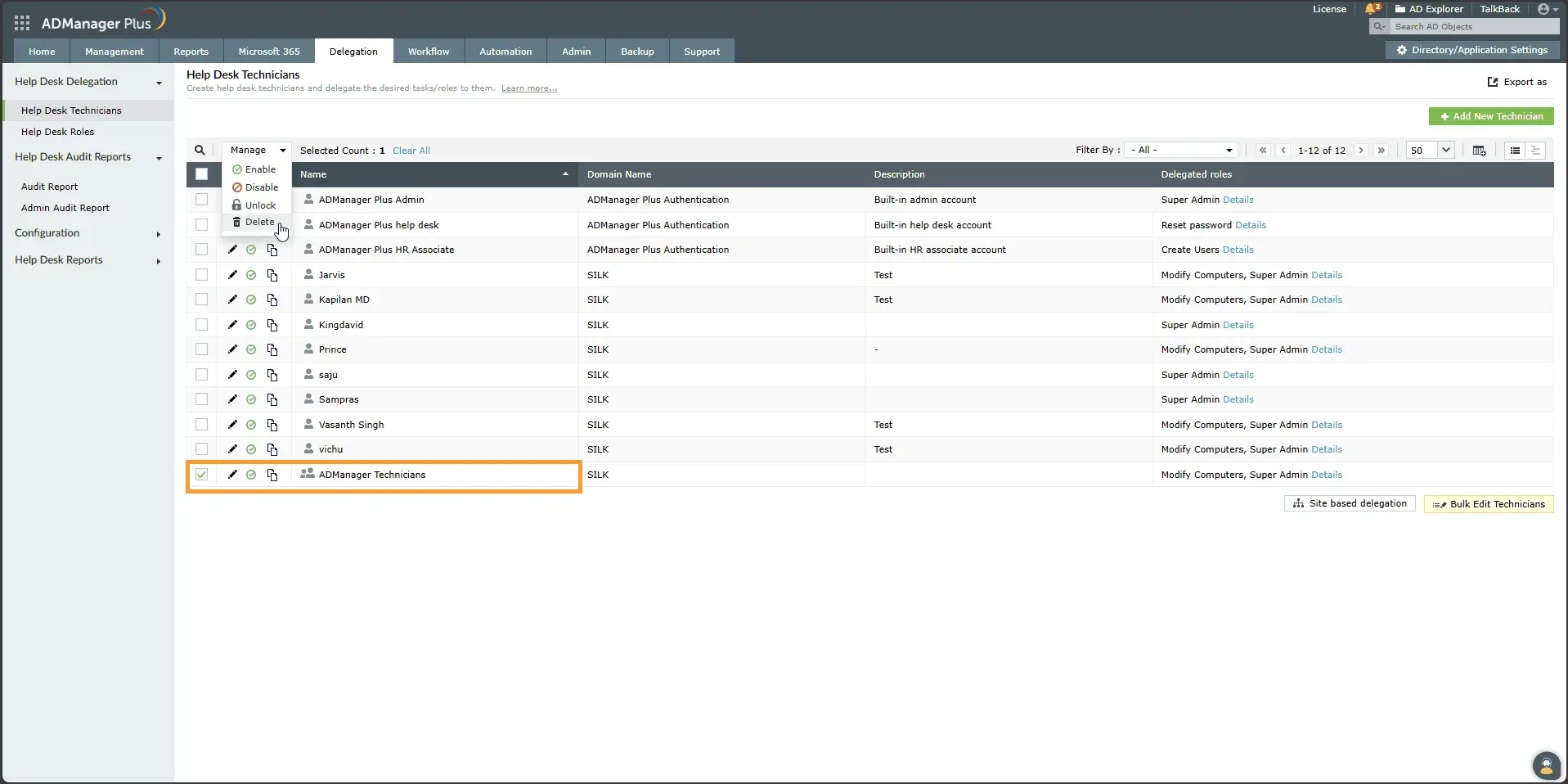
The Help Desk Technicians page in ADManager Plus with a technician account selected and the Delete option highlighted.
Tips
- Double-check that the users you want to assign are part of the associated Active Directory group.
- Consider exporting the group settings before deletion for reference or backup.
How to reach support
If the issue persists, contact our support team here.