Attempting to edit Microsoft 365 objects in ADManager Plus, but encountering the message: Please contact your administrator.
Last updated on:In this article:
Issue description
In ADManager Plus, even if a technician has the super admin role, Microsoft 365 tenants and licenses must be separately delegated to enable proper management. This allows administrators to control and narrow down the list of tenants and licenses a technician can manage, ensuring precise access control.
When a help desk technician attempts to access Microsoft 365 configurations without the necessary delegation, they may encounter the following error:
"Please contact your administrator to make sure Microsoft 365 Accounts are delegated."
This restriction prevents the technician from effectively managing Microsoft 365 accounts until the appropriate delegations are assigned.
Possible cause
Delegation issues: The Microsoft 365 tenant is configured but not delegated to the technician, or the technician has access only to a specific tenant in a multi-tenant environment.
Prerequisites
Admin credentials for ADManager Plus.
Resolution
Step 1: Verify existing Microsoft 365 account configuration
- Log in as the built-in admin to ADManager Plus.
- Navigate to Directory/Application Settings > Microsoft 365.
- Check if the required Microsoft 365 tenant is already added.
- If the tenant exists, proceed to delegate access to the technician.
Step 2: Delegate Microsoft 365 access to the technician
For the administrator:
- Navigate to Delegation > Help Desk Technicians.
- Select the technician experiencing the issue.
- Click Edit and check whether Microsoft 365 management permissions
are assigned.
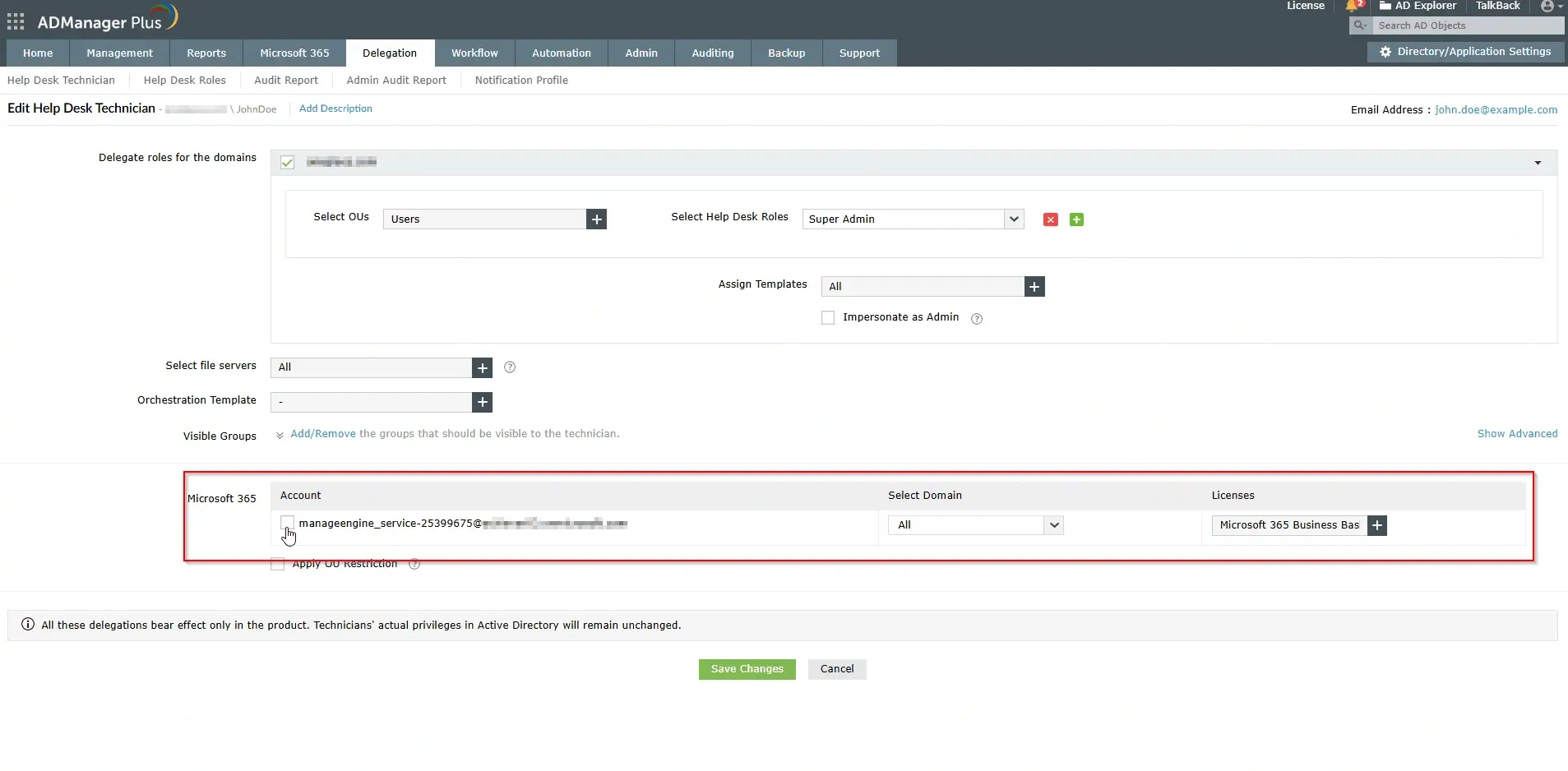
The Help Desk Technician configuration page with Microsoft 365 account delegation, domain selection, and license assignment settings in ADManager Plus. - If not, assign the permissions.
- Click Save.
- Ask the technician to log out and log back in to check if the issue is resolved.
Tips
- Assign Microsoft 365 management permissions to help desk technicians during initial setup to avoid delegation issues.
- Regularly review and update Delegation > Help Desk Technicians to ensure proper access.
- Use role-based delegation for better control and easier permission management.
- Maintain a clear record of Microsoft 365 tenant configurations to prevent conflicts in multi-tenant environments.
- Periodically audit Microsoft 365 delegation settings to ensure technicians have the necessary permissions.
How to reach support
If the issue persists, contact our support team here.