Fields appear greyed out for the technician while creating or modifying Active Directory users using ADManager Plus
Last updated on:In this article:
Issue description
In ADManager Plus, help desk technicians may notice that certain user fields in the creation or modification template appear greyed out, restricting them from editing these attributes. However, these fields remain visible and editable when logged in as an administrator.
This behavior occurs because attribute-level delegation is in place, allowing administrators to precisely control which attributes technicians can manage. Attributes not included in the technician's delegated scope are automatically restricted, ensuring secure and controlled access to sensitive user information.
Possible cause
Insufficient delegation permissions: The assigned help desk role does not have access to modify or configure user attributes under bulk user creation/modification.
Prerequisites
Ensure you have super admin access to ADManager Plus.
Resolution
Step 1: Verify the technician's privileges
- Log into ADManager Plus using the admin account.
- Navigate to Delegation > Help Desk Roles.
- Identify the role assigned to the technician and click Edit.
- Navigate to the User Attribute Privileges tab.
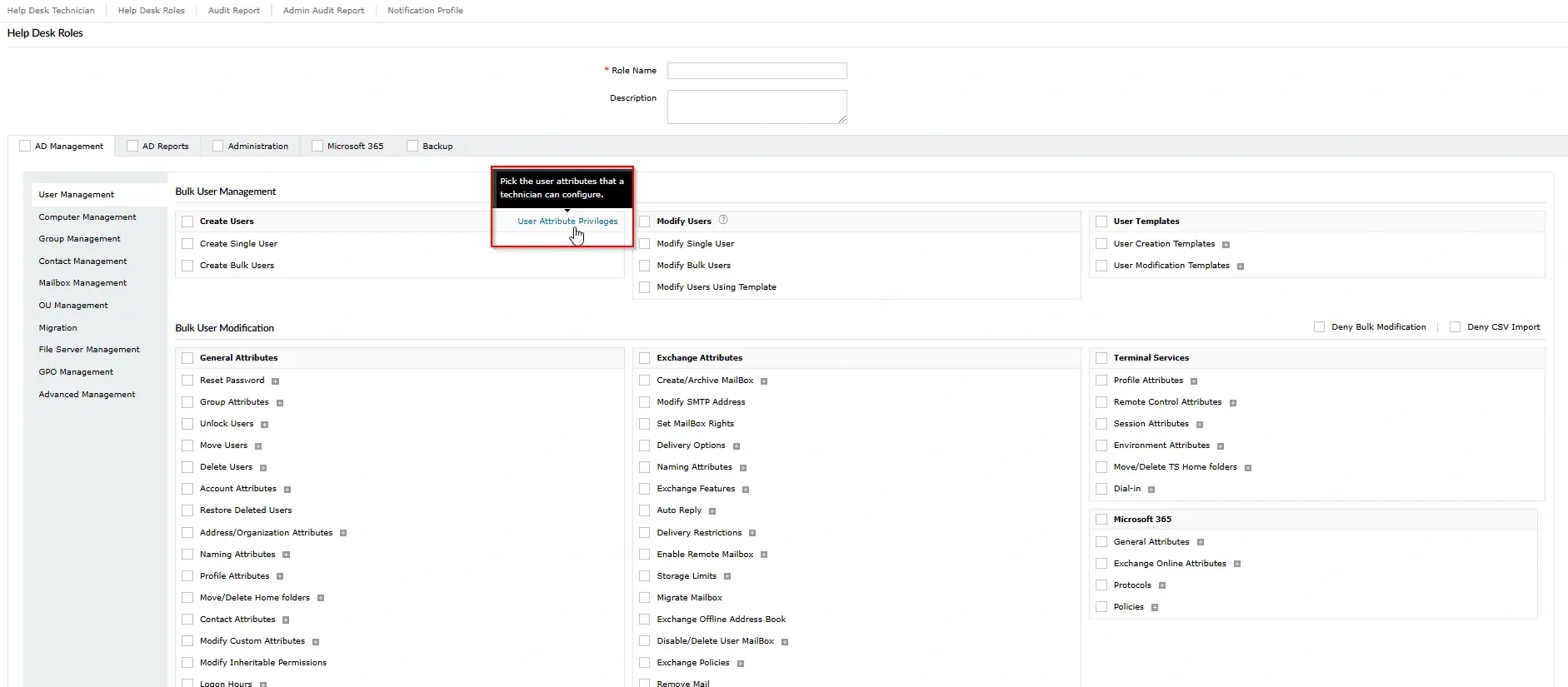
Screenshot showing the Help Desk Role configuration page with the User Attribute Privileges option highlighted in ADManager Plus. 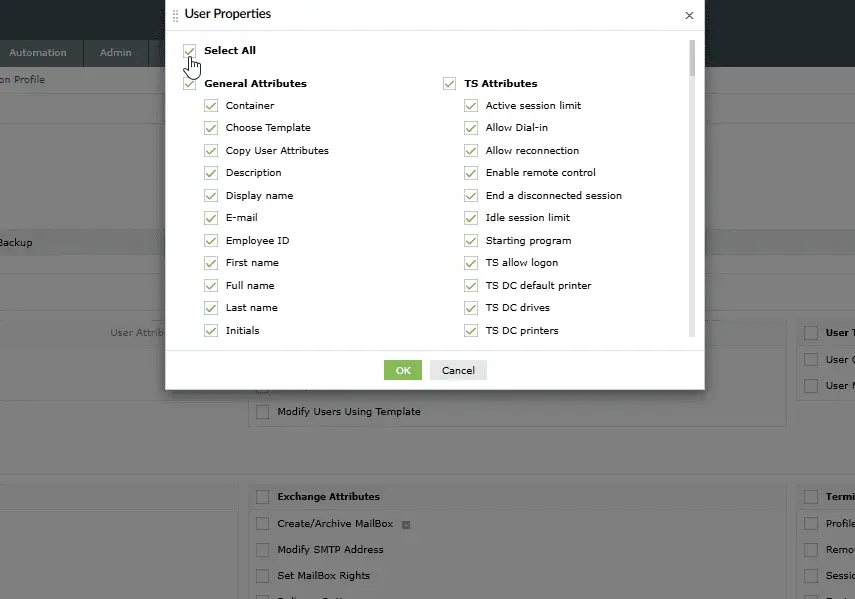
The User Properties window in ADManager Plus with selectable user attributes and terminal services attributes for technician permissions. - Under the Bulk User Modification tab, configure the necessary fields.
- Ensure that all required attributes are checked for modification.
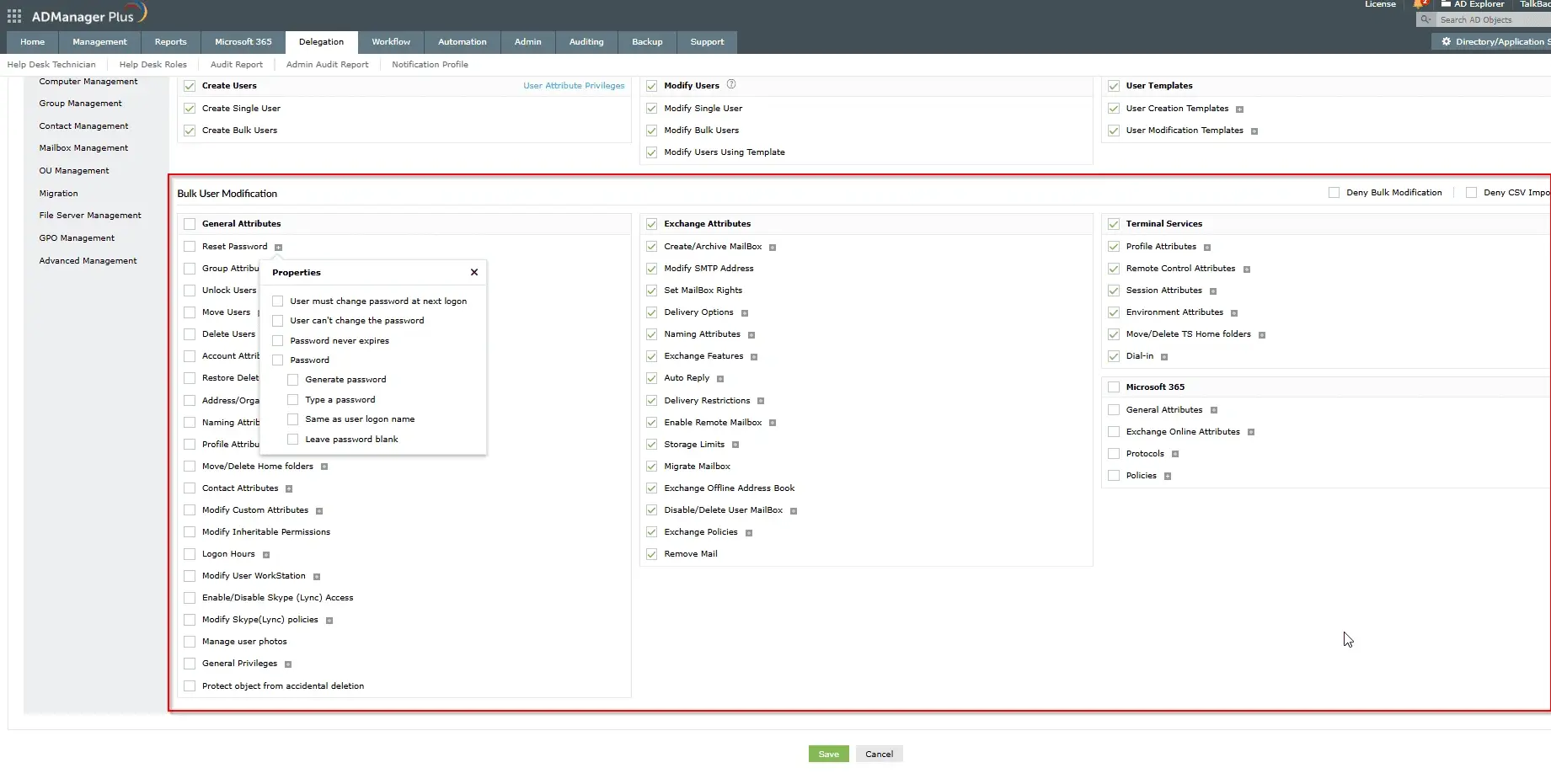
Screenshot showing Help Desk Role settings in ADManager Plus with bulk user modification permissions and attribute categories available for delegation. - Click Save to apply the modifications.
- Have the technician log out and log back in to check if the fields are now accessible.
Tips
- Verify delegation settings to ensure the technician's role has the necessary permissions.
- Log out and log back in for the changes to take effect.
How to reach support
If the issue persists, contact our support team here.