Issues updating TLS and cipher suites in ADManager Plus
Last updated on:In this article:
Issue description
You are facing difficulties adding or modifying TLS ciphers in ADManager Plus. This could result in secure communication errors or changes not taking effect.
Possible causes
- Unsupported ciphers: The ciphers being added may not be supported by the Java Runtime Environment (JRE) or the server’s operating system.
- Incorrect syntax: Errors in the configuration file related to TLS ciphers.
- Conflicting settings: Other security configurations may interfere with the TLS cipher setup.
- Outdated ADManager Plus version: The application build might not support the required ciphers.
- Missing dependencies: Required system components for TLS configuration may not be installed.
Prerequisites
- Access to the ADManager Plus server.
- Administrative privileges to modify configuration files in ADManager Plus service.
Resolution
Case 1: Update via UI
- Log in to ADManager Plus as an administrator.
- Navigate to the Admin tab.
- Under General Settings, click Connection.
- Under Advanced Settings, scroll to the TLS and Cipher fields section.
- Update the list of cipher suites with the required values.
- Click Save Changes and restart the application.
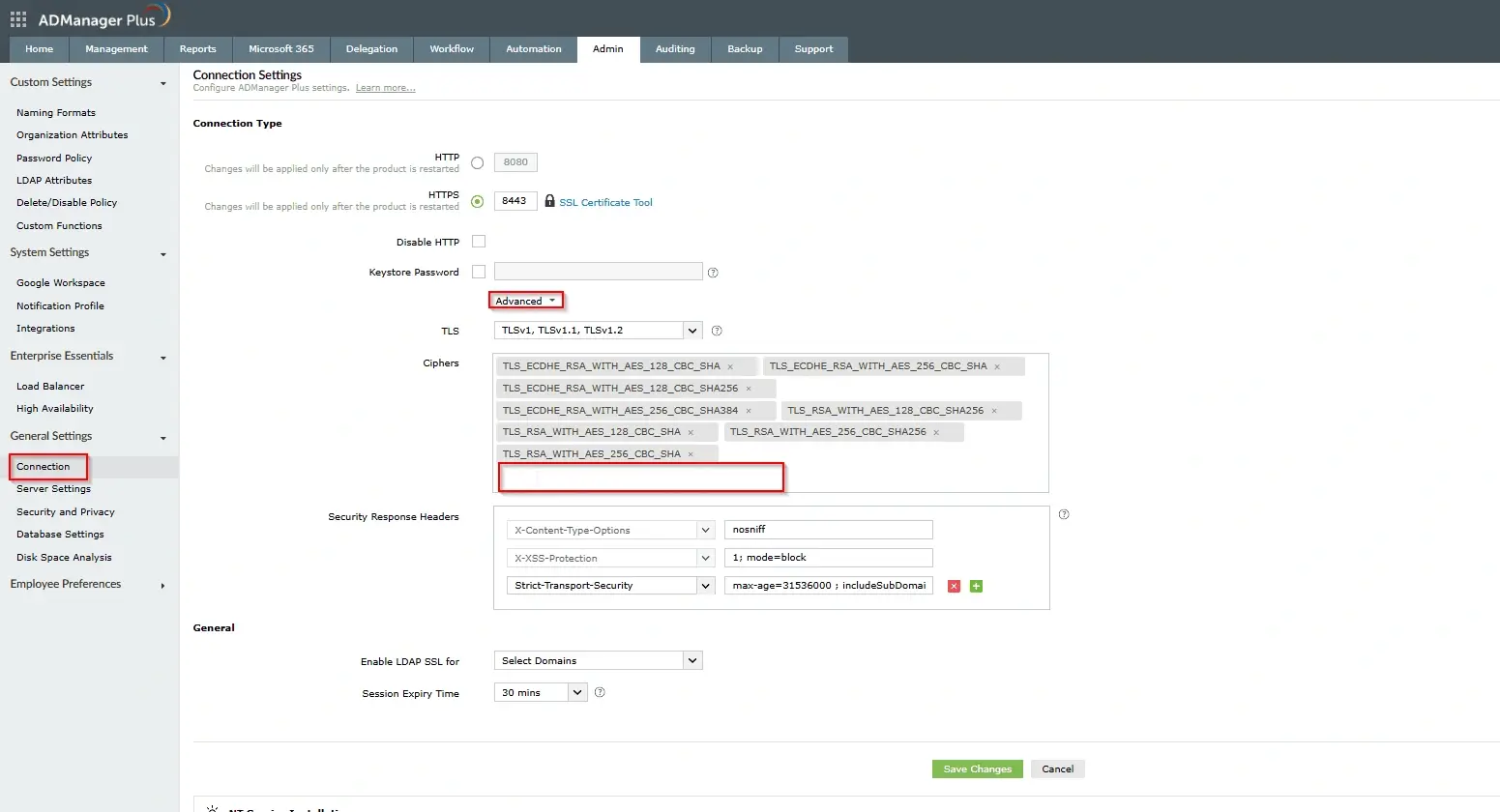
Configured TLS versions, selected cipher suites, and security response headers used to strengthen SSL/TLS communication.
Case 2: Update via configuration file (server.xml)
Step 1: Locate ADManager Plus TLS configuration file
- The configuration file is typically found at,
<Installation Directory>\ManageEngine\ADManager Plus\conf\server.xml
Step 2: Modify TLS configuration in server.xml
- Open server.xml using a text editor with administrator privileges.
- Locate the <Connector> element handling HTTPS traffic (usually on port 443 or 8443).
- Ensure the attributes and are present.
- Add or modify the ciphers attribute with a comma-separated list of supported ciphers at the end of the string.
Example:
<Connector protocol="HTTP/1.1" SSLEnabled="true" port="443" scheme="https" secure="true" ciphers="TLS_ECDHE_RSA_WITH_AES_128_GCM_SHA256,TLS_ECDHE_RSA_WITH_AES_256_GCM_SHA384,TLS_RSA_WITH_AES_128_GCM_SHA256,TLS_RSA_WITH_AES_256_GCM_SHA384"/> - Ensure the syntax is correct and appears on a single line.
- Save the server.xml file.
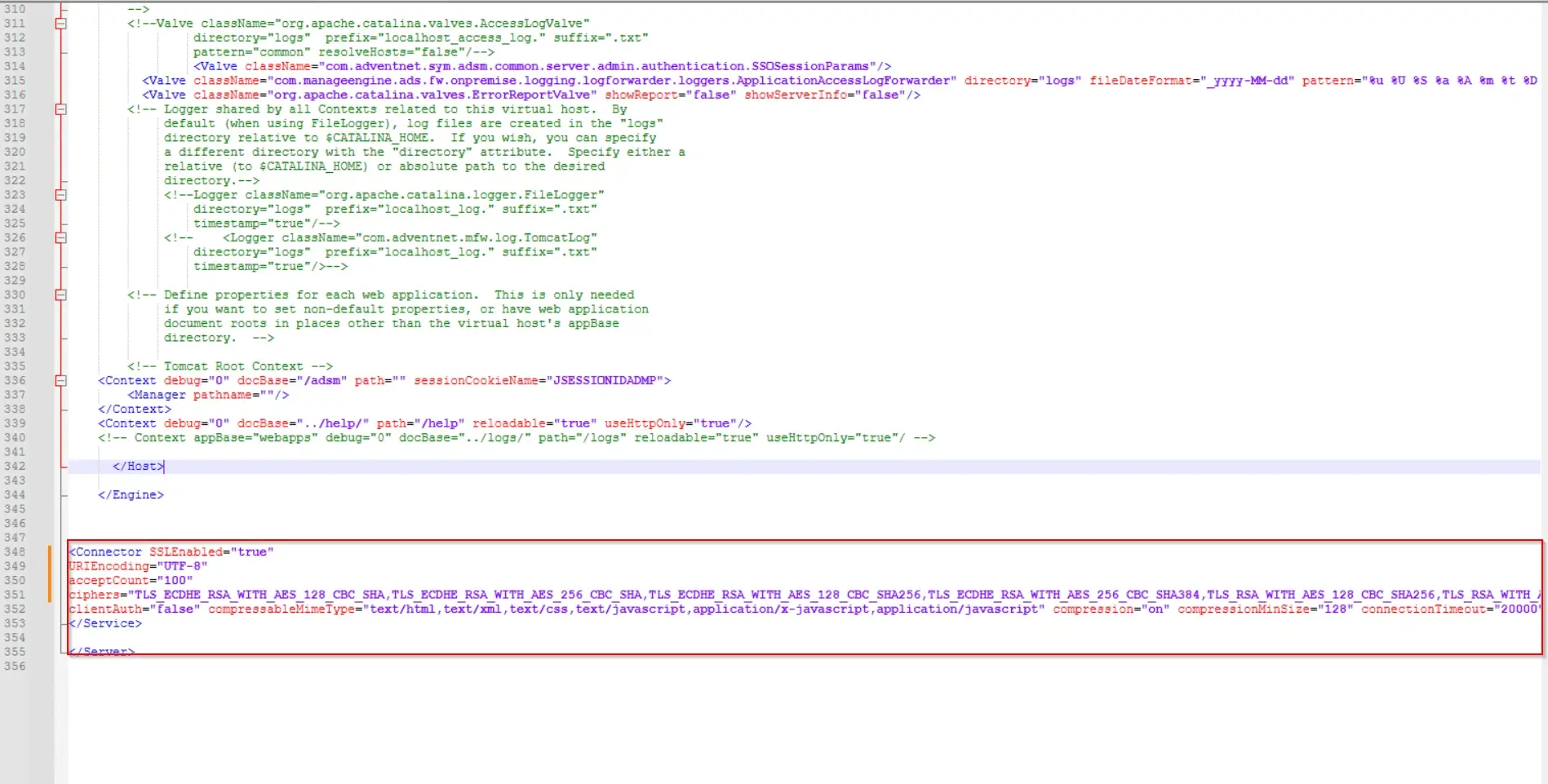
ADManager Plus server.xml file highlighting the SSL connector configuration including custom cipher suites, SSL settings, compression parameters, and connection properties applied at the server level.
Step 3: Restart ADManager Plus service
- Open services.msc by pressing Win + R, type services.msc, and pressing Enter.
- Locate ManageEngine ADManager Plus service.
- Right-click and select Restart.
Tips
- Test changes in a non-production environment before applying them to the production ADManager Plus server.
- Document configured ciphers and the reasons for selecting them for future reference.
- Enable only strong and secure ciphers, avoiding weaker ones that may be vulnerable to attacks.
- Use SSL Labs or similar tools to test and verify the security of the TLS configuration.
How to reach support
If the issue persists, contact our support team here.