Group Policy Objects (GPOs) control much of how an Active Directory (AD) environment behaves, from security baselines to drive mappings, so being able to document their settings is essential for audits, troubleshooting, and change reviews. A GPO report captures the full configuration of one or all of your GPOs in a readable file that you can save, share, or compare with others over time.
PowerShell handles this with the Get-GPOReport cmdlet, which exports a GPO's settings to an HTML or XML file. The cmdlet is quick and script-able, but it depends on the GroupPolicy module being installed and requires some scripting familiarity for anything beyond a single report. This guide walks through three ways to get a GPO report (using PowerShell, using the Group Policy Management Console (GPMC), and using ManageEngine ADManager Plus), including how to verify the applied policy and export reports in different formats.
A GPO report is a point-in-time export of a GPO's configuration: its policy settings, security filtering, WMI filters, delegation, links, and version numbers. Rather than clicking through the GPMC setting by setting, you can use a report to lay out everything a GPO does in one document, in either a human-readable HTML layout or a machine-readable XML structure you can parse programmatically.
Admins might generate a GPO report to hand auditors evidence of a security configuration, to document the environment before and after a change, to compare a GPO's settings across two points in time, or to troubleshoot why a policy is or isn't taking effect. The report itself is read-only, so producing one is a safe, non-disruptive way to inspect Group Policy without touching live settings.
The Get-GPOReport and Get-GPO cmdlets ship with the GroupPolicy module, which is part of the Remote Server Administration Tools (RSAT). Before you run any command, confirm the module is present. If it's not enabled, run the following PowerShell command on a Windows 10 or 11 workstation:
Add-WindowsCapability -Online -Name "Rsat.GroupPolicy.Management.Tools~~~~0.0.1.0"
On Windows Server, add the feature instead:
Install-WindowsFeature -Name GPMC
Then import the module into your session and confirm it loaded:
									Import-Module GroupPolicy

									Get-Module -Name GroupPolicy
Run PowerShell as an administrator from a domain-joined machine with rights to read the Group Policy. On a domain controller (DC), the module is present by default.
HTML is the format to use when a person needs to read the report. Pass the GPO name, set -ReportType to HTML, and give -Path the output file location:
Get-GPOReport -Name "Default Domain Policy" -ReportType HTML -Path "C:\Reports\DefaultDomainPolicy.html"
This writes a formatted report of every setting in the Default Domain Policy GPO to the path you specify. If you'd rather identify the GPO by its globally unique identifier (GUID) instead of its name, use the -Guid parameter:
Get-GPOReport -Guid 31b2f340-016d-11d2-945f-00c04fb984f9 -ReportType HTML -Path "C:\Reports\GPO.html"
To document every GPO at once, set -All in place of a name. A single combined report of the whole domain's Group Policy is often what an audit calls for:
Get-GPOReport -All -Domain "corp.com" -ReportType HTML -Path "C:\Reports\AllGPOs.html"
The -Domain parameter takes the fully qualified domain name (FQDN) and is useful in multi-domain forests to target a specific domain. By default, the cmdlet queries the domain of the user running it.
XML is the format to use when a script, not a person, will read the output. It exposes the same data in a structure PowerShell can parse directly:
Get-GPOReport -Name "Default Domain Policy" -ReportType XML -Path "C:\Reports\DefaultDomainPolicy.xml"
Once you have XML, you can cast it with the [xml] type accelerator and read values with dot notation—for example, to pull the GPO's name and version without opening the file:
									[xml]$report = Get-Content "C:\Reports\DefaultDomainPolicy.xml"

									$report.GPO.Name

									$report.GPO.Computer.VersionDirectory
Get-GPOReport itself outputs only HTML or XML, so there is no direct CSV option. To get a spreadsheet, use Get-GPO to collect the GPO objects and export the properties you need with Export-Csv. This produces an Excel-ready summary of every GPO, including its GUID, status, and modification date:
									Get-GPO -All -Domain "corp.com" |

									Select-Object DisplayName, Id, GpoStatus, CreationTime, ModificationTime |

									Export-Csv -Path "C:\Reports\GPO-Summary.csv" -NoTypeInformation
For a settings-level spreadsheet rather than a summary, you would generate XML reports and parse the specific nodes you want into custom objects before exporting them, which is more involved but keeps everything in PowerShell.
The parameters below can be used for GPO reporting tasks in PowerShell:
| Parameter | Description |
|---|---|
| -Name | The display name of the GPO to report on—it must match exactly |
| -Guid | The GUID of the GPO, used instead of -Name to avoid ambiguity |
| -All | Reports on every GPO in the domain rather than a single one |
| -ReportType | The output format, either HTML or XML |
| -Path | The file path where the report is saved |
| -Domain | The FQDN of the domain to query, for multi-domain forests |
| -Server | The specific DC to run the query against, such as the PDC emulator |
If you prefer a graphical approach, the GPMC produces the same HTML report and can also show the applied policy for a specific user or computer:
To see the Resultant Set of Policy (RSoP), which is the combined effect of every GPO that applies to a particular user or computer, use the Group Policy Results wizard in the GPMC or run the gpresult command.
ADManager Plus is a unified AD, Exchange, and Microsoft 365 management and reporting tool that produces GPO reports through a point-and-click console, with export options and scheduling that the native tools lack. It offers prebuilt reports for GPOs and their linked objects.
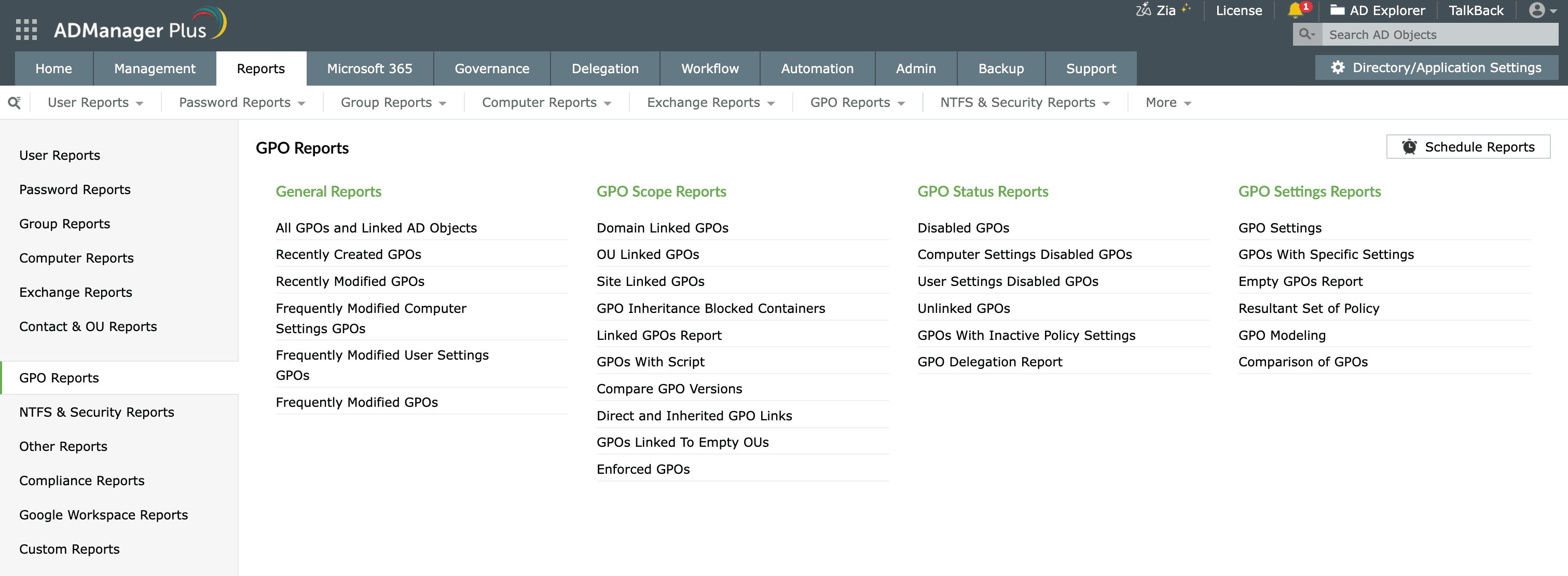
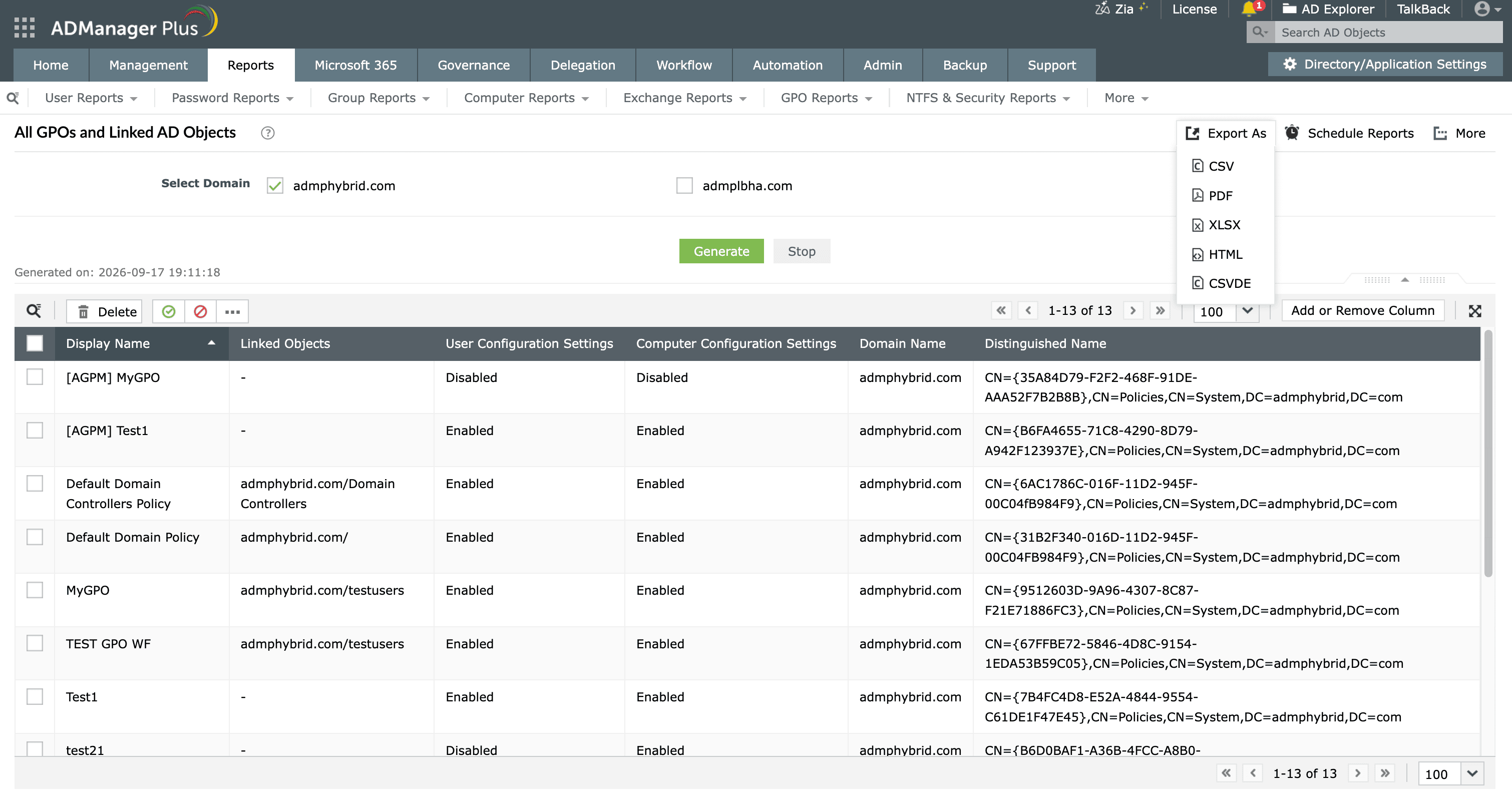
Rather than running reports by hand, you can use ADManager Plus to generate reports on a schedule and email the results to stakeholders in the format you choose. This turns GPO documentation into a recurring, hands-off process, which is useful for periodic audits and compliance reviews.
ADManager Plus replaces scripts and recurring exports with a single console for AD, Microsoft 365, and Exchange management and reporting.
To list every GPO in a domain, use the Get-GPO cmdlet with the -All parameter in PowerShell:
Get-GPO -All -Domain "corp.com"
This returns each GPO with its display name, GUID, and status. You can also see the full list under Group Policy Objects in the GPMC, or you can run the All GPOs and Linked AD Objects report in ADManager Plus for an exportable list.
Use the gpresult command to view the RSoP. Running gpresult /h report.html from an elevated Command Prompt session produces an HTML summary of every GPO applied to the current user and computer, including which were filtered out. The Group Policy Results wizard in the GPMC provides the same information graphically.
ADManager Plus provides a Resultant Set of Policy report that displays the Administrative Template settings, security settings, and GPO preferences applied to a selected user or computer.
GPO inheritance flows from the domain down through OUs and can be blocked at an OU. In the GPMC, select an OU and open the Group Policy Inheritance tab to see the order in which GPOs apply and whether inheritance is blocked.
In ADManager Plus, use the Direct and Inherited GPO Links report to view the GPOs linked directly to selected OUs and sites along with those inherited from parent containers up to the root domain. You can also use the GPO Inheritance Blocked Containers report to identify domains, sites, and OUs where GPO inheritance has been blocked.
Get-GPOReport only writes HTML or XML, so for a spreadsheet, collect the GPOs with Get-GPO and export the properties you want with Export-Csv:
Get-GPO -All | Select-Object DisplayName, Id, GpoStatus, ModificationTime | Export-Csv "C:\Reports\GPOs.csv" -NoTypeInformation
For a script-free option, ADManager Plus exports its GPO reports directly in CSV, XLSX, PDF, or HTML format from the console.

