Active Directory (AD) replication keeps every domain controller (DC) in sync, but it runs on a schedule. A change you just made—a password reset, a new Group Policy Object (GPO), or a disabled account—may take time to reach the other DCs. When a change is urgent, you don't want to wait for the next cycle; you force replication so it propagates immediately.
This guide covers how to force AD replication using the Sync-ADObject PowerShell cmdlet, the repadmin command-line tool, the Active Directory Sites and Services console, and ManageEngine ADManager Plus. It also covers how to verify if forced AD replication worked and troubleshoot common errors you may face.
AD replication is the process by which DCs exchange directory changes so that every DC holds a consistent copy of the database. When you change an object on one DC, that change has to reach all the others. Within a single site, DCs use change notification to replicate within about 15 seconds of a change; between sites, replication follows a schedule of 180 minutes by default to conserve WAN bandwidth. That built-in latency is normal, but some situations can't wait for it:
Replication is fundamentally pull-based: a destination DC requests changes from a source DC, usually prompted by a change notification. Forcing replication either tells a destination to pull now, or with the right flag, tells a source to push its changes outward.
How the Knowledge Consistency Checker manages replication topology: You rarely define replication paths by hand. The Knowledge Consistency Checker (KCC), a process that runs on every DC, automatically builds and maintains the replication topology—the set of connection objects that determine which DC replicates with which. It recalculates the topology every 15 minutes by default, creating an efficient ring within a site and using site links to route replication between sites. When you force replication, you're pushing changes along the connections the KCC already created; you're not bypassing the topology, just triggering it on demand.
Before running any replication command, confirm the environment is ready. Most replication problems trace back to one of these:
For the PowerShell method, import the module first with this PowerShell command:
Import-Module ActiveDirectory
PowerShell's Sync-ADObject is the right tool when you need to push a single object to a specific DC immediately. The classic case being a password reset that a user needs recognized on another DC straight away. It replicates one object from a source DC to a destination DC without waiting for the schedule.
Supply the object's distinguished name, the source DC, and the destination DC:
									Sync-ADObject -Object "CN=Jane Smith,OU=Sales,DC=corp,DC=com" `

									-Source "DC1" -Destination "DC2"
After a sync, you can confirm replication health for a DC using the AD replication cmdlets. For example, to see the last replication attempt and result per partner, run:
									Get-ADReplicationPartnerMetadata -Target "DC2" -Scope Server |

									Select-Object Partner, LastReplicationSuccess, LastReplicationResult
To see any outstanding replication failures for a DC, use Get-ADReplicationFailure:
Get-ADReplicationFailure -Target "DC2"
That gives the per-DC failure list—an empty result means no replication errors are currently recorded for that DC.
Scope note: Sync-ADObject replicates one object at a time, not entire partitions. To force a full, domain-wide sync of all naming contexts, use repadmin /syncall (the second method below).
The following parameters can be used while syncing AD objects using PowerShell.
| Parameter | Description |
|---|---|
| -Object | The object to replicate, given as its distinguished name or GUID. |
| -Source | The DC that currently holds the change (the source of truth). |
| -Destination | The DC to replicate the object to. |
| -PassThru | Returns the object after the operation for confirmation. |
| -Credential | Runs the command as a different account with replication rights. |
repadmin is the standard utility for forcing replication across partitions and DCs. Run it from an elevated command prompt on a DC. The two commands you'll use most are /syncall for a full sync and /replicate for a targeted one.
repadmin /syncall synchronizes the home DC with all of its replication partners. Adding the right flags extends it across every partition and every site:
repadmin /syncall /AdeP
This pushes all naming contexts from the home DC to every other DC enterprise-wide. The following flags control the scope.
| Flag | What it does |
|---|---|
| /A | Synchronizes all naming contexts (partitions) held on the home DC. |
| /e | Includes DCs in all sites (enterprise-wide), not just the local one. |
| /P | Pushes changes outward from the home DC to its partners (the default direction is pull). |
| /d | Identifies servers by distinguished name in status messages. |
| /q | Runs in quiet mode, suppressing per-callback messages. |
Drop the /P flag to pull changes into the home DC from all partners instead. This is useful when you want one specific DC brought fully up to date.
To replicate a single partition from one named DC to another, use repadmin /replicate with the destination, the source, and the naming context:
repadmin /replicate DC2 DC1 "DC=corp,DC=com"
This forces DC2 to pull the corp.com domain partition from DC1 immediately—the targeted equivalent of the Replicate Now action in the GUI below.
If you prefer a graphical method, the Active Directory Sites and Services console forces replication with a right-click:
The NTDS Settings object holds the connection objects the KCC created for that DC. Because replication is pull-based, Replicate Now pulls changes from the source represented by the connection object into the DC you selected. To replicate in both directions, run it on the connection object under each DC.
repadmin, Sync-ADObject, and Active Directory Sites and Services all force replication reliably, but each shows its limits as the environment grows:
ADManager Plus provides a built-in DC Replication Status report for monitoring replication across multiple DCs and forcing replication without using the command line.
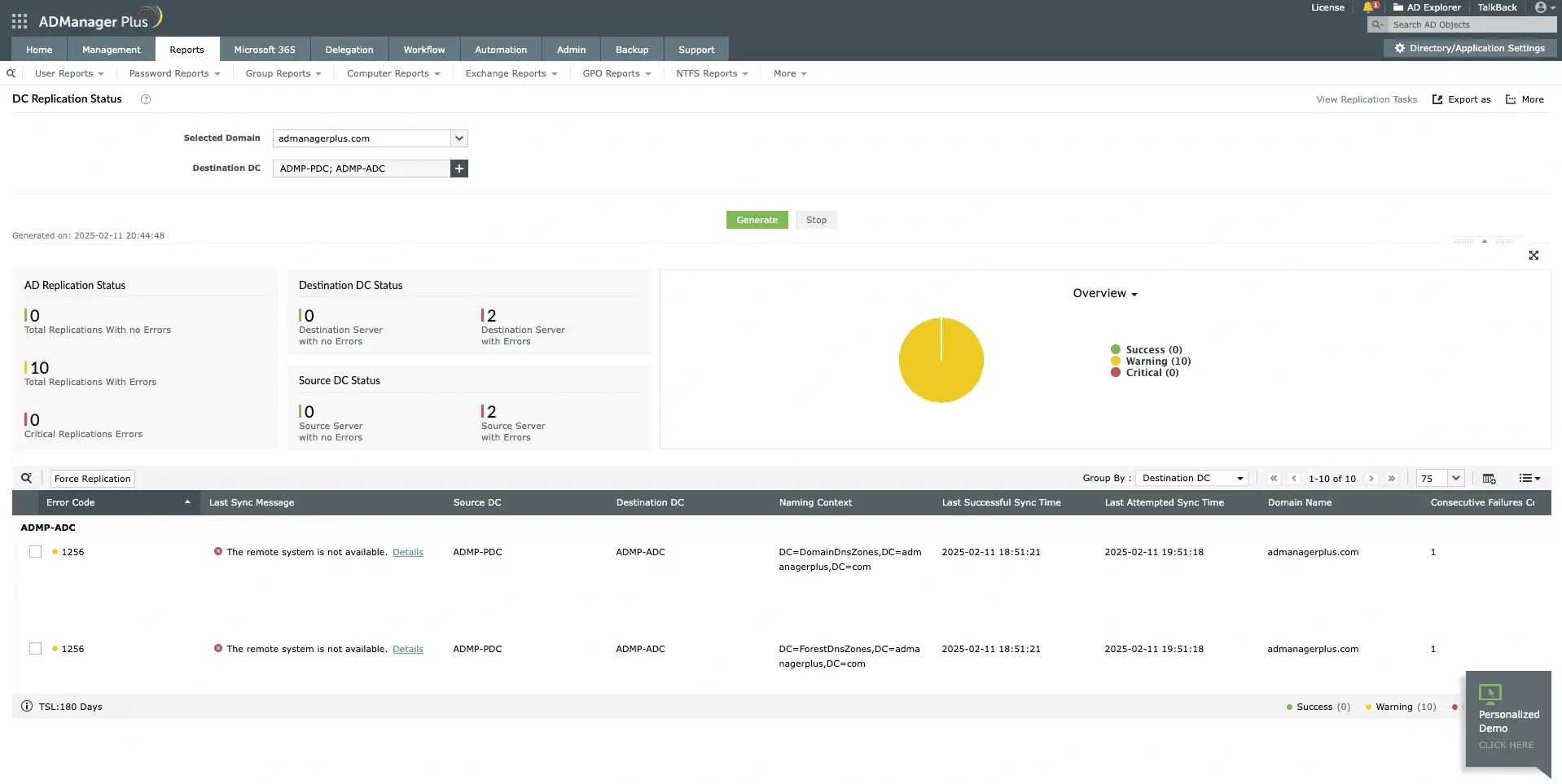
Verify the replication succeeded by running the DC Replication Status report again.
Forcing replication doesn't confirm it worked, so always verify. From an elevated Command Prompt, run the following command to view the replication status of each partner for a DC:
repadmin /showrepl
Healthy output lists each source DC and naming context with a recent last attempt and matching last success timestamp, and no error text. A last attempt that failed, or a success timestamp that lags well behind, points to a problem to chase down.
For a domain-wide picture, run the summary command, where repadmin /replsummary rolls up replication health across all DCs, flagging the largest delays and any failures with their error counts:
repadmin /replsummary
For a script-free approach, run the DC Replication Status report in ADManager Plus.
When a forced replication fails, the error code usually points straight at the cause. The most common ones are listed below.
| Error | Meaning and fix |
|---|---|
| 1722 | The RPC server is unavailable and the destination can't reach the source. Check network connectivity, firewall rules for RPC, and DNS resolution between the DCs. |
| 8453 | Replication access was denied. The DC lacks replication rights, often due to time skew breaking Kerberos. Verify Windows Time Service and the Replicating Directory Changes permission. |
| 8606/8614 | Lingering objects, or replication stalled past the tombstone lifetime. Remove lingering objects with repadmin /removelingeringobjects before replication can resume. |
| 8524 | A DNS lookup failure stopped the operation. Resolve the underlying DNS issue between DCs. |
ADManager Plus is a web-based AD, Microsoft 365, and Exchange management solution that goes well beyond forcing replication, replacing scripts and console-by-console administration with a single console:
Active Directory (AD) replication is pull-based by default: a destination domain controller (DC) requests changes from a source DC, usually after a change notification. Push replication—triggered by the /P flag on a repadmin /syncall command—reverses that, as the home DC sends its changes out to its partners. Pull is used to bring a DC up to date, while push is used to propagate an urgent local change outward immediately.
SYSVOL replication uses Distributed File System Replication (DFSR), which is separate from AD replication, so repadmin doesn't drive it. Force it with dfsrdiag syncnow /partner:DC1 /RGName:"Domain System Volume" /Time:1 from the Command Prompt. This is distinct from forcing directory replication and applies to the file-based contents of SYSVOL, such as Group Policy templates and scripts.
Use dfsrdiag replicationstate from the Command Prompt to see in-progress DFS replication, and Get-DfsrBacklog in PowerShell to check for a backlog of un-replicated files between partners. A persistent, growing backlog indicates a DFSR problem to investigate, separate from AD replication health, which you check with repadmin /showrepl.
AD-integrated DNS zones are stored inside AD, in the DomainDnsZones and ForestDnsZones application partitions. Because they replicate as part of AD replication, forcing replication of those partitions propagates your DNS changes. A full repadmin /syncall /AdeP command already includes them; to target the domain DNS partition specifically, run this Command Prompt command:
repadmin /replicate DC2 DC1 "DC=DomainDnsZones,DC=corp,DC=com"

