Active Directory (AD) group memberships help determine access to resources. Being able to report on it underpins access reviews, audits, offboarding checks, and troubleshooting. This guide covers how to get all the group members in an AD group using the Get-ADGroupMember cmdlet, Active Directory Users and Computers (ADUC), and ManageEngine ADManager Plus for a script-free approach.
Before you run the cmdlets, a few things need to be in place:
											Import-Module ActiveDirectory

											Get-Module -Name ActiveDirectory
The Get-ADGroupMember cmdlet returns the members of the group named in -Identity, which accepts a group name, SamAccountName, distinguished name, SID, or GUID. Piping to Select-Object keeps the output to the columns you want:
									Get-ADGroupMember -Identity "Sales Team" |

									Select-Object Name, SamAccountName, objectClass
The objectClass column is useful because a group can contain users, computers, and other groups; it tells you what each member is. By default, the cmdlet returns only the direct members of the group, not the members of any nested groups, which the recursive parameter below addresses.
Groups are often nested: A group is added as a member of another group, so a user can be an effective member without appearing in the direct list. The -Recursive parameter expands nested groups and returns their members alongside the parent group’s direct members. Nested group objects themselves are excluded.
									Get-ADGroupMember -Identity "All Staff" -Recursive |

									Select-Object Name, SamAccountName
Note: The results can include user and computer accounts. Use the command without -Recursive to list direct members, including nested groups. Use -Recursive for a flattened membership list, which does not show the nesting path through which each account belongs.
Get-ADGroupMember returns limited properties, so to filter by something like enabled status, you pipe each member to Get-ADUser and filter on the richer object. To return only the enabled user accounts in a group:
									Get-ADGroupMember -Identity "Sales Team" |

									Where-Object { $_.objectClass -eq "user" } |

									Get-ADUser -Properties Enabled |

									Where-Object { $_.Enabled } |

									Select-Object Name, SamAccountName
The first Where-Object keeps only user objects (excluding nested groups and computers), and the second keeps only enabled accounts. By filtering group members and retrieving additional attributes, you can create a targeted report.
Because Get-ADGroupMember doesn't return attributes like email or department, pipe its output to Get-ADUser to add them. This produces a member list containing names, account names, email, and much more:
									Get-ADGroupMember -Identity "Sales Team" |

									Where-Object { $_.objectClass -eq "user" } |

									Get-ADUser -Properties EmailAddress, Department, Title |

									Select-Object Name, SamAccountName, EmailAddress, Department, Title
The reverse question—which groups does this user belong to—is answered from the user object. The user's MemberOf attribute holds the distinguished names of the groups they're a direct member of.
To resolve nested membership in a single query in either direction, use the LDAP matching rule LDAP_MATCHING_RULE_IN_CHAIN (OID 1.2.840.113556.1.4.1941), which walks the chain of nested groups. It is efficient because the directory does the recursion. To find every user who is an effective member of a group, including members through nested groups:
									$groupDN = (Get-ADGroup "All Staff").DistinguishedName

									Get-ADUser -LDAPFilter "(memberOf:1.2.840.113556.1.4.1941:=$groupDN)" |

									Select-Object Name, SamAccountName
The same matching rule works in reverse—listing every group a user belongs to through any level of nesting—by filtering groups whose member chain contains the user:
									$userDN = (Get-ADUser "jsmith").DistinguishedName

									Get-ADGroup -LDAPFilter "(member:1.2.840.113556.1.4.1941:=$userDN)" |

									Select-Object Name
This matching rule is the most reliable way to get transitive (effective) membership, since it accounts for every level of nesting in one server-side query rather than looping in PowerShell.
To report on several groups at once, loop over a list of group names and tag each member with its group so the combined output is readable:
									"Sales Team","Marketing","Finance" | ForEach-Object {

									$groupName = $_

									Get-ADGroupMember -Identity $groupName |

									Select-Object @{Name='Group'; Expression={$groupName}}, Name, SamAccountName

									}
In a multi-domain forest, target a specific domain's controller with the -Server parameter, naming a domain controller or the domain's FQDN. This queries a group in another domain of the forest:
									Get-ADGroupMember -Identity "App Admins" -Server "child.corp.com" |

									Select-Object Name, SamAccountName
Get-ADGroupMember can retrieve members across domains, but resolving members from trusted forests may require additional configuration. Results depend on directory topology, trust relationships, permissions, and query scope. An LDAP matching-rule query does not automatically resolve these cases, so additional queries or foreign security principal resolution may be needed for a complete report.
Pipe the member list to Export-Csv to save it for an audit or share them with an administrator, selecting the attributes required for the report, and never pipe it through Format-Table first, since formatting breaks the export:
									Get-ADGroupMember -Identity "Sales Team" -Recursive |

									Get-ADUser -Properties EmailAddress, Department |

									Select-Object Name, SamAccountName, EmailAddress, Department |

									Export-Csv -Path "C:\Reports\Sales-Team-members.csv" -NoTypeInformation -Encoding UTF8
Using -Recursive here ensures the CSV reflects the full effective membership, including users from nested groups, which is what an access review usually requires.
The parameters and cmdlets below are used for group membership reporting in PowerShell.
| Parameter/cmdlet | Description |
|---|---|
| Get-ADGroupMember | Lists the members of a group. |
| -Identity | The group (or user, for other cmdlets) to query, by name, SamAccountName, DN, SID, or GUID. |
| -Recursive | Expands nested groups and returns only the individual user and computer accounts. |
| -Server | Targets a specific domain controller or domain, for cross-domain queries. |
| Get-ADUser -Properties MemberOf | Lists the groups a user is a direct member of, as DNs. |
| Get-ADPrincipalGroupMembership | Lists a user's groups as objects, including the primary group. |
| -LDAPFilter (1.2.840.113556.1.4.1941) | Resolves transitive (nested) membership in one server-side query. |
| Export-Csv | Writes the membership list to a CSV file. |
To use ADUC to view a group's direct members through a graphical interface:
ADUC shows only direct membership on the Members tab, not nested (effective) membership, and it has no built-in export. So for nested membership, a record you can save, or many groups at once, PowerShell or ADManager Plus is the better fit.
ManageEngine ADManager Plus is a unified AD, Exchange, and Microsoft 365 management and reporting tool with prebuilt group membership reports, so you can list a group's members (including nested membership) or a user's groups across the domain without writing scripts.
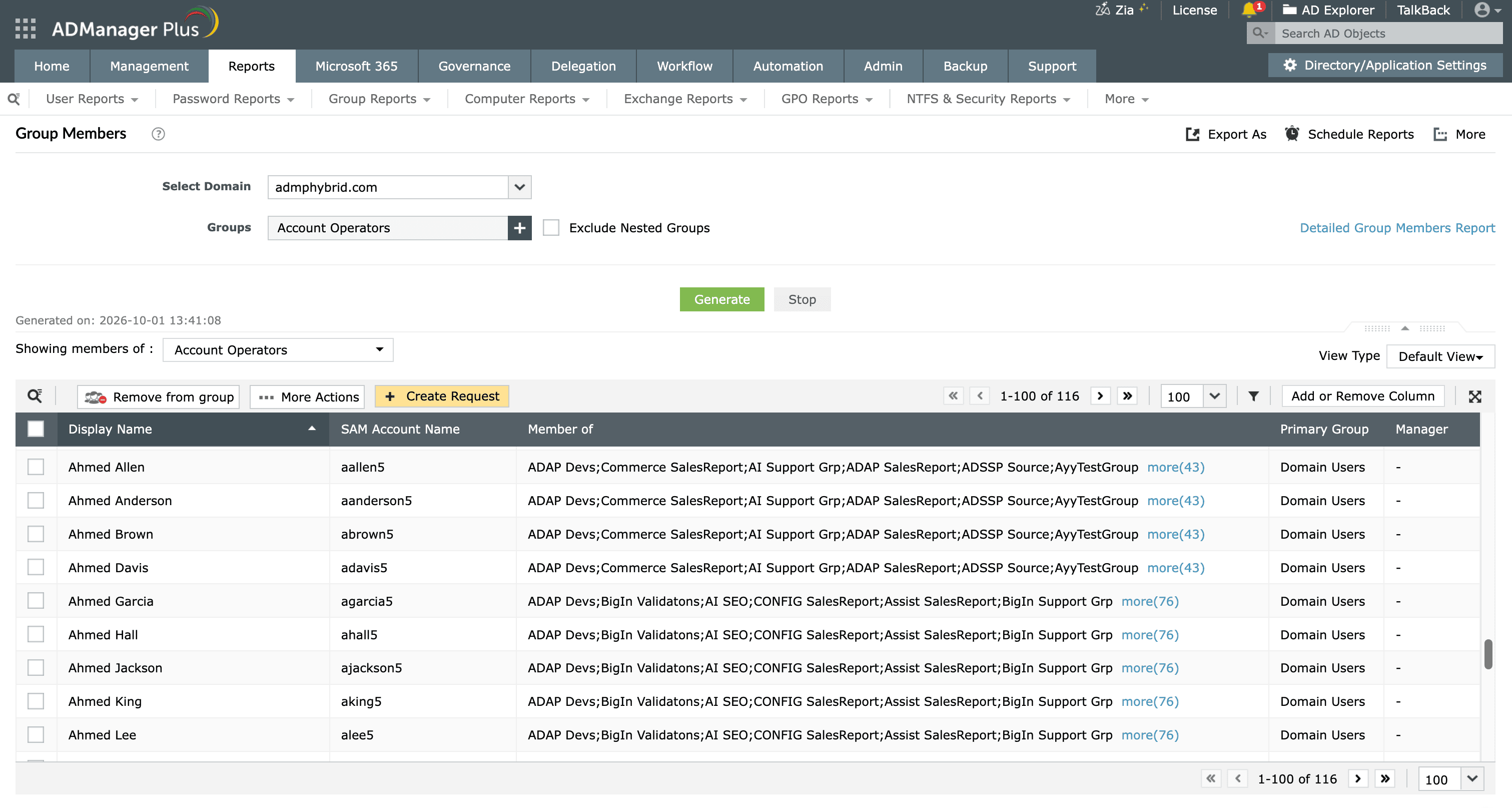
ADManager Plus replaces scripts and one-off queries with a single console for AD, Microsoft 365, and Exchange management and reporting:
Use Get-ADUser with the MemberOf property, or Get-ADPrincipalGroupMembership for a cleaner list of group names:
												Get-ADPrincipalGroupMembership -Identity "jsmith" |

												Select-Object Name
Get-ADPrincipalGroupMembership includes the primary group, which the MemberOf attribute leaves out.
Add -Recursive to Get-ADGroupMember, or use the LDAP matching rule 1.2.840.113556.1.4.1941 for a single server-side query:
												$groupDN = (Get-ADGroup "All Staff").DistinguishedName

												Get-ADUser -LDAPFilter "(memberOf:1.2.840.113556.1.4.1941:=$groupDN)" | Select-Object Name
The matching-rule query resolves every level of nesting and avoids the member-count limit of Get-ADGroupMember.
Pipe the members to Export-Csv, using -Recursive for full membership and piping to Get-ADUser for extra columns:
												Get-ADGroupMember -Identity "Sales Team" -Recursive |

												Select-Object Name, SamAccountName |

												Export-Csv "C:\Reports\members.csv" -NoTypeInformation
To get group membership of a Microsoft Entra ID group, use the Microsoft Graph PowerShell module, not the on-premises AD cmdlets. After Connect-MgGraph, run Get-MgGroupMember -GroupId "<id>" for a group's members, or Get-MgUserMemberOf -UserId "<id>" for a user's groups.

