When it comes to group policy objects (GPO) reporting, native Active Directory (AD) tools and consoles do not offer much help. Admins and technicians, therefore, use PowerShell to get GPO report for an OU, list all GPOs, get GPO links, get GPOs linked to OUs, find GPOs linked to domains or sites, get all GPOs and linked objects, list unused or disabled GPOs, identify frequently modified GPOs and more.
But PowerShell only adds to the complexity. Multiple cmdlets like get-gplink, get-gpo and get-gporeport have to be used in combination, along with various filters to use PowerShell to get GPO reports with the right information, in the required format. This article compares the procedure to generate the all linked GPOs objects report using PowerShell and ADManager Plus, a unified AD, Office 365 and Exchange Server management and reporting solution. ADManager Plus with its exclusive set of GPO reports makes reporting on GPOs a walk in the park.
This script will list GPOs that are linked to an AD object, OUs, domain or site, in HTML format
Screenshot
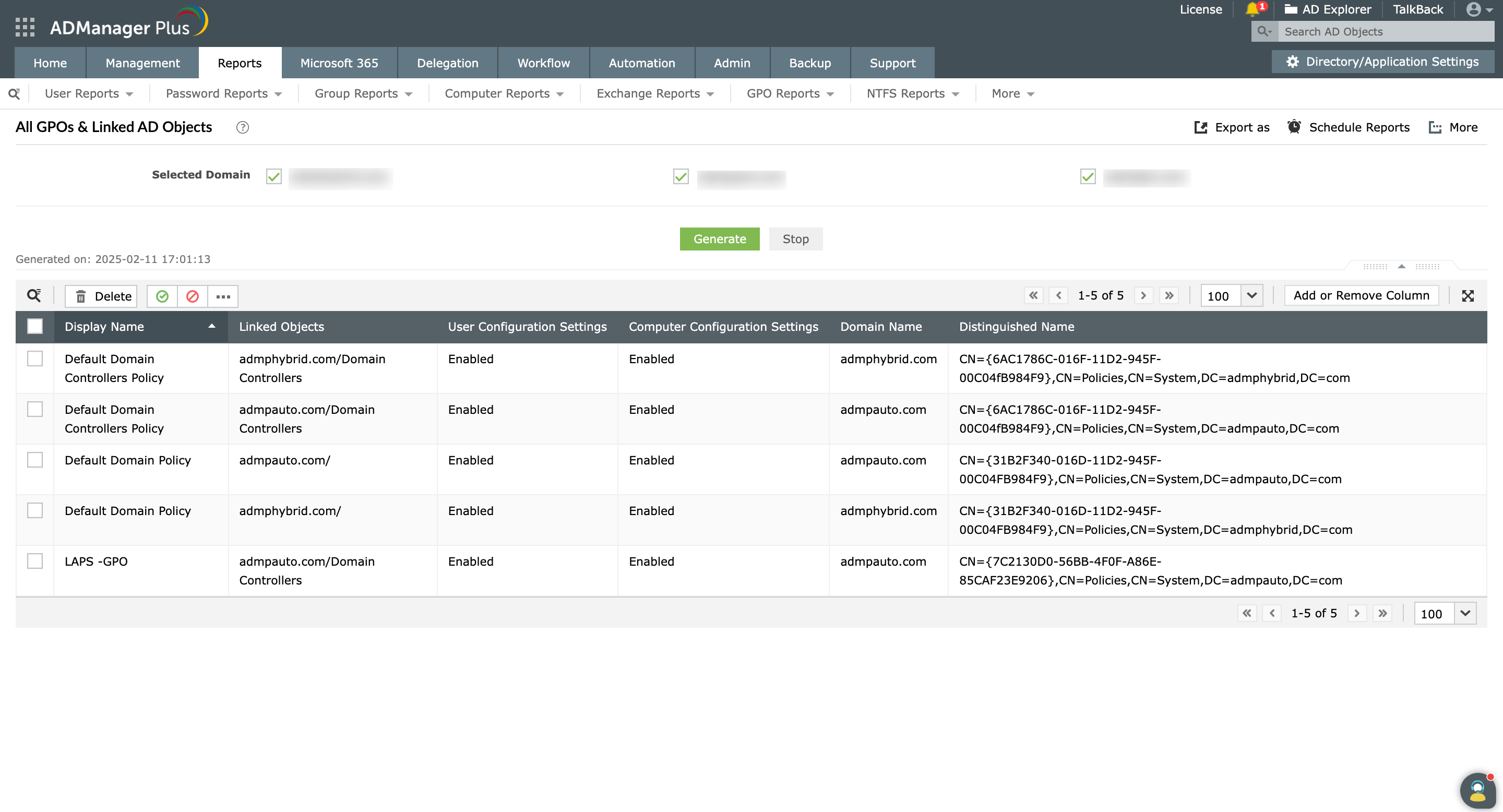
Also, right from the report, you can enable or disable GPOs completely, or the user or computer configurations, as per your need.
Limitations of using PowerShell to get linked GPOs report
Review GPO configuration with built-in reports from ADManager Plus.
Get 30-day free trial.Your download should begin automatically in 15 seconds. If not, click here to download manually.
For AD User Management
For AD User Reporting
For GPO Management
For Password Management
For AD Group Management
For File Access Management
For AD Computer Management
For Office 365 Management
For Exchange Management
For Microsoft Graph PowerShell
Entra ID user management
Entra ID reporting
Entra ID group management and reporting
Entra ID domain management
Entra ID contact management and reporting
Other Entra ID tasks
For Azure AD PowerShell
Entra ID user management
Entra ID reporting
Entra ID group management
Entra ID group reporting
Entra ID domain management
Entra ID contact management and reporting
Other Entra ID tasks


