Deleting Active Directory (AD) user accounts is a critical administrative task for security and AD cleanup. This action is permanent and without a proper AD backup, irreversible. There's more than one way to delete an AD user and this article will talk about the three primary methods, using Active Directory Users and Computers (ADUC), PowerShell and the simple and secure alternative, ADManager Plus.
Using PowerShell's Remove-ADUser cmdlet is the most flexible way to delete AD users. Before you proceed, ensure you have the Active Directory module for PowerShell installed using this script.
            # Import the Active Directory module

            Import-Module ActiveDirectory
You can identify the user by their sAMAccountName, Distinguished Name (DN), or User Principal Name (UPN).
            # This command will prompt for confirmation

            Remove-ADUser -Identity "jdoe"


            # To skip the confirmation prompt in a script, use -Confirm:$false

            Remove-ADUser -Identity "jdoe" -Confirm:$false
The following are some example scripts and use-cases that you can accomplish using the Remove-ADUser cmdlet in PowerShell
This is the most common script used by admins to remove AD users using PowerShell Create a CSV file with a list of users to be deleted and run the following script.
            # Import the list of users from the CSV

            $users = Import-Csv -Path "C:\temp\users-to-delete.csv"


            # Loop through each user in the list and remove them

            foreach ($user in $users) {

                $sam = $user.samaccountname

                Write-Host "Attempting to delete user: $sam"


                # Use -ErrorAction SilentlyContinue so one bad name doesn't stop the script

                Remove-ADUser -Identity $sam -Confirm:$false -ErrorAction SilentlyContinue

            }
A crucial cleanup task is to delete AD users who haven't logged in for a set period.
            # Set the time for inactivity

            $inactiveDays = 90

            $cutoffDate = (Get-Date).AddDays(-$inactiveDays)


            # Find inactive users

            $inactiveUsers = Get-ADUser -Filter { LastLogonDate -lt $cutoffDate } -Properties LastLogonDate


            # Loop through and delete each inactive user

            foreach ($user in $inactiveUsers) {

                $name = $user.SamAccountName

                Write-Host "Deleting inactive user: $name (Last Logon: $($user.LastLogonDate))"


                # Use -WhatIf first to test! Remove -WhatIf to perform the actual deletion.

                Remove-ADUser -Identity $name -WhatIf

            }
Using the ADUC console is the most direct method to delete a single user.
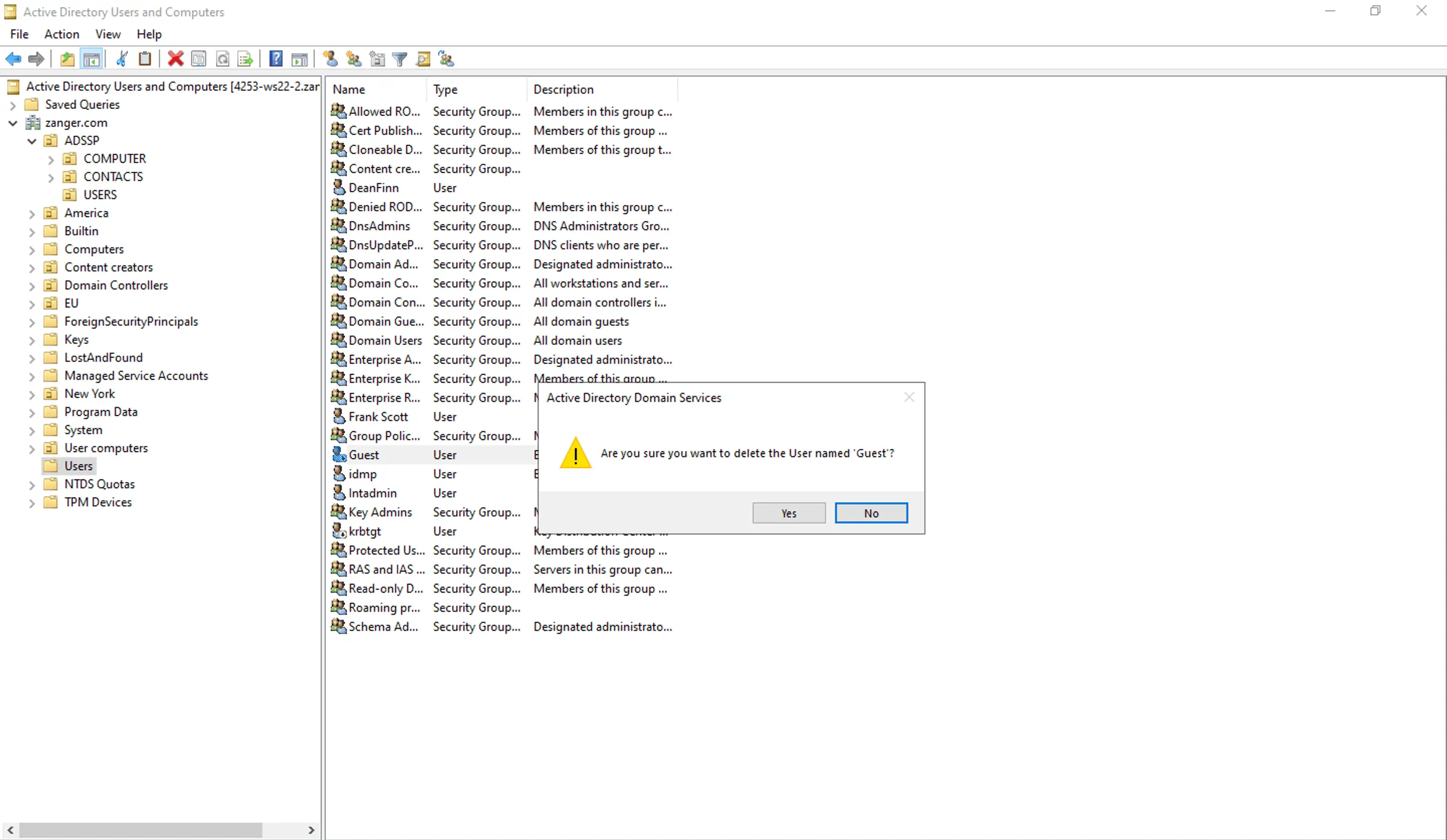
While native tools work, they have serious drawbacks. ADUC is too manual for bulk tasks, and a single mistake in a PowerShell script can permanently remove the wrong OU. This discourages admins from cleaning up stale accounts properly, considering that the average organization has 15,000 inactive ghost accounts that remain enabled.
ADManager Plus, an AD management tool, provides a secure and intuitive interface that turns complex scripts into a few simple clicks, allowing you to safely delegate tasks to help desk staff without granting them high-level domain permissions.

ADManager Plus streamlines the entire process, eliminating errors and providing a simple solution for all AD user management actions.
While functional, the built-in tools have significant drawbacks:
ADManager Plus is designed to overcome all the limitations of the native tools, providing a secure and efficient solution.
Yes, if you have the Active Directory Recycle Bin enabled, you can recover a deleted AD user. It must be enabled before the user is deleted. If it's not enabled, you must perform a complex authoritative restore from an AD backup.
The user's SID is permanently deleted along with the user object. If you create a new user with the same name, they will get a new SID. This new user will not have access to any files, folders, or resources that were previously accessible.
No. Deleting a user object only removes it from AD and does not automatically delete the user's Microsoft 365 or Exchange mailbox or their personal file share. These must be de-provisioned separately. However, ADManager Plus can help you automate this entire workflow and streamline AD deprovisioning.

