Removing a user from an Active Directory (AD) group is a common AD management task when someone changes roles, leaves a project, or is offboarded. Because group membership is what grants access to shared folders, applications, and mailboxes, taking a user out of the right group is often how you revoke that access cleanly, without touching the account itself.
There are three practical ways to do it: with the Remove-ADGroupMember cmdlet in PowerShell, the Active Directory Users and Computers (ADUC) console, and ManageEngine ADManager Plus. This guide covers all three, including how to verify the change and common errors to expect.
Before you proceed, make sure the following are in place:
Before removal, it is good practice to see who is in a group before changing it, both to confirm the user is actually a member and to keep a record of the membership. Get-ADGroupMember lists the direct members of a group.
The Remove-ADGroupMember cmdlet takes the group in -Identity and the user in -Members, identified by sAMAccountName, distinguished name (DN), security identifier (SID), or globally unique identifier (GUID):
Remove-ADGroupMember -Identity "Sales Team" -Members "jsmith"
By default, the cmdlet asks for confirmation before removing the member, since it is a change to access. Enter Y to proceed, or use the -Confirm:$false flag below to skip the prompt in a script:
Remove-ADGroupMember -Identity "Sales Team" -Members "jsmith" -Confirm:$false
Use -Confirm:$false deliberately, since it removes the safety check. It is appropriate in a tested script, but for a one-time manual removal, leaving the prompt in place is a useful guard against a mistyped name.
To remove several users at once, pass a comma-separated list to -Members, or drive the removal from a CSV for a larger set. Here's an example of removing a few named users in one command:
Remove-ADGroupMember -Identity "Sales Team" -Members "jsmith","mday","apatel" -Confirm:$false
For a longer list, prepare a CSV with a sAMAccountName column and loop through it, wrapping the call in error handling so one bad row doesn't stop the run:
									Import-Csv "C:\Imports\remove-list.csv" | ForEach-Object {

									try {

									Remove-ADGroupMember -Identity "Sales Team" -Members $_.sAMAccountName -Confirm:$false -ErrorAction Stop

									Write-Host "Removed: $($_.sAMAccountName)"

									} catch {

									Write-Warning "Failed: $($_.sAMAccountName) - $($_.Exception.Message)"

									}

									}
To remove one user from every group they belong to—a common offboarding step—get the user's group memberships and loop the removal over each. The where clause keeps the user's primary group (usually Domain Users), which can't be removed this way:
									$user = "jsmith"

									Get-ADPrincipalGroupMembership -Identity $user |

									Where-Object { $_.Name -ne "Domain Users" } |

									ForEach-Object {

									Remove-ADGroupMember -Identity $_ -Members $user -Confirm:$false

									}
The parameters and cmdlets below are used for removing users from AD groups in PowerShell.
| Parameter | Description |
|---|---|
| Remove-ADGroupMember | Removes one or more members from an AD group. |
| -Identity | The group to remove members from, by name, sAMAccountName, DN, SID, or GUID. |
| -Members | The user(s) to remove, as a single value or a comma-separated list. |
| -Confirm:$false | Suppresses the confirmation prompt for unattended scripts. |
| Get-ADGroupMember | Lists a group's members; -Recursive expands nested groups. |
| Get-ADPrincipalGroupMembership | Lists the groups a user belongs to, used for verification or removing from all groups. |
| Export-Csv | Exports the membership list to a CSV file for a record. |
For a single removal through the GUI, ADUC handles it from either the user or the group object:
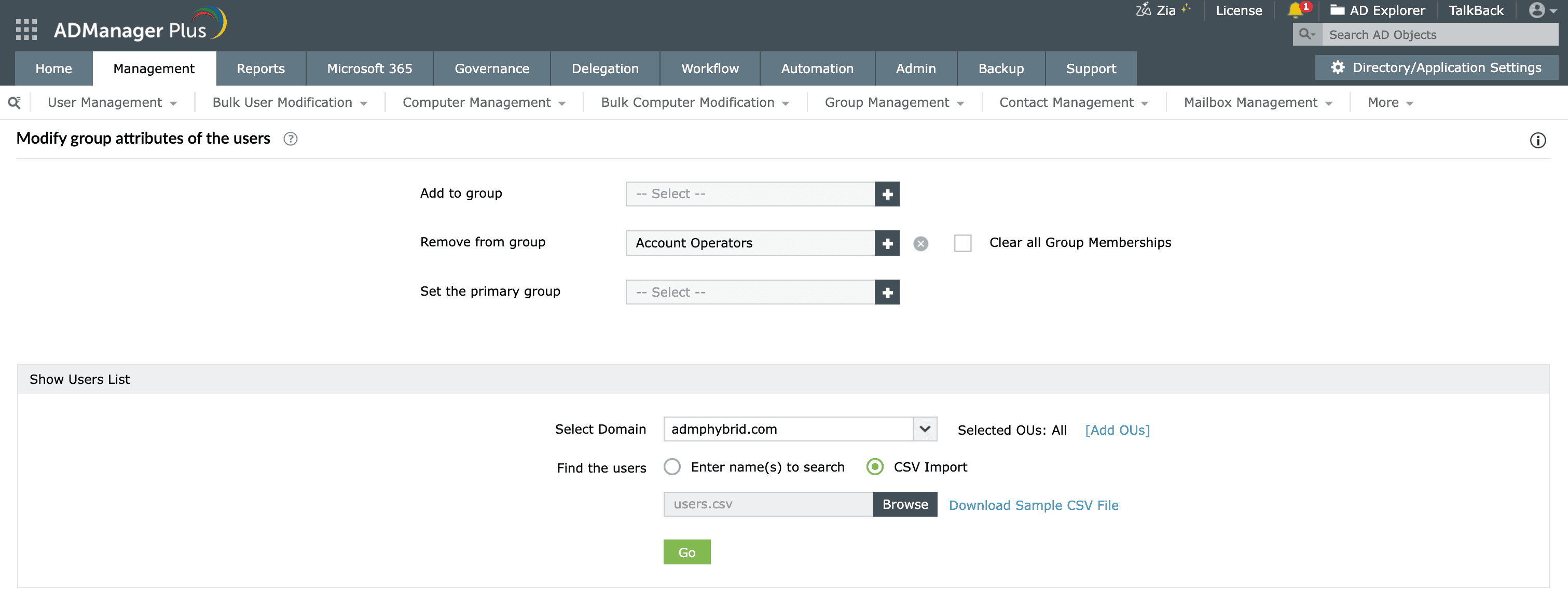
ADManager Plus is a unified AD, Microsoft Exchange, and Microsoft 365 management and reporting tool that removes users from groups through a point-and-click console, for one user or thousands, with no scripting.
ADManager Plus also enables you to remove users automatically on a schedule or triggered by an event such as a disabled account. Feeding the automation from an inactive or disabled users report keeps stale access from lingering.
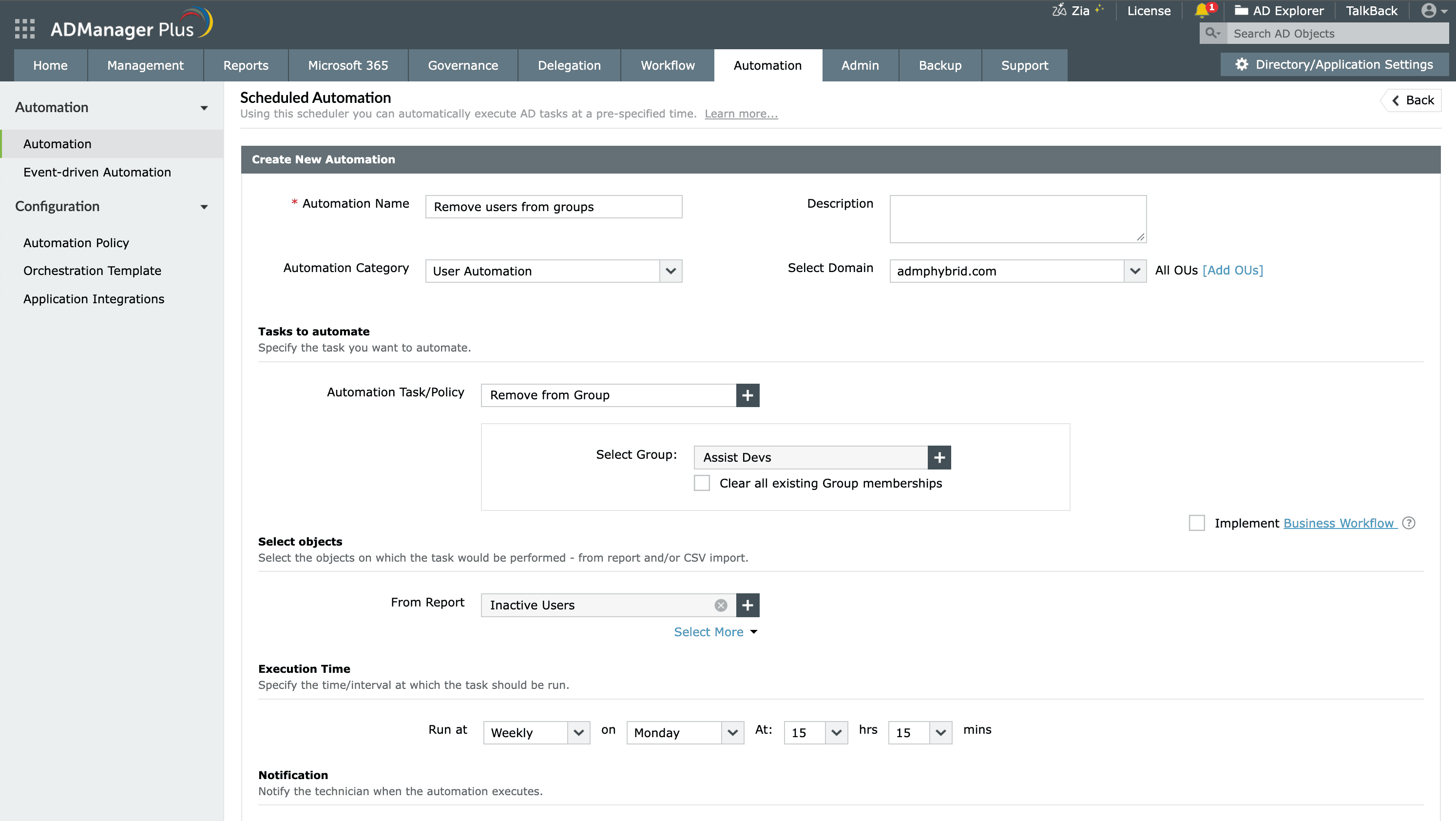
ADManager Plus orchestration chains group removal into a wider joiner-mover-leaver sequence, so it runs as one step among many when a user changes role or leaves, rather than as an isolated task.
After a removal, list the group's members again using Get-ADGroupMember and confirm that the specified user no longer appears. To verify from the user's side, run:
Get-ADPrincipalGroupMembership -Identity "jsmith"
This lists the groups the user still belongs to, so you can confirm the target group no longer appears. For a script-free approach, run ADManager Plus' group reports.
ADUC and PowerShell remove group members reliably, but each has limits that show at scale:
ADManager Plus replaces scripts and one-off console edits with a single console for AD, Microsoft 365, and Exchange management and reporting:
To remove multiple users from a group, pass a comma-separated list to -Members, or loop a CSV through the following command in PowerShell:
												Import-Csv "C:\Imports\remove-list.csv" | ForEach-Object {

												Remove-ADGroupMember -Identity "Sales Team" -Members $_.sAMAccountName -Confirm:$false

												}
For a script-free approach, ADManager Plus offers CSV-based bulk removal through its GUI.
Add -Confirm:$false to the command. By default, the cmdlet prompts before removing a member, which stalls an unattended script; the flag suppresses the prompt. Use it only in a tested script, since it removes the safety check.

