Install APM Insight Java Agent in Oracle WebLogic 12.1.3 & above
Note: Enterprise applications like Oracle - JDEdwards Spine that runs on Oracle WebLogic server can also be instrumented using our APM Insight JAVA agent to perform Application Performance Monitoring (APM Insight)
Following are the steps to install APM Insight Java agent in Oracle WebLogic:
- Download latest the APM Insight java agent zip file (apminsight-javaagent.zip) here
- Extract the zip file to a new directory to find agent jar and its configuration files
- Open the apminsight.conf file in any text editor and include the following keys:license.key=[LICENSE KEY]
apm.host=http://[HOST]:[PORT]Example:
license.key=APMI_74447444b666d7ab5174cc3021a9b68dd4b3364d50f99c2969360810313e8facTo learn more about the configurations, visit our Configuration Guide page.
apm.host=http://apm-prod-server:9090
- You can also configure a secure APM URL. Ensure that the connection is stable and free from certificate-related issues.
Example: https://apm-prod-server:8443 - For an Applications Manager failover setup, you can specify multiple hosts in a comma-separated format (supported from Java Agent v6.8), as shown below:
apm.host=http://apm-prod-server-A:9090, http://apm-prod-server-B:9090
For Standalone setup:
- Open the startManagedWebLogic.bat(.sh) file located under <ORACLE_HOME>/user_projects/domains/<doman_name>/bin/ directory in any text editor.
- Add the following lines at the top of the script file:
- For Windows:
set JAVA_OPTIONS=-DUseSunHttpHandler=true -javaagent:<agent_directory_full_path>apminsight-javaagent.jar %JAVA_OPTIONS%
- For Linux:
#!/bin/sh
export JAVA_OPTIONS="-DUseSunHttpHandler=true -javaagent:<agent_directory_full_path>/apminsight-javaagent.jar $JAVA_OPTIONS"
- For Windows:
For Cluster setup:
- Open the administrative console of Weblogic server, Select Environment > Servers > Configuration tab.
- Select <Your Server Name> > Configuration > Server Start tab.
- Locate Arguments textbox and enter the following argument:
-DUseSunHttpHandler=true -javaagent:<agent_directory_full_path>/apminsight-javaagent.jar
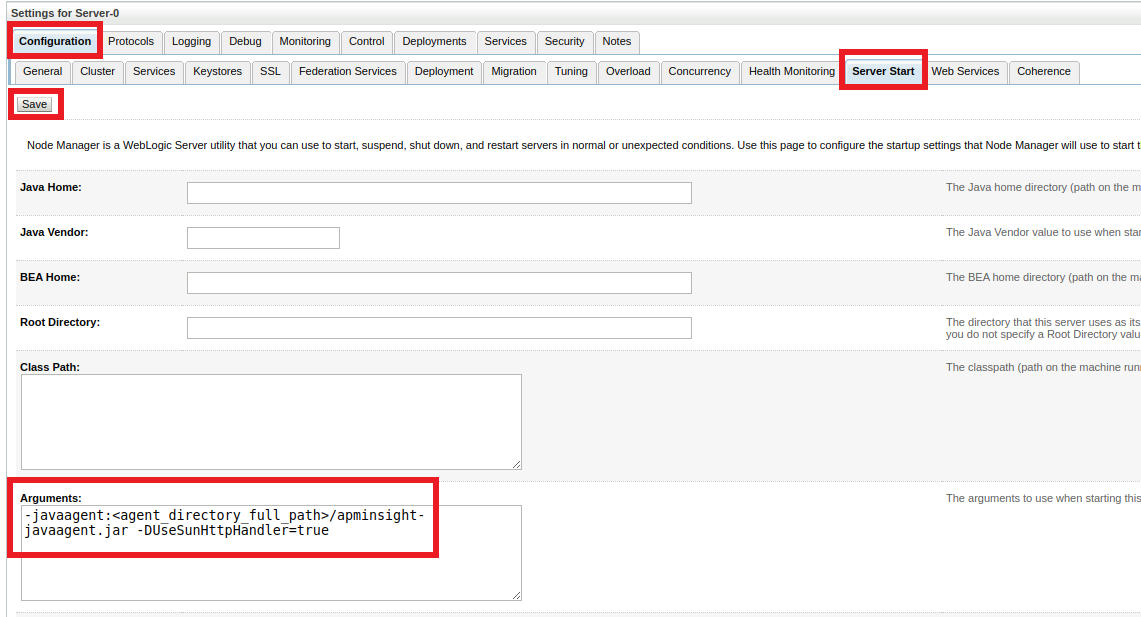
- Save the settings and start the WebLogic server.
Note: The application server user must have access to the agent-installed folder.