Applications Manager Plugin for OpManager
- Applications Manager Plugin - An Overview
- Editions Available for Installation
- Version Compatiblity
- Software Requirements for the Applications Manager Plug-in
- Instructions to apply Applications Manager plug-in
- Using the Applications Manager Plugin
- Adding new monitors in Applications Manager Plugin
- Auto-discovery in Applications Manager Plugin
- User Management in Applications Manager Plugin
- Configuring failover for Applications Manager Plugin
Applications Manager Plugin - An Overview
With the Applications Performance Management plug-in (APM Plugin) for OpManager, you can proactively monitor business applications and help businesses ensure their revenue-critical applications meet end-user expectations. This plug-in offers out-of-the-box monitoring support for 50+ applications and servers.
Monitoring Highlights:
- Automatic discovery of application servers, databases, services, systems, transactions, custom applications, virtual resources, and cloud apps in your heterogeneous data center.
- Experience comprehensive performance management of over 100 key performance indicators of your applications, including response time, resource availability, CPU/memory utilization, and more.
- Get a holistic view of your IT resources,s including a wide range of business applications and network services.
- Perform end-user experience monitoring of enterprise Internet Services and hosted Web Services from your branch offices; and measure the end-user experience of business-critical network services such as DNS, LDAP, Ping, and mail servers from customer locations.
- Effective, timely fault management with notification of problems through e-mail and SMS alerts.
- Powerful reporting capability with extensive coverage to help administrators in application troubleshooting & capacity planning.
Limitation: Users with business view restrictions in OpManager will not be synced to Applications Manager Plugin.
Editions Available for Installation
- Professional Edition - To install the Professional edition, the OpManager Standalone should be installed before installing the Applications Manager Plugin.
- Enterprise Edition - To install the Enterprise Edition, OpManager Central and OpManager Probe should be installed before installing the Enterprise Edition plugin.
Version compatibility of Applications Manager Plugin with OpManager
| OpManager Version | Recommended APM Plugin Version | Compatible APM Plugin Professional Edition | Compatible APM Plugin Enterprise Edition |
|---|---|---|---|
| 128628 and above | 181104 | 178100 and above | |
| 128510 to 128627 | 178005 | 174400 to 178099 | |
| 128168 to 128509 | 170010 | 170000 to 174399 | |
| 127185 to 128167 | 16846 | 16590 to 16999 | |
| 127131 to 127184 | 16574 | 16560 to 16580 | |
| 127000 to 127130 | 16516 | 16450 to 16550 | |
| 126306 to 126999 | 16424 | 16410 to 16440 | |
| 126262 to 126305 | 16367 | 16300 to 16390 | |
| 126167 to 126255 | 16213 | 16210 to 16250 | |
| 126132 to 126166 | 16135 | 16100 to 16200 | |
| 125630 to 126131 | 16093 | 15670 to 16093 | |
| 125614 to 125629 | 15653 | 15560 to 15660 | |
| 125561 to 125613 | 15512 | 15470 to 15550 | |
| 125468 to 125560 | 15402 | 15340 to 15402 | |
| 125393 to 125467 | 15225 | 15160 to 15330 | |
| 125307 to 125392 | 15007 | 15000 to 15150 | |
| 125214 | — | Professional: 14540 to 14700, or 14730 to 14911 | Enterprise: 14860 to 14911, or Hotfix 14843 to 14845 |
| 125000 | — | Professional: 14540 to 14700, or 14730 to 14911 | Enterprise: 14540 to 14700, or 14730 to 14780 |
Note: It is mandatory for customers to upgrade Applications Manager to 15160 if OpManager is upgraded to 125393 and vice versa.
| OpManager | Applications Manager Plugin (Both Standalone and EE) |
|---|---|
| Version 124070 | Versions 14310 to 14530 |
| Version 123150 | Versions 13730 to 14300 |
| Version 123111 Versions 123150 and below | Versions 13680 to 13720 with backup of conf files. Replace the old Plugin.properties file in OpManager\AppManager\conf. Update APM_BUILD_NUMBER with the correct version in Plugin.properties before restarting. |
| Version 12 and above Version 123111 and below | Versions 13110 to 13670 |
| Versions 11500 and 11600 | Versions 13010 and below |
Note: The Applications Manager plugin should be upgraded to version 14540 or above before upgrading OpManager from its service pack version 12.5
Software Requirements for the Applications Manager Plug-in
Please refer to this link for the recommended software requirements for installing and running the Applications Manager plug-in setup.
Instructions to apply Applications Manager plug-in
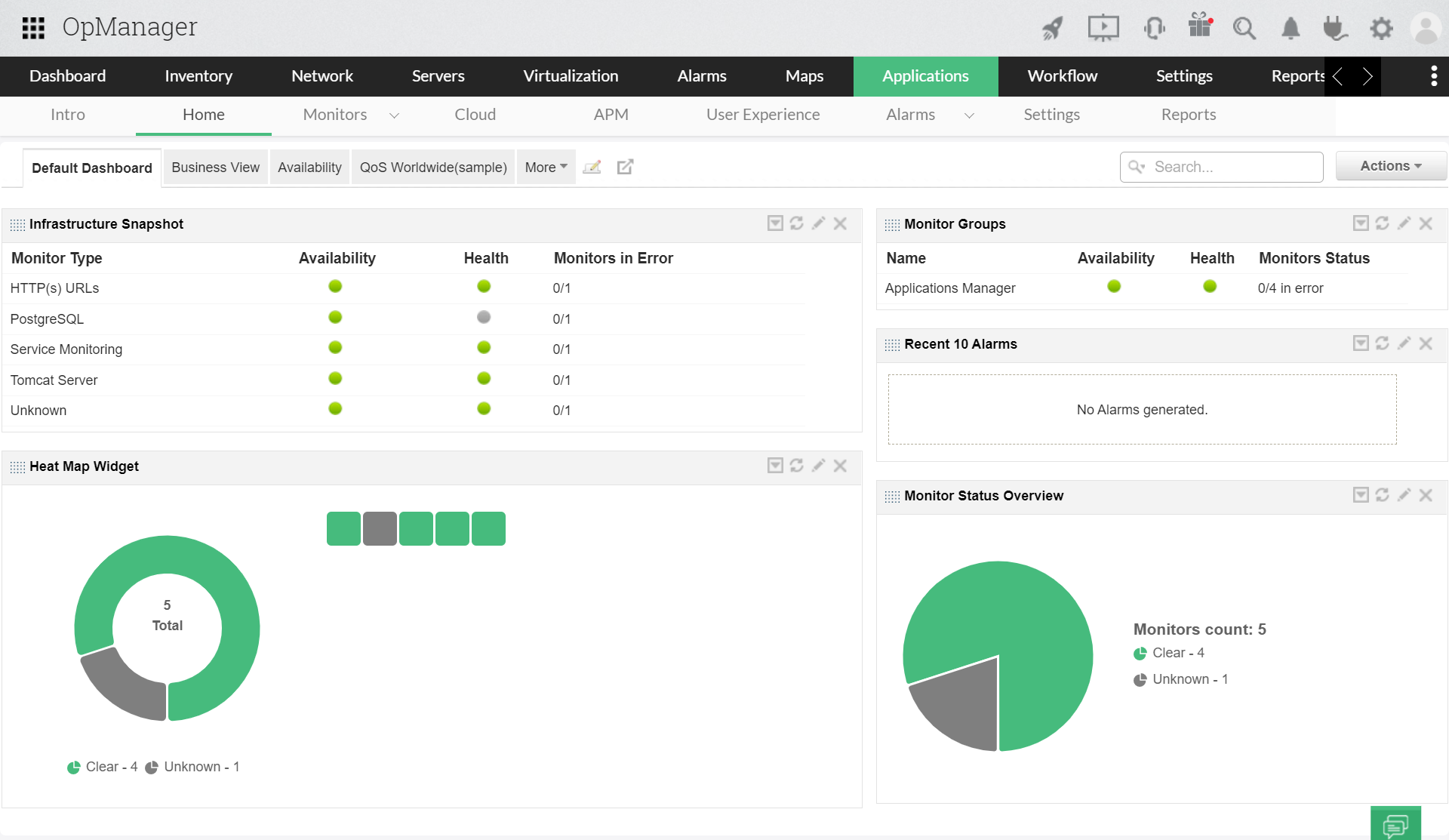
You can initiate the APM Plugin installation directly from the OpManager UI by navigating to the Applications tab and clicking the Download and Install button. Doing so will download the APM Plugin automatically and check whether the required prerequisites are met, after which it will initiate the installation process. Once the installation process is completed, you will automatically be redirected to the monitor dashboard of your APM Plugin console under the Applications tab.
Note: The Download and Install button will be displayed in the Applications tab only when the OpManager-installed machine has internet connectivity to access the ManageEngine site.
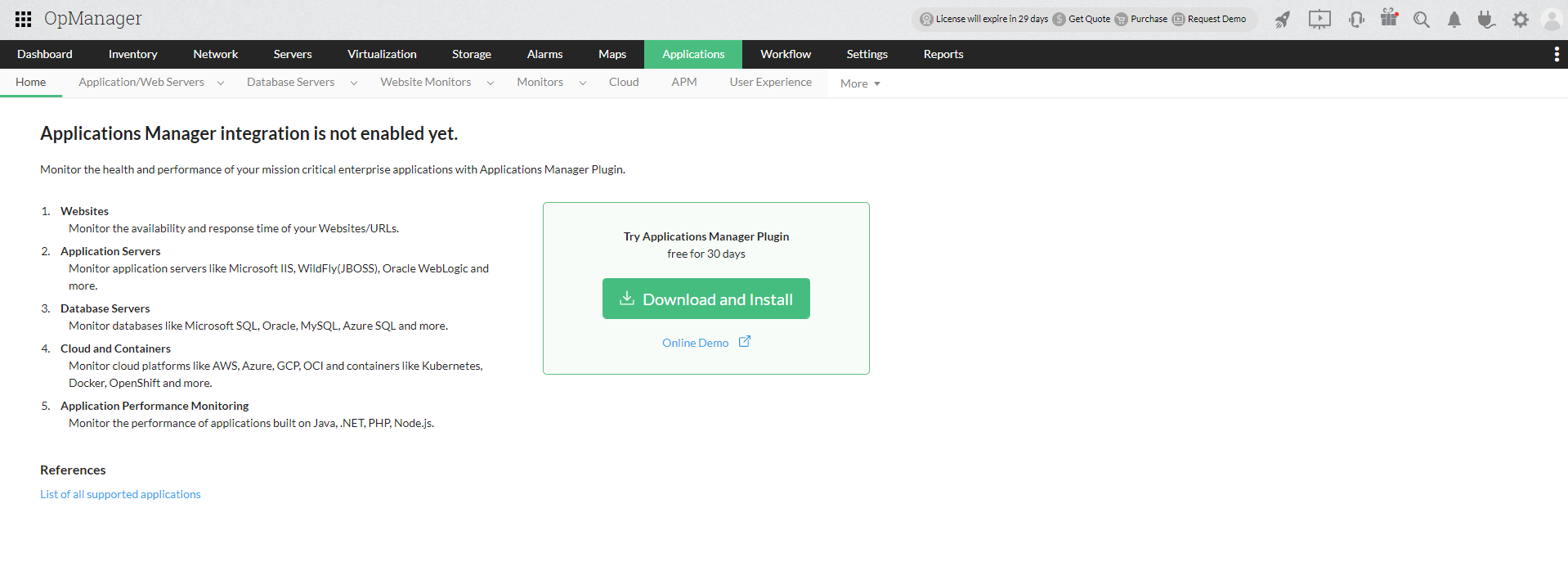
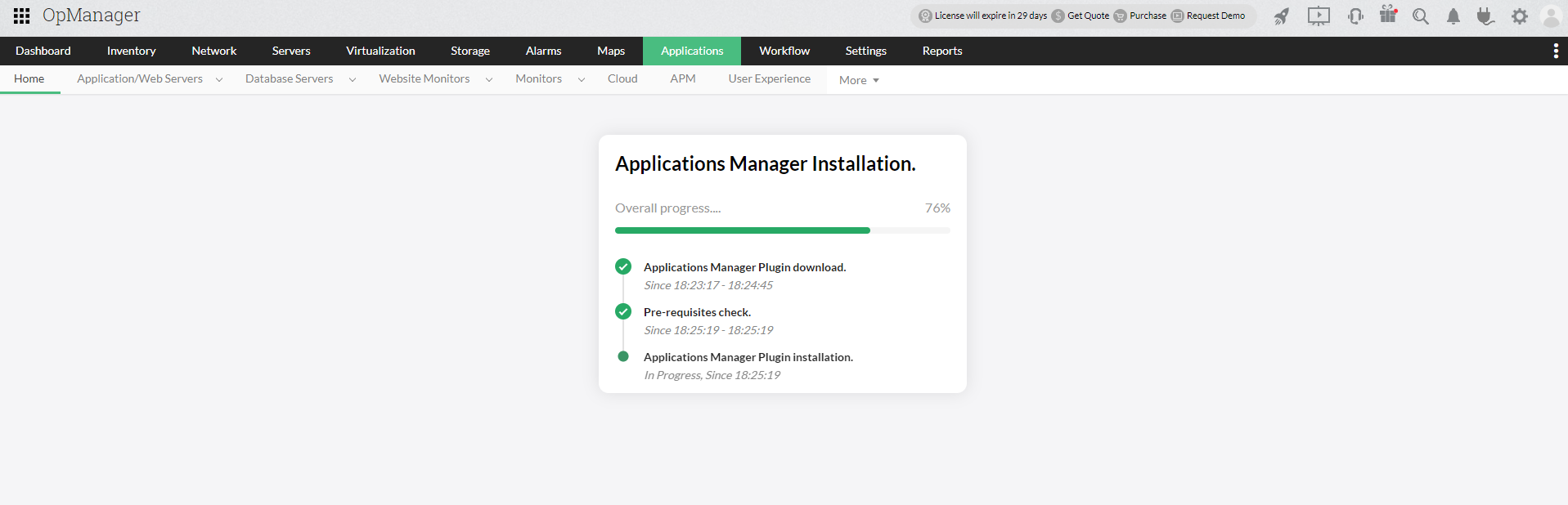
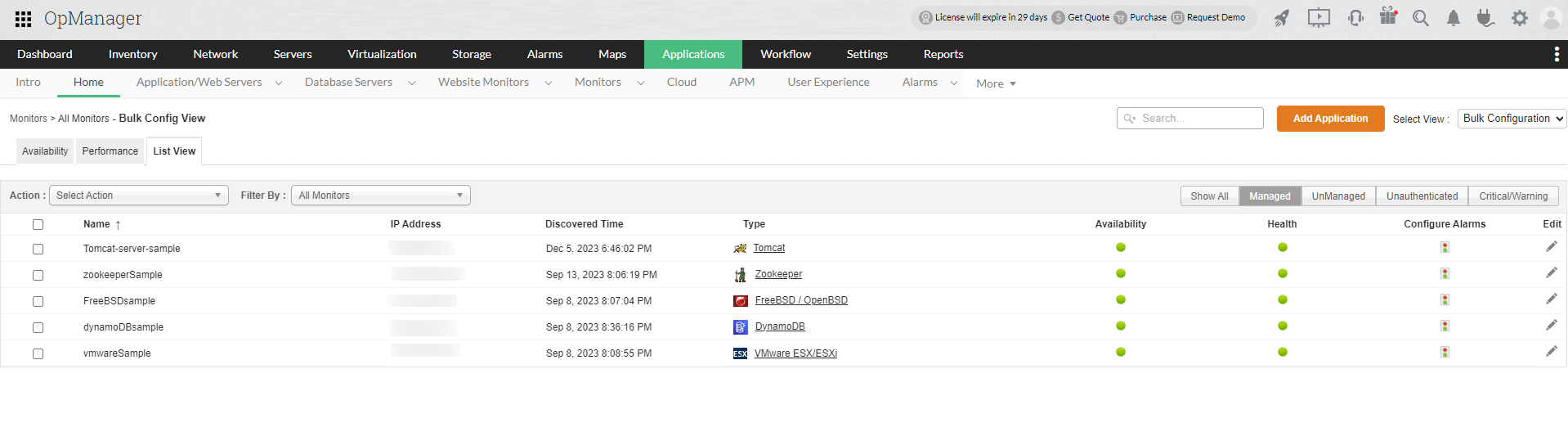
Alternatively, you can also install the APM Plugin manually for offline users by following the steps mentioned in this link.
Using the Applications Manager Plugin
In version 125614 of OpManager, Applications Manager can be accessible under “Dashboards → Servers → Applications” or by clicking the Applications tab directly.
Note:
- There is no need to apply a separate license file for the Applications Manager Plugin. It is included within the OpManager license.
- Alerts generated from the APM Plugin will be pushed to OpManager if a resource (Server device) is already added and monitored in OpManager. The alarm severity shown for that monitor in OpManager will be similar to that of the APM Plugin, except that 'Warning' severity will be shown as 'Trouble' in OpManager.
Adding new monitors in Applications Manager Plugin
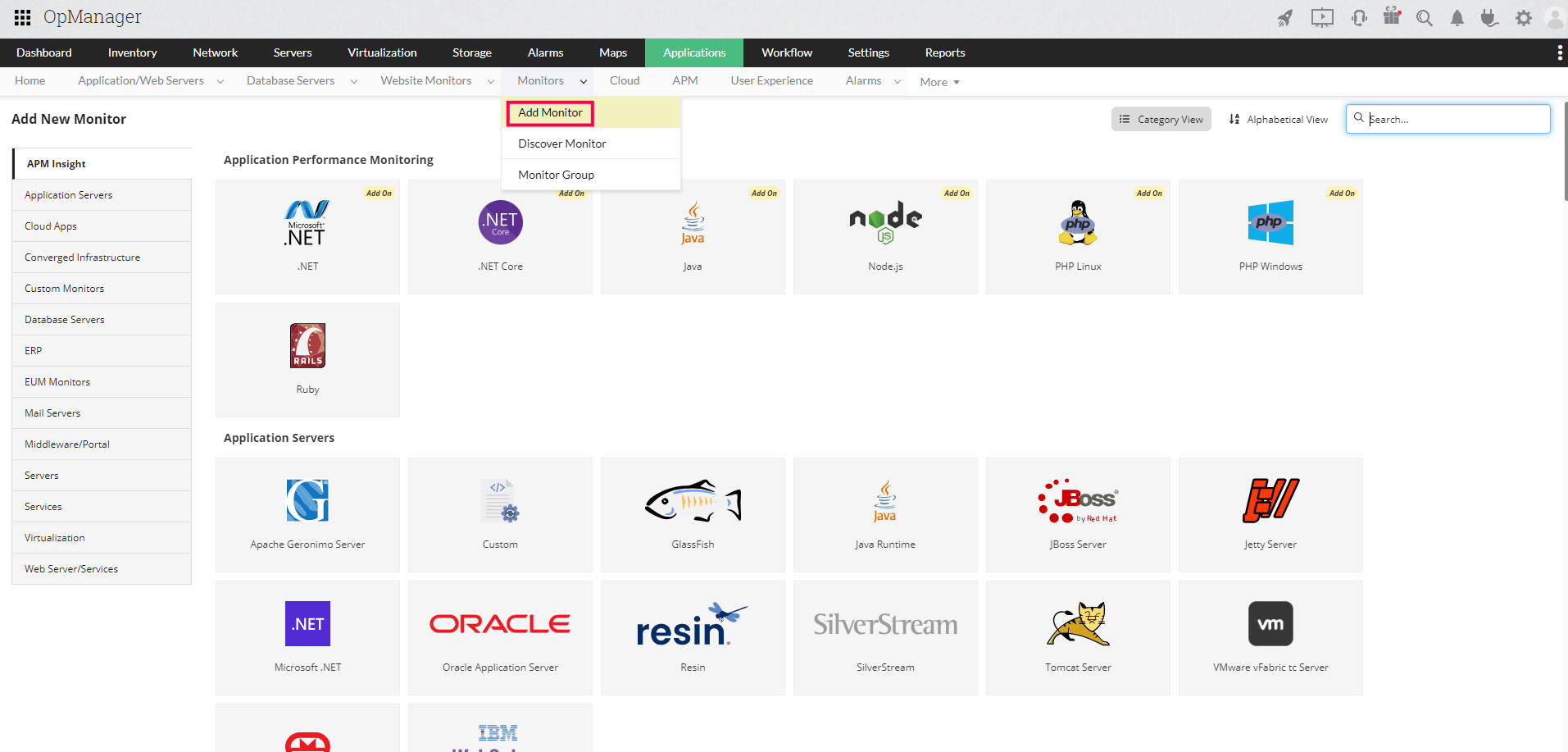
To add a new monitor in Applications Manager Plugin, go to the Applications tab and select the Add Monitor option under the Monitors dropdown. Upon selection, the Add New Monitor page will be displayed, where you can select the required monitors to be added.
Auto-discovery in Applications Manager Plugin
APM Plugin helps you to discover and monitor servers and their corresponding applications automatically from OpManager during initial startup. Auto-discovery in the plugin offers various configuration options that include disabling discovery, limiting the number of applications added, and prioritizing specific applications. To learn more, visit Plugin discovery.
Note: Auto-discovery occurs only upon initial startup of the APM Plugin for Trial and Professional Edition users in Windows.
User Management in Applications Manager Plugin
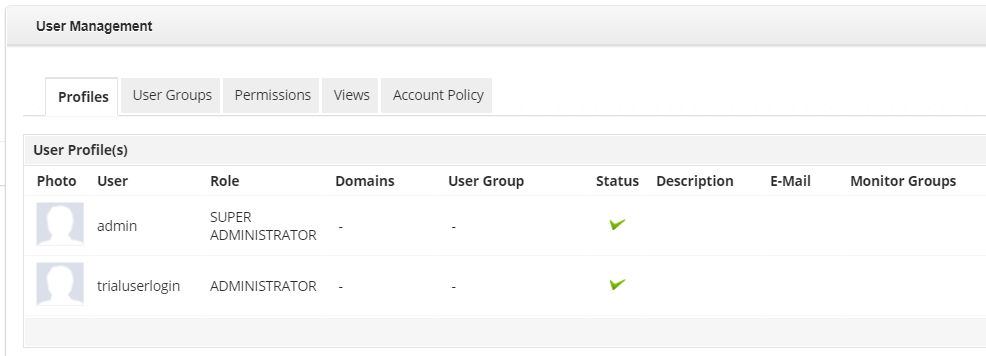
OpManager automatically creates user profiles in the Applications Manager plugin based on the OpManager users. To view Applications Manager plugin user profiles, navigate to Apps → Settings → User Management. The User Management dashboard will be displayed, where you will see 5 tabs - Profiles, User Groups, Permissions, Views and Account Policy.
Profiles: You will be able to view the list of user profiles available here. However, you will not be able to click or edit the user profile details such as User Name, Update Password, E-Mail, and Role.
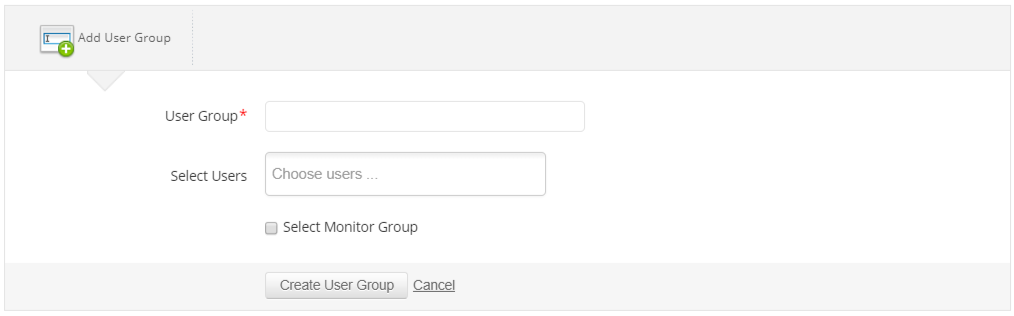
User Groups: You can add user groups and associate users with them here.
- Specify the User Group name.
- Select the users to be associated with the group.
- Select the monitor group to be associated with the user group.
- Click Create User Group to finish.
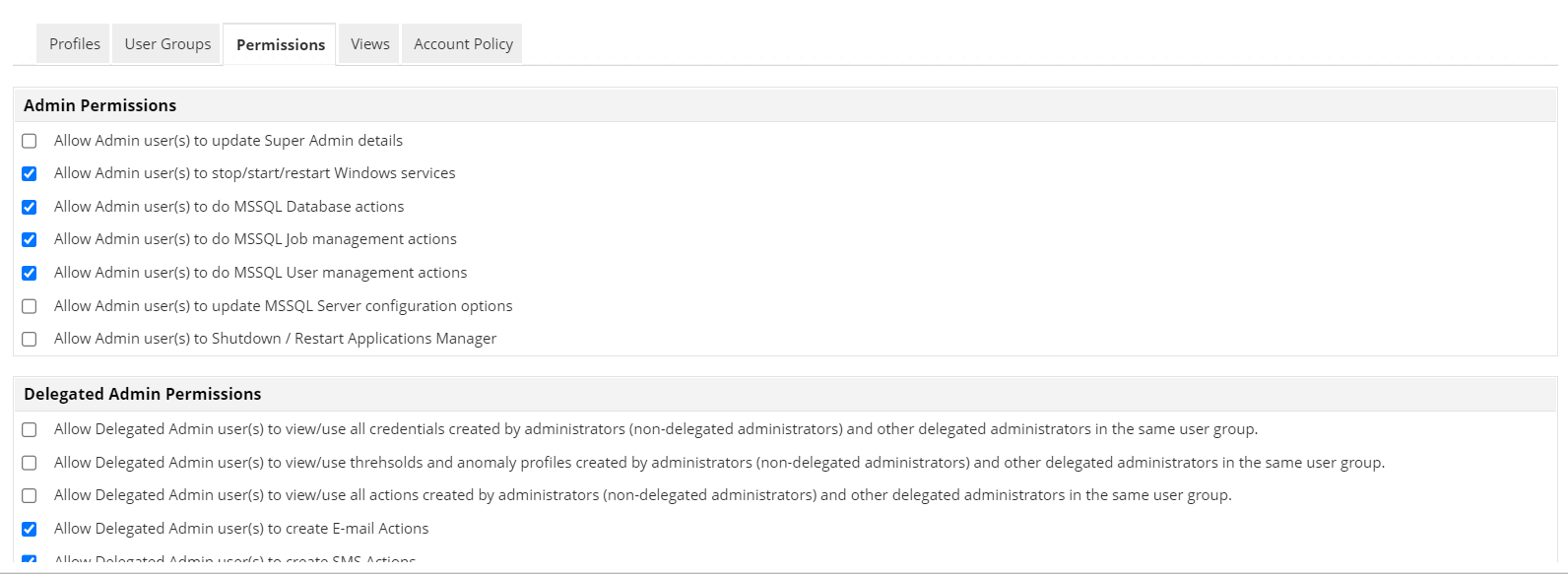
Permissions: A set of Admin, Delegated Admin, Operator, User and IBM i permissions are given, from which you can enable/disable the ones that are applicable to your infrastructure.
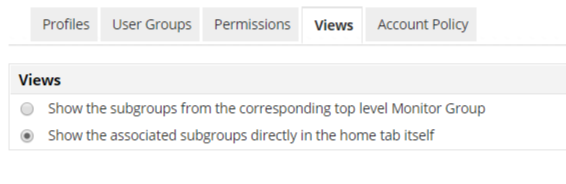
Views: Select how you view the monitors in the Home tab. You can choose between "Show the subgroups from the correspondingcorresponding top-levelp" and "Show the associated subgroups directly in the Home tab itself."
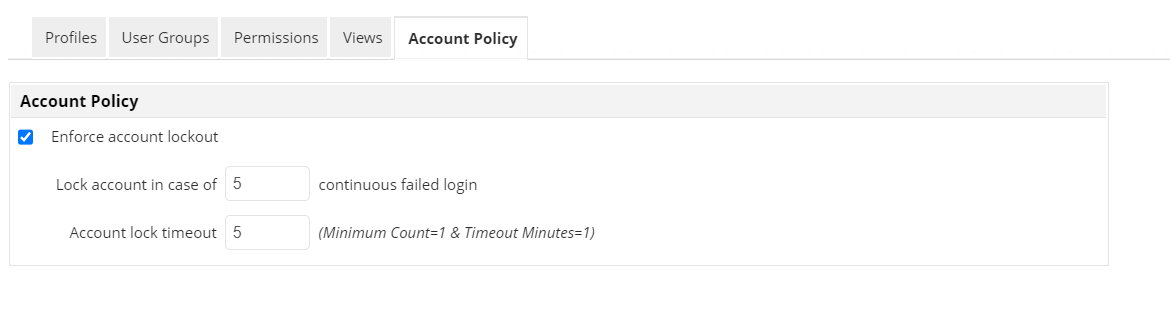
Account Policy: Option to Enforce account lockout is given here, wherein you can specify the number of continuous failed login attempts and idle session timeout (in minutes) after which the account should be locked.
Configuring failover for Applications Manager Plugin
To ensure high availability of the APM Plugin, a secondary server can be configured to act as a failover instance. This setup involves pointing the secondary APM Plugin server to the same database as the primary server. Follow the steps below to configure failover:
- Install the secondary APM Plugin on the server where the secondary OpManager (OPM) instance is installed.
- Navigate to the installation directory of the secondary server and open the Plugin.properties file located at: < Plugin_Installation_Directory>/conf/Plugin.properties.
- Ensure the value of APM_DBNAME matches the database name used by the primary Plugin server.
- Save any changes made to the Plugin.properties file.
- Start the OPM secondary server.
Note:
- Ensure that the secondary Plugin server is compatible with the primary Plugin server's version.
- The secondary Plugin server should not be directly started using the script file. OpManager controls the start and stop of the APM Plugin secondary server.
- Applications Manager requires a separate installation on both failover servers. On the secondary server, ensure that the APM folder is shared and the required permissions are granted. See the step-by-step instructions.
Since the APM Plugin uses the same database server as OpManager, you only need to configure failover for the OpManager database server. To learn how to configure failover for the OpManager database server, click here.