Integrating with ServiceDesk Plus (SDP) MSP
Overview
About the integration
ServiceDesk Plus - MSP help-desk software is specifically built for managed service providers. ServiceDesk Plus - MSP helps service providers. With the integrated Applications Manager and ServiceDesk Plus management solution, service providers like can get end-to-end visibility of your client's IT infrastructure.
Logging trouble tickets
Applications Manager has the ability to automatically log trouble tickets for a specific alarms and to notify the concerned technician when a particular process exceeds the set threshold point. Along with the provision to e-mail, SMS, and other notifications, alarms can also be tracked by automatically logging trouble tickets to ServiceDesk Plus. Applications Manager takes care of the two way synching of Alerts & Tickets status from SDP. For example, you can automatically log a ticket when an alarm is raised, reopen the ticket whenever an alarm reoccurs or close the ticket if the alarm is cleared. In addition to this, the alerts under the Alarms tab include a Ticket Icon which loads the ticket raised when clicked on. Learn more
Version Compatibility
Below is the version compatibility of Applications Manager with ServiceDesk Plus MSP (SDP MSP):
| Applications Manager Version | SDP MSP Version |
|---|---|
| 16510 and above | 14302 and above |
| 16280 and above | 13000 and above |
| 15510 and above | 10600 and above |
| 15500 and below | Below 10600 |
Configuring ServiceDesk Plus in Applications Manager
This section describes the method in which ServiceDesk Plus Settings are to be configured in Applications Manager:
Prerequisites
- ServiceDesk Plus must be reachable from Applications Manager
- The technician used to integrate ServiceDesk Plus MSP with Applications Manager must have SDAdmin privilege. This is to allow access to the form data from ServiceDesk Plus MSP so that it can be loaded in the Create a new ticket action page in Applications Manager.
Steps to configure
- Under Settings tab, click on Add-On Settings under Product Settings.
- Click on the Add icon shown under the ServiceDesk Plus MSP section. This will take you to the ServiceDesk Plus MSP Server Details page.
Configuring ServiceDesk Plus Settings in Applications Manager is done using REST APIs, which uses the REST API key to authenticate the SDP user account and to perform ticket operations instantly, as well as automatic closure of tickets. Follow the steps below to configure ServiceDesk Plus Settings in Applications Manager using REST API:
- Under the ManageEngine ServiceDesk Plus Server Details section, select the product as ServiceDesk Plus - MSP.
- Enter the Server Name and Port Number where ServiceDesk Plus is running
Enter the REST API key, which can be obtained by adding/editing the required technician, enabling login for the technician and then generating the API key for that technician under Admin → Users & Permissions → Techniciansin ServiceDesk Plus MSP console.
Note: Make sure that the technician whose API key you are using has SDAdmin - Administrator privilege, which can be selected from the Assigned Roles field for the technician in ServiceDesk Plus MSP console.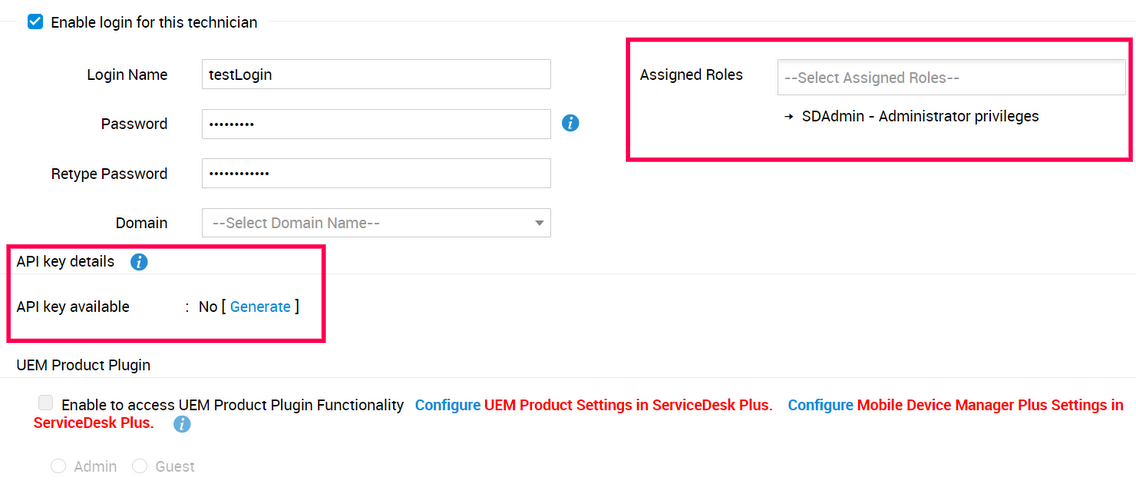
- Select one of the given protocols: http or https(SSL).
- Enable the Mail Notification for Connectivity Failuretoggle button if you wish to trigger mail notifications in case of connectivity failures. After enabling this option, enter the following details:
- Configure the email to which the notification has to be sent. You can configure either by choosing Admin email (Mail address configured for the admin user or the mail address in SMTP configuration) or by selecting email actions to be triggered for the selected email from the dropdown.
- Enable the Append Custom Message checkbox if you want to append customized text messages along with the mail notification.
- Enable the Repeat mails until successful connection checkbox to repeat mail notifications until connection is established successfully. After enabling, specify the Repeat Interval (in minutes) after which mail notification has to be repeated.
- By enabling Log tickets toggle button you have the option to configure Ticket Settings.
- Test if the connection is working and save the settings.
Note: The connectivity status of the ServiceDesk Plus MSP will be notified through In-app notifications (product bell icon).
Ticket Settings
You can configure the following settings:Reopen Settings
- Set Applications Manager to perform one of the following actions when an alarm is raised again for a closed ticket:
- To reopen the ticket whenever an alarm is reoccured.
- To reopen the ticket within a certain number of days from the closed time. If the ticket is not reopened, a new ticket is automatically created. (To reopen the ticket whenever an alarm is reoccured within a certain number of days else open a new ticket.)
- To create a new ticket or to open a new ticket whenever an alarm has re-occured.
- Set Applications Manager to perform one of the following actions when an alarm is raised again for a resolved ticket:
- To reopen the ticket whenever an alarm is re-occured.
- To reopen the ticket within a certain number of days from the closed time. If the ticket is not reopened, a new ticket is automatically created. (To reopen the ticket whenever an alarm is reoccured within a certain number of days, else open a new ticket.)
- To create a new ticket or to open a new ticket whenever an alarm has re-occured.
- Set Applications Manager to perform one of the following actions when an alarm is raised for an entity that was previously clear and if the existing ticket in HelpDesk is not closed/resolved:
- To update the existing ticket whenever an alarm is re-occured.
- To update the existing ticket within a certain number of days from the clear alert. If the ticket is not updated, a new ticket is automatically created. (To update the existing ticket whenever an alarm is reoccured within a certain number of days, else open a new ticket.)
- To update the notes associated with that ticket.
- To create a new ticket or to open a new ticket whenever an alarm has re-occured.
- Enable on-demand ticket generation using :
- Raise a ticket action, so that you can raise a ticket on demand using a ticket action from alarms page. The new on-demand tickets are mapped to the respective configuration items.
- Request Form, so that you can raise a ticket on demand using the request form from alarms page. The new on-demand tickets are mapped to the respective configuration items.
Update Settings
- Set Applications Manager to perform one of the following actions when the severity of an alarm is changed / RCA of the alarm is updated for an already created ticket:
- To update the ticket.
- To update the notes associated with that ticket.
- Set Applications Manager to perform one of the following actions when an alarm is cleared for a ticket:
- To close the ticket.
- To update the notes associated with that ticket.
- Set Applications Manager to perform one of the following actions when a monitor or a ticket action or a metric is deleted for a ticket:
- To close the ticket.
- To update the notes associated with that ticket.
- Update the ticket only if there is a status change in the alarm.
- If enabled, action is triggered only when there is a status change in alarm.
- Add notes for the ticket whenever an annotation is made for the alarm.
Accessing from Applications Manager
- Access ticket details from Application Manager. User can access the ticket details from the ticket details link in the alert details page.
- Launch Read-only ticket. When selected, the ticket details launched from Applications Manager would be read only.
- Over-write the request template with the fields selected in the action profile.
- This option is disabled by default. In Log a ticket action, on selecting the Incident template, the other fields will be hidden. The default values of the Incident template chosen would be used to log the trouble ticket in ServiceDesk Plus.
- If enabled, the other fields will become visible, thereby, allowing the user to modify the default fields of the Incident template.
Note:
- CI Sync is not supported in ServiceDesk Plus - MSP, so you will not be able to use the CMDB modules.
- It is mandatory to have sample account and site if you are using SDP-MSP as add-on product. In case, if the sample account and site are deleted from SDP-MSP, tickets action will not get executed during Add on Configuration.