Service Packs

Important :

Kindly identify your build number and follow the sequence as given in the table below to move to the latest version: (How can I find my Build number?)

To upgrade Asset Explorer, import the certificate linked below during the upgrade process:

Click here to learn more about the upgrade process.

If you are a new user, download AssetExplorer directly.

Migrate from Build
7300, ...,7530 to 7540

Migrate from Build
7540, ...,7670 to 7700

Migrate from Build
7700, ...,7740 to 7750

Customers using build 7300, ..., 7530 can install this Upgrade pack to migrate to Build 7540.Customers using build 7540, ..., 7670 can install this Upgrade pack to migrate to Build 7700.Customers using build 7700, ..., 7740 can install this Upgrade pack to migrate to Build 7750.
Hotfix

SHA256 Value - d3529e8486255b3b3082ac09e267d7907611a34fa0ff6cac86b93882f0a0036b

Hotfix

SHA256 Value - 9e7962fa8e5e9e6706d5069c8bad6ad6455ba17bc36053a242dec5994996c0b2

Hotfix

SHA256 Value - 909f95e5a9db3a6e1156197dd082a1e0d0b5b1ae2180ad503f895e2033fdb317

Skip the forced backup Entry :
-DSkipForcedBackUp_7540=true

Know more

Skip the forced backup Entry :
-DSkipForcedBackUp_7700=true

Know more

Windows

  • Go to <installation directory>\bin\scripts
  • Open UpdMgr.bat, find java" -Xmx2512m %JAVA_OPTS% -Dtier-type=BE and add -DSkipForcedBackUp_7540=true
  • Save and execute the file to skip the forced backup process.

Linux

  • Go to <installation directory>\bin
  • Open UpdateManager.sh, find $JAVA -Xmx2512m $JAVA_OPTS -Dtier-type=BE and add -DSkipForcedBackUp_7540=true
  • Save and execute the file to skip the forced backup process.

Windows

  • Go to <installation directory>\bin\scripts
  • Open UpdMgr.bat, find java" -Xmx2512m %JAVA_OPTS% -Dtier-type=BE and add -DSkipForcedBackUp_7540=true
  • Save and execute the file to skip the forced backup process.

Linux

  • Go to <installation directory>\bin
  • Open UpdateManager.sh, find $JAVA -Xmx2512m $JAVA_OPTS -Dtier-type=BE and add -DSkipForcedBackUp_7540=true
  • Save and execute the file to skip the forced backup process.

Windows

  • Go to <installation directory>\bin\scripts
  • Open UpdMgr.bat, find java" -Xmx2512m %JAVA_OPTS% -Dtier-type=BE and add -DSkipForcedBackUp_7700=true
  • Save and execute the file to skip the forced backup process.

Linux

  • Go to <installation directory>\bin
  • Open UpdateManager.sh, find $JAVA -Xmx2512m $JAVA_OPTS -Dtier-type=BE and add -DSkipForcedBackUp_7700=true
  • Save and execute the file to skip the forced backup process.

Windows

  • Go to <installation directory>\bin\scripts
  • Open UpdMgr.bat, find java" -Xmx2512m %JAVA_OPTS% -Dtier-type=BE and add -DSkipForcedBackUp_7710=true
  • Save and execute the file to skip the forced backup process.

Linux

  • Go to <installation directory>\bin
  • Open UpdateManager.sh, find $JAVA -Xmx2512m $JAVA_OPTS -Dtier-type=BE and add -DSkipForcedBackUp_7710=true
  • Save and execute the file to skip the forced backup process.
How to Install | READMEHow to Install | READMEHow to Install | README
Current BuildNext BuildServicePacks/Hotfix
72007300
Download Service Pack Service Pack

SHA256 Value - 87a25d2847e8623bc561bca531da97de51fdb753a168e6653f803457ec430ecd

Skip the forced backup Entry :
-DSkipForcedBackUp_7300=true

Know more

Windows

  • Go to <installation directory>\bin\scripts
  • Open UpdMgr.bat, find java" -Xmx2512m %JAVA_OPTS% -Dtier-type=BE and add -DSkipForcedBackUp_7300=true
  • Save and execute the file to skip the forced backup process.

Linux

  • Go to <installation directory>\bin
  • Open UpdateManager.sh, find $JAVA -Xmx2512m $JAVA_OPTS -Dtier-type=BE and add -DSkipForcedBackUp_7300=true
  • Save and execute the file to skip the forced backup process.
70007200
Download Service Pack Service Pack

SHA256 Value - c65ca03b4270758e504263acc9604a35f4c002d7224f50e8de62a3aa61cf14ec

Skip the forced backup Entry :
-DSkipForcedBackUp_7200=true

Know more

Windows

  • Go to <installation directory>\bin\scripts
  • Open UpdMgr.bat, find java" -Xmx2512m %JAVA_OPTS% -Dtier-type=BE and add -DSkipForcedBackUp_7200=true
  • Save and execute the file to skip the forced backup process.

Linux

  • Go to <installation directory>\bin
  • Open UpdateManager.sh, find $JAVA -Xmx2512m $JAVA_OPTS -Dtier-type=BE and add -DSkipForcedBackUp_7200=true
  • Save and execute the file to skip the forced backup process.
69947000
Download Service Pack Service Pack

SHA256 Value - 9392787c2e6561f7c417e527adcff9ac2ed5d4c8a4474a14ff8479de385c0d2e

Skip the forced backup Entry :
-DSkipForcedBackUp_7000=true

Know more

Windows

  • Go to <installation directory>\bin\scripts
  • Open UpdMgr.bat, find java" -Xmx2512m %JAVA_OPTS% -Dtier-type=BE and add -DSkipForcedBackUp_7000=true
  • Save and execute the file to skip the forced backup process.

Linux

  • Go to <installation directory>\bin
  • Open UpdateManager.sh, find $JAVA -Xmx2512m $JAVA_OPTS -Dtier-type=BE and add -DSkipForcedBackUp_7000=true
  • Save and execute the file to skip the forced backup process.
69706994Download Service Pack Service Pack

SHA256 Value - b0c0134484f84f67a7192ed8555ed1e9282f456c61c82e872b8782f544ccd9ef

68006970
  • Windows

    Download Service Pack Service Pack

    SHA256 Value - 5e5274e9c3b5bfdb7d55e33034b0d067d007a6de78876b7d7a1c1eb7fb447123

  • Linux

    Download Service Pack Service Pack

    SHA256 Value - 6a72b893e9bc0cf5f7577a26cffd18dc29509a8cfc3b639971590ba85ef7febd

Skip the forced backup Entry :
-DSkipForcedBackUp_6970=true

Know more

Windows

  • Go to <installation directory>\bin\scripts
  • Open UpdMgr.bat, find java" -Xmx2512m %JAVA_OPTS% -Dtier-type=BE and add -DSkipForcedBackUp_6970=true
  • Save and execute the file to skip the forced backup process.

Linux

  • Go to <installation directory>\bin
  • Open UpdateManager.sh, find $JAVA -Xmx2512m $JAVA_OPTS -Dtier-type=BE and add -DSkipForcedBackUp_6970=true
  • Save and execute the file to skip the forced backup process.
67006800Download Service Pack Service Pack

SHA256 Value - 6fecc535b4260aa06aa0c3f943ba95029faf38d8cf61c9bb710f7030b9e36822

Skip the forced backup Entry :
-DSkipForcedBackUp_6800=true

Know more

Windows

  • Go to <installation directory>\bin\scripts
  • Open UpdMgr.bat, find java" -Xmx2512m %JAVA_OPTS% -Dtier-type=BE and add -DSkipForcedBackUp_6800=true
  • Save and execute the file to skip the forced backup process.

Linux

  • Go to <installation directory>\bin
  • Open UpdateManager.sh, find $JAVA -Xmx2512m $JAVA_OPTS -Dtier-type=BE and add -DSkipForcedBackUp_6800=true
  • Save and execute the file to skip the forced backup process.
66006700Download Service Pack Service Pack

SHA256 Value - 57f2e013bdae3e3db81aff10ffbf08ff48b23c17458dbc135cb77f51421c0352

Skip the forced backup Entry :
-DSkipForcedBackUp_6700=true

Know more

Windows

  • Go to <installation directory>\bin\scripts
  • Open UpdMgr.bat, find java" -Xmx2512m %JAVA_OPTS% -Dtier-type=BE and add -DSkipForcedBackUp_6700=true
  • Save and execute the file to skip the forced backup process.

Linux

  • Go to <installation directory>\bin
  • Open UpdateManager.sh, find $JAVA -Xmx2512m $JAVA_OPTS -Dtier-type=BE and add -DSkipForcedBackUp_6700=true
  • Save and execute the file to skip the forced backup process.
65046600Download Service Pack Service Pack

SHA256 Value - 8601c6594ca86671b25a2bf08598ac30319a1b53d49053bc4b7c591ce0039fda

Skip the forced backup Entry :
-DSkipForcedBackUp_6600=true

Know more

Windows

  • Go to <installation directory>\bin\scripts
  • Open UpdMgr.bat, find java" -Xmx2512m %JAVA_OPTS% -Dtier-type=BE and add -DSkipForcedBackUp_6600=true
  • Save and execute the file to skip the forced backup process.

Linux

  • Go to <installation directory>\bin
  • Open UpdateManager.sh, find $JAVA -Xmx2512m $JAVA_OPTS -Dtier-type=BE and add -DSkipForcedBackUp_6600=true
  • Save and execute the file to skip the forced backup process.
6500, ..., 65036504Download Service Pack Service Pack

SHA256 Value - 9d066cbd0c9dddc6ea16fd67d70ace563b075e41bee1d00ee604a9316cc3fbce

62146500
  • Windows

    Download Service Pack Service Pack

    SHA256 Value - 3b948bcdc9391b5df59ca8be7325189ec658aca0abf42c4333d99a5b47f55a38

  • Linux

    Download Service Pack Service Pack

    SHA256 Value - d5f7a6afb924e6c4aa24ae2b995d6a8175b85b1ca9429d58ec1b1a43b7b8fe99

Skip the forced backup Entry :
-DSkipForcedBackUp_6500=true

Know more

Windows

  • Go to <installation directory>\bin\scripts
  • Open UpdMgr.bat, find java -Xmx2512m %JAVA_OPTS% -Dtier-type=BE and add -DSkipForcedBackUp_6500=true
  • Save and execute the file to skip the forced backup process.

Linux

  • Go to <installation directory>\bin
  • Open UpdateManager.sh, find $JAVA -Xmx2512m $JAVA_OPTS -Dtier-type=BE and add -DSkipForcedBackUp_6500=true
  • Save and execute the file to skip the forced backup process.
62006214Download Service Pack Service Pack

SHA256 Value - 95a924ca4105d826f8d6a30727879aa8f61bb0e3cd93c26d83d5346e08a08f64

6131,61326200Download Service Pack Service Pack
6116, 6117, ... 61316132Download Service Pack Service Pack
61156116Download Service Pack Service Pack
6104, ... 61146115Download Service Pack Service Pack
6100, 6101, 6102, 61036104Download Service Pack Service Pack
60006100Download Service Pack Service Pack
56186000Download Service Pack Service Pack
5614-56175618Download Service Pack Service Pack
5607-56135614Download Service Pack Service Pack
56065607Download Service Pack Service Pack
56005606Download Service Pack Service Pack
55045600Download Service Pack Service Pack
5500 , 5501, 5502, 55035504Download Service Pack Service Pack
51035500Download Service Pack Service Pack
5000 - 5005, 5100 - 51025103Download Service Pack Service Pack

Instructions to apply the Service Pack/Hotfix

  • Shut down AssetExplorer. (If AssetExplorer is running as a service, stop the service from Control Panel > Services window)
  • Take a backup of the existing build for security reasons. From command prompt, move to\bin directory and execute backUpData.bat. This will start the backup. cmd>[assetexplorer home]\bin cmd>backUpData.bat where, assetexplorer home -> C:\ManageEngine\assetexplorer

NOTE: Taking a backup is essential to revert to the existing build without any loss of data if the upgrade fails due to unexpected reasons. The backup is stored under Backup folder in Assetexplorer Home directory.

  • Run the script 'UpdateManager.bat (UpdateManager.sh for Linux) in the/bin folder. This opens the Update Manager tool.
  • Click "Browse" to select the Upgrade Pack file (the .ppm file that you'd downloaded) and then click "Install"
  • Follow the on-screen instructions to apply the Service/Upgrade Pack.
  • Once the upgrade is complete, start AssetExplorer Server.

If you need any assistance or clarifications, please contact assetexplorer-support@manageengine.com

How can I find the Build Number of AssetExplorer?

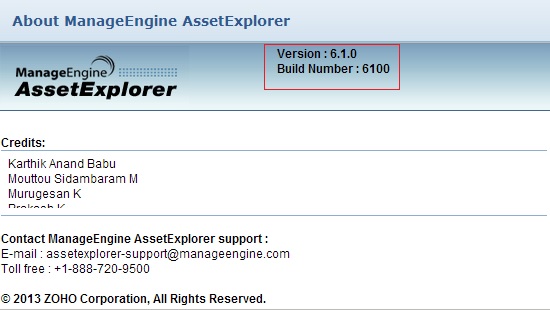
In the AssetExplorer web client, click the "About" link at top right of the page.You should see the Build number mentioned on the top right of the page.

Check the below image to locate the build number.
ae-build


Upgrade to version 6954 and later:

With Asset Explorer 6954, the Update Manager application is already upgraded for security reasons. Therefore, users who wish to migrate to Asset Explorer 6954 and later must import a certificate before installing the PPM. This is a one-time process and the certificate will be automatically applied during future upgrades.

Click here to download the certificate.

To perform the upgrade,

    • Open command prompt.
    • Navigate to [AE_Home]/bin folder and execute the following command to open the Update Manager tool:
      • For Windows: UpdateManager.bat
      • For Linux: UpdateManager.sh
    • Click Browse.
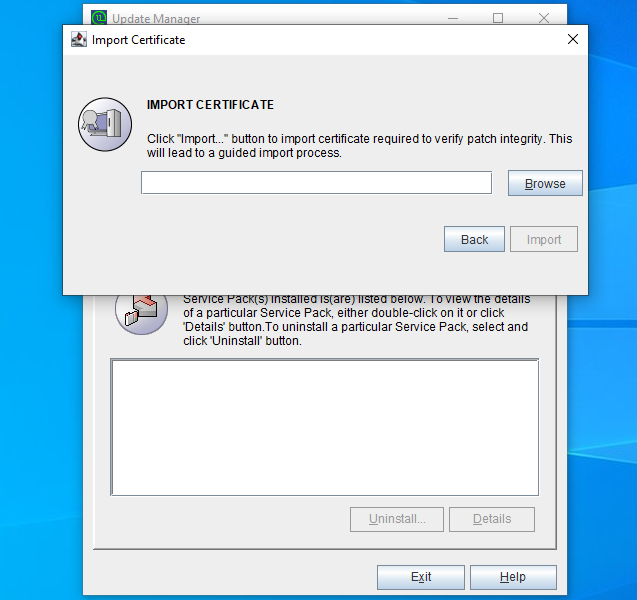
    • Select the downloaded PPM file and click Install. The import certificate dialog box appears as given below:
The import certificate

  • Click Browse and import the certificate.
  • Click Import. Follow the on-screen instructions and continue the upgrade process.
  • Start Asset Explorer server after the upgrade is complete.

To apply patch from console,

    • Run the following command to start the upgrade:
      For Windows: Go to <AE home>/bin/scripts in command prompt, and execute the following command:
      UpdMgr.bat -u conf -c -option i -ppmPath <Downloaded Service Pack file path> -h .\
      For Linux : Go to <AE home>/bin in terminal and execute the following command :
      bash UpdateManager.sh -u conf -c -option i -ppmPath <Downloaded Service Pack file path> -h .\
    • A message will be displayed as given below:

  • Enter the path of the downloaded certificate and press Enter.
  • Follow the on-screen instructions and continue the upgrade process.
  • Start the Asset Explorer server after the upgrade is complete.

Need help ?

Want help with upgrading AssetExplorer to the latest version? Contact AssetExplorer Support