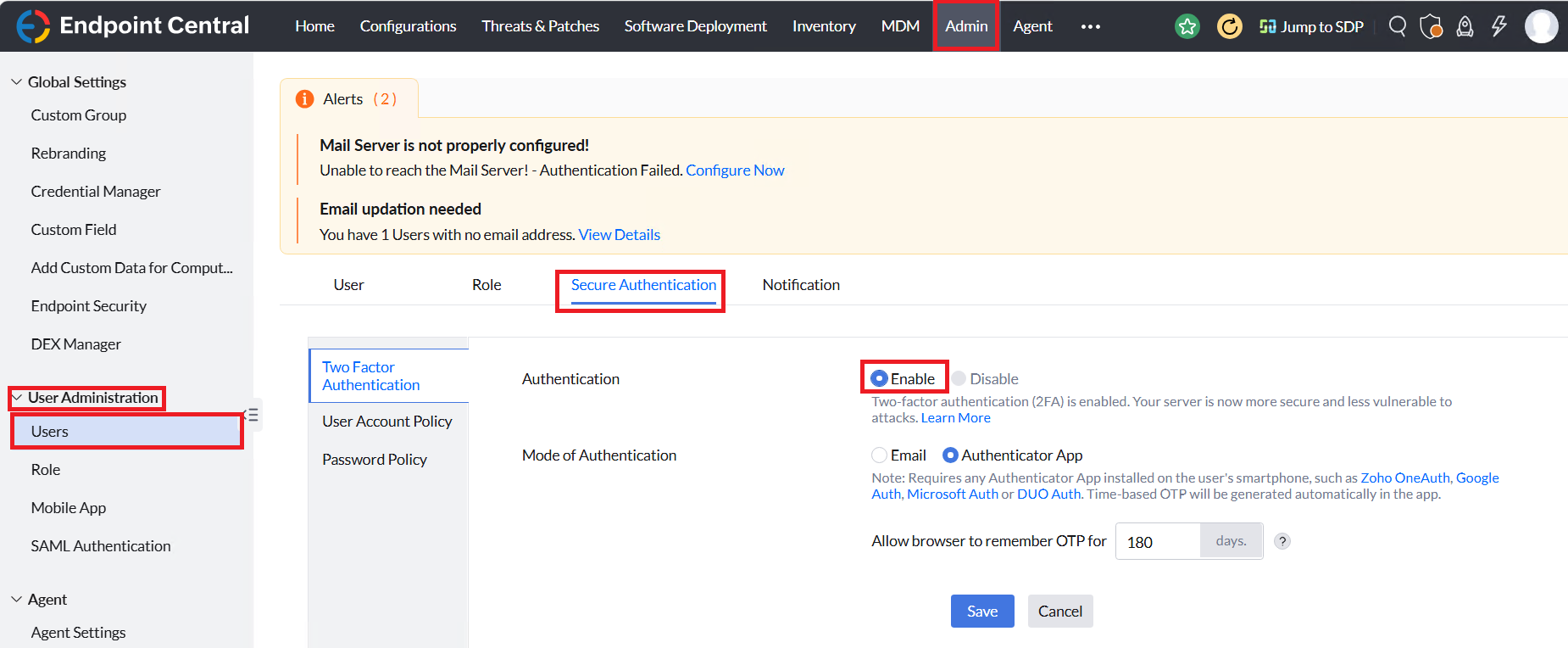
How do I disable two-factor authentication in Endpoint Central when User/Administrator cannot access Authenticator?
The user/administrator can contact other users with administrator privileges to restore two-factor authentication using Authenticator. Administrators can regenerate the QR code via e-mail from Admin tab -> User Administration -> Actions (Under the appropriate user) -> Regenerate QR Code. Then, proceed to open the respective authenticator app to receive the new QR code that has been generated.
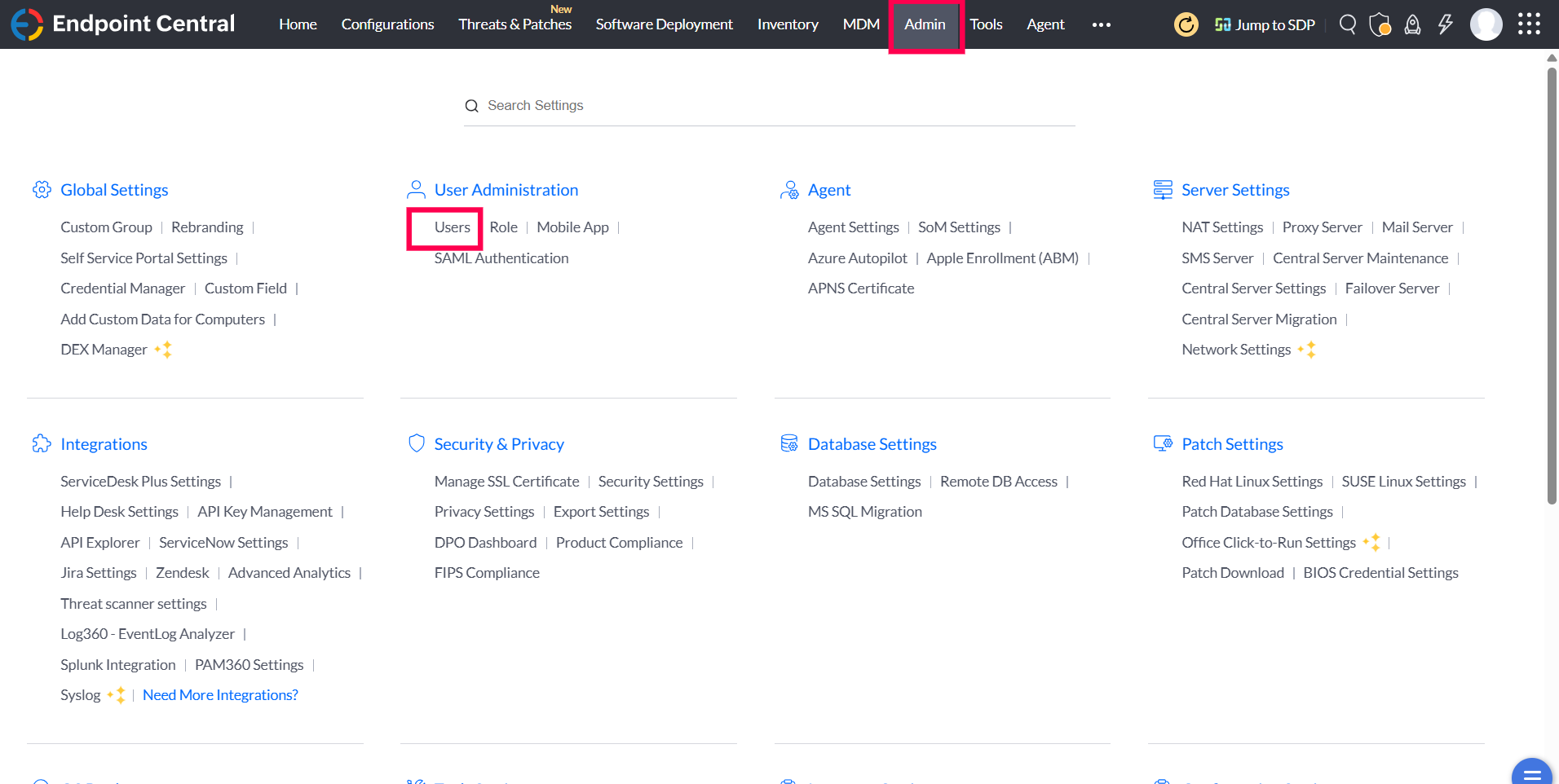

How to disable two-factor authentication if there are no other administrators available or email server is unreachable?
Follow the below steps to disable the two-factor authentication.
These steps are applicable only from Endpoint Central build version #10.1.2138.7
1. If user wants to disable TFA temporarily when there is a temporary mail server issue:
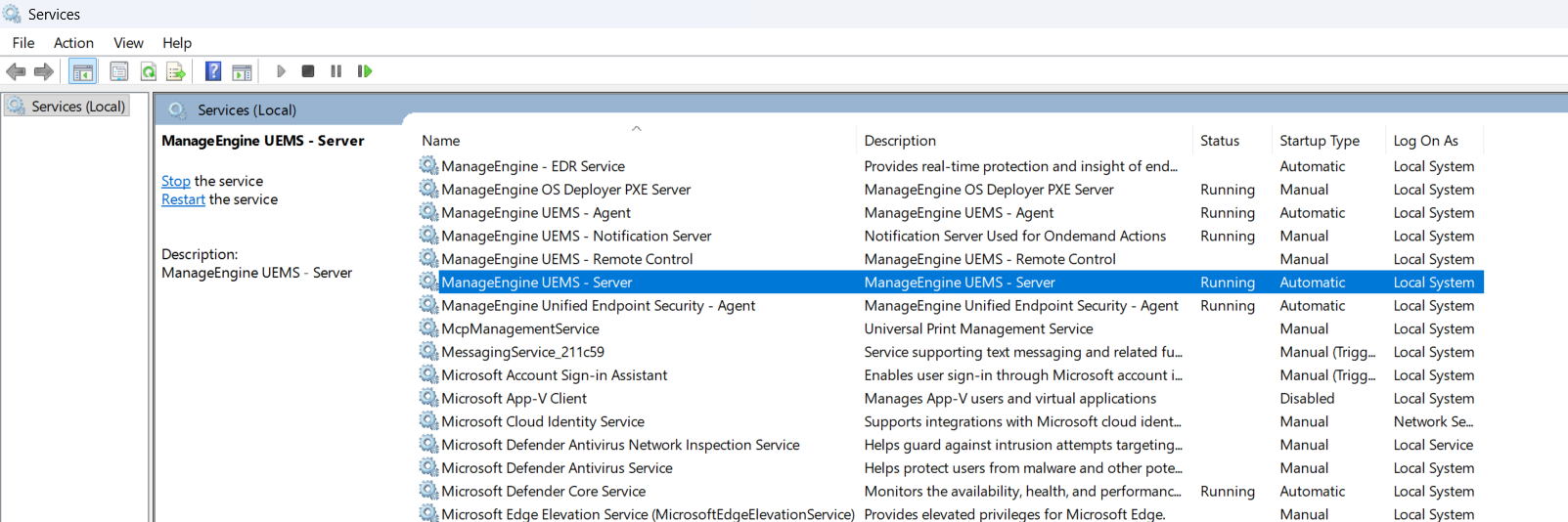
- Go to Services.msc and stop your ManageEngine Endpoint CentralServer service.
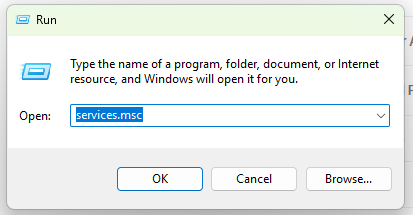
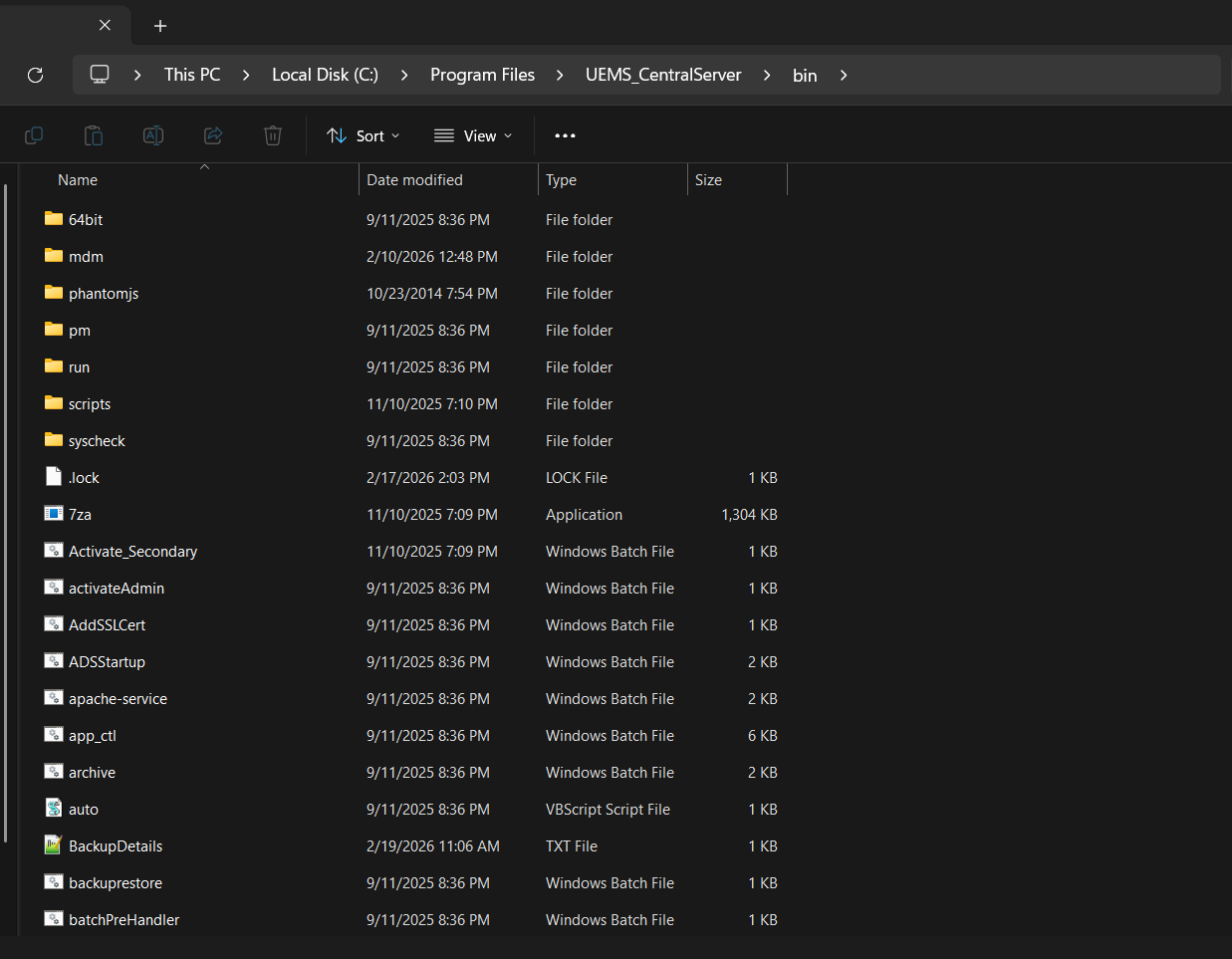
- Open a command prompt in administrator mode, navigate to <Install_Dir>\UEMS_CentralServer\bin directory and execute disableTFA.bat with argument TempDisable. example disableTFA.bat <space> TempDisable
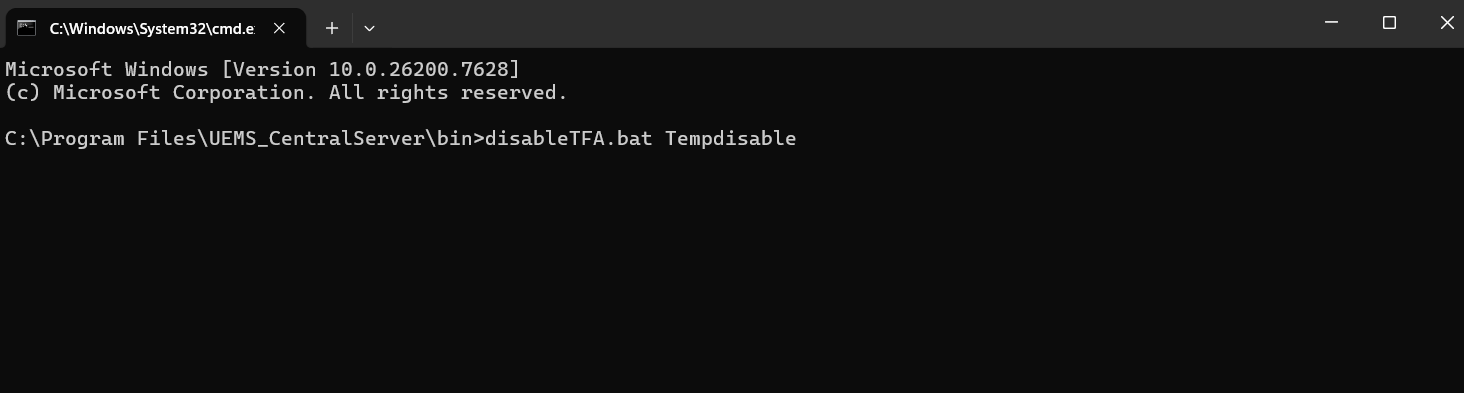
- Enter administrator username and password.
- Enter Domain name if you are an Active Directory (AD) User or Press Enter if local user.

- Now the TFA will be disabled and TFA Enforcement will be added with a grace period of 2 days.
- Start the ManageEngine Endpoint Central Server service from Services.
2. If user wants to disable TFA permanently:
- Follow the previous steps to disable TFA temporarily.
- There will be a User Interface request for permanent exclusion of TFA , you may choose to select that.
If Endpoint Central build version is less than #10.1.2138.7
- From the machine in which your Endpoint Central server is running, navigate to services.msc and stop your Endpoint Central Server service.
- Using command prompt in administrator mode, navigate to <Install_Dir>\DesktopCentral_Server\bin directory and execute ExecuteQuery.bat disable2FA.xml.
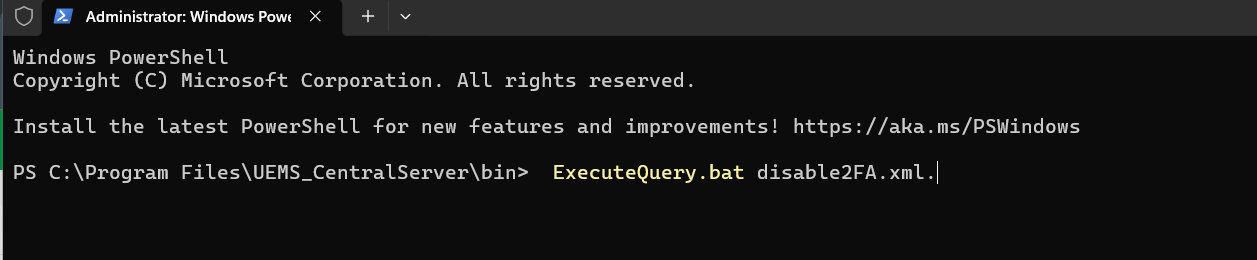
- Start Endpoint Central server service from services.msc.
- Now login to the Endpoint Central web console using a different browser to avoid any cache issues.
Note: Following the above steps will disable two-factor authentication for all the Endpoint Central users. However, You can enable it again by navigating to Admin Tab -> User Administration -> Secure Authentication -> Enable Two-Factor Authentication.