×![]()
×
×![]()
×
×
Configure Mac Pre-Requisites
Before deploying an application control policy to Mac endpoints, grant two system-level permissions: System Extension approval and Full Disk Access for the Application Control driver.
Prerequisites
The Mac agent is downloaded automatically on policy deployment. Complete both prerequisites below before policy enforcement can begin on macOS endpoints.
Configure prerequisites manually
Follow these steps on each Mac endpoint if you are not using an MDM solution to push the permissions profile.
Approve the System Extension and Full Disk Access
After a policy is deployed to a Mac endpoint, a pop-up automatically lists the required prerequisites.
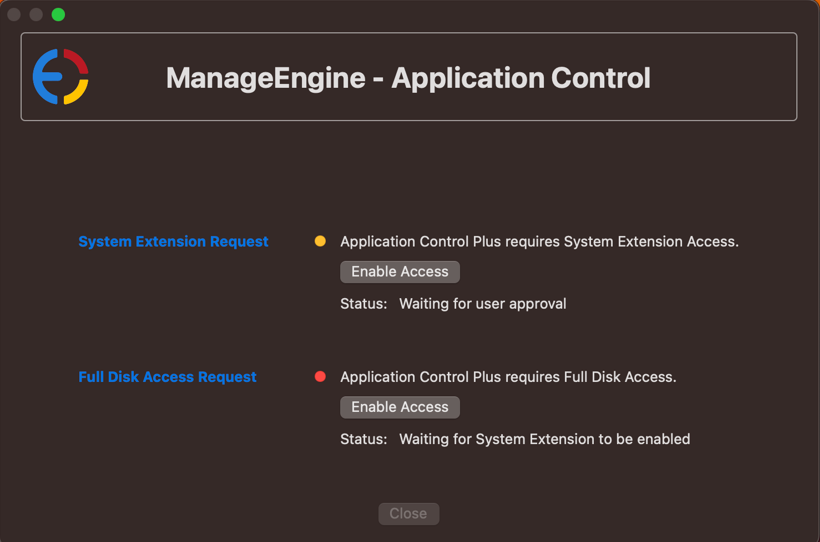
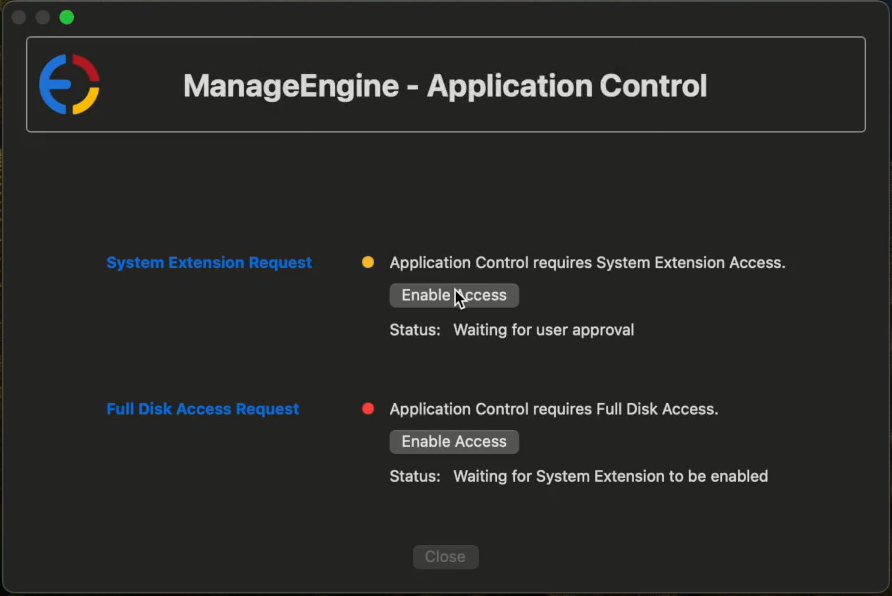
- In the pop-up, tap Enable Access next to System Extension Request, then select Open System Settings.
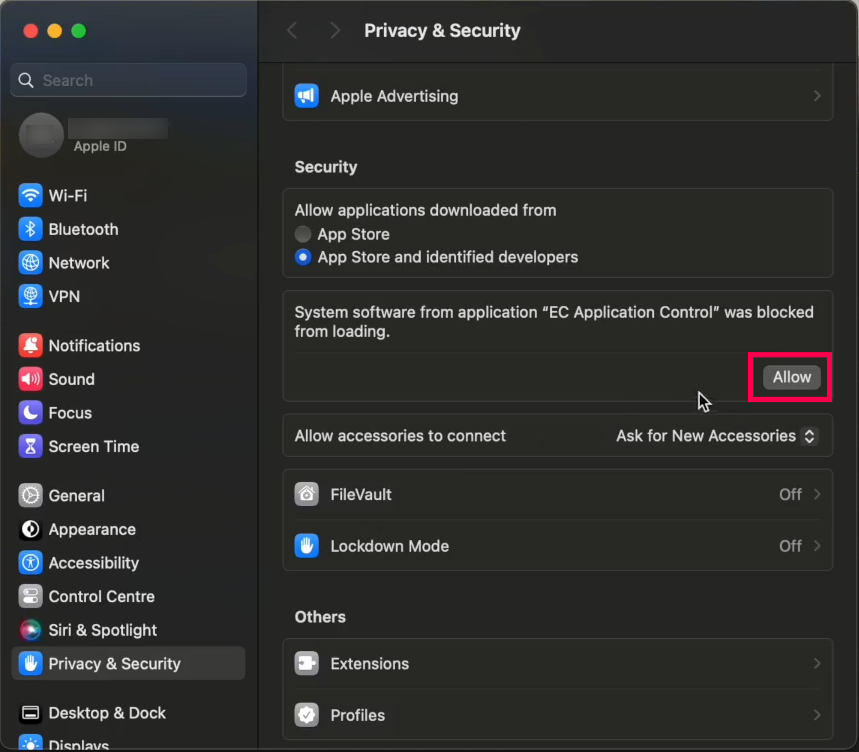
- In the Privacy & Security section, tap Allow to load Application Control from system software.
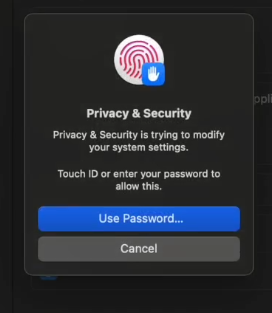
- Enter your credentials when prompted to authorize the change.
- The System Extension Request is now enabled.
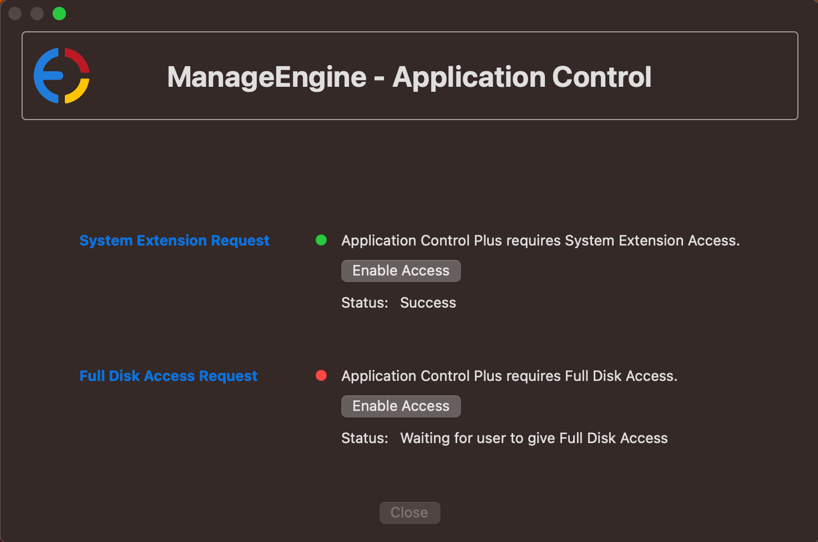
- Back in the pop-up, tap Enable Access next to Full Disk Access Request. A list of applications requiring access appears.
- Enable access for Application Control Driver from the list.
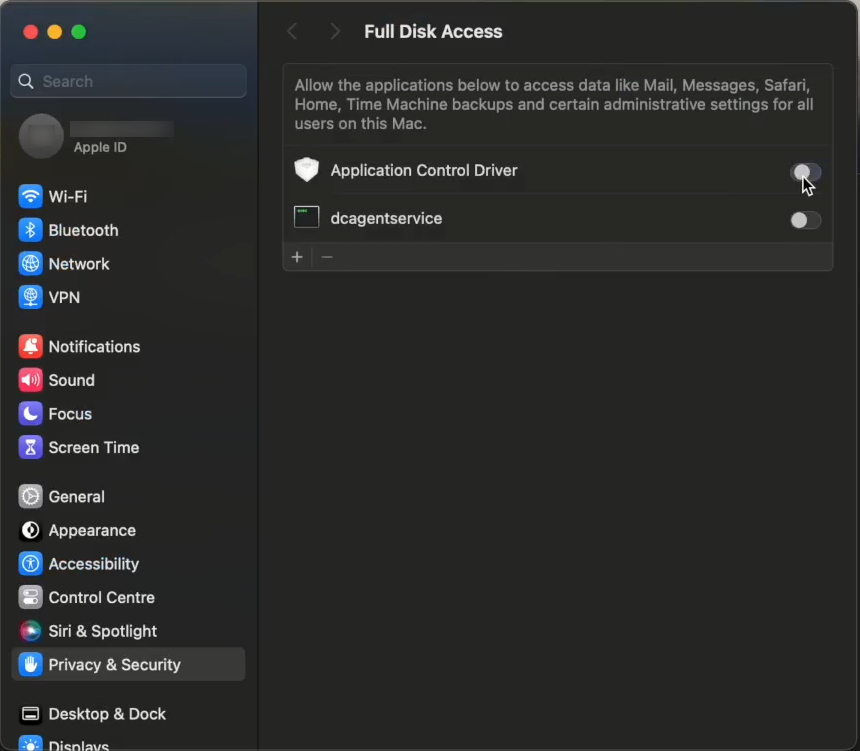
- Enter your credentials when prompted to authorize the change.
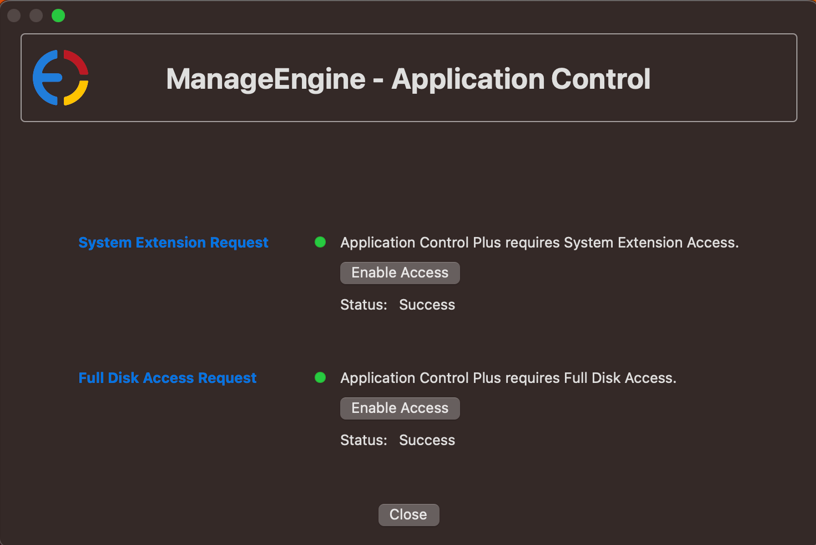
- The Full Disk Access Request is now enabled. Both prerequisites are complete.
Configure prerequisites using an MDM solution
If you use a Mobile Device Management (MDM) solution, deploy the pre-configured profile instead of configuring each Mac manually.
Deploy the pre-configured profile
Download the pre-configured profile and deploy it to the Mac endpoints that will be managed through Endpoint Central.
Pro-tip
If the pre-configured profile does not work with your MDM solution, upload it manually using the technical details below to configure both prerequisites yourself.
System extension request — MDM configuration values
- Allowed Extension Categories —
Endpoint Security extension - Team Identifier —
TZ824L8Y37 - Extension Bundle Identifier —
com.manageengine.appctrl.driver
Full disk access request — MDM configuration values
- Identifier Type —
Bundle ID - Identifier —
com.manageengine.appctrl.driver - Static Code Validation —
Yes - Code Sign Requirement —
anchor apple generic and identifier "com.manageengine.appctrl.driver" and (certificate leaf[field.1.2.840.113635.100.6.1.9] /* exists */ or certificate 1[field.1.2.840.113635.100.6.2.6] /* exists */ and certificate leaf[field.1.2.840.113635.100.6.1.13] /* exists */ and certificate leaf[subject.OU] = TZ824L8Y37)
Prevent users from disabling the Endpoint Security Extension (optional)*
- NonRemovableSystemExtensions
- Key -
TZ824L8Y37 - Value -
com.manageengine.appctrl.driver
Note
You can configure the required MDM profiles before deploying the policy. However, end users cannot manually grant the required permissions before the policy is deployed. They can only configure those permissions after the policy deployment, and this applies only to permissions that must be granted manually.
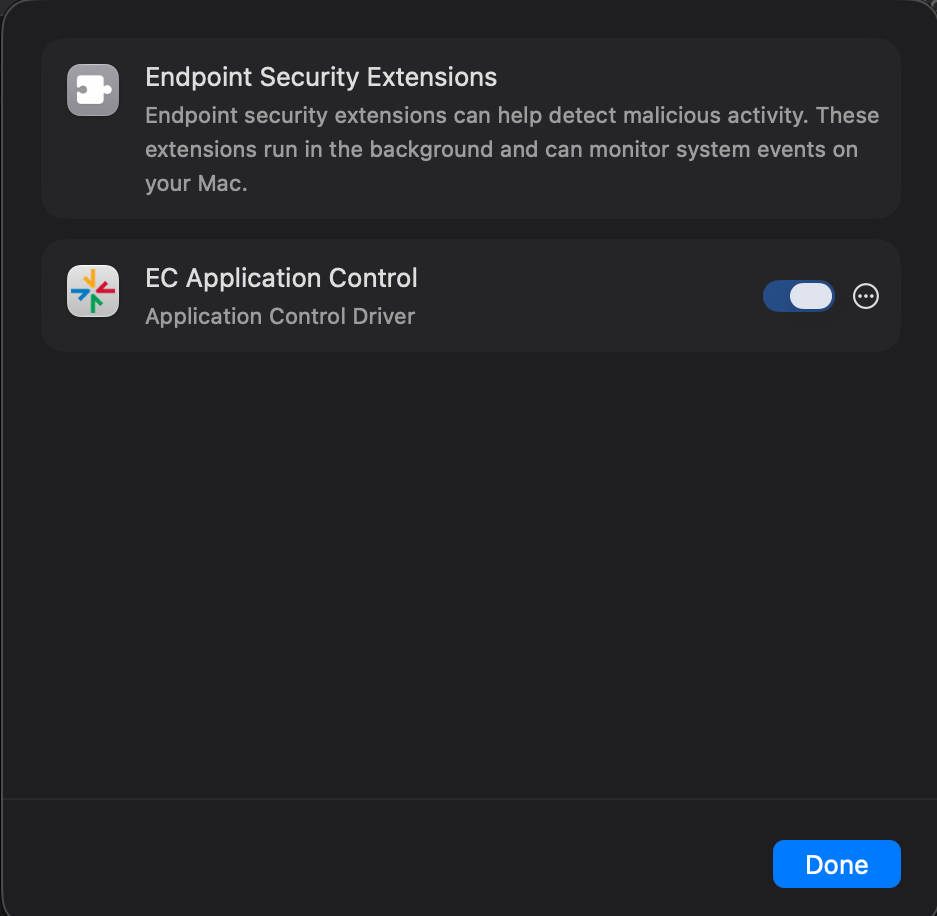
* Supported on macOS 15 Sequoia and later.