How to Configure Registry Settings for Computers
The Registry Settings allows you to change the values in the registry in the workstations. The Registry Settings Configuration enables you to modify the registry values from a central location.
Step 1: Name the Configuration
Provide a name and description for the Registry Settings Configuration.
Step 2: Define Configuration
You can perform the following actions:
This Computer Configuration is intended for managing computer-level registry settings. To configure registry values under HKEY_CURRENT_USER, which are specific to individual user profiles, use the Registry Settings User Configuration.
Write Value
To write a value to the registry, select the Action as Write Value andspecify the following:
| Parameter | Description |
|---|---|
Header Key | Select the applicable computer-level registry hive. The available options include |
Key | Keys are sub-components of the hives. Specify the key value. |
Type | The type of the value. This varies with respect to the Header Key selected. Select the appropriate type from the combo box. |
Value* | Specify the value to be added. |
Data / Expression* | Specify the data or expression. If the new value has to be created without data, enter the word clear inside the parentheses as (clear). |
 icon to select and assign a dynamic variable to this parameter.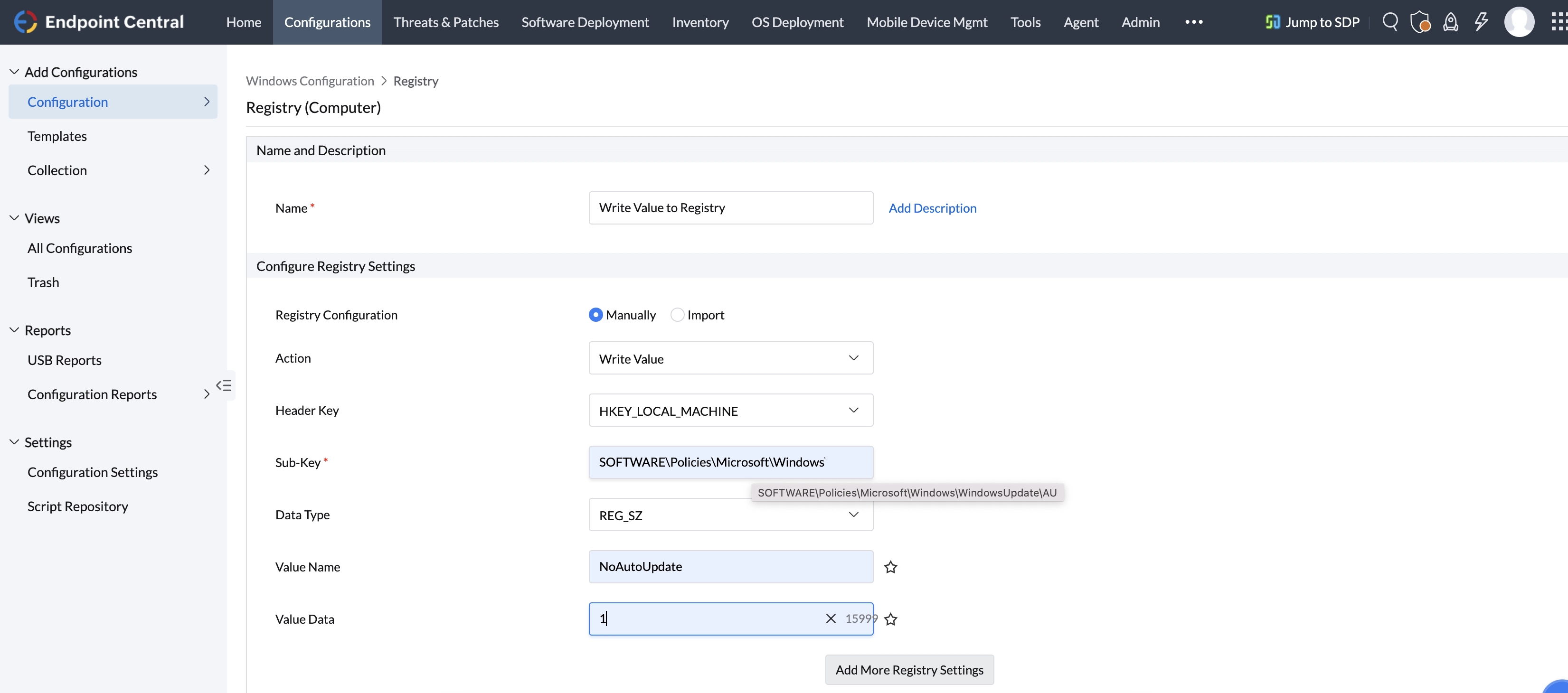
If WindowsUpdate or AU does not exist, they will be created.
If you wish to write more values, click Add More Registry Settings button and repeat step 2. The values gets added to the Registry Settings table.
Delete Value
To delete a value from the registry, select the Action as Delete Value andspecify the following values:
| Parameter | Description |
|---|---|
Header Key | Select the applicable computer-level registry hive. The available options include |
Key | Keys are sub-components of the hives. Specify the key value. |
Value | Specify the value to be deleted. |
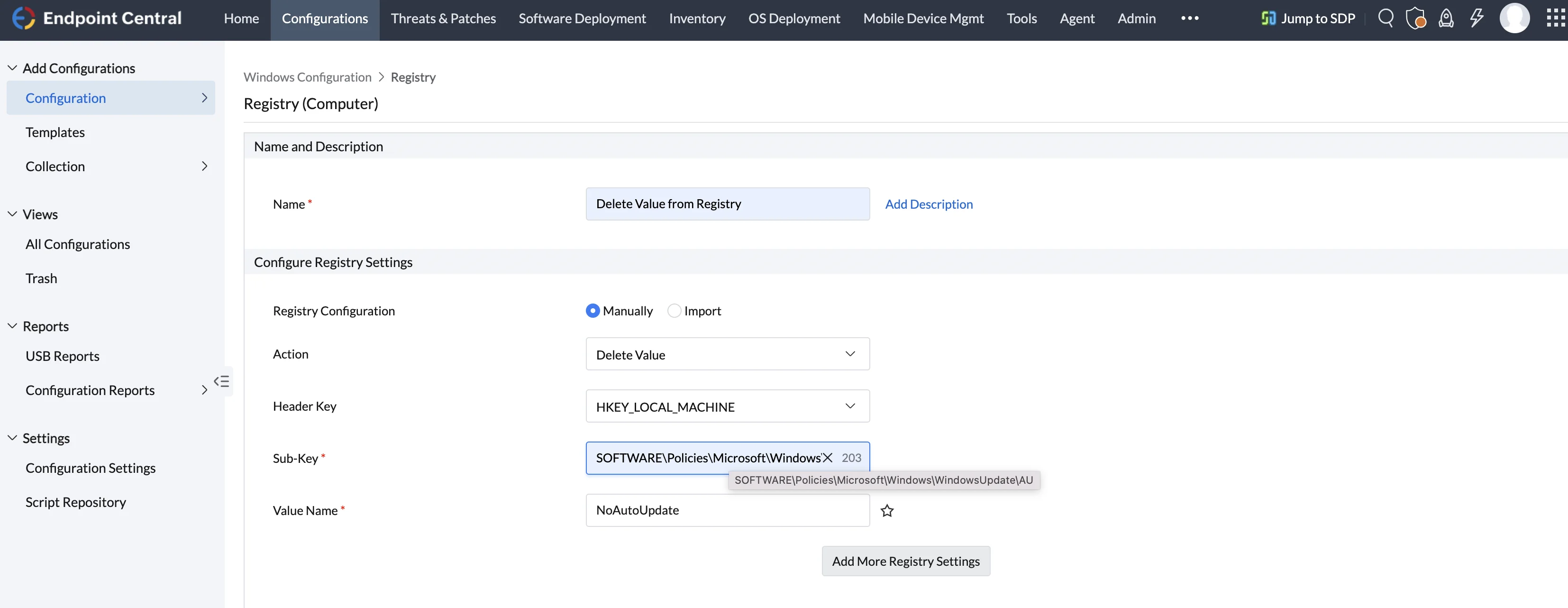
If you wish to delete more values, click Add Registry Settings button and repeat step 2. The values gets added to the Registry Settings table.
Add Key
To add a registry key, select the Action as Add Key and specify the following:
| Parameter | Description |
|---|---|
Header Key | Select the applicable computer-level registry hive. The available options include |
Key | Keys are sub-components of the hives. Specify the key value to be added. |
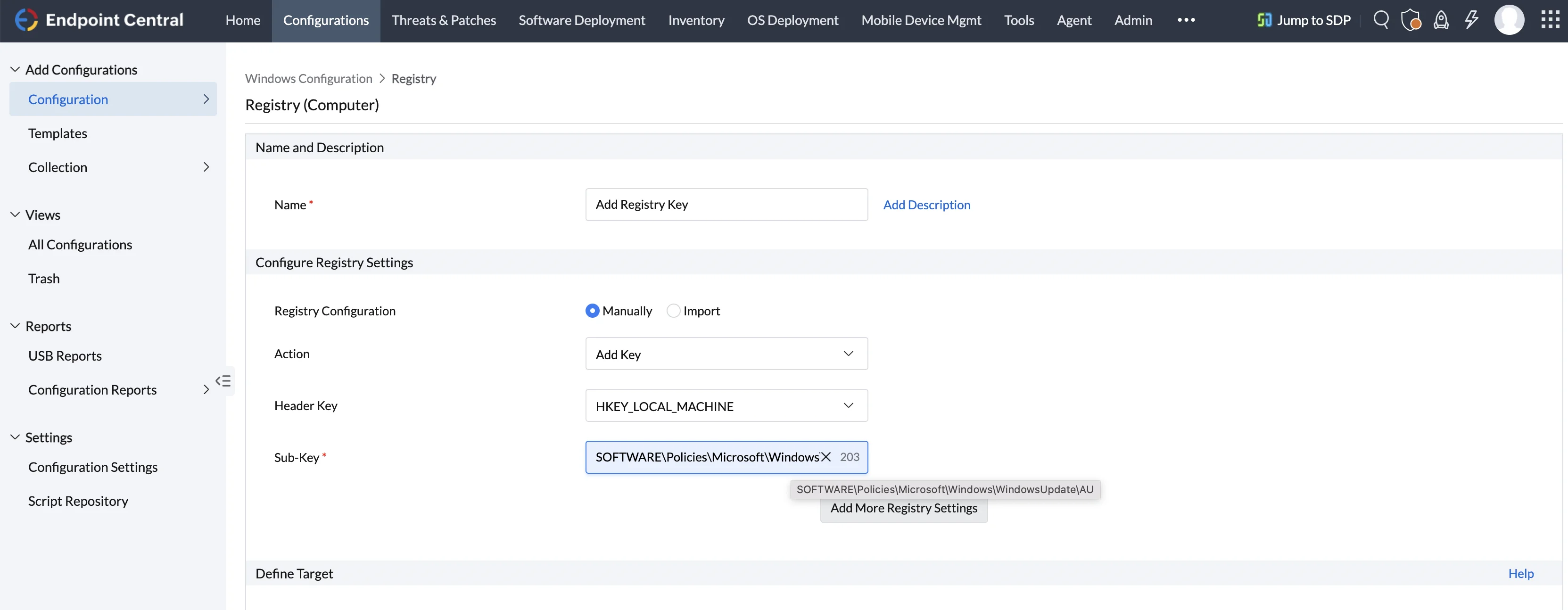
Delete Key
To delete a registry key, select the Action as Delete Key and specify the following values:
| Parameter | Description |
|---|---|
Header Key | Select the applicable computer-level registry hive. The available options include |
Key | Keys are sub-components of the hives. Specify the key value that has to be deleted. |
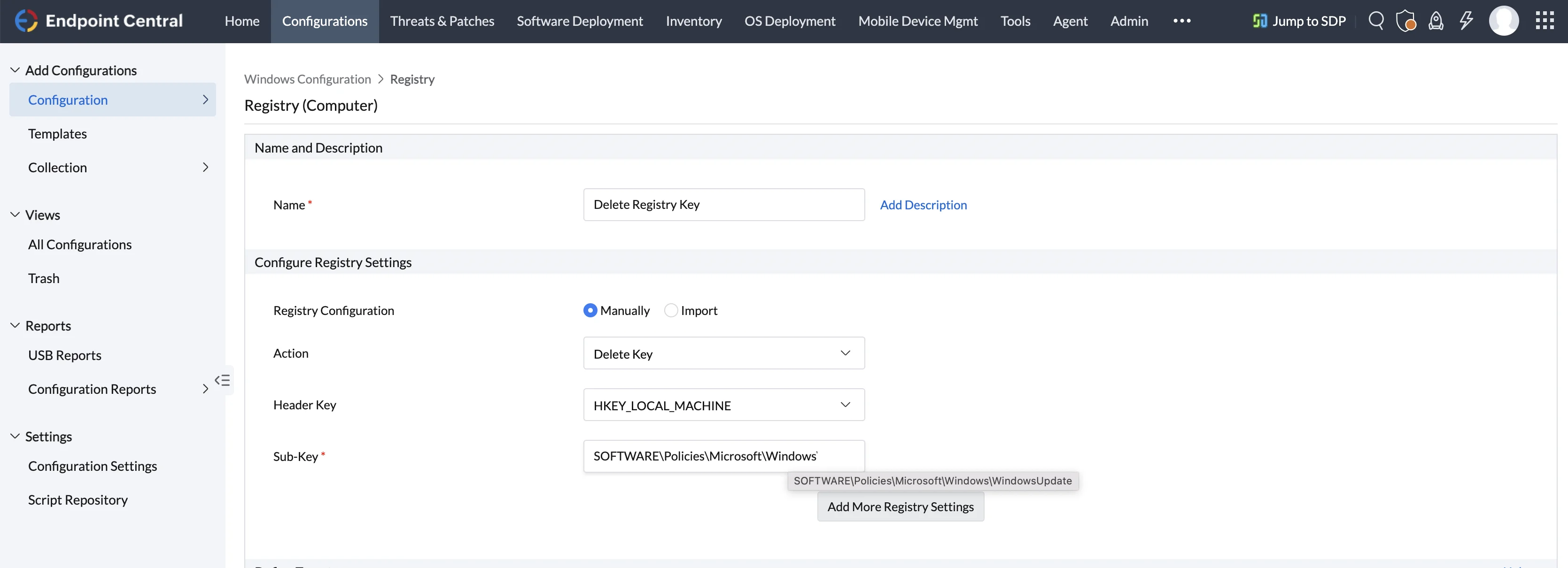
 icon and change the required values.
 icon.
icon.Import Value
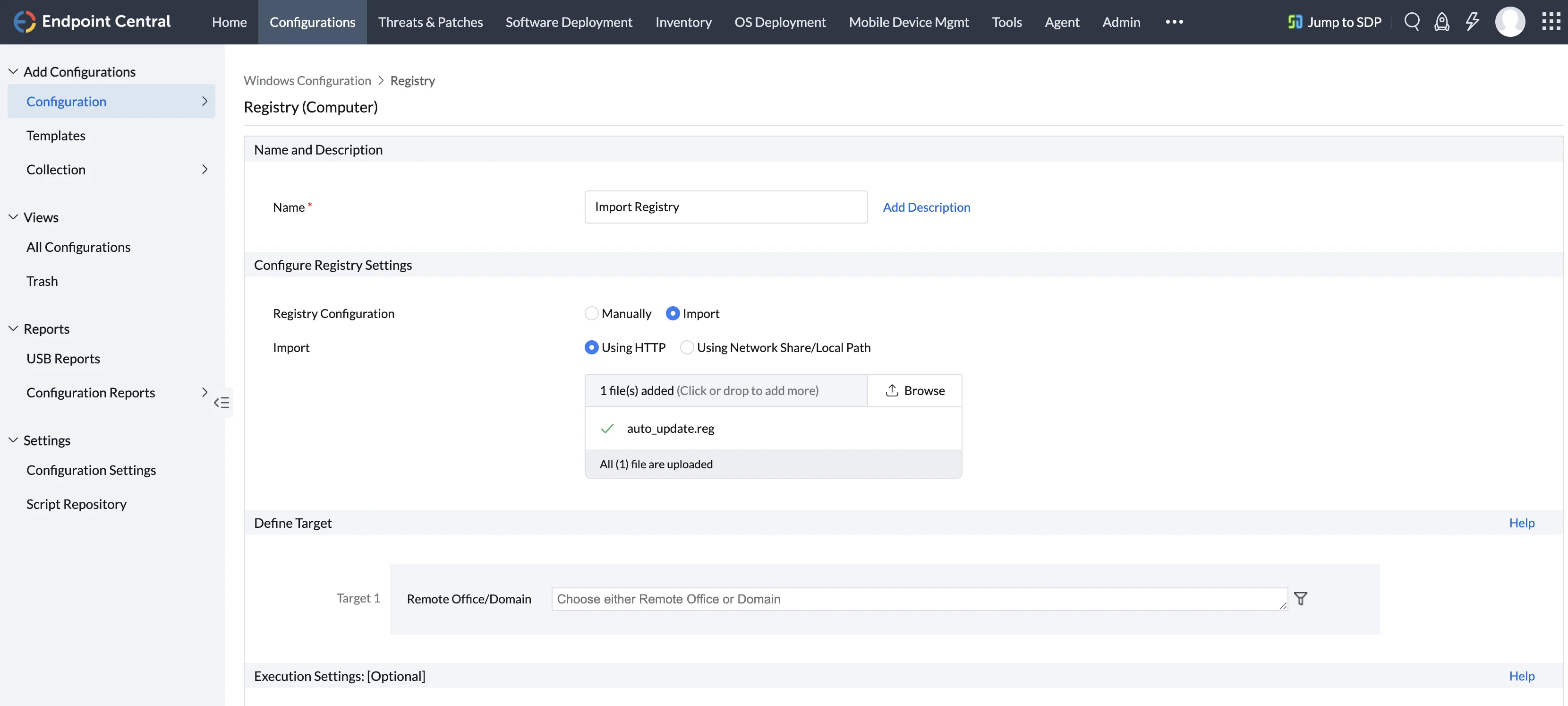
To import a registry key value,click Import and select the registry file
Step 3: Define Target
Using the Defining Targets procedure, define the targets for deploying the Registry Settings Configuration.
Step 4: Deploy Configuration
Click the Deploy button to deploy the defined Registry Settings Configuration in the targets defined. The configuration will take effect during the next system startup.
To save the configuration as draft, click Save as Draft.