Agent Offline / Status Unavailable
All issues in this document relate to agent-server communication, especially the agent's live connection to the Notification Server (NS) used for on-demand actions such as patch scan, inventory scan, remote control, and moving agents between remote offices.
- Two key communication paths: The agent communicates with the Endpoint Central server through two separate channels. The first is the regular check-in path (Agent ↔ Server) used for scheduled tasks and policy updates. The second is the live on-demand path (Agent ↔ Notification Server) used when you trigger any immediate action from the console. Both paths must be healthy for the agent to appear online and respond to commands.
- Why the agent status flips: The agent maintains a persistent idle TCP/TLS session to the Notification Server and re-registers periodically — typically every 10 minutes. If anything interrupts that idle connection (the machine entering sleep or hibernate, an IP address change, a firewall or proxy dropping idle TCP sessions, or the agent pointing to an old NS address after a server migration), the console can show the agent as red, or show it as green but immediately flip to red the moment you click it or trigger an action.
- Most common root cause: Port 8027 is not reachable as a raw TCP/TLS connection end-to-end — either it is blocked by a firewall, or a proxy or load balancer is treating it as HTTPS/SSL instead of plain TCP. The second most common cause is the Notification Server process (dcnotificationserver.exe) or the agent on-demand process (dcondemand.exe) not running.
- Endpoint Central Cloud: Cloud agents communicate with the server through the cloud addresses. For the list of domains used for agent communication, refer to Agent Communication Domains.
Prerequisites
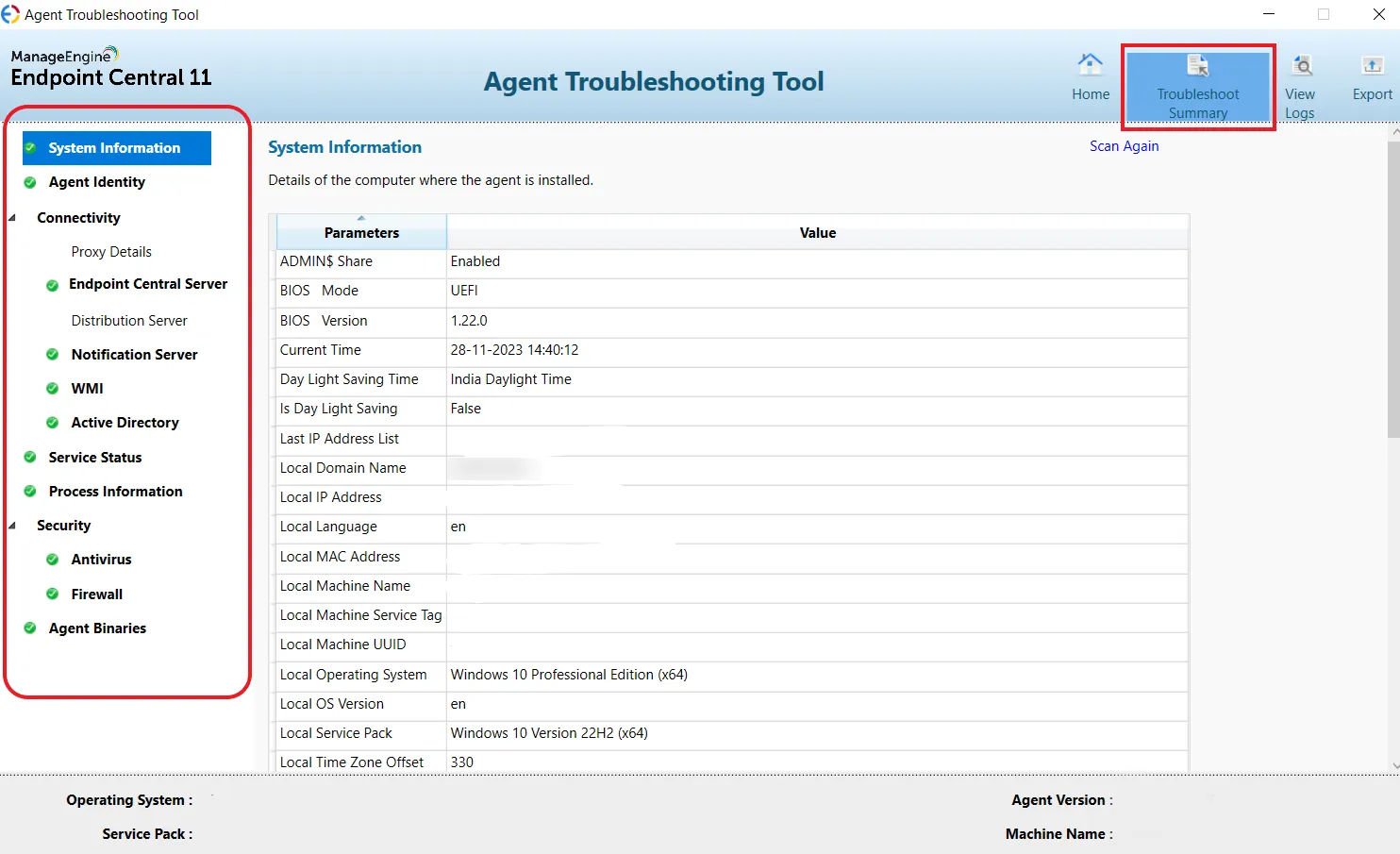
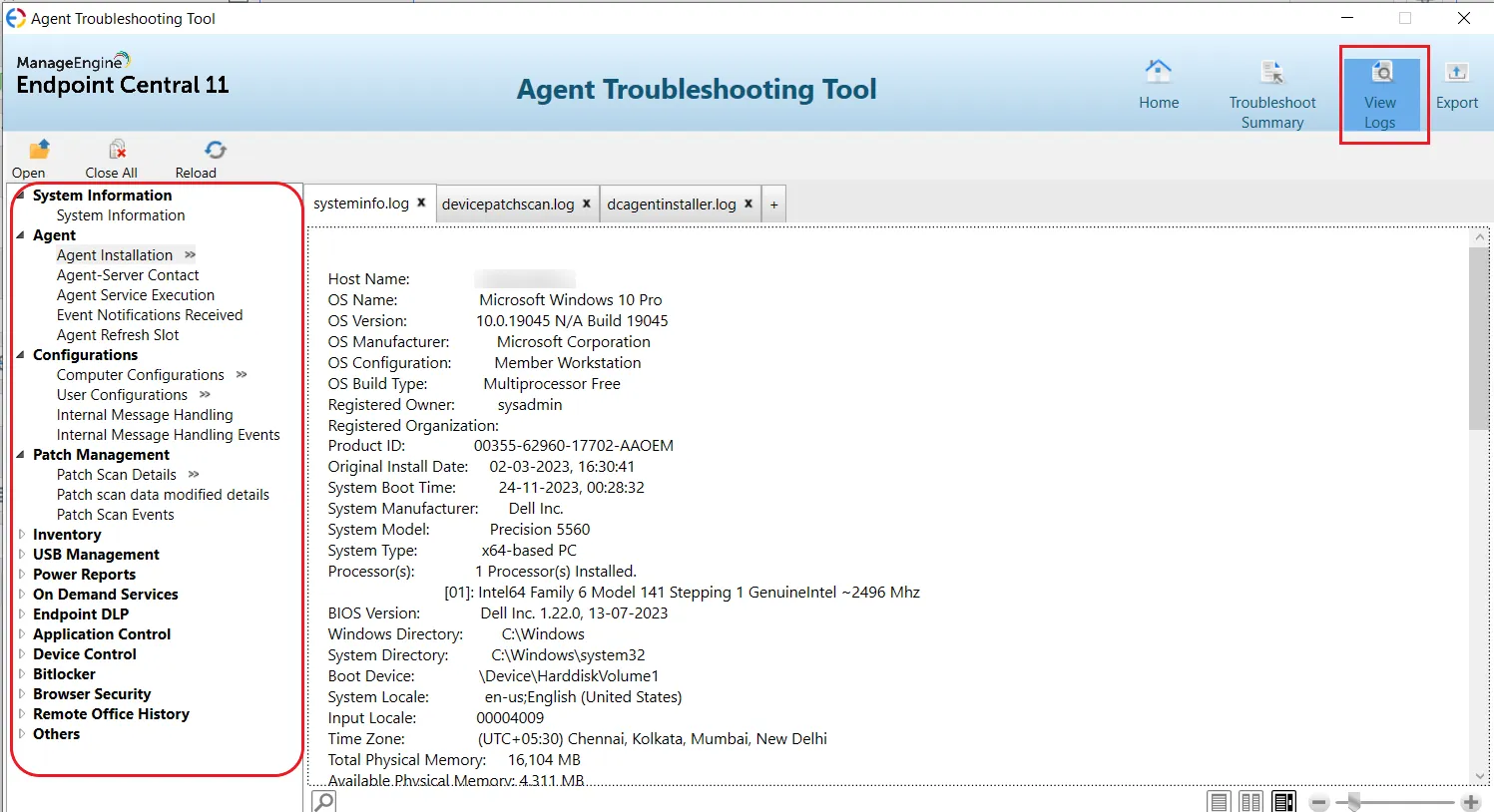
The agent troubleshooting tool runs a set of connectivity checks between the agent and the Endpoint Central server and Notification Server, displaying a pass or fail result for each.
- Navigate to the agent installation directory.
- Run agent_troubleshooting_tool.exe as administrator.
- Review the results:
- PASS: Proceed to the relevant symptom section.
- FAIL: Note the failed check and continue with the corresponding troubleshooting section.
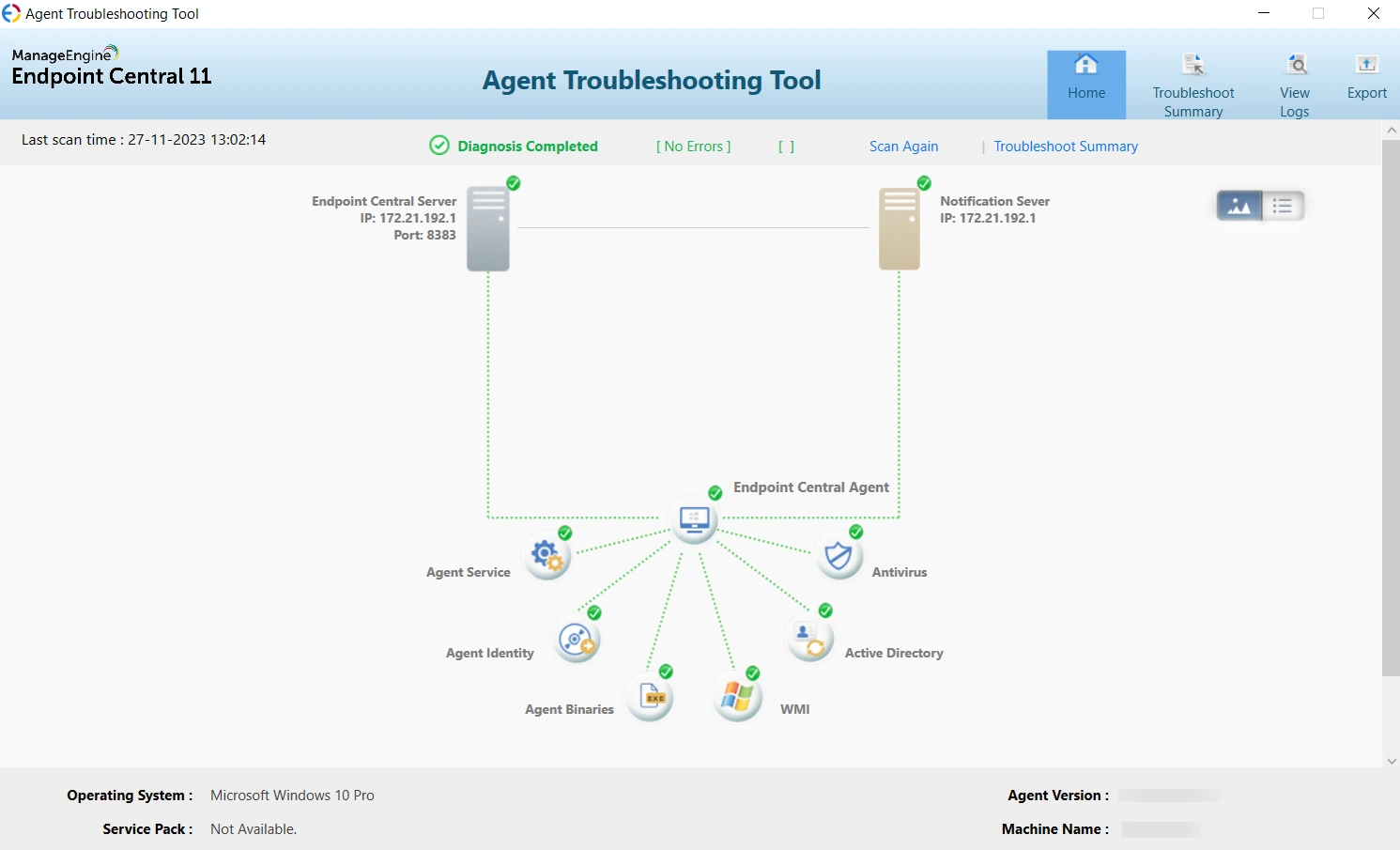
Verify that the Notification Server Windows service is running on the Endpoint Central server.
- Open
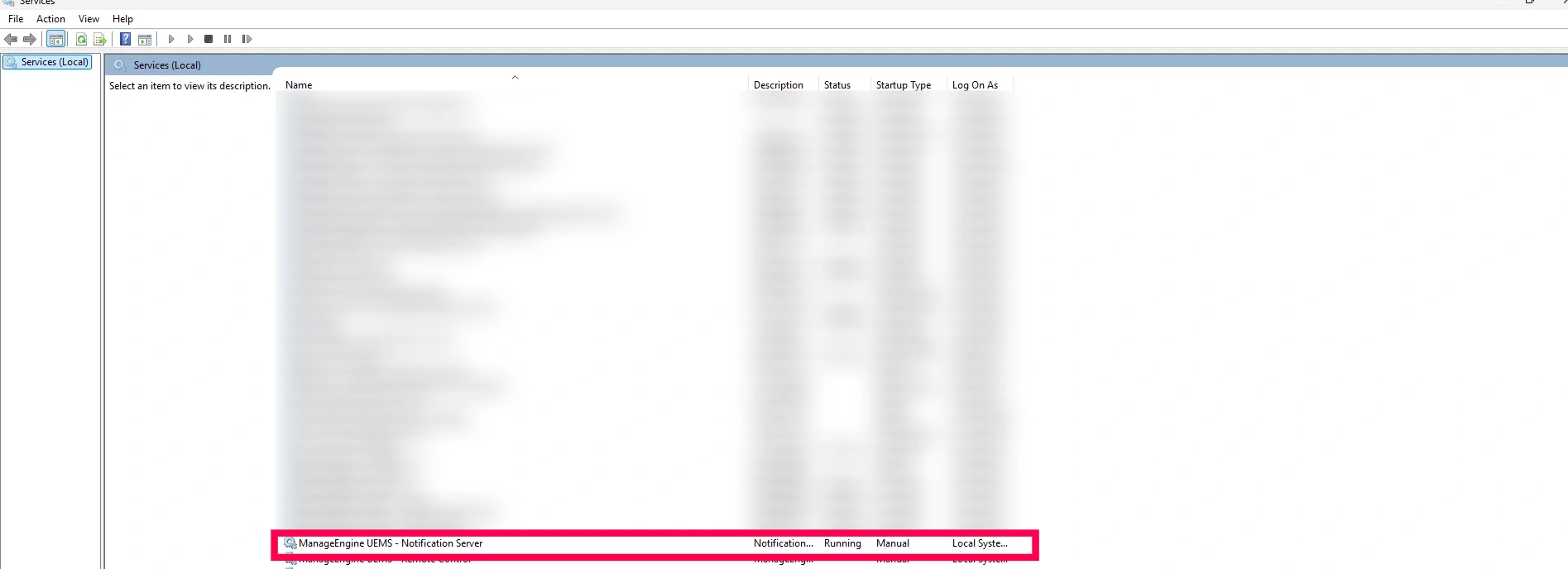
services.msc. - Locate the Notification Server service.
- Verify the service status:
- Running: Continue to Check 3.
- Stopped: Start the service and verify agents reconnect.
Verify that the Notification Server process is active in Task Manager.
- Open Task Manager.
- Select the Details tab.
- Look for dcnotificationserver.exe.
- Present: Continue to Check 4.
- Missing: Restart the Notification Server service.
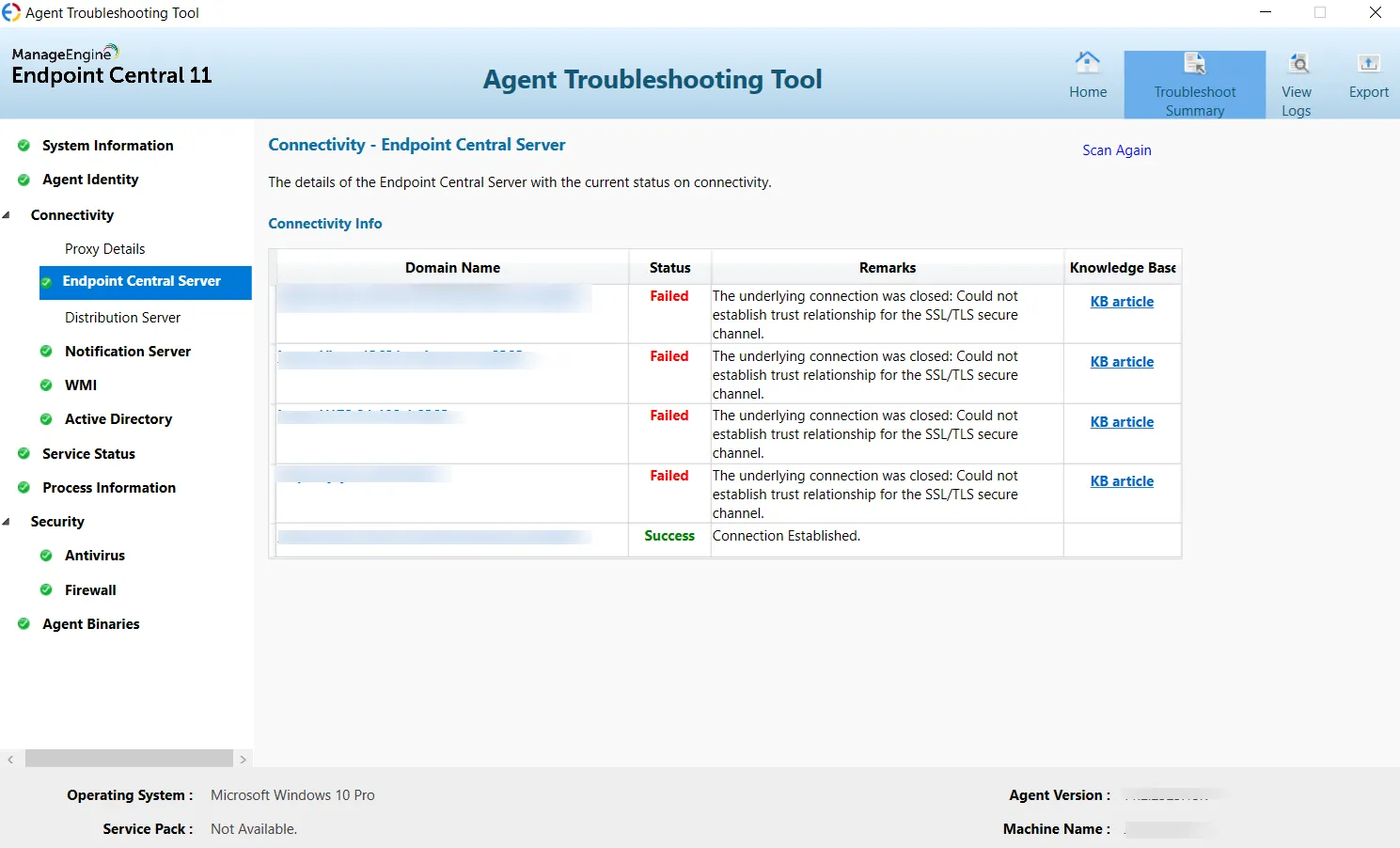
Verify that the agent-side Notification Server connection process is running.
- Open Task Manager on the affected device.
- Select the Details tab.
- Look for dcondemand.exe.
- Present: Continue to Check 5.
- Missing: Restart the Endpoint Central Agent service.
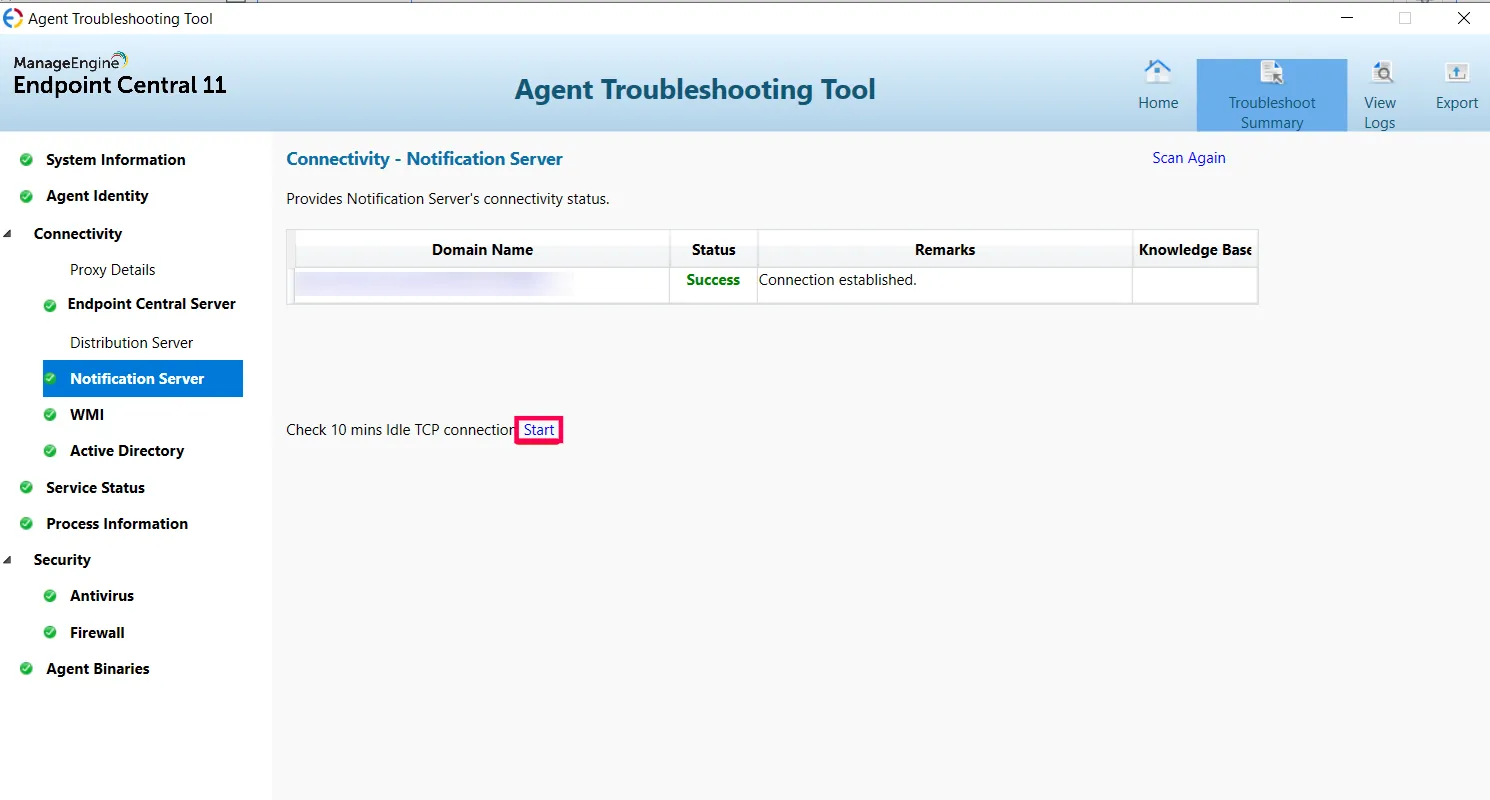
Verify that the Notification Server port remains reachable from the agent machine. The Agent Troubleshooting Tool also shows the Notification Server connection status.
Step A: Find the Notification Server Address
- Open
hostondemandrequest.log. - Locate the Notification Server IP address.
Step B: Run the Telnet Test
- Enable Telnet if required.
- Run:
telnet <NS Address> 8027 - Interpret the results:
- Blank screen: Connection successful.
- Disconnects before 10 minutes: Network device idle timeout issue.
- Connection refused: Port 8027 blocked.
Agent shows offline (red) but machine is online
Problem
The agent icon in the Endpoint Central console shows red, but you have confirmed the machine is powered on and connected to the network. Because the agent is showing offline, you cannot complete any of the following on-demand tasks:
- Scanning for patches
- Scanning for inventory
- Establishing remote control
- Moving agents from one remote office to another
Cause
- The Notification Server process (dcnotificationserver.exe) on the server, or the on-demand process (dcondemand.exe) on the agent machine, has stopped running.
- Port 8027 is blocked on the firewall between the agent and the server. For the ports used for communication between WAN agents and the server, refer to Secure WAN Agent Server Communication.
- The machine recently woke from sleep or hibernate — the NS connection is broken during power state changes, and re-registration takes up to 10 minutes after the machine wakes.
- The agent's IP address changed recently, disrupting the active TCP socket to the NS.
- The server was migrated or its IP changed — the agent is still trying to contact the old NS address.
- The agent version is outdated compared to the server version. For details, refer to Desktop Agent Version Incompatible.
Resolution
Step 1: Confirm the NS and agent processes are running
- On the Endpoint Central server machine, open Task Manager (Ctrl + Shift + Esc), go to the Details tab, and confirm dcnotificationserver.exe is present in the list.
- On the affected agent machine, open Task Manager, go to the Details tab, and confirm dcondemand.exe is present.
- If either process is missing:
- On the server: open services.msc, find the Notification Server service, and restart it. Wait 30 seconds and check Task Manager again for dcnotificationserver.exe.
- On the agent: open services.msc on the agent machine, find the Endpoint Central Agent service, and restart it. Wait 30 seconds and check Task Manager again for dcondemand.exe.
- If the process still does not appear after restarting the service, collect logs from
<Install_Directory>\logs\and contact support.
- If both processes are running, proceed to Step 2.
Step 2: Test the Notification Server port from the agent machine
- On the affected agent machine, open the log file at
<Agent_Installed Directory>\logs\hostondemandrequest.logand note the value next to Notification Server Last Address and Notification Server Port. - Open an elevated Command Prompt on the agent machine and run:Telnet NS port from agent machine
telnet <NS Address> <NS Port>Exampletelnet 192.168.56.1 8027 - Interpret the result:
- Blank screen that stays open for 10 minutes: The TCP path is healthy. The offline status is most likely caused by a temporary disruption (sleep, IP change). Wait up to 10 minutes for the agent to re-register automatically. If it does not come back online, collect the agent logs from
<Agent_Installed Directory>\logs\and contact support. - Screen closes or shows an error before 10 minutes: The connection is being dropped by a network device. Ask your network team to increase the TCP idle timeout to at least 15 minutes on all firewalls, proxies, and load balancers between the agent and the server.
- "Could not open connection to the host": Port 8027 is blocked. Ask your network team to open port 8027 as TCP between the agent machine and the NS address.
- Blank screen that stays open for 10 minutes: The TCP path is healthy. The offline status is most likely caused by a temporary disruption (sleep, IP change). Wait up to 10 minutes for the agent to re-register automatically. If it does not come back online, collect the agent logs from
Agent shows green, then turns red when clicked or on-demand action triggered
Problem
The agent icon appears green (online) in the console, but as soon as you click the machine or trigger any on-demand action — such as a patch scan, inventory scan, or remote control session — the status immediately flips to red and the action fails with an Agent Not Reachable error. This indicates that the console's displayed status is stale: the NS has a record of the connection but the underlying TCP socket has already been silently dropped by the network.
Cause
- A firewall, proxy, or load balancer is terminating the idle TCP connection before the agent's 10-minute re-register cycle completes. The NS does not know the connection was dropped, so it still shows the agent as green.
- Port 8027 is configured as HTTPS or SSL on a proxy or firewall instead of raw TCP. The connection appears to open, but when the agent tries to use it for an action, the protocol mismatch causes it to fail immediately.
- The server is hosted in a cloud environment (Azure or AWS) where the default TCP idle timeout is 4—5 minutes — shorter than the agent's 10-minute NS cycle. The connection is silently dropped between re-register attempts.
Resolution
Step 1: Run the Telnet persistence test from the agent machine
This test confirms whether the TCP connection to port 8027 is being dropped before the 10-minute mark.
- Find the NS address in
<Agent_Installed Directory>\logs\hostondemandrequest.logas described in Check 5 of the Prerequisites. - On the affected agent machine, open an elevated Command Prompt and run:Telnet NS port from agent machine
telnet <NS Address> 8027Exampletelnet 192.168.56.1 8027 - Leave the Telnet window open and watch it for a full 10 minutes without pressing any key.
- Interpret the result:
- Blank screen for the full 10 minutes: The TCP path holds idle connections correctly. Proceed to Step 2 to check for an HTTPS/SSL misconfiguration on port 8027.
- Window closes or shows an error before 10 minutes: A network device is dropping idle TCP before the NS cycle completes. Ask your network team to increase the TCP idle timeout to at least 15 minutes on all firewalls, proxies, and load balancers between the agent machine and the NS address. For cloud environments (Azure or AWS), see the dedicated section for increasing cloud TCP idle timeout.
Step 2: Check for an HTTP 400 error in hostondemandrequest.log
If a proxy is treating port 8027 as an HTTPS connection instead of a raw TCP connection, the agent log records an HTTP 400 Bad Request response. This is a definitive sign of a protocol misconfiguration on port 8027.
- On the affected agent machine, open:Agent log file path
C:\Program Files (x86)\ManageEngine\UEMS_Agent\logs\hostondemandrequest.log - Open the file in Notepad and press Ctrl + F to open Find. Search for
400. - Interpret the result:
- You find a line containing "400 Bad Request" on port 8027: A proxy or firewall is intercepting the connection and responding with an HTTP error because it expects HTTPS traffic, not raw TCP. Ask your network team to reconfigure port 8027 as a raw TCP passthrough — it must not be treated as SSL or HTTPS.
- No 400 entries found: The protocol is not the issue. Proceed to Step 3.
Step 3: Run the Packet Sender persistent TLS test
The Telnet test confirms basic TCP connectivity but does not simulate the exact TLS handshake the agent uses. The Packet Sender test goes one step further and holds a TLS connection identical to the one the agent maintains — including the 10-minute idle hold. Use this test when the Telnet test passes but the green-to-red flip still occurs.
- Download Packet Sender and run packetsender.exe on the affected agent machine.
- From the agent log at
<Agent_Installed Directory>\logs\hostondemandrequest.log, note the values for NS Last Address, NS Port, and Data to Post to NS. - In Packet Sender, set:
- Address = NS Last Address
- Port = NS Port (typically 8027)
- ASCII = Data to Post to NS (copied from the log)
- If your agent build is 2300 or above, switch the mode to TLS
- Enable the Persistent option in Packet Sender, then click Send.
- Leave it running for 10 full minutes and observe the status:
- Connection holds for 10 minutes with no error: The TCP/TLS path between this agent and the NS is healthy. The green-to-red flip is likely caused by a temporary state issue. Collect the agent logs from
<Agent_Installed Directory>\logs\and contact support for deeper analysis. - Connection drops or shows an error before 10 minutes: A firewall, proxy, or load balancer is breaking the idle TLS connection. The drop timing gives a clue — a drop at around 4—5 minutes typically indicates a cloud environment TCP idle timeout (see the Azure/AWS section). A drop at a consistent shorter interval may indicate a specific firewall idle session timeout. Escalate to your network team with the Packet Sender output showing the exact drop time.
- Connection holds for 10 minutes with no error: The TCP/TLS path between this agent and the NS is healthy. The green-to-red flip is likely caused by a temporary state issue. Collect the agent logs from
Agent shows offline intermittently
Problem
The agent status in the console switches between online and offline at irregular intervals. The machine is reliably on the network — the issue is not a permanent connectivity failure but a recurring disruption to the agent's persistent TCP connection to the Notification Server.
Cause
- The machine enters standby or hibernate frequently, which breaks the TCP socket each time the machine sleeps. The agent reconnects after wake, but takes up to 10 minutes to re-register.
- The agent's IP address changes frequently — for example due to VPN connect and disconnect cycles, Wi-Fi roaming between access points, DHCP lease renewals, or virtual network adapters from Docker or a hypervisor. Each IP change breaks the active TCP socket.
- A firewall or proxy has a borderline TCP idle timeout that occasionally drops the connection — not every time, but enough to cause intermittent offline periods.
Resolution
Step 1: Check for IP address changes in hostondemandaccess.log
Each time the agent's IP address changes, the active TCP socket to the NS is broken and the agent must re-register from scratch. Frequent IP changes are a reliable indicator of network instability on the agent machine.
- On the affected agent machine, open:Agent log file path
C:\Program Files (x86)\ManageEngine\UEMS_Agent\logs\hostondemandaccess.log - Open the file in Notepad and press Ctrl + F to search for
IP-Changed. - Look for entries that follow this pattern between Re-Register entries:Example IP-Changed log entry
[2024-01-15 10:42:18] IP-Changed : OldIP=10.0.0.25 NewIP=10.0.0.47 — Reconnecting to NS - Interpret the result:
- Frequent IP-Changed entries that align with offline periods: The agent's network interface is unstable. Common causes include VPN software that assigns a new virtual IP on each connection, Wi-Fi roaming between access points, Docker or VM virtual adapters being enumerated, or short DHCP lease times. Work with your network team to identify and stabilise the network interface the agent uses, or configure the agent to use a specific stable network adapter.
- No IP-Changed entries: IP instability is not the cause. Proceed to Step 2.
Step 2: Check for sleep or hibernate cycles in dcagentserviceaccess.log
When a machine enters standby or hibernate, the OS suspends all network connections without closing them gracefully. The agent's TCP socket to the NS is broken, and the NS does not know the connection was lost. After the machine wakes, the agent must wait up to 10 minutes to re-register and appear online again.
- On the affected agent machine, open:Agent log file path
C:\Program Files (x86)\ManageEngine\UEMS_Agent\logs\dcagentserviceaccess.log - Search for
StandbyorHibernateentries. They look like this:Example Standby and Resume log entries[2024-01-15 11:05:00] System entering Standby — NS connection suspended [2024-01-15 11:47:32] System resumed from Standby — initiating NS re-registration - Compare the timestamps on Standby/Resume entries with the times when the agent appeared offline in the console:
- Standby or Hibernate events align with offline periods: Power management is the cause. The agent is expected to take up to 10 minutes to re-register after each wake event. If this is unacceptable, work with your team to prevent the machine from entering standby (for example, adjust the Windows power plan to Never for sleep).
- No Standby or Hibernate events: Power management is not the cause. Proceed to Step 3.
Step 3: Run the Telnet persistence test to check for a borderline firewall timeout
- On the affected agent machine, open an elevated Command Prompt and run:Telnet NS port from agent machine
telnet <NS Address> 8027 - Leave the window open for 10 full minutes without pressing any key.
- Connection drops before 10 minutes even once: A firewall or proxy has a TCP idle timeout that is shorter than 10 minutes. Because the timeout may be close to 10 minutes, the connection only drops occasionally — which explains the intermittent nature of the offline status. Ask your network team to increase the TCP idle timeout to at least 15 minutes on all firewalls, proxies, and load balancers between the agent machine and the Endpoint Central server.
- Connection holds for 10 minutes: Collect the three logs listed in Steps 1 and 2 along with the agent troubleshooting tool export and contact support for further analysis.
Agents offline after domain migration or server IP change
Cause
- The agents still hold the old NS address in their configuration and are attempting to connect to the previous server location, which no longer hosts the NS service.
- DNS has not yet propagated the updated record — the server hostname still resolves to the old IP address on the affected machines.
- Firewall rules on the new server have not been updated to allow agent traffic on port 8027 from the agent network.
Resolution
Step 1: Verify which NS address the agent is currently contacting
- On one of the affected agent machines, open:Agent log file path
C:\Program Files (x86)\ManageEngine\UEMS_Agent\logs\hostondemandrequest.log - Look for the line starting with Notification Server Last Address. A healthy entry showing the new server looks like this:If the log still shows the old server address, the agent configuration has not been updated:Example — new server address (expected)
Notification Server Last Address : 10.0.10.50 ← new server IPExample — old server address (problem)Notification Server Last Address : 10.0.1.15 ← old server IP — agent has not updated - If the old address is shown, proceed through Steps 2—4 to restore connectivity to the new server.
Step 2: Test connectivity to the new server's NS port from the affected agent machine
- On the affected agent machine, open an elevated Command Prompt and telnet directly to the new server's IP address on port 8027:Telnet new server NS port
telnet <New Server IP> 8027 - Blank screen (connection established): The new server's port 8027 is reachable. Proceed to Step 3 to check DNS.
- Connection refused or could not open connection: The firewall on or in front of the new server is blocking port 8027. Ask your network team to open port 8027 as TCP from the agent network to the new server.
Step 3: Check DNS resolution for the server hostname
- On the affected agent machine, open Command Prompt and run:Check DNS resolution for the server hostname
nslookup <server hostname> - Compare the IP address returned by nslookup to the actual IP of the new server:
- nslookup returns the new server IP: DNS is resolving correctly. Proceed to Step 4.
- nslookup still returns the old server IP: Flush the local DNS cache:Run nslookup again. If it still returns the old IP after flushing, the DNS record has not been updated. Contact your DNS administrator to update the A record for the Endpoint Central server hostname to the new IP address.Flush DNS cache
ipconfig /flushdns
Step 4: Force agent re-registration with the new NS address
- On the affected agent machine, open Task Manager (Ctrl + Shift + Esc) and go to the Details tab.
- Right-click dcondemand.exe and select End Task.
- Wait 30 seconds. The Endpoint Central Agent service will restart dcondemand.exe automatically.
- When dcondemand.exe reappears in Task Manager, check the console — the agent should come online within a few minutes.
Agents offline on Azure or AWS cloud-hosted environments
Cause
- Azure and AWS default TCP idle timeout is 4—5 minutes, which is shorter than the agent's 10-minute NS re-register cycle. Idle connections are silently dropped by the cloud load balancer or gateway between re-register attempts.
- Cloud security groups or network ACLs are blocking port 8027.
- The cloud load balancer is not configured to pass raw TCP — Application Load Balancers (ALBs) do not support persistent TCP passthrough and will break the agent connection.
Resolution
Step 1: Increase the TCP idle timeout to 15 minutes on the cloud load balancer or gateway
This is the most common fix for agents going offline in Azure or AWS. The default timeout (4—5 minutes) is shorter than the 10-minute NS cycle, so idle connections are dropped between re-register attempts.
- Follow the step-by-step instructions in this document to increase the TCP timeout in Azure or AWS.
Step 2: Verify that security group and firewall rules allow port 8027 as TCP
- Azure: In the Azure portal, open the Network Security Group (NSG) attached to the Endpoint Central server VM. Confirm there is an inbound rule allowing TCP traffic on port 8027 from the agent IP ranges.
- AWS: In the AWS console, open the Security Group for the Endpoint Central server instance. Confirm port 8027 is open as TCP from the agent IP ranges.
- Load balancer type: Use a Network Load Balancer (NLB) rather than an Application Load Balancer (ALB). ALBs terminate connections at the HTTP/HTTPS layer and do not support the raw TCP passthrough that port 8027 requires.
Step 3: Run the Packet Sender TLS persistence test from the cloud agent
- On the affected cloud agent machine, run Packet Sender as described in the green-to-red symptom section, with the Persistent option enabled.
- Observe the connection for 10 full minutes:
- Connection drops at 4—5 minutes: This confirms the cloud TCP idle timeout is the cause. Return to Step 1 and increase the timeout on the load balancer or gateway.
- Connection holds for 10 minutes: The TCP path is healthy. Monitor the agent in the console to confirm it stays online.
ps aux | grep dcondemand. To test port 8027 reachability, run: nc -vz <NS address> 8027. A result of Connection to <NS address> 8027 port [tcp] succeeded means the port is open.Newly deployed agents appear offline immediately after installation
Cause
- The license limit has been reached — newly added agents cannot check in because the server will not accept connections beyond the licensed device count.
- dcondemand.exe has not started yet — first-time NS registration is still in progress. This is normal immediately after installation and typically resolves within a few minutes.
- Port 8027 is blocked from the new agent's network subnet.
- The agent configuration points to the wrong server address — this can happen after imaging or re-deployment if the image was captured with an old server address baked in.
- The computer is waiting for approval — the Approval Status shown in the Agent Troubleshooting Tool is Pending. The agent communicates with the server only after the computer is approved from the Computer(s) for Approval tab. For details, refer to Approve Computers & DS.
- The agent version is outdated compared to the server version. For details, refer to Desktop Agent Version Incompatible.
Resolution
Step 1: Check the license limit in the Endpoint Centralconsole
- In the Endpoint Central console, click Admin in the top navigation bar, then select License from the left panel.
- Compare the Managed Devices count to the Licensed Count.
- Managed Devices is below the Licensed Count: License is not the issue. Proceed to Step 2.
- Managed Devices equals or exceeds the Licensed Count: Contact endpointcentral-support@manageengine.com to add licenses, or navigate to Agent > Computers and remove devices that are no longer in use to free up slots.
Step 2: Confirm dcondemand.exe is running on the new agent machine
- On the newly deployed agent machine, open Task Manager and click the Details tab.
- Search for dcondemand.exe.
- Present: Proceed to Step 3.
- Not listed: Wait 5 minutes and check again. If it still does not appear, open services.msc, find the Endpoint Central Agent service, and restart it. If it still does not start, re-run the agent installer from Agent > Computers > Download Agent.
Step 3: Test port 8027 from the new agent machine
- On the new agent machine, open an elevated Command Prompt and run:Telnet NS port from new agent machine
telnet <Notification Server Address> 8027 - Blank screen: Port 8027 is reachable. Proceed to Step 4.
- Fails from new agent but works from existing agent: A firewall rule allows the existing subnet but blocks the new machine's subnet. Ask your network team to extend the rule to include the new machine's IP or subnet.
- Fails from both: Port 8027 is blocked globally. Follow the Agent shows offline (red) section above.
You can also check the Notification Server connection status in the Agent Troubleshooting Tool.
Step 4: Verify the server address in the agent configuration
- Run agent_troubleshooting_tool.exe from
<Agent_Installed Directory>\bin\as an administrator. - Find the NS address the agent is configured to contact.
- NS address matches the current server: If the agent is still offline, use the Export button to export the troubleshooting report and contact support.
- NS address shows an old or incorrect server address: Re-download the agent installer from Agent > Computers > Download Agent, uninstall the current agent, and re-install using the fresh installer.
If the agent installer closes before the installation completes, or the existing agent cannot be uninstalled, refer to Uninstall Agent (Cleanup Tool).
Console shows machine as online when it is actually offline
Cause
The console reflects the last known state of the agent's TCP connection to the Notification Server. If a machine powers off abruptly — due to a hard shutdown, power failure, or crash — it does not close the TCP socket gracefully. The NS is not notified, and the connection remains in a half-open state. The console continues to show the machine as green until the 10-minute TCP keepalive window expires without a re-register heartbeat.
Resolution
Step 1: Wait up to 10 minutes after the machine powers off
If the machine has genuinely powered off, no action is needed. After the 10-minute TCP window expires without a re-register heartbeat, the NS will mark the agent as offline automatically.
Step 2: If the machine is powered on but the console shows incorrect status
If the machine is actually powered on and reachable but the console shows green while on-demand actions still fail, follow all steps in the Agent shows green, then turns red when clicked or on-demand action triggered section above.
Step 3: If false online status persists beyond 10 minutes
- On the Endpoint Central server machine, open Task Manager and confirm dcnotificationserver.exe is present and not consuming abnormally high CPU or memory.
- If the process appears healthy but statuses are still not updating, collect the NS server logs from:Compress the folder and contact support.NS server log directory
<Server_Install_Directory>\logs\dcnotificationserver\ - If dcnotificationserver.exe is not running, restart the Notification Server service via services.msc. All agent statuses will be refreshed within a few minutes.
On-demand tasks fail with Agent Not Reachable
Cause
- The target computer is in hibernate, standby mode, or shut down.
- The target computer is disconnected from the network.
- Port 8027 is blocked on the network firewall, proxy, or local firewall of the Endpoint Central server itself.
- The agent's connection to the Notification Server has broken down, as described in the green-to-red symptom section.
Resolution
Step 1: Confirm the target computer is powered on and connected to the network
- Confirm the target machine is powered on and not in sleep or hibernate mode.
- From the Endpoint Central server machine, ping the target machine:Ping the target agent machine
ping <agent machine IP or hostname> - Ping replies successfully: The machine is on the network. Proceed to Step 2.
- Request timed out or Destination host unreachable: Wake or power on the machine, then wait up to 10 minutes for the agent to re-register before retrying.
- ICMP blocked but machine is confirmed on: Proceed to Step 2 to test the NS port directly.
Step 2: Verify port 8027 is open as TCP from the agent machine to the server
- On the affected agent machine, open an elevated Command Prompt and run:Telnet NS port from agent machine
telnet <Central Server Address> 8027 - Blank screen: Port 8027 is reachable. Proceed to Step 3.
- Connection refused or closes immediately: Check the Windows Firewall on the Endpoint Central server for an inbound rule allowing TCP on port 8027, and ask your network team to open port 8027 as raw TCP between the agent and the server.
Step 3: Re-establish the agent-to-NS connection
If the port test in Step 2 passes but on-demand actions still fail, follow the full NS communication troubleshooting steps in the Agent shows green, then turns red when clicked or on-demand action triggered section — specifically the Telnet persistence test, the HTTP 400 log check, and the Packet Sender TLS test.
Agent status not available — operation timed out
Cause
- Administrative credentials have not been provided for the target machine.
- Agent-to-server communication is blocked by a firewall on one or more required ports.
- The computer name in a workgroup environment exceeds 15 characters — Windows NetBIOS names are limited to 15 characters in workgroup environments.
Resolution
Step 1: Provide administrative credentials for the target machine
- In the Endpoint Central console, navigate to Admin > Scope of Management > Domains / Workgroups.
- Find the domain or workgroup the target computer belongs to.
- Click the Edit icon and enter valid administrator credentials.
- Save and retry the agent installation.
Step 2: Unblock agent-server communication on the required ports
Both port 8027 and port 8383 must be reachable from the target machine:
telnet <Central Server Address> 8027
telnet <Central Server Address> 8383
Both must produce a blank screen. If either port fails, ask your network team to open that port as TCP before retrying agent installation.
Step 3: Rename the computer if the name exceeds 15 characters (workgroup environments only)
- On the target machine, press Win + R, type
sysdm.cpl, and press Enter. - Click Change next to the computer name.
- Rename the machine to 15 characters or fewer and click OK.
- Restart the machine and retry the agent installation.
Step 4: Fix DNS if the IP address resolves to the wrong machine
- On the Endpoint Central server machine, run:DNS lookup for the target machine
nslookup <target machine name> - Compare the returned IP to the actual IP of the target machine.
- They match: DNS is correct. Return to Step 1 to re-check credentials.
- They do not match: Contact your DNS administrator to update the A record to the current IP address.
- After the DNS record is corrected, flush the DNS cache on both the server and target machine:Flush DNS cache (run on both machines)
ipconfig /flushdns - Run nslookup again to confirm the record now resolves correctly, then retry agent installation.