Frequently Asked Questions | Endpoint Central
Server
Server Migration
Build Number and Versions
Click the profile icon at the top-right of the console. Your build number appears in the panel that opens — for example, Build: 11.5.2605.01. Click the build number itself to open the Version Details panel, which shows the individual version installed for each component: Central Server, Distribution Server, and each agent type (Windows, Mac, and Linux).
Click the profile icon at the top-right of the console. If a newer build is available, an upgrade prompt appears in that same panel alongside your current build number. For a broader view to plan the upgrade ahead, the ManageEngine's Endpoint Central lists the latest released build and the recommended upgrade sequence for your version but rather wait for the in-console upgrade notification.
A Service Pack is a cumulative release that consolidates all fixes from prior builds into a single new baseline. Every customer upgrading beyond it must pass through it — there is no way to skip it. In the build string, the SP level is the second digit: in 11.5.2605.01, the 5 denotes SP5. An SP release also significantly reduces the size of subsequent PPM files, because older patch-handling code gets cleaned up during consolidation.
A Hotfix is smaller and targeted — it addresses specific bugs found after the last SP and applies on top of it. Hotfixes can be applied incrementally and are lighter than a full Service Pack.
The practical rule: install the SP first to establish the baseline, then apply hotfix builds on top as they are released.
This is a custom fix or specialised hotfix build — not a general release. ManageEngine engineers assign a version number at the time a custom fix is compiled, which can produce a service-pack segment (2534) that appears numerically higher than the current public GA release (2528). This does not mean your environment has a "newer" or superior build — it means it's on a non-standard release branch.
Implications for upgrades:
- Standard PPM files for the GA release path (
2528.x) will likely be rejected by your Update Manager, because the installer detects a higher version number already installed. - Standard in-product upgrade notifications may not appear, since the server knows it deviates from the GA release path.
- You must not attempt to downgrade or apply a lower-versioned PPM without Support guidance.
Recommended action: Contact ManageEngine Support and provide:
- Your current build number as shown in the console
- The contents of
<UEMS_CentralServer>\conf\fixes_id.properties
Support will confirm your correct upgrade path — typically a custom-to-GA consolidation PPM — and whether the fix from your custom build has been merged into the current GA release.
Internet access alone does not guarantee that the upgrade notification will appear. There are four distinct causes, each requiring a different resolution. Work through the table below to identify which applies to your environment before resorting to a manual PPM download.
| Cause | How to Identify | Resolution |
|---|---|---|
| Customised or Hotfix Build Installed | Console build number ends in an unusual patch suffix (e.g., .12 on a build not listed on ME's official website). The server knows it deviates from the standard release path and suppresses standard notifications. | Contact ManageEngine Support with your current build number. They will confirm the correct next step and whether a standard notification will appear once you return to the standard build path. |
| AMS (Annual Maintenance & Support) Subscription Expired | Navigate to Admin → License. If the AMS expiry date is in the past, notifications for builds released after that date are suppressed. | Renew your AMS subscription via your ManageEngine account manager. Notifications will resume once the subscription is active and the console re-contacts the update server. |
| Proxy or Firewall Blocking Update Server | From the server, try to reach autoupgrade.manageengine.com on port 443 using a browser or curl/telnet. If the connection times out, outbound traffic is being blocked despite general internet access being available. | Whitelist autoupgrade.manageengine.com and downloads.manageengine.com on port 443 in your firewall or proxy. After whitelisting, click "Check for updates" again in the console. |
| In-Product Notification Setting Disabled | Navigate to Profile Icon → Build Version → Settings. Check whether "Display in-product notifications about updates" is disabled. | Enable the notification setting and save. The notification will appear at the next update-check interval (typically within a few minutes). |
If none of the above causes apply and notifications are still missing, download the PPM manually from ME's official website using the build number shown in your console and apply it via UpdateManager.bat. Refer to the Downloading the PPM section for instructions.
The position and digit count of each segment tells you the upgrade type required:
| Segment | Position | Example | Upgrade Type Required |
|---|---|---|---|
| Service Pack | 3rd (4 digits) | 2528 | Manual PPM download + planned downtime required |
| Minor Patch | 4th (2 digits) | 21 | Auto Upgrade eligible — no PPM download or downtime needed |
Side-by-side comparison examples:
11.4.2528.19→11.4.2528.21— only Segment 4 changed → Minor Version → Auto Upgrade eligible11.4.2516.39→11.4.2528.21— Segment 3 changed → Service Pack → manual PPM required11.4.2528.21→11.5.2528.21— Segment 2 changed → Major version upgrade → check ME's upgrade path guide first
Practical rule: Compare builds left-to-right. If only the last two digits changed, it's a minor patch. If the 4-digit segment changed, plan a maintenance window. If Segment 1 or 2 changed, verify the full upgrade path on ME's official website before proceeding.
PPM Upgradation
A Service Pack (SP) is a major cumulative release that consolidates all fixes and changes up to that point into a single unified build. It is introduced primarily for code maintenance and to establish a common baseline across all customers. Any customer wishing to upgrade to a build beyond the SP must pass through the SP first — it cannot be skipped. In the build number format, the Service Pack level is indicated by the second digit (for example, in 11.5.2605.01, the 5 denotes the Service Pack). An SP release also significantly reduces the PPM file size and the time taken to apply it, since all prior patch-handling code is consolidated and cleaned up.
A Hotfix is a smaller, targeted release that addresses specific bugs or issues identified after the last SP. Hotfixes can be applied incrementally on top of the SP baseline and are lighter in size compared to a Service Pack.
In summary: Apply the SP first to establish the baseline, then apply hotfix builds on top to stay current.
Backup
No. Scheduled backup is an online backup — the Endpoint Central server stays fully operational while the backup runs in the background.
The backup will not run. There is no retry — it will only attempt again at the next scheduled time. Make sure the EC service is running.
At least 2—2.5× the current database size of free space on both the local drive and your backup destination. For example, if your DB is 10 GB, keep at least 20—25 GB free.
Yes. Ensure the Endpoint Central service account has write access to the network folder. Test the connection before relying on it.
It depends on your database size and storage speed. Network backups are slower than local ones. For Remote PostgreSQL, the backup runs over the network — speed depends on bandwidth between the EC server and the remote DB server. Schedule backups during off-peak hours to minimize impact.
Every 45 days, a recovery key is emailed to all administrators. This key lets you restore a backup even if you forget your custom password. Do not delete these emails.
No. Backups are never automatically disabled. If 3+ consecutive failures occur, a dashboard warning appears, but backups continue to run on schedule. Fix the underlying issue (disk space, permissions, or network access) and the next run should succeed.
No. Scheduled backups cannot be disabled. It is a critical safety mechanism that protects your data automatically. The system requires this backup to ensure recovery is possible in case of failures, upgrade or unexpected issues.
Yes. The system automatically creates a pre-upgrade backup before every update or patch.
No, it is not safe to delete files in the ScheduledDBBackup folder manually. It is recommended to have atleast 7 days of backup files in the folder. The system automatically manages the backup files based on the retention count you set in the Admin → Database Settings → Database Backup section. Deleting files manually can lead to loss of critical backup data and may affect your ability to restore in case of an issue.
Restore
No. The backup must be from the exact same build number. If you need to restore on a newer build, install the matching version first, restore, then upgrade.
Yes, always. The restore will not proceed if the service is running. Stop the service via Windows Services before starting the restore.
Yes. Restoring replaces all current data with the backup data. Any changes made after the backup date will be lost.
Use the recovery key emailed to all administrators every 45 days. Check your email archive for a message from Endpoint Central containing the key. If you can't find it, contact ManageEngine Support.
Only if you're restoring on a new server. On the same server, just stop the service and run the restore utility — no reinstallation needed.
Yes, if the server hostname and IP address remain the same. Agents reconnect automatically within few minutes.
No. Cross-type restore is not supported. The backup must match the exact database type of your installation (e.g., you cannot restore a Remote PostgreSQL or MSSQL backup on a Bundled PostgreSQL setup).
Yes. Install the exact same version on the new server, copy the backup file, and restore. The build number, database type, and architecture (32-bit/64-bit) must all match.
VM snapshot restore not recommended, in Endpoint Central files and database should be in sync so restoring either files or database alone separately using VM snapshot might lead to inconsistency, so always use the Backup-Restore Utility instead of VM snapshots.
Contact support with your backup file details. They can help you locate the exact build installer matching your backup so you can install it on the new server and restore.
Go to Admin → Database Settings → Database Backup → Backup Protection. The new password applies only to future backups. For existing backups, use the original password or the recovery key.
Go to Admin → Database Settings → Database Backup. You can change the backup time, retention count, and destination path. After saving, new backups use the updated settings. Existing backups at the old location are not moved automatically.
Go to Admin → Database Settings → Database Backup. Update the email addresses under the failure notification section. A working mail server must be configured in Admin → Mail Server Settings.
<Install Dir>\UEMS_CentralServer\ScheduledDBBackup\. We strongly recommend changing this to a different drive or network share.
Go to Admin → Database Settings. The database type (Bundled PostgreSQL, Remote PostgreSQL, or Microsoft SQL Server) is displayed on this page.
Backups should always be performed on the primary server. The Failover Server does not run independent backups. After restoring on the primary, run SyncSecondary.bat Restore from the primary server's bin folder to sync the secondary server.
MSSQL Database
Open SQL Server Configuration Manager on the SQL Server machine. Navigate to SQL Server Network Configuration → Protocols for MSSQLServer → Right-click TCP/IP → Properties → IP Addresses → IPALL → TCP Port.
If migration fails halfway, re-running the process will show a pop-up: “Database already exists.” To fix this, delete the partially created database in MSSQL and restart the migration.
Migration may get stuck at 99% due to tables with large datasets. Data is migrated in batches, and though one batch may be done, others may still be in progress. Please wait.
If you're setting up a fresh instance, you can skip data migration by unchecking the option. Also uncheck it while updating SQL login credentials.
This could be due to connection refusal, incorrect hostname, invalid port range, FIPS, SSL issues, or access denial. A pop-up alert will help troubleshoot the issue.
No. Migration while the product is running can cause data inconsistencies, loss, and connection issues due to DB locks. Always stop the product before migrating.
Kingbase Database
No. Unlike PostgreSQL migration, the KingBase migration tool does not create the database. The database must be pre-created on the KingBase server before migration.
The migration tool only supports KingBase V9R1C10. If you have a different version, you must upgrade or install V9R1C10 before proceeding.
The kbcrypto extension provides SM4 symmetric encryption functions. Endpoint Central uses SM4 encryption for sensitive columns in the database. Without this extension, encrypted columns cannot be read or written.
KingBase supports multiple compatibility modes (PostgreSQL, Oracle, MySQL). Endpoint Central requires PostgreSQL compatibility mode (database_mode=pg). The migration tool will block the migration if the mode is incorrect.
If migration fails, the database_params.conf file is not updated. The server remains on the original database. You can safely retry the migration after resolving the issue. It is recommended to drop and recreate the KingBase database before retrying (as it may contain partial data).
Yes. You can migrate from one KingBase instance to another (e.g., moving to a different server). The process is the same — select KingBase in the migration tool and provide the new connection details.
SSL/TLS is strongly recommended for production environments but is optional. Without SSL, all JDBC traffic (including credentials and SQL queries) is transmitted in plaintext over the network. Configure SSL on the KingBase server and the product will automatically detect and use it.
The ci_x_icu collation provides ICU-based case-insensitive text comparison. Endpoint Central requires this for case-insensitive search operations on certain columns. This must be available in the KingBase instance before migration.
Endpoint Central connects to KingBase using username + password authentication (scram-sha-256 recommended in sys_hba.conf). Trust authentication (no password) is detected and blocked by the product at startup.
Mail Server Settings
Network Settings
Agent
Agent Installation
Endpoint Central supports multiple agent installation methods — manual install, GPO push, AD-based automatic install, push via CLI, Azure/Intune, and bulk install for AWS instances. Refer to the Agent Installation guide for the complete list of methods.
Use the automatic agent push installation method. Details are available in the Agent Installation guide.
Use any of the supported remote installation methods documented here. Push install via CLI or self-install URL are common choices for remote endpoints.
Yes. Linux agents are not tied to a single distribution. Refer to Managing Linux computers.
Refer to Windows Autopilot enrollment. Intune licenses are required for each user when using Azure Autopilot.
Yes. The agent can be installed via imaging or as a post-deployment step in OS Deployment. See the Agent Installation guide.
Agent Troubleshooting Tool
Windows: Right-click the agent tray icon in the system tray → select Agent Troubleshoot > Troubleshoot → click Start Troubleshooting. Alternatively, run the executable directly from C:\Program Files (x86)\ManageEngine\UEMS_Agent\bin\agent_troubleshooting_tool.exe.
Linux (v2203+): Open Terminal, navigate to /usr/local/manageengine/uems_agent/bin and run sudo ./dctroubleshootingtool.
macOS (v11.4.2544.01.M+): Click the agent menu bar icon → Tray Icon > Troubleshoot > Run troubleshooting tool. Or open Terminal and run /Library/ManageEngine/UEMS_Agent/bin/troubleshoot.
Windows: Open Command Prompt and run: "C:\Program Files (x86)\ManageEngine\UEMS_Agent\bin\agent_troubleshooting_tool.exe"
Linux:cd /usr/local/manageengine/uems_agent/bin then sudo ./dctroubleshootingtool
macOS:/Library/ManageEngine/UEMS_Agent/bin/troubleshoot. To view all available options, run troubleshoot --help.
Windows: Agent Service status, Agent Identity (machine UUID and OS details), Agent Binaries integrity, WMI connectivity, Active Directory connection, Antivirus software installed, Server connection (ping and port), Distribution Server connection (if applicable), Notification Server idle connection, and RDS connectivity.
Linux: Product details (version, directory, remote office name), machine hostname/FQDN/IP/MAC, server connectivity (Central Server, Distribution Server, on-demand, remote control), patch tool availability (apt/yum/zypper), minimum 20 GB free space check, vendor connectivity (cloud agents only), and dcservice/process status.
macOS: Server connection, Distribution Server connection (if applicable), on-demand action capability, service and process health, agent version, server address, and MDM enrollment status.
- Windows:
C:\Program Files (x86)\ManageEngine\UEMS_Agent\logs\ - Linux:
/usr/local/manageengine/uems_agent/logs/ - macOS:
/Library/ManageEngine/UEMS_Agent/logs/ - macOS dump (--dump):
/Library/ManageEngine/UEMS_Agent/logs/UserLogs/dumps/
troubleshoot --dump. The dump is saved to /Library/ManageEngine/UEMS_Agent/logs/UserLogs/dumps/.telnet <Server Address> <Server Port> in Command Prompt on the agent machine. A blank screen indicates a successful connection. You can also verify file download connectivity by opening https://<Server_Address>:<Server_Port>/client-data/ns-status-details.xml in a browser on the agent machine — if an XML file loads, the connection is successful./usr/local/manageengine/uems_agent/bin and run sudo ./dctroubleshootingtool. For quick manual checks without the tool:- Test server port connectivity:
curl -sk https://<server>:8383/dcapi/agentInfo - Check agent service status:
systemctl status uems-agent - View last communication log:
tail -50 /usr/local/manageengine/uems_agent/logs/AgentComm.log | grep heartbeat
systemctl status uems-agent— checks if the agent service is runningps aux | grep uems— lists running agent processessudo systemctl restart uems-agent— restarts the agent service if it is stopped
Scope of Management
Distribution Server
Tools
- Navigate to Announcement → User/Computers.
- Select the existing announcement.
- Under Actions, click Save As New.
- Make changes and click Save.
Remote ControlWhich ports must I open to use the Remote Control feature? The following ports must be open in the endpoint where the Endpoint Central server is installed to use the Remote Control feature:
- 8443 — for secure connections
- 8444 — for normal connections
By default, the Remote Control feature uses a secure connection.Which ports must I open to use the File Transfer feature during a remote control session? To use the File Transfer feature during a remote control session, open the following ports in the endpoint where the Endpoint Central server is installed:
- 8443 — for secure communication
- 8444 — for normal communication
The File Transfer and Remote Control features use the same port.Can I view multiple monitors of a remote computer simultaneously? Yes, you can view multiple monitors of a remote computer simultaneously by using the Remote Control feature. You can switch between monitors using the multi-monitor icon available in the Active X viewer. Viewing multiple monitors simultaneously is currently not supported in a Java viewer. To know more about viewing multiple monitors during a remote session refer to this page.The UI-rendering while using the Remote Control feature is slow. How can I improve its speed? To enhance page-rendering speed, set the compression level to Fast while using the Remote Control feature. Although this setting increases bandwidth consumption compared to the Best compression level, it provides faster page rendering.What is the difference between Fast and Best Compression levels? When you set the compression level to Fast, the compression ratio is lower, resulting in an increase in the speed of the rendering of the UI. This is recommended when the computer that you are connecting remotely to is in the same LAN as the computer you are connecting from.
When you set the compression level to Best, the compression ratio is higher, resulting in a decrease in the consumption of the bandwidth. However, the rendering of the UI will be comparatively slower. This setting is recommended when the computer that you are connecting to remotely is at a different geographical location.On which browsers can I use the Remote Control feature? You can use the Remote Control feature on the following browsers:- Mozilla Firefox
- Google Chrome
- Microsoft Internet Explorer
- Zoho Ulaa
Is it possible for multiple users to login remotely to a computer at the same time? Yes, it is possible for multiple users to login remotely to a computer at the same time. However, only one of the users who has logged in can take control. The other users can only view the changes that are being made.How do I lock a keyboard or a mouse or blacken the display on a remote computer? To lock the remote computer's keyboard and mouse, click the Lock Keyboard/Mouse icon from the viewer.
To blacken the remote monitor, click on the Blacken Monitor icon from the viewer. You can blacken the monitor of a remote computer when you do not want the user to view the changes that you are making.What will happen when I take a remote session of a Virtual Computer? When you take a remote session of a Virtual Computer, the session behavior depends on the virtualization platform. The Remote Control feature connects to the guest OS running inside the virtual machine in the same way it connects to a physical computer. Ensure the virtual machine is powered on and the Endpoint Central agent is running inside the guest OS before initiating the session.How to locate the file where the remote control session is recorded? To locate the file where a remote control session is recorded, first navigate to the directory where the Endpoint Central server is installed. Then, go to:
<Installed_Directory>\DesktopCentral_Server\webapps\DesktopCentral\server-data\<customerID>\rds\scr-rec
- 8443 — for secure connections
- 8444 — for normal connections
- 8443 — for secure communication
- 8444 — for normal communication
When you set the compression level to Best, the compression ratio is higher, resulting in a decrease in the consumption of the bandwidth. However, the rendering of the UI will be comparatively slower. This setting is recommended when the computer that you are connecting to remotely is at a different geographical location.
- Mozilla Firefox
- Google Chrome
- Microsoft Internet Explorer
- Zoho Ulaa
To blacken the remote monitor, click on the Blacken Monitor icon from the viewer. You can blacken the monitor of a remote computer when you do not want the user to view the changes that you are making.
<Installed_Directory>\DesktopCentral_Server\webapps\DesktopCentral\server-data\<customerID>\rds\scr-recChat
- Click Tools Tab and select Chat
- Under History click on Chat History Settings
- Specify the number of days to maintain the chat history, so that the previous chat history will be deleted.
- Stop the Endpoint Central server.
- Click start
- Point to Programs>ManageEngine Endpoint Central
- Click Stop DesktopCentral
- Open the websettings.conf located in <Install_Dir>\DesktopCentral_Server\conf. For
example, C:\Program Files\DesktopCentral_Server\conf. - Change the port numbers of the following key with the required values:
- httpnio.port
- Save the file and close it
- Start the Endpoint Central server.
- Click start
- Point to Programs>ManageEngine Endpoint Central
- Click Start DesktopCentral
- Agent not reachable in the client computer
- If the user is inactive in the computer
- If the "chat connection" session is time-out
- During 90 minutes refresh interval while the agent communicates with the server.
- During every user log on if it is configured in the User Logon Settings.
- During every user logoff.
To maintain consistency, it is recommended for a single administrator or a small group of authorized users to manage these rules, preventing duplication and ensuring standardized data collection.
Integration
Service Desk Plus Integration
Analytics Plus Integration
- Daily: Synchronizes data once every day at a specified time.
- Hourly: Synchronizes data every 3, 6, or 12 hours, based on your selected interval.
- Copying the files to the client computer.
- Setting the working directory for installation.
- To make sure that there are no issues with the created software package, try deploying it via the command line.
- The application to be installed can be user or system specific. Ensure that you have deployed the right configuration type (user/computer based) accordingly.
- The application may need admin rights to install, so try deploying it with the RUN AS ADMIN option.
License
Server Licensing
Currently, if the operating systems meet any of the following criteria, we consider them as server machines:
- If the machine has Windows server operating system
- If the machine with Red Hat Enterprise Linux OS has a Server subscription
- If the machine has Oracle Linux OS
- If the virtual machines have any of the above OS' installed
We recommend purchasing server licenses for any Linux machine when deploying them as servers within the organization.
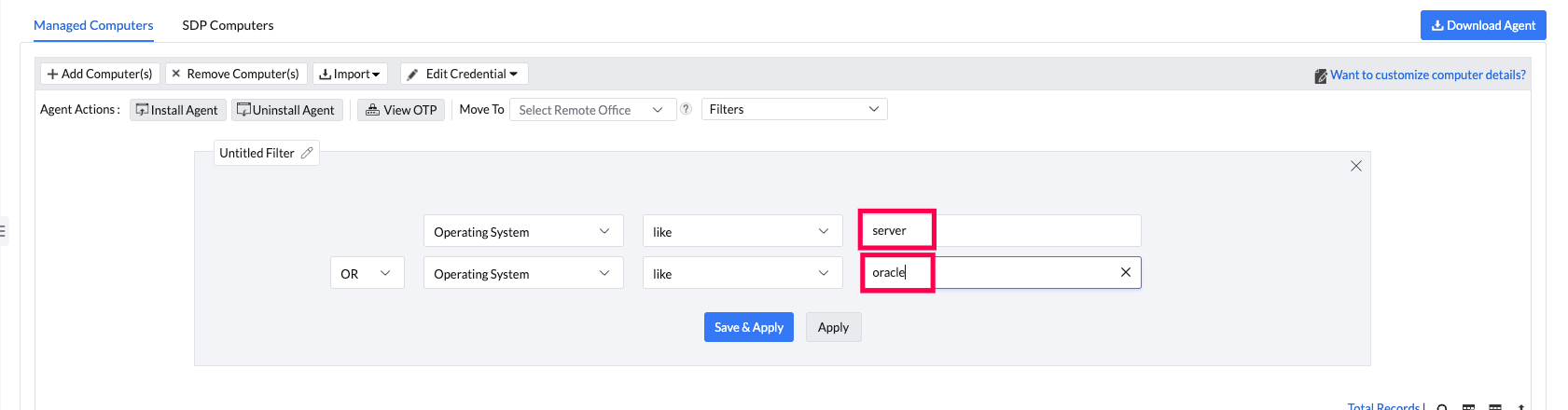
Below are some capabilities that are offered in the server management space:
- Correlate vulnerability intelligence with corresponding patches for seamless remediation.
- Pre and post deployment scripts for orchestrating server patching.
- Customizable self-service portal for patches and software for servers.
- Customized deployment policies specific to servers.
- Test and approve patches before deployment for ensuring quality and reliability.
- Comprehensive support for server applications.
- Efficient and customizable folder backup solutions.
- Centralized registry controls for server configurations.
- 12+ system tools for server maintenance.
- Inbuilt remote control and troubleshooting capabilities.
- Server OS imaging and deployment capabilities.
- Unified product for server administrators and end-user computing, tailored with scope and technician segregation.
- User logon details to keep in line with audit requirements.
- Granular control over the services and processes running on a server.
UEM Edition
The license consumption count is based on the number of endpoints managed. When the Endpoint Central agent/MDM profile is installed on an endpoint, it automatically detects the MAC address, and is accounted as a license consumed.
Let's consider an organization that has bought 1000 Endpoint Central UEM licenses, and they're looking to manage workstations (including OS imaging and deployment) and mobile devices. Assume they have to manage
- 100 workstations (with OS deployment)
- 200 workstations (without OS deployment)
- 200 mobile devices
In this scenario, a total of 500 licenses are consumed, with the other 500 still remaining.
If the org decides to retire 100 devices, they can uninstall the agent and remove those machines from the Endpoint Central server. By doing so, these 100 licenses can be reused to manage other devices. Now, there are 600 licenses left for the org to use. However, OS deployment cannot be performed on these retired machines.
- OEM license: If the Windows OS version of the image is the same as the OEM license, then the license will be automatically activated.
- Volume-based license: Let us assume you've created an image by imaging a machine with a volume-based license. Depending on the availability of the license, if you deploy it to another machine the license will be automatically activated.
To resolve the “Insufficient space for creating image” issue, please increase the available free space in the existing image repository. Alternatively, you can create a new image repository at a different location with sufficient free space and use that repository to create the new image.
- Navigate to the server installed directory: Server Installed Directory\webapps\DesktopCentral\agent
- Locate the zip file named "USMTComponents.zip". If the size of the file is 1kb, it indicates that its empty.
- Delete the USMTComponents.zip file and initiate USMT again. The zip must be recreated with required files.
- Download the target machine's model specific rapid storage driver. Extract the driver files and add them to your driver repository.
- Once drivers were added, do a scan for the driver repository and try deployment.
- Alternatively access the BIOS settings of one of the target machines affected by the BSOD.
- Change the SATA configuration to AHCI or AHCI to RAID mode vice versa and attempt to boot the machine into Windows.
- Verify whether the system successfully boots into Windows.
If the issue persists, kindly contact support.
Software Deployment Integration in OS Deployment
Open or create a deployment template via OS Deployment → Customize → Deployment Templates. In the template editor, scroll to Configure Post-Deployment Details, click Select Software Packages, and select the required packages. Save the template to apply changes to all future deployments using it.
Packages install in the order shown in the Package Install Order list — top to bottom. Drag the handle to reorder. Place dependencies above the applications that require them.
Auto-Update makes the deployment pull the latest published version of a package instead of the version saved in the template. Enable it for frequently updated apps (browsers, PDF readers). Disable it for compliance-pinned or compatibility-sensitive packages.
The OS deployment is not rolled back. The failure is recorded against the individual package in the Software Deployment Packages tab under Deployment Status. Review the error details or refer to the Software Deployment Knowledge Base for remediation steps.
No. Only Windows software packages are supported for OS deployment integration.
A minimum of Software Deployment Read permission is required. Refer to User Roles for the full permissions matrix.
Yes. Remote Office deployments automatically pause until all required software packages have been replicated to the local Distribution Server. Installation begins only after replication is confirmed.
No. Only Windows Software Package installation is supported for OS Deployment integration.
User Management and License
Roles & Permissions and Users
Role and Scope are two separate settings. The role controls what actions the user can perform. The Scope controls which machines those actions apply to. A user with Full Control role but no scope assigned will see zero devices.
Navigate to: Admin → User Administration → Users → select the user → Modify → set Scope to All Computers, a specific Remote Office, or a Static Unique Group.
Key point: Always configure both Role and Scope. A role alone is not enough.
Yes, but only via Custom Groups. Create a Static Unique Custom Group containing only workstations/desktops and assign it as the technician's scope. The technician will only see and act on machines in that group.
However, you cannot filter scope by device type (server vs workstation) natively. The group must be maintained manually — as new workstations are added, they need to be added to the group.
To automatically manage groups based on workstations and servers, you can use AD OU-based scoping through Static Unique Groups. The membership of these groups is dynamically updated based on the Active Directory (AD) synchronization, ensuring that devices are automatically added to or removed from the appropriate group based on their current OU placement.
No. Custom group creation is restricted to users with the Administrator role. It cannot be delegated through a custom role.
Technicians with a custom role can create Static and Dynamic Custom Groups (computer-based only) if they have Write access on the relevant modules, but User-based Custom Groups and group management under the Admin tab require Administrator role.
Yes. Create a custom role and set Reports to Read or Full Control, and leave all other modules at No Access. Action Log Viewer is accessible to all roles that have at least Read access to Tools (it appears under the Tools homepage for users with any Tools permission level).
Navigate to: Admin → User Administration → Role → Add Role → set Reports to required level, Tools to Read, all others to No Access.
OnPrem: Yes. Edit conf/productSettings.conf and add: concurrentSessionRestriction=true. This prevents multiple simultaneous logins with the same credentials. Restart the server after editing.
MFA & Authentication Security
Tag: Supported authenticator apps
The following authenticator apps are supported:
- Zoho OneAuth
- Google Authenticator
- Microsoft Authenticator
Email-based OTP is also available as an alternative. To configure: Admin → User Administration → Secure Authentication → Two-Factor Authentication → select 'Email' mode.
Tag: Per-user MFA exception — Not supported (11 tickets)
No. MFA in Endpoint Central is an organisation-level setting. It cannot be enabled or disabled for individual users.
Available workarounds:
- Use API key authentication for the service account instead of username/password+MFA. API keys bypass MFA entirely.
- For integrations that require browser-based login, the only option is to temporarily disable MFA org-wide during the integration window, or disable MFA permanently if the security policy allows.
This happens when your Endpoint Central Cloud instance uses Zoho Accounts or Zoho Directory for authentication. The EC console toggle only controls EC-level MFA — it does not affect MFA configured at the Zoho Accounts layer.
If your users sign in via Zoho accounts (cloud login), MFA is governed by Zoho Directory. To disable it there: log in to directory.zoho.com as Super Admin → Security → Two-Factor Authentication → disable or adjust.
Two separate MFA layers: EC Cloud has two MFA layers — EC console MFA (Admin → Secure Authentication) and Zoho Directory MFA (directory.zoho.com). Disabling one does not affect the other.
No. The MFA method configured under Admin → Secure Authentication applies globally to all users. You cannot set different methods per user or per role.
Product limitation: Per-user or per-role MFA method selection is not supported.
Cloud Zoho Account Queries
Tag: User already in another Zoho org — Cloud only
This means the user's email is already associated with a different Zoho org — from a previous ManageEngine trial, a different ME product (SDP, AE, etc.), or a past EC instance.
Resolution: Email cloud.support@manageengine.com with the affected email address. The Zoho Accounts team will disassociate the email from the previous org. There is no self-service path for this.
Yes, but this cannot be done directly from the EC console (Admin → User Administration). The email address of an EC Cloud user is tied to their Zoho account. There are two supported methods. Choose the one that suits you.
Method 1: Change the email address through Zoho Accounts (recommended)
The user must update their primary email address in Zoho Accounts by following the steps in the Zoho help article How to change the primary Email ID of Zoho account.
Once the email address is updated in Zoho Accounts, it is reflected in EC automatically. No changes are needed in the EC console.
Method 2: Dissociate the user and add them again with the new email address
If the user prefers not to change their Zoho account email address, the Super Admin can do the following:
- Note the user's current role and scope.
- Navigate to Admin → User Administration → Users.
- Dissociate the existing user account.
- Add a new user with the updated email address.
- Assign the same role and scope that the previous account had.
Dissociating a user is permanent, and the new account needs a new invitation. Any configurations, scheduled tasks, or reports associated with the old account should be reviewed. For details, refer to the User Deletion Impact section. If you get the error 'User already exists in another organization' when adding the new email address, refer to Q1 in this section.
Tag: Cloud account lockout — Zoho Accounts recovery
For cloud account lockout:
- If you have access to backup codes: use a backup code at the MFA prompt to bypass OTP.
- If you have no backup codes and no access to the authenticator: email accounts@zoho.com directly (Zoho Accounts team) with your registered email and identity verification. They will process an account recovery.
- Email cloud.support@manageengine.com and request escalation to the Zoho Accounts team.
If you have the former admin's credentials: Log in as Super Admin → Admin → User Administration → select the new admin → Actions → Transfer Ownership → confirm.
If you do NOT have the former admin's credentials (most common case): Email cloud.support@manageengine.com from a registered admin email address. Provide: your domain, the current Super Admin email, the new Super Admin email, and proof of identity or authorization. The Zoho Accounts team processes this manually.
OnPrem: Navigate to Admin → User Administration → select the new user → Actions → Transfer Ownership (must be done from an existing admin account).
Important: For cloud, this process involves the Zoho Accounts team, not EC support. Response time may differ from EC support SLA. Plan ahead if the Super Admin is leaving proactively.
Tag: User already in another Zoho org — Cloud only
This means the user's email is already associated with a different Zoho org — from a previous ManageEngine trial, a different ME product (SDP, AE, etc.), or a past EC instance.
Resolution: Email cloud.support@manageengine.com with the affected email address. The Zoho Accounts team will disassociate the email from the previous org. There is no self-service path for this.
SAML SSO FAQ
Tag: SAML SSO with Azure / Entra ID — Setup (38 tickets)
EC Cloud: SAML for EC Cloud is configured through Zoho Accounts, not the EC console directly.
- Log in to accounts.zoho.com as Super Admin
- Go to Security → Single Sign-On → Add Identity Provider
- Upload the Azure Enterprise Application federation metadata XML
- Copy the Zoho SP ACS URL and Entity ID into your Azure Enterprise App SAML settings
- In EC console → Admin → User Administration → add users with their Zoho/Azure email
EC OnPrem: Go to Admin → User Administration → Secure Authentication → SAML Authentication → configure IdP metadata URL or upload Azure metadata XML.
Two common causes:
- The user has not been created in the EC console yet. SAML authenticates the user but does not create their account. Go to Admin → User Administration → Add User → use the same email address as their Azure UPN → assign a role.
- The SAML attribute (NameID / email claim) in Azure doesn't match the email in EC. Check that the Azure Enterprise App is sending the email attribute in the format EC expects (UPN vs email vs sAMAccountName). Match the format to what is stored in EC.
Key rule: Users must be pre-created in EC. SAML login will fail if the email arriving from Azure doesn't match an existing EC user account exactly.
Tag: Enforce SAML-only login — productSettings.conf workaround
OnPrem: Edit conf/productSettings.conf and add or modify the line: users_with_basic_auth=<comma-separated usernames of accounts that should keep basic auth>. Leave it blank or omit non-SSO users to restrict all to SAML. Restart the server service after editing.
OnPrem: Yes, you can give access to users who are not part of your organization's IdP. When you create a new user in the Endpoint Central console (Admin → User Administration → Add User), a local account is created for them. These users can bypass the SAML SSO flow and sign in with the user name and password of their local account.
If you have enforced SAML-only login, add the user names of these external users to the users_with_basic_auth setting. Otherwise they are restricted to SAML. For details, refer to Q3.
OnPrem: Yes, you can disable SAML authentication without losing access to the console. Before you disable SAML, keep the following in mind:
- Verify admin credentials: Make sure you remember the password of your admin account, so that you do not get locked out.
- Standard login: Once SAML is turned off, all users can log in with their default Endpoint Central credentials.
- Two-Factor Authentication (TFA): If your organization has TFA enabled, users are still prompted to complete the second verification (such as entering an OTP) after they enter their password.
To disable SAML, go to Admin → User Administration → Secure Authentication → SAML Authentication.
No. Endpoint Central supports only one SAML identity provider at a time. You cannot configure two IdPs concurrently.
To migrate from one IdP to another: co switch the active IdP configuration. prepare users in the new IdP first, then update the EC SAML configuration.
Product limitation: Multiple simultaneous IdPs are not supported.
No. MFA in Endpoint Central is an organisation-level setting. When enabled, it applies to all users — admins and technicians alike. There is no way to restrict MFA to a specific role or user group.
Not natively. Endpoint Central does not support conditional MFA based on network location or IP address. MFA is either on or off for the entire organization.
Partial workaround: Use IP Restriction (Admin → Secure Authentication → IP-based Access Restriction) to block console access from outside the corporate network entirely. This prevents the scenario of external access without MFA, but it also prevents legitimate remote access.
Shared accounts with MFA are not well-supported. Since each account can only have one registered MFA device, a shared account forces all users to share one phone or authenticator app.
Recommended approach: Create individual admin accounts for each team member rather than sharing one account. Individual accounts also provide proper audit trails — shared accounts make it impossible to trace which person performed a specific action.
If the shared account is required (e.g., service account): disable MFA for all users via disableTFA.bat and use API key authentication for the service account instead. Do not share admin credentials across team members.
Product limitation: Only one MFA device per account. Multi-device MFA registration is not supported.
User Deletion Impact
The default admin account can be deleted only if:
- At least one other user with Administrator role exists in the console.
- The account is not the current Super Admin.
If the account is the Super Admin, you must first transfer Super Admin privileges to another user before deletion is permitted.
If you see a 'Super Admin Cannot be modified' error, the account is the Super Admin — use the Transfer Ownership flow first.
Yes. Audit log entries (Action Log Viewer) are retained after a user is deleted. The actions are logged against the user's email address, which continues to appear in historical log entries even after the account is removed.
Audit log retention is configurable up to 750 days. Navigate to: Admin → User Administration → Secure Authentication → Action Log Viewer → configure retention.
Deleting the user whose API key is used for the SDP-EC integration will immediately invalidate that API key. The SDP-EC integration will stop working — asset data will no longer sync and tickets may lose EC context.
Before deleting: generate a new API key from a different admin account → update the SDP integration settings (SDP → Admin → Integrations → Endpoint Central) with the new API key → verify sync is working → then delete the old user.
These three actions affect the user account differently, but share one important behaviour: none of them remove or deactivate objects the user created.
| Aspect | Disable | Delete | Dissociate (Cloud) |
|---|---|---|---|
| Console access | Revoked | Revoked | Revoked |
| Account still exists | Yes | No | No |
| Can be re-activated | Yes | No | No (new invite required) |
| API key disabled | No | Yes | Yes |
| Frees a licensed slot | No | Yes | Yes |
| Configurations/policies on endpoints | Unaffected | Unaffected | Unaffected |
| Scheduled reports and patch schedules | Keep running | Keep running | Keep running |
Example use cases when to use which action:
- Disable: Temporary suspension (employee on leave, account under review). The account can be re-enabled without a new invitation.
- Delete: Permanent removal when the user will not return and you want to free the licensed slot.
- Dissociate (Cloud editions): Permanent removal that also unlinks the user's Zoho account from the organisation, freeing the licensed slot. Use this when transferring a license to a new user.
License Management
Endpoint Security Add-ons:
- Vulnerability Manager Plus
- Browser Security Plus
- Device Control Plus
- Application Control Plus
- BitLocker Management: Enforce and monitor BitLocker encryption.
- Endpoint Data Loss Prevention (DLP): Classify and protect sensitive data.
- OS Deployer
- Malware Protection
- Ransomware Protection
- Digital Employee Experience
A UEM license is consumed when an endpoint is managed under any or all of the following modules:
- SoM (Scope of Management) — Includes functionalities like patching, software deployment, etc.
- OSD (OS Deployment)
- MDM (Mobile Device Management)
- In the product console, click on the user profile icon at the top-right corner.
- Select License to access the license management page.
- Click on Enter License File and upload the license file by either dropping the files or browsing the files in your computer.
- Click Upload to apply the new license.
This will redirect to the ManageEngine Store page, where you can review and place the order.
Select your payment method and complete the payment.
Your license will be activated immediately.