Backup Settings
The Backup Settings page lets you schedule automatic backups of the built-in PostgreSQL database that ManageEngine ADSelfService Plus runs on. You can choose where the backup files are stored, set how many are retained, and run a backup on demand at any time. Each backup is saved as a compressed file named with the product build number and a timestamp, which makes individual backups easy to identify.
Prerequisites
Before you configure backups, ensure that:
- You are logged in to ADSelfService Plus as an administrator.
- The account that runs ADSelfService Plus has write access to the backup storage path, especially if you use a network (UNC) path.
Limitations
- Automatic backup works only with the built-in PostgreSQL database. Backing up ADSelfService Plus from an external database is not supported.
- In a failover or load balancing setup, backups run only from the primary server.
Configuration instructions
Scheduling an automatic backup
To schedule a recurring backup, follow these steps:
- Log in to ADSelfService Plus as an administrator.
- Navigate to Admin > Product Settings > Backup Settings.
- Under Backup Frequency, select Daily, Weekly, or Monthly, then set the day and time the backup should run. For Monthly, choose the date of the month and the time; for Weekly, the day of the week and the time; for Daily, the time of day.
- In the Backup Storage Path field, enter the folder where the backup files are saved. You can use a local path or a network (UNC) path.
- From the Retain Backup Files list, choose how long to keep backups: All Files, Last N Files, or Last N Days. For Last N Files or Last N Days, enter the number of files or days to keep. ADSelfService Plus automatically removes backups that exceed this limit.
- Click Save.
| Note: If the storage path is incorrect or unavailable, ADSelfService Plus saves the backup files to the default Backup folder under the product installation directory.You can protect your backups with a password under Admin > Product Settings > Security and Privacy. If you leave the password field blank, the backup is protected with the default password. |
|---|
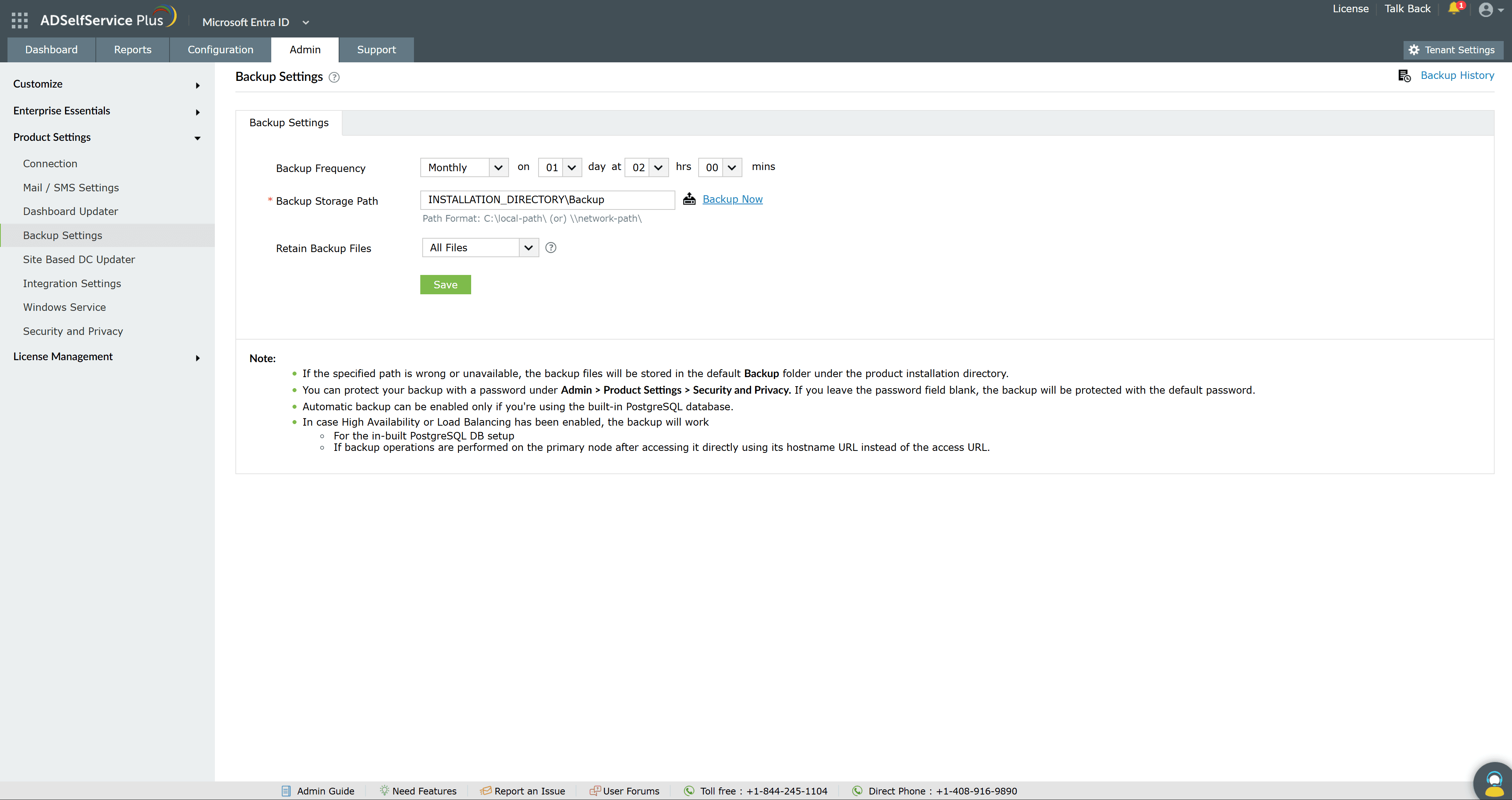
Fig.1: The Backup Settings page in ADSelfService Plus.
Running a backup immediately
To create a backup right away without waiting for the next scheduled run, click Backup Now next to the Backup Storage Path field. The backup is written to the same storage path.
Reviewing past backups
To review previous backups, click Backup History at the top right of the page. The history lists each backup with the following columns:
| Column | What it shows |
|---|---|
| Build No | The ADSelfService Plus build number the backup was taken from. |
| Backup Location | The path where the backup file was stored. |
| Backup time | The date and time the backup was created. |
| Status | The outcome of the backup, such as success or failure. |
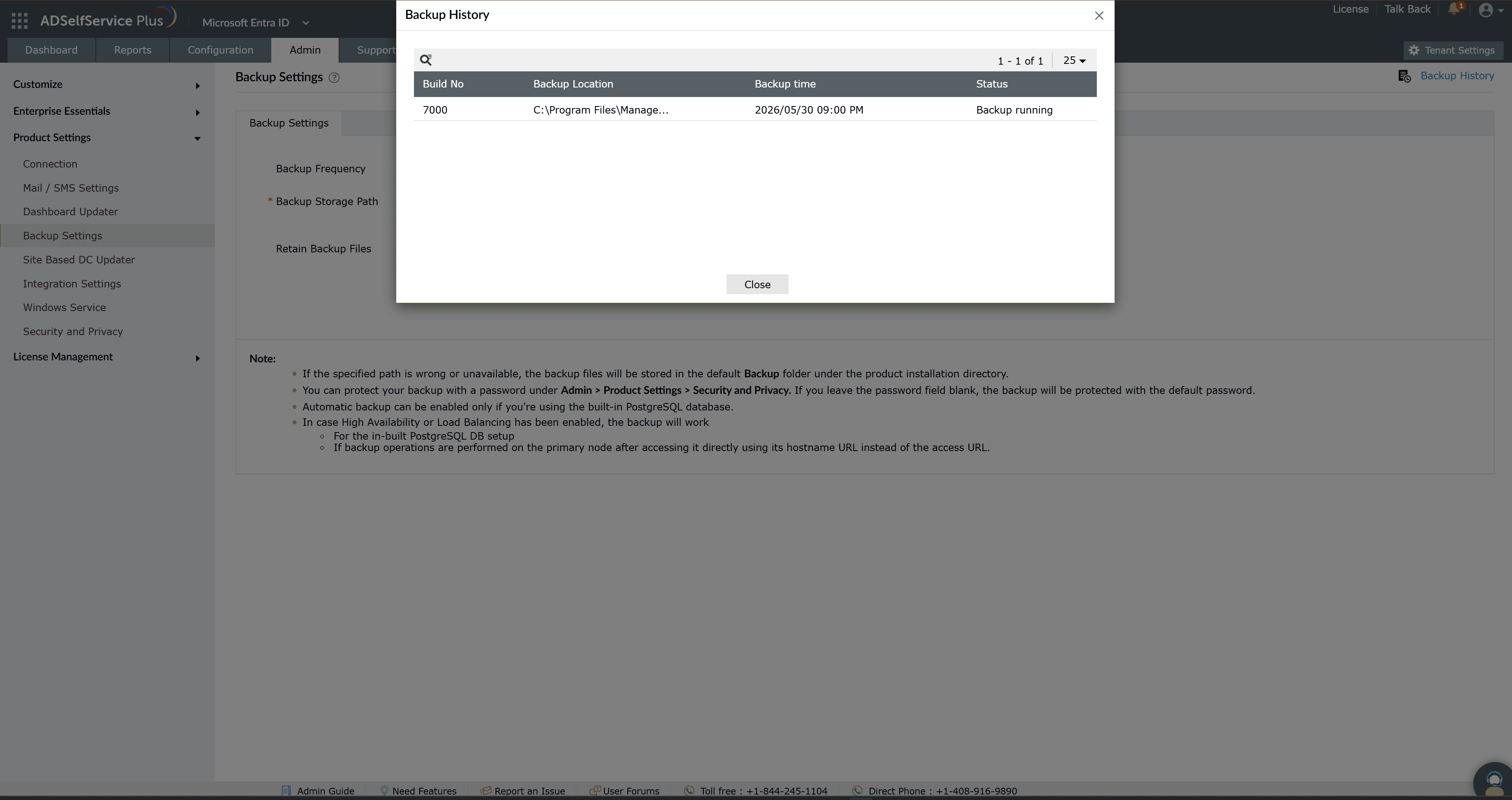
Fig.2: Backup History view in ADSelfService Plus.
Restoring the database from backup
To restore the ADSelfService Plus database from a backup file, follow these steps:
- Run the Command Prompt as an administrator.
- Use the cd command to navigate to the <Installation_Dir>\bin folder (by default, C:\Program Files\ManageEngine\ADSelfService Plus\bin).
- Run the following command to restore the database from the backup:
restoreDB.bat compressed_file_name.zip -p <password>
For example: restoreDB.bat 081224-1547.zip -p <password>
The compressed backup file is located at the Backup Storage Path you specified when configuring backup settings.
- Determine the password for the backup file, which is one of the following:
- Default password: The filename reversed. For the filename mentioned above, the password is 7451-422180.
- Admin-configured password: The custom password set before the backup was created. You set this under Admin > Product Settings > Security and Privacy > Privacy Settings > Change Password For Database Backup Files.
- If you have forgotten the password but have access to the ADSelfService Plus installation directory, obtain the encrypted password from the customer-config.xml file (<Installation_Dir>\conf\customer-config.xml) and contact support@adselfserviceplus.com to decrypt it. Otherwise, the backup is inaccessible and you must create a new one.
Backups in failover or load balancing setups
In ADSelfService Plus, backups run only from the primary server in a failover or load balancing setup:
- Failover: You can back up only while the primary server is active. If the product is running on the secondary server, start the primary server first. Backup Now and the backup scheduler work only on the primary server.
- Load Balancing: The Backup Now option works only from the primary node URL. Access the primary server using its hostname URL instead of the access URL to perform backups.
Tips
- Store backups on a separate machine using a network (UNC) path, so they survive a failure of the ADSelfService Plus server.
- Set Retain Backup Files to limit disk usage while keeping enough history to meet your recovery needs.