
Microsoft Authenticator password resets with ADSelfService Plus
Why use Microsoft Authenticator for password reset verification?
ADSelfService Plus manages work and school identities connected to Active Directory (AD) and Microsoft Entra ID environments. Adding Microsoft Authenticator to the self-service password reset (SSPR) workflow improves security far beyond traditional security questions. Security-question-only reset flows do not satisfy modern authentication assurance guidance such as NIST SP 800-63B, specifically Section 5.1.1 (Memorized Secrets), which classifies security questions as a weak authentication factor and recommends against their use as the sole authentication method due to their susceptibility to guessing, phishing, and social engineering attacks. A TOTP factor blocks attackers who may know personal details about the user but do not possess the registered device.
This guide covers:
- How to configure Microsoft Authenticator for SSPRs.
- The user-facing password reset flow.
- Recovery options after a device loss.
- Best practices for MFA enrollment and rollout.
Prerequisites: Setting up SSPRs
Before Microsoft Authenticator can function as a password reset verification method in ADSelfService Plus, these prerequisites must be satisfied:
- ADSelfService Plus must use SSL: The ADSelfService Plus portal requires a valid SSL certificate because TOTP verification and credential exchange require HTTPS encryption.
- The user must fall within an SSPR policy scope: Administrators must create an SSPR policy that includes the user’s OU or AD group.
How to configure Microsoft Authenticator in ADSelfService Plus
This workflow applies to administrators configuring Microsoft Authenticator as an MFA factor for SSPRs:
- Log in to the ADSelfService Plus admin portal.
- Go to Configuration > Self-Service > Multi-factor Authentication > Authenticators Setup.
- Select the target SSPR policy. ADSelfService Plus applies SSPRs and MFA per OU and AD group. Select the policy assigned to the target users.
- Locate Microsoft Authenticator in the authenticator list and enable it (Fig. 1).
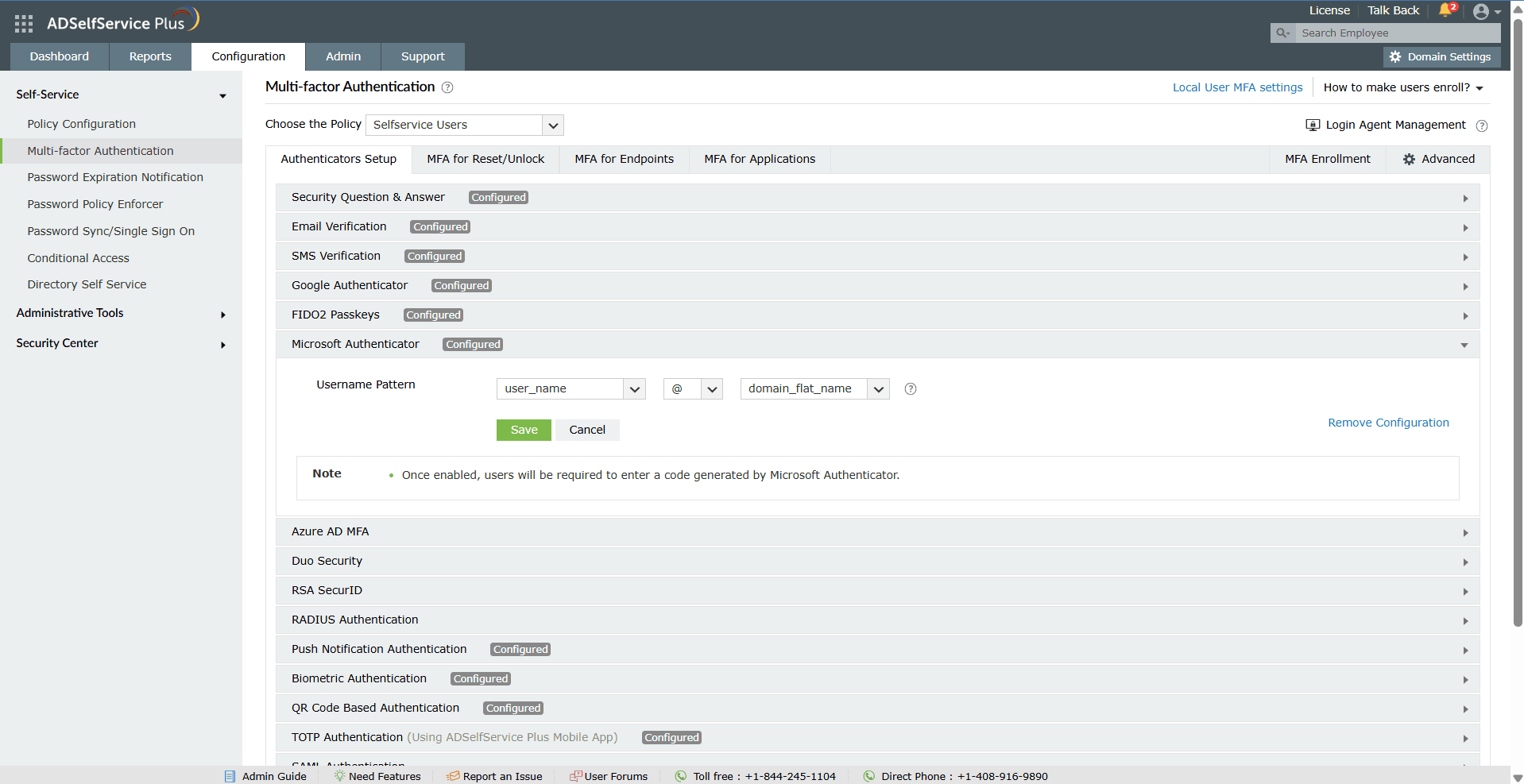
Figure 1. Microsoft Authenticator on the ADSelfService Plus Authenticators Setup tab.
- Go to MFA for Reset/Unlock.
- In the MFA for Password Reset section, enter the number of authentication methods to be enforced for password resets and select Microsoft Authenticator and other authentication methods to be used. The configuration panel also enables administrators to set whether Microsoft Authenticator is mandatory or optional as well as the authenticator priority order.
- Click Save Settings (Fig. 2). The policy applies immediately to all users within the linked OU or AD group.
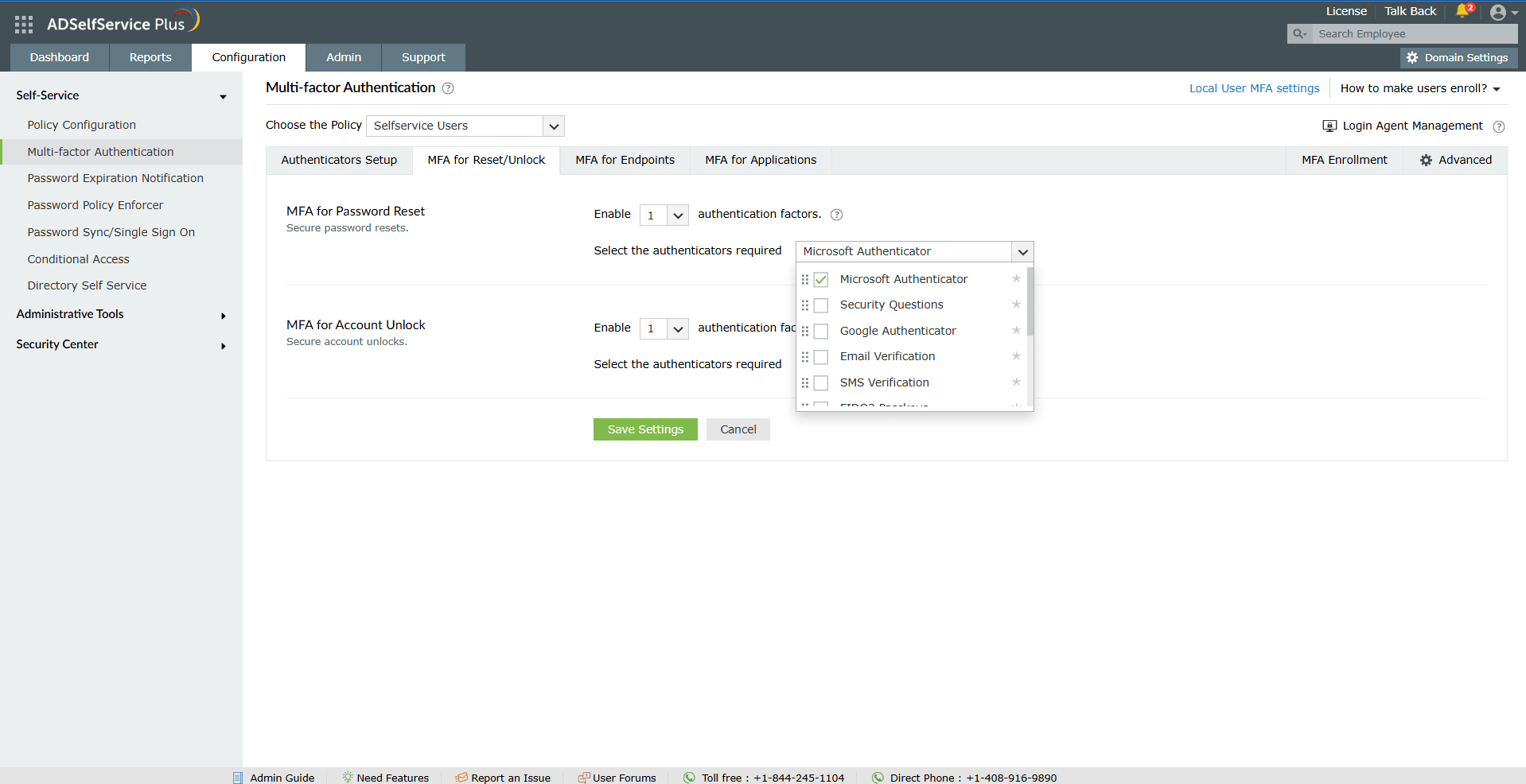
Figure 2. MFA for Reset/Unlock configuration in ADSelfService Plus.
The same MFA policy framework can also extend to the following:
Enrollment settings
Enrollment is the one-time registration process where users scan a QR code or enter a setup key into Microsoft Authenticator. Without enrollment, the server has no TOTP seed to validate against.
ADSelfService Plus supports several enrollment approaches:
- Forced enrollment through the portal
- Login-script-based enrollment for domain-joined devices
- CSV-based bulk enrollment for entire OUs
Bulk enrollment is especially useful during deployments because it reduces first week support requests caused by incomplete MFA registration.
Force enrollment with a login script so users must register at least one authenticator before accessing the device.
For deployments requiring multiple factors, such as Microsoft Authenticator plus an email OTP, organizations typically follow one of two rollout models:
- Phased enrollment: Users retain portal access during a grace period while completing MFA registration. After the grace period ends, unenrolled users lose SSPR access until enrollment is complete.
- Pre-seeded bulk enrollment: Administrators use CSV-based bulk enrollment to preregister users before policy enforcement begins. This eliminates most first week MFA support request spikes during the rollout.
Step by step: Resetting an AD password using Microsoft Authenticator
Once enrollment is complete, end users can complete the password reset process in less than two minutes. The user must:
- Access ADSelfService Plus. On Windows devices with the ADSelfService Plus login agent installed, users can also click Forgot password? directly from the Windows login screen. End users with the ADSelfService Plus app can access the Reset Password portal from there.
- Click Reset Password, enter the domain username, and continue. The portal will check whether the account belongs to an SSPR-enabled OU or AD group. The portal will then display all enrolled verification methods for the user to choose from. If Microsoft Authenticator is mandatory, the user will be automatically asked to complete verification.
- Open the Microsoft Authenticator app and locate the ADSelfService Plus account.
- Enter the six-digit TOTP code into the portal before the timer refreshes.
- Do the following if verification fails:
- Confirm if the correct work account entry is selected in Microsoft Authenticator.
- Wait for the next code cycle.
- Retry verification.
- Wait for ADSelfService Plus to display the password reset form after successful MFA verification, then enter the new password.
ADSelfService Plus will update the password and can optionally:
- Send email or SMS notifications.
- Synchronize cached credentials for remote AD users.
- Replicate password changes across synchronized applications and services.
Cached credential synchronization is especially important for remote users because it prevents login failures caused by stale local credentials after password resets.
Organizations using AD or Entra ID with ADSelfService Plus can follow the same process for the respective accounts.
Using backup verification codes when authenticator access is lost
Losing access to Microsoft Authenticator interrupts the normal TOTP verification process.
ADSelfService Plus supports backup verification codes. The user can generate the one-time backup verification codes during enrollment, or the admin can provide the codes to the user. To use the codes, the user must:
- Start the password reset flow.
- Select Backup verification code.
- Enter one of the saved codes.
- Complete the password reset process.
Each backup code works once and then expires.
Re-enrolling in Microsoft Authenticator after a device loss
After the user authenticates themself with an alternative factor, they must:
- Sign in to the ADSelfService Plus end-user portal.
- Go to Enrollment.
- Remove the old Microsoft Authenticator registration.
- Scan the new QR code using the replacement device.
Administrators can also trigger re-enrollment manually for users who no longer have alternative authentication methods.
How to set up Microsoft Authenticator on a new phone
If the old device is still available, the user can:
- Open Microsoft Authenticator on the old device.
- Enable the cloud backup.
- Install Microsoft Authenticator on the new device.
- Restore the backup.
- Test TOTP verification through ADSelfService Plus.
If the old device is unavailable, or if the cloud backup was disabled or outdated, the user must:
- Authenticate themself using an alternative enrolled factor.
- Re-enroll in Microsoft Authenticator through the ADSelfService Plus portal.
Even when the app backup succeeds, re-enrollment through the portal remains the safest long-term option because it establishes a fresh TOTP seed.
Best practices for Microsoft Authenticator password resets
- Require users to enroll in at least two verification methods to prevent a device loss from blocking password resets.
- Use stronger authenticators such as FIDO2 passkeys or hardware tokens for high-security endpoint login workflows.
- Apply conditional access policies to enforce stricter MFA requirements based on the device type, IP address, location, or login risk.
- Review MFA enrollment reports before enforcement to identify unenrolled users and authentication failures.
- Instruct users to securely store backup verification codes during enrollment.
- Ensure servers and user devices use accurate time synchronization to prevent TOTP verification failures.
- Test cached credential synchronization for remote users after password resets.
- Avoid relying only on security questions for password reset verification.
- Align password reset policies with compliance frameworks such as NIST SP 800-63B, the PCI DSS, HIPAA, and the GDPR.
- Encourage users to re-enroll in Microsoft Authenticator after changing devices instead of depending only on app backups.
Frequently asked questions (for end users)
What happens if I lose my phone and can't access Microsoft Authenticator?
Use a backup verification code you generated from your account's security settings before the loss. If you have no backup codes, try your other registered methods: SMS, an email verification code, or a hardware security key. If none of those are reachable, your IT administrator must clear your MFA registration because there's no self-service path past total method exhaustion.
Can I use Microsoft Authenticator to reset a work or school account password?
Yes, if your organization has enabled SSPRs, and you registered the app before forgetting your password. For organizations running ADSelfService Plus, the admin configures Microsoft Authenticator as a TOTP factor at the policy level and applies it to specific OUs or groups. AD self-service password recovery depends entirely on the policies your IT team has configured; the app being installed on your phone isn't enough on its own.
How do I set up Microsoft Authenticator on a new phone?
If you had the cloud backup enabled, restore your iCloud (iOS) or Google Drive (Android) backup and sign into the same cloud account on the new device. If you don't have a backup, sign in to your account's security info settings using another available verification method, remove the old Microsoft Authenticator entry, and add a new account entry by scanning a fresh QR code.
What is the difference between a recovery code and a verification code?
A verification code is the six-digit TOTP that Microsoft Authenticator generates every 30 seconds during normal authentication. A recovery code (also called a backup verification code or 2FA recovery code) is a pre-generated single-use string saved in advance for emergencies when the app is unavailable. Recovery codes don't expire on a 30-second rotation, and each one is valid until used once.
Learn more about ADSelfService Plus and its Multi-factor Authentication feature.
Simplify password management with ADSelfService Plus.
Self-service password management and single sign-on solution
ManageEngine ADSelfService Plus is an integrated self-service password management and single sign-on solution for Active Directory and cloud apps. Ensure endpoint security with stringent authentication controls including biometrics and advanced password policy controls.
 Free Download
- Related Products