SCCM application deployment for third-party software
Table of Contents
What is SCCM application deployment for third-party software?
SCCM application deployment for third-party software is the process of packaging, distributing, and installing non-Microsoft applications to managed endpoints through Microsoft Configuration Manager's Application Management workspace. Unlike patch deployment (which uses the Software Updates channel for existing application updates), application deployment handles the initial installation of an application or the deployment of a new version as a complete package. For third-party software, this requires creating application binaries with detection rules, install commands, and content before deploying through the SCCM console.
Application deployment vs. Software updates deployment in SCCM: when to use which
SCCM has two separate channels for getting software to endpoints, and choosing the wrong one can cause deployment failures and compliance gaps. The distinction matters:
- Software Updates deployment (Deploy Software Updates Wizard): Use this when deploying patches and updates to applications already installed on endpoints. Updates are published to WSUS, synchronized to SCCM, and deployed through Automatic Deployment Rules or the Deploy Software Updates Wizard. This is the standard channel for monthly patching. Third-party patches published by Patch Connect Plus flow through this channel. See the SCCM patch deployment step-by-step guide for this method.
- Application deployment (Deploy Software Wizard): Use this when installing a new application on endpoints for the first time or deploying a complete new version of an application as a package (not an incremental update). Applications are created in the Application Management workspace with detection rules, install commands, and content sources. This guide covers this method.
In practice, use the Software Updates channel for keeping existing applications patched and the Application Management channel for initial installations and major version rollouts. Patch Connect Plus supports both: it publishes patches through WSUS for the Software Updates channel, and it can create application binaries in the Application Management workspace for initial deployments.
How to deploy third-party applications in SCCM
SCCM application deployment distributes third-party software to managed endpoints through the Application Management workspace in the SCCM console. This workspace lets admins create application packages, define detection rules, set install commands, manage licenses, and track deployment status. For third-party applications, the main challenge is preparing the software before deployment: downloading the installer, applying code signing certificates, and creating the application package with correct detection logic. Patch Connect Plus handles that preparation automatically for 800+ third-party applications. See the full list of supported applications.
Simplify third-party application deployment in SCCM with Patch Connect Plus.
SCCM application deployment step-by-step
Patch Connect Plus simplifies third-party application deployment with its library of 800+ applications ready to be published to SCCM's Application repository. Once applications are successfully published, you can carry out their deployment using the standard SCCM tools. Before you begin, configure the following prerequisites.
Prerequisites
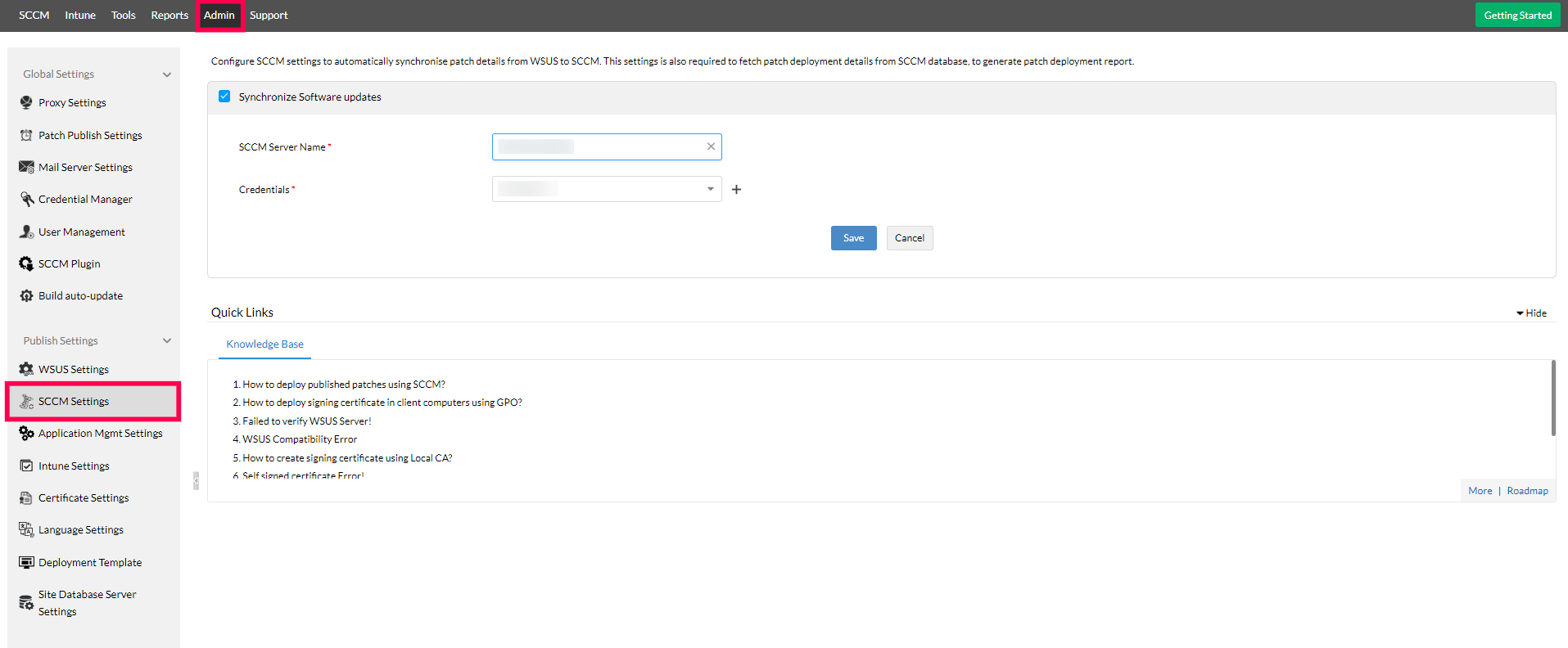
Configuring SCCM settings
Before creating binaries of third-party applications in Patch Connect Plus, configure the SCCM settings in the Patch Connect Plus console to automatically synchronize the application binaries to your SCCM server.
- Navigate to SCCM Settings under the Admin tab in the Patch Connect Plus console.
- Enter the name or IP address of the Microsoft SCCM server to which the binary details must be synced.
- Add the credentials of the SCCM admin user.
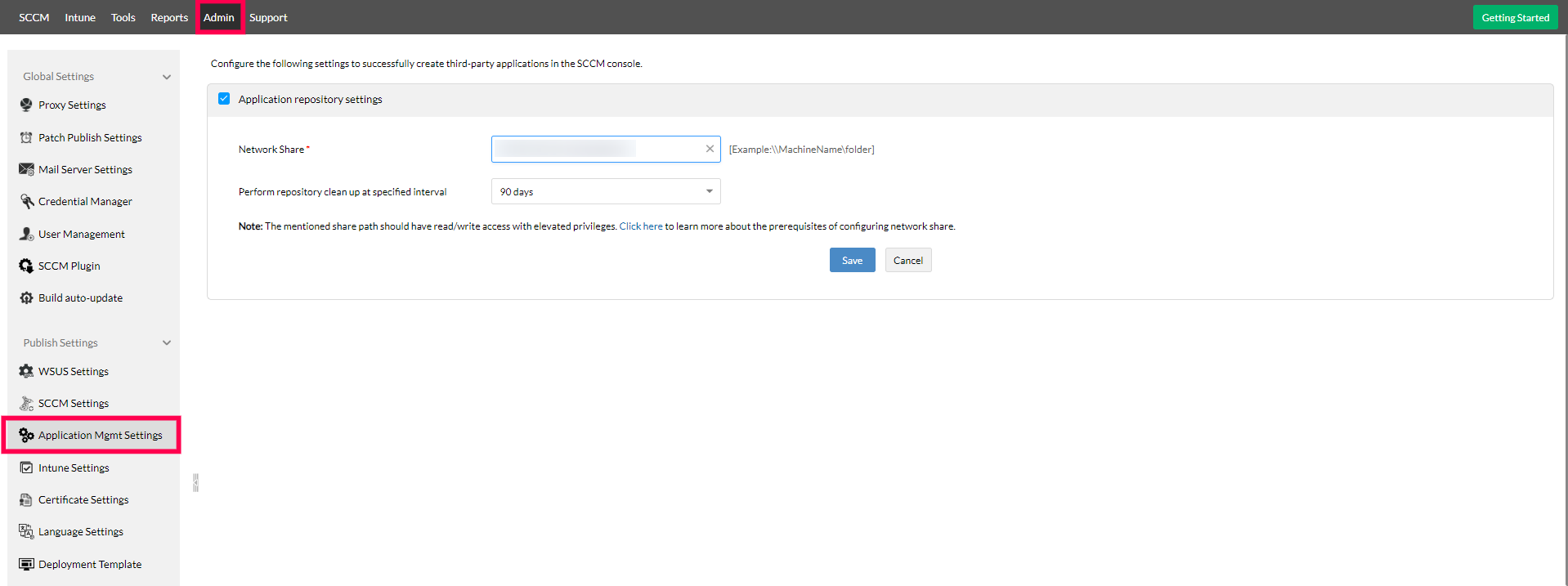
Configuring Application Management settings
Configure the network share path for all the software binaries in the Application Management settings.
- Navigate to Application Management settings under the Admin tab. Enter the network share path where all the software binaries will be stored.
- Ensure the network path has read/write access enabled with elevated privileges.
- Set a time interval (for example, 60 or 90 days) for cleaning up outdated application binaries from the repository. Choose an interval based on your organization's retention requirements and available disk space.
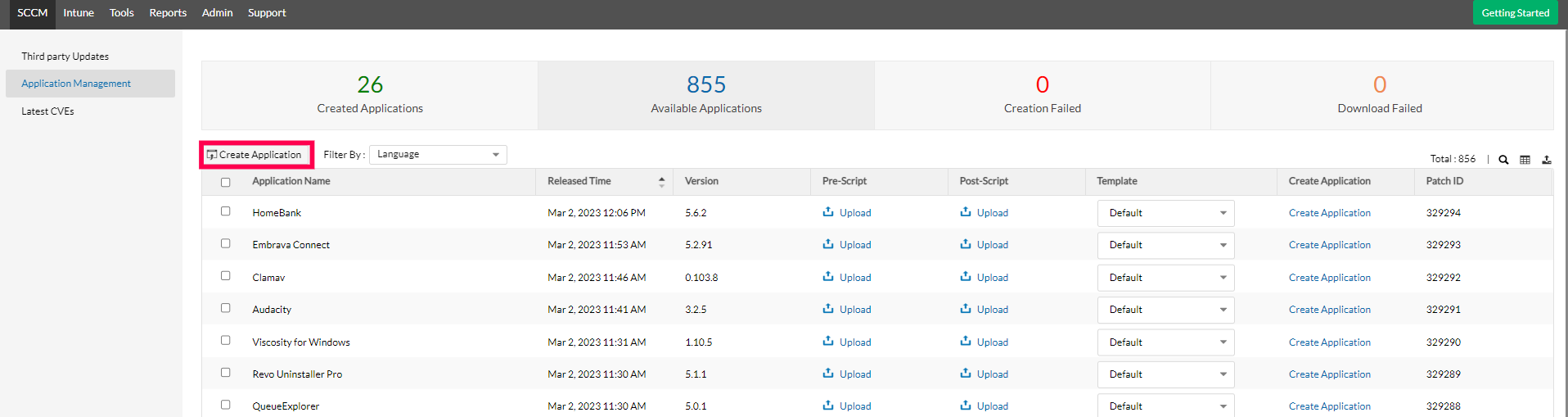
Creating third-party application binaries in Patch Connect Plus
- Once the prerequisites are met, navigate to the Application Management tab in the Patch Connect Plus console. All supported third-party applications will be listed.
- Select the required third-party application that you want to create in SCCM and click Create Application.
- When the Application creation in progress message appears, Patch Connect Plus begins creating the third-party application binaries for SCCM.
Deploying third-party applications from the SCCM console
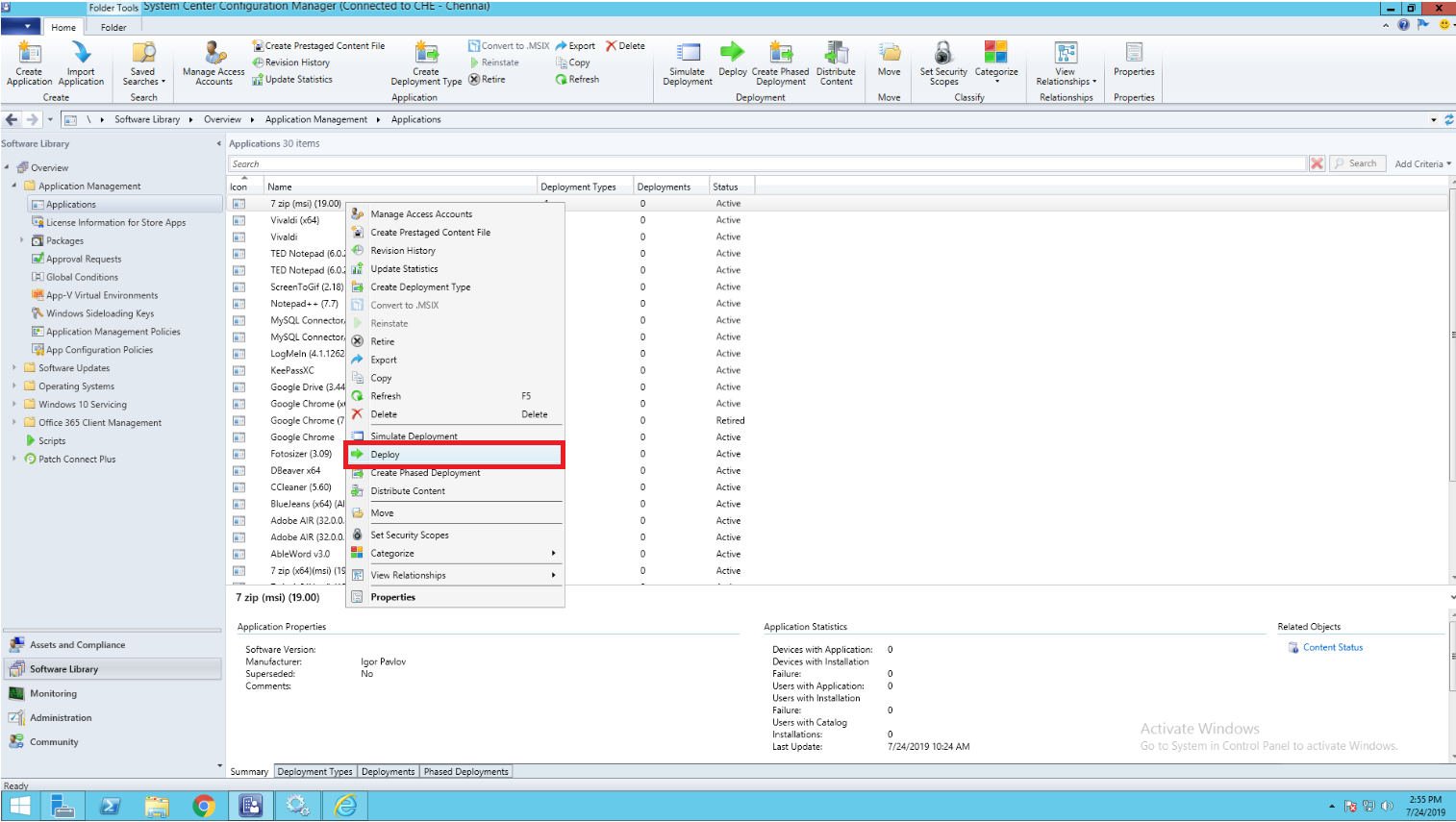
All third-party applications created from the Patch Connect Plus console are listed under Software Library > Application Management > Applications in SCCM. To deploy the required application to your endpoints, follow these steps:
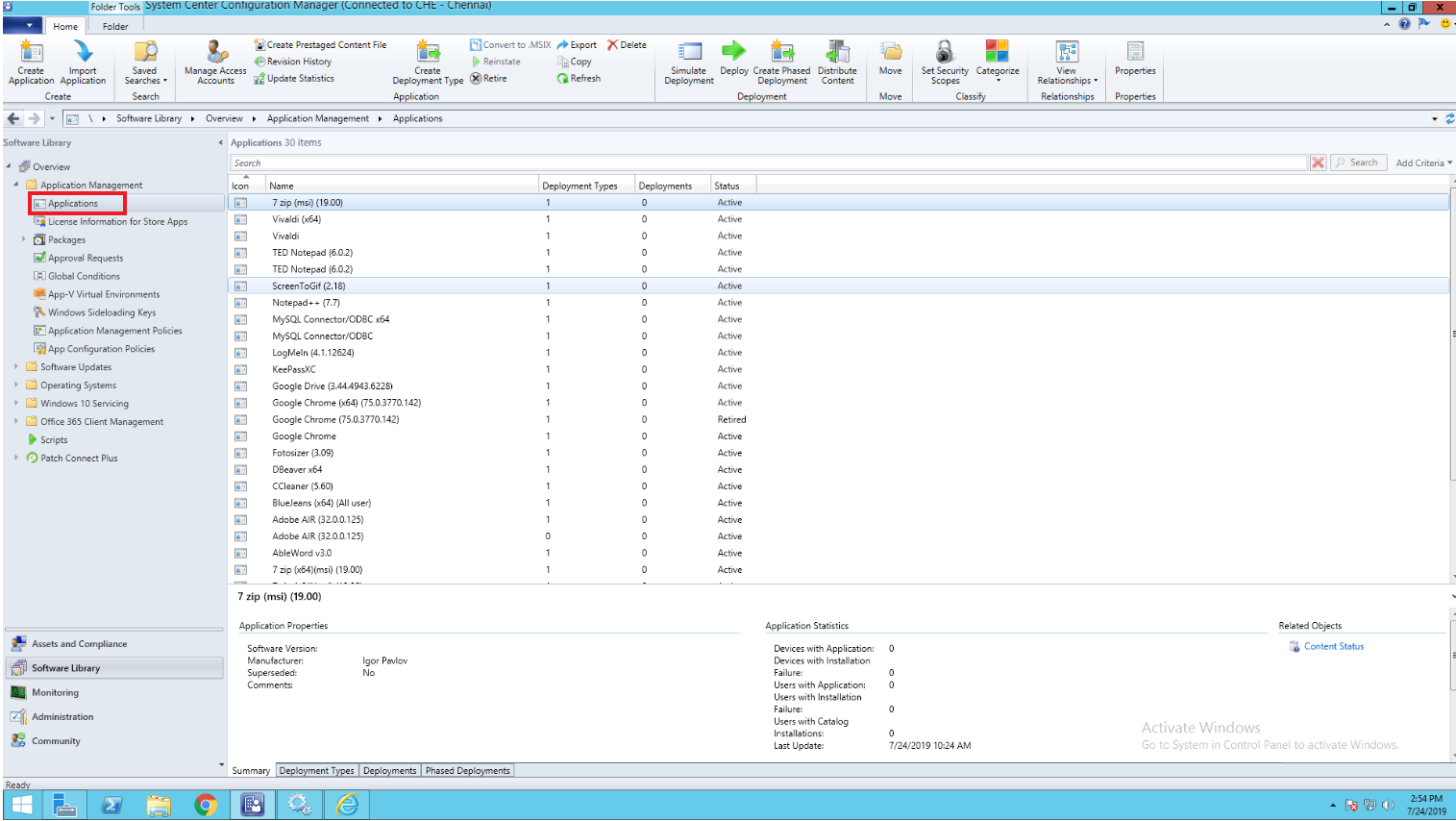
Right-click the third-party application you want to deploy and select Deploy.
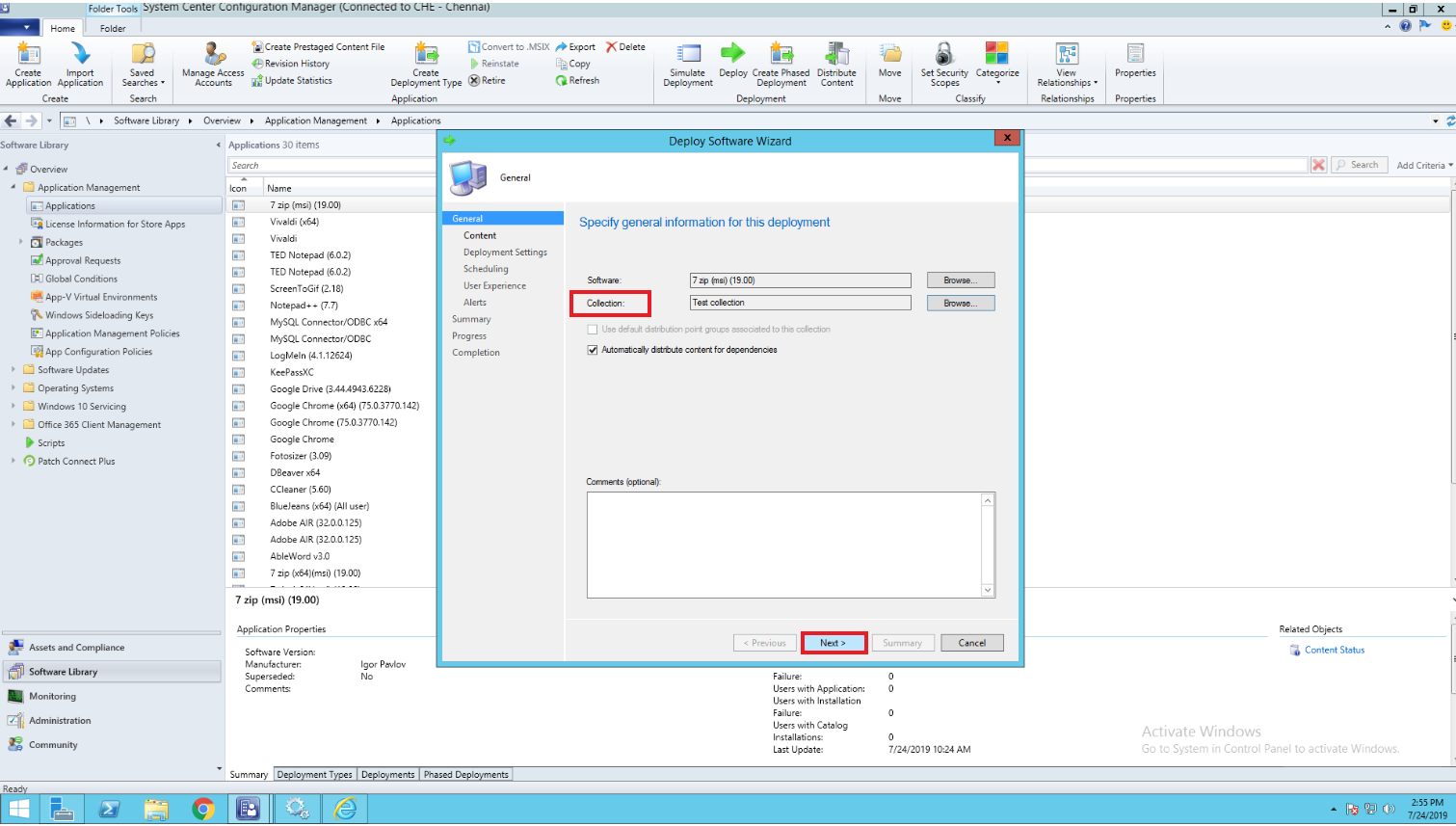
In the Deploy Software Wizard, select the target collection and click Next. For required deployments, the application installs automatically; for available deployments, it appears in Software Center for users to install on demand.
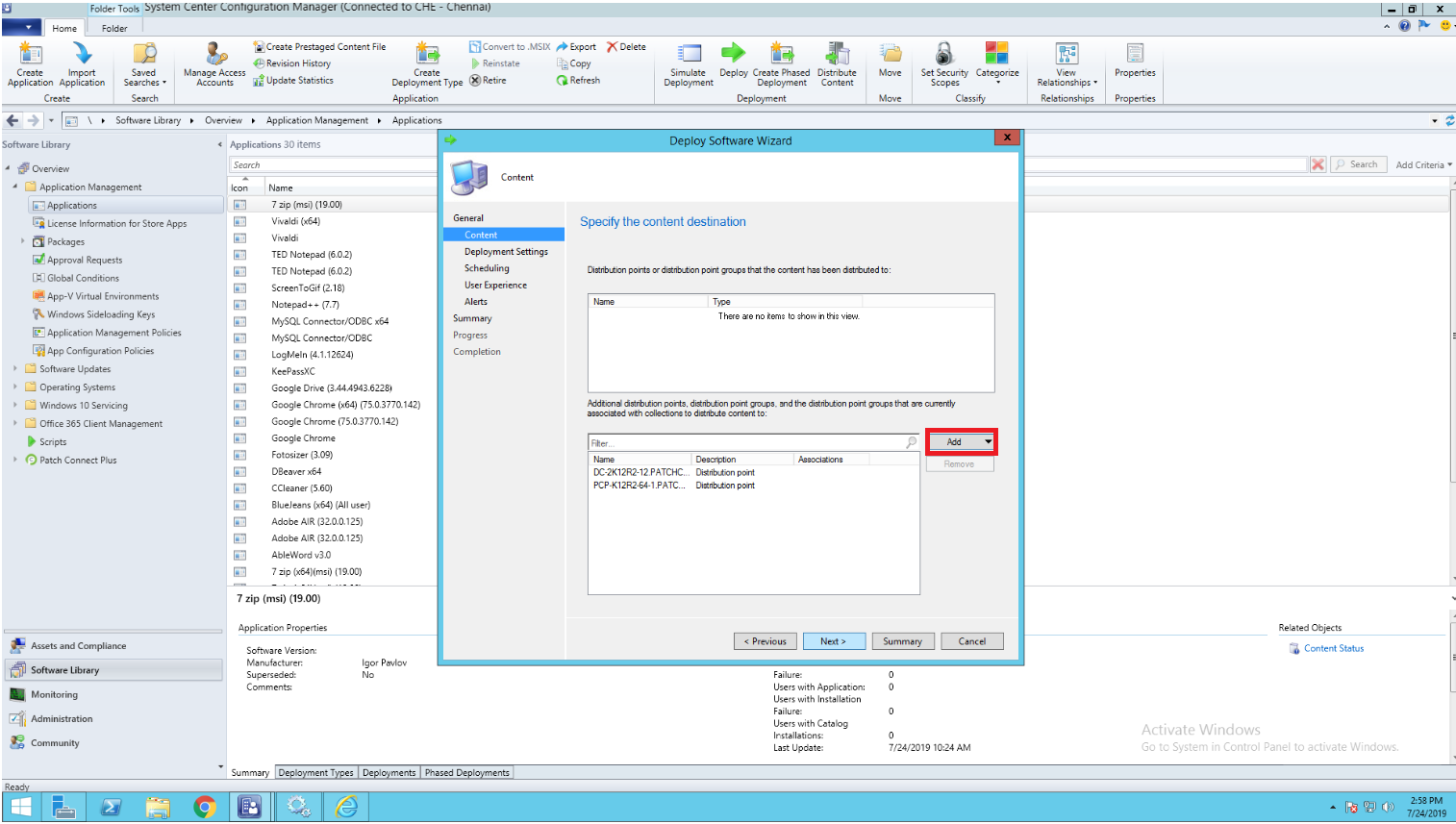
On the Content page, specify the distribution point or distribution point group from which the application content will be delivered.
Under Deployment Settings, choose Available or Required. Choose Required for automatic installation without user action, or Available to let users initiate the installation from Software Center. Click Next.

Under Scheduling, specify when the deployment should be available. For urgent deployments, set the available time to As soon as possible. For planned rollouts, account for maintenance windows to minimize user disruption. Click Next.

Under User Experience, configure user notification and installation experience settings.

Under Alerts, configure the alerts and compliance thresholds for the deployment.

Review the Summary page to confirm all selected deployment settings.

Click Next to complete the wizard. The deployment is created and will run for the target computers according to the configured settings.

Common SCCM application deployment errors and fixes
Error: 'Application not detected after installation'
The detection rule does not match the installed application. Check the detection method in the application's Deployment Type properties. For third-party applications created by Patch Connect Plus, detection rules are generated automatically based on the application version. If you created the application manually, verify that the detection logic matches the installed file version or registry key.
Error: 'Content download failed'
The application content has not been distributed to a distribution point accessible to the client. Check the content distribution status in SCCM and redistribute the application content if needed.
Error: 'Requirements not met'
The deployment has requirement rules (such as OS version, disk space, or memory) that the target device does not satisfy. Review the Requirements tab in the Deployment Type properties and adjust any rules that are too restrictive.
Error: 'Installation failed, return code 1603'
This is a generic MSI installer failure. Common causes include the application already running, a previous version not being fully uninstalled, or an installer requiring elevated permissions. Check AppEnforce.log on the client for details of the specific failure.
Error: 'Superseded or retired' application not deploying
The application may have been retired or superseded by another version. Check its status in Software Library > Application Management > Applications, review its supersedence settings, and confirm that the intended deployment type remains available.
Start your free trial and manage unlimited endpoints while keeping them patched and protected! Try Patch Connect Plus free for 30 days.
Frequently Asked Questions
What is the difference between application deployment and package deployment in SCCM?
Application deployment uses the Application Management model with detection rules, requirements, supersedence, and deployment types. Package deployment is the older method that simply runs a command on target machines without detection or compliance tracking. For third-party software, application deployment is the recommended method because it provides compliance reporting and supports supersedence.
How do I deploy third-party applications in SCCM without manual packaging?
Use Patch Connect Plus to create application binaries automatically. Select the application from the Patch Connect Plus catalog, click Create Application, and the tool downloads the installer, creates the detection rules, and syncs the application to your SCCM Application Management workspace. From there, deploy using the standard SCCM Deploy Software Wizard.
Can I deploy third-party applications to specific device groups in SCCM?
Yes. In Step 2 of the Deploy Software Wizard, you select the target device collection. You can target any SCCM device collection, including collections based on Active Directory OU membership, hardware criteria, or manual membership.
How many third-party applications does Patch Connect Plus support for SCCM deployment?
Patch Connect Plus supports 800+ third-party applications, including browsers, productivity tools, security software, development tools, and utilities. The catalog is regularly updated as vendors release new versions. Organizations can also add custom applications for internal software. See the full list of supported applications.
Should I use application deployment or software updates for third-party patching?
Use application deployment for initial installations and major version rollouts. Use software updates deployment for ongoing patches and incremental updates. Patch Connect Plus supports both channels: it publishes patches through WSUS for the Software Updates workflow and creates application binaries in the Application Management workspace for initial deployments. For Intune-managed endpoints, see the Intune third-party patch management guide.