Add a Domain
To add a domain:
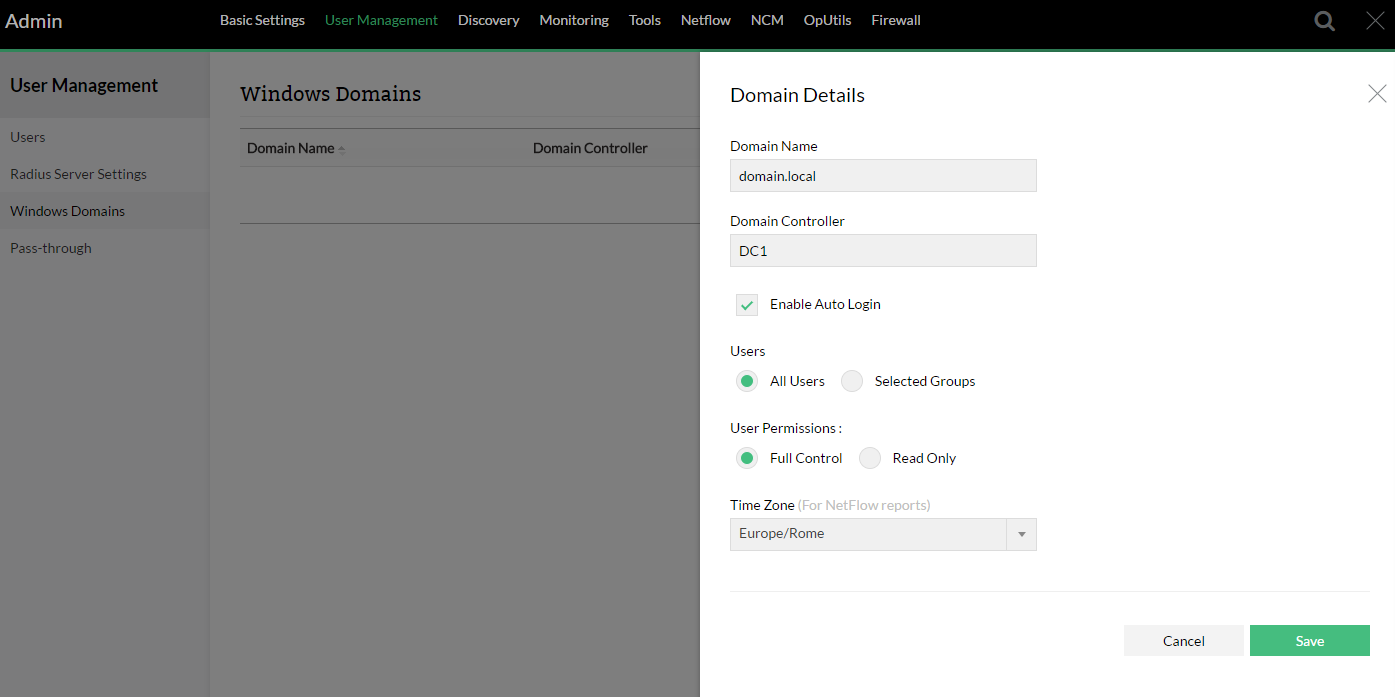
- Go to Settings > User Management > Windows Domains > Add
- Enter the Domain Name.
- Enter the Domain Controller name.
- Select Enable Auto Login.
- Select either All Users or Selected Groups.
All Users: The auto login will be enabled to all the users. Select the permissions that you want assign - Read Only or Full Control.
Selected Groups: The auto login will be enabled to the groups you specify. Enter the name of the groups in Read Only and Full Control columns. The access to groups will be enabled accordingly. Note: Configure one Group Name per line. The names are case-sensitive and should be configured as given in your AD - Select User Permissions either Read Only or Full Control
- Select either All Users or Selected Groups.
- Select the Social IT Plus Account check box to enable access for the users in Domain for the Social IT Page.
- Click Add.
A new domain has been successfully added.