Performance Monitors:
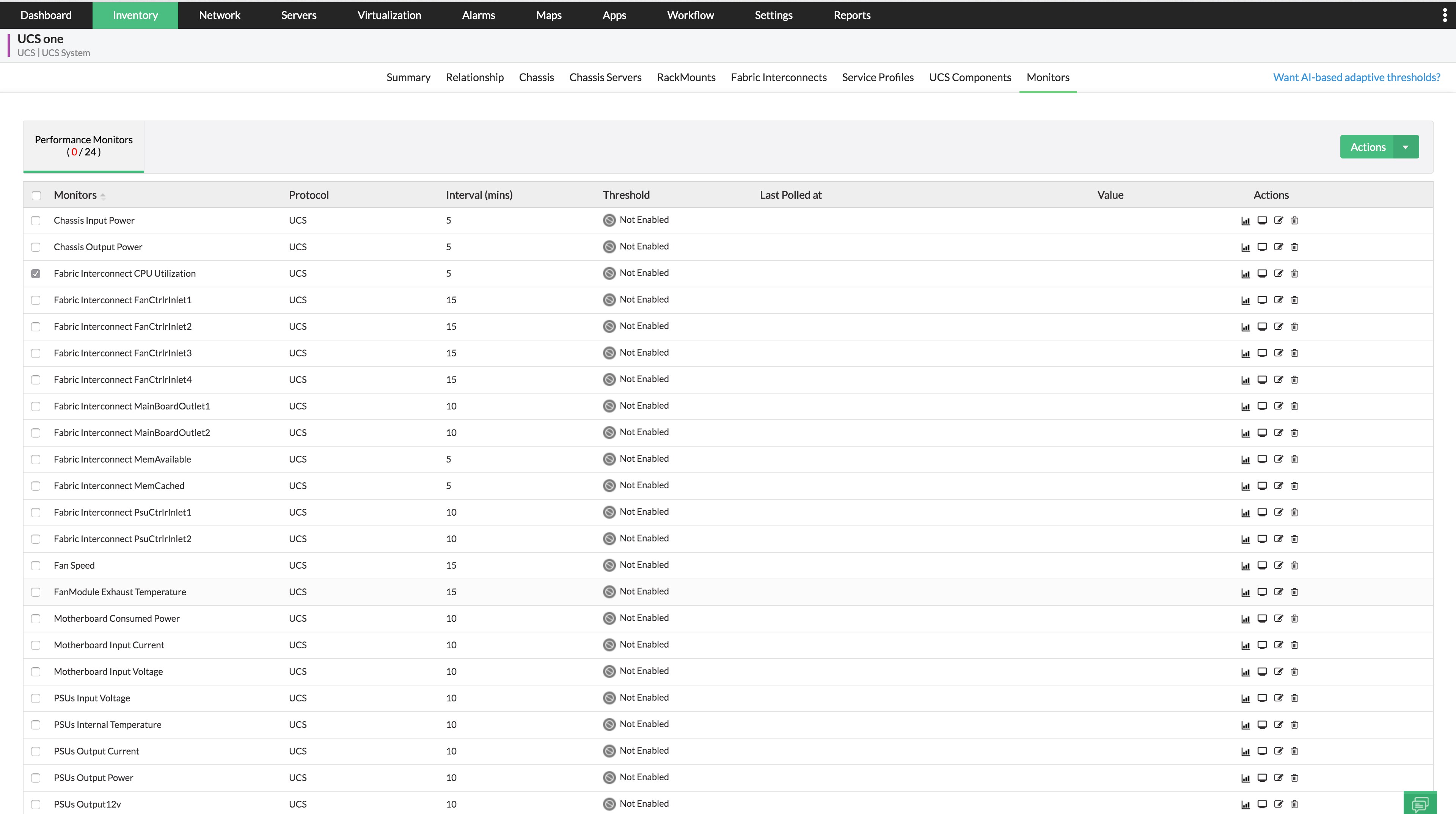
Whenever OpManager Plus discovers UCS devices, UCS performance monitors are automatically associated with it. Thresholds can be set to receive alarms, when breached.
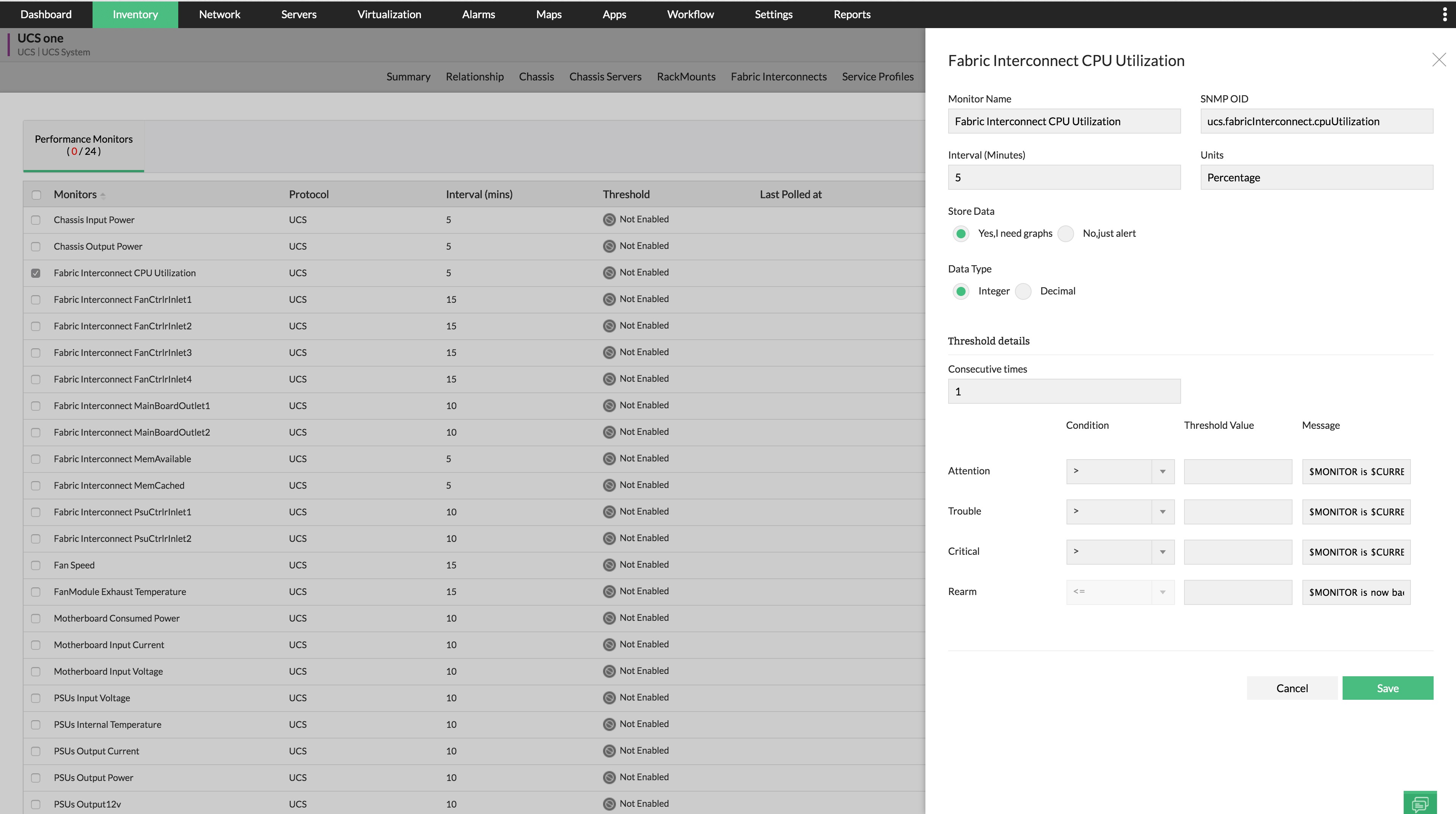
To set thresholds for a performance monitor,
- Navigate to Inventory -> Category -> UCS and go to the Snapshot Page of the device.
- Go to Monitors. Performance monitors would already have been added to the device.
- Select the monitor that you wish to edit.
- Configure Monitoring Interval, Units, Threshold Details and click on Save.
OpManager Plus sends alarms if the threshold levels are breached.
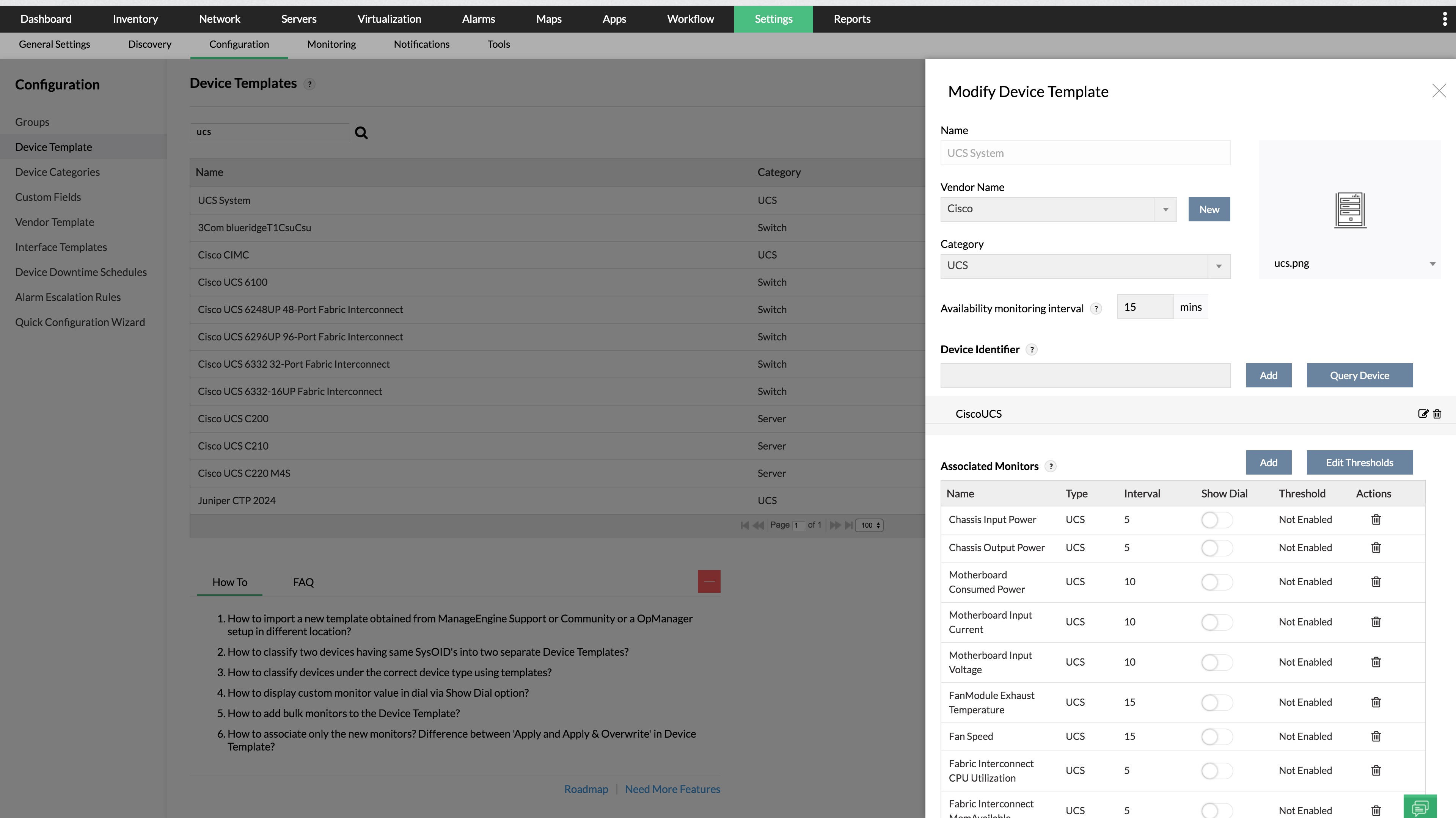
To add performance monitors for more than one UCS device,
- Navigate to Settings -> Monitoring -> Device Templates
- Locate UCS device template
- Input the Device Identifier (sysOID), query the device and add them
- Add the required monitor and configure threshold details.