Configuring DPI
In OpManager Nexus, DPI works with winPcap and High performance reporting engine add-on. To configure DPI, follow the steps and screenshots below to enable DPI.
For Windows machine, download and install winpcap packages from the below link : https://www.winpcap.org/install/ , skip this step for linux OS.
1. Download and install HighPerformance reporting engine under More downloads from the link https://www.manageengine.com/products/netflow/2028821/ME_NFA_HighPerf_Add-On_64bit.exe

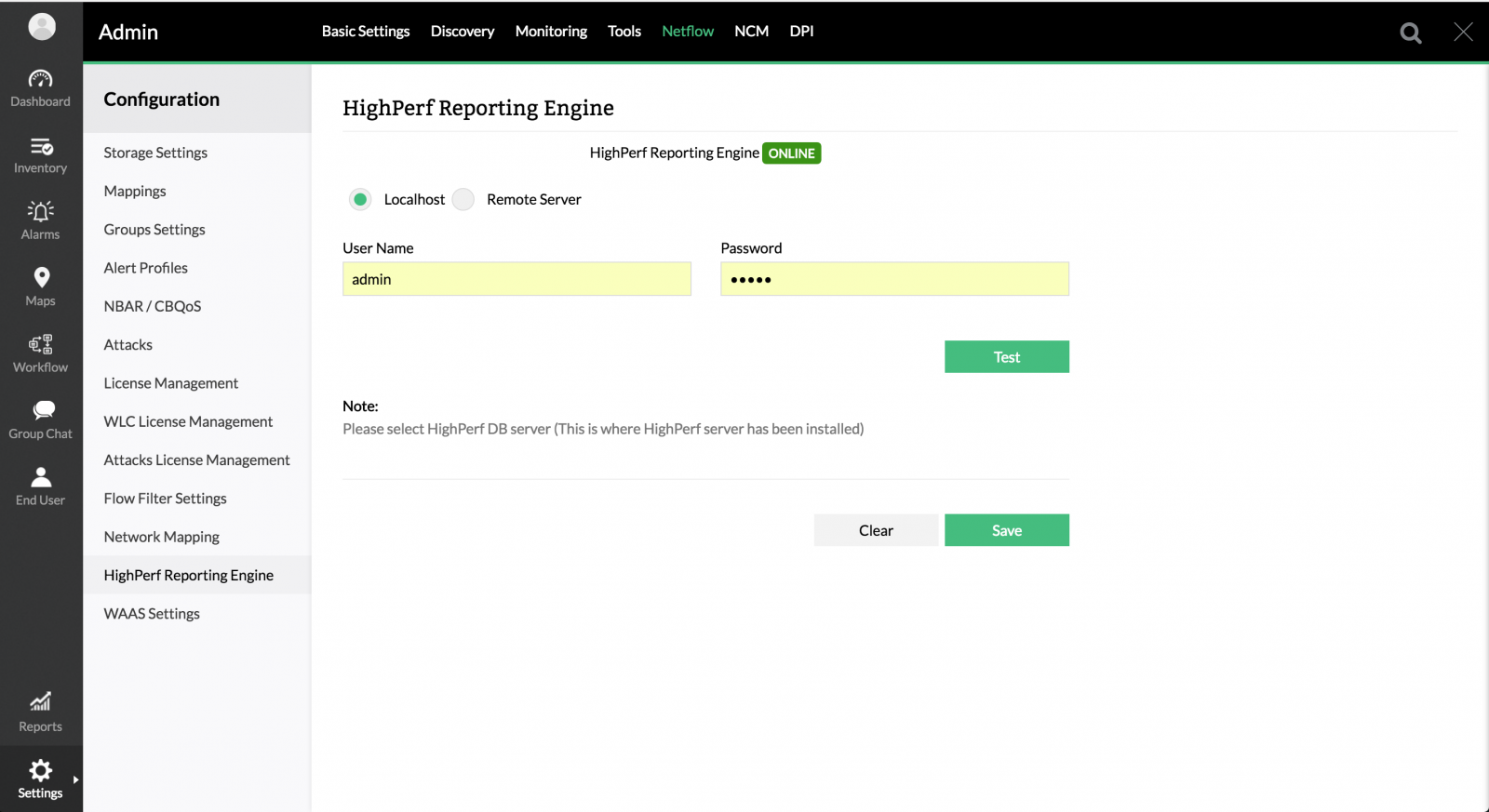
2. Navigate to Settings > NetFlow > HighPerf Reporting Engine, Provide installed servers login credentials , test and save.
3. Navigate to Settings > DPI , Enable DataCollection, select the ethernet card , select the data retention period and save.
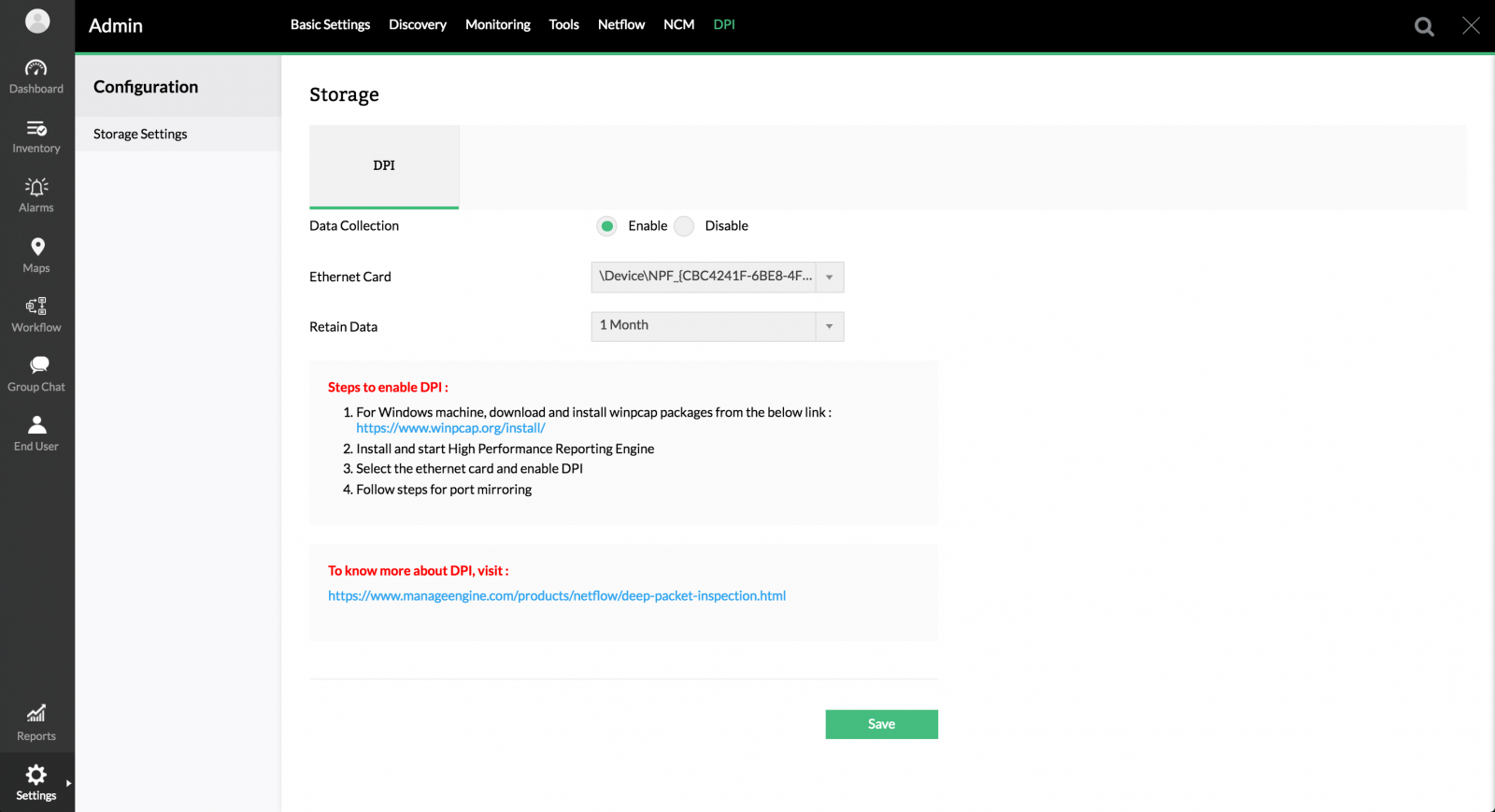
Note : To find the respective Network card (in windows ) , open regedit, navigate to HKEY_LOCAL_MACHINE\SOFTWARE\Microsoft\Windows NT\CurrentVersion\NetworkCards\ . Here you can find the respective name of network card in readable format.
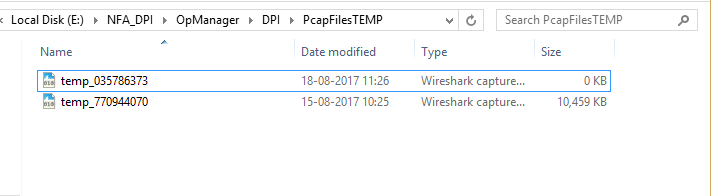
4. To Verify navigate to <Opmanager_Plus>\DPI\PcapFilesTemp and check if new file is generated.