Configuring MSSQL Database
Procedure for Firewall Analyzer version 7.5 (Build 7500) onwards
How to find build number?
In the Firewall Analyzer web client, and click the About link in the top pane. You will find the build number mentioned below the build version. This is the build number of the currently installed Firewall Analyzer.
Procedure for Firewall Analyzer version 7.5 (Build 7500) onwards
Firewall Analyzer lets users to configure and use MSSQL database.
The procedure to configure the MSSQL is applicable only for fresh installation of Firewall Analyzer server.
The steps to configure and run the Firewall Analyzer server with SQLSERVER as the database is given below:
- From the installed MS SQLSERVER, copy the files bcp.exe and bcp.rll to <Firewall Analyzer Home>bin folder.
| Note: | If you are copying the above file from SQL Server (Version 2005 & above) installed server and the Firewall Analyzer is installed in other machine, please install the following SQL Native Client in the Firewall Analyzer machine as per the SQL vesion and CPU type of Firewall Analyzer machine. MSSQL 2005 (32 bit) http://download.microsoft.com/download/4/4/d/44dbde61-b385-4fc2-a67d-48053b8f9fad/sqlncli.msi MSSQL 2005 (64 bit) http://download.microsoft.com/download/4/4/d/44dbde61-b385-4fc2-a67d-48053b8f9fad/sqlncli_x64.msi MSSQL 2008 (32 bit) http://go.microsoft.com/fwlink/?LinkId=123717&clcid=0x409 MSSQL 2008 (64 bit) http://go.microsoft.com/fwlink/?LinkId=123718&clcid=0x409 |
- Invoke the <Firewall Analyzer Home>toolschangeDBServer.bat, to configure the MS SQLSERVER credentials like ServerName, Port, UserName and Password.
- Database Setup Wizard pops-up.
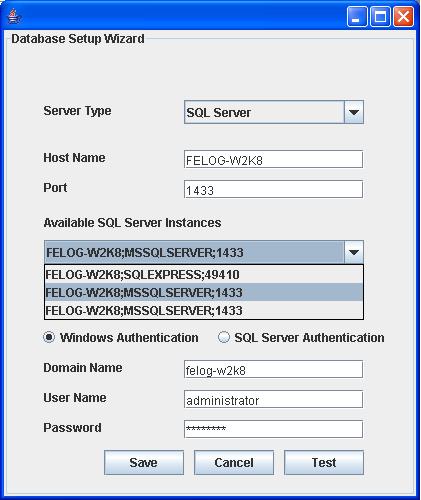
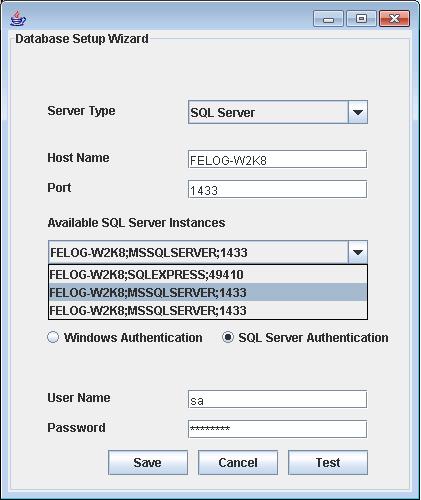
- In the wizard screen, select Server Type as SQL Server. Available SQL Server Instances are listed in a combo box. Enter the Host Name and Port of the SQL Server from the instances.
- Select the authentication type using the "Connect Using:" options.
- The options are:
- Windows Authentication
For Windows Authentication, enter the Domain Name, User Name and Password. Ensure that both Firewall Analyzer server and SQL Server are in the same domain and logged in with the same Domain Administrator account.
- SQL Server Authentication
For SQL Server Authentication, enter the User Name and Password. While configuring the database with SQL Server Cluster installation, need to select the desired instance listed under the Available SQL Server Instances as shown in the below:
- Click Test button to check whether the credentials are correct. If the test fails, the credentials may be wrong, recheck and enter the correct credentials.
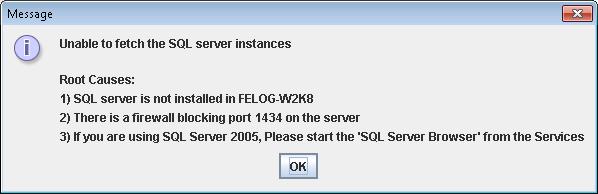
- If you are not able to get the SQL Server instances, please check the following in the SQL Server:
- SQL server is not installed in the selected machine.
- There is a firewall blocking port 1434 on the server
- If you are using SQL Server 2005, please start the 'SQL Server Browser' from the Services
- Clcik Save button to save the SQL Server configuration. Note that, it will take few minutes to configure the settings of the SQL Server database.
- Start the Firewall Analyzer Server/Service to work with the MS SQLSERVER as the database.
From the installed MS SQLSERVER, copy the files bcp.exe and bcp.rll to <Firewall Analyzer Home>bin folder.
