Creating New Reports
Apart from the 100+ available default reports you could also create a new report based on the data that you want. To create a new report follow the steps given below:
- Go to Reports > Click the Create New Report link at the top of the page. Create New Report page opens.
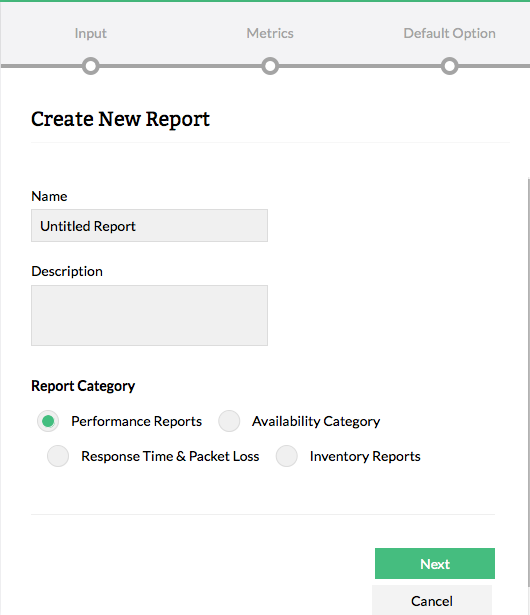
- Enter a unique Name and brief Description.
- Select the required Report Category. For instance, the report category is selected as Performance Reports.
- Click Next.
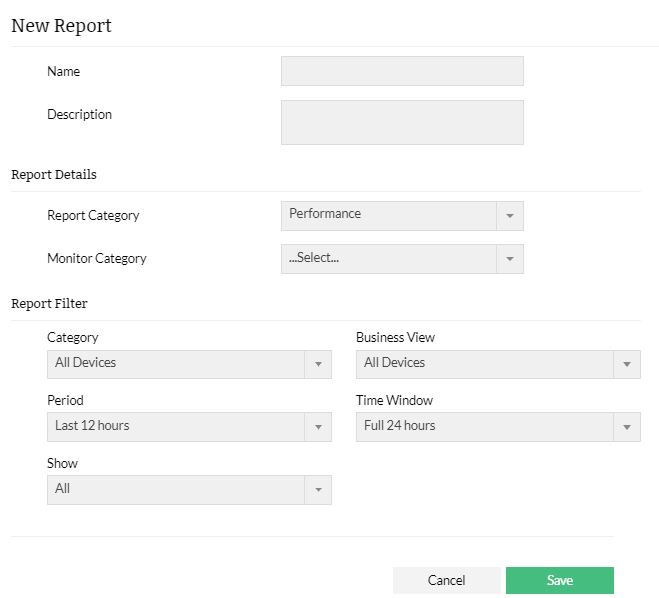
- Select the Monitor category.
- Select the sub category.
- Click Next.
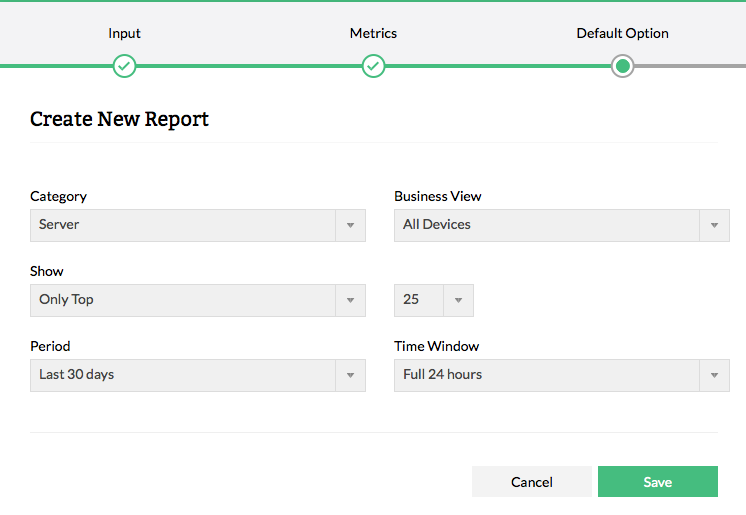
- Select the required Category, Business Views, Show All or Top/Bottom N Devices, Period and Time Window.
- Click Save to create the new report.
The created report gets saved under the appropriate report category. Go to that category and click on the report to generate the report.
