Integrating ManageEngine OpManager Nexus with Microsoft Teams
Microsoft teams is a collaborative business tool that brings users together and enables them to communicate via texts, audio conferencing and video conferencing. By integrating OpManager Nexus with Microsoft Teams, users can now receive alerts directly to the concerned channel.
To have a standalone OpManager Nexus - Microsoft teams integration, users have to follow the below steps:
- Configuring Oauth provider settings
- Configuring Microsoft Teams settings
- Configuring Notification profile
To integrate Microsoft teams with OpManager Nexus, you should create an application in their Azure portal with the required details and permissions. After integration, the graph APIs will be called to post messages on your Microsoft Teams channel.
Steps to create an application in Azure portal:
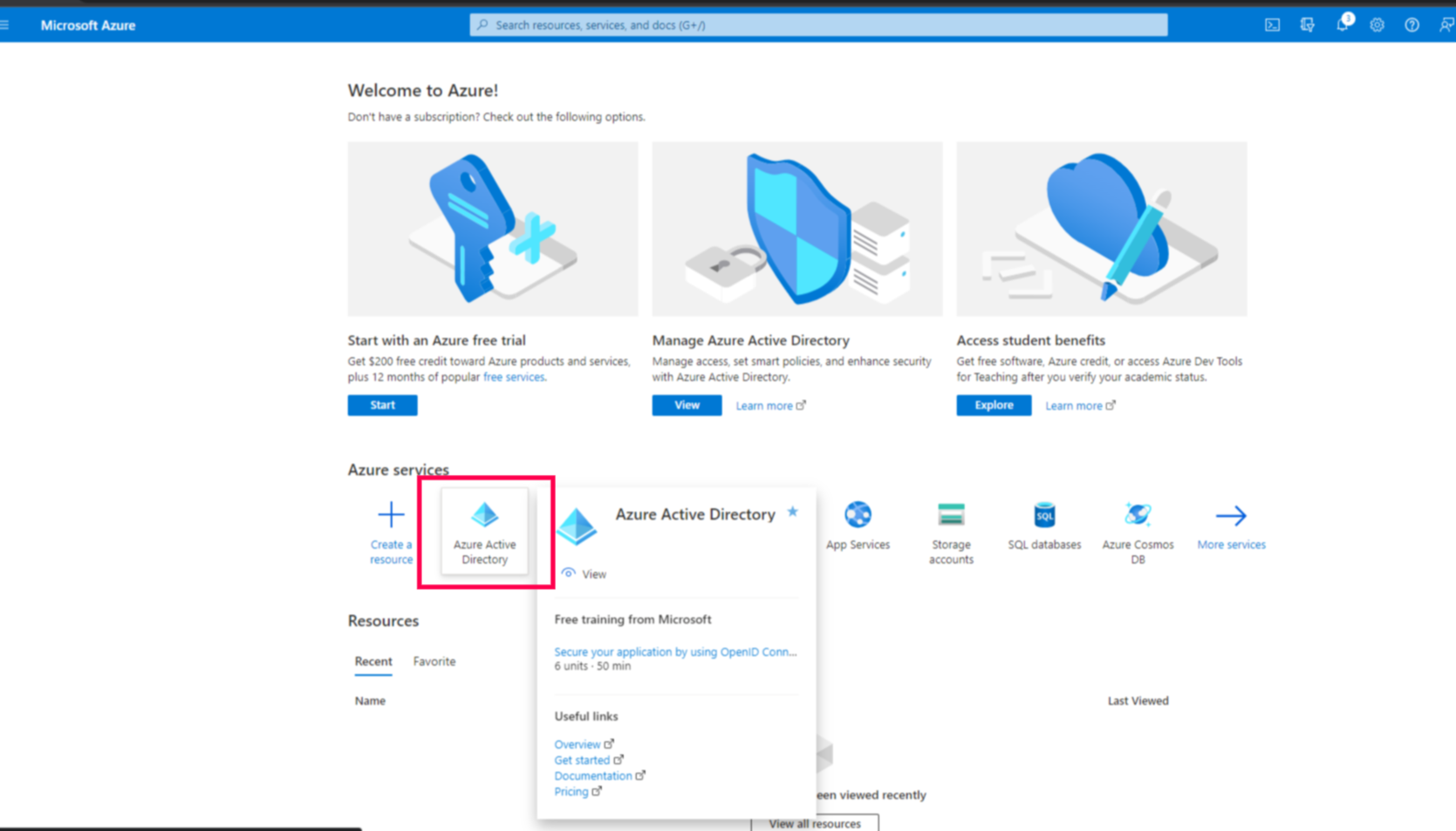
- Login to your Azure account. Expand the menu on the left hand side, and select Azure Active Directory.
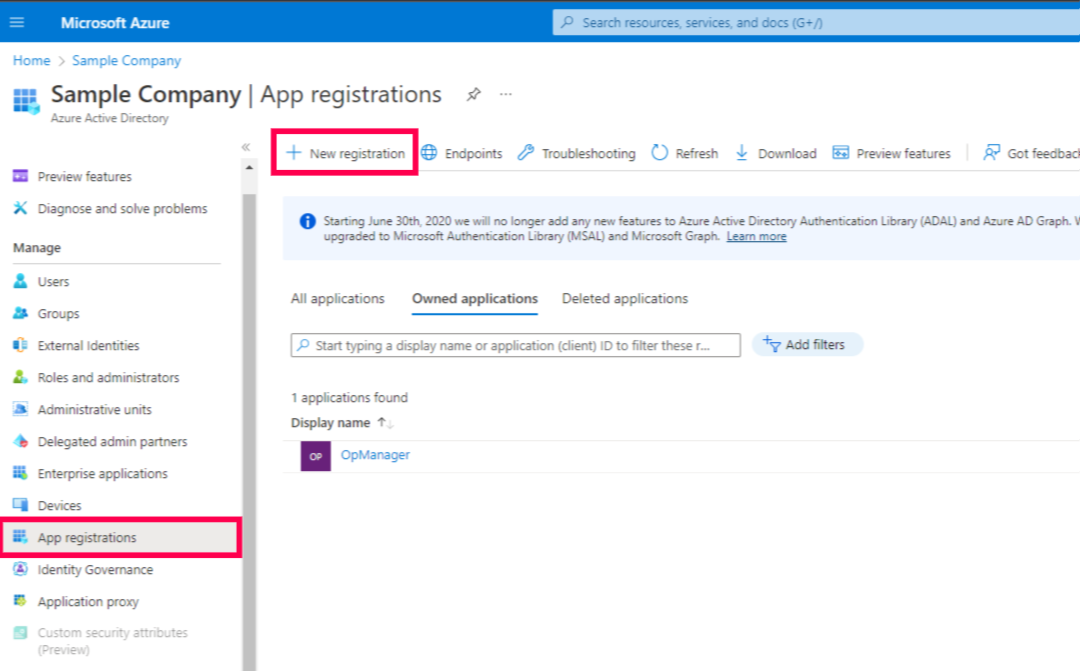
- Click on App registration, then select New registration.
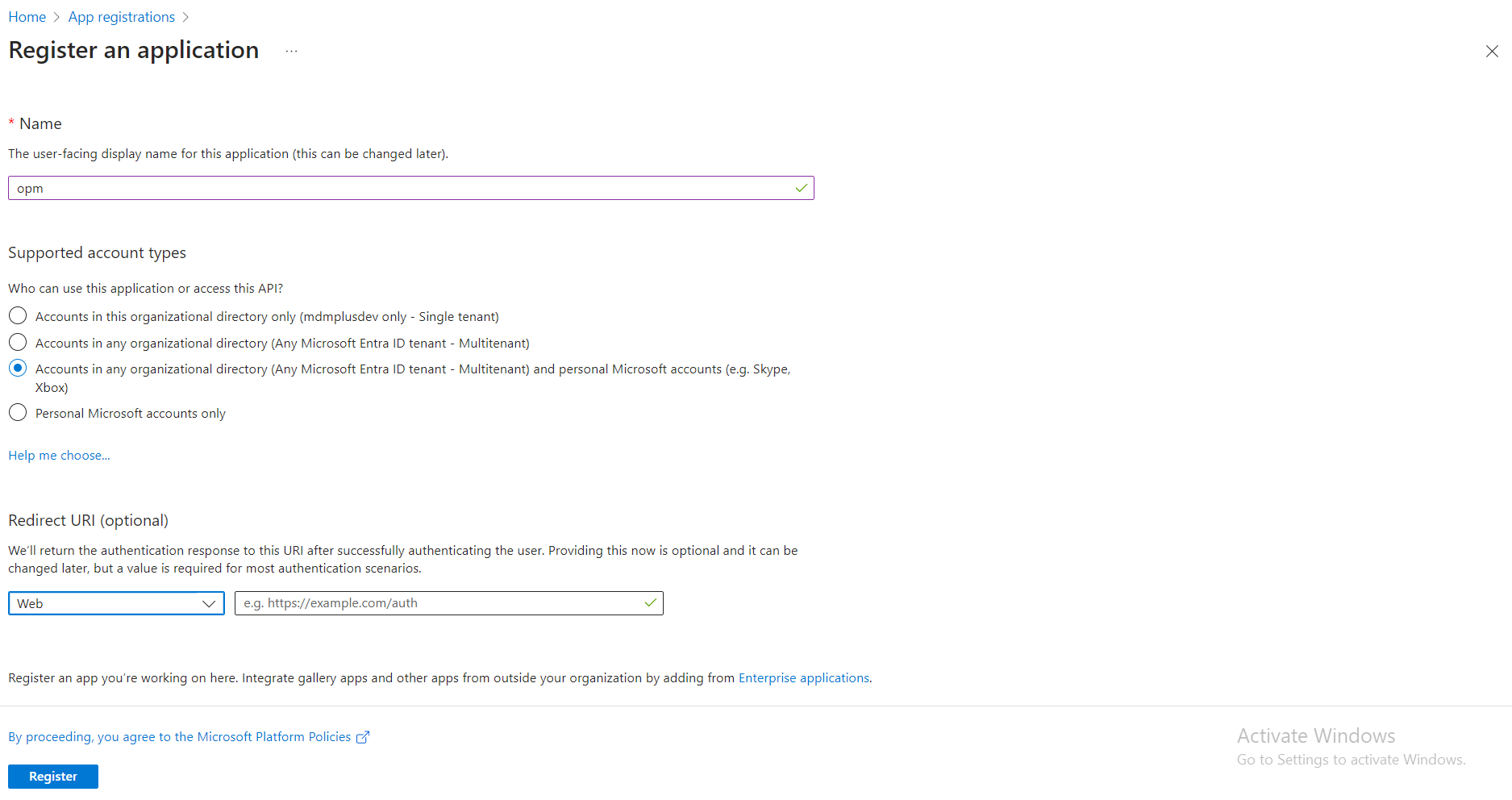
- Enter the application name as OpManager Nexus and select Multi tenant (Any Microsoft Entra ID tenant and personal Microsoft accounts) under Supported account types field. Under redirect URL, select Web from the dropdown, and enter a valid Redirect URL.
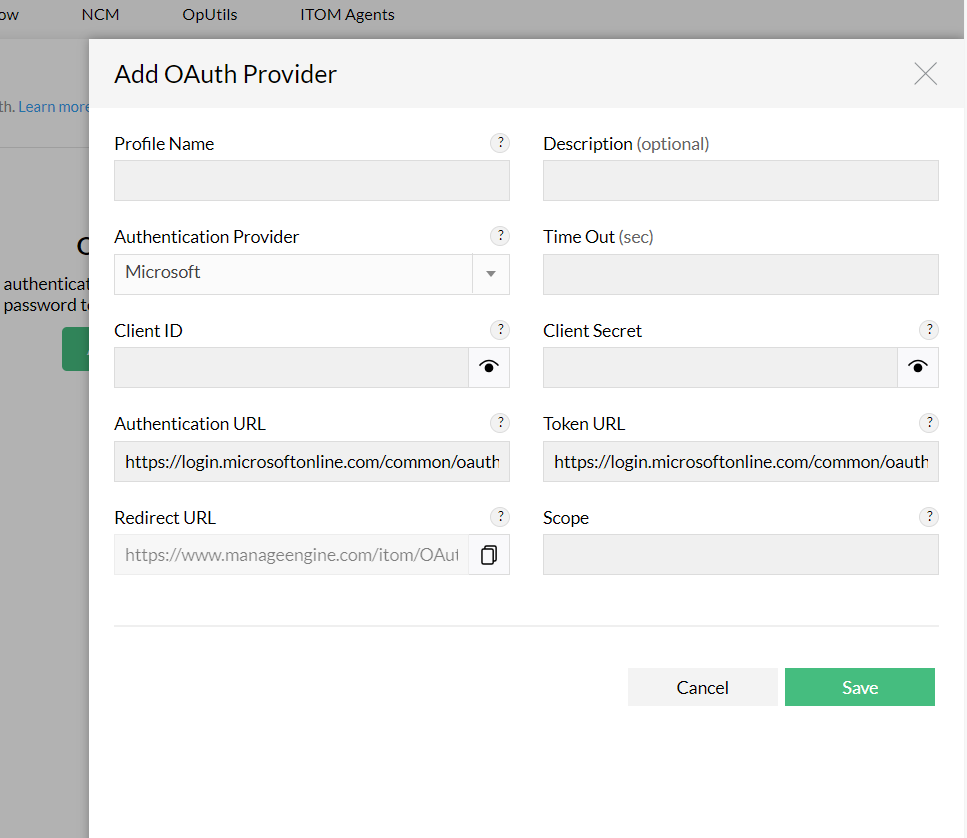
- You can copy the redirect URL from OpManager Nexus while adding Oauth provider.
- Click register, and the new application will be created successfully.
- Under the API permissions tab, grant the required permissions for integration. The required permissions for integration are as follows:
| Channel.ReadBasic.All | To fetch the channels list |
| Team.ReadBasic.All | To fetch the teams list |
| ChannelMessage.Send | To send messages to channels |
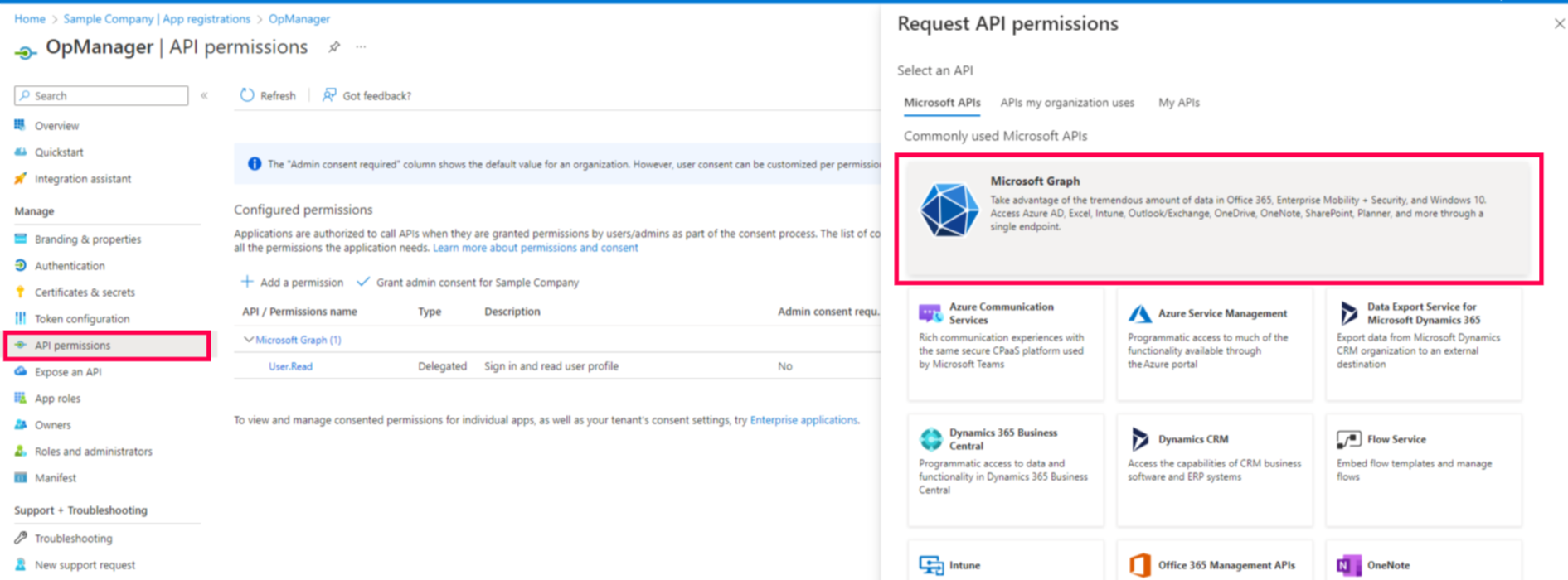
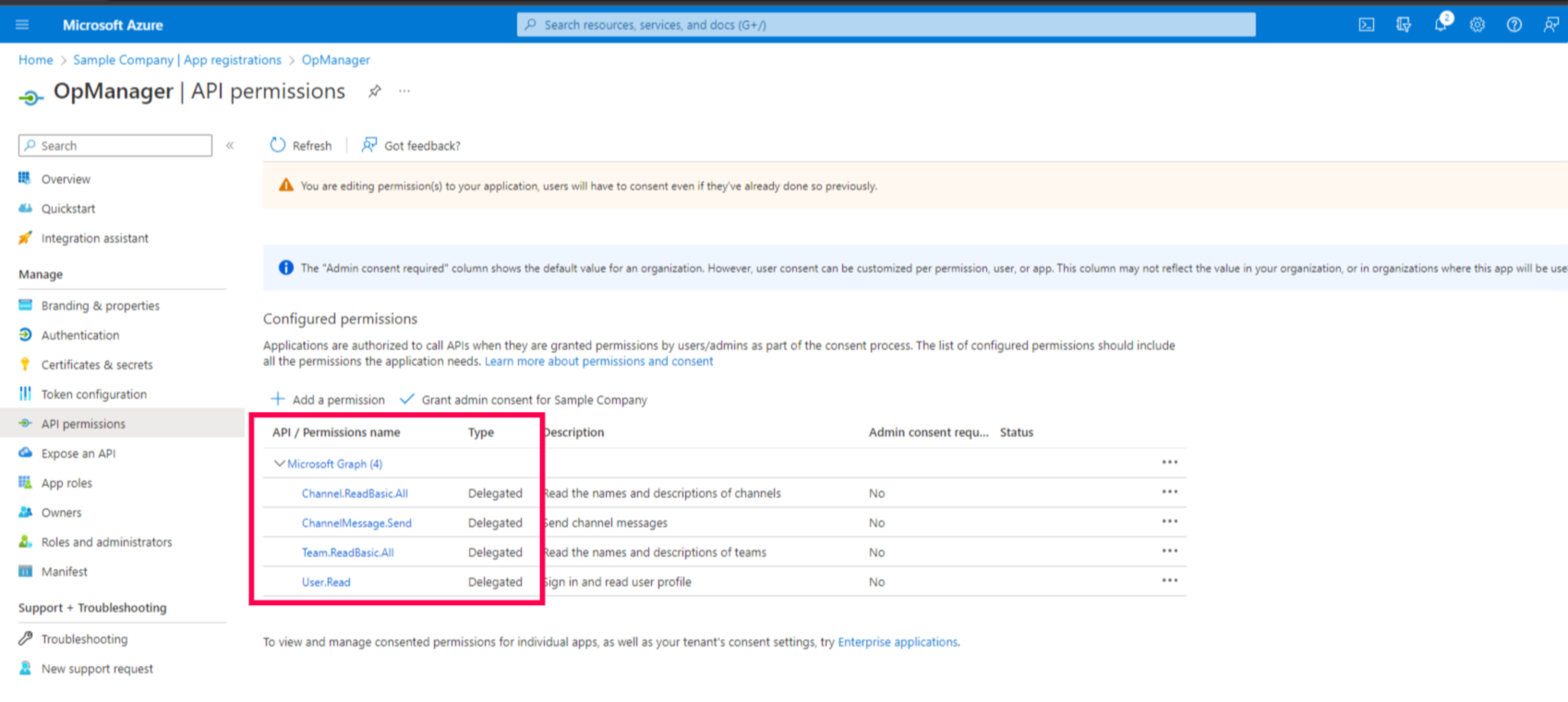
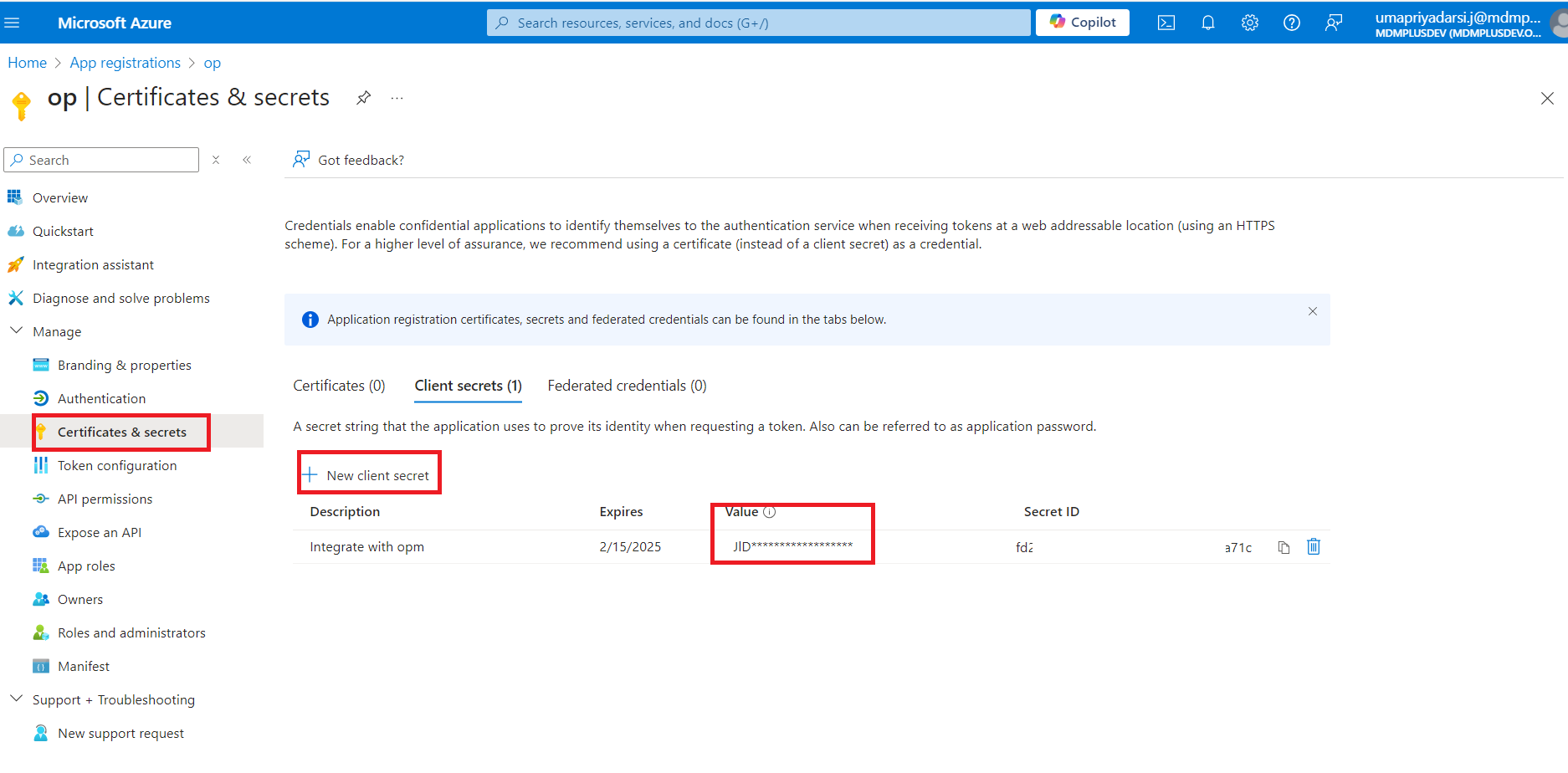
- Under the Certificates and Secrets tab, create a new Client secret for OpManager Nexus. Copy the Value, which will disappear after a few moments.
Note: Note that the Value is the client secret
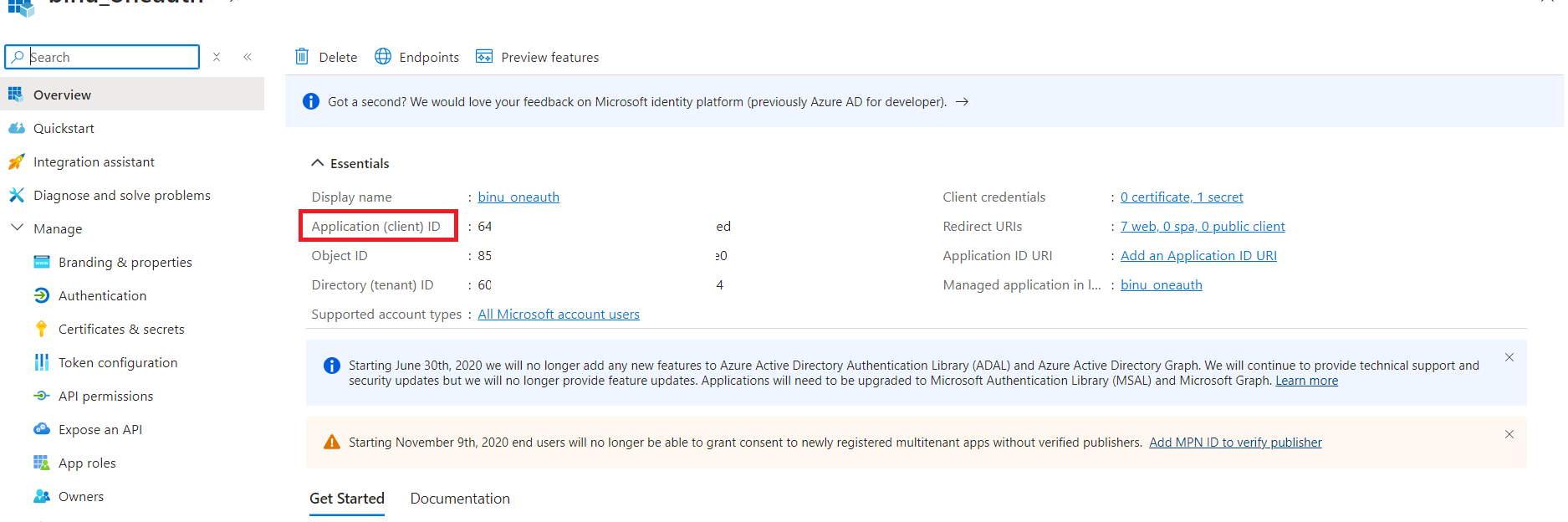
- Under the Overview tab, Application (client) ID and client secret will be displayed.
Configuring Microsoft teams settings:
- Navigate to "Settings -> General Settings -> Third Party Integrations".
- Now, click on the "Configure" icon found at the bottom right corner of the Microsoft Teams section.
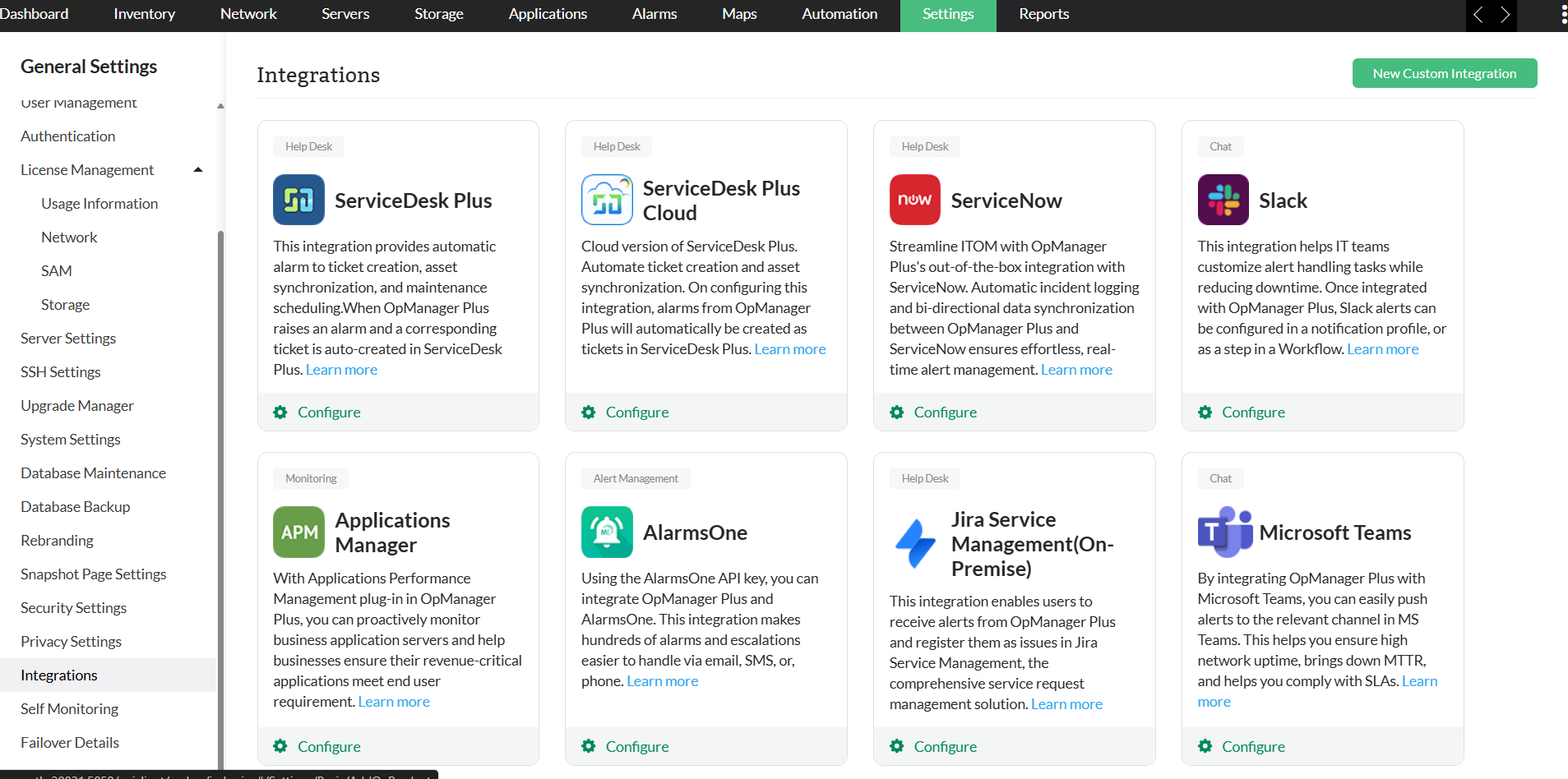
- Click on the "Add OAuth Provider" button and configure the OAuth provider settings.
- Kindly note that the "Add OAuth Provider" button will be displayed only when the OAuth Provider details have not been configured. If the details have been configured already, users will be displayed a list of all the OAuth providers that have already been configured. They can later choose one from them.
- Paste the client ID and Secret copied from the azure portal, and click on the "Save and Configure channels" option.
Note that the redirect URL should be configured in MS teams while creating the App.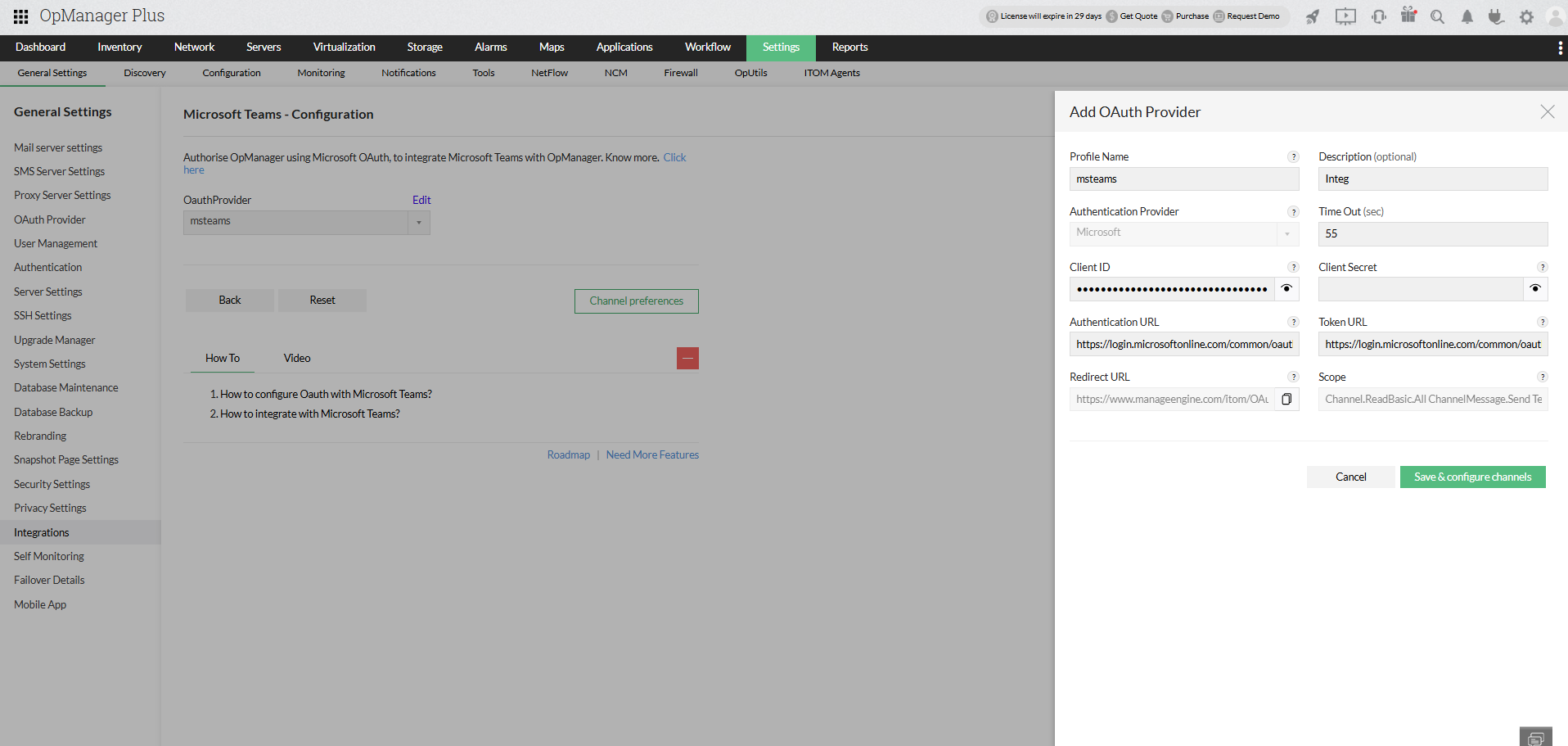
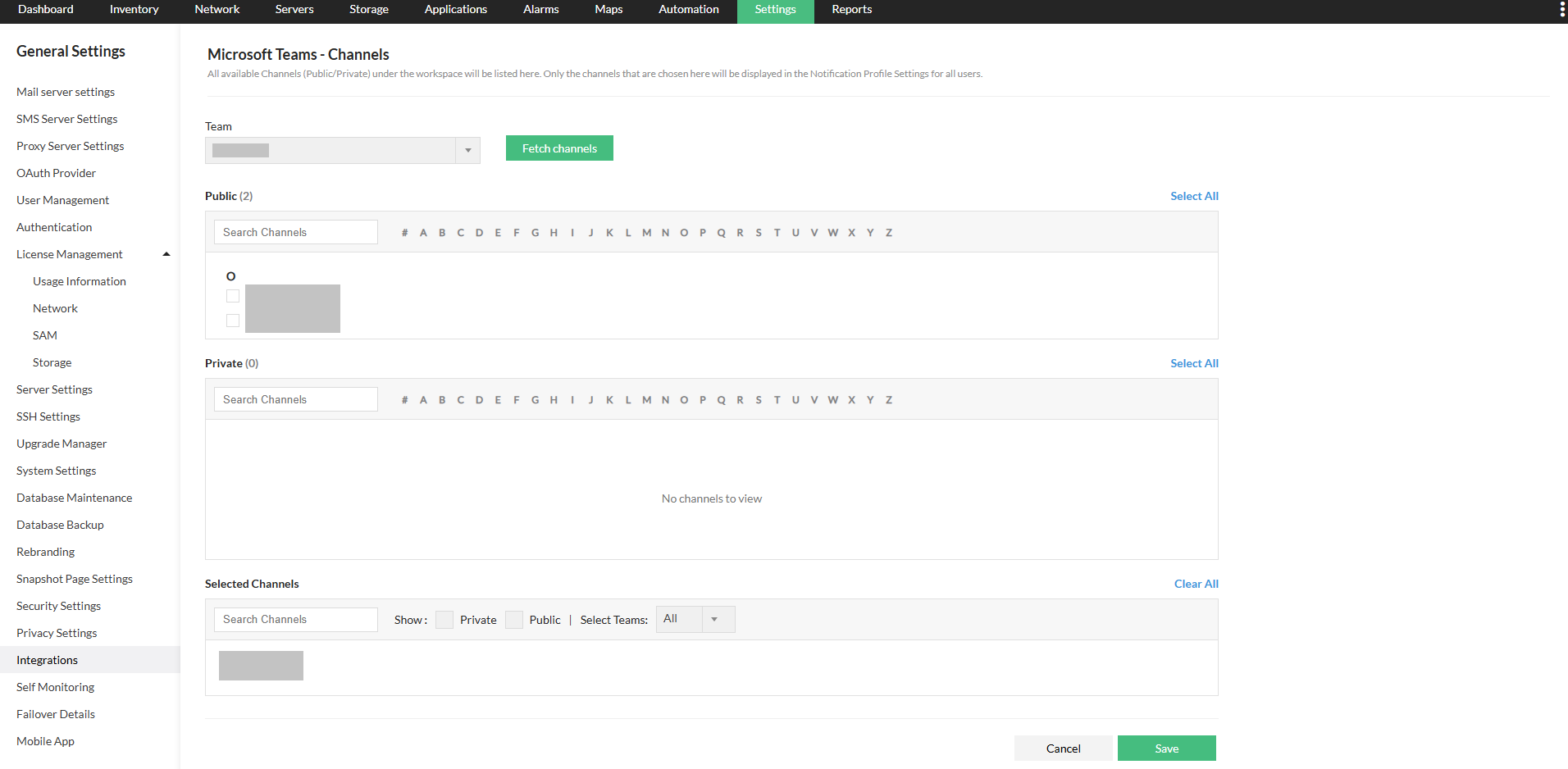
- Now, select under the "Teams" dropdown box found at the top left of the page, select the particular team and then click on the "Fetch Channels" option. This will list all the public and private channels available within the selected team.
- Now, select the desired channels. The selected channels will be displayed below under the "Selected Channels" header.
- Click on "Save".
Configuring Notifications
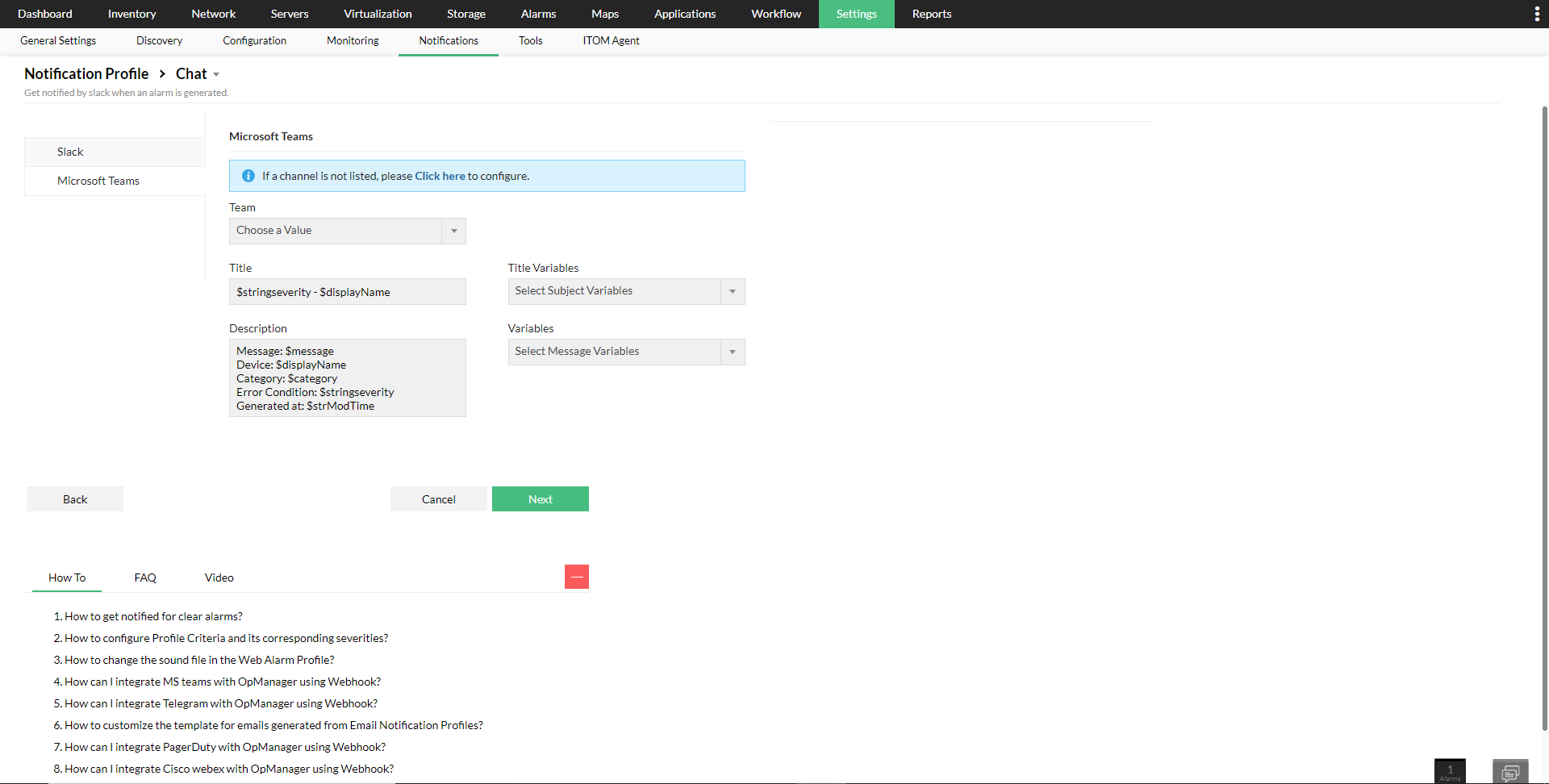
- Navigate to "Settings -> Notifications -> Add Profile".
- Select the "Chat" option.
- Now, select the "Microsoft Teams" tab.
- Select the desired team and channel. In case a specific channel is not available in the drop down, kindly configure them under the Third Party Integrations Page.
- Now, fill the values for the required fields and click on "Next".
OpManager Nexus - Microsoft Teams integration is now successful. Now, all the alerts that satisfy the mentioned Notification profile criteria, will be sent to the concerned channel at the earliest.
