Integrating OpManager Nexus with ServiceNow
If you have ServiceNow installed in your network, you can automatically log trouble tickets from OpManager Nexus for specific network faults. So, besides the provision to email, sms, or notify fault in other forms, you can also track the faults by logging trouble tickets to ServiceNow. This helps in issue tracking. Furthermore, you can also configure alerts according to the criticality of the situation, and easily manage your IT assets by enabling sync operation, to directly update device details, when new devices are added to your network, or existing devices are reconfigured.
- Pre-requisites for integrating OpManager Nexus with ServiceNow
- Configuring ServiceNow settings in OpManager Nexus
- Configuring Notification profiles
- Syncing fields for Incidents, events, and CIs from OpManager Nexus to ServiceNow
- Syncing Custom Fields from ServiceNow to OpManager Nexus
- Functioning of two-way sync in this integration
Pre-requisites for integrating OpManager Nexus with ServiceNow
Kindly make sure that the following privileges are available for the users.
- For incident: Admin / Combination of ITIL, ITIL Admin and Personalized choices.
- For event integration: Admin.
Configuring ServiceNow settings in OpManager Nexus
Following are the steps to configure the ServiceNow and OpManager Nexus Server settings:
1. Go to Settings → General Settings → Third Party Integrations → ServiceNow and configure the following values:
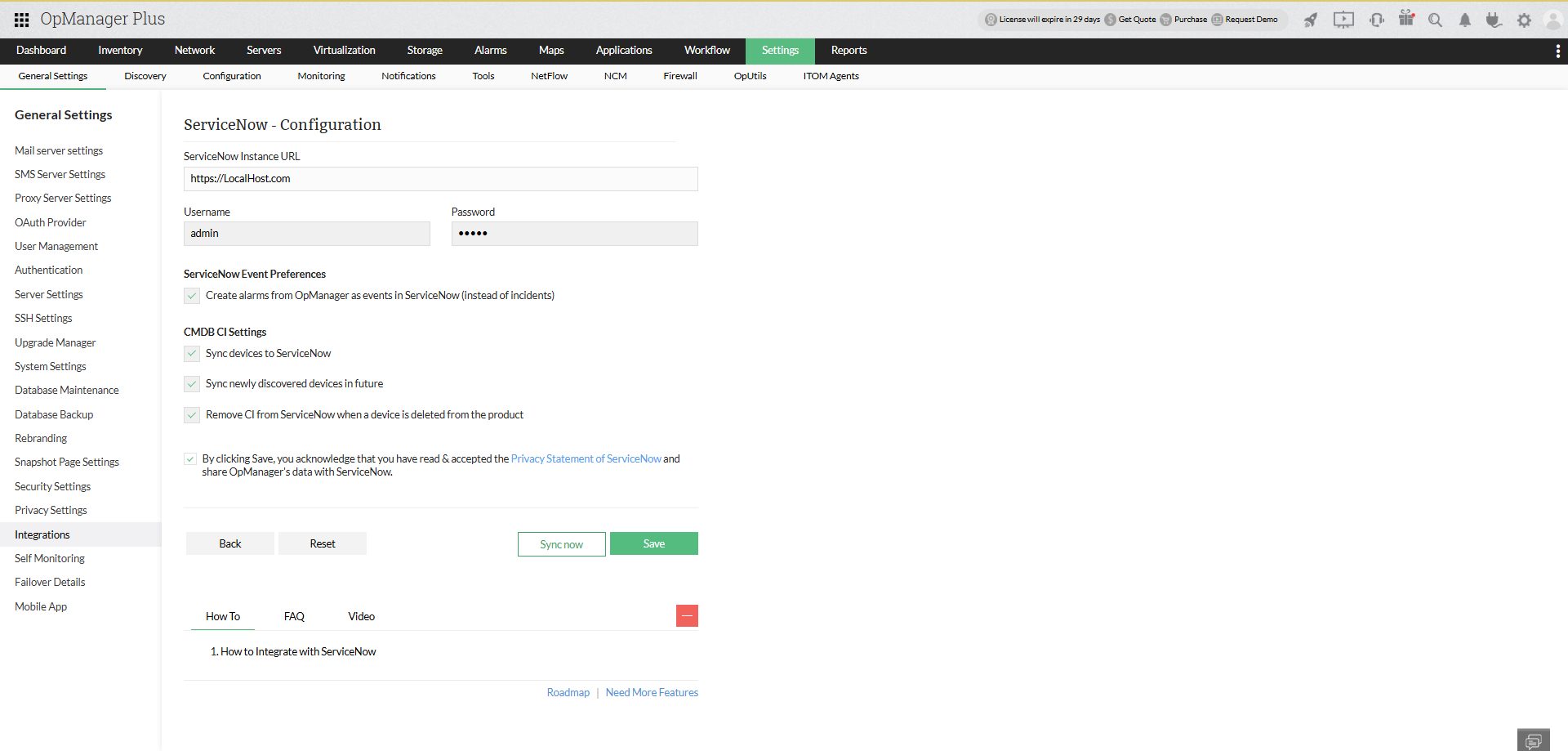
- ServiceNow URL: The URL for your ServiceNow Connection
- ServiceNow UserName & Password
- Ticket Settings:
- Create new ticket: Creates a new ticket when an alert re-occurs.
- Re-opened closed ticket: Re-opens the closed ticket when an alert re-occurs.
- Clear alarm in OpManager Nexus when an Incident is closed/resolved in ServiceNow: Automatically clears the alarm when the corresponding incident is closed / resolved in ServiceNow.
- ServiceNow Event preferences: Enabling this field will allow you to sync alarms from OpManager Nexus as events in ServiceNow. Also, kindly note that enabling this event integration will automatically disable the ticketing settings, since OpManager Nexus will sync either events or incidents at a a time to ServiceNow.
- Midserver: Choose the Midserver name from the dropdown. It establishes the connection between OpManager Nexus and ServiceNow.
- CMDB CI Settings:
- Sync devices to ServiceNow: Add existing devices from OpManager Nexus to ServiceNow.
- Sync newly discovered devices in future: When new devices are added in OpManager Nexus, automatically add them to ServiceNow.
- Remove CI from ServiceNow when a device is deleted from OpManager Nexus:Remove a device from ServiceNow when it is removed from OpManager Nexus.
2. Click on Save to save your configurations and complete the integration process successfully.
3. Click on Sync now to sync the Assets from OpManager Nexus with ServiceNow using the saved configurations.
Configuring notification profiles
Once the ServiceNow details have been configured in OpManager Nexus, proceed with configuring notification profiles to log tickets from OpManager Nexus to ServiceNow.
- Go to "Settings -> Notifications -> Add Profile".
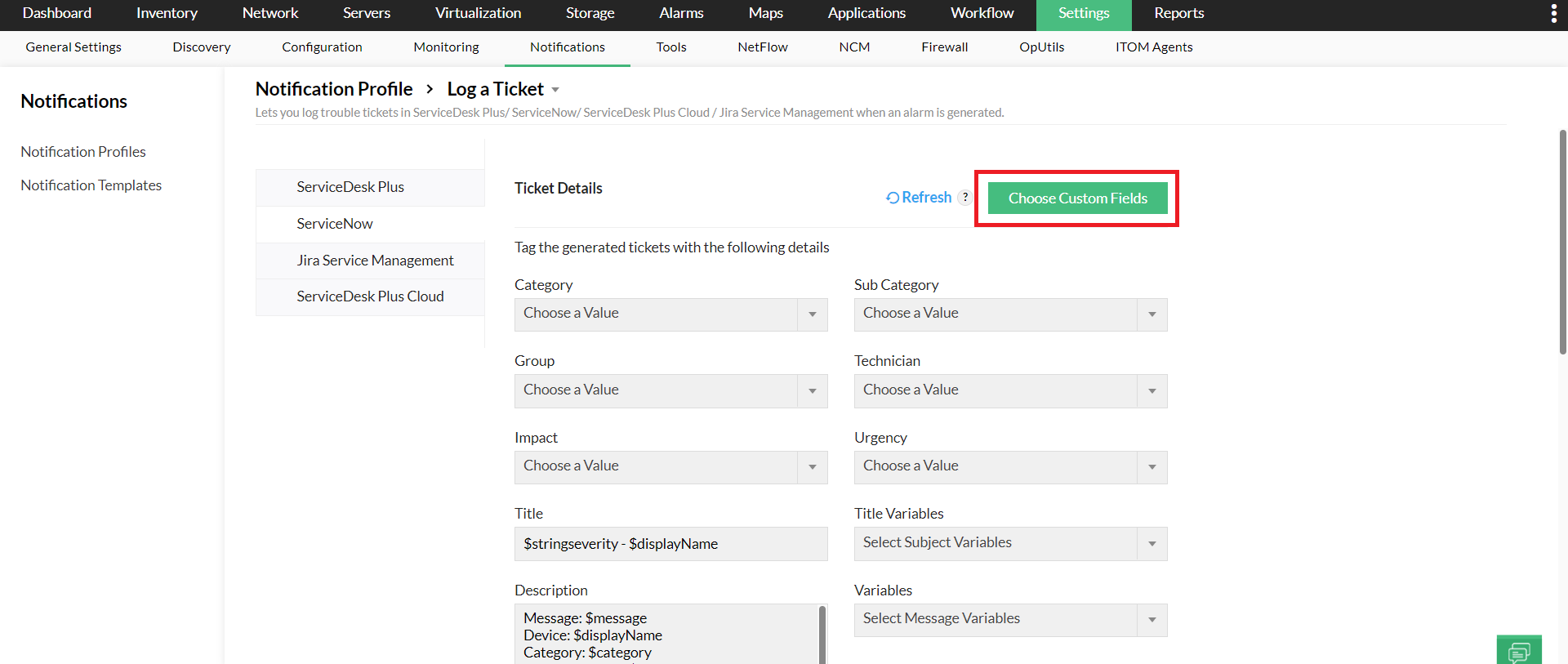
- Now, click on the "Log a Ticket" option.
- Now, select the "ServiceNow" tab in the left side.
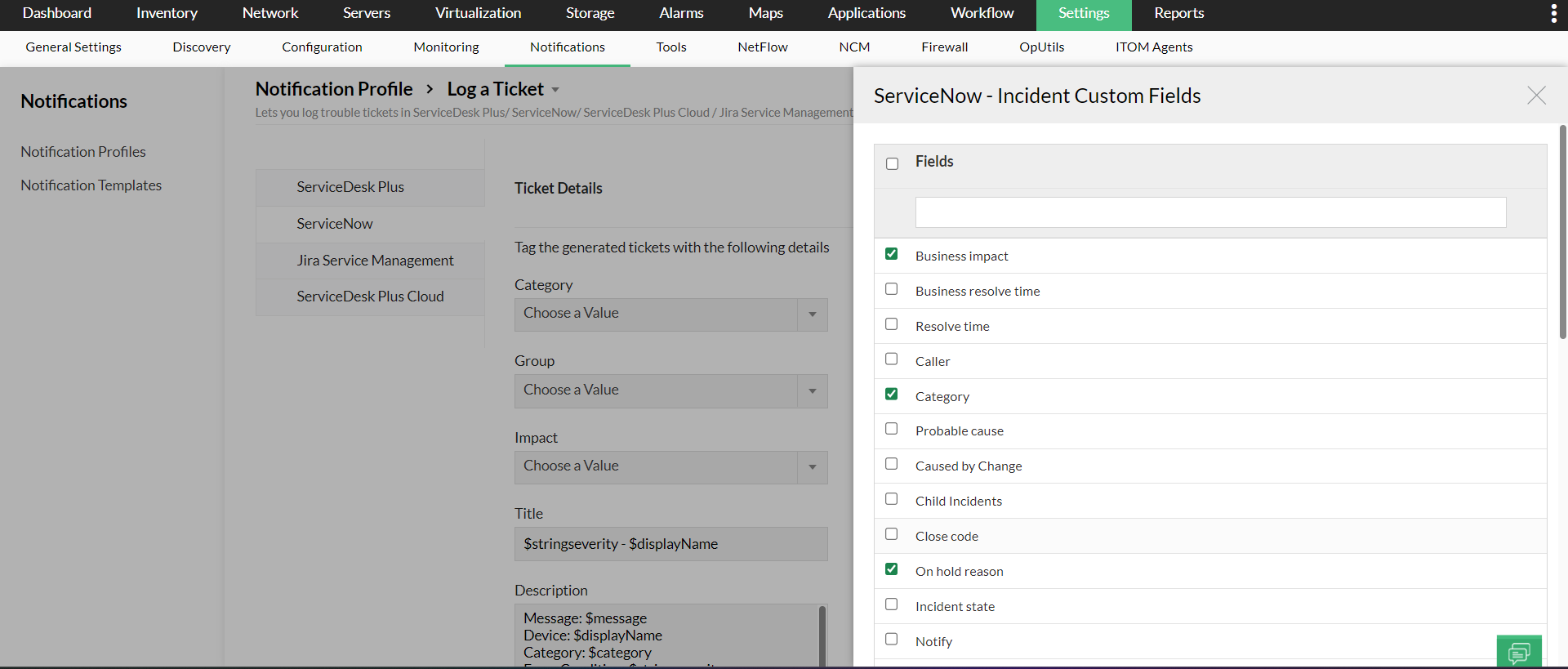
- If you want to add custom fields, click on the "Choose Custom Fields" button available at the top right corner.
- Now, select the required custom fields from the displayed list, and proceed.
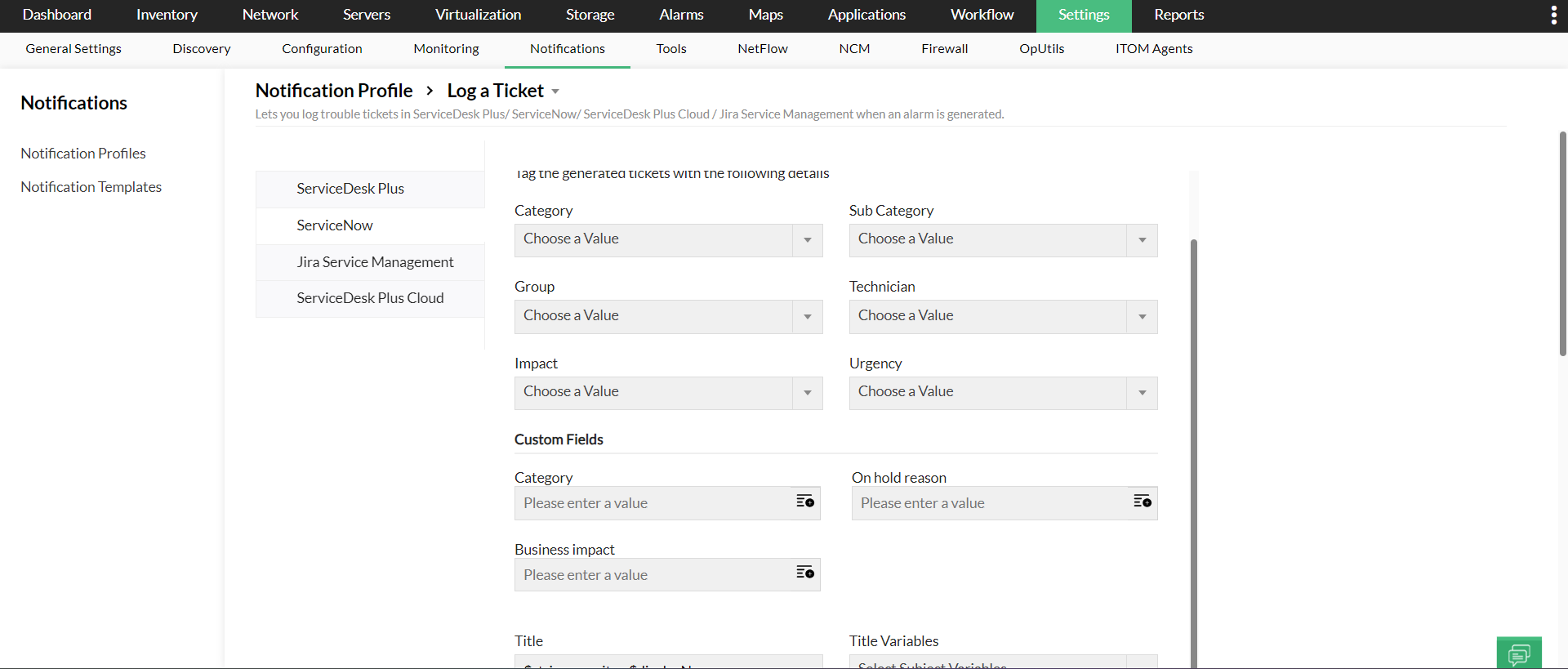
- The selected custom fields will now be available under the notification profile.
- Then, proceed filling the other field values such as the category, sub-category, priority, group, and etc., and click on "Next".
Syncing fields for Incidents, events, and CIs from OpManager Nexus to ServiceNow
Syncing fields for Incidents and events from OpManager Nexus to ServiceNow
Click here to know about the fields for various incidents and events, that will be synced from OpManager Nexus to ServiceNow
Syncing fields for CIs from OpManager Nexus to ServiceNow
The devices in OpManager Nexus will be constantly synced as CIs to ServiceNow. Click here to know more about the fields for CIs that will be synced from OpManager Nexus to ServiceNow.
Syncing custom fields from OpManager Nexus to ServiceNow
Users can sync their custom fields from ServiceNow with OpManager Nexus. While configuring the respective notification profile for ServiceNow, users can now sync not just the default fields, but the custom fields set by them too. Furthermore, any new custom fields added to the incident table will be automatically synced with OpManager Nexus. A scheduler automatically syncs the fields once every four hours. Alternatively, users can also reload their tickets, to view the current custom fields.
Functioning of two-way sync in this integration
The OpManager Nexus - ServiceNow integration is carried out by a component called MID server. The Management, Instrumentation and Discovery (MID) server is an application that runs either as a windows service or UNIX dameon in your local environment. Any communication from ServiceNow to OpManager Nexus takes place via the MID server. The following is how the process will take place:
- The MID server is installed on your local network.
- The MID Server polls the External Communication Channel(ECC) queue continuously for a specific time interval which is configurable. (The ECC queue is the connection between MID server and an instance.)
- MID server gathers the operation to be carried out from the ECC and implements it.
Kindly ensure the following to to enable two-way sync:
- The ServiceNow user carrying out the integration must have admin privileges.
- MID server must be reachable from OpManager Nexus.
ServiceNow has now been successfully integrated with OpManager Nexus.
