Managing Audits and Reports
Key Manager Plus Cloud offers built-in auditing and reporting capabilities to help administrators monitor SSL certificate activities and ensure compliance. These features provide visibility into all certificate-related actions performed within the application and allow users to generate detailed reports for analysis and record keeping. With options to track changes and download reports in various formats, these tools support efficient certificate lifecycle management and help maintain security best practices. This document covers the following topics in detail:
1. Audit
Key Manager Plus Cloud includes a streamlined auditing mechanism that records all actions performed within the product. These audit trails help administrators track who performed what action and when, ensuring transparency and accountability. Only administrators can view audit records for all users. Other users can view only their own records.
1.1 View Audit Records
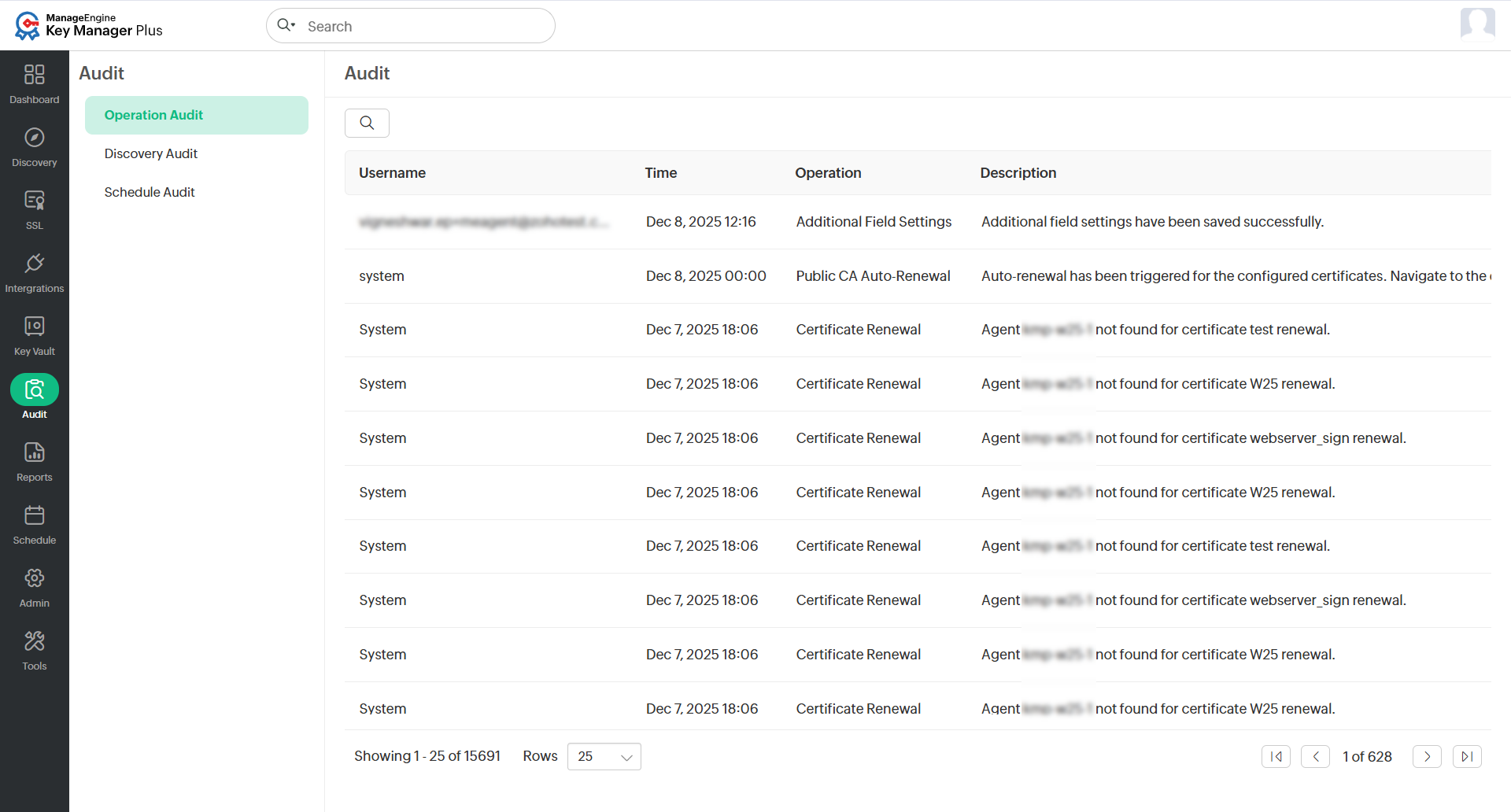
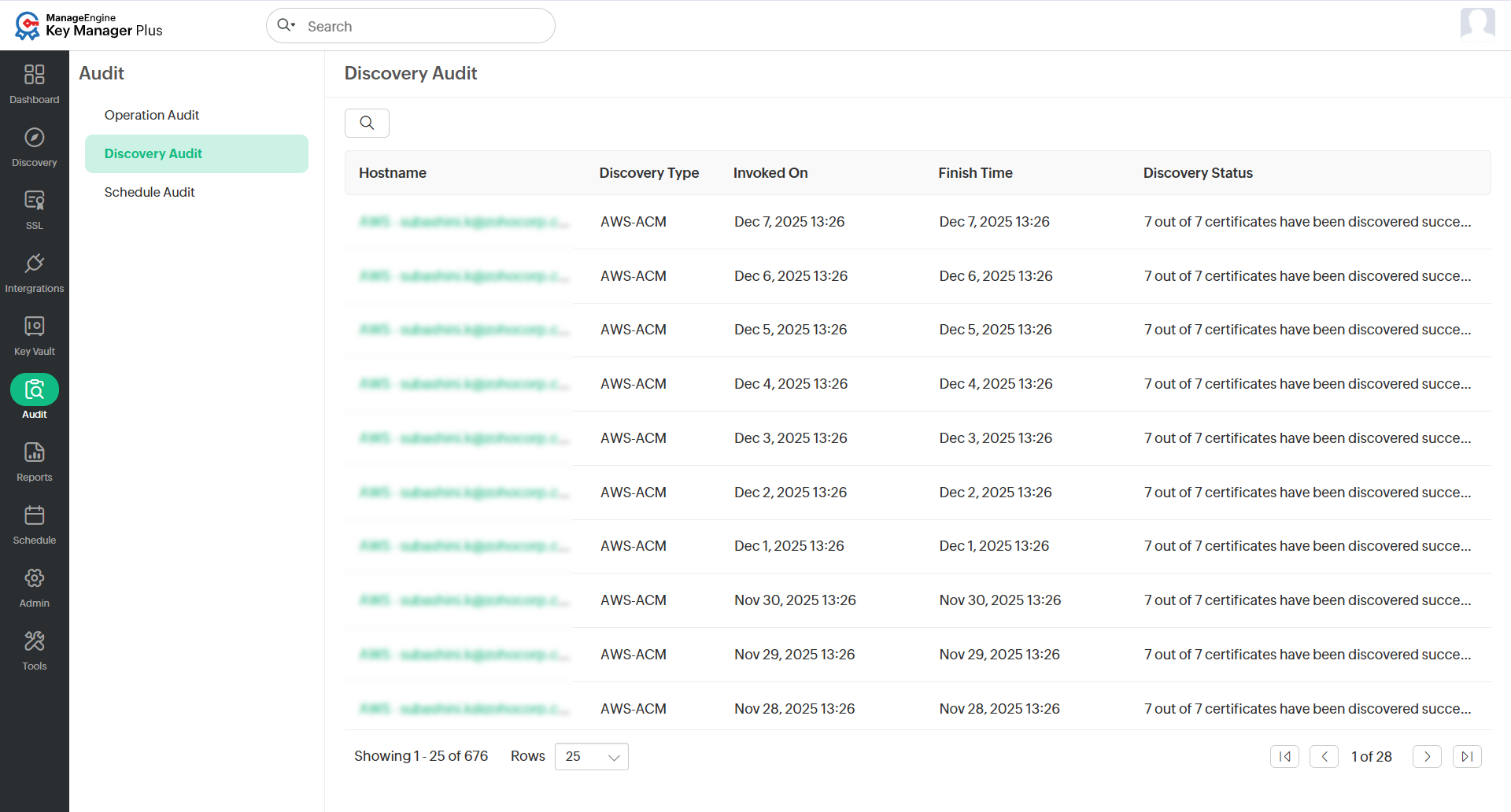
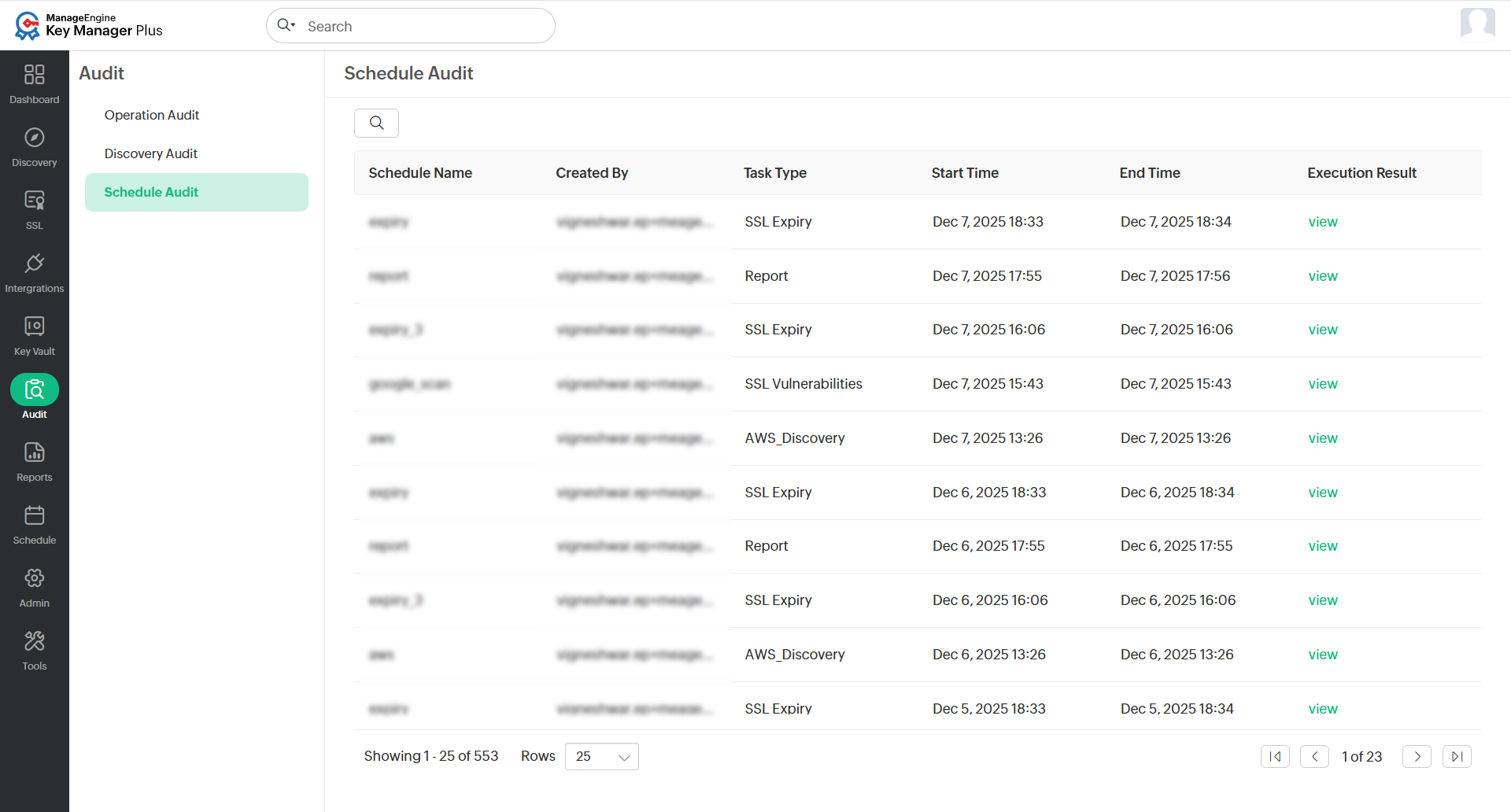
You can view audit records from the Audit tab in the GUI. Use the filter options to search for specific records. Click the Search icon in the top pane to apply filters. Audit records are categorized as follows:
- Operation Audit - This section displays records of all operations performed within the Key Manager Plus Cloud interface. Each entry includes the user name, date and time of the operation, type of action, and a brief description. These logs are especially useful for tracking configuration changes and monitoring user activity.
- Discovery Audit - This section logs all SSL certificate discovery operations carried out in the application. For each discovery attempt, details such as the host name, discovery type, start and end times, and the final status are recorded.
- Schedule Audit - This section shows the history of all scheduled tasks executed in the product. Each entry includes the schedule name, the user who created it, the type of task, the start and end times, and the execution result indicating whether the task was completed successfully or not. This helps users monitor the performance and reliability of automated tasks configured in the system.
1.2 Classified Audit Records in Respective Pages
- The most recent 10 operations are displayed under Operation Audit - Live Feed on the Dashboard for quick access.
- Audit records related to scheduled or on-demand certificate discovery can be accessed from the Discovery Audit link in the top-right corner of the Discovery tab. Clicking on any hostname or IP address redirects you to the Discovery Status page, where you can view detailed results. You can also export these records or send them via email using the Export icon.
- All scheduled task executions, such as certificate discovery or report generation, are recorded under the Schedule Audit. Access this by clicking the Schedule Audit link in the top-right corner of the Schedules tab. You can drill down into each entry to view detailed results.
2. Reports
Key Manager Plus Cloud presents a complete overview of your organization's SSL certificate management activities through detailed and structured reports. These reports display certificate data in table and graph formats, helping IT administrators make well-informed decisions. You can access the available reports under the Reports tab in the web interface. The reports can be filtered, scheduled, exported, and sent via email as needed.
2.1 Reports Available in Key Manager Plus Cloud
Key Manager Plus Cloud offers categorized reports that provide insights into SSL certificate activities, deployments, expiries, and requests. These reports help administrators manage certificates effectively by organizing data based on source, type, and usage. These are the reports available in Key Manager Plus Cloud:
2.1.1 SSL Reports
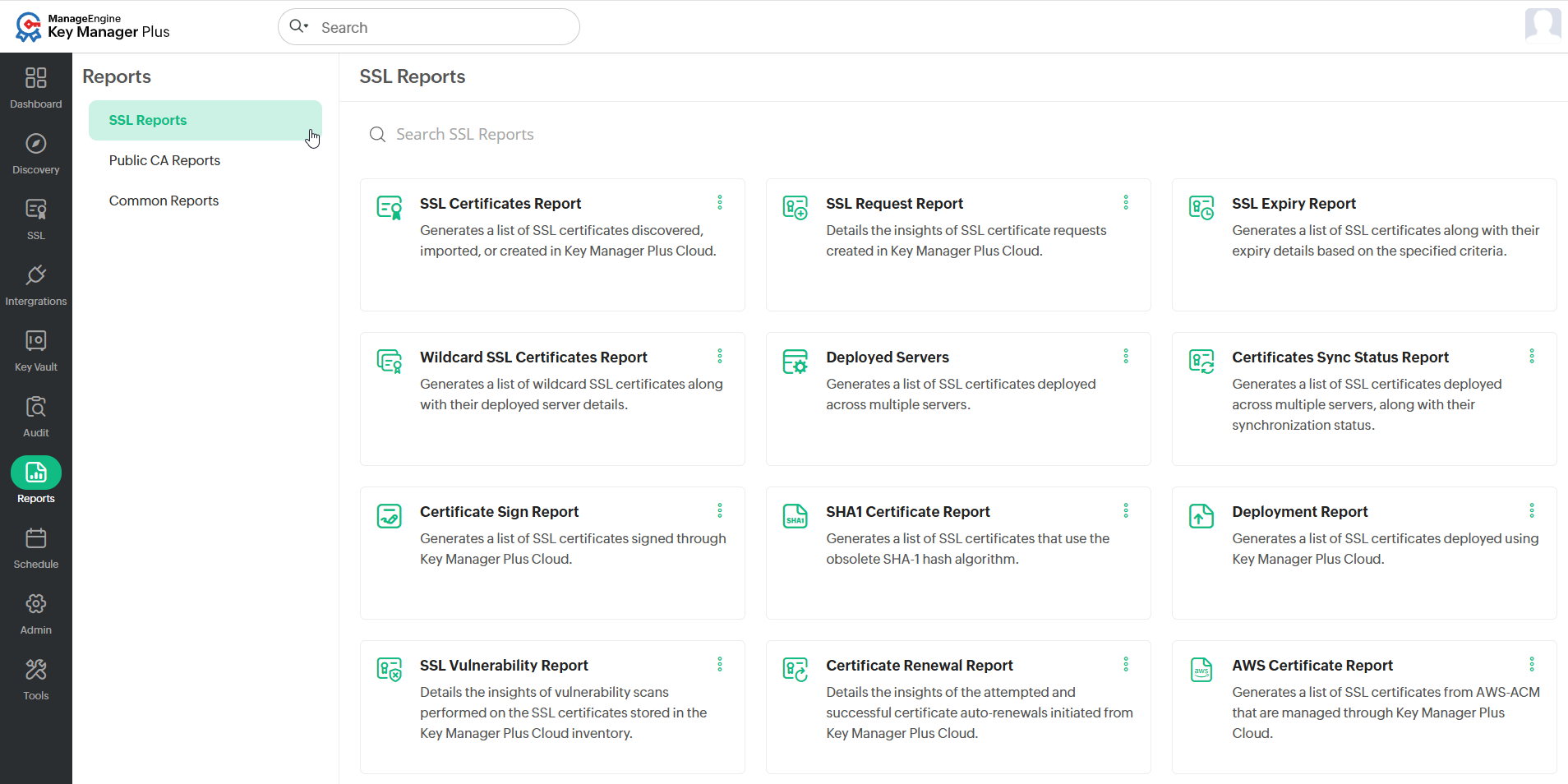
Key Manager Plus Cloud provides the following SSL-related reports:
- SSL Certificate Report - This report displays a detailed list of all SSL certificates that are imported, discovered, or created within the application.
- SSL Request Report - This report lists all certificate requests raised from Key Manager Plus Cloud.
- SSL Expiry Report - This report displays SSL certificates with expiry information based on the applied expiry filter.
- Wildcard SSL Certificates Report - This report provides a detailed view of the wildcard SSL certificates in use and the servers in which the certificates are deployed.
- Deployed Servers Report - This report provides a detailed view of those certificates that are deployed in more than one server.
- Certificates Sync Status Report - This report shows the sync status of SSL certificates deployed to multiple servers through Key Manager Plus Cloud.
- Certificate Sign Report - This report lists the certificates signed using Microsoft CA or a root certificate from within the application.
- SHA-1 Certificates Report - This report displays all the SHA-1 certificates deployed in the organization.
- Deployment Report - This report provides information on the certificates deployed through Key Manager Plus Cloud.
- SSL Vulnerability Report - This report shows the results of vulnerability scans performed on SSL certificates stored in the Key Manager Plus Cloud inventory.
- Certificate Renewal Report - This report provides information on attempted or successful certificate renewals initiated from Key Manager Plus Cloud, including those issued by a local CA, a third-party CA, MSCA via agent, and self-signed certificate.
- AWS Certificate Report - This report provides detailed information on the certificates obtained from the AWS-ACM and managed via Key Manager Plus Cloud. You can select specific columns using the Column Chooser before exporting the report.
- AWS Certificate Request Report - This report displays the status of certificate requests submitted to AWS ACM, including Domain Name, SAN, ARN, Ordered Time, ACM, Region, and Renewed On.
- Azure Certificates Report - This report provides details about certificates from the Azure portal that are managed via Key Manager Plus Cloud. It includes fields such as Certificate Name, Domain Name, Key Vault, Issuer, Expiry Date, Created Time, Valid From, Last Updated, and Lifetime Action. You can filter by date and export the report in PDF or CSV formats, or email it to recipients.
- Azure Certificate Requests Report - This report displays the status of certificate requests submitted to Azure Key Vault, including details like Certificate Name, Domain Name, Key Vault, Issuer, Expiry Date, and more.
- Kubernetes TLS Secrets Report - This report displays information about Kubernetes TLS secrets managed in Key Manager Plus Cloud.
- Load Balancer Certificate Report - This report provides a list of certificates deployed to load balancers, with information such as Common Name, Server Name, Credential Name, Load Balancer Type, Services, Virtual Servers, and Last Synced. It can be exported in multiple formats.
- Azure TLS Secrets Report - This report displays the Azure TLS secrets managed in Key Manager Plus Cloud. It includes details like Secret Name, Version ID, Key Vault Name, Validity, Secret Status, and more. You can filter by time period and choose columns before exporting.
- MSCA Revoke and Delete Report - This report lists certificates revoked and deleted by the MSCA, displaying fields such as Common Name, Certificate Authority, Certificate Template, Revoked By, Revoke Reason, Deleted On, and Delete Status. You can use the Column Chooser to customize and export the report.
- MSCA Certificates Report - This report provides a complete list of SSL certificates issued by the Microsoft Certificate Authority and managed through Key Manager Plus Cloud. It includes fields like Common Name, DNS Name, Issuer, Valid To, Key Size, and Description. Use the Column Chooser to filter and export as needed.
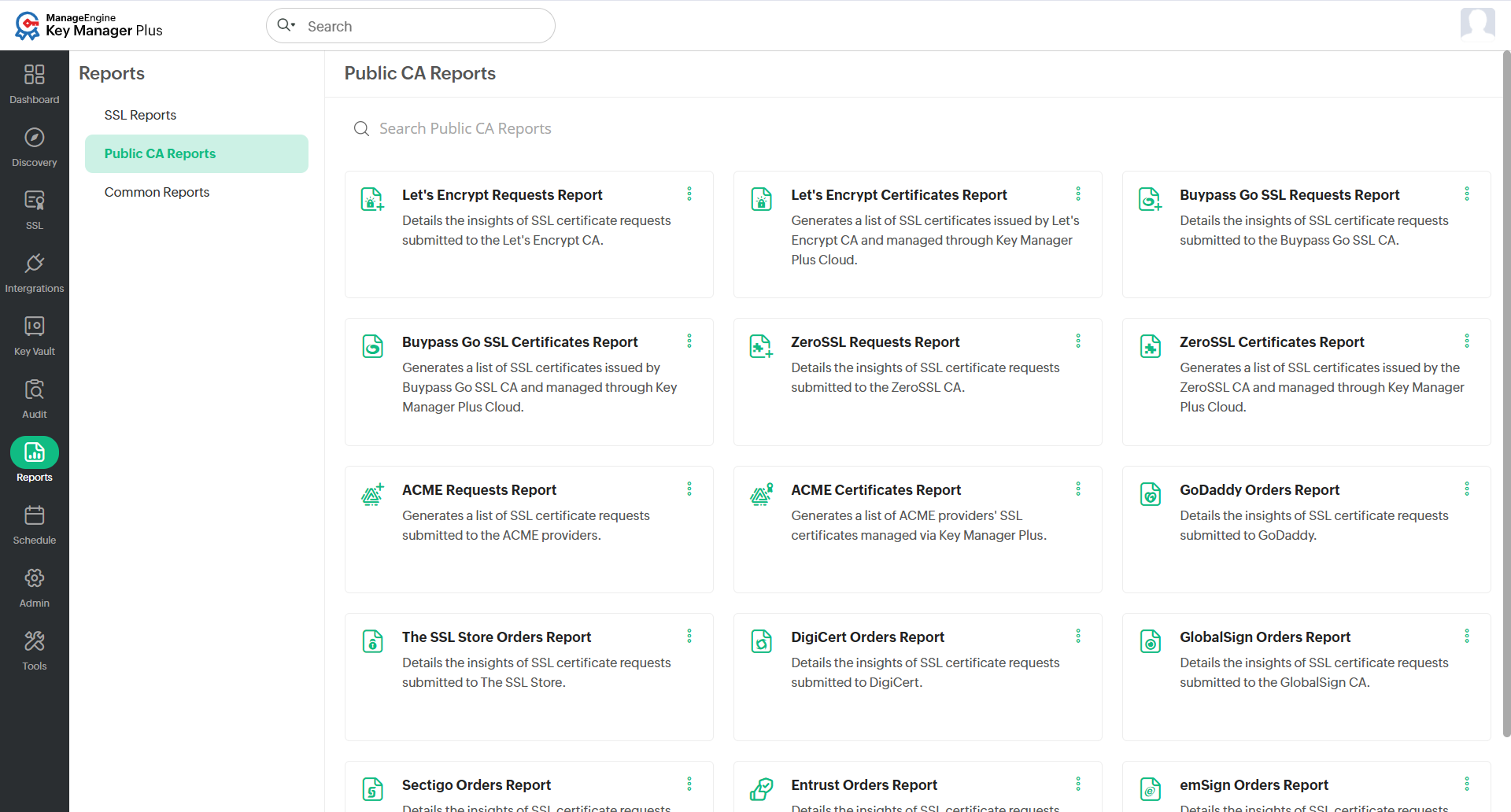
2.1.2 Public CA Reports
- Let's Encrypt Request Report - This report is a subset of the SSL Certificate Report and provides a detailed view of certificates procured from Let's Encrypt CA.
- Let's Encrypt Certificate Report - This report displays the status of certificate requests submitted to Let's Encrypt CA.
- Buypass Go SSL Request Report - This report displays insights into all SSL certificate requests submitted to Buypass Go SSL CA.
- Buypass Go SSL Certificates Report - This report provides the status of certificate requests submitted to Buypass Go SSL CA. It includes details such as Common Name, DNS Name, Issuer, Validity, and Creation Time. You can use the Date Filter to view orders submitted within a specific time period. This report can be exported in PDF or CSV formats, or sent via email.
- ZeroSSL Requests Report - This report displays insights into all SSL certificate requests submitted to ZeroSSL CA.
- ZeroSSL Certificates Report - This report provides the status of certificate requests submitted to ZeroSSL CA. It includes attributes such as Common Name, DNS Name, Issuer, Validity, and Creation Time. You can use the Date Filter to view orders submitted within a specific time period. The report can be exported in PDF or CSV formats, or sent via email.
- ACME Requests Report - This report offers a comprehensive list of SSL certificate requests submitted to accessible ACME providers. It includes details such as Creation Time, Requested By, ACME Provider Name, Request Status, and Certificate Status. You can use the Export dropdown to filter by provider and export in various formats. The Time Period option in the top panel allows further filtering.
- ACME Certificates Report - This report provides a complete list of SSL certificates issued by ACME providers. It includes general information such as DNS Name, Issuer, Valid To, Signature Algorithm, and ACME Provider Name. Use the Time Period option in the top pane to refine your search. You can also filter by provider using the drop-down menu, customize visible columns with the Column Chooser, and export the report in your preferred format.
- GoDaddy Orders Report - This report displays insights into all SSL certificate requests submitted to GoDaddy, including key details.
- The SSL Store Orders Report - This report displays insights into all SSL certificate requests submitted to The SSL Store.
- DigiCert Orders Report - This report displays insights into all SSL certificate requests submitted to DigiCert.
- GlobalSign Orders Report - This report is a subset of the SSL Certificate Report and provides a detailed view of certificate orders requested from GlobalSign CA. Use the Date Filter to view orders within a particular time period and export the report in PDF or CSV formats, or send it via email.
- Sectigo Certificate Report - This report displays the list of SSL certificates imported from or created by SCM and managed via Key Manager Plus Cloud. You can export this report in PDF or CSV formats, or send it via email.
- Entrust Orders Report - This report displays insights into all SSL certificate requests submitted to Entrust CA.
- emSign Orders Report - This report displays insights into all SSL certificate requests submitted to emSign CA.
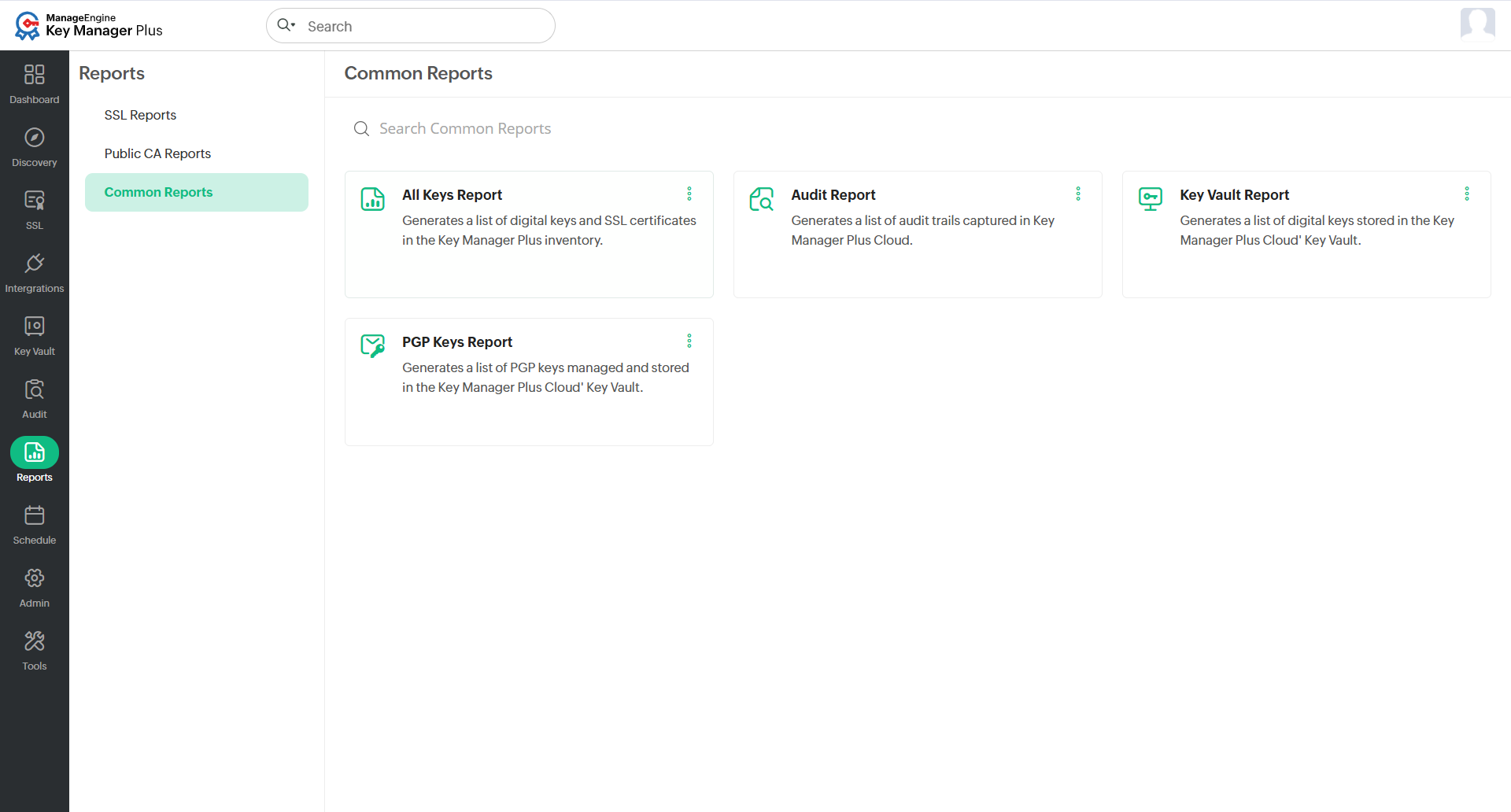
2.1.3 Common Reports
- All Keys Report - View a detailed report of all the SSL certificates stored and managed in the Key Manager Plus Cloud inventory.
- Audit Report - View the complete list of audit events captured across Key Manager Plus Cloud, including user activities and configuration changes.
- Key Vault Report - View a detailed report of all the digital keys stored in the Key Manager Plus Cloud Key Vault.
- PGP Keys Report - View a detailed report of all the PGP keys stored and managed in Key Manager Plus Cloud Key Vault.
2.2 Exporting Reports
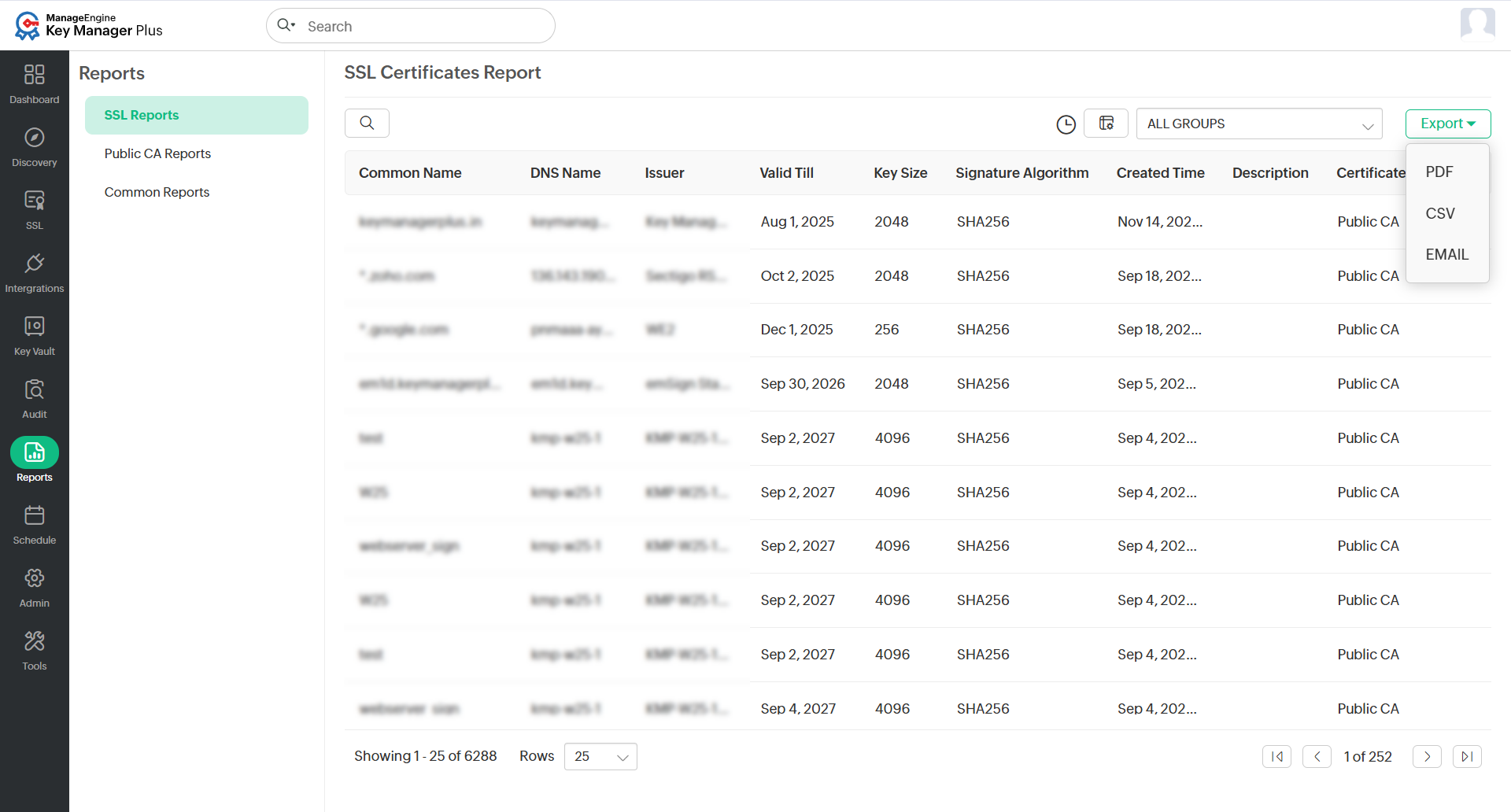
Key Manager Plus Cloud allows you to export reports in CSV or PDF formats, or send them directly via email. To export a report, follow the steps below:
- Navigate to the Reports tab and select the desired report.
- Click the Export button at the top-right corner of the report window.
- Choose one of the available options from the drop-down list:
- PDF - Export the report as a PDF file to your system.
- CSV - Export the report as a CSV file to your system.
- Email - Export the report via email. You will be prompted to enter the email addresses of the recipients.
2.3 Configuring Report Period
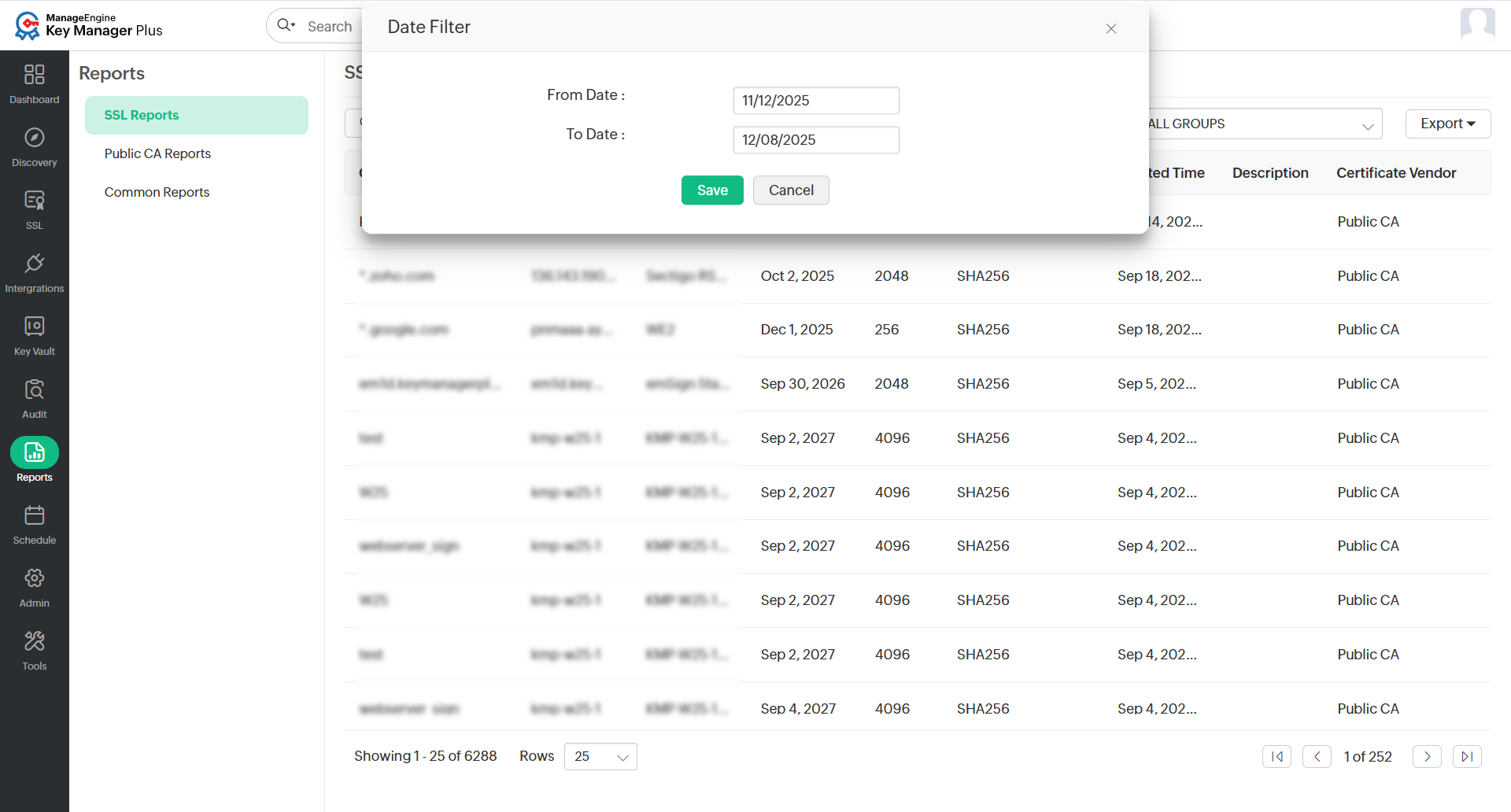
You can apply Time Period filters to generate reports for a specific date range. To filter the reports by date, follow the steps below:
- Select any report from the Reports tab.
- Click the Time Period option located at the top-right corner of the report window.
- Specify the From and To dates for the range you want to view.
- Click the Save button.
Additional Detail
When exporting a report, the applied Time Period filter ensures that only data within the specified range is included in the exported file.
2.4 Creating Scheduled Tasks for Automatic Report Generation
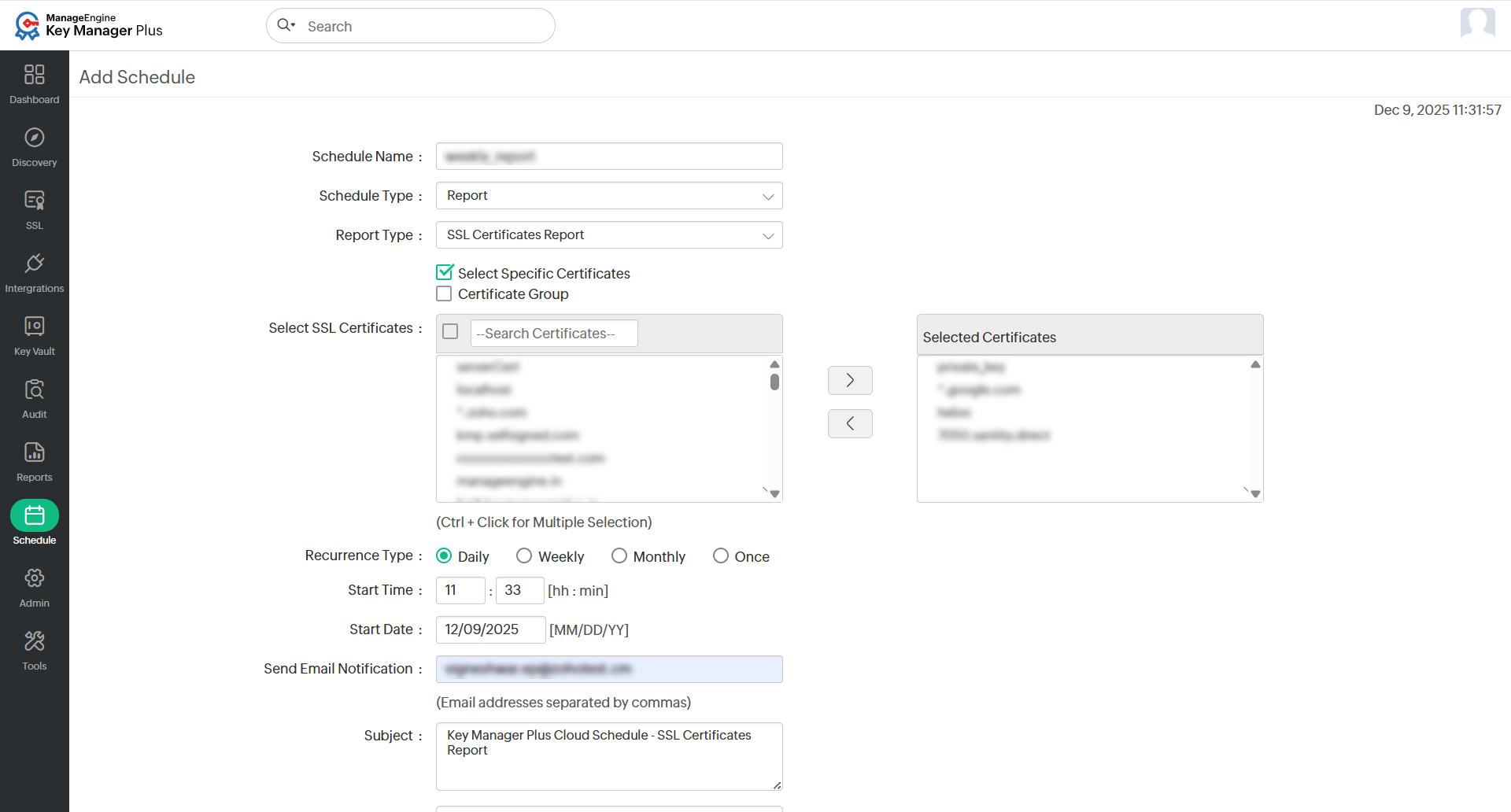
In Key Manager Plus Cloud, you can schedule reports to be generated automatically at defined intervals. These reports can then be sent via email to one or more recipients. To create a scheduled report, follow the below steps:
- Navigate to the Schedule tab in the GUI.
- Click the Add button from the top menu.
- In the Add Schedule window:
- Provide a name for the schedule.
- Set the Schedule Type to Report.
- Select the reports you want to generate. All selected reports will be emailed.
- Set the Recurrence Type to Daily, Weekly, Monthly, or Once only, then specify the Start Time and Start Date.
- Enter the email addresses of the recipients and choose the Report Format as PDF or CSV.
- Click the Save button.
You will receive a confirmation message once the schedule is successfully created.