Integrating Entrust Certificate Authority with Key Manager Plus Cloud
Key Manager Plus Cloud facilitates integration with Entrust Certificate Authority, a prominent provider of SSL/TLS certificates and digital identity solutions. This integration harnesses the Entrust API, empowering users to effortlessly - request, acquire, import, renew, and reissue certificates directly from Key Manager Plus Cloud. Streamline the lifecycle management of certificates in your environment by leveraging a range of operations supported through this integration.
This document guides you through the steps to effectively handle the lifecycle of SSL or TLS certificates issued by Entrust CA, encompassing tasks such as importing existing orders, creating new certificate requests, and managing the certificates.
Refer to the sections that follow to learn more about Entrust integration and certificate management with Key Manager Plus Cloud:
- Adding Entrust Certificate Authority Details
- Importing Existing Certificate Orders
- Creating a New Certificate Order
- Checking Order Status
- Updating Certificate Status
- Managing Certificates Issued by Entrust CA
1. Adding Entrust Certificate Authority Details
To begin managing SSL certificates issued by Entrust from Key Manager Plus Cloud, users should add their Entrust account in Key Manager Plus Cloud via your unique API Key. If there is no Entrust account, contact the Entrust team to sign up and get the login credentials. Upon getting an Entrust account, follow the steps below to generate an API key to begin the integration process.
- Log in to your Entrust account.
- Navigate to Administration >> Advanced Settings >> API and click Generate credentials.
- In the dialogue box that opens, enter the API Key details and click Generate.
- Upon generation, users will get a username and an API Key to use the Entrust platform via REST API.
Additional Detail
Refer to this Entrust documentation for more information about generating an API key from the Entrust portal.
Now, log in to the Key Manager Plus Cloud and add the Entrust credential with the unique username and API key by performing the below steps:
- Navigate to Integrations >> Public CA Integrations >> Entrust and click Manage.
- In the new page that appears, click Add to add an Entrust credential.
- In the dialogue box that opens, enter the Credential Name, Username, and API Key and click Save. This is a one-time operation.
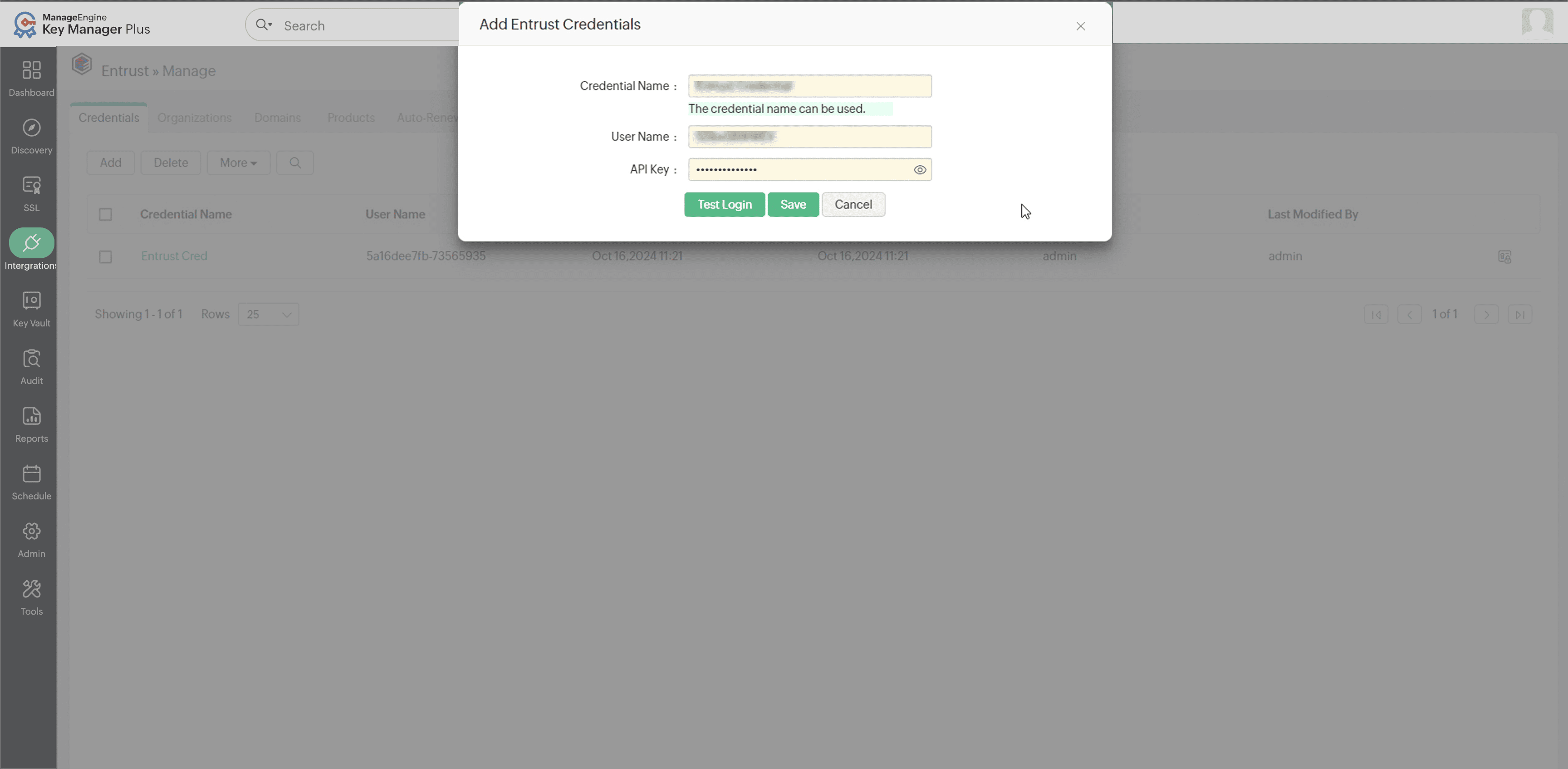
- Users can also click Test Login to check the communication between the Entrust and Key Manager Plus Cloud.
Once the Entrust account details are linked to Key Manager Plus Cloud, the system retrieves vital information such as domains, organizations, and products (certificate profiles) and organizes them under the individual tabs with corresponding details. These details are crucial as Entrust issues certificates based on them. For further manual synchronization, use the Sync option under each tab for Organizations, Domains, and Products. Alternatively, users can also sync Organizations, Domains, or Products for a particular credential directly from the Credentials tab.
Upon successfully linking the Entrust account with Key Manager Plus Cloud, users can start importing existing certificates orders or creating new certificate orders directly from Key Manager Plus Cloud.
2. Importing Existing Certificate Orders
If the users have an active Entrust account, it is likely that they currently have ongoing certificate orders. Key Manager Plus Cloud offers the convenience of not only initiating new certificate orders but also importing and effectively managing all existing orders from the Entrust portal through its user-friendly interface.
To import the existing certificate orders, follow these steps:
- Navigate to the Integrations >> Public CA Integrations >> Entrust window.
- Click More >> Import Existing Orders from the top menu.
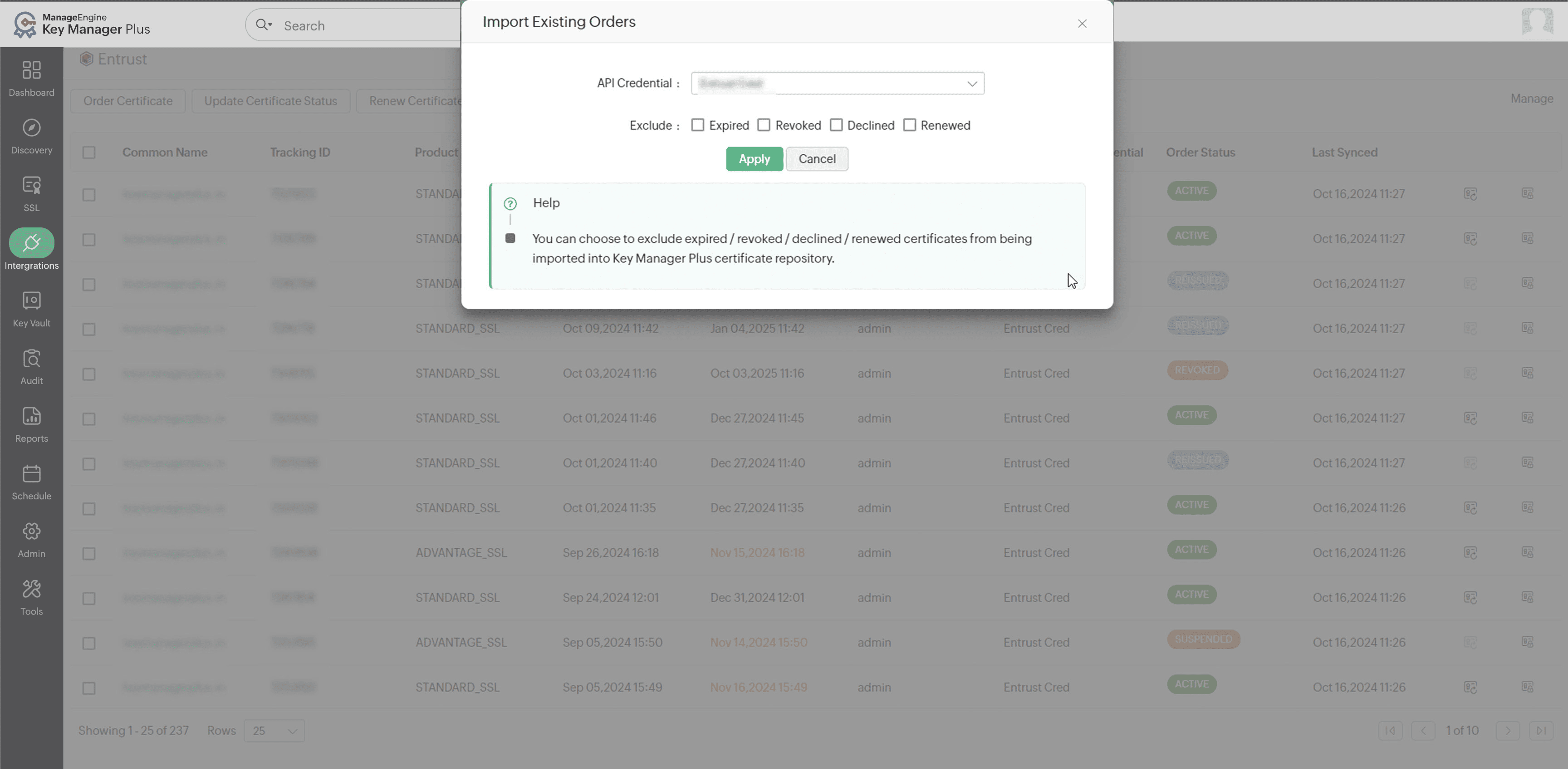
- Select the API Credential, enable the necessary exclusions, and click Import.
This process ensures that all the prevailing certificate orders linked to your Entrust account are seamlessly imported into Key Manager Plus Cloud for streamlined management.
3. Creating New Certificate Orders
To place a new certificate order in Entrust from Key Manager Plus Cloud, follow these steps:
- Navigate to the Integrations >> Public CA Integrations >> Entrust tab and click Order Certificate from the top menu.
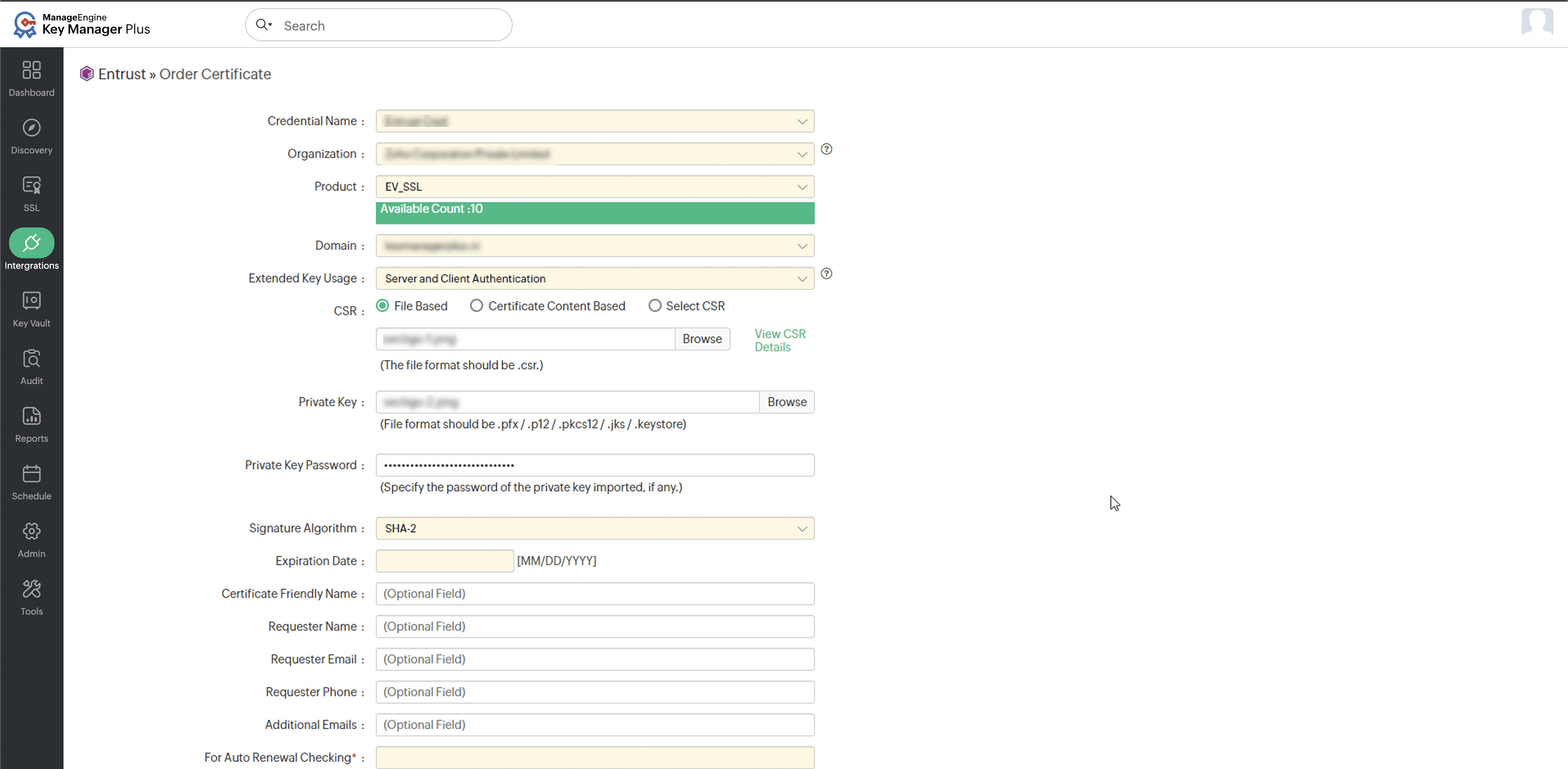
- In the window that opens, select the Credential Name, Organization, Product, Domain, and Extended Key Usage attributes accordingly.
- Select the CSR from Key Manager Plus Cloud and provide the corresponding Private Key and Private Key passwords as desired. Users also have the option to either input the CSR content directly or choose the CSR created via Key Manager Plus Cloud, eliminating the need to select it from your local files.
- Select the required Signature Algorithm and Expiration Date.
- Enter the Certificate Friendly Name, Requester Name, Email, and Phone details accordingly as required.
- Complete any additional fields mandated by your Entrust administrator to proceed with creating the certificate order.
- Enable the following checkboxes as required:
- I agree to queue the request for Entrust Administrator approval - The certificate order request will be queued for approval by an Entrust administrator.
- I agree to send the certificate content for CT Logs - The contents of the certificate, including hostnames, will be publicly visible.
- Verify your details and click Order Certificate.
Additional Detail
If you find any mismatch in the Entrust-related details (Organization/Product/Domain) displayed here, please verify the details in the Entrust portal and then perform a manual sync under Entrust >> Manage in Key Manager Plus Cloud to refresh the details. For assistance with any other discrepancies related to the Entrust account, please contact the Entrust customer support team.
4. Checking Order Status
Once a certificate order is successfully created, you can view it under the Integrations >> Public CA Integrations >> Entrust window, with its status displayed to the right. To track the certificate availability for an order, select the order and click Check Order Status from the top pane. Once a certificate is issued, it is fetched and added to Key Manager Plus Cloud. Users can view it under SSL >> Certificates.
Additional Detail
The certificates issued are automatically added to Key Manager Plus Cloud only if there is enough license count. If not, users should renew their Key Manager Plus Cloud license before attempting to import any certificates. However, it does not delete the certificate request from Entrust - the certificate can still be viewed and managed from the Entrust portal.
5. Updating Certificate Status
Utilize the Update Certificate Status option in the top menu to validate certificates based on your specific needs. Approve, Decline, Suspend, or Resume certificate orders as necessary. Please note that administrative privileges from an Entrust credential are essential within Key Manager Plus Cloud to execute these actions. If an administrative privileged credential is not present in Key Manager Plus Cloud, the user possessing administrative privileges in Entrust can alternatively perform these actions directly through the Entrust portal.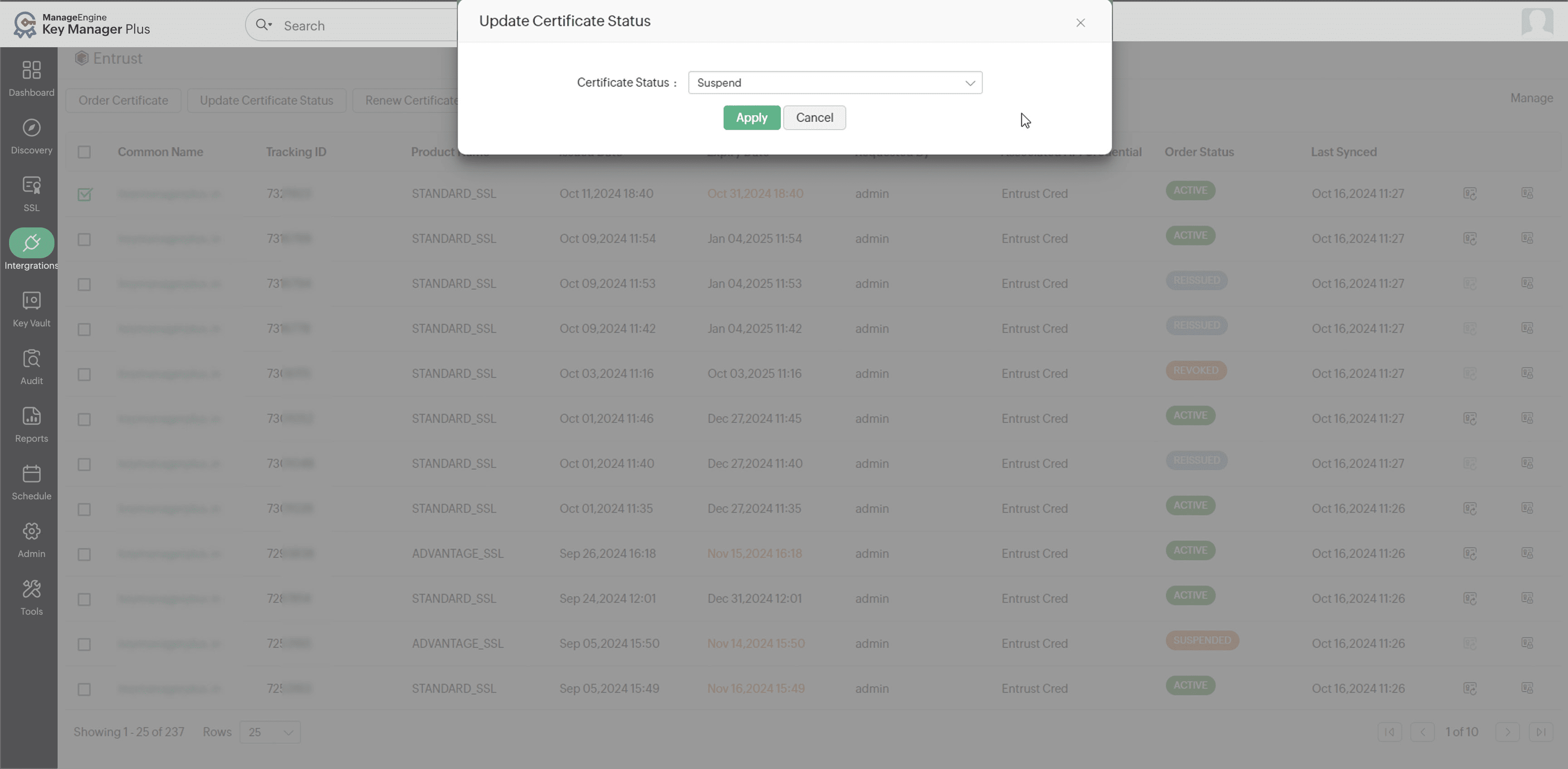
6. Managing Certificates Issued by Entrust CA
If the private key associated with a certificate is compromised or lost, it is essential to renew, reissue, revoke, or delete the certificate accordingly to maintain security best practices. Users can do directly perform these actions in Key Manager Plus Cloud using the Entrust integration with a valid privileged Entrust credential.
6.1 Renewing Certificates
6.1.1 Manual Certificate Renewal
Perform the following actions to manually renew an Entrust-issued SSL certificate through Key Manager Plus Cloud:
- Navigate to Integrations >> Public CA Integrations >> Entrust.
- Select the desired certificate and click Renew Certificate from the top menu.
- Enter the required information on the subsequent page and click Renew Certificate.
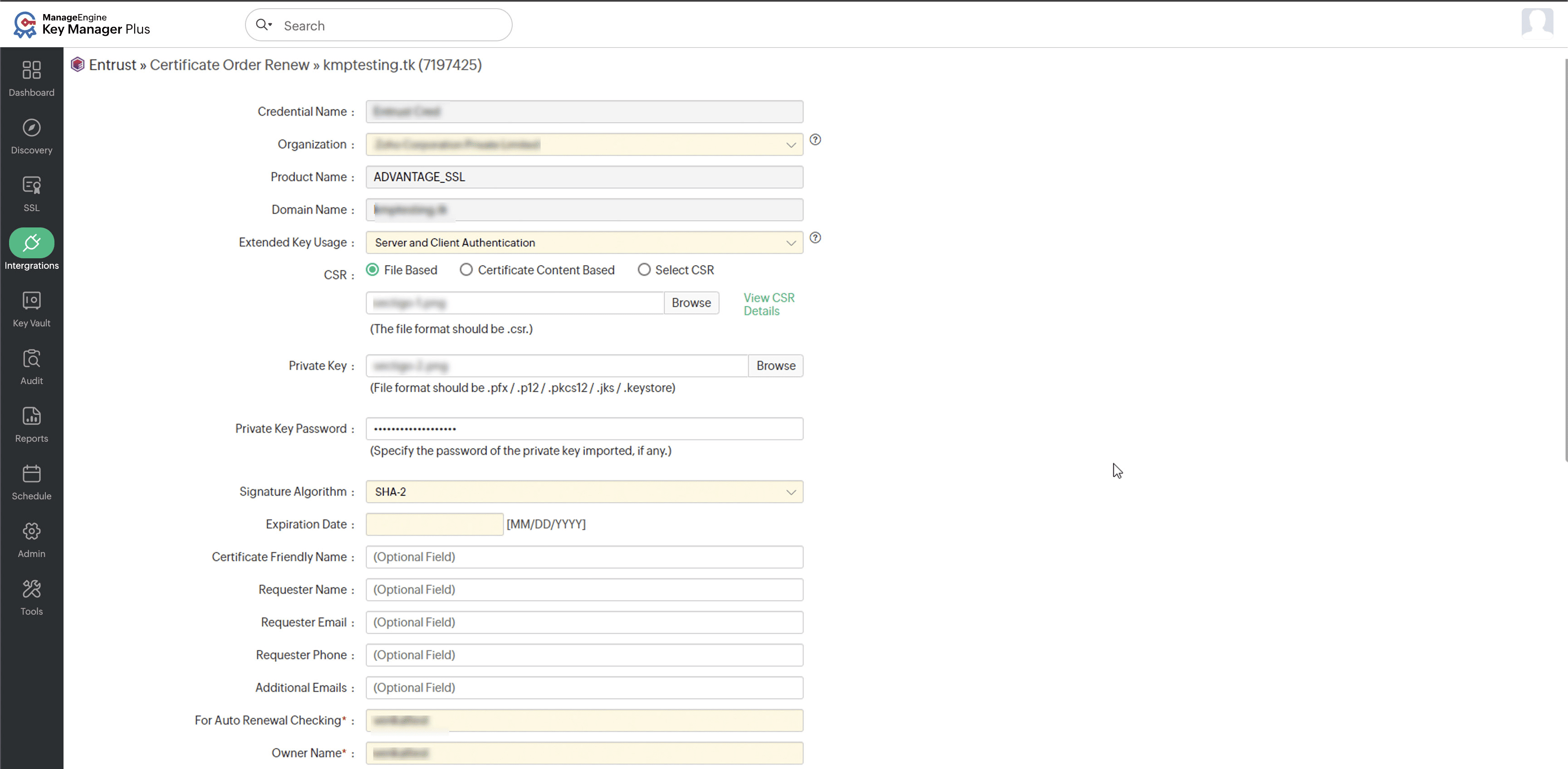
Upon successful validation, the certificate will be renewed and added to the Key Manager Plus Cloud certificate inventory.
Caution
Ensure that the renewed certificate is deployed in the exact location where the previous certificate was in use. This step is crucial to maintain a secure and consistent connection. Follow the instructions specified here to ensure a proper certificate deployment.
6.1.2 Automated Certificate Renewal
Before configuring the auto-renewal process for Entrust-issued SSL certificates, perform the following actions:
- Navigate to Integrations >> Public CA Integrations >> Entrust >> Manage.
- Click the View Custom Fields icon of a credential.
- Click the Sync button to import any newly added custom fields from Entrust into Key Manager Plus Cloud.
- On the Custom Fields page, click Set Custom Field Values to add the default values to the Entrust custom fields.
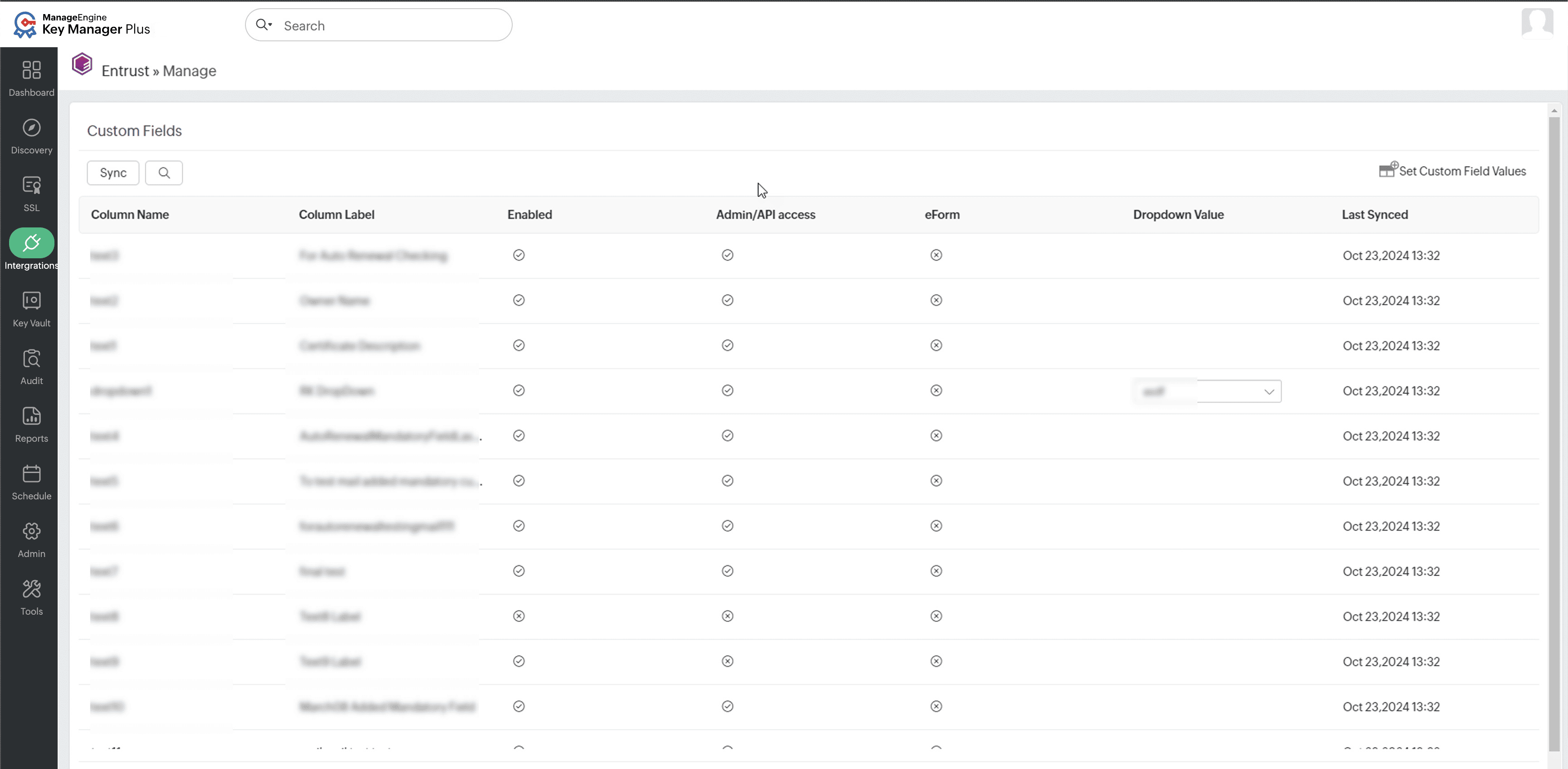
- Users can either enter the default values or enable the Ignore the Default Value if the custom field has an existing value checkbox to use the existing value associated with the respective custom field during certificate renewal.
- Click Save to apply the changes.
Follow these steps to configure the auto-renewal process for the desired Entrust-issued SSL certificates:
- Navigate to Integrations >> Public CA Integrations >> Entrust >> Manage.
- On the page that appears, click the Auto-Renewal tab and toggle on the Auto-Renew button.
- Enter the number of days before expiry when the auto-renewal process should be carried out.
- Select the certificates you want to auto-renew and set the validity.
- Click Save to apply the auto-renewal configuration for the selected Entrust certificates.
- Tick the checkbox below the Save button to trigger email notifications for auto-renewal failures.
Caution
Do not attempt to manually renew the orders that are configured with the Auto-Renewal process.
Based on the configured details, the auto-renewal process will be carried out. Click Auto-Renewal Audit to get insights about the certificates renewed through the auto-renewal process.
6.3 Reissuing Certificates
Reissuing a certificate in Key Manager Plus Cloud generates a new certificate with the same information, such as an organization name, domain name, expiry date, etc, with a new key pair, thus preventing unauthorized access and misuse of the compromised key. To reissue a certificate, follow the steps below:
- Navigate to Integrations >> Public CA Integrations >> Entrust.
- Select the required certificate and click Reissue Certificate from the top menu.
- On the page that opens, fill in the necessary information and click Reissue Certificate.
Upon successful validation, the certificate will be issued and automatically included in Key Manager Plus Cloud.
Caution
Ensure that the reissued certificate is deployed in the exact location where the previous certificate was in use. This step is crucial for maintaining a secure and consistent connection. Follow the instructions carefully to ensure proper deployment.
6.4 Revoking Certificates
To revoke a certificate from Key Manager Plus Cloud, perform the following action:
- Navigate to Integrations >> Public CA Integrations >> Entrust.
- Select the required certificate and click More >> Revoke Certificate from the top menu.
- In the dialog box that appears, select the Revoke Reason and Comments from the respective dropdowns. Then, click Revoke.
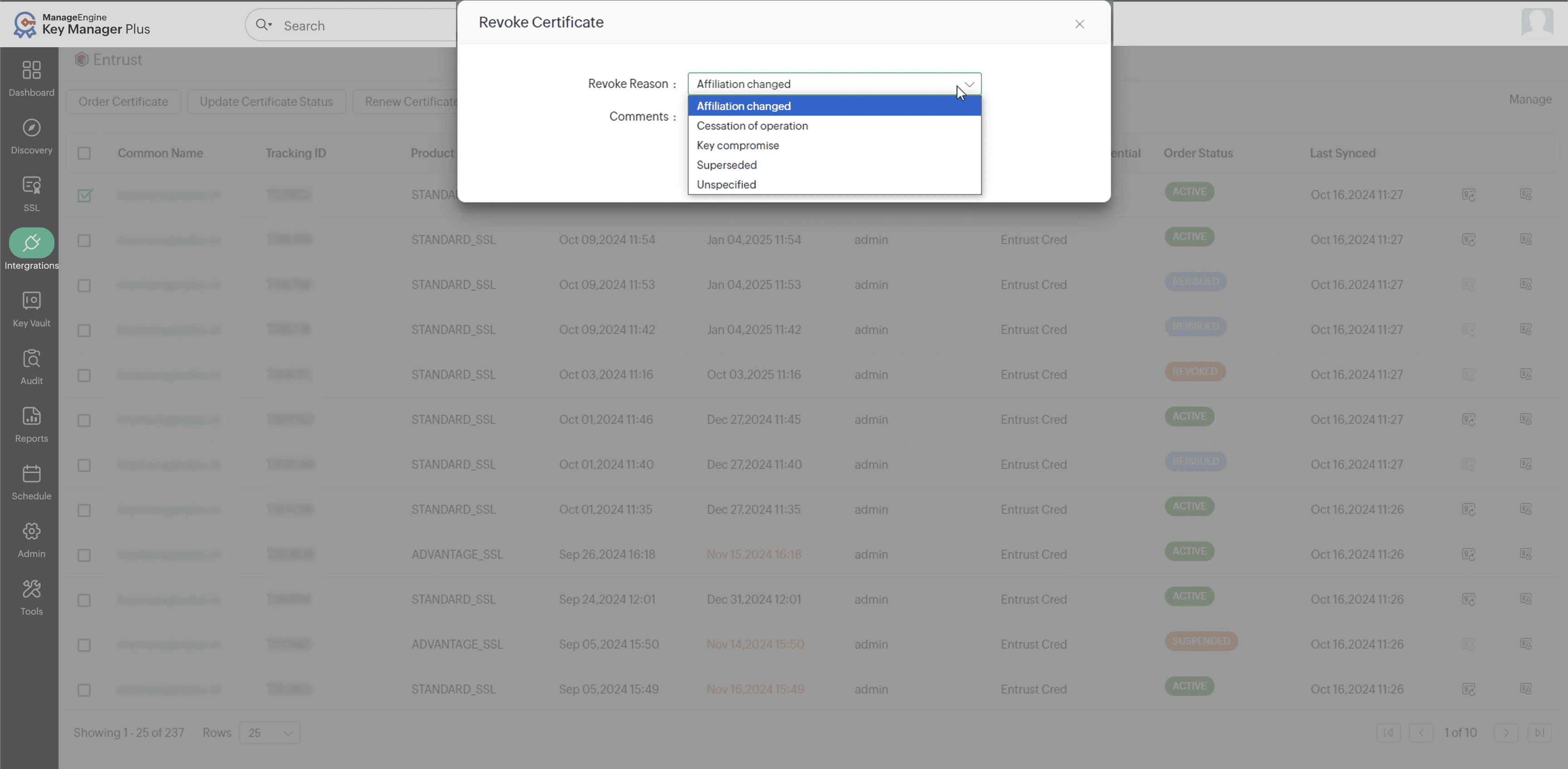
- Upon successful action, the certificate will be revoked. Go to the SSL >> Certificates tab and delete the certificate to remove it from Key Manager Plus Cloud.
6.5 Deleting a Certificate Order
To delete the certificate order from Key Manager Plus Cloud, perform the following action:
- Navigate to Integrations >> Public CA Integrations >> Entrust.
- Select the required certificated orders and click More >> Delete from the top menu.
Upon execution, the certificate orders will be deleted from Key Manager Plus Cloud and the related certificate will remain intact in the SSL tab.
Additional Detail
The Delete option only removes the certificate order from Key Manager Plus Cloud, and you can no longer manage it from Key Manager Plus Cloud. However, it does not delete the certificate order from Entrust - the certificate can still be viewed and managed from the Entrust portal.